
How to fix Steam Client WebHelper high CPU usage?

Prefer to fix it yourself? The manual steps follow.
- 8methods
- 2 minutes for the settings fixes, 10 to 20 minutes for the driver and update fixes
- Easy
Applies to Steam client on Windows 11 and Windows 10; the process Steam Client WebHelper (steamwebhelper.exe)
8 methods in this guide
Hello, during games the process "Steam Client WebHelper" starts using lots of CPU and memory, causing my game to lag. How can I fix this, if possible?
Steam Client WebHelper is steamwebhelper.exe, the built-in browser that draws Steam's store, library, friends list and overlay. High CPU usage usually comes from animated content or a graphics rendering problem, not from a fault you must live with. Start by turning off animated avatars and switching on Low Performance Mode.
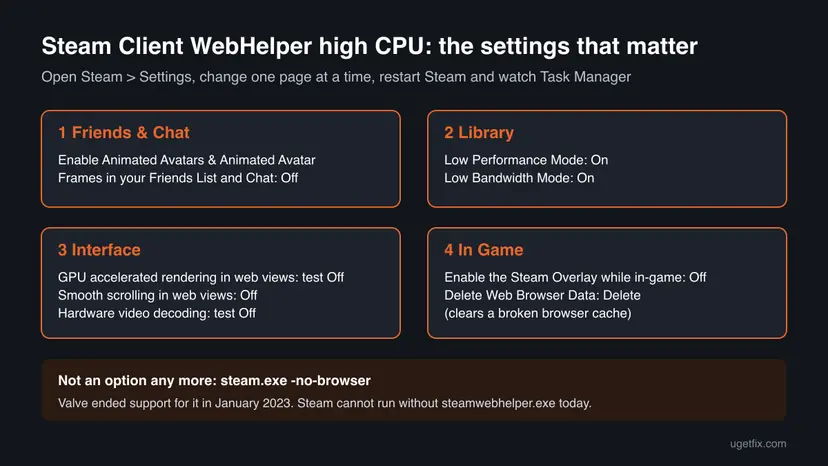
You cannot remove Steam Client WebHelper, but you can make it work less. Fix 1: turn off animated avatars in the friends list settings. Fix 2: switch on Low Performance Mode and Low Bandwidth Mode under Steam > Settings > Library. If the CPU stays high, turn off GPU accelerated rendering in web views as a test (Fix 3) and the in-game overlay (Fix 4). The old -no-browser trick no longer works.
| Error | No error message: Steam Client WebHelper (steamwebhelper.exe) shows high CPU, memory or power usage in Task Manager, and games stutter or lag. |
|---|---|
| Where it appears | Task Manager on Windows 11 and Windows 10, under the Steam group or as several Steam Client WebHelper entries, often while a game runs with the friends list or overlay open. |
| Main cause | Animated avatars, frames and other moving content in the friends list and library, plus graphics rendering of Steam's web views that some video drivers handle badly. |
| Fastest fix | Turn off Enable Animated Avatars & Animated Avatar Frames in your Friends List and Chat (Fix 1), then Low Performance Mode (Fix 2). |
| Also written as | steamwebhelper high CPU, Steam web helper high CPU usage, Steam Client WebHelper high power usage, steamwebhelper.exe CPU. |
| Affects | The current Steam client on Windows 11 and Windows 10. Windows 10 left Microsoft support on 14 October 2025. |
| Vendor status | Valve has no article on high CPU. Steam Support's page for a hung web helper advises a restart, a test without GPU acceleration, a driver update and a check of security software. Valve ended support for -no-browser in January 2023. |
| Time to fix | 2 minutes for Fixes 1 to 4; 10 to 20 minutes for a driver update or removing a Windows update. |
Facts checked on 15 October 2026. Steps written for the current Steam client on Windows 11 (25H2 and 26H2) and Windows 10 22H2, read against Steam Support, Valve's Steam Client Beta announcement and the client's own text files.
What Steam Client WebHelper is and why it uses CPU
Most of the Steam window is a set of web pages. The store, the community, the library, the friends list and chat are all drawn by one program inside the Steam folder: steamwebhelper.exe, which Task Manager names Steam Client WebHelper. Valve describes it in its Steam Client Beta announcement of December 2022: without it, "the store, community, and library tabs in the client stop working" and "friends list and chat are disabled".
- File name
steamwebhelper.exe, part of the Steam install, by default underC:\Program Files (x86)\Steam.- Several entries
- Task Manager often lists more than one Steam Client WebHelper. Like a web browser, it splits its work over several processes. Steam Support calls them "the rendering components of Steam".
- Normal use
- Short spikes while you open the store or the library are normal. A steady high load while a game runs, or one that never drops while Steam sits in the background, is the problem this guide fixes.
- Can it be removed?
- No. Valve ended support for the
-no-browserlaunch option, the old way to run Steam without it, with a client update it planned for January 2023.
The load rises during games. In a game, Steam still draws the friends list, chat pop-ups and the overlay in the background. That is why the first fixes turn off animated content and the overlay instead of reinstalling Steam.
What causes Steam Client WebHelper high CPU usage, from most to least common
Valve does not publish a list of causes for high CPU. The ranking combines what Steam Support says about the web helper with what users report in Steam's own forums. Each cause points to the fix that tests it.
| How often | Cause | Sign | Fix |
|---|---|---|---|
| Most often | Animated avatars and avatar frames in the friends list and chat. | The load rises when the friends list is open, and falls when you close it. | Fix 1 |
| Often | Library animations, transitions and auto-loaded community content. | The load is high while the library or store page is open. | Fix 2 |
| Often | A video driver that renders Steam's web views badly with GPU acceleration on. | Flicker, a slow Steam window, or high load after a driver update. | Fix 3 |
| Often in games | The Steam overlay running inside the game. | The load appears only while a game runs. | Fix 4 |
| Less often | A broken browser cache or a hung web helper. | The load stays high with nothing open, and a restart clears it for a while. | Fix 5, Fix 6 |
| Rarely | Security software interfering with the web helper's sandbox, or a recent Windows update. | Started after installing a security product or a Windows update. | Fix 7, Fix 8 |
How to fix Steam Client WebHelper high CPU usage
Fixes 1 to 4 are switches in Steam's own settings and take a minute each. Change one, restart Steam, then watch Steam Client WebHelper in Task Manager (Ctrl + Shift + Esc) while you play. Fixes 5 to 8 are for a load that stays high after that.
| What you see or have | Start with |
|---|---|
| The load rises when the friends list or chat is open. | Fix 1 |
| The load is high while the library or store is open, even without a game. | Fix 2 |
| Steam's window flickers or is slow, or the load began after a graphics driver update. | Fix 3 |
| The load appears only while a game runs. | Fix 4, then Fix 1 |
| The load stays high with Steam minimised and nothing open. | Fix 5, then Fix 6 |
| It began after installing a security program or a Windows update. | Fix 7 or Fix 8 |
Fix 1. Turn off animated avatars and avatar frames in the friends list
1 minuteNo riskEveryone, and first of all players who keep the friends list or chat open while playing.
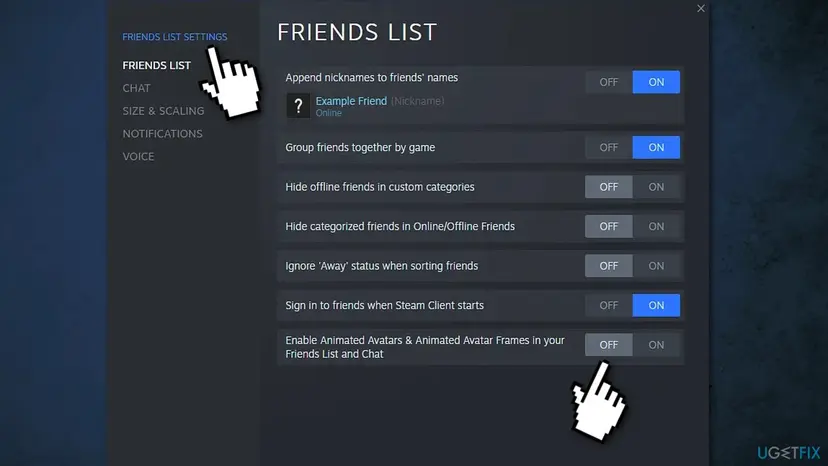
Animated avatars and frames from the Points Shop are small videos the web helper must keep drawing for every friend on the list. Users in Steam's forums report the load drops as soon as the option is off, and the client has a switch just for it.
- Open the Steam Friends List window.
- Select the gear icon at the top of the friends list to open Friends List Settings. In the current client the same options are also under Steam > Settings > Friends & Chat.
- Find Enable Animated Avatars & Animated Avatar Frames in your Friends List and Chat.
- Set it to Off.
- Close the window and watch Steam Client WebHelper in Task Manager for a minute with the friends list open.
It worked if: Avatars in the friends list stand still, and the web helper's CPU use falls while the list is open.
If not: If the load stays high with the friends list closed, go to Fix 2.
Fix 2. Switch on Low Performance Mode and Low Bandwidth Mode in the Steam library
2 minutesNo riskThe load is high while the library or store page is open, or your PC is a laptop or an older desktop.
The client's own text says Low Performance Mode "improves library performance by disabling certain graphical improvements and transitions", and Low Bandwidth Mode disables "features like auto-load of community content". Both are pages the web helper would otherwise keep drawing.
- In Steam, open the Steam menu in the top left corner and select Settings.
- Open the Library page.
- Turn on Low Performance Mode.
- Turn on Low Bandwidth Mode.
- Open the Interface page and set Start Up Location to Library instead of the Store, so Steam does not load the store page every time it opens.
- Open the Steam menu, select Exit, then start Steam again.
View > Small Mode shows your games as a plain list. Steam Client WebHelper still runs, because Steam cannot work without it, but a list costs less than the full library page with its artwork.
It worked if: The library shows fewer animations and loads less community content, and the web helper settles to a low load when Steam sits in the background.
If not: If Steam's window flickers or the load is still high, test GPU rendering in Fix 3.
Fix 3. Test Steam without GPU accelerated rendering in web views, then update the graphics driver
5 minutes, 15 with the driver updateLow riskSteam's window flickers or responds slowly, or the load began after a graphics driver update.
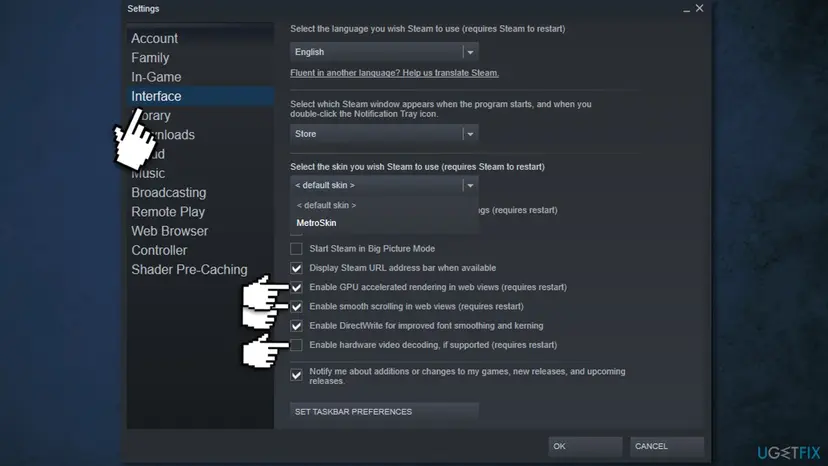
Steam Support writes that "some video drivers can have trouble rendering Steam content if GPU acceleration is turned on". It advises turning the option off as a test and updating the GPU driver when that helps.
- Open Steam > Settings > Interface.
- Turn off Enable GPU accelerated rendering in web views (requires restart).
- Turn off Enable smooth scrolling in web views (requires restart).
- Turn off Enable hardware video decoding, if supported (requires restart) for the test.
- Let Steam restart, then watch the web helper in Task Manager while you play.
- If the load dropped, update your graphics driver and turn GPU rendering back on: Update, roll back or reinstall a driver
Steam Support adds that if the problem stays with an updated driver, you can keep GPU acceleration off for good, but "this will affect UI performance". In that case the Steam window scrolls less smoothly, while games are not affected.
It worked if: After the restart the web helper uses less CPU, or the flicker is gone and the load is steady.
If not: If nothing changed, turn GPU rendering back on and test the overlay in Fix 4.
Fix 4. Turn off the Steam overlay for all games or for the one that lags
2 minutesLow riskThe load appears only while a game runs.
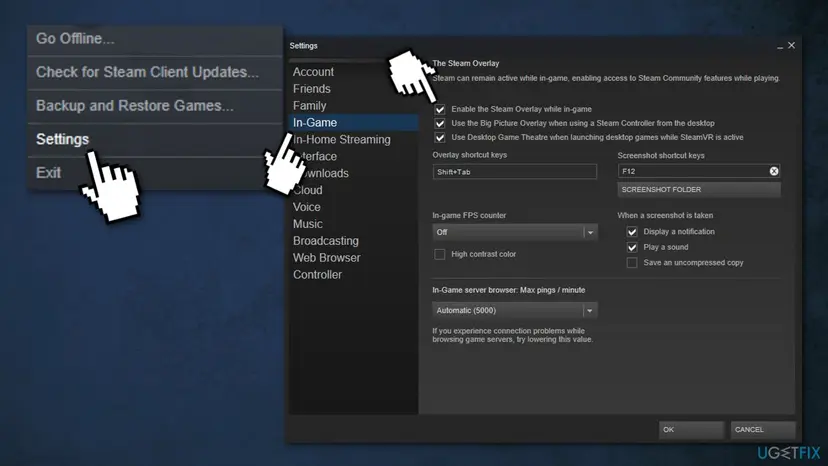
The overlay is drawn by the same web helper on top of the game, together with its browser, chat and notifications. Turning it off removes that work during play. You lose the in-game friends list, browser and Steam's screenshot overlay while it is off.
- Open Steam > Settings > In Game.
- Turn off Enable the Steam Overlay while in-game.
- To turn it off for one game only, leave the global switch on, right-click the game in your Library and select Properties.
- On the General page, turn off Enable the Steam Overlay while in-game.
- Start the game and watch Steam Client WebHelper in Task Manager.
It worked if: During play the web helper drops to a low, steady load, and the game stops stuttering when friends come online.
If not: If you need the overlay, turn it back on and keep Fix 1 and Fix 2 instead. If the load is high even with nothing open, go to Fix 5.
Fix 5. Delete Steam's web browser data and its htmlcache folder
5 minutesLow riskThe load stays high while Steam sits in the background with nothing open.
The web helper keeps its own cache, cookies and history. The client's text says the button deletes "all Steam browser cached files, cookies, and history", which removes a broken page that keeps reloading. You sign in to Steam's web pages again afterwards.
- Open Steam > Settings > In Game.
- Next to Delete Web Browser Data, select Delete and confirm.
- Open the Steam menu and select Exit.
- Press Win + R, type
%LOCALAPPDATA%\Steam\htmlcacheand press Enter. - Press Ctrl + A, then Delete. Steam creates the folder again on the next start.
- Start Steam and watch Task Manager for a few minutes.
Users report that removing the htmlcache folder by hand helped when the button alone did not. Valve does not document the folder, so treat this step as a user report. Our guide to the Steam web content error uses the same cache steps with pictures.
It worked if: Steam opens a little slower once, then the web helper settles to a low load.
If not: If the load returns after some hours, restart only the web helper as Fix 6 shows.
Fix 6. Restart Steam Client WebHelper when it hangs, and keep Steam from starting with Windows
3 minutesLow riskThe load climbs over hours, or Steam shows "Steamwebhelper is not responding".
Steam Support says this issue can "frequently" be solved "by simply restarting Steam", and its hung web helper dialog has a button to restart only the rendering components. Not starting Steam with Windows also stops the web helper from running all day.
- If Steam shows Steamwebhelper is not responding, choose Restart steamwebhelper.exe in that window.
- Otherwise open Steam and select Exit. Closing the window only hides Steam.
- Open Task Manager with Ctrl + Shift + Esc. If Steam Client WebHelper is still listed, select it and choose End task: Close a frozen app (Task Manager, Force Quit)
- Start Steam again.
- To stop Steam opening at sign-in, turn off Run Steam when my computer starts under Steam > Settings > Interface, or use Windows: Stop apps from opening at startup
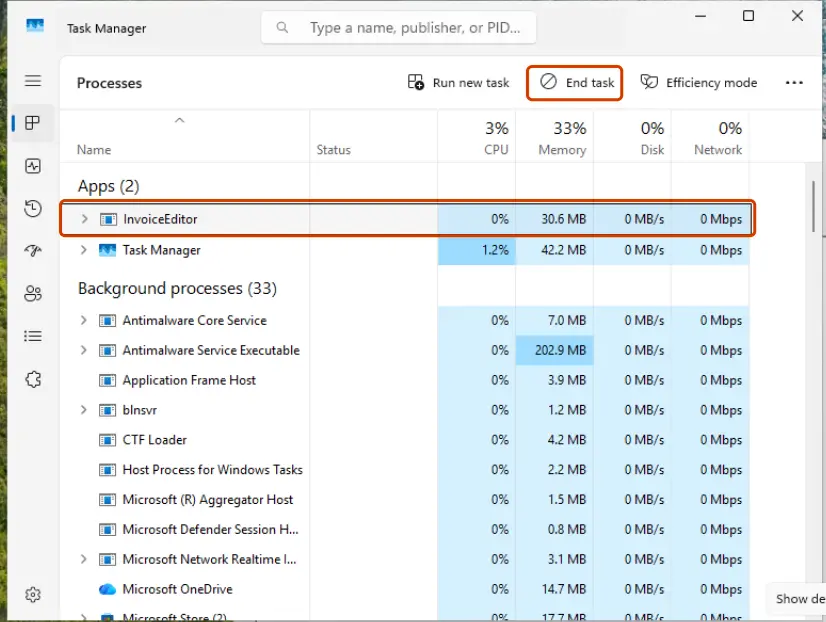
It worked if: After the restart the web helper starts with a low load, and it no longer runs before you open Steam.
If not: If it climbs again soon after every restart, check security software in Fix 7.
Fix 7. Check whether security software interferes with the web helper
10 minutesLow riskThe load or the hangs began after installing or updating an antivirus, firewall or similar program.
Steam Support writes that some anti-virus and security software has been known to cause issues with "the webhelper's security sandboxing resulting in hangs or crashes". A program that inspects every web helper process can also keep the CPU busy.
- In your antivirus or security program, add the Steam folder to its exceptions. The default is
C:\Program Files (x86)\Steam. - Restart Steam and play for a few minutes with Task Manager open.
- To test, pause protection for one try and turn it back on right after: Turn off Microsoft Defender protection for a moment
- If the load drops only with protection paused, keep the exception and ask the security vendor about Steam.
- If
steamwebhelper.exeruns from a folder outside the Steam install, scan the PC: How to scan for malware with Microsoft Defender
Keep your protection on afterwards, with Steam as an exception. Turning it off for good is not the fix. Steam Support's page on programs that may interfere with Steam lists the kinds of software to check.
It worked if: With the exception in place and protection on, the web helper stays at a normal load.
If not: If nothing changed, check whether a recent Windows update is the trigger in Fix 8.
Fix 8. Remove the latest Windows update if the load started right after it
15 minutesRead the warningThe high load began on the day a Windows update was installed, and Fixes 1 to 7 did not help.
Some users in the old version of this guide traced the load to a fresh Windows update. Removing it is a test: if the load stays the same, install the update again, because security fixes matter more than a Steam setting.
Removing an update also removes its security fixes until you install it again. Note the KB number first, remove only one update, and reinstall it if the load does not change. Back up important files before you start: Back up your files (Windows Backup, File History, Time Machine)
- Open Start > Settings > Windows Update > Update history and note the KB number and date of the newest update.
- Scroll to Related settings and select Uninstall updates.
- Select Uninstall next to that update and restart the PC.
- Start Steam and a game and watch the web helper in Task Manager.
- If nothing changed, install the update again from Windows Update. Full steps: How to uninstall a Windows update
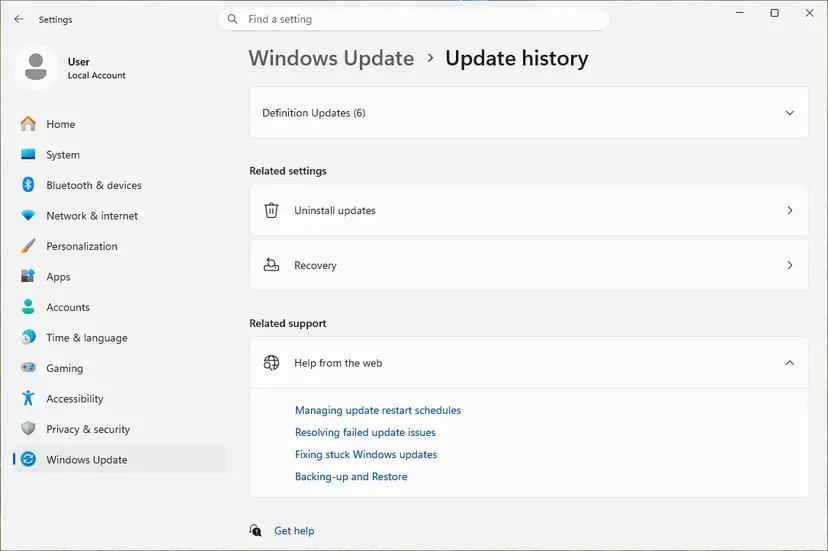
It worked if: If the update was the trigger, the web helper's load is normal after the restart.
If not: If the load is the same, reinstall the update and use the checks in the next section.
Can you disable Steam Client WebHelper completely?
Not in today's Steam. The old answer was to start Steam with steam.exe -no-browser +open steam://open/minigameslist, which opened Small Mode without the web helper. Valve announced in its Steam Client Beta group on 8 December 2022 that it was "ending support for the -noreactlogin and -no-browser command line options", with the change planned for all users in January 2023.
- What Valve says the option did: it "disables the steamwebhelper process entirely, and with it most of the Steam UI". Valve added it in 2015 for processor compatibility problems, not for speed.
- What happens now: the option is ignored, and the web helper starts as usual.
- Ending the process by hand: you can end it in Task Manager, but Steam starts it again or stops drawing its window. Use Fix 6 to restart it, not to keep it off.
- Old clients: users report running old Steam builds to keep the option. Those builds miss security updates, so we do not recommend it.
If Steam Client WebHelper still uses high CPU: what to check and what to send
Valve keeps no log that names why the web helper is busy. Your observations are the record, so collect them before you contact Steam Support.
- In Task Manager, open Details and note how many
steamwebhelper.exeentries run and their CPU and memory use while you play. - Note which Steam page or window is open when the load rises: friends list, store, library or a game with the overlay.
- In Steam, open Help > System Information and save the text. It lists your Windows version, processor and graphics driver.
- Note which of Fixes 1 to 8 you tried and what changed.
- Open a ticket at
https://help.steampowered.comwith these details.
If the whole PC is slow and other programs also use high CPU, Steam Client WebHelper is a symptom, not the cause. Check the processor's temperature, the power plan and other background programs. A 100% CPU load in every game points at the PC, not at Steam.
How to keep Steam Client WebHelper light
- Keep animated avatars off and Low Performance Mode on if your PC is a laptop or older desktop.
- Close the friends list and the store before you start a demanding game.
- Keep your graphics driver up to date, so GPU rendering of Steam's pages works as designed.
- Exit Steam from its menu when you stop playing, instead of leaving it running all day.
- Do not use old Steam builds to keep the -no-browser option.
- Do not end the web helper again and again as a fix; find the setting that loads it.
- Do not turn off your antivirus for good; add Steam as an exception.
- Do not uninstall Steam through Windows to fix the load: Steam Support warns it deletes installed games.
If you still use Windows 10, note that Microsoft stopped its security updates on 14 October 2025. Steam's web helper is a browser engine that needs a current system, so an updated Windows 11 is the safest base for it.
Frequently asked questions
What is Steam Client WebHelper?
It is steamwebhelper.exe, the browser built into Steam. It draws the store, the community pages, the library, the friends list, chat and the in-game overlay, because those parts of Steam are web pages. Task Manager usually shows several Steam Client WebHelper entries, since it splits its work over several processes like any browser. It is part of Steam, not a virus. A file with that name outside the Steam folder is suspicious, and a Microsoft Defender scan is the right next step.
Why does Steam Client WebHelper use so much CPU?
Because it keeps drawing what Steam shows, even in the background. The most common load is animated avatars and frames in the friends list, then library animations and auto-loaded community content. Video drivers that render Steam's pages badly with GPU acceleration on add to it, and so does the overlay during games. Turn off animated avatars (Fix 1), switch on Low Performance Mode (Fix 2), then test GPU rendering (Fix 3) and the overlay (Fix 4).
Can I stop or disable Steam Client WebHelper?
Not for good. Valve ended support for the -no-browser launch option, which used to start Steam without the web helper, with a client update planned for January 2023. Steam needs the web helper for its window, library and friends list. You can end a hung web helper in Task Manager or with the Restart steamwebhelper.exe button, and Steam starts it again. To use less CPU, change the settings in Fixes 1 to 4 instead.
Does Steam Client WebHelper lower FPS in games?
It can, when it takes CPU time your game needs. Users report stutters while friends come online or chat pop-ups appear, which are drawn by the web helper through the overlay. Turning off the overlay for the game (Fix 4) and animated avatars (Fix 1) removes most of that work. The old claim of a fixed FPS gain from disabling the web helper came from the -no-browser option, which no longer works, so we cannot confirm any number.
How much memory should Steam Client WebHelper use?
There is no official figure from Valve, and the amount depends on which pages are open. The store, a large library with artwork and an open friends list each add memory. If the memory use keeps growing for hours while Steam sits in the background, restart the web helper (Fix 6) and clear its cache (Fix 5). Low Performance Mode and Low Bandwidth Mode (Fix 2) keep it lower in daily use.
Why does Steam Client WebHelper show high power usage?
Task Manager's power usage column follows CPU and GPU work. A web helper that keeps drawing animations, video or a page that reloads shows as high power use, which matters most on laptops. The same fixes help: animated avatars off, Low Performance Mode on, and Steam set not to start with Windows (Fix 6). If the power use is high only with GPU rendering on, update the graphics driver as Fix 3 shows.
Is it safe to end Steam Client WebHelper in Task Manager?
Yes, it does not harm your games or account. Steam's window, store or friends list may go blank until Steam starts the web helper again, and Steam Support offers a button to restart only these rendering components when they hang. Ending it does not lower the load for long, because Steam needs it. Use it as a quick reset, then change the settings that cause the load.
Steam says Steamwebhelper is not responding. Is that the same problem?
It is related. Steam shows that window when the web helper is slow to respond. Steam Support advises restarting Steam first, then restarting Steam with GPU acceleration disabled and updating the graphics driver, and checking security software that interferes with the web helper's sandbox. Those are Fix 6, Fix 3 and Fix 7 in this guide, and they help with high CPU use too.
I searched in Spanish or Russian for how to disable Steam Client WebHelper. Does this page apply?
Yes. Searches like "steam client webhelper desactivar" or "как отключить steam web helper" ask how to switch the web helper off. The answer is the same in every language: it cannot be turned off in today's Steam, since Valve removed the -no-browser option. Steam shows its settings in your language, so look for the same pages: Friends & Chat, Library, Interface and In Game, and change the switches from Fixes 1 to 4.
Sources
- Steam Support: Steamwebhelper is not responding (restart, GPU acceleration, security software, restart steamwebhelper.exe) (help.steampowered.com)
- Steam Client Beta group: Ending support for -no-browser and -noreactlogin (Valve, 8 December 2022) (steamcommunity.com)
- Steam client text file steamui_english.json, mirrored by SteamTracking (option names: animated avatars, Low Performance Mode, web view options, overlay) (github.com)
Did this fix work?
One click, no account. It tells the next reader which guides are worth their time.
Questions and experiences: fix Steam Client WebHelper high CPU usage
Still broken, or found a fix we did not cover? Ask here: members and our editors answer. Reading is open; writing needs a free account.
…