
How to fix Steam “Failed loading profile data” error in Windows?

Prefer to fix it yourself? The manual steps follow.
- 7methods
- 2 minutes to find the cause, 5 to 15 minutes for the fixes on your PC
- Easy
Applies to Steam Community profiles in the Steam client, the Steam Mobile app and any web browser on Windows 11 and Windows 10
7 methods in this guide
I tried to log in to Steam, and I received a "Failed loading profile data" error. I thought it was a temporary thing and tried again some time later, only to face the same error again. I tried on another computer and on my phone, and I received exactly the same error. Please help.
"Failed loading profile data, please try again later" is a Steam Community page that appears when Steam cannot load a profile. Most often Steam itself is having trouble and the profile returns within hours. First check whether every profile fails or only one, and on every device or only yours.
Steam's servers could not return the profile. If every profile fails, Steam Community is down: check the status pages and wait (Fix 1). If only one profile fails on every device, that account is unavailable on Steam's side, for example queued for deletion (Fix 7). If it fails only on your PC, sign out and in, then clear cookies and Steam's browser data (Fix 3 and Fix 4).
| Error | "Sorry! An error was encountered while processing your request: Failed loading profile data, please try again later." |
|---|---|
| Where it appears | On a Steam Community profile page: your own profile, a friend's profile, or a profile link opened from a game, a trading site or a group. It shows in the Steam client, the Steam Mobile app and in a browser. |
| Main cause | A problem on Steam's side: Steam Community is down or slow, or the account behind the profile is unavailable (queued for deletion, deleted or restricted). |
| Fastest fix | Check whether Steam Community is down and wait (Fix 1). Then test the profile on another device to see who is affected (Fix 2). |
| Also written as | "Steam failed to load profile data", "Steam profile not loading", "Steam profile error occurred", "Failed loading profile data steam". |
| Affects | Any Steam account, on Windows 11, Windows 10, the Steam Mobile app and web browsers. Windows 10 left Microsoft support on 14 October 2025, which does not cause this error. |
| Vendor status | Valve has no support article for this message. Steam Support documents one account state that hides a profile: an account queued for deletion is restricted from community features for 30 days. |
| Time to fix | Minutes to hours when Steam is at fault (you wait). 5 to 15 minutes for the fixes on your PC. |
Facts checked on 16 October 2026. Steps written for Steam Community in a browser and the Steam client on Windows 11 (25H2 and 26H2) and Windows 10 22H2, read against Steam Support and user reports.
What "Failed loading profile data" means on Steam
Every Steam profile is a page on Steam Community, Valve's social site at steamcommunity.com. The Steam client and the Steam Mobile app show the same pages inside the app. When Steam's servers cannot hand back the data of a profile, the page shows a short error instead of the profile:
Sorry!
An error was encountered while processing your request:
Failed loading profile data, please try again later.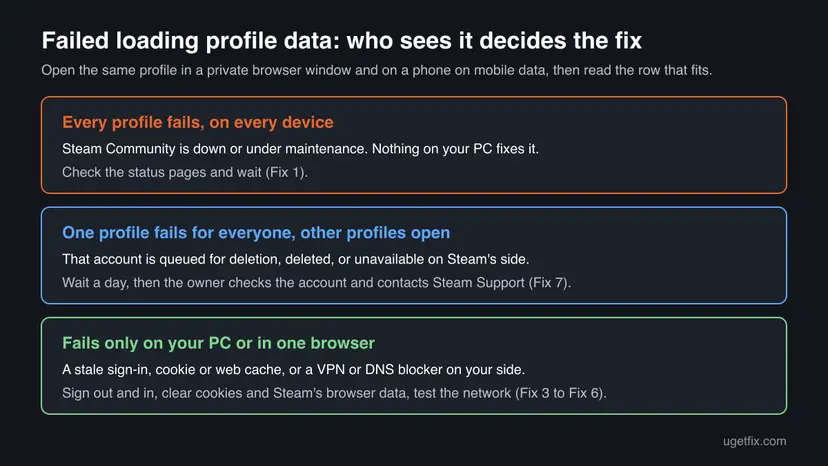
- It is a server answer
- The page loaded; only the profile data did not. Your PC reached Steam, and Steam replied with this error. That is why the error usually follows you to another computer and to your phone.
- Your profile or someone else's
- Users report it both on their own profile and on a friend's profile. In a SteamGifts thread, a user saw the error on a friend's profile while the friend could not sign in at all.
- Sign-in and profile are linked
- If the account itself has a problem, sign-in and the profile can fail together, as in the reader's question above. If sign-in works and only the profile fails, the account is usually fine.
The reader got the same error on another computer and on a phone. A failure that follows you to every device is not a cache or driver problem. It is either Steam Community or the account, which is why Fix 1 and Fix 2 come before anything on the PC.
What causes the Steam profile error, from most to least common
Valve does not publish causes for this message. The ranking below combines Steam Support's account deletion rules with what users report in Steam's forums and on SteamGifts. Each cause points to the fix that tests it.
| How often | Cause | Sign | Fix |
|---|---|---|---|
| Most often | Steam Community is down, overloaded or under maintenance. | Other profiles fail too, on every device; other users report problems at the same time. | Fix 1 |
| Often | One account is unavailable on Steam's side for a while. | One profile fails for everyone; it often returns within a day without any action. | Fix 2, Fix 7 |
| Less often | A stale sign-in or cookie in your browser or in the Steam client. | Works in a private window or on your phone, fails on your PC. | Fix 3, Fix 4 |
| Less often | A VPN, a DNS ad blocker or a provider that blocks part of Steam. | Fails only on one network or only with the VPN on. | Fix 6 |
| Rarely | The account was queued for deletion, deleted or taken over. | Sign-in fails too, or a red deletion notice shows at the top of Steam pages. | Fix 7 |
In the SteamGifts thread, the friend's profile and sign-in came back the next day "without us doing anything". That is the common ending, and the reason waiting is a real fix here, not an excuse.
How to fix "Failed loading profile data" on Steam
Fix 1 and Fix 2 tell you where the fault is. Fixes 3 to 6 help when only your PC or network fails. Fix 7 is for an account that stays unavailable. Test the profile after each one.
| What you see | Start with |
|---|---|
| Every profile fails, also on your phone and for friends. | Fix 1, then wait |
| You do not know yet who is affected. | Fix 2 |
| Only one profile fails, for everyone, and other profiles open. | Fix 2, then Fix 7 |
| The profile opens on your phone or in a private window, not on your PC. | Fix 3, then Fix 4 |
| The Steam client shows the error, a browser opens the profile. | Fix 4, then Fix 5 |
| It fails only with a VPN on or only on one network. | Fix 6 |
| You cannot sign in either, or you see a red deletion notice. | Fix 7 |
Fix 1. Check whether Steam Community is down and wait
2 minutes, then waitingNo riskEveryone, first. Especially when the error follows you to another device, as in the reader's question.
The error is Steam's own answer, so the most common cause is Steam itself. When Steam Community is slow or down, profiles fail for everyone, and nothing on your PC changes that.
- Open Steam's own Charts page,
https://store.steampowered.com/stats/. If it does not load either, Steam has a wider problem. - Open an unofficial status site such as
https://steamstat.us/and read the Steam Community row. - Open two or three other profiles, for example from your friends list. If they fail too, the problem is Steam Community.
- Leave it for 30 to 60 minutes and try again. Do not reinstall anything while Steam is down.
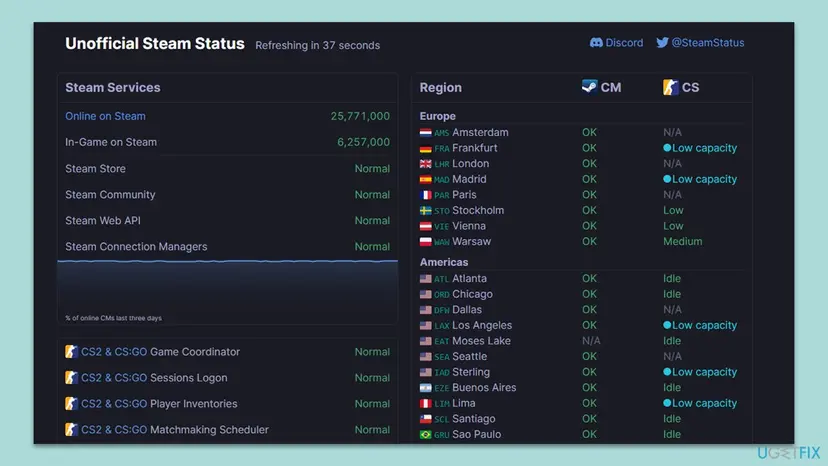
A status page that says Normal does not rule Steam out. Short problems on Steam's side often never show there, so test other profiles too.
It worked if: Other profiles fail as well, and after a while all of them, yours included, load again.
If not: If other profiles load and only one fails, go to Fix 2.
Fix 2. Test the profile on another device and network to see who is affected
3 minutesNo riskSteam Community looks fine, but one profile still shows the error.
The answer to "who sees it" points straight at the cause. If only you see it, the fault is on your PC or network. If everyone sees it for one profile, the fault is with that account on Steam's side.
- Open the profile in a browser at
steamcommunity.comand copy its address from the address bar. - Open a private window: Ctrl + Shift + N in Chrome and Edge, Ctrl + Shift + P in Firefox.
- Paste the address and press Enter. Steam shows public profiles without sign-in.
- On your phone, turn Wi-Fi off and open the same address on mobile data.
- Ask a friend to open the same address.
| Result | What it means | Next |
|---|---|---|
| Fails only on your PC. | Your sign-in, cookies or Steam's web cache. | Fix 3 |
| Fails only on your network. | A VPN, DNS blocker or the provider. | Fix 6 |
| Fails for everyone, only for this profile. | The account is unavailable on Steam's side. | Wait a day, then Fix 7 |
It worked if: You know whether the error is yours, your network's or the account's.
If not: If the results are mixed, start with Fix 3 on your PC; it costs nothing.
Fix 3. Sign out of Steam, clear Steam's cookies in the browser and sign in again
5 minutesLow riskThe profile opens in a private window or on your phone, but not in your normal browser or session.
A private window has no Steam cookies. If the profile works there, an old sign-in cookie for steamcommunity.com is the difference. Removing it makes Steam load your session from scratch.
- On any Steam page in the browser, open your account name at the top right and select Sign out.
- Clear the browser's cookies and cache. In Chrome or Edge press Ctrl + Shift + Delete, check Cookies and other site data and Cached images and files.
- Close all browser windows and open the browser again.
- Sign in to
https://steamcommunity.com/and open the profile.
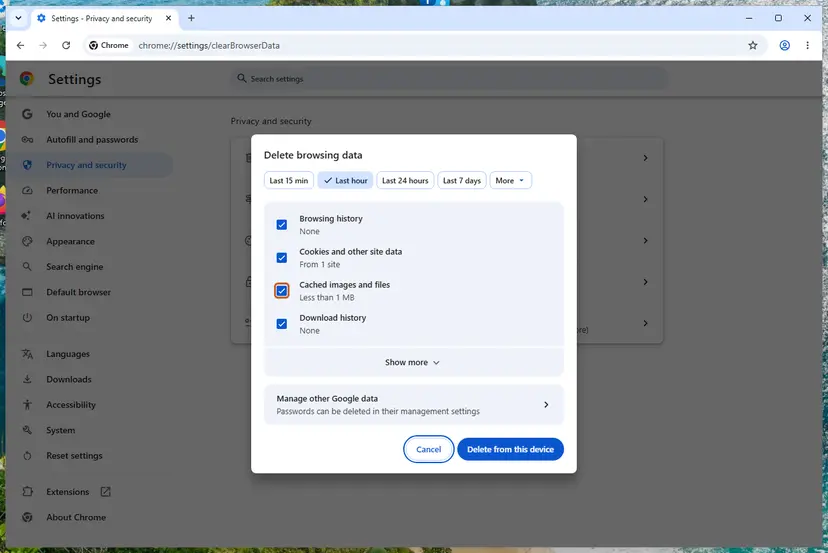
Full steps for Chrome, Edge and Firefox: Clear the browser cache and cookies. Clearing cookies signs you out of other sites too, so have your passwords and your Steam Guard code ready.
It worked if: After signing in again the profile loads with its avatar, level and showcases.
If not: If the error is in the Steam client, not the browser, go to Fix 4.
Fix 4. Delete the Steam client's web browser data and restart Steam
3 minutesLow riskThe profile fails inside the Steam client while a browser or the phone opens it.
The Steam client shows profiles with its own built-in browser, which keeps its own cookies and cache apart from Chrome or Edge. Deleting that data removes a stale session or broken page that the client keeps loading.
- In the Steam client, open the Steam menu at the top left and select Settings.
- Open the In Game page.
- Next to Delete Web Browser Data, select Delete and confirm.
- Open the Steam menu and select Exit. Closing the window only hides Steam.
- If Steam or Steam Client WebHelper is still in Task Manager, end it: Close a frozen app (Task Manager, Force Quit)
- Start Steam, sign in if asked and open the profile.
The same button helps when other Steam pages stay blank. Our guide to the Steam web content error covers the client's htmlcache folder and GPU setting as next steps.
It worked if: Steam starts, and the profile page shows the profile instead of the error.
If not: If the client still shows the error, clear the download cache in Fix 5.
Fix 5. Clear Steam's download cache to refresh the client's sign-in
5 minutesLow riskFix 4 did not help and only the Steam client fails.
Clearing the download cache restarts Steam and makes you sign in again, which renews the client's session with Steam's servers. Your installed games stay where they are.
- Open Steam > Settings and select Downloads on the left.
- Scroll to Clear Download Cache and select Clear Cache.
- Confirm. Steam closes and starts again.
- Sign in with your password and Steam Guard code, then open the profile.
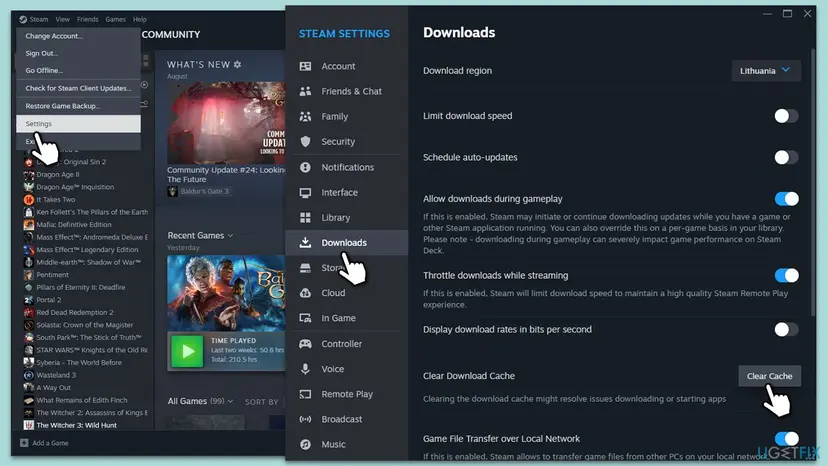
It worked if: After signing in again, the profile loads in the client.
If not: If it still fails only on your PC, test the network path in Fix 6.
Fix 6. Turn off the VPN or DNS blocker for one test and check the connection
5 minutesLow riskThe profile fails only on one network, or only while a VPN, a DNS ad blocker or parental controls are on.
Profile pages load data and pictures from several Steam domains. A VPN exit point, a DNS blocker or a provider filter that stops one of them can leave the profile half loaded or failing while the rest of Steam works.
- Disconnect the VPN app and close it.
- Turn off a DNS ad blocker or a browser privacy extension for one test.
- Open the profile again. If it loads, turn the blocker back on and allow
steamcommunity.com,steampowered.comandsteamstatic.comin it. - If you use no VPN, connect the PC to a phone hotspot and test once.
- If only your home network fails, restart the router, then check the Windows side: How to check your internet connection in Windows

Keep the VPN or blocker afterwards, with Steam allowed. Turning protection off for good is not the fix.
It worked if: The profile loads on the other network or with Steam's domains allowed.
If not: If the profile fails on every network and every device, the account itself is the cause: Fix 7.
Fix 7. Check the account: a pending deletion, a takeover or a restriction
10 minutes, then Steam Support's replyRead the warningOne profile has failed for everyone for more than a day, or you cannot sign in to the account either.
Steam Support writes that an account queued for deletion is "restricted from making purchases and using community features for 30 days". A deleted account's community profile "will be removed". Both look like a profile that will not load.
Steam Support: account deletion is permanent, and "neither the account nor any information related to it can be restored". If a deletion was requested, cancel it within the 30 days. If you think someone else took over the account, contact Steam Support before you change anything else.
- Sign in at
https://store.steampowered.com/in a browser. - Look for a red notification at the top of the page. If it is about account deletion, open it and select cancel.
- Check the account's email inbox for messages from Steam about sign-ins, email changes or deletion.
- If you cannot sign in, open
https://help.steampowered.com/. Steam Support's own advice is to "send a new help request" from there. - If it is a friend's profile, tell the friend. Only the account owner can ask Steam Support about the account.
It worked if: The deletion is cancelled, or Steam Support confirms the account state and the profile returns.
If not: If Steam Support confirms the account was deleted, the profile cannot come back; see the next section.
If the Steam profile still does not load: what to check and what to send
There is no log on your PC for this error, because the failure happens on Steam's servers. Your test results are the record, so write them down before you contact anyone.
- Take a screenshot of the error page with the address bar visible.
- Note the profile address and the date and time you first saw the error.
- Note the results of Fix 2: which devices, networks and people see the error.
- Note whether sign-in works on that account.
- Open a request at
https://help.steampowered.com/from the account in question, with these details.
- Reinstalling Steam will not help when the error follows you to your phone or another PC. The profile lives on Steam's servers, not on your disk.
- A deleted account cannot be restored. Steam Support says so in its account deletion FAQ. Posts in community areas can stay visible after deletion.
- It is not a hardware problem. Nothing in your PC's hardware changes what Steam's servers return for a profile.
If Steam also refuses to sign you in with a message, our guide to "Something went wrong while attempting to sign you in" on Steam covers the sign-in side.
How to keep your Steam profile reachable
Steam outages cannot be prevented from your side, but the account problems behind a missing profile can. These habits keep your profile and your account safe.
- Keep Steam Guard on and your account email up to date, so Steam can warn you about sign-ins and deletion requests.
- Read Steam's emails about your account; a deletion request can be cancelled within 30 days.
- Allow Steam's domains in VPNs and DNS blockers instead of turning protection off.
- Exit Steam from its menu before updates and restarts, so its web data is saved cleanly.
- Do not request account deletion to fix a profile problem; it is permanent.
- Do not buy or share Steam accounts; you cannot prove ownership to Steam Support later.
- Do not reinstall Steam while Steam Community is down.
- Do not uninstall Steam through Windows to fix a profile: it can remove your games.
Frequently asked questions
Why is my Steam profile not loading?
Usually because Steam's servers cannot return it at the moment. When Steam Community is slow or down, every profile shows "Failed loading profile data, please try again later", and it comes back on its own. If only your profile fails for everyone, the account may be unavailable on Steam's side, for example queued for deletion. If it fails only on your PC, an old sign-in or cache is the cause. Fix 2 tells you which case you have in three minutes.
Is "Failed loading profile data" temporary?
In most cases, yes. The message itself says "please try again later", and users report that profiles return within hours or by the next day without any action. In a SteamGifts thread, a friend's account and profile came back the next day on their own. It is not temporary when the account was deleted: Steam Support says a deleted account and its profile cannot be restored. If the error lasts more than a day for one profile, use Fix 7.
Why do I get the error on my phone and another PC too?
Because the error comes from Steam's servers, not from your device. The page reached you; only the profile data was missing. A failure on every device points at Steam Community or at the account, not at a cache, a driver or Windows. Check the status pages in Fix 1 and open other profiles. If other profiles work and only yours fails, sign in at the Steam store in a browser and look for a red account notice, as Fix 7 shows.
What does it mean when a friend's Steam profile says failed loading profile data?
Either Steam Community is having problems, or that friend's account is unavailable at the moment. Open two or three other profiles first. If they load, the problem is with that one account. Users report that such profiles often return within a day. If it stays, the friend should sign in and check for a deletion notice or emails from Steam, and contact Steam Support. You cannot fix someone else's profile from your PC.
Can a deleted or banned account cause this error?
A deleted account can. Steam Support writes that a deleted account's community profile "will be removed", and that an account queued for deletion is restricted from community features for 30 days. We could not confirm from Valve what a profile with a VAC or game ban shows. If your account has a ban and the profile fails, ask Steam Support about that account directly, because only they can see its state.
Will reinstalling Steam fix failed loading profile data?
Rarely. The profile is stored on Steam's servers, so a fresh client changes nothing when the error appears on your phone or in a browser too. Reinstalling only makes sense when the error appears in the Steam client alone and Fix 4 and Fix 5 did not help. Even then, reinstall over the existing Steam folder with the installer from Steam's website. Uninstalling Steam through Windows can delete your installed games.
What does "Steam profile error occurred" mean?
People search "profile error occurred" when Steam shows a short error in place of a profile. The full English text of the error on this page is "Sorry! An error was encountered while processing your request: Failed loading profile data, please try again later." Other messages appear when you edit your profile, for example when a name or summary is refused. If your text differs, search for it word for word. The causes and Fix 1 and Fix 2 still apply to any profile that will not open.
What is "Failed to get Steam user info"?
That message comes from a game, a launcher or a third-party site that signs in with Steam, not from Steam Community. It means the program could not read your Steam account details. Make sure the Steam client is running and signed in, then restart the program. If your Steam profile also shows "Failed loading profile data", Steam is the cause and Fix 1 comes first. Otherwise check that program's own support pages, since each one reads Steam data differently.
Does clearing Steam's download cache delete my games?
No. Clear Download Cache removes Steam's temporary download data, not installed games. Steam restarts and asks you to sign in again, so have your password and Steam Guard code ready. That fresh sign-in is the reason it can help with a profile that fails only in the client, as in Fix 5. The step that can delete games is uninstalling Steam through Windows, which this guide does not use.
I searched in another language or with other words. Does this page apply?
Yes. People search this error in Russian, Thai and other languages, and with words such as "steam grade load fail", "not working" or "is it temporary". Steam shows the message in your Steam language, but the cause and the fixes are the same. Check whether Steam Community is down first (Fix 1), then test who sees the error (Fix 2). Only if it fails on your PC alone do the local fixes in Fix 3 to Fix 6 apply.
Sources
- Steam Support: Account Deletion, Common Questions (30-day restriction of community features, profile removed, deletion is permanent, cancel via the red notification) (help.steampowered.com)
- Steam Community, Help and Tips: Failed Loading Profile Data, please try again later (wording of the message, user report) (steamcommunity.com)
- SteamGifts: Friends account is inaccessible (profile error for other users, account returned the next day; user reports) (steamgifts.com)
Did this fix work?
One click, no account. It tells the next reader which guides are worth their time.
Questions and experiences: fix Steam “Failed loading profile data” error in Windows
Still broken, or found a fix we did not cover? Ask here: members and our editors answer. Reading is open; writing needs a free account.
…