
How to fix "The data area passed to a system call is too small" error in Windows?

Prefer to fix it yourself? The manual steps follow.
- 8methods
- 2 to 40 minutes
- Easy to medium
Applies to Windows 11 and Windows 10: the message in OneDrive and SharePoint sync, File Explorer, Microsoft Store apps, Microsoft Teams, WSL (Ubuntu) and when printing
8 methods in this guide
Hello. I need your help here because I am annoyed with the "The data area passed to a system call is too small" error. I run Windows 10, but my friend also has this error on his Windows 11 HP computer. I cannot understand what the problem is. Can you offer any solutions?
"The data area passed to a system call is too small" is the text of Windows error 122 (0x7A): a program gave Windows less room for an answer than the answer needs. In OneDrive and File Explorer it usually means a file name or path that is too long, so shorten it first.
"The data area passed to a system call is too small" is Windows error 122, ERROR_INSUFFICIENT_BUFFER. If it appears when you open or sync a file in OneDrive, SharePoint or File Explorer, shorten the file name and move the file closer to the top folder (Fix 1). If a Store app, Teams or WSL will not start, check for the SQL Server FILESTREAM driver with fltmc and update or remove SQL Server (Fix 2).
| Error | "The data area passed to a system call is too small." It is Windows system error 122, 0x7A, named ERROR_INSUFFICIENT_BUFFER in Microsoft's list of system error codes. |
|---|---|
| Where it appears | When you open, sync or copy a file in OneDrive, SharePoint or File Explorer; when a Microsoft Store app, Teams or WSL (Ubuntu) starts; when you print; and in scripts and installers. |
| Main cause | A file name or path longer than the program can handle. For apps that will not start, a file system filter driver (SQL Server FILESTREAM, RsFx) that clashes with the app's own driver. |
| Fastest fix | Shorten the file name and move the file up the folder tree (Fix 1, two minutes). For apps: run fltmc and update or remove SQL Server if RsFx is listed (Fix 2). |
| Also written as | the data area passed is too small, the data area passed to a system is too small, the data passed to the system is too small, error 0x8007007A, and in Spanish Windows "El área de datos transferida a una llamada de sistema es demasiado pequeña". |
| Affects | Windows 11 and Windows 10. Windows 10 left support on 14 October 2025, so it gets no new fixes from Windows Update. |
| Vendor status | No single known issue. The message is a generic Windows error that many programs pass on. Microsoft's answer for OneDrive and SharePoint points to its path length limits. |
| Time to fix | 2 minutes for Fix 1, 10 to 20 minutes for Fixes 2 to 6, up to 40 minutes for system file repair. |
Facts checked on 15 October 2026. Steps written for Windows 11 (25H2 and 26H2) and Windows 10 22H2.
What "The data area passed to a system call is too small" means
No single program owns this message. It is the text Windows gives for system error code 122. Microsoft's list of system error codes reads: ERROR_INSUFFICIENT_BUFFER, 122 (0x7A), The data area passed to a system call is too small. A program asked Windows for something, such as a file path, a list of drivers or a setting, and reserved less memory for the answer than the answer needs.
- Code
- 122 (hex
0x7A),ERROR_INSUFFICIENT_BUFFER. Programs that report errors as HRESULT show it as0x8007007A. - Text
- "The data area passed to a system call is too small." (with a full stop). Short forms in searches: "the data area passed is too small", "the data area passed to a system is too small".
- In plain words
- The answer Windows wanted to give did not fit in the space the program left for it.
- What names the cause
- The program that shows the window and what you were doing: opening a file, starting an app, printing.
A well written program asks again with a bigger buffer, so you never see this. When it does not, the most common trigger is a long name: a file path that is longer than expected, or a driver path longer than an older tool can hold. That is why shortening a file name often makes the message go away.
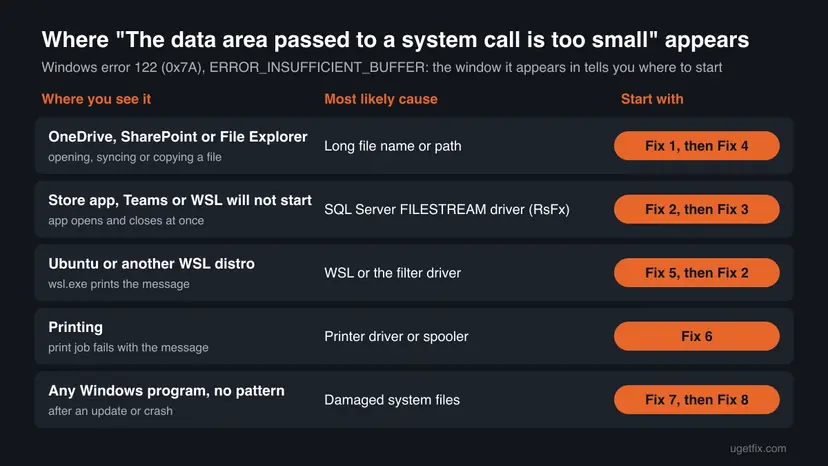
The data area passed to a system call is too small.Why you get the error, most likely first
| Where you see it | Likely cause | Fix |
|---|---|---|
| Opening or syncing a file in OneDrive or SharePoint, or copying in File Explorer | A file or folder name over 255 characters, or a full path longer than OneDrive allows | Fix 1, then Fix 4 |
| A Microsoft Store app, Teams or another packaged app closes at start | The SQL Server FILESTREAM filter driver (RsFx) cannot handle what the app's own filter driver asks of it | Fix 2, then Fix 3 |
| Ubuntu or another distro under WSL | An outdated WSL or the same filter driver clash | Fix 5, then Fix 2 |
| A print job | A damaged printer driver or a stuck Print Spooler | Fix 6 |
| Any other Windows program, after an update or a crash | Damaged system files or an old Windows build | Fix 7, then Fix 8 |
- Most often: a long file name or path. Microsoft's answer to a SharePoint and OneDrive case says it plainly: staff saw the message on files with long names, and shortening the name let the file open.
- Often: an app that will not start. Store apps, Teams and WSL fail at launch. The fixes users find point to SQL Server, which installs a FILESTREAM filter driver named RsFx.
- Sometimes: printing. Users report the message when a print job fails, usually with an older printer driver.
- Rarely: a script or a developer tool. PowerShell, services and installers pass the error on when they hit a long path or a small buffer.
The message is not a sign of malware, a failing SSD or a licence problem. The old advice to replace the SSD has no source behind it. Look at a disk only when it also shows read errors (see "Still there" below).
How to fix "The data area passed to a system call is too small"
Pick the fix by where the message appears. File problems need Fix 1 and maybe Fix 4. Apps that will not start need Fix 2 or Fix 3. WSL and printing have their own fix, and Fixes 7 and 8 are the general repair when nothing else matches.
| What you see | Start with |
|---|---|
| The message when you open, sync or copy a file in OneDrive, SharePoint or File Explorer | Fix 1 |
| A Store app, Teams or another app closes at start with the message | Fix 2 |
| No RsFx driver on the PC, but one app still fails | Fix 3 |
| OneDrive keeps showing a sync error after the names are short | Fix 4 |
| Ubuntu or another WSL distro shows the message | Fix 5 |
| Printing fails with the message | Fix 6 |
| Any other program, or the error started after an update | Fix 7, then Fix 8 |
Fix 1. Shorten the file name and path (OneDrive, SharePoint and File Explorer)
2 to 10 minutesNo riskThe message appears when you open, sync, copy or move a file, and the file or its folders have long names.
Error 122 most often means a path did not fit. Microsoft's answer to the OneDrive and SharePoint case cites its limits: no single file or folder name over 255 characters, and the OneDrive root folder plus the file's relative path no longer than 520 characters.
- Note the file that shows the message. In File Explorer, click the address bar to see its full path.
- Rename the file to something short: right-click it and select Rename, or press F2. Keep the extension, such as
.docx. - If the name is already short, rename the folders above it. Long folder names add up in the full path.
- Or move the file to the top of your OneDrive folder, as Microsoft's support answer suggests, and open it there.
- In OneDrive, wait until the cloud icon shows the file is in sync, then open it again.
- For a whole folder tree that fails to copy, copy it to a short path such as
C:\Workfirst, then move it where it belongs.
Count the full path, not only the name. C:\Users\you\OneDrive - Company\Projects\2026\Client\Calibration reports\... is long before the file name starts. Shared folders from SharePoint libraries add the site and library names to the path on your PC.
It worked if: The file opens, syncs or copies without the message.
If not: If short names do not help, the OneDrive app itself may be stuck: reset it with Fix 4. If the message comes from an app that will not start, go to Fix 2.
Fix 2. Check for the SQL Server FILESTREAM driver and update or remove SQL Server
10 to 20 minutesLow riskA Microsoft Store app, Teams, WSL or another packaged app closes right after it starts with the message, and SQL Server may be on the PC, often installed silently by another program.
Packaged apps run through a Windows file system filter driver. SQL Server's FILESTREAM feature adds its own filter driver, RsFx, and an older RsFx cannot honour what the app driver passes to it. The call then fails with error 122. Microsoft shipped SQL Server updates for this, which the old guide named.
- Right-click Start and select Terminal (Admin) on Windows 11 or Windows PowerShell (Admin) on Windows 10. Select Yes.
- List the file system filter drivers:
fltmc - Look in the Filter Name column for a name that starts with RsFx, such as
RsFx0500. If there is none, this fix is not for you: go to Fix 3. - Open Settings > Apps > Installed apps (Windows 10: Apps & features) and type SQL Server in the search box to see which versions are installed.
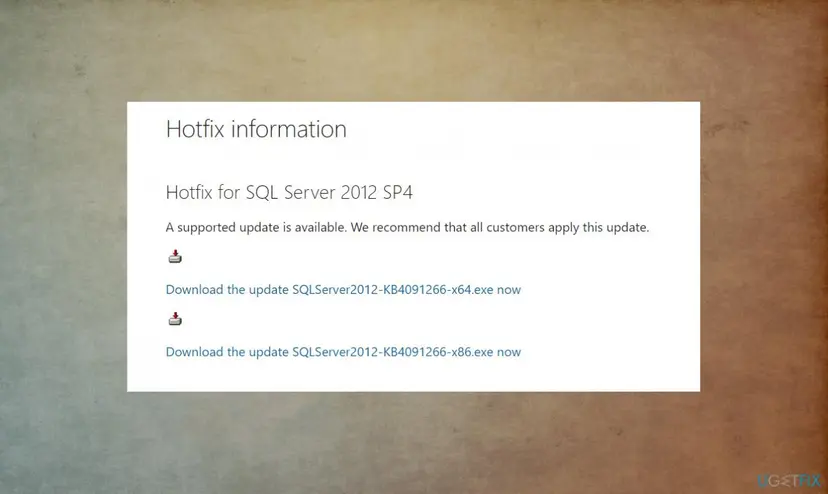
- If you use SQL Server, install its latest service pack and cumulative update from Microsoft. On Windows 11, also turn on Settings > Windows Update > Advanced options > Receive updates for other Microsoft products so Windows Update offers SQL Server fixes.
- If you do not use SQL Server and no program you need depends on it, uninstall the SQL Server entries: Uninstall a program or app in Windows
- Restart the PC and start the app again.
Accounting, point of sale, design and backup programs often install SQL Server Express quietly. Removing it can break them. Check the program's name in the SQL Server instance (for example SQLEXPRESS or a vendor name) before you uninstall anything, and update instead when in doubt.
It worked if: fltmc no longer lists RsFx, or SQL Server shows its latest version, and the app opens without the message.
If not: If RsFx stays and you cannot update or remove SQL Server, ask the program that installed it for an update. If there was no RsFx at all, go to Fix 3.
Fix 3. Repair or reset the app that shows the message (Teams, Store apps)
5 minutesLow riskOne app shows the message at start, such as Microsoft Teams or another Store app, and Fix 2 found no RsFx driver.
When only one app fails, a damaged app package or a corrupted local cache can hand Windows a bad request. Repair checks the app's files, and Reset clears its local data, which gives the app a clean start.
- Close the app. If it hangs, end it in Task Manager.
- Open Settings > Apps > Installed apps, find the app (for example Microsoft Teams) and open Advanced options.
- Select Repair and start the app again.
- If the message stays, go back and select Reset. For Teams, you sign in again afterwards.
- If the app has no Advanced options, uninstall it and install it again from the Microsoft Store or its maker's site.
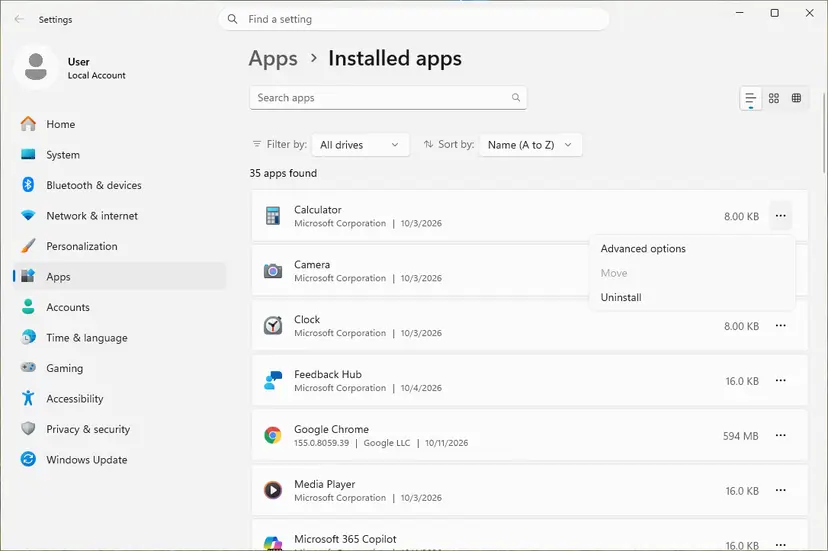
The full steps for any app, with Windows 10 paths: How to repair or reset an app in Windows
It worked if: The app starts and stays open without the message.
If not: If several Store apps fail, re-register them: How to re-register Microsoft Store apps with PowerShell. If that does not help, run Fix 7 and Fix 8.
Fix 4. Reset the OneDrive app when the sync error stays
10 minutes plus sync timeLow riskFile names and paths are short, but OneDrive still shows "the data area passed is too small" on the same files.
OneDrive keeps a local database of every synced path. When it still holds the old long path, it keeps hitting the same error after you renamed the file. A reset rebuilds that database without deleting your files.
- Open the Run box. Press the Windows key and R at the same time.
- Reset the Microsoft Store cache. Type the command below and select OK. A blank Command Prompt window opens and closes, then the Microsoft Store opens. Close it. This is the first step in Microsoft's instructions. If OneDrive still does not sync, continue.
wsreset.exe - Run the OneDrive reset command. Press the Windows key and R again. Copy the command below, paste it into the box and select OK.
%localappdata%\Microsoft\OneDrive\onedrive.exe /reset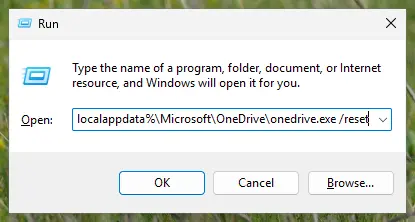
Type the reset command in the Run box and select OK. Screenshot: Windows 11 26H2. - If Windows cannot find it, try the second path. If you see a message that starts with Windows cannot find, open the Run box again and use this command instead.
C:\Program Files\Microsoft OneDrive\onedrive.exe /reset - If that fails too, try the third path. If you still see Windows cannot find, use this command. If none of the three works, the OneDrive sync app is not installed on this PC.
C:\Program Files (x86)\Microsoft OneDrive\onedrive.exe /reset - Start OneDrive again. Select Start, type OneDrive in the search box and select the OneDrive desktop app. OneDrive then starts a full sync.
These steps were written for Windows 11 25H2 and 26H2, Windows 10 22H2. The full page with the other versions and what each result means: How to reset OneDrive in Windows
A reset disconnects and reconnects your sync. Files in the cloud and on the PC stay where they are, but OneDrive checks every file again, which can take a while for large libraries.
It worked if: The OneDrive icon shows it is up to date, and the files that failed open normally.
If not: If one file still fails, move it to the OneDrive root folder (Fix 1, step 4). If all files fail, run Fix 7.
Fix 5. Update and restart WSL (Ubuntu shows the error)
10 minutesLow riskStarting Ubuntu or another Linux distro under the Windows Subsystem for Linux prints the message.
WSL starts through the same packaged app layer as Store apps. Users on Microsoft Q&A report this error with WSL even without SQL Server installed, so an outdated WSL itself is the next thing to rule out.
- Open Terminal (Admin) on Windows 11 or Windows PowerShell (Admin) on Windows 10.
- Update WSL and stop every running distro:
wsl --update wsl --shutdown - See your distros and their WSL version:
wsl --list --verbose - Start the distro again from the Start menu or with
wsl. - If it still fails, run
fltmcfrom Fix 2. An RsFx driver breaks WSL the same way it breaks Store apps.
Forum answers sometimes suggest wsl --unregister. It deletes the distro and every file inside it. Export it first with wsl --export <name> <file.tar> if you ever need that step.
It worked if: The distro opens its shell prompt with no error.
If not: If the error stays, repair the distro app with Fix 3, then run Fix 7.
Fix 6. Restart the Print Spooler and reinstall the printer driver
10 minutesLow riskThe message appears when you print, or a print job stops with it.
Users report this message when printing with older or damaged printer drivers. The spooler passes the driver's data to Windows, and a broken driver reports a buffer that does not fit. A clean driver and a restarted spooler clear it.
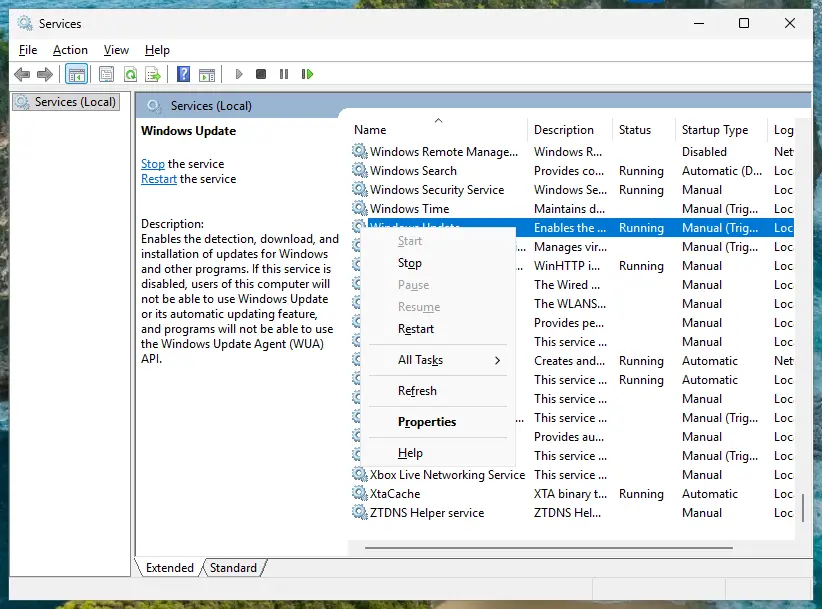
- Open Services (Win + R,
services.msc), right-click Print Spooler and select Restart. Steps: Check and restart Windows services - Print a test page. If it works, you are done.
- If it fails, open Settings > Bluetooth & devices > Printers & scanners (Windows 10: Devices > Printers & scanners), select the printer and Remove.
- Download the current driver for your model from the printer maker's site and install it.
- Add the printer again and print a test page.
Driver steps in detail: Update, roll back or reinstall a driver
It worked if: The test page prints and the message does not come back.
If not: If it fails with the new driver, try the maker's basic or universal driver for your model, then run Fix 8.
Fix 7. Install the latest Windows updates
15 to 30 minutesLow riskThe message appears in several programs, or it started after you skipped updates for a while.
Windows and its built-in apps pass buffers between many parts. Updates fix those parts, and the option for other Microsoft products also brings SQL Server and Office fixes in the same run.
- Press Win + I and open Windows Update (Windows 10: Update & Security > Windows Update).
- Select Check for updates and install everything offered, including optional quality updates.
- On Windows 11, open Advanced options and turn on Receive updates for other Microsoft products.
- Restart the PC, even if Windows does not ask.
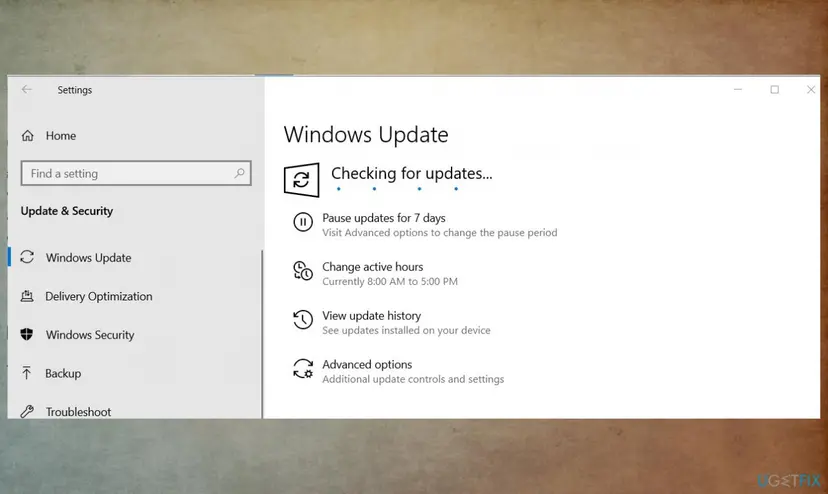
It worked if: Windows Update says you are up to date and the program runs without the message.
If not: If updates fail to install, see Reset Windows Update components. If they install but the error stays, run Fix 8.
Fix 8. Repair Windows system files with SFC and DISM
20 to 40 minutesLow riskNone of the cases above fits, or Windows programs fail with the message after a crash or a failed update.
When a Windows component itself is damaged, its calls can return wrong sizes and fail with error 122. DISM restores the component store, and SFC replaces damaged system files from it.
- Open an elevated command window. Right-click Start and select Terminal (Admin), or type cmd in the search box, right-click Command Prompt and select Run as administrator. Select Yes when Windows asks for permission.

Search for cmd and choose Run as administrator. Screenshot: Windows 11 26H2. - Run DISM first. Type the command below and press Enter. DISM downloads clean copies of damaged components from Windows Update, so it can take several minutes. Wait until it says The operation completed successfully.
DISM.exe /Online /Cleanup-Image /RestoreHealth
DISM /RestoreHealth running. Screenshot: Windows 11 26H2. - Run System File Checker. In the same window, type the command below and press Enter. Do not close the window until the verification reaches 100%.
sfc /scannow
sfc /scannow at 100%. Screenshot: Windows 11 26H2. - Read the result and restart. Compare the last message with the table below this guide, then restart the PC so that repaired files are loaded.

The result line tells you what SFC did. Screenshot: Windows 11 26H2.
These steps were written for Windows 11 24H2 and 25H2. The full page with the other versions and what each result means: Run DISM and SFC to repair Windows system files
If the error started on a known day, after a new program or update, a restore point from before that day is often quicker: Undo recent changes with System Restore
It worked if: SFC reports no integrity violations or that it repaired them, and the program runs without the message.
If not: Collect the details under "Still there" and ask the program's support or Microsoft Q&A.
Still seeing the error: where the real cause is written
- Event Viewer: press Win + R, type
eventvwr.msc, open Windows Logs > Application and look for errors at the time of the message. The source name tells you which program failed. - Filter drivers:
fltmcin an administrator window lists every file system filter. Note any third party name besides RsFx, such as backup, encryption or antivirus filters, and update that product. - OneDrive: select the OneDrive icon, then Help & Settings > View sync problems to see which file fails.
- What to send to support: the full text of the window, the program and file involved, your Windows version from
winver, thefltmclist and the fixes you already tried.
If one program shows the message on every PC, the program itself has the bug, and only its maker can fix it. If a disk also shows read errors or files vanish, check it first: Check a disk for errors (chkdsk)
How to keep the error from coming back
- Keep file and folder names short, especially in synced OneDrive and SharePoint libraries.
- Keep SQL Server updated, or remove it when no program needs it.
- Turn on updates for other Microsoft products in Windows Update.
- Use printer drivers from the printer maker's site.
- Do not nest folders many levels deep with long names in synced libraries.
- Do not download system files or "fix" tools from unknown sites.
- Do not run
wsl --unregisterwithout an export; it deletes the distro. - Do not replace a disk because of this message alone.
Frequently asked questions
What does "The data area passed to a system call is too small" mean?
It is the text of Windows system error 122, ERROR_INSUFFICIENT_BUFFER, hex 0x7A. A program asked Windows for information and reserved less memory for the answer than the answer needs. Many programs share this message, so the words alone do not name the cause. Where you see it does: in OneDrive or File Explorer, a long file path is the usual reason (Fix 1); in an app that will not start, look for the SQL Server RsFx driver (Fix 2).
How do I fix it on Windows 11?
The fixes are the same on Windows 11 and Windows 10; only some menu names differ. Start with where the message appears. For files in OneDrive, SharePoint or File Explorer, shorten the file name and path (Fix 1). For an app that closes at start, run fltmc in Terminal (Admin) and update or remove SQL Server if an RsFx driver is listed (Fix 2). Then repair the app (Fix 3) and install all updates (Fix 7).
Why does OneDrive say "the data area passed to a system call is too small"?
Usually because a file or folder name, or the whole path, is too long. Microsoft's answer to a SharePoint and OneDrive case cites its limits: each file or folder name at most 255 characters, and the OneDrive root folder plus the file's relative path at most 520 characters. Shorten the name or move the file to the OneDrive root folder (Fix 1). If renaming does not help, reset OneDrive (Fix 4).
What is "the data area passed is too small"?
It is a shortened form of the same message, usually from SharePoint and OneDrive sync, or from people who typed only part of it into a search box. It is Windows error 122. In the case Microsoft answered, staff saw it when they opened files with long names and could open them again after shortening the names. Start with Fix 1 on this page.
Does the error appear when printing?
Yes, users report it when a print job fails, mostly with an older or damaged printer driver. Restart the Print Spooler service, print a test page, and if it still fails, remove the printer, install the current driver from the printer maker's site and add the printer again (Fix 6). We could not find a statement from Microsoft about this case, so treat it as a user report.
Is this error caused by SQL Server even if I never installed it?
It can be. Many programs install SQL Server Express silently, and its FILESTREAM feature adds a filter driver named RsFx. Run fltmc in an administrator window: an entry that starts with RsFx means SQL Server is there. A Microsoft Q&A user with WSL found no SQL Server on the PC, so the error has other causes too; for WSL, update it with wsl --update (Fix 5).
Does KB4091266 fix the error?
Only for one case. KB4091266 is a hotfix for SQL Server 2012 Service Pack 4, the version the old guide named. It helps if that exact SQL Server version is the one with the RsFx driver on your PC. Other SQL Server versions get the fix through their own service packs and cumulative updates. If you have no SQL Server at all, this hotfix does nothing for you; follow the chooser above instead.
Should I replace my SSD because of this message?
No. The message is a Windows error about memory set aside for an answer, not a disk fault, and we found no source that ties it to a failing SSD. Replace or test a disk only when other signs point to it: read errors in Event Viewer, files that vanish or cannot be copied anywhere, or slow access. Check the disk first with Check a disk for errors (chkdsk) and keep a backup.
I write scripts or code. What does error 122 mean for me?
Your call passed a buffer smaller than the data Windows wanted to return. Most Windows functions that fail with ERROR_INSUFFICIENT_BUFFER also report the size they need: read it, allocate that much and call again. In PowerShell and copy scripts, the same message usually means a path that is too long for the tool; shorten the source or destination path. The old fix for IIS 5 and 6 web servers (Cache ISAPI Applications) applies only to those retired servers.
I searched in another language. Is this the same error?
Yes. Spanish Windows shows it as "El área de datos transferida a una llamada de sistema es demasiado pequeña", and searches such as the Vietnamese "lỗi gì" ("what error is this") lead to the same Windows error 122. The fixes on this page are the same on any Windows language; only the menu names are translated. Start with the window the message appears in and the chooser above.
Sources
- Microsoft Learn: System Error Codes (0-499), ERROR_INSUFFICIENT_BUFFER 122 (0x7A) The data area passed to a system call is too small (learn.microsoft.com)
- Microsoft Q&A: SharePoint OneDrive sync error "the data area passed is too small" (answer citing the OneDrive and SharePoint path limits) (learn.microsoft.com)
- Microsoft Q&A: Windows 10, the data area passed to a system call is too small (WSL, no SQL installed) (learn.microsoft.com)
Did this fix work?
One click, no account. It tells the next reader which guides are worth their time.
Questions and experiences: fix "The data area passed to a system call is too small" error in Windows
Still broken, or found a fix we did not cover? Ask here: members and our editors answer. Reading is open; writing needs a free account.
…