
Fix "This app can't open. Check the Store for more info about Realtek Audio Console"

Prefer to fix it yourself? The manual steps follow.
- 8methods
- 5 to 30 minutes
- Easy
Applies to PCs with Realtek audio where Realtek Audio Console shows "This app can't open"
8 methods in this guide
Hello. I recently upgraded to Windows 11 and now the "This app can't open. Check the Store for more info about Realtek Audio Console" message comes up when I plug in any device. Everything is okay with my headphones and the other devices I tried, so the issue is with the OS. Can you help me?
Windows shows this message when it tries to start Realtek Audio Console and the app is missing, damaged or not allowed to talk to your audio driver. Sound usually still works; only the settings app and the jack pop-up fail. Install Realtek Audio Control from Microsoft Store first, then reinstall your PC maker's audio driver if the message stays.
Open Microsoft Store, search for Realtek Audio Control (publisher Realtek Semiconductor Corp) and install or update it (Fix 1). If it is already installed, Repair and then Reset it in Installed apps (Fix 2). If the message still appears every time you plug in headphones, uninstall the Realtek audio driver and install the audio driver for your exact PC model from its maker's support page (Fix 3). The console only opens when it is paired with a matching Realtek driver.
| Error | "This app can't open. Check the Store for more info about Realtek Audio Console." |
|---|---|
| Where it appears | A Windows dialog when you open Realtek Audio Console from Start, or when you plug headphones or a microphone into the audio jack and the console tries to start |
| Main cause | The console app is missing or broken after a Windows upgrade, or the installed Realtek driver is not the one the console is paired with |
| Fastest fix | Install or update Realtek Audio Control from Microsoft Store (Fix 1), then install your PC maker's audio driver (Fix 3) |
| Also written as | Check the Windows Store for more info about Realtek Audio Console, can't open Realtek Audio Console, Realtek Audio Console cannot open, Realtek Audio Console won't open |
| The Store app | Realtek Audio Control by Realtek Semiconductor Corp, Store ID 9P2B8MCSVPLN; rated 2.0 out of 5 from 1,847 ratings when we checked on 15 October 2026 |
| How the pairing works | Microsoft calls it a Hardware Support App: a Store app tied to one specific driver through a custom capability that the driver grants |
| Affects | Windows 11 (24H2, 25H2 and 26H2) and Windows 10 22H2 on PCs with a Realtek audio chip; most reports follow an upgrade from Windows 10 to 11 |
| Vendor status | No fix announced by Microsoft or Realtek. A Microsoft support specialist recommends the PC maker's driver; some older models have no Windows 11 audio driver |
| Time to fix | 5 minutes for the Store app, 20 to 30 minutes for a driver reinstall |
Facts checked on 15 October 2026. Steps written for Windows 11 (25H2 and 26H2) and Windows 10 22H2.
What "This app can't open. Check the Store for more info about Realtek Audio Console" means
The message is not a sound error. It is the standard Windows dialog for a Store app that cannot start, and the app named in it is Realtek Audio Console, the Realtek settings app for speakers, jacks and effects. Windows says "check the Store" because the app came from Microsoft Store, even when your PC maker installed it for you.
Many readers see it without opening anything. The Realtek driver can start the console when you plug something into the audio jack, so the dialog pops up with every headset. Users report that the headset microphone is then not detected and Windows keeps using the built-in microphone.
- Exact text
- This app can't open. Check the Store for more info about Realtek Audio Console.
- Other spellings people search
- Check the Windows Store for more info about Realtek Audio Console, This App Can't Open (capitalized), Realtek Audio Console won't load
- Store name of the app
- Realtek Audio Control; the app on your PC is usually listed as Realtek Audio Console
- Does sound still work?
- Usually yes; the speakers and headphones run on the driver, not on the console
Why Realtek Audio Console can't open, from most to least common
Microsoft documents Realtek Audio Console as a type of app called a Hardware Support App. Such an app is paired with one specific driver: the driver grants the app a custom capability, and only an app that holds that capability may talk to it. If either half is missing or the two do not match, the app cannot start.
| Cause | How common | What you see | Fix |
|---|---|---|---|
| The console was removed or not carried over by a Windows 11 upgrade | Most common | Realtek Audio Console is not in Installed apps, but the pop-up still appears on plug-in | Fix 1 |
| The console app is damaged or its registration is broken | Common | The app is listed, but opening it from Start shows the message | Fix 2, then Fix 5 |
| The Realtek driver is a different one from the console's pair | Common after upgrades and driver updates | Store app installed and up to date, message stays | Fix 3 and Fix 4 |
| Your PC maker has no Windows 11 audio driver for the model | Less common, older laptops | The maker's support page lists only Windows 10 audio drivers | Fix 4, Fix 6 |
| Microsoft Store itself does not install apps | Rare | The Store install button fails or spins | Fix 7 |
| Damaged Windows system files | Rare | Several Store apps fail, not only Realtek | Fix 8 |
Older guides send you to update display drivers and run a malware scan. The display driver has nothing to do with this app, and a damaged app or a mismatched audio driver is the cause in nearly every report we read.
How to fix "This app can't open" for Realtek Audio Console
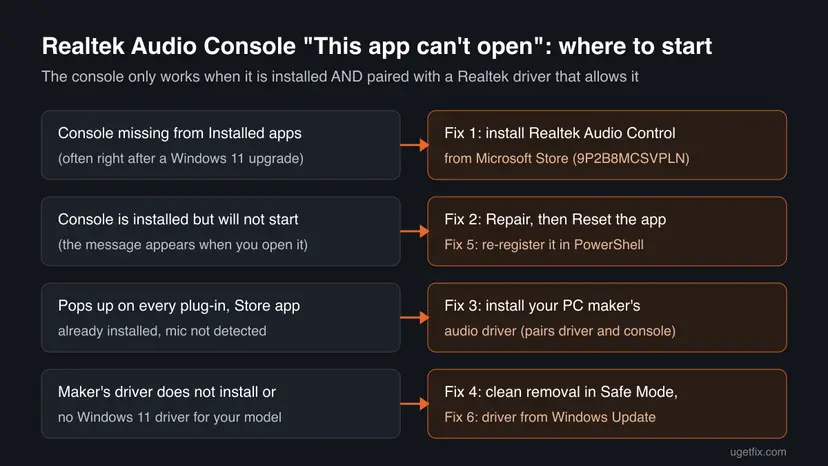
Fix 1 and Fix 2 take a few minutes and fix the app side. Fix 3 and Fix 4 fix the driver side, which is the answer when the Store app is in place and the message stays. Fixes 5 to 8 are for the rare cases that are left.
| What you see | Start with |
|---|---|
| Realtek Audio Console is not in Installed apps | Fix 1 |
| The console is listed but shows the message when you open it | Fix 2 |
| The message pops up every time you plug in headphones, and the Store app is already installed | Fix 3 |
| The maker's driver will not install, or the message came back after it did | Fix 4 |
| Repair and Reset did nothing and the app is still listed | Fix 5 |
| Your PC maker has no Windows 11 audio driver for your model | Fix 6 |
| Microsoft Store will not install or update the app | Fix 7 |
Fix 1. Install or update Realtek Audio Control from Microsoft Store
5 minutesNo riskEveryone, and especially readers who upgraded to Windows 11 and no longer find Realtek Audio Console in the app list.
The dialog literally points to the Store because the console is a Store app. A Windows upgrade can leave the driver in place and drop the app, so the driver tries to start an app that is not there.
- Open Microsoft Store from Start.
- Search for
Realtek Audio Control. Pick the result by Realtek Semiconductor Corp; the Store ID is 9P2B8MCSVPLN. - Select Get or Install. If it shows Open, the app is installed: go to Library in the Store and select Get updates.
- When the install ends, restart the PC.
- Plug in your headphones, or open Realtek Audio Console from Start.
Install the console only from Microsoft Store or from your PC maker's support page. Copies offered on driver sites, video descriptions or file hosts are a common way to get unwanted software, and they still do not fix a driver mismatch.
It worked if: Realtek Audio Console opens and shows your speakers and headphones, and plugging in a headset brings up the jack dialog instead of the error.
If not: If the app is installed but still shows the message, go to Fix 2. If the Store will not install it, go to Fix 7.
Fix 2. Repair, then reset Realtek Audio Console in Installed apps
5 minutesLow riskReaders who have Realtek Audio Console in the app list but get the message when they open it.
Repair checks the app's files and keeps its settings; Reset also clears its saved data. A console that was half updated, or whose data was carried over badly by an upgrade, starts again after one of the two.
- Windows 11: open Settings > Apps > Installed apps. Windows 10: open Settings > Apps > Apps & features.
- Find Realtek Audio Console, select the three dots (Windows 10: select the app) and choose Advanced options.
- Select Terminate, then Repair, and try to open the console.
- If it still fails, select Reset and confirm. Your Realtek effects and jack settings go back to their defaults.
- Restart the PC and plug in your headphones.
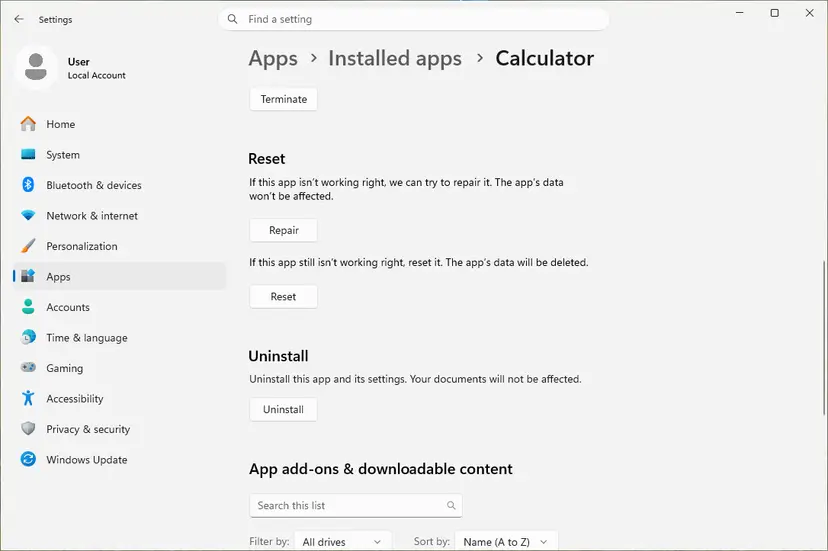
The full steps, including what to do when an app has no Advanced options, are in How to repair or reset an app in Windows.
It worked if: The console opens. A tick appears next to Repair or Reset when it finished.
If not: If the console still will not open, or it opens but the message returns when you plug in a headset, go to Fix 3.
Fix 3. Uninstall the Realtek audio driver and install your PC maker's driver
20 minutesLow riskReaders whose Store app is installed and up to date while the message keeps appearing on every plug-in; this is the fix for most of them.
A Hardware Support App only runs with the driver that grants it access. The PC maker's audio package installs the Realtek driver and the matching console together, so both halves of the pair come from one source.
- Note your exact model from the label or Settings > System > About, and download the newest audio driver for it from the PC or motherboard maker's support page.
- Windows 11: open Settings > Apps > Installed apps. Windows 10: open Control Panel > Uninstall a program.
- Find Realtek Audio Driver (on some PCs Realtek High Definition Audio Driver), select it and choose Uninstall.
- Follow the uninstaller to the end and restart the PC.
- Run the audio driver you downloaded and follow its steps.
- Restart again, then plug in your headphones to test.
The console is paired with the driver your PC maker ships. A newer generic Realtek driver from another source may play sound and still refuse the console. If the maker lists separate entries for the audio driver and the console, install both.
If the device was missing or had a warning sign before you started, the Realtek audio issues after the 24H2 update guide covers that driver problem in more detail.
It worked if: After the restart, plugging in a headset opens the Realtek jack dialog or nothing at all, and the headset microphone appears in Settings > System > Sound > Input.
If not: If the uninstaller fails, or Windows Update puts a different Realtek driver back right away, go to Fix 4.
Fix 4. Remove the Realtek driver in Safe Mode, then install it again
30 minutesLow riskReaders for whom Fix 3 failed, the driver would not uninstall, or the message came back after a restart.
A Microsoft support specialist gave this order for the Realtek Audio Console message: remove the driver in Safe Mode, restart without installing a Realtek driver by hand, then add the console from the Store. Safe Mode stops the Realtek service from holding its files.
- Download your PC maker's audio driver first, then start Windows in Safe Mode. Step by step: Start Windows or a Mac in Safe Mode.
- Right-click Start and select Device Manager.
- Expand Sound, video and game controllers, right-click Realtek(R) Audio (or Realtek High Definition Audio) and select Uninstall device.
- Tick Attempt to remove the driver for this device (Windows 10: Delete the driver software for this device) and select Uninstall.
- Restart the PC normally and let Windows detect the audio chip.
- Install the maker's driver you downloaded, or Realtek Audio Control from the Store if Windows already installed a Realtek driver.
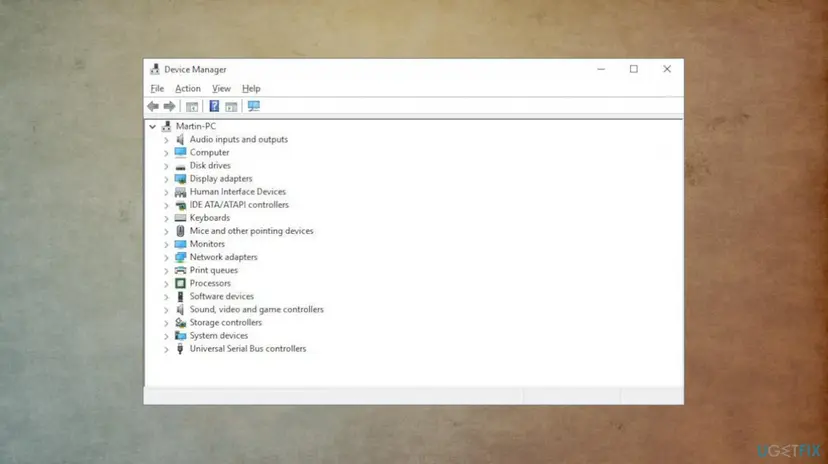
It worked if: After the second restart the Realtek device is back in Sound, video and game controllers and the console opens.
If not: If the console is installed and still refuses to open, try Fix 5. If your maker has no Windows 11 driver, go to Fix 6.
Fix 5. Re-register Realtek Audio Console with PowerShell
5 minutesNo riskReaders who still see the console in the app list after Fix 2 and Fix 3, but it never starts.
Every Store app is registered to your user account. When that registration is damaged after an upgrade, the files are on the disk but Windows cannot start the app, which gives exactly this message.
- Open PowerShell. Select Start, type PowerShell and select Windows PowerShell. Open it the normal way, not as administrator: in an administrator window the app is registered to the administrator account instead of yours.
- Find the app's package. Type the command below with a part of the app's name between the asterisks and press Enter. If the app is installed, PowerShell prints its details, including Name and InstallLocation. If nothing is printed, the app is not installed for your account: see the section below.
Get-AppxPackage -Name '*WindowsCalculator*'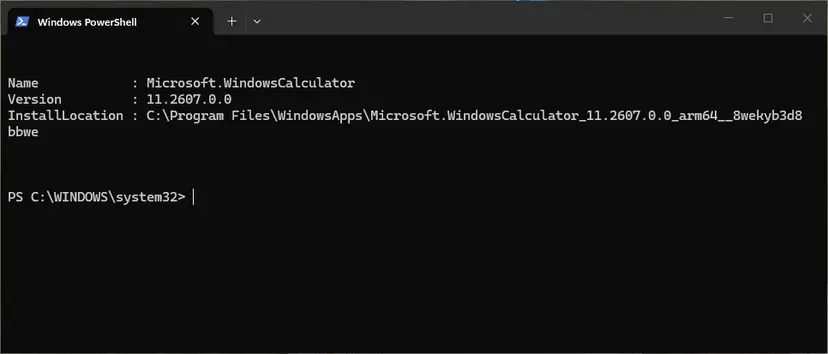
Get-AppxPackage shows the package name and where it is installed. Screenshot: Windows 11 26H2. - Re-register the app. Paste the three commands below, with the same name between the asterisks, and press Enter. They read the folder the app is installed in and register its manifest again. If no red text appears, it worked.
$InstallLocation = Get-AppxPackage -Name '*WindowsCalculator*' | Select-Object -ExpandProperty InstallLocation $ManifestPath = $InstallLocation + '\Appxmanifest.xml' Add-AppxPackage -Path $ManifestPath -Register -DisableDevelopmentMode - Open the app. Close PowerShell and start the app from Start. If it still fails, restart the PC and try once more.
These steps were written for Windows 11 25H2 and 26H2, Windows 10 22H2. The full page with the other versions and what each result means: How to re-register Microsoft Store apps with PowerShell
Use *Realtek* as the name between the asterisks. Run PowerShell the normal way, not as administrator, so the app is registered to your own account.
It worked if: PowerShell prints no red text and Realtek Audio Console opens from Start.
If not: If PowerShell prints nothing for *Realtek*, the app is not installed for your account: go back to Fix 1.
Fix 6. Get the audio driver through Windows Update when your maker has none for Windows 11
15 minutesLow riskOwners of older laptops whose maker lists only Windows 10 audio drivers.
In the Microsoft Q&A thread for this message, the support specialist found no Windows 11 driver for the reader's laptop. Windows Update sometimes offers a Realtek driver as an optional update when the maker's site has none.
- Windows 11: open Settings > Windows Update and select Check for updates.
- Select Advanced options > Optional updates and expand Driver updates.
- Tick any Realtek audio driver listed and select Download & install.
- Windows 10: open Settings > Update & Security > Windows Update, select Check for updates, then View optional updates.
- Restart the PC and check whether the console opens.
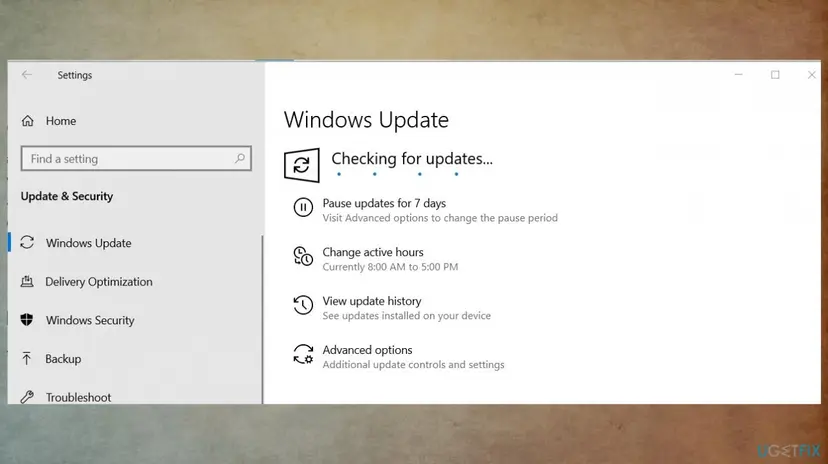
It worked if: A Realtek driver appears in the optional list, installs, and the console opens after the restart.
If not: If no Realtek driver is offered and the maker has none, the console may simply not be supported on your model. Sound still works without it; see the section on what to do when it is still broken.
Fix 7. Reset Microsoft Store when it will not install the Realtek app
5 minutesLow riskReaders whose Get or Install button in Fix 1 fails, spins or shows an error.
Fix 1 depends on the Store. A damaged Store cache stops the console from installing or updating, so clearing the cache and repairing the Store comes before anything deeper.
- Clear the Store cache. Press Windows + R, type wsreset.exe and select OK. A blank Command Prompt window opens; after a short while it closes and Microsoft Store opens by itself.
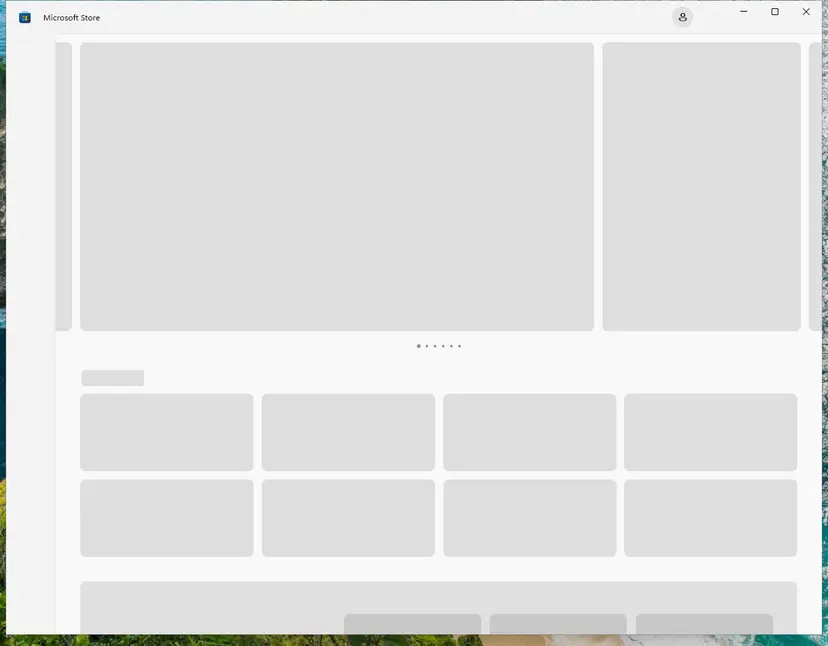
After wsreset, the Store opens and loads again. Screenshot: Windows 11 26H2. - Open System components. If the problem stays, select Start > Settings > System > System components. Next to Microsoft Store, select the three dots and Advanced options. If Microsoft Store is not listed there, look for it in Settings > Apps > Installed apps.
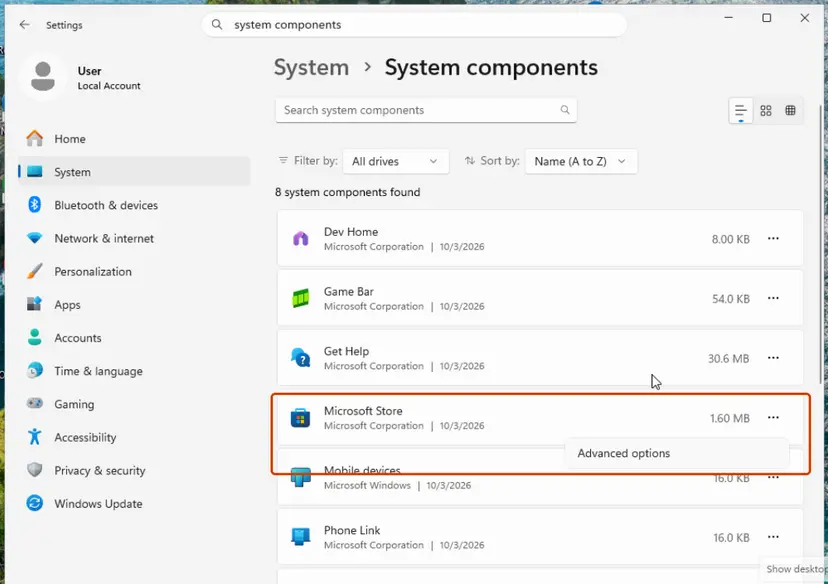
Microsoft Store is listed under System components. Screenshot: Windows 11 26H2. - Repair first. Scroll to Reset and select Repair. Repair keeps the app's data. Open the Store and check whether it works.
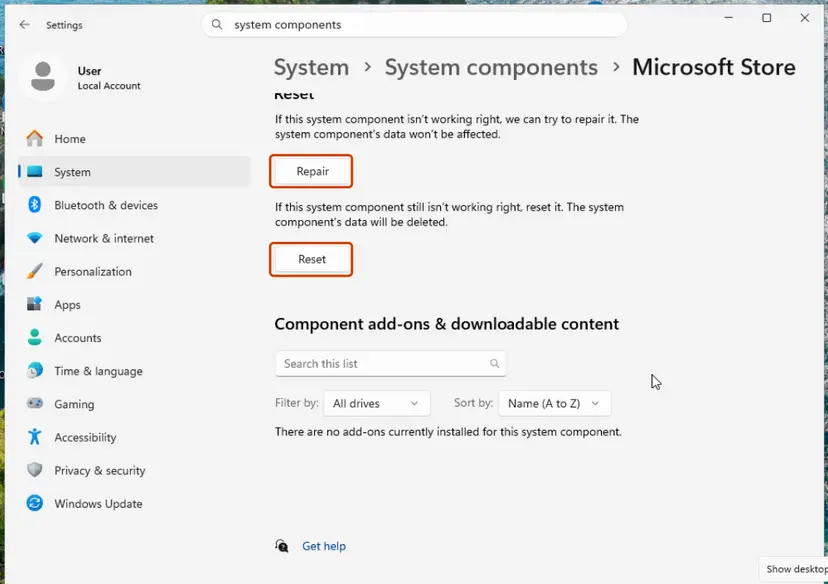
Repair keeps the app's data; Reset deletes it. Screenshot: Windows 11 26H2. - Reset if Repair did not help. Select Reset and confirm. This deletes the Store app's data on this PC; your purchases stay in your Microsoft account. Open the Store and sign in again.
These steps were written for Windows 11 26H2 (build 26300). The full page with the other versions and what each result means: Reset the Microsoft Store
Then repeat Fix 1. Resetting the Store does not remove apps you already installed, and your purchases stay in your Microsoft account.
It worked if: The Store opens normally and Realtek Audio Control installs.
If not: If the Store still fails and other Store apps also will not open, go to Fix 8.
Fix 8. Repair Windows system files with SFC and DISM
20 minutesNo riskReaders who see the same "This app can't open" message for several apps, not only Realtek Audio Console.
When many Store apps fail at once, the cause is the Windows component that starts them, not Realtek. DISM and SFC replace damaged system files from a clean copy.
- Open an elevated command window. Right-click Start and select Terminal (Admin), or type cmd in the search box, right-click Command Prompt and select Run as administrator. Select Yes when Windows asks for permission.

Search for cmd and choose Run as administrator. Screenshot: Windows 11 26H2. - Run DISM first. Type the command below and press Enter. DISM downloads clean copies of damaged components from Windows Update, so it can take several minutes. Wait until it says The operation completed successfully.
DISM.exe /Online /Cleanup-Image /RestoreHealth
DISM /RestoreHealth running. Screenshot: Windows 11 26H2. - Run System File Checker. In the same window, type the command below and press Enter. Do not close the window until the verification reaches 100%.
sfc /scannow
sfc /scannow at 100%. Screenshot: Windows 11 26H2. - Read the result and restart. Compare the last message with the table below this guide, then restart the PC so that repaired files are loaded.

The result line tells you what SFC did. Screenshot: Windows 11 26H2.
These steps were written for Windows 11 24H2 and 25H2. The full page with the other versions and what each result means: Run DISM and SFC to repair Windows system files
Restart after both commands finish, then try Fix 1 again.
It worked if: SFC reports that it found and repaired files, or that it found no integrity violations, and the apps open again.
If not: Read the section below on what to check when the message is still there.
The same message for Media Player, Windows Security, Game Bar or another app
"Check the Store for more info about" is followed by whatever app failed to start. With Media Player, Windows Security, Game Bar, Calculator or Spotify the cause is the same kind of damage, but there is no driver to pair, so the Realtek driver steps do not apply.
- Media Player, Calculator, Game Bar, Spotify: Repair and Reset the app as in Fix 2, re-register it as in Fix 5, or uninstall it and install it again from Microsoft Store.
- Windows Security: it is part of Windows and cannot be installed from the Store. Re-register it and repair system files; our Windows Security blank screen guide has the steps.
- Several apps at once: reset Microsoft Store (Fix 7), then repair system files (Fix 8).
Realtek Audio Console still can't open: what to check
Windows writes no plain log for this dialog, so check the two halves of the pair one by one. In Installed apps, confirm that Realtek Audio Console is there. In Device Manager, open the Realtek device's Properties, read Driver Provider, Driver Date and Driver Version on the Driver tab, and compare them with your maker's download page.
- The driver provider is Microsoft, not Realtek: Windows uses its generic audio driver, which has no console. Install the maker's driver (Fix 3).
- Sound and the headset microphone work, only the console fails: you can live without it. Set the microphone in Settings > System > Sound > Input.
- No Windows 11 driver exists for your model: ask the maker's support whether one is planned. We could not confirm a way to run the console without a paired driver.
- The jack is not detected with any driver: test another headset; a worn jack is a hardware fault, not a Windows one.
Give the PC model, the Windows version from winver, the Realtek Driver Version and Driver Date, whether Realtek Audio Console is in Installed apps, and which fixes you tried.
How to keep Realtek Audio Console working after updates
The pair breaks most often when Windows is upgraded or when a driver from another source replaces the maker's one. A few habits keep the driver and the console matched.
- Install audio drivers only from your PC or motherboard maker, and the console only from Microsoft Store or the same maker.
- Before a Windows feature upgrade, check that your maker lists an audio driver for the new version.
- After an upgrade, open Realtek Audio Console once. If it fails, run Fix 1 before you change any driver.
- Avoid driver updater tools that swap the Realtek driver for a newer generic one.
Frequently asked questions
What does "Check the Store for more info about Realtek Audio Console" mean?
It means Windows tried to start Realtek Audio Console and could not. The console is a Microsoft Store app, so Windows sends you to the Store. The app may be missing, damaged, or not matched with the Realtek driver it needs. Install or update Realtek Audio Control from the Store first (Fix 1). If it is already installed, repair it (Fix 2) and then install your PC maker's audio driver (Fix 3).
Why can't I open Realtek Audio Console?
Realtek Audio Console is a Hardware Support App, which Microsoft describes as an app paired with one specific driver. It starts only when both the app and that driver are installed and match. Most often a Windows 11 upgrade removed or damaged the app. Less often the Realtek driver came from another source than your PC maker. Fix 1 and Fix 2 restore the app; Fix 3 restores the driver.
Where is the official Realtek Audio Control in Microsoft Store?
The official listing is Realtek Audio Control by Realtek Semiconductor Corp, with the Store ID 9P2B8MCSVPLN. Search for that name in the Microsoft Store app and check the publisher before you install. The listing says it works with the Realtek Audio Codec. It is free. If your PC maker offers the console on its own support page, that version is also official.
Is Realtek Audio Control the same as Realtek Audio Console?
They are the same family of app. The Microsoft Store listing is called Realtek Audio Control, while the app on most PCs, and in the error message, is called Realtek Audio Console. Microsoft's support specialist pointed readers with this exact message to the Realtek Audio Control listing. Which version works depends on the driver your PC maker installed, so install the driver from the maker if the Store version does not open.
Why does the message appear every time I plug in headphones?
The Realtek driver starts the console when it detects something in the audio jack, so you can choose what you plugged in. When the console is missing or cannot start, Windows shows the error instead. Users report that the headset microphone is then not used. Install the console (Fix 1) and, if the pop-up stays, the maker's audio driver (Fix 3).
Will I lose sound if I uninstall the Realtek driver?
For a few minutes, yes. After you uninstall the driver and restart, Windows installs a generic audio driver, and sound usually works again with basic settings. Download your PC maker's audio driver before you start, so you can install it right after the restart. Your files and other apps are not touched. If sound does not come back, run the maker's driver again.
Can I use my headset without Realtek Audio Console?
Yes. The console only adds settings such as effects and jack choices; the sound itself runs on the driver. Open Settings > System > Sound, pick your headphones under Output and the headset microphone under Input. If the headset microphone is not listed at all, the driver does not recognise the jack type, and Fix 3 is still needed.
I see the same message for Media Player or Windows Security. Is it the same fix?
Partly. The message means the named app cannot start, whatever its name is. For Media Player, Game Bar, Calculator or Spotify, repair or reset the app (Fix 2), re-register it (Fix 5) or reinstall it from the Store. Windows Security is part of Windows, so re-register it and repair system files instead. The driver fixes on this page apply to Realtek only.
Is this a virus or a sign of malware?
No. The message is a normal Windows dialog for an app that cannot start, and the reports we read follow Windows upgrades and driver changes, not infections. Do not download the console or a "fix" from unknown sites, because that is how unwanted software gets in. If you also see other strange behaviour, run a scan with Microsoft Defender as a separate check.
The question is in another language. Is this the same problem?
Yes, if the message names Realtek Audio Console. In Russian Windows it reads "дополнительные сведения о Realtek Audio Console см. в магазине Windows", and other languages show the same dialog in their own words. The fixes are the same: install Realtek Audio Control from Microsoft Store, repair it, then install the PC maker's audio driver. This page is written in English only.
Sources
- Microsoft Learn: Hardware Support App (HSA), Steps for Driver Developers (learn.microsoft.com)
- Microsoft Store: Realtek Audio Control by Realtek Semiconductor Corp (9P2B8MCSVPLN) (apps.microsoft.com)
- Microsoft Q&A: "This App Can't Open. Check the Store for more info about Realtek Audio Console" after upgrading to Windows 11 (learn.microsoft.com)
Did this fix work?
One click, no account. It tells the next reader which guides are worth their time.
Questions and experiences: Fix "This app can't open. Check the Store for more info about Realtek Audio Console"
Still broken, or found a fix we did not cover? Ask here: members and our editors answer. Reading is open; writing needs a free account.
…