
How to fix Windows Security shows blank screen?

Prefer to fix it yourself? The manual steps follow.
- 9methods
- 5 to 60 minutes
- Beginner to intermediate
Applies to Windows 11 and Windows 10: the built-in Windows Security app (Microsoft Defender Antivirus, firewall and device security pages) when it opens blank, black or white
9 methods in this guide
- What the blank window means
- Causes, ranked
- The fixes
- 1. Reset Windows Security
- 2. Re-register the app
- 3. Install the platform update
- 4. Check the services
- 5. Remove leftover policies
- 6. Repair system files
- 7. Remove the last update
- 8. Try a new account
- 9. Repair-install Windows
- Still blank: what to send
- Prevent it
- FAQ
My Windows Security is not working properly and instead, I see a blank screen. Is there anything I can do to make it normal again? Does my Windows Security even work or can I get infected with viruses? Please advise.
When Windows Security opens as an empty black or white window, the app that draws the page failed, not usually the antivirus behind it. Most often the Windows Security app package is out of step and a reset brings it back. On Windows 11 a missing platform update is the next suspect.
Reset the Windows Security app first (Fix 1): open Terminal (Admin) and run Get-AppxPackage *SecHealthUI* -AllUsers | Reset-AppxPackage, then restart. If it stays blank on Windows 11, install the newest Windows Security platform update, KB5007651 (Fix 3). Then check that its three services run (Fix 4). A blank window does not by itself mean the antivirus is off.
| Error | No message. Windows Security opens with its title bar, but the page inside stays empty: black in dark mode, white in light mode. |
|---|---|
| Where it appears | When you open Windows Security from Start, from the shield icon in the taskbar, or from Settings > Privacy & security > Windows Security (Windows 11) or Update & Security > Windows Security (Windows 10). |
| Main cause | The Windows Security app package (Microsoft.SecHealthUI) has a damaged state or registration. On Windows 11 also a missing or half-installed Windows Security platform (KB5007651). |
| Fastest fix | Reset the app with Get-AppxPackage *SecHealthUI* -AllUsers | Reset-AppxPackage in an administrator terminal and restart (Fix 1). |
| Also written as | Windows Security black screen, white screen, blank page, window is blank, Windows Defender blank screen, Windows Security not opening black screen. |
| Affects | Windows 11 and Windows 10. Reports cluster after Reset this PC, a fresh install, a large update, or after a third-party antivirus or a "Defender disabler" tool was removed. |
| Microsoft's status | Microsoft ships the Windows Security platform for Windows 11 as its own update, KB5007651. We found no Microsoft article that names the blank window as a known issue. |
| Is the PC protected? | Usually yes. The window is only the interface. Check the antivirus with Get-MpComputerStatus (see "What a blank Windows Security window means"). |
| Time to fix | 5 minutes for Fix 1 and Fix 2. 15 minutes for the platform update. Up to an hour for a repair install. |
Facts checked on 15 October 2026. Steps written for Windows 11 (25H2 and 26H2) and Windows 10 22H2.
What a blank, black or white Windows Security window means
Windows Security is a Microsoft Store style app built into Windows. Its window frame comes from Windows, but the pages inside it are drawn by the app package Microsoft.SecHealthUI (on Windows 10 the package folder is named Microsoft.Windows.SecHealthUI). When that package or the parts it talks to do not answer, you get the frame with nothing in it.
Black and white are the same fault. The empty area takes the background colour of the app, so it looks black when Windows uses dark mode and white in light mode. People search for both, plus "blank page", "blank in Windows 11" and "Windows Defender blank screen". Windows Defender is the old name of the same app.
The app is only the dashboard. Microsoft Defender Antivirus runs as its own service, WinDefend. Open Terminal (Admin) and run Get-MpComputerStatus | Select AMServiceEnabled, AntivirusEnabled, RealTimeProtectionEnabled. Three True values mean the antivirus works while you fix the window.
- A second antivirus is installed. Then Microsoft Defender Antivirus switches itself off, as woshub notes, and the command above shows False. That is normal and is not this fault. Windows Security should still open and name the other product.
- The command fails or
AntivirusEnabledis False with no other antivirus. Then the services or a policy are involved: go to Fix 4 and Fix 5 after Fix 1.
Why Windows Security is blank: causes from most to least common
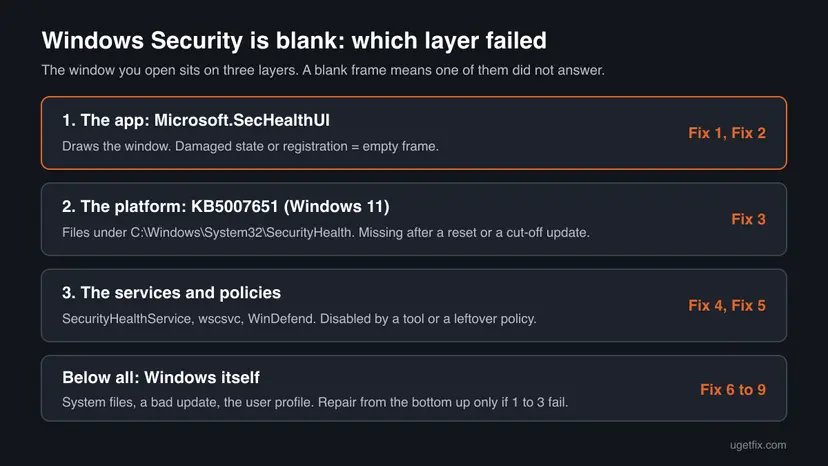
Most often the app package itself is out of step and a reset or a fresh registration fixes it. On Windows 11 the next most common cause is the Windows Security platform: after Reset this PC or a cut-off update it can be missing or older than the app. Less often a service or a policy was switched off by another program. Rarely Windows itself is damaged.
| Cause | How often | How to tell | Fix |
|---|---|---|---|
| The app's saved state or settings are damaged. | Most often | The window opens fast, but stays empty every time. | Fix 1 |
| The app package registration is broken. | Often | A reset gives an error, or Windows asks for "a new app to open this windowsdefender link". | Fix 2 |
| The Windows Security platform is missing or old (Windows 11). | Often | The blank window began after Reset this PC, a fresh install or a failed update. | Fix 3 |
| A Windows Security service does not start. | Sometimes | SecurityHealthService, wscsvc or WinDefend is stopped or Disabled. | Fix 4 |
| A policy or leftover of another security tool turned Defender off. | Sometimes | Another antivirus was removed, or a tweak tool was used to disable Defender. | Fix 5 |
| Windows system files are damaged. | Less often | Other built-in apps also open blank or crash. | Fix 6 |
| A recent Windows update. | Rarely | The problem started the day an update installed. | Fix 7 |
| Your user profile is damaged. | Rarely | The app works in another account. | Fix 8 |
How to fix Windows Security when it shows a blank screen
Fix 1 and Fix 2 repair the app and end most cases in minutes. Fix 3 is for Windows 11 when the platform is missing. Fix 4 and Fix 5 bring back services and settings that another program changed. Fixes 6 to 9 repair Windows itself and come last.
| What you see or what happened | Start with |
|---|---|
| The window opens empty, nothing else is wrong | Fix 1 |
| "You'll need a new app to open this windowsdefender link", or the reset command gives an error | Fix 2 |
| Windows 11, the blank window began after Reset this PC, a fresh install or a failed update | Fix 3 |
Get-MpComputerStatus fails or shows the antivirus off with no other antivirus installed | Fix 4, then Fix 5 |
| You removed another antivirus or used a tool to disable Defender | Fix 5 |
| Other built-in apps (Settings, Photos, Store) also misbehave | Fix 6 |
| It started right after a Windows update | Fix 7 |
| Nothing above helped | Fix 8, then Fix 9 |
Fix 1. Reset the Windows Security app
5 minutesLow riskEveryone with a blank, black or white Windows Security window. Start here.
A reset puts the app back to the state of a fresh install. Microsoft's page for Reset-AppxPackage says the app will then react as a freshly installed app, which clears the saved state that keeps the page from loading.
- Right-click Start and select Terminal (Admin) on Windows 11 or Windows PowerShell (Admin) on Windows 10. Confirm the User Account Control prompt.
- Reset the app for every user of the PC. The wildcard matches both package names,
Microsoft.SecHealthUIon Windows 11 andMicrosoft.Windows.SecHealthUIon older Windows 10 builds.Get-AppxPackage *SecHealthUI* -AllUsers | Reset-AppxPackage - Wait until the prompt comes back without red text.
- Restart the PC from Start > Power > Restart and open Windows Security from Start.
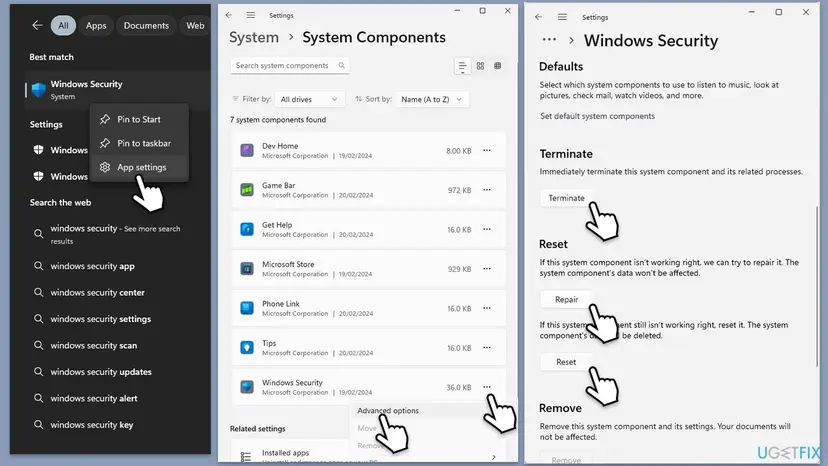
You can do the same without commands. On Windows 11 open Settings > System > System components, select the three dots next to Windows Security, choose Advanced options, then Terminate, Repair and, if it is still blank, Reset. On Windows 10 type Windows Security in Start, right-click it, choose App settings, then Terminate and Reset.
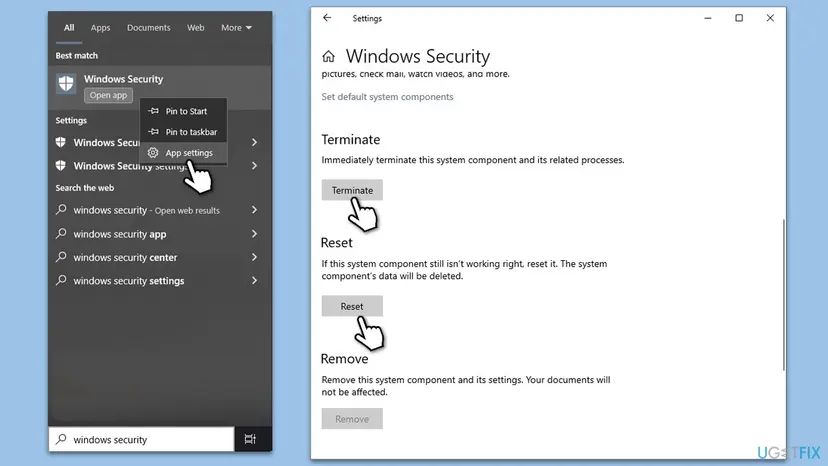
- What a reset removes. Only the app's own data on this PC. Your antivirus settings, your firewall rules and your files stay as they are.
- The generic way for any app is here: How to repair or reset an app in Windows
It worked if: Windows Security opens with its Home page, the list of protection areas on the left and green check marks next to them.
If not: If the command gives an error or the page stays empty, register the package again with Fix 2.
Fix 2. Register the Windows Security app package again
5 minutesLow riskFix 1 failed with an error, or Windows asks which app should open a windowsdefender link.
If Windows has lost the registration of the package, there is nothing for a reset to reset. Registering the manifest again tells Windows where the app lives. woshub ties the "You'll need a new app to open this windowsdefender link" message to exactly this package.
- Open Terminal (Admin) or Windows PowerShell (Admin) as in Fix 1.
- Check that the package is there. You should see a name and an InstallLocation.
Get-AppxPackage *SecHealthUI* -AllUsers | Select Name, Version, InstallLocation - Register it again from its own folder.
Get-AppxPackage *SecHealthUI* -AllUsers | Foreach {Add-AppxPackage -DisableDevelopmentMode -Register "$($_.InstallLocation)\AppXManifest.xml"} - Restart the PC and open Windows Security.
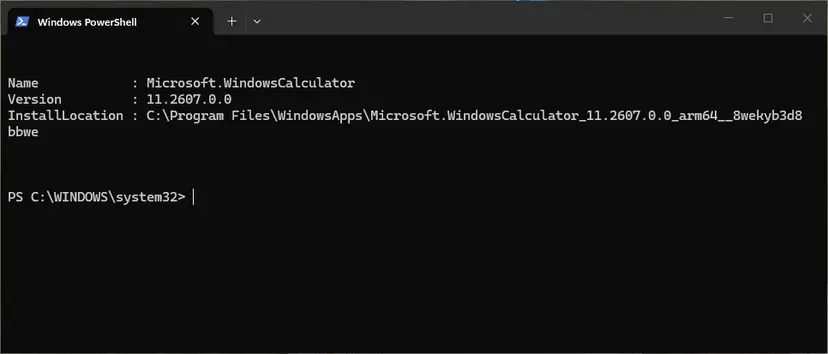
On Windows 10, woshub gives the fixed path of the manifest: C:\Windows\SystemApps\Microsoft.Windows.SecHealthUI_cw5n1h2txyewy\AppXManifest.xml. The command above finds the folder by itself, so it works on both versions. More on re-registering built-in apps: How to re-register Microsoft Store apps with PowerShell
If the check in step 2 returns nothing on Windows 11, the app is missing, not broken. Install it with the platform update in Fix 3. Do not download an installer for Windows Security from any other site.
It worked if: The command ends without red text, and after the restart Windows Security opens with its pages.
If not: If the package is missing or still blank on Windows 11, go to Fix 3. On Windows 10 go to Fix 4.
Fix 3. Install the newest Windows Security platform (Windows 11)
10 to 15 minutesNo riskWindows 11, especially when the blank window began after Reset this PC, a fresh install or a failed update.
On Windows 11 the Windows Security app and its platform are delivered by a separate update, KB5007651. If that update was cut off or never ran after a reset, the app has nothing complete to show.
- Open Settings > Windows Update and select Check for updates.
- If Update for Windows Security platform - KB5007651 is offered, let it install.
- Restart from Start > Power > Restart and open Windows Security.
- If Windows Update offers nothing and the window is still blank, open catalog.update.microsoft.com, search for KB5007651 and download the row with the highest version.
- Right-click the downloaded
securityhealthsetupfile and select Run as administrator, as Microsoft's page for the update asks. Restart once more.
To see which version you have now, run Get-AppPackage Microsoft.SecHealthUI in PowerShell, the check Microsoft's support page gives. The general way to install a package from the catalog is here: Install an update from the Microsoft Update Catalog
Microsoft's page says KB5007651 applies only to Windows 11, build 22000 or later. On Windows 10 the app comes with Windows itself, so skip to Fix 4. Windows 10 left support on 14 October 2025, so without Extended Security Updates it no longer gets fixes for such parts.
The platform update and its version folders are described in more detail in our guide to the SecurityHealthSystray.exe Bad Image error, which comes from the same platform.
It worked if: After the restart Windows Security opens with all its sections, and the shield icon in the taskbar shows a status.
If not: If the newest version is already installed and the window is still blank, run Fix 1 once more, then go to Fix 4.
Fix 4. Check that the three Windows Security services run
10 minutesLow riskThe window stays blank after Fix 1 to 3, or the status command in the first section fails.
The app only shows what the services report. woshub names three services it needs: Microsoft Defender Antivirus Service (WinDefend), Windows Security Service (SecurityHealthService) and Security Center (wscsvc). If one is disabled, the pages have nothing to show.
- Open Terminal (Admin) or Windows PowerShell (Admin).
- Read the state and start type of the three services.
Get-Service WinDefend, SecurityHealthService, wscsvc | Select Name, Status, StartType - If one shows Stopped, press Win + R, type
services.mscand press Enter. - Find the service, open it and set Startup type to Automatic if it says Disabled. Then select Start.
- Restart the PC and run the command from step 2 again.
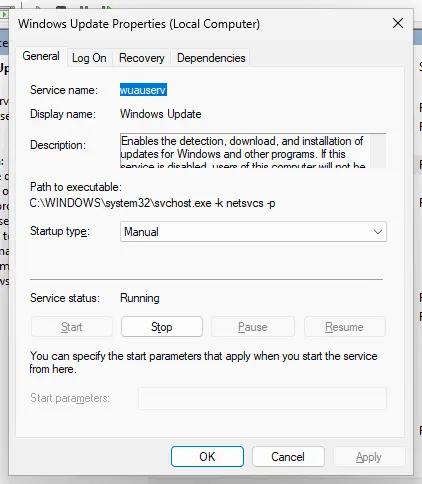
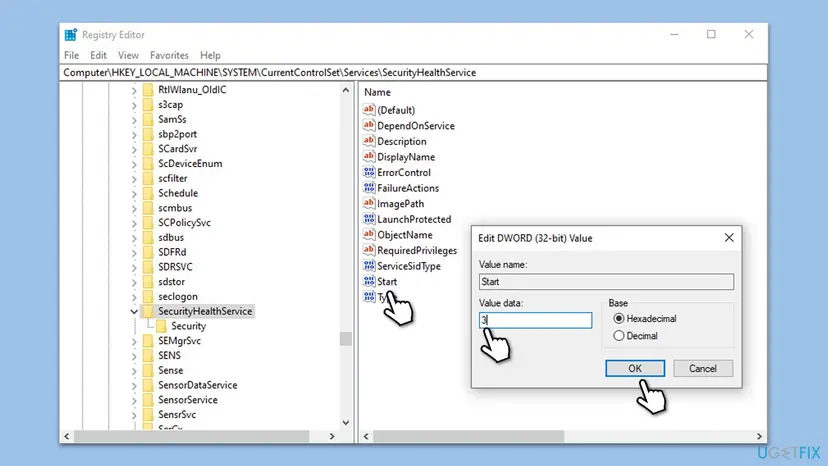
The full way through Services is here: Check and restart Windows services. If the box for the startup type of Windows Security Service is greyed out, the registry holds the value. The old version of this page changed it there, and that still works when you back up first.
A wrong registry change can stop Windows from starting. Change only the one value below, and save a backup first: Back up the registry before editing it
- Press Win + R, type
regeditand press Enter. Confirm the User Account Control prompt. - Go to
HKEY_LOCAL_MACHINE\SYSTEM\CurrentControlSet\Services\SecurityHealthService. - Double-click Start. If it is 4 (Disabled), set it to 3, as the old guide did, and select OK.
- Close Registry Editor and restart the PC.
It worked if: All three services show Running, and Windows Security opens with its pages after the restart.
If not: If a service goes back to Disabled after the restart, something sets it on purpose. Look for the cause with Fix 5.
Fix 5. Remove leftovers of other security tools and Defender policies
15 minutesRead the warningYou removed another antivirus, used a tool that disables Defender, or the services keep switching off.
Tools that switch Defender off write policy values that stay after the tool is gone. woshub names the two classic ones, DisableAntiSpyware and DisableAntiVirus, and notes that a value of 1 means Defender is disabled by policy.
You will delete registry values. A mistake can break other settings. Back up the registry first (Back up the registry before editing it), delete only the two values named here, and leave work or school PCs to their administrator: there the policy may be set on purpose.
- Open Settings > Apps > Installed apps (Windows 11) or Apps & features (Windows 10) and remove any other antivirus or security suite you no longer use, with its own uninstaller.
- Open Terminal (Admin) and read the two policy values.
Get-ItemProperty -Path 'HKLM:\SOFTWARE\Policies\Microsoft\Windows Defender' -Name DisableAntiSpyware, DisableAntiVirus - If the command says the values do not exist, there is no such policy. Skip to step 5.
- If one of them is 1, delete both values.
Remove-ItemProperty -Path 'HKLM:\SOFTWARE\Policies\Microsoft\Windows Defender' -Name DisableAntiSpyware, DisableAntiVirus - Restart the PC and open Windows Security. If it now opens, turn on Tamper Protection under Virus & threat protection settings so tools cannot do this again.
If you are not sure whether a startup program interferes, a clean boot starts Windows with Microsoft services only. If Windows Security works there, turn your programs back on one by one: How to perform a clean boot in Windows
It worked if: The policy values are gone, the three services stay on after a restart, and Windows Security opens normally.
If not: If no such values existed and the window is still blank, repair Windows files with Fix 6.
Fix 6. Repair Windows system files with DISM and SFC
20 to 30 minutesNo riskFixes 1 to 5 did not help, or other built-in apps also open blank or crash.
On Windows 10 the Windows Security app and services ship as part of Windows. DISM fetches a clean image and SFC replaces damaged Windows files from it, which also covers those parts.
- Open an elevated command window. Right-click Start and select Terminal (Admin), or type cmd in the search box, right-click Command Prompt and select Run as administrator. Select Yes when Windows asks for permission.
- Run DISM first. Type the command below and press Enter. DISM downloads clean copies of damaged components from Windows Update, so it can take several minutes. Wait until it says The operation completed successfully.
DISM.exe /Online /Cleanup-Image /RestoreHealth - Run System File Checker. In the same window, type the command below and press Enter. Do not close the window until the verification reaches 100%.
sfc /scannow - Read the result and restart. Compare the last message with the table below this guide, then restart the PC so that repaired files are loaded.
These steps were written for Windows 11 24H2 and 25H2. The full page with the other versions and what each result means: Run DISM and SFC to repair Windows system files

It worked if: SFC reports that it found and repaired files, or that it found no integrity violations, and Windows Security opens after the restart.
If not: If SFC cannot repair some files, or the window is still blank, go to Fix 7.
Fix 7. Remove the Windows update that came right before the problem
15 minutesLow riskWindows Security went blank on the day a Windows update installed.
If the window broke exactly with an update, removing that update shows whether it was the trigger. Pause updates afterwards so it does not come back before a fixed version is out.
- Open Windows Update. Select Start > Settings > Windows Update.
- Open the update history. Under More options, select Update history. Note the KB number and the date of the update you suspect.
- Open the list of removable updates. Scroll down to Related settings and select Uninstall updates.
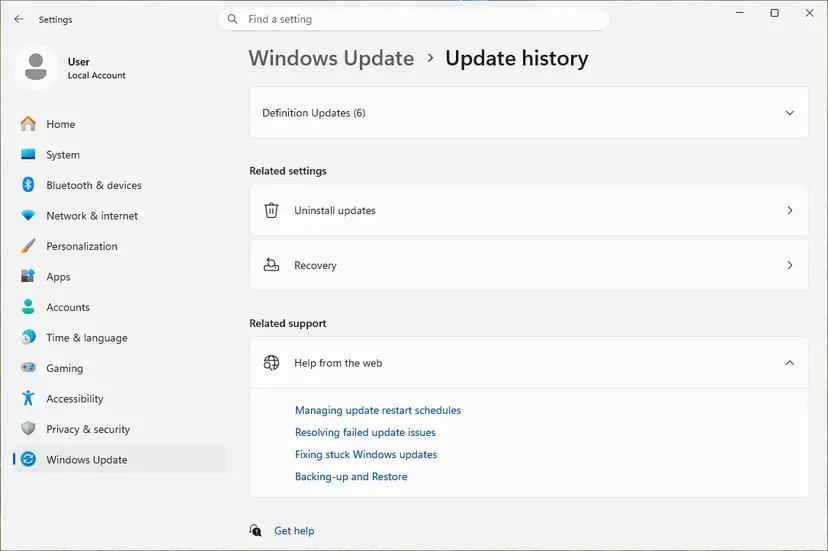
Uninstall updates is under Related settings. Screenshot: Windows 11 26H2. - Uninstall the update. Find the update in the list and select Uninstall next to it. If the update is not in the list, Windows does not allow it to be removed this way.
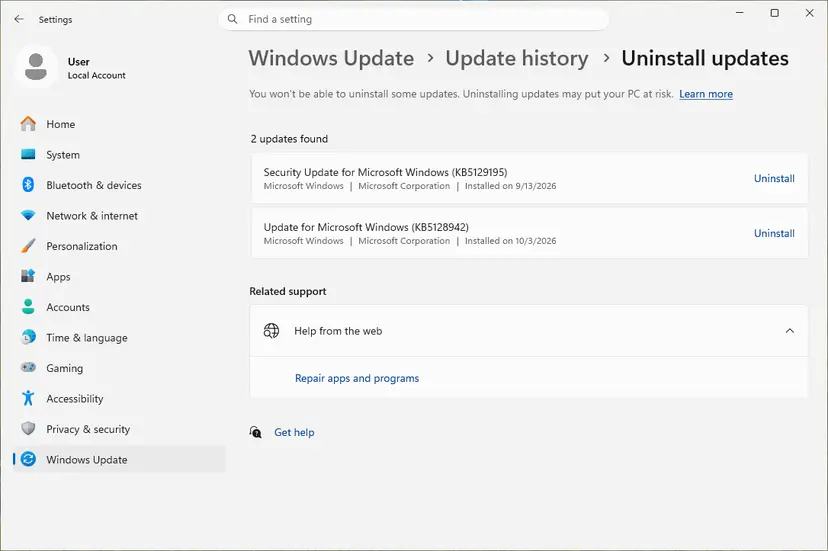
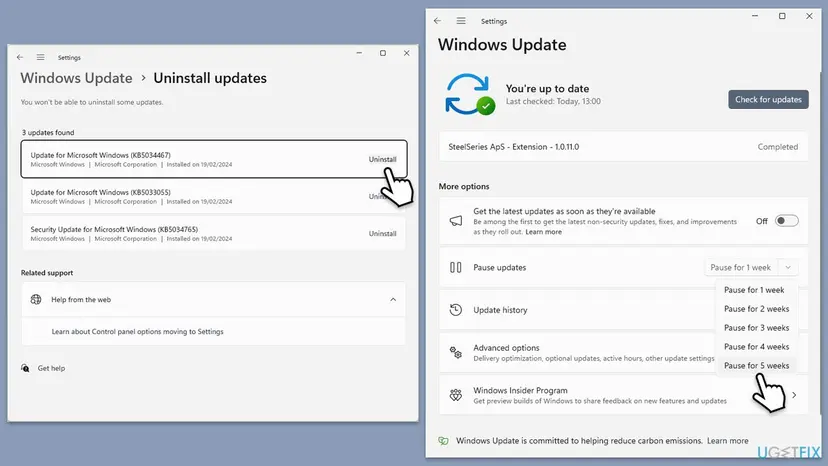
Each removable update has its own Uninstall link. Screenshot: Windows 11 26H2. - Pause updates. Go back to Settings > Windows Update and select Pick a date on the Pause updates control. If your PC shows a list there instead, select the pause length you prefer. Without a pause Windows downloads the same update again.
These steps were written for Windows 11 25H2 and 26H2. The full page with the other versions and what each result means: How to uninstall a Windows update
- Do not remove KB5007651. That is the Windows Security platform itself (Fix 3), not a cause.
- No uninstall button? Use a restore point from before the problem instead: Undo recent changes with System Restore
It worked if: After the restart Windows Security opens with its pages again.
If not: If removing the update changed nothing, install it again and test a new user account with Fix 8.
Fix 8. Test Windows Security in a new user account
10 minutesLow riskAll system checks passed and the window is still blank in your account.
App packages keep data per user. If Windows Security works in a new account, the damage sits in your profile, not in Windows, and a repair install would not be needed.
- Open Other users. Open Settings > Accounts > Other users. You can also press Windows key + R and run the command below.
ms-settings:otherusers - Add an account. Next to Add other user, select Add account.
- Skip the Microsoft account. Select I don't have this person's sign-in information.
- Choose a local account. Select Add a user without a Microsoft account.
- Name the account. Type a user name and, if you want one, a password. If you set a password, Windows also asks for answers to security questions. Select Next.
These steps were written for Windows 11 24H2, 25H2 and 26H2. The full page with the other versions and what each result means: Create a new user account to test a problem
- Sign in to the new account and open Windows Security.
- If it works there, move your files to the new account and use it, or keep it only for Windows Security for now.
It worked if: Windows Security opens normally in the new account, which tells you the old profile is the problem.
If not: If it is blank in the new account too, Windows itself is damaged. Go to Fix 9.
Fix 9. Repair Windows with Reinstall now and keep your files
45 to 90 minutesRead the warningNothing above helped, or Windows Security went blank right after Reset this PC.
A repair install replaces all Windows components, Windows Security included, with fresh copies and keeps your apps, files and settings. It reaches parts that SFC and the app reset cannot.
A repair install keeps apps and files when it finishes normally. A power cut or a failing disk during it can still cost data. Back up first and keep a laptop plugged in: Back up your files (Windows Backup, File History, Time Machine)
- Open Settings > System > Recovery on Windows 11.
- Next to Fix problems using Windows Update, select Reinstall now and confirm.
- Leave the PC online and plugged in. It restarts several times.
- Sign in, install what Windows Update offers, and open Windows Security.

Windows 10 and the other recovery routes are here: Reinstall Windows without losing files. Choose Reinstall now, not Reset PC, because a reset is one of the events after which users report a blank Windows Security.
It worked if: Windows starts normally and Windows Security opens with all its sections and the shield icon in the taskbar.
If not: If even a repaired Windows shows the blank window, collect the facts in the next section and ask Microsoft support.
If Windows Security is still blank: what to check and what to send
When all fixes are done and the window is still empty, stop changing things and collect what support needs. These four outputs answer most of their first questions.
- Windows version. Press Win + R, type
winverand press Enter. Note the version and the build. - App and platform version.
Get-AppxPackage *SecHealthUI* -AllUsers | Select Name, Version. - Antivirus state.
Get-MpComputerStatus | Select AMServiceEnabled, AntivirusEnabled, RealTimeProtectionEnabled, IsTamperProtected. - Services.
Get-Service WinDefend, SecurityHealthService, wscsvc | Select Name, Status, StartType.
If your PC is managed by an organization, a policy may hide or limit Windows Security on purpose. Send the outputs above to your IT department instead of removing policies yourself.
Ask in Microsoft Q&A or Microsoft support with these outputs. If the antivirus shows True in all three fields, your PC is still protected while you wait for an answer.
How to keep Windows Security from going blank again
- Let Windows Update finish. Do not switch the PC off while updates install. On Windows 11 the platform update KB5007651 arrives through Windows Update like the others.
- Do not use tools that disable Defender. Their policy values stay behind. If you want another antivirus, install it: Windows switches Defender off by itself and back on when you remove it.
- Keep Tamper Protection on. It is under Windows Security > Virus & threat protection > Manage settings and stops programs from changing Defender settings.
- After Reset this PC, check Windows Security. If it opens blank, run Windows Update and Fix 3 before you install anything else.
- Remove old security suites with their own uninstaller, not by deleting folders, so they do not leave services and policies behind.
Windows 10 no longer gets regular fixes after 14 October 2025. If you are still on it without Extended Security Updates, moving to Windows 11 is the lasting way to keep Windows Security current.
Frequently asked questions
Why is my Windows Security blank?
Most often because the Windows Security app package, Microsoft.SecHealthUI, has a damaged state or a broken registration, so the window frame opens but the page inside does not load. On Windows 11 a missing or half-installed Windows Security platform update, KB5007651, is the next cause, often after Reset this PC. Less often a service such as SecurityHealthService is disabled, or a leftover policy from another security tool turned Defender off. Start with the reset in Fix 1, which takes about five minutes.
Why is Windows Security a black screen instead of white?
Black and white are the same problem. The empty page takes the background colour of the app, so it looks black when Windows uses dark mode and white in light mode. Searches for a Windows Security black screen, a white screen and a blank screen all describe one fault: the frame opens and its content does not. The fixes on this page are the same for both. Changing the colour mode does not fix anything, so go straight to Fix 1.
Is my PC unprotected while Windows Security is blank?
Usually not. Windows Security is only the dashboard, while Microsoft Defender Antivirus runs as its own service, WinDefend. Open Terminal (Admin) and run Get-MpComputerStatus | Select AMServiceEnabled, AntivirusEnabled, RealTimeProtectionEnabled. Three True values mean the antivirus and real-time protection work. If you have another antivirus installed, False is normal, because Defender switches off when another product takes over. If the values are False and there is no other antivirus, follow Fix 4 and Fix 5.
How do I fix a blank Windows Security screen on Windows 11?
Reset the app first: in Terminal (Admin) run Get-AppxPackage *SecHealthUI* -AllUsers | Reset-AppxPackage and restart, or use Settings > System > System components > Windows Security > Advanced options and select Repair, then Reset. If it stays blank, install the newest Windows Security platform update, KB5007651, from Windows Update or the Microsoft Update Catalog. Windows 11 is the only version that uses this separate platform update, which is why a missing platform is a common Windows 11 cause, especially after Reset this PC.
Is the fix different on Windows 10?
Partly. The app reset in Fix 1 and the re-registration in Fix 2 work the same, and on older Windows 10 builds the package is named Microsoft.Windows.SecHealthUI, which the wildcard in our commands covers. KB5007651 applies only to Windows 11, so on Windows 10 continue with the services in Fix 4, the policies in Fix 5 and DISM and SFC in Fix 6. Windows 10 left support on 14 October 2025, so without Extended Security Updates it no longer receives fixes for such problems.
Why is Windows Security blank in Safe Mode?
Safe Mode starts Windows with a minimal set of drivers and services, and many app-based parts of Windows do not work normally there. We could not confirm from Microsoft which parts of Windows Security are meant to load in Safe Mode, so a blank window there alone is not proof of a fault. Judge the problem in a normal start. If it is blank in a normal start too, use the fixes on this page. A clean boot is a better test than Safe Mode for finding a program that interferes.
Can a third-party antivirus make Windows Security blank?
It should not make the window blank. When another antivirus is installed, Microsoft Defender Antivirus turns itself off and Windows Security shows the other product instead. Problems come when such a product, or a tool built to disable Defender, leaves services or policy values behind after removal. Uninstall old security software with its own uninstaller, then check the DisableAntiSpyware and DisableAntiVirus values as shown in Fix 5. A clean boot shows whether a startup program still interferes.
Should I download a Windows Security installer to fix it?
Only from Microsoft. The only official separate package is the Windows Security platform update KB5007651 for Windows 11, which you get through Windows Update or the Microsoft Update Catalog. Microsoft asks you to run it as an administrator. Any other site offering a Windows Security or Windows Defender installer cannot prove what its file contains. On Windows 10 there is no separate package: the app comes with Windows, and DISM, SFC or a repair install restore it.
Will resetting Windows Security delete my antivirus settings or files?
No. Resetting the app with Reset-AppxPackage, or with the Reset button in Settings, clears only the app's own data on this PC, such as which notices you dismissed. Your personal files, your firewall rules, your exclusions and the virus definitions stay as they were. The reset makes the app behave like a freshly installed one, which is why it fixes a blank page. If you want to keep even the app's data, try Repair in Settings first, which Windows 11 offers next to Reset.
Why is "Security at a glance" empty in Windows Security?
"Security at a glance" is the home page of the Windows Security app on Windows 10 and Windows 11. When it opens as an empty window with no tiles, it is the same fault this guide covers: the app frame starts but its pages do not load. Work through the fixes above in order, starting with repairing or resetting the Windows Security app.
Sources
- Microsoft Learn: Reset-AppxPackage (restores a Windows app to its initial configuration) (learn.microsoft.com)
- Microsoft Support: Windows Security app update (KB5007651, Windows 11 only, run as administrator) (support.microsoft.com)
- Windows OS Hub: Windows Security won't open or shows a blank screen on Windows 10/11 (SecHealthUI package, the three services, Defender policy values) (woshub.com)
Did this fix work?
One click, no account. It tells the next reader which guides are worth their time.
Questions and experiences: fix Windows Security shows blank screen
Still broken, or found a fix we did not cover? Ask here: members and our editors answer. Reading is open; writing needs a free account.
…