
How to fix "This site can't be reached" in Chrome on Windows?

Prefer to fix it yourself? The manual steps follow.
- 9methods
- 5 to 30 minutes
- Intermediate
Applies to Google Chrome on Windows 11 (25H2, 26H2) and Windows 10 22H2, on Wi-Fi and Ethernet
9 methods in this guide
Hello, I have an issue that cannot be fixed so far. I've tried resetting the browser, clearing the cache on Chrome, and restarting my router. The problem with the "This site can’t be reached" error. Whenever I load a site on my Chrome browser I get this error, Explorer loads the website just fine. Right now I tried to add new Mozilla Firefox for a change. Unfortunately, this browser gets the same problem. Is there anything I can do to finally fix this problem?
"This site can't be reached" is Chrome's general page for a connection that failed before the site answered. The cause can be the site, your network or something on your PC. Test first, then work through the fixes in order.
Chrome shows this page when it cannot open a connection to the site. First check the address and open the site on a phone. If the phone loads it, the fault is on your PC: try a private window without extensions (Fix 2), then check your firewall or antivirus (Fix 4) and a stuck proxy (Fix 5). Network commands come after those (Fix 6).
| Error | This site can't be reached, the title of Chrome's connection error page. A code such as ERR_CONNECTION_TIMED_OUT or DNS_PROBE_FINISHED_NXDOMAIN appears at the bottom. |
|---|---|
| Where it appears | On the error page that replaces the site in Chrome. Edge, Firefox and Safari show similar pages with their own wording. |
| Main cause | The connection failed before the site answered: a typo, a site that is down, a network or DNS problem, or a firewall, antivirus, proxy or extension on the PC. |
| Fastest fix | Check the address, then open the site in a private window and on a phone to learn whether the PC or the site is at fault (Fixes 1 and 2). |
| Also written as | "Site can't be reached", "This site can't be reached windows 10", "This site cant be reached", "This site can t be reached" and "Hmm, we can't reach this site" in Firefox. |
| Affects | Chrome on Windows 11 (25H2, 26H2) and Windows 10 22H2. Windows 10 has had no security updates since 14 October 2025. |
| Vendor status | Not a Chrome bug. Google lists firewall or antivirus, modem or router, cookies, extensions and website downtime as typical causes. |
| Time to fix | 5 to 30 minutes, depending on how many fixes you need. |
Facts checked on 16 October 2026. Steps written for Steps checked against Google Chrome Help and Microsoft Support pages (updated 2026) for Windows 11 and Windows 10.
What "This site can't be reached" means in Chrome
The page is not a verdict on the site. Chrome shows it whenever it cannot connect to a website or load a page, and it adds a code at the bottom that says why. Google lists "A site can't be reached" next to "A website won't open" and "An HTTPS site won't open" as the same family of connection and loading errors.
The code is the useful part. Google explains several of them, and the table below gives its wording. For any other code, type chrome://network-errors/ in the address bar to open Chrome's complete list.
| Code under the message | What Google says it means |
|---|---|
ERR_NAME_NOT_RESOLVED | The hostname (web address) does not exist or now has a different IP address. |
ERR_INTERNET_DISCONNECTED | The device is not connected to the internet. |
ERR_CONNECTION_TIMED_OUT or ERR_TIMED_OUT | The page took too long to connect. The connection may be too slow or the page too busy. |
ERR_CONNECTION_RESET | Something interrupted the connection: an unstable connection, an outdated browser, a VPN issue or security software that blocks the page. |
ERR_NETWORK_CHANGED | The device lost the network or joined a new one while the page loaded. |
ERR_CONNECTION_REFUSED | The page did not let Chrome connect, or the page is blocked. |
ERR_EMPTY_RESPONSE | The page sent no data and might be down. |
Google's help pages do not explain DNS_PROBE_FINISHED_NXDOMAIN, ERR_ADDRESS_UNREACHABLE or ERR_CONNECTION_CLOSED, so this guide does not claim a meaning for them. The fixes below still apply, because they remove the usual causes of any failed connection.
- Exact wording: "This site can't be reached", with the line "[site] took too long to respond" or "refused to connect" under it on some pages.
- Different message: "Your clock is ahead" or "Your clock is behind" (
NET::ERR_CERT_DATE_INVALID) means a wrong date and time, which Google fixes by correcting the clock. See How to fix the date and time in Windows if that is your page. - Different message: "Your connection is not private" is a certificate error and has its own steps on Google's help page.
Why Chrome cannot reach a site, and which fix removes each cause
Google groups the causes of connection and loading errors by where they sit. Device settings include Airplane mode, and device software includes a firewall or antivirus. Network issues involve the modem or router, browser issues involve cookies and extensions, and website issues include server downtime. The table lists those causes in the order that is quickest to check.
| Cause | Typical sign | Fix |
|---|---|---|
| A typo in the address, or a site that is down | Every other site opens, only this one fails | Fix 1 |
| An extension, cookies or cache in Chrome | The site opens in a private window | Fix 2 |
| An outdated Chrome or Windows | The problem began after an update or long ago | Fix 3 |
| A firewall or antivirus that blocks the browser | One browser fails, another works | Fix 4 |
| A manual proxy left by an app or a VPN | Every site fails in every browser | Fix 5 |
| Broken network settings or a stale DNS cache | Websites fail but pinging the router works | Fixes 6 and 7 |
| A faulty network adapter driver | Wi-Fi drops or no site loads after a driver update | Fix 8 |
| Damaged Chrome settings | Only Chrome fails, in private mode too | Fix 9 |
Microsoft's advice for connection problems is to try the same network on a different laptop or phone. If that device opens the site, the cause is your PC and the fixes below apply. If it fails too, restart the modem and router, then contact your internet provider or the site owner.
How to fix "This site can't be reached" in Chrome
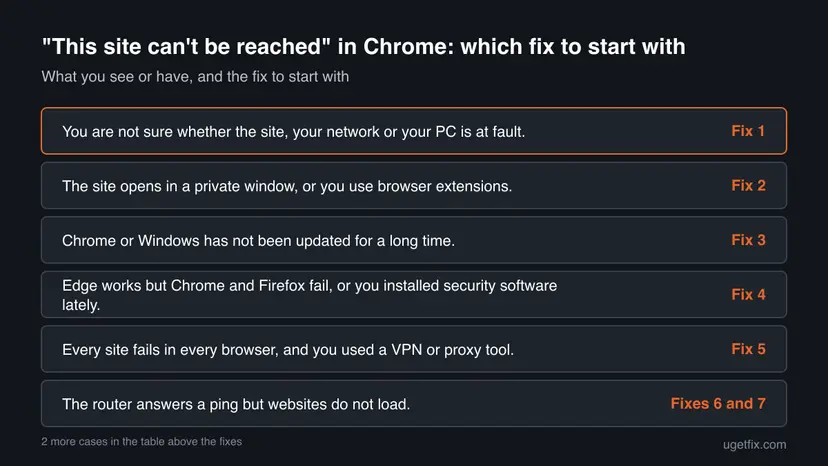
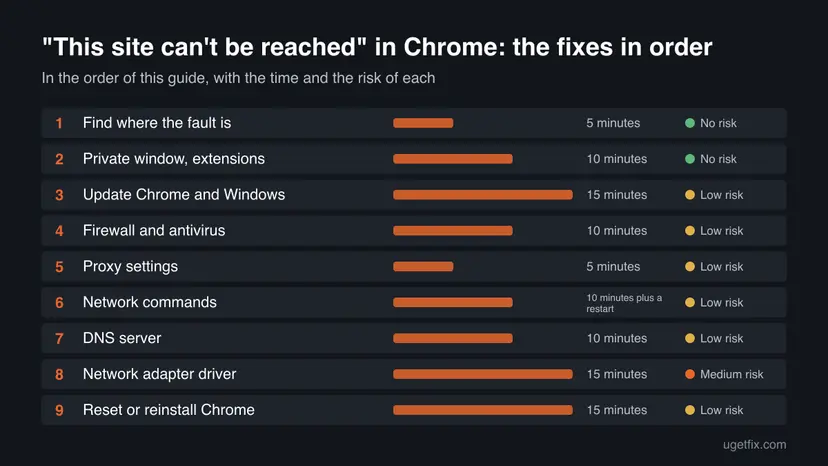
Fix 1 shows where the fault is. Fixes 2 and 3 clean up Chrome and update it. Fixes 4 and 5 check what sits between Chrome and the network on your PC. Fixes 6 to 8 repair the Windows network settings, and Fix 9 resets Chrome as the last step.
| What you see or have | Start with |
|---|---|
| You are not sure whether the site, your network or your PC is at fault. | Fix 1 |
| The site opens in a private window, or you use browser extensions. | Fix 2 |
| Chrome or Windows has not been updated for a long time. | Fix 3 |
| Edge works but Chrome and Firefox fail, or you installed security software lately. | Fix 4 |
| Every site fails in every browser, and you used a VPN or proxy tool. | Fix 5 |
| The router answers a ping but websites do not load. | Fixes 6 and 7 |
| The problem began after a driver or Windows update. | Fix 8 |
| Only Chrome fails, even in a private window. | Fix 9 |
Fix 1. Check the address, test another site and another device
5 minutesNo riskYou have not yet found out whether the site, your network or your PC is the problem.
Google and Microsoft both start here. One site failing points to the site or its address, every site failing points to the connection, and a phone that works on the same network clears your router and provider.
- Read the address in the bar letter by letter. A typo is the most common reason and Google lists it as the first check.
- Select Reload this page, or press F5.
- Open two or three other sites. If only one site fails, the problem is probably that site.
- Open the failing site on a phone or another computer on the same Wi-Fi.
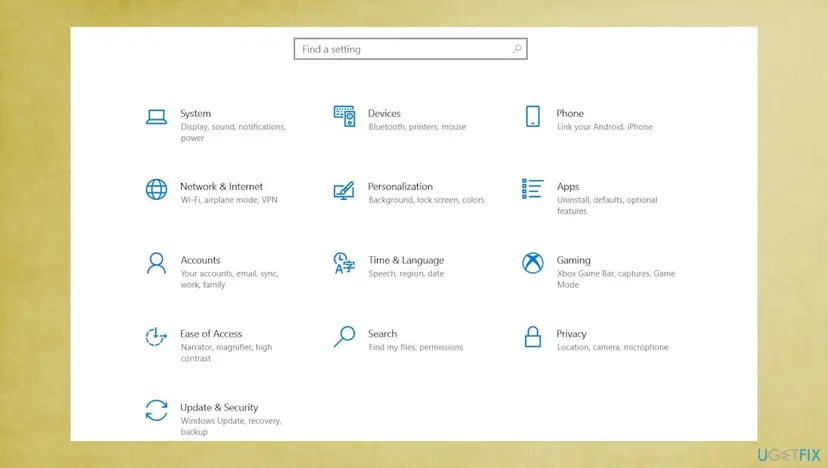
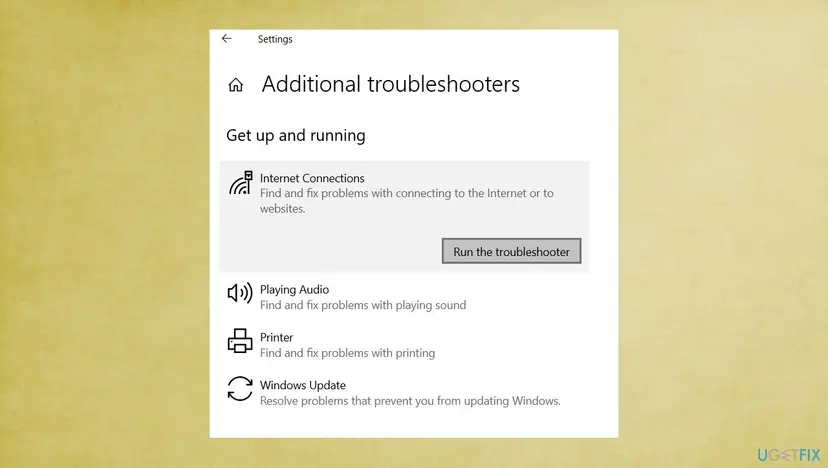
- If every site fails, check Airplane mode under Settings > Network & internet, then run the Windows network troubleshooter: press Win + I. Then go to System > Troubleshoot > Other troubleshooters > Network and Internet (Update & Security > Troubleshoot on Windows 10).
- If nothing connects, restart the modem and router: unplug both, wait at least 30 seconds, plug the modem in first and wait for its lights to settle, then the router.
Also see How to check your internet connection in Windows for the checks Windows offers.
It worked if: You know which side fails: the site, the network or this PC. If the phone opens the site, continue with Fix 2.
If not: If the site fails on every device, wait and try later, or contact the site owner, because the fault is outside your PC.
Fix 2. Open the site in a private window and turn off extensions
10 minutesNo riskThe site fails in Chrome, you use extensions, and you have not yet tried a private window.
A private window loads Chrome without most extensions and stored cookies. Google lists extensions, cookies and cache as browser causes, and says that a fix in Incognito means you should disable extensions or delete browsing data.
- In Chrome press Ctrl + Shift + N to open an Incognito window and enter the address.
- If the site opens, close the Incognito window. The cause is an extension or stored data.
- Open the Chrome menu and go to Extensions > Manage extensions. Turn off every extension, then reload the failing site.
- If the site opens, turn the extensions back on one at a time and reload after each until the error returns. Remove that extension.
- If it still fails, press Ctrl + Shift + Del, choose a time range, tick cookies and cached images and files, and delete them. Clear the browser cache and cookies shows each browser.
Select the icon left of the address, open the site settings and clear its data. This removes one site's cookies and keeps your other sign-ins.
It worked if: The site opens in a normal window after you disable the extension or clear the data.
If not: If it fails in Incognito too, the cause is not an extension. Continue with Fix 3.
Fix 3. Update Chrome and Windows
15 minutesLow riskChrome shows an update arrow, or Windows has pending updates, or the error began after an update.
Google tells users to run the latest Chrome and says an outdated browser can interrupt a connection. Microsoft lists Windows updates among its network fixes, and a driver or network component may be updated with them.
- Open the Chrome menu and select Help > About Google Chrome. Chrome checks for updates and offers Relaunch.
- If Chrome is up to date, close it with the X and reopen it from Start. Google recommends a manual restart when no update exists.
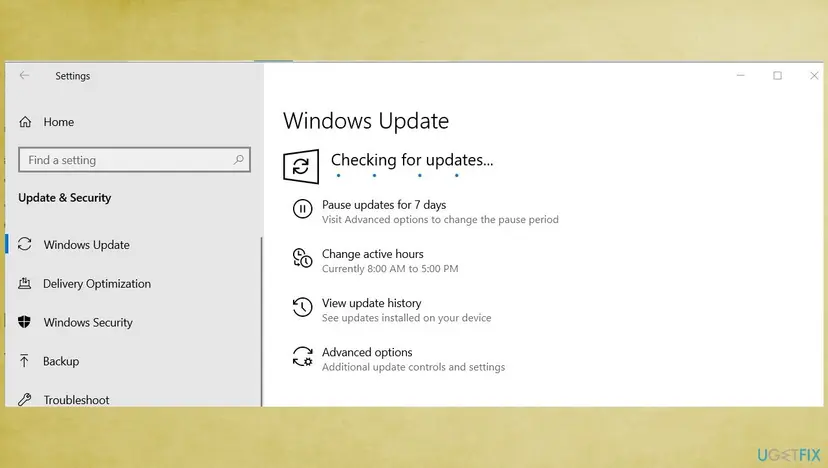
- Press Win + I and open Windows Update. On Windows 10 it is under Update & Security.
- Select Check for updates, install what is offered and restart the PC.
- Select View update history (Windows 10) or Update history (Windows 11) if the error began after an update, and note the date and name.
Windows 10 22H2 left support on 14 October 2025. It no longer receives security updates unless you enroll in Extended Security Updates, so plan the move to Windows 11.
It worked if: Chrome and Windows are current, and the site opens after the restart.
If not: If the update history shows the problem started with a specific update, keep it in mind for Fix 8 and Fix 9, then continue with Fix 4.
Fix 4. Check that the firewall and antivirus allow your browser
10 minutesLow riskOne browser works and another fails, or the error began after you installed or updated security software.
Google lists a firewall or antivirus as a device software cause and tells users to check that it does not block the connection. The reader who wrote to us had Edge working while Chrome and Firefox failed, which fits a rule or web shield that treats browsers one by one.
- Open your security program, or Windows Security > Firewall & network protection if you use only Windows.
- Open the firewall's list of allowed apps. In Windows Security select Allow an app through firewall, then Change settings.
- Find Google Chrome and Firefox. Tick Private and Public for each, or add the program if it is missing.
- If the security suite has a web shield or HTTPS scanning, add Chrome to its exclusions instead of turning the shield off.
- Restart the browser and reload the site.
- As a last test, pause real-time protection for one test as described in Turn off Microsoft Defender protection for a moment, reload the site, and turn protection on again at once.
A pause is only a test to find the culprit. If the site opens while protection is paused, the fix is an allow rule in that program, not a permanent shutdown.
It worked if: The browser connects with the firewall and antivirus still turned on.
If not: If pausing protection changes nothing, the block is not in that program. Check the proxy in Fix 5.
Fix 5. Turn off a manual proxy
5 minutesLow riskEvery website fails in every browser, or you used a VPN or free proxy tool before it began.
Microsoft lists a manual proxy among the checks for a PC that is connected but cannot reach the internet. A proxy left behind by an app that no longer runs sends all traffic to an address that does not answer.
- Press Win + I and open Network & internet > Proxy.
- Under Manual proxy setup select Set up. If Use a proxy server is on and you did not set it on purpose, turn it off and select Save.
- On older setups press Win + R, type
inetcpl.cpland press Enter, open the Connections tab and select LAN settings. - Untick Use a proxy server for your LAN, select OK and restart Chrome.
- If you use a VPN app, disconnect it or close it completely and test again.
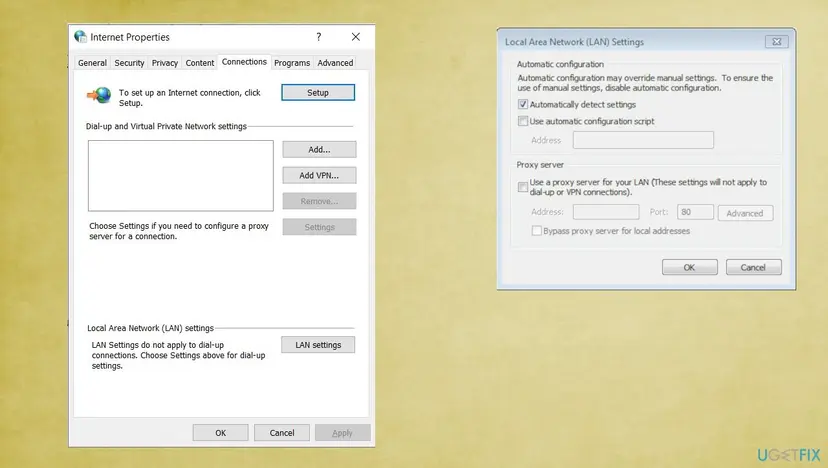
If the proxy is set by your employer or school, leave it as it is and ask your administrator. A required proxy is part of how the network works.
It worked if: Websites load again with the proxy off.
If not: If the proxy was already off, repair the Windows network settings with Fix 6.
Fix 6. Release the IP address, flush DNS and reset Winsock
10 minutes plus a restartLow riskOther devices work on the same network, and the steps above did not help.
Microsoft gives these commands to reset the TCP/IP stack, renew the IP address and flush the DNS resolver cache. A stale DNS entry or a broken Winsock catalog makes lookups fail, so Chrome cannot reach even sites that work elsewhere.
- Select Search on the taskbar and type command prompt.
- Select Run as administrator and then Yes.
- Run the commands below in this order. Press Enter after each one.
- Restart the PC and test the site.
Microsoft's order for the network commands. A longer walk through with screenshots: Reset the network and flush DNS.
netsh winsock reset
netsh int ip reset
ipconfig /release
ipconfig /renew
ipconfig /flushdns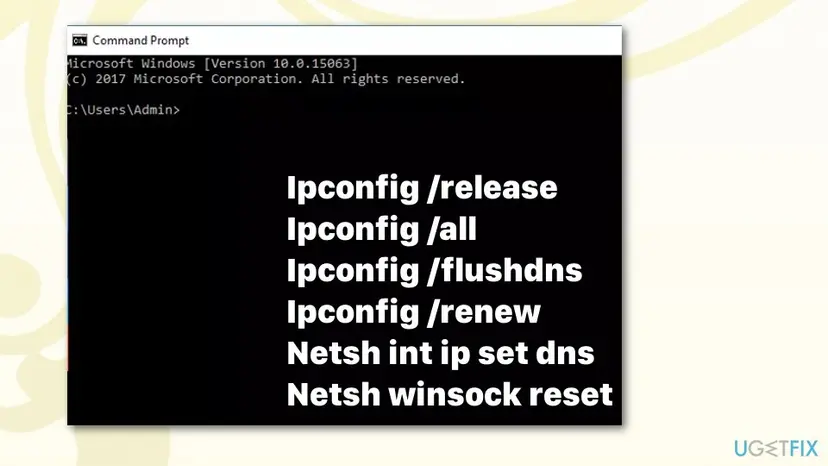
It worked if: Each command reports success. After the restart the site opens.
If not: If the commands succeed but sites still fail, test the DNS server in Fix 7.
Fix 7. Check and change the DNS server
10 minutesLow riskThe code is ERR_NAME_NOT_RESOLVED or DNS_PROBE_FINISHED_NXDOMAIN, or the router answers a ping but sites do not load.
Microsoft says that if your PC has a DNS server address but cannot ping it, you can change the DNS server and ping the new address. A DNS server that does not answer stops Chrome from turning names into addresses.
- Open Command Prompt as administrator.
- Type
ipconfig /all | findstr /c:"DNS Servers"and press Enter. Write down the DNS server address. - Type
pingfollowed by that address and press Enter. - If you get no reply, open Settings > Network & internet, select your Wi-Fi or Ethernet connection, then Hardware properties > DNS server assignment > Edit.
- Choose Manual, turn on IPv4 and enter the address of a public DNS server from a provider you trust.
- Save, run
ipconfig /flushdnsand reload the site.
To go back, open the same screen, set DNS server assignment to Automatic (DHCP) and save.
It worked if: The new DNS server answers a ping and the site opens.
If not: If DNS answers but the site fails, the fault is not name lookup. Check the adapter driver in Fix 8.
Fix 8. Reinstall the network adapter driver and turn off its power saving
15 minutesRead the warningThe error began after a Windows or driver update, or the connection drops on its own.
Microsoft suggests uninstalling the network adapter driver and restarting when the connection stopped working after an update, and turning off Wi-Fi adapter power saving. Windows then installs a clean driver.
If the PC cannot connect to the internet after the uninstall, you need the driver on a USB drive. Download the latest network adapter driver from the PC maker's website on another computer before you start.
- Search for device manager on the taskbar and open it.
- Expand Network adapters and right-click your Wi-Fi or Ethernet adapter.
- Select Uninstall device, tick Attempt to remove the driver for this device and select Uninstall.
- Restart the PC. Windows reinstalls a driver automatically; if it does not, install the one you saved.
- Return to Device Manager, open the adapter's Properties and the Power Management tab.
- Untick Allow the computer to turn off this device to save power and select OK.
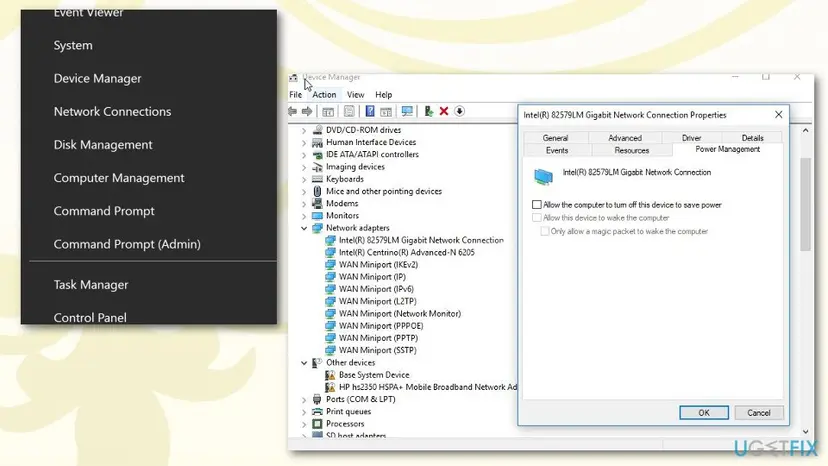
Update, roll back or reinstall a driver shows how to update, roll back or reinstall a driver.
It worked if: The adapter returns after the restart and sites load without dropping.
If not: If the connection still fails, reset Chrome in Fix 9.
Fix 9. Reset Chrome settings, then reinstall Chrome if needed
15 minutesLow riskOnly Chrome fails, even in a private window, and the other fixes did not help.
Google gives resetting Chrome to default settings as the last step and notes that uninstalling and reinstalling fixes most problems. Signed-in data is kept in your Google Account.
- Open the Chrome menu and go to Settings > Reset settings.
- Select Restore settings to their original defaults and then Reset settings.
- Restart Chrome and reload the site.
- If it still fails, uninstall Chrome from Settings > Apps > Installed apps and install it again from google.com/chrome.
- Sign in again to get your saved data back.
Google's reset returns startup page, search engine, pinned tabs and content settings to defaults and turns extensions off. Bookmarks and saved passwords stay.
It worked if: Chrome opens the site with default settings.
If not: If Firefox and Edge fail too, the cause is outside Chrome. Use the checks under Still broken.
Still can't reach the site: what the result tells you
Compare what still fails. A phone that opens the site while your PC does not is a PC problem, and a phone that fails as well points to the router, your internet provider or the site. Microsoft's ping test separates these: run ipconfig, note the Default gateway, then run ping followed by that address.
- Replies from the router: the PC reaches the router, so the fault is the modem, the provider, DNS or the site. Contact your provider.
- No replies from the router: the Wi-Fi or cable link is down. Try an Ethernet cable and update the router firmware.
- An address starting with 169.254: Windows got no address from the router, so DHCP on the router is the place to check.
- Only one site fails everywhere: the site is down or blocks you. Contact the site owner, as Google advises for page problems.
- One browser works, others fail: go back to Fix 4 and compare the firewall rules of each browser.
If you use a work or school computer, ask your administrator, because a firewall or proxy may be managed for you. When you ask for help, give the exact code, the browser version and what each test showed.
How to keep Chrome from losing connections again
- Keep Chrome and Windows updated.
- Add only extensions you trust, and review them now and then.
- Allow browsers in your firewall when it asks.
- Note a proxy or DNS setting before you change it.
- Do not turn off the firewall or antivirus for good to get online.
- Do not leave a free proxy or VPN tool installed after you stop using it.
- Do not install a second security suite beside the first one.
- Do not run network commands at random; use them in the order above.
Run Chrome's Safety Check from time to time, as Google suggests. Free memory by closing unused tabs, because Google notes that low memory can also cause loading errors.
Frequently asked questions
What does "This site can't be reached" mean?
It means Chrome could not open a connection to the website, so the page never loaded. The cause can be a typo in the address, a site that is down, a problem with your network or DNS, or software on your PC such as a firewall, antivirus, proxy or extension. The code under the message tells more. Test the same address on a phone: if it opens there, the fault is on your PC and Fixes 2 to 9 apply.
Why does Chrome say this site can't be reached when other sites work?
Then the problem is most likely with that site or its address. Check the spelling, reload the page and try again later, because the server may be down or busy. Google advises contacting the site owner when only one site fails. If a phone on the same network also fails to open it, the site is the cause. If the phone opens it, clear that site's cookies and test in Incognito mode.
Why can't I reach any site in Chrome but Edge works?
When one browser works and another fails, the cause is usually specific to the browser. Look for an extension, a damaged Chrome setting or a firewall or antivirus rule that treats browsers separately. Test an Incognito window, turn off extensions, check the allowed apps in your firewall and reset Chrome's settings. If Firefox fails too, as in the question we received, the firewall or antivirus rule in Fix 4 is the first place to look.
Does clearing the cache fix "This site can't be reached"?
Sometimes. Google lists cookies and cache among browser causes and tells you to delete browsing data after an Incognito test shows the site opens. It does nothing when the fault is in DNS, the proxy, the firewall or the network, so it is not the only fix to try. Clear one site's data first, then the full cache, and move on to the other fixes if the error stays.
How do I fix DNS_PROBE_FINISHED_NXDOMAIN or ERR_NAME_NOT_RESOLVED?
Google says ERR_NAME_NOT_RESOLVED means the hostname does not exist or now has another IP address. Check the spelling first, then flush the DNS cache with ipconfig /flushdns and test the DNS server with a ping, as in Fixes 6 and 7. Google's pages do not explain DNS_PROBE_FINISHED_NXDOMAIN separately, so treat it as the same family of name lookup failures.
Can a VPN or proxy cause "This site can't be reached"?
Yes. Google names a VPN issue as one reason for ERR_CONNECTION_RESET, and Microsoft lists a manual proxy among the checks for a PC that cannot reach the internet. Disconnect the VPN and close the app, then turn off a proxy you did not set on purpose under Settings, Network & internet, Proxy. On a work PC the proxy is probably required, so ask your administrator.
Should I turn off my antivirus to fix this error?
Only for one short test. Pause real-time protection, reload the site and switch protection back on at once. If the site opens while protection is paused, add an allow rule or exclusion for Chrome in that program. Do not leave protection off, because it also protects every other app on the PC. Fix 4 shows where the rules are.
Is it the website, my internet or my computer?
Test three things. Open other sites on the same PC, open the failing site on a phone on the same Wi-Fi, and ping the router. A site that fails everywhere is down or blocked. A site that fails only on your PC points to the PC. A router that does not answer a ping points to Wi-Fi, the cable or the router. Fix 1 and the Still broken section cover each case.
Do I need to reinstall Chrome?
Rarely. Reset Chrome's settings first, because Google gives it as the second last step and your Google Account keeps saved data. Reinstall only when the reset does not help and the error appears in Chrome alone. If Edge and Firefox also fail, reinstalling Chrome changes nothing, because the cause lies in Windows or the network.
Sources
- Google Chrome Help: Fix connection and loading errors in Chrome (support.google.com)
- Google Chrome Help: Get help with common error messages in Chrome (support.google.com)
- Microsoft Support: Fix Wi-Fi connection issues in Windows (support.microsoft.com)
Did this fix work?
One click, no account. It tells the next reader which guides are worth their time.
Questions and experiences: fix "This site can't be reached" in Chrome on Windows
Still broken, or found a fix we did not cover? Ask here: members and our editors answer. Reading is open; writing needs a free account.
…