
How to fix Valorant error code 38?

Prefer to fix it yourself? The manual steps follow.
- 8methods
- 2 minutes for Riot's fix, 5 to 30 minutes for the network checks; a Riot outage ends when Riot fixes it
- Easy
Applies to VALORANT on Windows PC (Riot Client); the first two fixes also apply on PlayStation 5 and Xbox Series X|S
8 methods in this guide
Hey, can you help me? I play Valorant and get error code 38 with a message that only says it is a connection error. It does not answer other questions or give more details. It appeared once I started the game, too. Can I solve this myself somehow and forget about those cut-offs?
VAL 38 is the code VALORANT shows when the game loses its connection to Riot's platform, at launch or in the middle of a session. Riot's own fix is to restart both VALORANT and the Riot Client. If the code comes back, check Riot's status page before you change anything on your PC or router.
Quit VALORANT, exit the Riot Client from the system tray, end any Riot processes left in Task Manager, then start the client again (Fix 1). That is the fix Riot lists for code 38. If VAL 38 returns, open status.riotgames.com and pick VALORANT and your region (Fix 2). An open incident means you wait. No incident: restart the modem and router, use a cable and turn off any VPN (Fix 3 and Fix 4).
| Error | VAL 38. Riot's VALORANT error table: code 38, "Connection Error", solution "restart VALORANT and the Riot Client". |
|---|---|
| Where it appears | In a VALORANT error box, at launch or during a session. Players report the text "There was an error connecting to the platform. Please restart your game client." |
| Main cause | The game lost its link to Riot's platform: a stuck Riot Client session, a Riot side incident, or a home connection that drops. |
| Fastest fix | Quit VALORANT, exit the Riot Client completely and start it again (Fix 1). This is Riot's listed solution. |
| Also written as | VAL38, val 38 error, error code val 38, valorant error code 38, error code 38, Valorant Fehlercode 38 (German), VAN 38 (a typing mistake: Riot lists no VAN 38). |
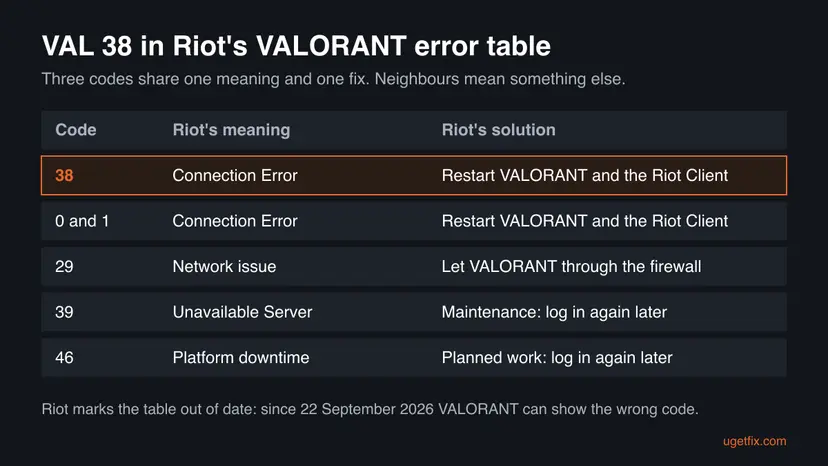
| Same meaning | Codes 0 and 1 have the same entry in Riot's table: "Connection Error" with the same fix. |
| Riot's status | Riot marks its error table "currently out of date". Since 22 September 2026 Riot warns that VALORANT shows the wrong code for various errors. |
| Not the cause | Riot's table does not tie code 38 to a ban. Bans have their own codes (61, and 152 for a hardware ban). |
| Time to fix | 2 minutes when the restart works. Network checks take 5 to 30 minutes. A Riot side incident lasts until Riot closes it. |
Facts checked on 16 October 2026. Steps written for VALORANT with the Riot Client on Windows 11 (25H2 and 26H2) and Windows 10 22H2, read against Riot's support articles.
What error code VAL 38 means in Valorant, and its other spellings
VALORANT keeps a live link to Riot's platform from login to logout. Your session, your party, chat and matchmaking all run through it. VAL 38 means that link failed, so the game stops and asks you to start the client again.
Riot's support article "Error Codes and Solutions in VALORANT" lists code 38 as Connection Error, with the solution "Go ahead and restart VALORANT and the Riot Client." That is the whole official entry. Codes 0 and 1 carry exactly the same meaning and fix.
| What you see or type | What it is |
|---|---|
| "There was an error connecting to the platform. Please restart your game client. Error Code: VAL 38" | The box text players and the old version of this guide report. Riot does not print it in its articles. |
| VAL 38, VAL38, val 38 error, error code val 38, error code 38 | All the same code. VAL is the prefix of VALORANT game codes. |
| Valorant Fehlercode 38 | German for "Valorant error code 38". Same code, same fixes. |
| VAN 38 | Not in Riot's tables. VAN codes belong to Riot Vanguard, and we found no VAN 38. It is almost always VAL 38 typed wrong. |
| VAL 40, VAN 293, "err-7482-38" | Not in Riot's VALORANT table and not found on Riot's support site. See the FAQ. |
On 22 September 2026 Riot posted a banner: "VALORANT is displaying the wrong error code for various errors due to a recent bug". Riot asks players to include logs in a ticket so it can find the right error. If the fixes below do nothing, your real error may be a different one.
What causes VAL 38, from most to least common
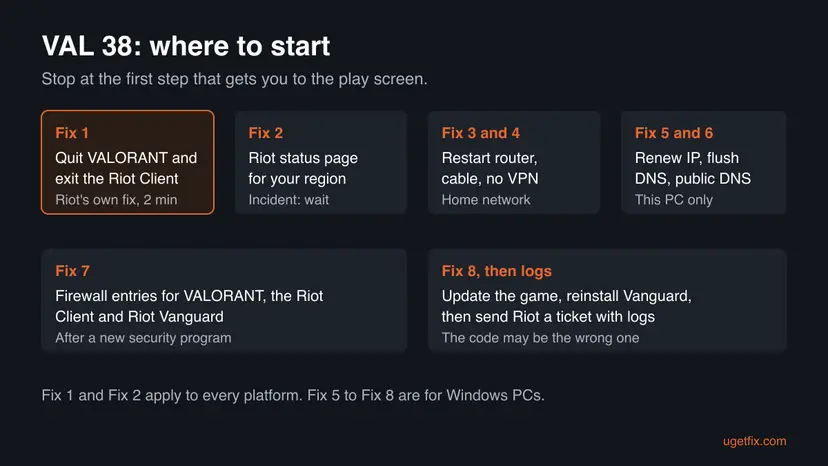
Riot publishes no numbers on how often each cause occurs. The order below follows Riot's advice: its fix for code 38 is a restart of the game and the client, so a stuck session comes first. Riot's VALORANT network article then covers the home network and the PC.
| Cause | How often | How to tell | Fix |
|---|---|---|---|
| The Riot Client or VALORANT session is stuck after an update, a sleep, a Wi-Fi drop or a crash. | Most often | Only you get the code, and other online services work. | Fix 1 |
| Riot's platform has an incident, or a patch is rolling out. | Often, in waves | An incident on the status page, a banner, or friends in other homes get the code too. | Fix 2, then wait |
| The router or modem has lost its link, or Wi-Fi drops packets. | Sometimes | Calls and other games stutter, or a second device has trouble too. | Fix 3 and Fix 4 |
| A VPN or proxy sends the traffic on a route that fails. | Sometimes | The code started when you turned on a VPN. | Fix 4 |
| A stale IP address, DNS cache or slow DNS server on the PC. | PC, less often | Other devices on the same network play fine. | Fix 5 and Fix 6 |
| A firewall or antivirus blocks VALORANT, the Riot Client or Riot Vanguard. | PC, less often | The code started after a security program was installed or updated. | Fix 7 |
| An outdated game, damaged Vanguard files, or another program in the way. | Rarely | Other codes appear too, or the game asks for an update. | Fix 8 |
| A different error shown as VAL 38 because of Riot's display bug. | Unknown | Nothing above helps, and other codes come and go. | Logs and a ticket |
Riot does not say which server VAL 38 comes from or why it can appear mid-session. Players report it most after a Wi-Fi drop or after the PC wakes from sleep. Riot has not described those cases, so we treat them as reports.
How to fix Valorant error code 38
Fix 1 is Riot's own solution and takes two minutes. Fix 2 tells you whether anything you do can help. Fix 3 and Fix 4 cover the home network on any platform. Fix 5 to Fix 8 are for Windows PCs. Stop as soon as you reach the play screen.
| What you see or have | Start with |
|---|---|
| VAL 38 for the first time, nothing else changed. | Fix 1 |
| VAL 38 again right after a full restart of the game and client. | Fix 2, then Fix 3 |
| Friends in other homes get the same code, or the status page shows an incident. | Fix 2. Nothing else helps until Riot closes it. |
| You play over Wi-Fi, on a VPN or through a proxy. | Fix 4 |
| PlayStation 5 or Xbox Series X|S. | Fix 1, Fix 2, then Fix 3 and Fix 4 |
| Other devices at home play fine, only this PC fails. | Fix 5, then Fix 6 and Fix 7 |
| A new antivirus or firewall, or the code started after a Windows update. | Fix 7 |
| Several different VAL and VAN codes in one evening. | Fix 8, then collect logs |
Fix 1. Quit VALORANT and exit the Riot Client completely, then start again
2 minutesNo riskEveryone with VAL 38, as the first step.
This is the solution Riot gives for code 38: restart VALORANT and the Riot Client. Closing the game window is not enough, because the Riot Client keeps running in the system tray with the same broken session.
- Select QUIT GAME in the error box, or close VALORANT.
- Look at the system tray in the bottom right corner of the screen. Select the small arrow if the Riot icons are hidden.
- Right-click the Riot Client icon and select Exit.
- Press Ctrl + Shift + Esc to open Task Manager. On Windows 10, select More details if you see only a short list.
- On the Processes tab, look for Riot Client and VALORANT entries that are still running. Select each one and select End task.
- Start the Riot Client again from the Start menu, sign in if asked, and select Play for VALORANT.
- Leave Riot Vanguard running. The red Vanguard icon in the tray is the anti-cheat. Riot's entry for code 38 does not ask you to exit it, and VALORANT needs it.
- Restart the PC if a process will not end. A full restart also clears a session that broke when the PC went to sleep.
- Frozen windows: the general way to close an app that does not respond is here: Close a frozen app (Task Manager, Force Quit)
There is no separate Riot Client to exit on console. Close the VALORANT app completely, not only back to the home screen, then start it again. If VAL 38 comes back, go on with Fix 2.
It worked if: VALORANT loads past the main menu and shows the play screen without the error box.
If not: If VAL 38 appears again within minutes, go to Fix 2 and check whether the cause is on Riot's side.
Fix 2. Check Riot's status page, support banners and Discord
2 minutesNo riskVAL 38 came back after Fix 1, on any platform.
Code 38 is a connection error, and one end of that connection is Riot's platform. Riot's error table itself asks players to watch its Discord and support site banners for emergent issues. If Riot has an incident, nothing at home will help.
- Open
https://status.riotgames.comon a phone or in a browser. - Choose your region at the top of the page, for example North America or Europe.
- Find VALORANT and read the current messages. A message shows the time and the platforms affected.
- Open
support.riotgames.comand look for a banner at the top about VALORANT. - Check the announcements on the official VALORANT Discord server, which Riot links in its error table.
- If any of these shows an incident for your region and platform, stop here. Try again every 15 to 30 minutes, and do Fix 1 once after Riot closes it.
Riot has posted an incident or a banner, or friends in other homes get VAL 38 at the same time, while everything else online works for you. Then reinstalling the game, changing DNS or resetting Windows networking cannot help.
The 30 minute interval is our suggestion, not Riot's. Riot's table names code 39 for an unavailable server and code 46 for planned downtime, but during an outage several codes can appear in turn.
It worked if: Either you find an incident and know you have to wait, or every channel is clear and you know the fault is between you and Riot.
If not: No incident, and VAL 38 stays: continue with Fix 3.
Fix 3. Restart the PC, the modem and the router
5 minutesLow riskNo incident from Riot, on PC or console, and above all when other online services at home act up.
VAL 38 is a dropped connection, and a router that has run for weeks or a modem with a weak link to the provider drops connections. A power cycle makes the modem build a new link.
Phones, TVs and work calls on the same network lose their connection until the router is back. Warn the people you live with first.
- Close VALORANT and exit the Riot Client as in Fix 1.
- Shut down the PC, or turn the console off completely. Rest mode is not enough.
- Turn off the modem and the router, or unplug them.
- Wait about 30 seconds.
- Turn on the modem first, then the router, and wait until their lights are steady.
- Start the PC or console, wait until it has fully started, then start VALORANT.
It worked if: The game reaches the play screen and stays connected, and other online services at home feel normal again.
If not: If you play over Wi-Fi or with a VPN, go to Fix 4. On a cable with no VPN, go to Fix 5.
Fix 4. Use a cable, free up the line and turn off VPN or proxy
5 to 10 minutesNo riskYou play over Wi-Fi, on a busy shared line, or with a VPN or proxy on.
Riot's VALORANT network article starts with these basics: it says a wired connection is faster and more stable, and that a proxy or VPN "can cause issues with your connection and should only be used if 100% necessary".
- Disconnect your VPN and close its app. If you set a proxy in Windows, turn it off where you turned it on.
- Pause downloads, streaming and cloud sync on the PC and on other devices at home.
- Connect the PC or console to the router with an Ethernet cable, and check that the cable sits firmly at both ends, as Riot asks.
- On Windows 11, open Start > Settings > Network & internet and check that Ethernet shows as connected.
- Exit and start the Riot Client again, then start VALORANT.

- A phone hotspot as a one-time test. If VAL 38 disappears on a hotspot, your home line or router is the cause. If it stays, the cause is the PC or Riot.
- Windows up to date. Riot's network article notes that Windows updates sometimes carry connection fixes.
- A wider check of the home network on Windows: How to check your internet connection in Windows
It worked if: With the cable in and no VPN, the game passes the main menu and does not drop with VAL 38 during a match.
If not: Console players: open a ticket through the in-game help with logs. On a Windows PC, go to Fix 5.
Fix 5. On PC: renew the IP address and flush DNS
5 minutesLow riskA Windows PC that still gets VAL 38 after the router restart, while other devices on the same network play fine.
Riot's VALORANT network article gives release, renew and flush DNS as the way to fix minor network glitches. Windows forgets stored server addresses and asks the router for a fresh address.
- Close VALORANT and exit the Riot Client as in Fix 1. Close your browsers too, as Riot asks.
- Press the Windows key, type
cmd, right-click Command Prompt and select Run as administrator, then Yes. - Run these three commands one by one. Riot writes them without a space, but the usual form with a space works the same.
ipconfig /release ipconfig /renew ipconfig /flushdns - Restart the PC, then start the Riot Client and VALORANT.
If this does not help, Windows can also reset its whole network stack. That also clears an IP address or DNS server you typed in by hand, so note them first. Step by step with screenshots: Reset the network and flush DNS
It worked if: Each command answers without an error, and after the restart VALORANT gets past the main menu.
If not: Go to Fix 6 and switch to a public DNS server.
Fix 6. On PC: switch to a public DNS server
5 minutesLow riskA Windows PC where Fix 5 did not help, or where your provider's DNS has been slow before.
Riot's network article says your provider's DNS server sometimes "isn't ideal for gaming" and suggests Google's or Cloudflare's servers for stability. The old version of this guide used Cloudflare's addresses, which Riot also lists.
- Press Win + R, type
ncpa.cpland press Enter. The Network Connections window opens on Windows 11 and Windows 10. - Right-click the adapter you use (Ethernet or Wi-Fi) and select Properties.
- Select Internet Protocol Version 4 (TCP/IPv4) and select Properties.
- Leave the IP address part as it is. In the lower half, select Use the following DNS server addresses.
- Type Cloudflare's
1.1.1.1and1.0.0.1, or Google's8.8.8.8and8.8.4.4. - Select OK, then OK again, and restart the PC.
Some providers block third-party DNS servers. If you lose internet access after the change, set the dialog back to Obtain DNS server address automatically. Riot also unticks Internet Protocol Version 6 (TCP/IPv6). Try that only if the DNS change alone does not help, and tick it again if nothing changes.
It worked if: Web pages still open, and VALORANT no longer drops with VAL 38.
If not: Set DNS back to automatic if nothing changed, then go to Fix 7.
Fix 7. On PC: let VALORANT, the Riot Client and Riot Vanguard through the firewall
10 minutesLow riskA Windows PC where only VALORANT fails, above all after a new or updated security program.
Riot's network article says a firewall can "wind up blocking VALORANT or Vanguard" and links its firewall guide. An old entry that points at a file from before an update can block the connection the game needs.
- Type Windows Defender Firewall in the Windows search box and open it.
- Select Allow an app or feature through Windows Defender Firewall, then Change settings.
- Select the existing VALORANT and Riot Client entries and select Remove.
- Select Allow another app, then Browse, and add
C:\Riot Games\VALORANT\live\VALORANT.exe. Select Add. - Repeat for
C:\Riot Games\Riot Client\RiotClientServices.exeandC:\Program Files\Riot Vanguard\vgc.exe. - Tick both Private and Public for each new entry, select OK, and restart the Riot Client.
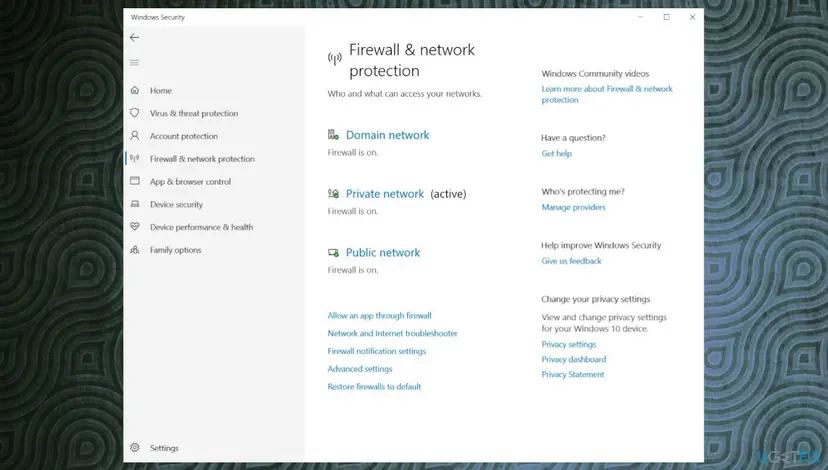
The paths are for a default installation. If you installed VALORANT on another drive, use that path. For a third-party antivirus or firewall, add the same three files to its exception list.
- A test with protection paused. If the exceptions do not help, pause Microsoft Defender's real-time protection for one test, start VALORANT, then turn it back on at once: Turn off Microsoft Defender protection for a moment
- Do not leave the firewall off. If the game works only with it off, fix the exceptions instead.
It worked if: The new entries appear with ticks under Private and Public, and VALORANT stays connected.
If not: If VAL 38 stays with correct exceptions, go to Fix 8.
Fix 8. On PC: update VALORANT, try a clean boot and reinstall Riot Vanguard
15 to 30 minutesLow riskA Windows PC where Fix 1 to Fix 7 did not help, or where other codes appear next to VAL 38.
None of this is on Riot's line for code 38, so it comes last. It is here because Riot's display bug can show another error as VAL 38, and Riot gives these steps for connection codes such as 128.
- Open the Riot Client and the VALORANT page. If an Update button shows instead of Play, select it and wait.
- If other programs might be in the way, do a clean boot: How to perform a clean boot in Windows
- To reinstall Riot Vanguard, exit the Riot Client and every Riot game first.
- On Windows 11 open Settings > Apps > Installed apps (Apps & features on Windows 10), find Riot Vanguard, open its menu and select Uninstall.
- Restart the PC.
- Start the Riot Client. It installs Vanguard again by itself; restart the PC once more if asked, then start VALORANT.
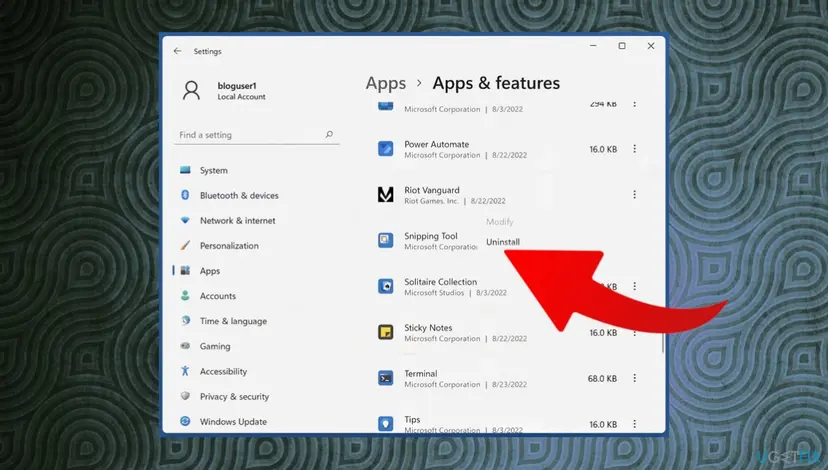
A clean boot turns off startup programs and third-party services. When the test is over, turn them back on as the clean boot procedure describes, or some apps will not start with Windows.
It worked if: VALORANT is up to date, the Vanguard icon is back in the tray after the restart, and the game stays connected.
If not: Collect your logs and send Riot a ticket, as the next section describes.
If VAL 38 is still there: the logs Riot needs and when it is not your PC
Because of the display bug, Riot asks for logs with every ticket so it can find the right error. Logs also show what you cannot see: whether the connection dropped on your side or on Riot's. Do not delete the log folders before you send them.
| Log | Where it is | What it shows |
|---|---|---|
| VALORANT logs | %localappdata%\VALORANT\Saved\Logs | What the game did, including the error it really got. |
| Riot Client logs | %localappdata%\Riot Games\Riot Client\Logs | The client session and its connection to Riot. |
| Riot Vanguard logs | C:\Program Files\Riot Vanguard\Logs | Whether the anti-cheat was running. |
- Press Win + R, paste a path from the table and press Enter.
- Select the files, right-click them and compress them to a .zip file.
- Open a ticket at
support.riotgames.comunder Submit A Ticket, and attach the zip. - Write your platform, region, the time of the first VAL 38, any other codes you saw, and the fixes you already tried.
- When it is your provider: VAL 38 and other drops go away on a phone hotspot. Then the line itself is the problem, and only your provider can check it.
- When it is Riot: only VALORANT fails, on a connection that passes every test. Support can see account and server side faults that you cannot.
- On console: use the help or support option inside the game and say yes when asked to include logs.
How to avoid VAL 38 next time
- Exit the Riot Client from the tray when you stop playing, instead of leaving it open for days or across sleep.
- Let the Riot Client finish updates before you start VALORANT on patch day.
- Play over a cable, or keep the router close when you must use Wi-Fi.
- Check
status.riotgames.comfor your region before you start troubleshooting. - Keep firewall exceptions current after you move or reinstall the game.
- Do not use a VPN or proxy for VALORANT unless Riot support asks for it in a test.
- Do not leave the firewall or antivirus off after a test.
- Do not delete log folders you may need for a ticket.
- Do not change DNS, reset networking and reinstall the game all at once: you will not know what helped.
The honest part: a fault on Riot's platform cannot be prevented from your side. If VAL 38 hits many players at once, the shortest way back into the game is to wait and restart the client after Riot closes the incident.
Frequently asked questions
What does error code VAL 38 mean in Valorant?
It means VALORANT lost its connection to Riot's platform. Riot's error table lists code 38 as "Connection Error" and gives one fix: restart VALORANT and the Riot Client. Codes 0 and 1 have exactly the same entry. The box players see usually reads "There was an error connecting to the platform. Please restart your game client." It can appear at launch or in the middle of a session, and it does not say whether the fault is on your side or Riot's.
Is Valorant down when I get VAL 38?
Sometimes. Open status.riotgames.com, choose VALORANT and your region, and read the current messages. An open incident for your platform means the problem is on Riot's side and you can only wait. Also check the banners at the top of Riot's support site and the VALORANT Discord, which Riot names in its error table. If all are clear and friends in other homes can play, the cause is between your device and Riot, and Fix 3 to Fix 8 apply.
Does VAL 38 mean I am banned?
No. Riot's error table gives bans their own codes: code 61 means you have been banned from playing VALORANT, and code 152 is a hardware ban that typically lasts four months. Code 7 can point to a suspension. Code 38 is described only as a connection error. Since September 2026 Riot warns that VALORANT can show the wrong code, so if you also got an email about a penalty, read that email and contact Riot support.
What is Valorant error code -79 or VAN -79?
It is a different error from VAL 38. Codes with the VAN prefix belong to Riot Vanguard, the anti-cheat, and Riot documents VAN -79 in its own support article rather than in the VALORANT error table. The steps for Vanguard codes differ: they center on the Vanguard service and a reinstall of Vanguard. Our guide to the VAN 0 error in Valorant covers the Vanguard family. If your screen shows VAL 38, stay with this page.
What are VAL 40, VAN 38, VAN 293 and err-7482-38?
We could not find any of them on Riot's support site. Riot's VALORANT table jumps from code 39 to 43, so VAL 40 is not listed, and Riot's Vanguard codes we know include no VAN 38 or VAN 293. VAN 38 is almost always VAL 38 typed wrong. The string err-7482-38 does not follow Riot's format at all, so it most likely belongs to another program. For a code that is not in Riot's tables, send Riot a ticket with logs.
How do I fix VAL 38 on PS5 or Xbox?
Close the VALORANT app completely and start it again, which is the console form of Riot's fix. Then check Riot's status page for your region and platform. If there is no incident, turn off the modem and router for about 30 seconds, connect the console with a cable and test again. If the code stays on a working connection, use the help option in the game to open a ticket, and agree to include logs so Riot can see the real error.
Why does VAL 38 kick me out in the middle of a match?
Because the game needs a live link to Riot for the whole session, not just at login. A short drop of your Wi-Fi, a router that resets or a VPN that changes route can break that link mid-match, and VALORANT reports it as a connection error. Riot does not describe the mid-session case separately. Fix 3 and Fix 4 matter most here: restart the router, use a cable and turn off any VPN. Then watch whether the drops stop.
Will reinstalling Valorant fix VAL 38?
Rarely, and Riot does not recommend it for this code. Riot's table gives one fix for code 38, a restart of VALORANT and the Riot Client, and its network article covers the router, VPN, DNS and firewall. A full reinstall downloads the whole game again and does nothing against a Riot incident or a bad connection. Try Fix 1 to Fix 7 first. Reinstalling Riot Vanguard, which is much smaller, is part of Fix 8.
Is Valorant Fehlercode 38 the same error?
Yes. Fehlercode is simply German for error code, so Valorant Fehlercode 38 is VAL 38 in a German search. The meaning in Riot's table does not change with the language of the game: code 38 is a connection error, and the fix is to restart VALORANT and the Riot Client. The steps on this page work the same with a German Windows and a German game, though menu names are in German there.
Why does Riot say its error code list is out of date?
Riot added a warning to the top of its VALORANT error table: a recent issue is causing VALORANT errors to display incorrectly. A banner dated 22 September 2026 says the game shows the wrong error code for various errors due to a bug. Riot's advice is to include logs when you submit a ticket so it can find the right error. The entry for code 38 is still on the list, so start with its fix, but do not spend an evening on it.
Sources
- Riot Games Support: Error Codes and Solutions in VALORANT (updated 2 June 2026) (support.riotgames.com)
- Riot Games Support: Troubleshooting Your Network Connection (VALORANT, 26 May 2026) (support.riotgames.com)
- Riot Games Support: VALORANT Displaying Incorrect Error Codes (22 September 2026) (support.riotgames.com)
Did this fix work?
One click, no account. It tells the next reader which guides are worth their time.
Questions and experiences: fix Valorant error code 38
Still broken, or found a fix we did not cover? Ask here: members and our editors answer. Reading is open; writing needs a free account.
…