
How to fix "We can't set up mobile hotspot" error in Windows?

Prefer to fix it yourself? The manual steps follow.
- 8methods
- 2 to 30 minutes
- Easy
Applies to Mobile hotspot in Settings and Quick Settings on Windows 11 and Windows 10 laptops, tablets and desktop PCs with a Wi-Fi adapter
8 methods in this guide
- What the message means
- Causes ranked
- Check the adapter first
- Known Windows issues
- The fixes
- 1. Check what you share
- 2. Change the network band
- 3. Start the hotspot services
- 4. Fix the Wi-Fi driver
- 5. Check for a blocking policy
- 6. Fix it after an update
- 7. Reset network settings
- 8. Repair Windows
- Still broken: read the logs
- Keep it working
- FAQ
I was trying to set up a mobile hotspot on my PC, but for some reason, I instead received an error "We can't set up mobile hotspot." I tried restarting both devices, but this didn't help. What should I do next?
"We can't set up mobile hotspot" is the message Windows shows under the Mobile hotspot switch when it cannot start sharing your connection. Most often the PC has nothing it can share right now, Wi-Fi is off, or the chosen band cannot be used. Read the words after the message first, then check the connection and the band.
Windows cannot start the hotspot because one of four things is missing: a working connection to share, a band the Wi-Fi adapter may use, the two hotspot services, or a driver that supports it. Turn Wi-Fi on, pick the right connection under Share my internet connection from (Fix 1), then set Network band to Any available or 2.4 GHz (Fix 2). If the plain message stays, start the hotspot services (Fix 3).
| Error | We can't set up mobile hotspot, shown under the Mobile hotspot switch in Settings. Some variants add a reason, such as Turn on Wi-Fi. |
|---|---|
| Where it appears | Settings > Network & internet > Mobile hotspot in Windows 11, Settings > Network & Internet > Mobile hotspot in Windows 10. The Quick Settings button gives no reason; right-click it and select Go to Settings to read it. |
| Main cause | Nothing to share at this moment: Wi-Fi is off, Airplane mode is on, or the connection under Share my internet connection from has no internet. Next comes a band the adapter may not use. |
| Fastest fix | Turn Wi-Fi on, check the shared connection (Fix 1), then set Network band to Any available or 2.4 GHz (Fix 2). |
| Also written as | We cant set up mobile hotspot, we can't setup mobile hotspot, we can not set up mobile hotspot, "We can't set up mobile hotspot because your PC doesn't have an Ethernet, Wi-Fi, or cellular data connection". |
| Related message | The selected network band isn't available. Select a different band and try again. Same switch, different cause: see Fix 2. |
| Affects | Windows 11 and Windows 10 (version 1607 and later). Windows 10 left support on 14 October 2025, so it gets no more fixes for this feature. |
| Microsoft's status | No open hotspot issue on the release health pages for Windows 11 24H2 and 25H2 or Windows 10 22H2 (read 14 October 2026). A 2022 update broke the hotspot and a later one fixed it. |
| Not the cause | Hosted network supported: No in netsh wlan show drivers. Mobile hotspot uses Wi-Fi Direct, not the old hosted network. |
| Time to fix | Two minutes for Fixes 1 and 2. Up to 30 minutes when a driver or a Windows repair is needed. |
Facts checked on 14 October 2026. Steps written for Steps read against Microsoft's documentation for Windows 11 (25H2 and 26H2) and Windows 10 22H2.
What "We can't set up mobile hotspot" means, and its other wordings
Mobile hotspot turns your PC into a small Wi-Fi access point. Microsoft describes it plainly: you can share a Wi-Fi, Ethernet or cellular data connection, over Wi-Fi or over Bluetooth. When you flip the switch, Windows checks the connection you chose, starts its hotspot service and asks the Wi-Fi adapter to broadcast a second network.
The message means one of those steps failed before the network went on air. It is not an error code, so Windows often prints no further detail. The useful part is any text after it, because some versions name the reason.
| What you see | When | What it tells you |
|---|---|---|
| We can't set up mobile hotspot. Turn on Wi-Fi | You flip the switch while Wi-Fi is off or Airplane mode is on | The radio that would broadcast the hotspot is off. Fix 1. |
| We can't set up mobile hotspot because your PC doesn't have an Ethernet, Wi-Fi, or cellular data connection | The Mobile hotspot page opens, or you flip the switch | Windows finds no connection it can share. Fix 1. |
| We can't set up mobile hotspot and nothing else | The switch turns on for a second and falls back to Off | The service or the Wi-Fi adapter refused to start the network. Fixes 3 and 4. |
| The selected network band isn't available. Select a different band and try again. | After you chose 5 GHz or 6 GHz under Properties | That band cannot be used right now. Fix 2. |
| The switch is grey and cannot be moved | On a work or school PC, or after a privacy tool | A policy may block connection sharing. Fix 5. |
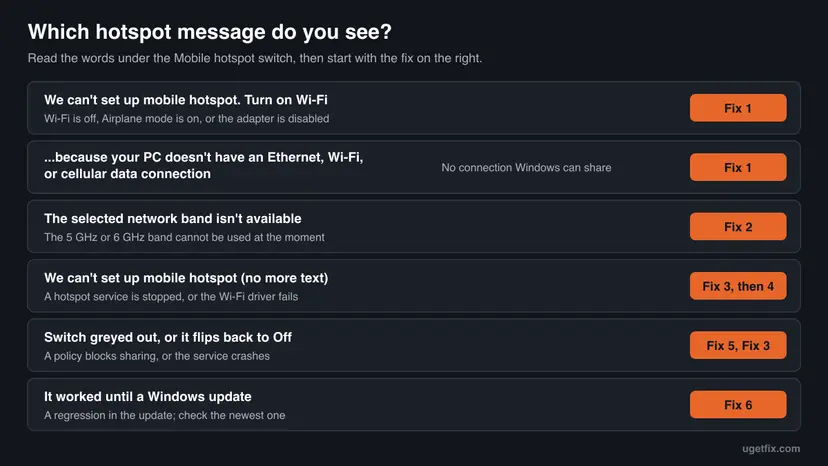
We cant set up mobile hotspot, we can't setup mobile hotspot, we can t setup mobile hotspot and we can not set up mobile hotspot are all searches for the same Windows message. The fixes below are the same on a laptop and a desktop PC, and on Windows 11 and Windows 10 unless a step says otherwise.
Why Windows can't set up the mobile hotspot: causes ranked
The hotspot needs four links to hold at once: a connection with internet, two Windows services, a Wi-Fi adapter whose driver can run an access point, and permission to share. The order below follows how often each link breaks in the cases Microsoft, Intel and users describe, and how cheap it is to check.
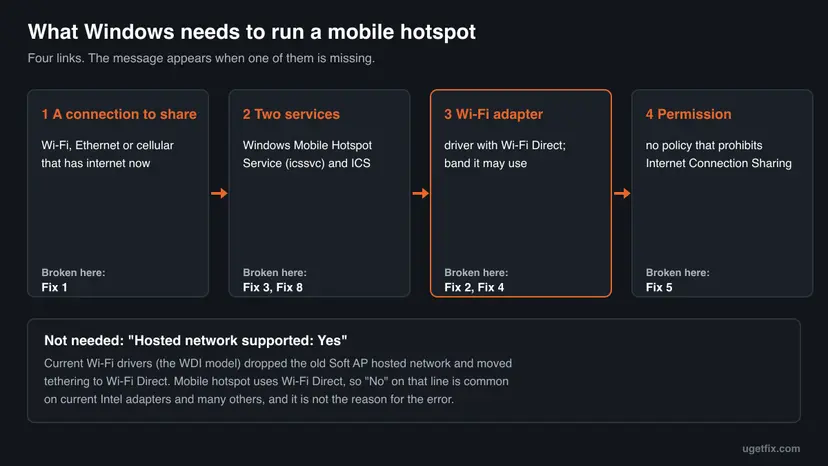
| How often | Cause | Fix |
|---|---|---|
| Most often | Wi-Fi is off, Airplane mode is on, or the connection chosen under Share my internet connection from has no internet at the moment | Fix 1 |
| Often | Network band is set to 5 GHz or 6 GHz, and the adapter may not use it right now | Fix 2 |
| Often | Windows Mobile Hotspot Service or Internet Connection Sharing (ICS) is disabled or crashes | Fix 3 |
| Sometimes | The Wi-Fi driver lacks Wi-Fi Direct support, is a generic or outdated one, or the hidden Wi-Fi Direct adapter is disabled | Fix 4 |
| Sometimes | A policy prohibits Internet Connection Sharing, on a managed PC or after a tweaking tool | Fix 5 |
| Rarely | A Windows update broke the feature | Fix 6 |
| Rarely | Damaged network settings or system files | Fixes 7 and 8 |
The phone or laptop that should join plays no part in this message. Windows refuses to start the network before any device sees it, so the cause is always on the PC that shares.
One-minute check: can your Wi-Fi adapter host a hotspot?
Many forum answers tell you to run netsh wlan show drivers and look for Hosted network supported: Yes. That advice is outdated. Microsoft's own driver documentation says the current Wi-Fi driver model (WDI) no longer carries Soft AP, the old hosted network, and that the tethering requirements for Soft AP moved to Wi-Fi Direct.
Intel says the same in its own words: its recent adapters, from the Wireless-AC 3165 to the Wi-Fi 6E AX210 in its list, cannot run a hosted network on Windows 10. They support the Windows mobile hotspot through Wi-Fi Direct instead, which needs Windows 10 version 1607 or later.
- Right-click Start and select Terminal or Windows PowerShell. An ordinary window is enough for this check.
- Type the command below and press Enter.
netsh wlan show drivers - Look at Radio types supported. If 802.11a or 802.11ac is listed, the adapter has a 5 GHz radio. If only 802.11b, g and n appear, it is a 2.4 GHz adapter and Fix 2 matters for you.
- Ignore Hosted network supported. A No there is common on current adapters and does not stop Mobile hotspot.
- If the command answers that the Wireless AutoConfig Service is not running, or lists no driver at all, Windows sees no Wi-Fi adapter. Go to Fix 4.
netsh wlan set hostednetwork and netsh wlan start hostednetwork start the old Soft AP, not Mobile hotspot. On a WDI driver they fail, and on an older driver they create a second, separate network that the Settings switch does not control.
Is it a known Windows bug? What Microsoft has confirmed
Microsoft has confirmed hotspot breakage once in recent years. The June 2022 updates for Windows 11, including KB5016138 for build 22000.740, listed this known issue: devices might be unable to use the Wi-Fi hotspot feature, and the host might lose internet after a client connects. KB5014668 fixed it.
- Windows 11 24H2 and 25H2
- No open or resolved hotspot issue on the release health pages, read on 14 October 2026.
- Windows 10 22H2
- No hotspot issue on its release health pages. Support ended on 14 October 2025.
- User reports in 2026
- A Microsoft Q&A thread from June 2026 describes the hotspot service crashing on build 26200.8655 with exit code 0x80070002. Microsoft has not confirmed it as a known issue.
- 6 GHz hotspot
- Added in Windows 11 Insider build 26120.1912. Microsoft says it appears only on PCs with the right hardware and drivers, and is used only when you choose it.
So for most readers this is not a bug that waits for a patch. It is a setting, a service or a driver on one PC, and the fixes below find which. Fix 6 covers the case where it started on the day of an update.
How to fix "We can't set up mobile hotspot" in Windows 11 and 10
Fixes 1 and 2 solve the error for most readers in two minutes, because they cover the connection and the band. Fixes 3 to 5 repair what Windows needs behind the switch: services, the Wi-Fi driver and policy. Fixes 6 to 8 are for an update gone wrong and for damaged settings or system files.
| What you see or have | Start with |
|---|---|
| Turn on Wi-Fi, or doesn't have an Ethernet, Wi-Fi, or cellular data connection | Fix 1 |
| The selected network band isn't available, or you chose 5 GHz or 6 GHz | Fix 2 |
| The plain message, and the switch falls back to Off after a second | Fix 3, then Fix 4 |
| The Mobile hotspot page is missing, or Device Manager shows no Wi-Fi adapter | Fix 4 |
| The switch is grey, or the PC belongs to a company or school | Fix 5 |
| The hotspot worked until a Windows update | Fix 6 |
| Everything above is in order and it still fails | Fix 7, then Fix 8 |
Fix 1. Turn Wi-Fi on and choose a connection that has internet
2 minutesNo riskYou see Turn on Wi-Fi, the doesn't have an Ethernet, Wi-Fi, or cellular data connection wording, or you have not checked the settings yet.
The hotspot shares an existing connection and broadcasts it with the Wi-Fi radio. If the radio is off, or the connection listed under Share my internet connection from has no internet, Windows has nothing to start and shows this message.
- Press Win + A to open Quick Settings. Make sure the Wi-Fi button is on and Airplane mode is off. Wi-Fi must be on even when you share an Ethernet cable connection.
- Open a website in your browser. If nothing loads, the PC itself has no internet and the hotspot has nothing to pass on. Fix that first with How to check your internet connection in Windows
- Open the hotspot page: press Win + R, type
ms-settings:network-mobilehotspotand press Enter. It is Settings > Network & internet > Mobile hotspot in Windows 11 and Settings > Network & Internet > Mobile hotspot in Windows 10. - Under Share my internet connection from (Windows 10: Share my Internet connection from), choose the connection that works now: Wi-Fi, Ethernet or your cellular connection.
- In Windows 11, set Share over to Wi-Fi. Microsoft calls Wi-Fi the default and usually faster choice; Bluetooth needs Bluetooth on and the other device paired.
- Turn on the Mobile hotspot switch at the top of the page (Windows 10: Share my Internet connection with other devices).
When the PC gets its internet from a phone over USB or from a USB modem, that connection may not appear in the list. Users report the doesn't have an Ethernet, Wi-Fi, or cellular data connection wording in exactly this setup. We could not find a Microsoft list of the connection types that can be shared beyond Wi-Fi, Ethernet and cellular.
If the page shows the full wording about Ethernet, Wi-Fi or cellular data even though a website loads, open Settings > Network & internet and check which connection Windows marks as connected. A connection marked without internet access cannot be shared.
It worked if: The switch stays on, and the page shows the network name, the password and a count of connected devices.
If not: If you now see the band message, go to Fix 2. If the plain message stays, go to Fix 3.
Fix 2. Set the hotspot's network band to Any available or 2.4 GHz
2 minutesNo riskYou see The selected network band isn't available, or you set the band to 5 GHz or 6 GHz at some point.
Intel explains that regulatory rules in some countries do not let the hotspot run on 5 GHz by itself. It may use 5 GHz only while the PC is connected to an access point on approved channels. A fixed band that is not allowed at that moment stops the hotspot.
- Open Settings > Network & internet > Mobile hotspot and turn the Mobile hotspot switch off.
- Expand Properties and select Edit. In Windows 10 select Edit under the network name.
- Open Network band and choose Any available if your PC shows it. If it does not, choose 2.4 GHz.
- Select Save.
- Turn the Mobile hotspot switch on again.
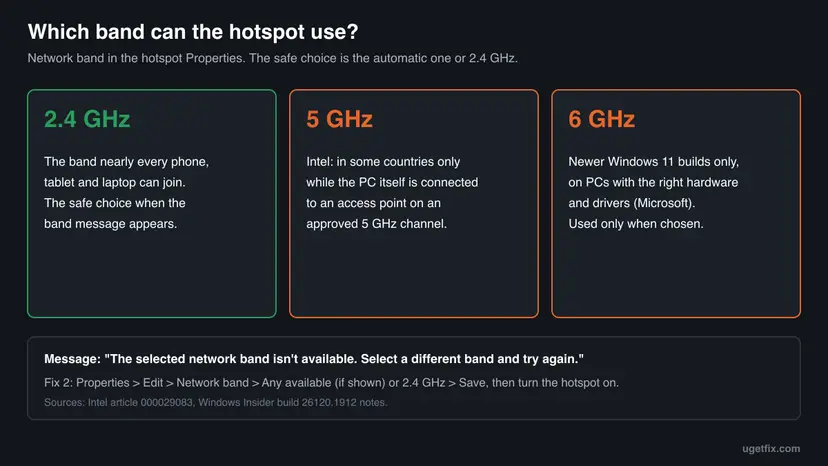
Intel adds that the Network band option does not appear at all on its older adapters, the Wireless 7265 family revision C and earlier. If you see no band choice, your adapter decides on its own and this fix does not apply.
- You need 5 GHz: connect the PC itself to a 5 GHz Wi-Fi network first, then turn the hotspot on. Intel's support staff also advised a user to keep the hotspot off DFS and TPC channels, the radar-shared 5 GHz channels.
- You want 6 GHz: it appears only on Windows 11 builds that include it and on PCs with the right hardware and drivers. The other device must support 6 GHz too.
- An older phone or smart device cannot see the hotspot: it may only know 2.4 GHz. Any available or 2.4 GHz lets it join.
It worked if: The switch stays on and the band message no longer appears.
If not: If the hotspot starts on 2.4 GHz but you need 5 GHz, follow the first list item. If no band works, go to Fix 3.
Fix 3. Start Windows Mobile Hotspot Service and Internet Connection Sharing
5 minutesLow riskThe plain message appears and the switch falls back to Off, or you once disabled services to speed up Windows.
Two services run the hotspot. Microsoft describes icssvc as the service that shares a connection with another device, and lists ICS as required for clients used as Wi-Fi hotspots. Microsoft's service guide for Windows Server marks both as OK to disable, and tuning lists copy such advice.
| Display name | Service name | Normal startup type |
|---|---|---|
| Windows Mobile Hotspot Service | icssvc | Manual |
| Internet Connection Sharing (ICS) | SharedAccess | Manual |
- Open Services. Press Windows+R, type the command below and press Enter. You can also type Services in the search box on the taskbar and open the app.
services.msc - Find the service. The list is sorted by Name. Click any row and type the first letter of the service to jump to it. Check the Status column (Running or empty) and the Startup Type column.
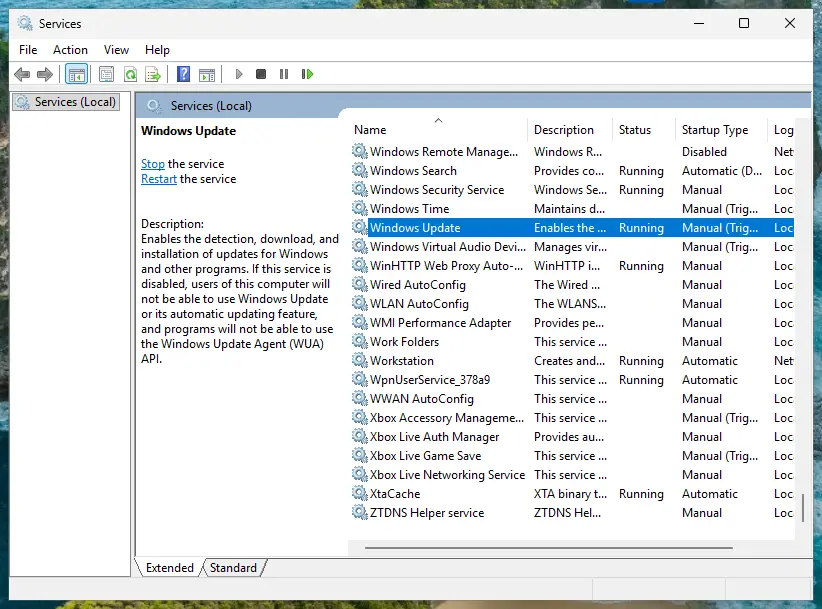
Status and Startup Type of each service are shown in the list. Screenshot: Windows 11 26H2. - Restart the service. Right-click the service and select Restart. If the service is not running, select Start instead. Wait until the progress window closes.

Right-click a service to start, stop or restart it. Screenshot: Windows 11 26H2. - Open its properties to change the startup type. Only if your guide says so: double-click the service. The General tab shows the Service name (used in commands), the Startup type and the Service status.
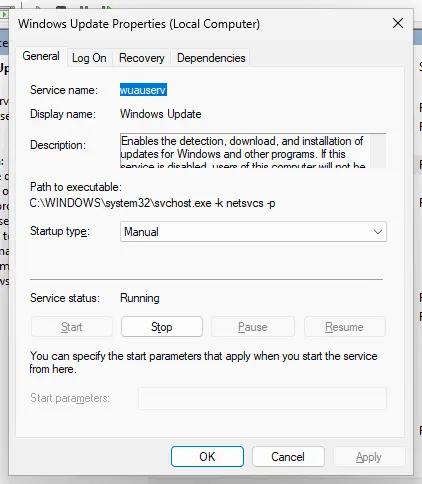
Properties show the service name, startup type and status. Screenshot: Windows 11 26H2. - Set the startup type and apply. Choose the type from the Startup type list (Automatic, Automatic (Delayed Start), Manual or Disabled), select Apply, then Start if the service should run now, and OK.
These steps were written for Windows 11 and Windows 10 (the steps are the same). The full page with the other versions and what each result means: Check and restart Windows services
Apply the steps to both services in the table. Manual is the normal setting: Windows starts them when you turn the hotspot on. Only Disabled is a problem. If you change it, set it back to Manual, not Automatic.
- To see whether the hotspot service crashes, open Terminal (Admin): right-click Start and select it.
- Run this command right after the switch fell back to Off.
sc query icssvc - Read STATE and WIN32_EXIT_CODE. STOPPED with exit code 0 after you turned the hotspot off is normal. A non-zero exit code right after a failed attempt means the service crashed.
- Run this command to see the services it depends on. Each one listed under DEPENDENCIES must not be disabled.
sc qc icssvc
It worked if: Both services show Manual or Running, and the hotspot switch stays on.
If not: If the service crashes with a non-zero exit code, note the code and go to Fix 6, then Fix 8. If the services are fine, go to Fix 4.
Fix 4. Check the Wi-Fi adapter, its hidden Wi-Fi Direct adapter and the driver
15 minutesLow riskThe services are fine but the message stays, the Mobile hotspot page is missing, or the PC uses a USB Wi-Fi adapter.
The hotspot runs through the Wi-Fi driver's Wi-Fi Direct support, which Windows shows as a hidden virtual adapter. A disabled virtual adapter, the generic driver Windows installed by itself, or an old driver without this support stops the hotspot at the last step.
- Right-click Start and select Device Manager.
- Select View > Show hidden devices.
- Expand Network adapters. Find your real Wi-Fi adapter (its name usually contains Wi-Fi, Wireless or 802.11) and one or more entries named Microsoft Wi-Fi Direct Virtual Adapter.
- If an entry shows a small down arrow, it is disabled. Right-click it and select Enable device.
- If the Wi-Fi adapter shows a yellow warning sign, or no Wi-Fi adapter is listed at all, the hotspot cannot work until the driver is fixed. Continue below.
- Open Device Manager. Right-click Start and select Device Manager.

Device Manager lists devices by category; a yellow warning sign marks a device with a problem. Screenshot: Windows 11 26H2. - Open the device's Driver tab. Expand the category (for example Display adapters), right-click the device, select Properties and open the Driver tab. Driver Date and Driver Version show what is installed now.
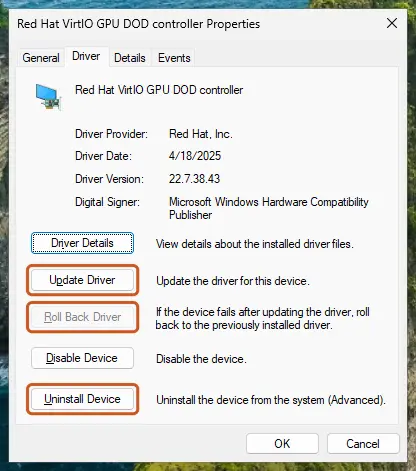
The Driver tab holds all three actions: update, roll back, uninstall. Screenshot: Windows 11 26H2. - Update the driver. Select Update Driver and let Windows search automatically. To use a driver you downloaded from the device maker, select Browse my computer for drivers instead and point to the unpacked folder.
- Or roll back the driver. If the problem started after a driver update, select Roll Back Driver, choose a reason and select Yes. The button is greyed out when Windows has no earlier driver to return to.
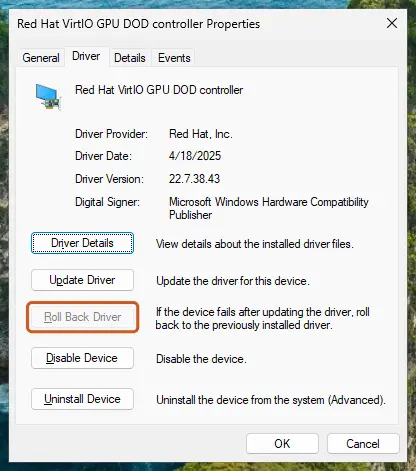
Roll Back Driver is greyed out here because there is no earlier driver. Screenshot: Windows 11 26H2. - Or reinstall the driver. Select Uninstall Device. Tick Attempt to remove the driver for this device only if you want Windows to delete the driver package too, then select Uninstall.
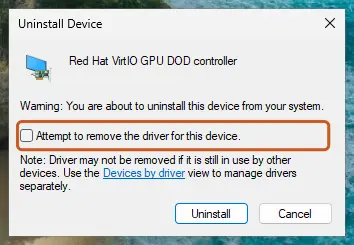
Tick the checkbox only to delete the driver package as well. Screenshot: Windows 11 26H2.
These steps were written for Windows 11 24H2 and later. The full page with the other versions and what each result means: Update, roll back or reinstall a driver
Search automatically for drivers often finds nothing newer. Download the Wi-Fi driver for your exact model from the support page of the PC maker, or from the Wi-Fi chip maker. Intel publishes one package for its Wi-Fi 7, 6E, 6 and 9000 series adapters on Windows 10 and Windows 11.
Update or reinstall the Wi-Fi adapter, not the Ethernet controller. Old guides showed the Realtek Ethernet card in their pictures, which changes nothing for the hotspot. If the error began right after a new driver arrived, use Roll Back Driver on the Wi-Fi adapter instead.
A desktop without built-in Wi-Fi depends fully on its USB adapter's driver. Users on Microsoft Q&A report adapters that join networks fine but cannot host a hotspot. Check the adapter maker's page for Windows 11 support and for hotspot or Wi-Fi Direct support before you buy or blame Windows.
It worked if: Device Manager lists the Wi-Fi adapter without a warning sign and at least one enabled Microsoft Wi-Fi Direct Virtual Adapter, and the hotspot starts.
If not: If the hotspot switch is grey, go to Fix 5. If the error began with an update, go to Fix 6.
Fix 5. Check whether a policy blocks Internet Connection Sharing
5 minutesLow riskThe switch is grey, the PC belongs to a company or school, or you once used a privacy or tweaking tool.
The Group Policy Prohibit use of Internet Connection Sharing on your DNS domain network stops ICS from running. Microsoft documents that the ICS service cannot run while it is on, and mobile hotspot needs that service.
- Open Terminal (Admin) from the Start right-click menu.
- Run this read-only command. It changes nothing.
reg query "HKLM\SOFTWARE\Policies\Microsoft\Windows\Network Connections" /v NC_ShowSharedAccessUI - If it answers that the system was unable to find the key or value, no such policy is set. Go back to Fix 4 or on to Fix 6.
- If it shows NC_ShowSharedAccessUI with 0x0, sharing is prohibited by policy.
- On a work or school PC, stop here and ask your IT department. The setting is theirs, and it may come back at the next policy refresh.
On your own PC with Windows Pro, Enterprise or Education, change the policy itself. Microsoft lists it under Computer Configuration > Administrative Templates > Network > Network Connections as Prohibit use of Internet Connection Sharing on your DNS domain network. Set it to Not Configured.
- Open the Run box. Press Windows key + R.
- Start the editor. Type the command below and select OK. Select Yes if Windows asks for permission.
gpedit.msc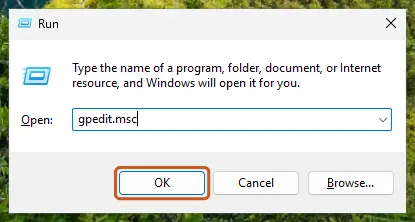
Type gpedit.msc in the Run box and select OK. Screenshot: Windows 11 26H2. - Go to the folder the guide names. In the left pane, expand Computer Configuration (settings for the whole PC) or User Configuration (settings for users), then open Administrative Templates and the folders your guide lists.
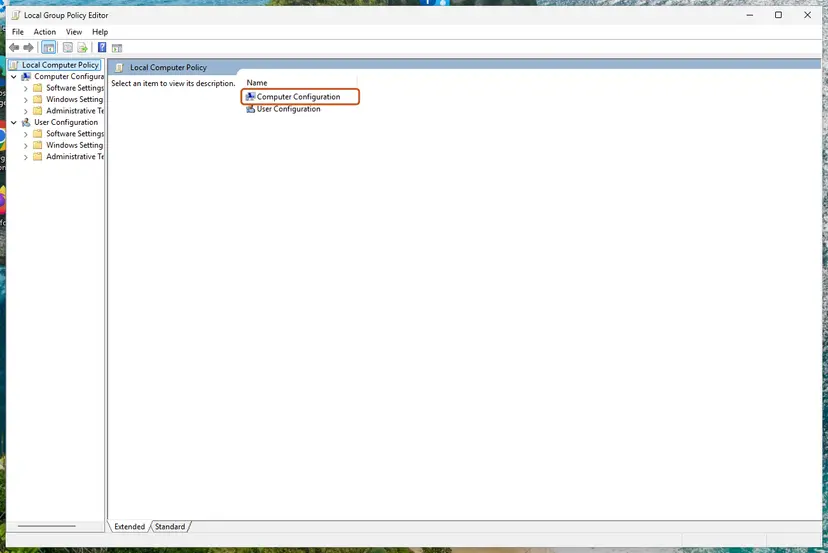
The two main branches of the Local Group Policy Editor. Screenshot: Windows 11 26H2. - Open the policy. In the right pane, double-click the policy name.
- Change the setting. Select Enabled, Disabled or Not Configured as the guide says, fill in any values under Options, and select OK.
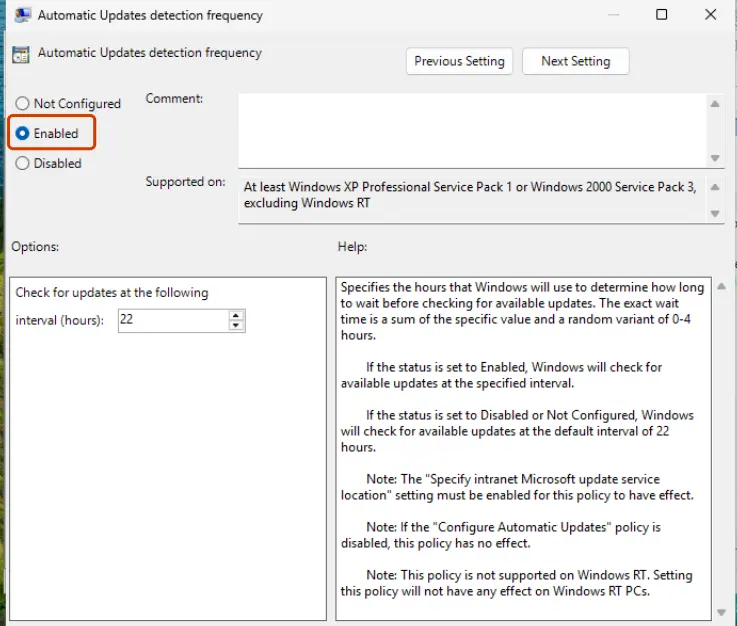
Choose Enabled, Disabled or Not Configured; the Help box explains what each does. Screenshot: Windows 11 26H2. - Apply the change. Restart the PC, or open Terminal as administrator and run the command below to apply the change now.
gpupdate /force
These steps were written for Windows 11 and Windows 10, Pro, Enterprise and Education (the steps are the same). The full page with the other versions and what each result means: Open the Local Group Policy Editor
Windows Home has no Group Policy Editor, so a tool must have written the value directly. Back up the key first with Back up the registry before editing it, then delete only the NC_ShowSharedAccessUI value and restart. Leave every other value in the key alone.
A PC managed by Intune or another MDM service can apply the same rule through the Wifi policy AllowInternetSharing. You see the management under Settings > Accounts > Access work or school. Only the organisation can lift it.
It worked if: The reg query finds no value, or after the change and a restart the switch can be moved and stays on.
If not: If the value returns after a restart on a PC you own, a tool or a management profile writes it again. Remove that tool or profile, then try again.
Fix 6. Install the latest Windows update, or remove the one that broke the hotspot
15 minutesLow riskThe hotspot worked until a recent update, or the hotspot service crashes as in Fix 3.
Microsoft has shipped hotspot regressions before and fixed them in the next update, as in June 2022. A newer cumulative update often carries the fix; until one does, removing the update that broke it brings the old code back.
- Open Settings > Windows Update in Windows 11, or Settings > Update & Security > Windows Update in Windows 10.
- Select Check for updates and install everything offered, including an optional preview update if it lists a hotspot or Wi-Fi fix.
- Restart and try the hotspot again.
- If it still fails, open Update history and note the date of the last quality update. If the hotspot stopped on that date, remove it with the steps below.
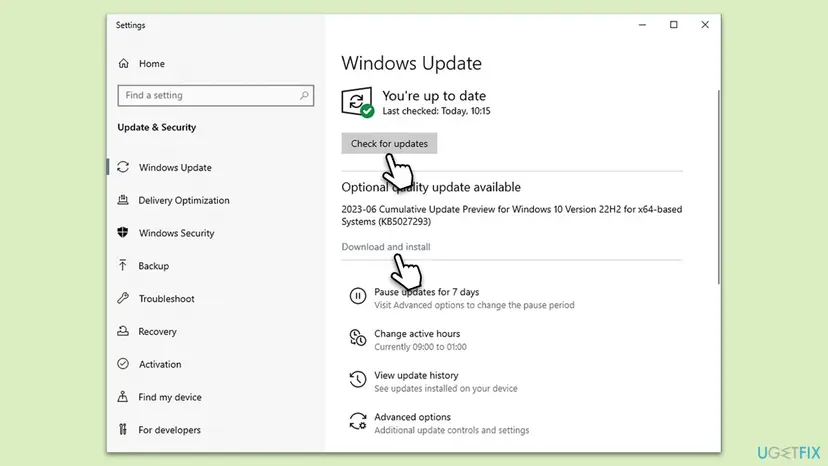
- Open Windows Update. Select Start > Settings > Windows Update.
- Open the update history. Under More options, select Update history. Note the KB number and the date of the update you suspect.
- Open the list of removable updates. Scroll down to Related settings and select Uninstall updates.
- Uninstall the update. Find the update in the list and select Uninstall next to it. If the update is not in the list, Windows does not allow it to be removed this way.
- Pause updates. Go back to Settings > Windows Update and select Pick a date on the Pause updates control. If your PC shows a list there instead, select the pause length you prefer. Without a pause Windows downloads the same update again.
These steps were written for Windows 11 25H2 and 26H2. The full page with the other versions and what each result means: How to uninstall a Windows update
The user who reported the June 2026 crash wrote that removing the update did not bring the service back on his PC. If that happens to you too, reinstall the update and go to Fix 8. Pause updates only until a newer one arrives, because security fixes come in the same package.
It worked if: After the newest update or the removal, the switch stays on and devices can join.
If not: If neither changes anything, reset the network settings in Fix 7.
Fix 7. Reset the network settings to rebuild every adapter
10 minutes plus a restartRead the warningFixes 1 to 6 found nothing wrong, or you changed many network settings over time.
Microsoft says network reset removes every network adapter and its settings, then reinstalls them with default settings after the restart. That also rebuilds the hidden Wi-Fi Direct adapters and clears a broken sharing setup.
Saved Wi-Fi networks and their passwords, VPN connections, virtual switches and any static IP address or DNS server you entered are removed. Write down your Wi-Fi password and VPN details first. Your files and programs are not touched.
- Open Network reset. Open Settings > Network & internet > Advanced network settings and select Network reset.
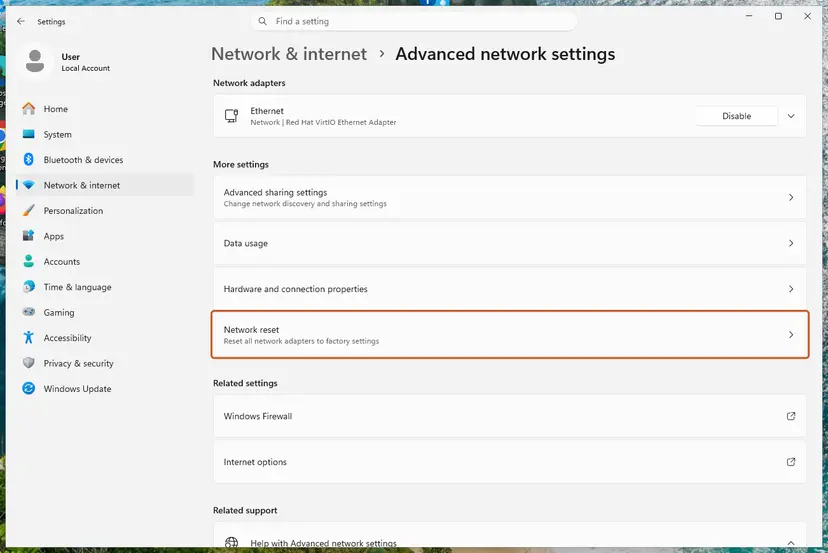
Network reset is under More settings in Advanced network settings. Screenshot: Windows 11 26H2. - Reset now. Select Reset now, then Yes to confirm. Windows removes and reinstalls all network adapters and restarts the PC.
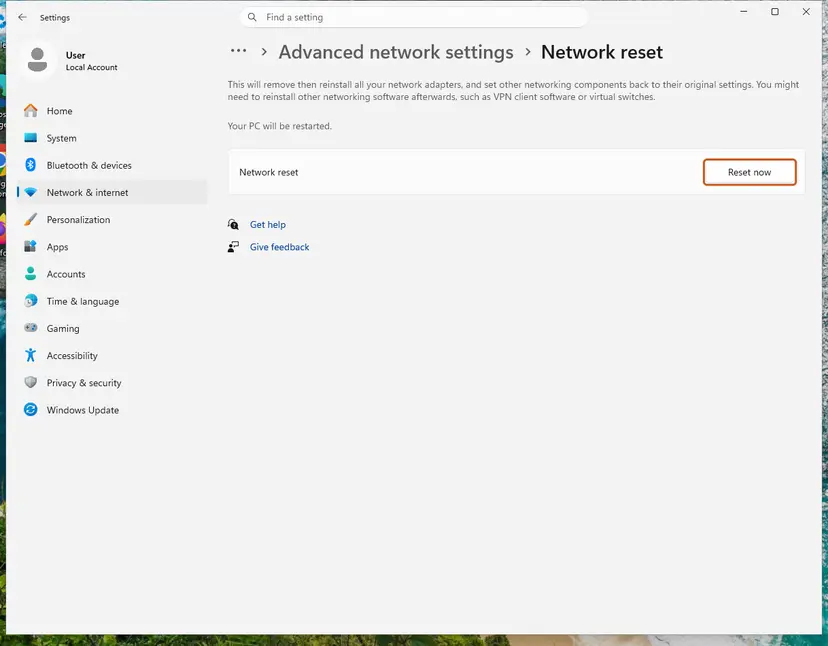
Network reset warns that VPN software or virtual switches may need to be reinstalled. Screenshot: Windows 11 26H2. - Reconnect. After the restart, connect to your Wi-Fi network again (you will need its password) and reinstall or reconfigure VPN software if it stopped working.
These steps were written for Windows 11 24H2 and later. The full page with the other versions and what each result means: Reset the network and flush DNS
After the restart, join your Wi-Fi network again, then open the hotspot page and check Share my internet connection from and Network band once more. The reset returns the hotspot name and band to their defaults.
It worked if: After the restart and the new Wi-Fi sign-in, the hotspot switch stays on.
If not: If the error is still there, the cause is in Windows itself. Go to Fix 8.
Fix 8. Repair Windows system files, then repair-install Windows
30 to 90 minutesLow riskThe hotspot service still crashes, or every other fix failed on a PC whose Wi-Fi adapter is listed and enabled.
The hotspot service lives in Windows system files. When those are damaged, settings and drivers cannot help. A repair install replaces Windows files while keeping your apps and data, which Microsoft's support staff on Q&A agreed was the next step for the 0x80070002 service crash.
- Open an elevated command window. Right-click Start and select Terminal (Admin), or type cmd in the search box, right-click Command Prompt and select Run as administrator. Select Yes when Windows asks for permission.

Search for cmd and choose Run as administrator. Screenshot: Windows 11 26H2. - Run DISM first. Type the command below and press Enter. DISM downloads clean copies of damaged components from Windows Update, so it can take several minutes. Wait until it says The operation completed successfully.
DISM.exe /Online /Cleanup-Image /RestoreHealth
DISM /RestoreHealth running. Screenshot: Windows 11 26H2. - Run System File Checker. In the same window, type the command below and press Enter. Do not close the window until the verification reaches 100%.
sfc /scannow
sfc /scannow at 100%. Screenshot: Windows 11 26H2. - Read the result and restart. Compare the last message with the table below this guide, then restart the PC so that repaired files are loaded.

The result line tells you what SFC did. Screenshot: Windows 11 26H2.
These steps were written for Windows 11 24H2 and 25H2. The full page with the other versions and what each result means: Run DISM and SFC to repair Windows system files
Restart and try the hotspot. If the service still crashes, reinstall Windows over itself. It keeps your files, apps and most settings, and replaces the system files behind the hotspot.
- Open Recovery in Settings. Open Settings > System > Recovery. Next to Fix problems using Windows Update, select Reinstall now. This keeps your apps, files and settings.
- Start the reinstall. Choose whether the PC may restart on its own 15 minutes after the installation, then select OK.
- Wait and restart. Windows Update downloads and installs a repair copy of your current Windows version. Keep the PC plugged in and online, and restart it when asked.
- If that did not help: Reset PC. Back in Settings > System > Recovery, next to Reset this PC, select Reset PC. This keeps your personal files but removes installed apps and settings.
- Choose Keep my files. Select Keep my files. Do not select Remove everything.
- Choose where Windows comes from. Select Cloud download to download a fresh copy of Windows, or Local reinstall to use the files already on the PC (faster, but may not include the latest updates).
- Reset. Review the summary and select Reset. The PC restarts several times.
These steps were written for Windows 11 22H2 and later. The full page with the other versions and what each result means: Reinstall Windows without losing files
A repair install keeps your files by design, but a backup of your documents costs ten minutes and removes all risk. Copy them to an external drive or cloud storage before you start.
It worked if: After the repair, sc query icssvc shows a clean start and the hotspot switch stays on.
If not: If even a repaired Windows cannot start the hotspot, read the section below on logs and hardware.
Still "We can't set up mobile hotspot"? Read the logs and check the hardware
Windows writes down what happened when the hotspot fails. Two places hold the useful lines: the System log, where the service manager records crashes, and the wireless network report, which Microsoft provides for Wi-Fi problems.
- Turn the hotspot on once so that it fails, and note the time.
- Right-click Start, select Event Viewer and open Windows Logs > System.
- Look for Service Control Manager entries at that time that name Windows Mobile Hotspot Service or Internet Connection Sharing (ICS). The 2026 report on Q&A showed event 7023: the service terminated with the error that the system cannot find the file specified.
- Create the wireless report in Terminal (Admin). It prints the path of the HTML file it saves.
netsh wlan show wlanreport - Open the file in a browser. Microsoft says it shows the Wi-Fi events of the last three days, all network adapters including hidden ones, and the output of
netsh wlan show all.
- What to send to support: your Windows version and build (press Win + R, type
winver), the exact message, the Wi-Fi adapter name and driver version from Device Manager, the event text and the output ofsc query icssvc. - Where to send it: to the PC maker for a laptop, to the adapter maker for a USB adapter, and to Microsoft through the Feedback Hub when the service crashes on a current build.
- When it is hardware: Device Manager shows no Wi-Fi adapter even with hidden devices shown, after a driver install and a restart. The Wi-Fi card is missing, switched off in the firmware settings, or faulty.
- When it is the adapter's limits: the adapter joins networks but has no Microsoft Wi-Fi Direct Virtual Adapter after a correct driver install. Some older and USB adapters cannot host a hotspot on current Windows.
Microsoft staff on Q&A suggest USB tethering, Bluetooth tethering or a separate hotspot device until a fix arrives. In Windows 11, Share over > Bluetooth on the same page is a slower route that avoids the Wi-Fi adapter entirely.
How to keep the mobile hotspot working
- Leave Network band on Any available or 2.4 GHz unless you need 5 GHz and the PC is on a 5 GHz network.
- Keep Windows Mobile Hotspot Service and Internet Connection Sharing (ICS) on Manual.
- Install Wi-Fi drivers from the PC maker or the chip maker, and note the version before you update.
- Install Windows updates, and check the hotspot the day after a large one.
- Turn the hotspot on from Settings once after any change, so you can read a message if it fails.
- Do not disable services with service tuning guides or debloat tools: both hotspot services are often on their lists.
- Do not install third-party hotspot apps that use the old hosted network commands.
- Do not uninstall the Microsoft Wi-Fi Direct Virtual Adapter to tidy up Device Manager.
- Do not set a sharing policy on your own PC because a privacy guide says so.
On Windows 10 the feature still works, but Microsoft no longer fixes it there. Windows 10 support ended on 14 October 2025, so any future hotspot regression will be repaired only for Windows 11.
Frequently asked questions
Why does my PC say we can't set up mobile hotspot?
Because one of the four things the hotspot needs is missing at that moment. Windows needs a connection with internet to share, two services that run the sharing, a Wi-Fi adapter whose driver can host a network on an allowed band, and no policy that forbids sharing. The most common case is the simplest: Wi-Fi is off, Airplane mode is on, or the connection chosen under Share my internet connection from has no internet. Read the words after the message, because some versions name the reason directly.
How do I fix we can't set up mobile hotspot in Windows 11?
Open Settings > Network & internet > Mobile hotspot. Make sure Wi-Fi is on, choose a connection that has internet under Share my internet connection from, and set Share over to Wi-Fi. Then expand Properties, select Edit and set Network band to Any available or 2.4 GHz. If the switch still falls back to Off, check that Windows Mobile Hotspot Service and Internet Connection Sharing (ICS) are not disabled. A Wi-Fi driver from the PC maker comes next.
Is the fix different on Windows 10?
Only the labels differ. In Windows 10 the page is Settings > Network & Internet > Mobile hotspot, and the switch reads Share my Internet connection with other devices. The causes and fixes are the same: the connection, the band, the two services, the Wi-Fi driver and policy. Intel notes that the hotspot needs Windows 10 version 1607 or later. Windows 10 support ended on 14 October 2025, so Microsoft will not ship a fix there if a future update breaks the feature.
Does my laptop need Hosted network supported: Yes for Mobile hotspot?
No. The hosted network is the old Soft AP feature from Windows 7. Microsoft's driver documentation says the current Wi-Fi driver model no longer includes Soft AP and moved its tethering requirements to Wi-Fi Direct. Intel confirms that its recent adapters cannot run a hosted network but support Mobile hotspot through Wi-Fi Direct. So a No on that line of netsh wlan show drivers is normal, and the many answers that stop there send people in the wrong direction.
Can I share my Wi-Fi connection over Wi-Fi with only one adapter?
Yes. Microsoft lists Wi-Fi as a connection you can share, and Mobile hotspot runs the second network through the adapter's Wi-Fi Direct support. The limit is the band. Intel explains that in some countries the hotspot may use 5 GHz only while the PC is connected to an access point on approved 5 GHz channels. If the band message appears, set Network band to Any available or 2.4 GHz and the single adapter handles both networks.
Why is the mobile hotspot switch greyed out?
Most often a policy prohibits Internet Connection Sharing. On company and school PCs that is deliberate, and only IT can change it. On a home PC a privacy or tweaking tool may have set the value NC_ShowSharedAccessUI under the Network Connections policy key. Fix 5 shows a read-only command that tells you whether it is set. A grey switch can also mean Windows sees no Wi-Fi adapter, which Device Manager shows.
Why can't I set up a mobile hotspot on my desktop PC?
A desktop often has no Wi-Fi adapter at all, and the hotspot needs one to broadcast its network even when you share a cable connection. With a USB Wi-Fi adapter, everything depends on that adapter's driver. Users on Microsoft Q&A describe adapters that connect to Wi-Fi without trouble but cannot host a hotspot. Check Device Manager for a Microsoft Wi-Fi Direct Virtual Adapter after installing the maker's driver. Share over Bluetooth is a slower way around it.
The hotspot turns on but devices have no internet: is this the same error?
No. This message means the network never started. When it starts and devices join without internet, the sharing itself fails. In June 2022 Microsoft confirmed a known issue where the host lost internet after a client connected, fixed in KB5014668. Today check that the connection chosen under Share my internet connection from is the one that has internet, and make sure Internet Connection Sharing (ICS) is not disabled.
My phone's hotspot does not work: does this page help?
Only if the phone connects to a Windows PC and the PC shows this message. This page is about a Windows PC sharing its connection. When an iPhone or Android phone refuses to turn on its own hotspot, the cause is on the phone or with the mobile carrier, for example a plan that does not include tethering. For an iPhone, Apple keeps its own troubleshooting page for Personal Hotspot. For Android, check the phone maker's help and your carrier.
Is it safe to edit the registry to enable the mobile hotspot?
Only for one value and only on your own PC. If the read-only check in Fix 5 shows NC_ShowSharedAccessUI set to 0, that value blocks sharing. Back up the Network Connections policy key first, then delete only that value and restart. Do not follow guides that add other registry values to force a hotspot, because we found no Microsoft documentation for them. On a work PC, never change it yourself: ask IT.
Sources
- Microsoft Support: Use your Windows device as a mobile hotspot (support.microsoft.com)
- Microsoft Learn: Features not carried over in WDI (Soft AP removed, tethering moved to Wi-Fi Direct) (learn.microsoft.com)
- Microsoft Learn: Guidance on disabling system services (Internet Connection Sharing and Windows Mobile Hotspot Service) (learn.microsoft.com)
Did this fix work?
One click, no account. It tells the next reader which guides are worth their time.
Questions and experiences: fix "We can't set up mobile hotspot" error in Windows
Still broken, or found a fix we did not cover? Ask here: members and our editors answer. Reading is open; writing needs a free account.
…