
How to fix error 0x80240013 in Microsoft Store (Windows Store)

Prefer to fix it yourself? The manual steps follow.
- 6methods
- 5 to 45 minutes
- Easy
Applies to Microsoft Store (formerly Windows Store) app installs and updates, Settings > Windows Update
6 methods in this guide
For the last couple of days, I cannot install several apps from the Windows Store. Minecraft and Wallpapers Studio 10 are two apps that I cannot update. Each time I get a pop-up saying "Something unexpected happened" with error code 0x80240013. Thanks for any help!
Error 0x80240013 comes from the Windows Update client, which Microsoft lists as WU_E_DUPLICATE_ITEM: an operation tried to add a duplicate item to a list. In Microsoft Store it appears as Something unexpected happened when an app will not install or update. Clear and repair the Store first, then fix the one app that fails.
0x80240013 means the update client, which Microsoft Store uses for downloads, tried to add an app or update to its list and found it there already. Most often the Store's own queue or cache holds a stuck entry. Clear the Store cache with wsreset and repair the Store first (Fix 1). If one app still fails, repair, reset or reinstall that app (Fix 2), then reset the update cache (Fix 3).
| Error | 0x80240013, Microsoft's name WU_E_DUPLICATE_ITEM: "Operation tried to add a duplicate item to a list." |
|---|---|
| Where it appears | In Microsoft Store, in a pop-up that says Something unexpected happened, when an app or game will not install or update. Less often in Settings > Windows Update. |
| Main cause | A stuck or repeated entry in the Store's download queue, its cache or the update client's records, so the same app is added a second time. |
| Fastest fix | Run wsreset, then repair Microsoft Store (Fix 1). For one failing app, repair or reinstall it (Fix 2). |
| Also written as | 80240013, error 0x80240013, error code 0x80240013, 0x80240013(-2145124333). The negative number is the same code as a signed decimal. |
| Affects | Windows 11 and Windows 10. The first reports on Microsoft's forum date from December 2017, on Windows 10. Administrators also report it in Windows Update on Windows Server 2016. |
| Microsoft's status | Listed in the Windows Update error code list. No known bug, KB or Store version is tied to this code. |
| Close relatives | 0x80240012 (WU_E_REG_VALUE_INVALID), 0x80240008 (WU_E_ITEMNOTFOUND), 0x80240004 (WU_E_NOT_INITIALIZED). |
| Time to fix | 5 minutes for Fix 1, 10 to 15 minutes for Fixes 2 and 3, up to 45 minutes when you also repair system files. |
Facts checked on 16 October 2026. Steps written for Windows 11 (25H2 and 26H2) and Windows 10 22H2.
What error 0x80240013 means
Microsoft's Windows Update error code list gives 0x80240013 the name WU_E_DUPLICATE_ITEM and the description: "Operation tried to add a duplicate item to a list." The update client keeps lists of the apps and updates it is about to download or install. When a request adds an item that is already on such a list, the client stops and returns this code instead of adding it twice.
Microsoft Store hands many of its downloads to that same client, which is why a Store error carries a Windows Update code. The 0x8024 part of the number marks the update client. So 0x80240013 is not a broken game or a hardware fault: it is a bookkeeping clash inside the download system.
| What you see | Where | What it tells you |
|---|---|---|
| Something unexpected happened, with 0x80240013 | Microsoft Store, on an app's page or in Library | A Store install or update was queued a second time and refused. Start with Fix 1. |
| 0x80240013 next to one app only, others update | Microsoft Store Library | That app's own package or data is the problem. Go to Fix 2. |
| 0x80240013 next to an update | Settings > Windows Update | The update client's records hold a duplicate entry. Go to Fix 3. |
| 0x80240013(-2145124333) | Logs, scripts and management tools | The same code with its signed decimal value added. |
The old guides and the forum threads from 2017 and 2018 say Windows Store. Microsoft renamed it Microsoft Store. Every fix on this page works for the app under either name.
Why the Store tries to add the same item twice
Microsoft gives the meaning of the code but no list of causes. The causes below follow from that meaning and from what readers describe: some apps fail, the Store itself still opens, and the error repeats on every try.
| Cause | How often | How to tell | Fix |
|---|---|---|---|
| A stuck download or a stale entry in the Store's queue and cache. | Most often | Several apps fail with the same code. A retry gives the same pop-up at once. | Fix 1 |
| A damaged package or data of the one app that fails. | Often | One or two apps fail, as in the question above. Everything else updates. | Fix 2 |
Duplicate entries in the update client's records in C:\Windows\SoftwareDistribution. | Sometimes | Windows Update also fails, or Fixes 1 and 2 changed nothing. | Fix 3, Fix 4 |
| A damaged Microsoft Store app registration. | Sometimes | The Store will not update itself, closes at once or opens blank. | Fix 5 |
| Damaged system files or component store. | Rarely | Store and Windows Update fail, also with other codes. | Fix 6 |
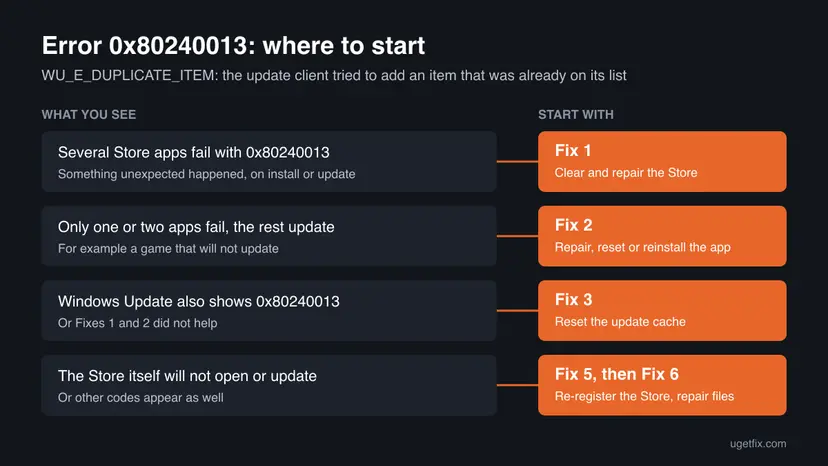
How to fix error 0x80240013
Restart the PC once before you start: a reboot ends any download that is still running in the background, which can be the item the Store tries to add again. Then work through the fixes in order. Fixes 1 and 2 are specific to the Store and solve most cases. Fixes 3 and 4 are for the update client. Fixes 5 and 6 repair the Store and Windows itself.
| What you see or have | Start with |
|---|---|
| Several Store apps will not install or update and show Something unexpected happened. | Fix 1 |
| Only one or two apps fail, for example a game, and the rest update. | Fix 2, then Fix 1 |
| Settings > Windows Update also shows 0x80240013. | Fix 3, then Fix 4 |
| Microsoft Store itself will not open or update. | Fix 5, then Fix 6 |
Fix 1. Clear the Store cache, then repair or reset Microsoft Store
5 minutesLow riskEveryone who sees 0x80240013 in Microsoft Store, and the first step when several apps fail.
The Store keeps its own cache and a list of the downloads it has asked for. When a download is stuck on that list, the next request for the same app is a duplicate and ends with 0x80240013. The wsreset command clears that cache, and Repair or Reset gives the Store a clean list.

- Clear the Store cache. Press Windows + R, type wsreset.exe and select OK. A blank Command Prompt window opens; after a short while it closes and Microsoft Store opens by itself.
- Open System components. If the problem stays, select Start > Settings > System > System components. Next to Microsoft Store, select the three dots and Advanced options. If Microsoft Store is not listed there, look for it in Settings > Apps > Installed apps.
- Repair first. Scroll to Reset and select Repair. Repair keeps the app's data. Open the Store and check whether it works.
- Reset if Repair did not help. Select Reset and confirm. This deletes the Store app's data on this PC; your purchases stay in your Microsoft account. Open the Store and sign in again.
These steps were written for Windows 11 26H2 (build 26300). The full page with the other versions and what each result means: Reset the Microsoft Store
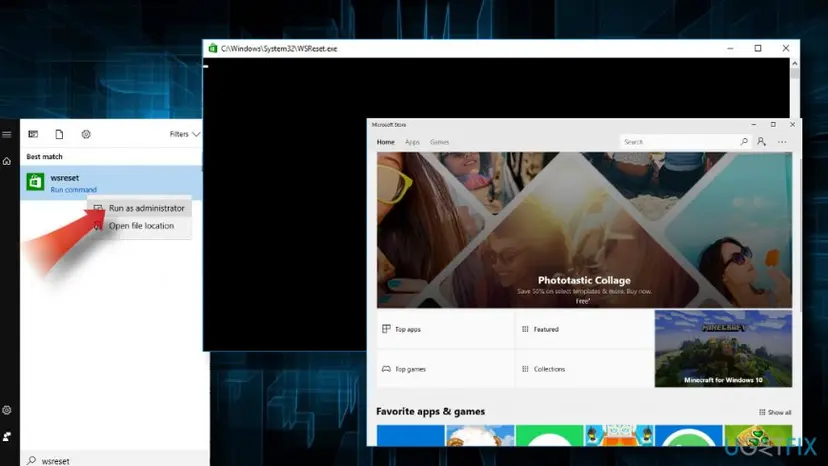
In the Store, open Library and select Get updates. If the Store itself has an update waiting, let it install first, then retry the app that showed the error.
It worked if: The Store opens on its home page, and the app installs or updates without the Something unexpected happened pop-up.
If not: If only one app still fails, go to Fix 2. If every app still fails, go to Fix 3.
Fix 2. Repair, reset or reinstall the app that fails
10 minutesRead the warningOne or two apps, for example Minecraft or another game, show 0x80240013 while other apps update.
When only one app fails, its installed package or its data clashes with the update the Store tries to add. Repair fixes the package and keeps the data. Reset and a reinstall remove the old copy, so the Store adds the app as a new item instead of a duplicate.
Repair keeps everything. Reset and uninstall remove the app's local data: settings, offline files and, for some games, local saves. Check that the game or app syncs to your account or cloud first, and copy any local save folder before you reset: Back up your files (Windows Backup, File History, Time Machine)
- Open Installed apps. Select Start > Settings > Apps > Installed apps.
- Open the app's advanced options. Find the app in the list, select the three dots next to it and select Advanced options. Some apps do not have this option: for those, see the section about desktop programs below.
- Repair first. On the page that opens, select Repair if it is there. The app's data stays. Open the app and check whether it works.
- Reset if Repair did not help. Select Reset. This deletes the app's data on this PC, including sign-in details and settings. Open the app and set it up again.
These steps were written for Windows 11 25H2 and 26H2. The full page with the other versions and what each result means: How to repair or reset an app in Windows

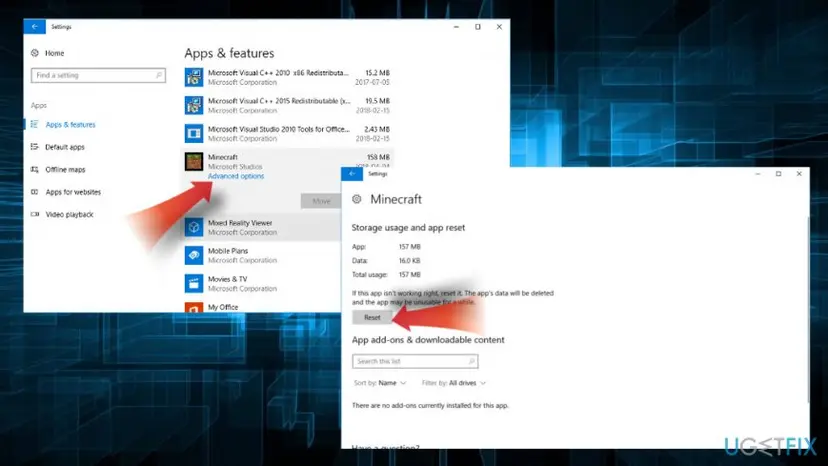
If Repair and Reset do not help, or the app has no Advanced options, uninstall it. Restart the PC, then install the app again from Library in Microsoft Store. Apps you bought stay in your Microsoft account. Step by step: Uninstall a program or app in Windows
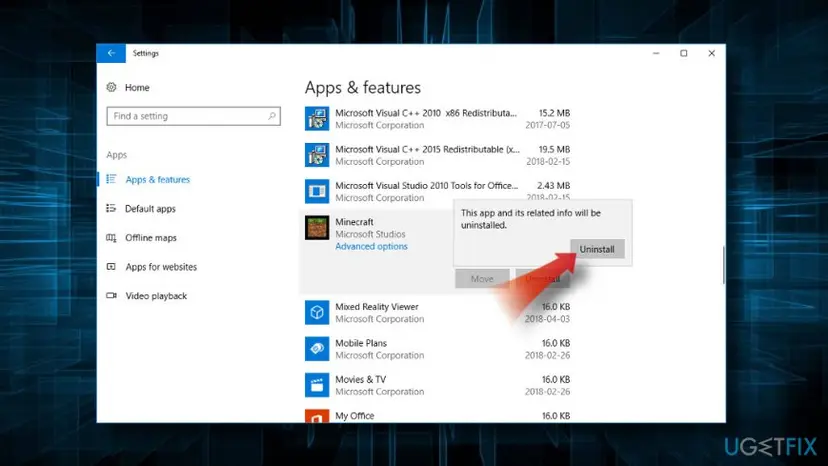
It worked if: The app installs or updates from the Store without the error and opens normally.
If not: If the same app fails again after a clean install, the duplicate is in the update client's records: go to Fix 3.
Fix 3. Reset the Windows Update components and cache
15 minutesLow riskEvery Store app still fails after Fix 1, or Settings > Windows Update also shows 0x80240013.
The update client keeps its lists of pending downloads in C:\Windows\SoftwareDistribution. If an entry there is repeated or left over from a failed install, every new request for the same item is a duplicate. Renaming the folders makes Windows build fresh lists on the next check.
- Open Command Prompt as administrator. Type cmd in the search box, right-click Command Prompt and select Run as administrator. Select Yes when Windows asks for permission.
- Stop the update services. Type the commands below and press Enter after each one. If Windows says that other services depend on Cryptographic Services, it stops them too. A message that a service is not started is fine.
net stop wuauserv net stop bits net stop cryptsvc - Delete the download queue files. This clears the list of downloads that the Background Intelligent Transfer Service keeps. If Windows says it cannot find the files, continue.
del "%ALLUSERSPROFILE%\Application Data\Microsoft\Network\Downloader\qmgr*.dat" - Rename the update cache folders. Renaming keeps a copy in case you need it; Windows creates new, empty folders when the services start again. If you get Access is denied, a service is still running: repeat the previous step.
ren %systemroot%\SoftwareDistribution SoftwareDistribution.old ren %systemroot%\System32\catroot2 catroot2.old - Start the services again. Type the commands below and press Enter after each one. The requested service has already been started is fine: Windows started it on its own.
net start cryptsvc net start bits net start wuauserv - Restart and check for updates. Restart the PC. Then select Start > Settings > Windows Update > Check for updates. The first check can take longer than usual because everything is downloaded again.
These steps were written for Windows 11 and Windows 10 (the steps are the same). The full page with the other versions and what each result means: Reset Windows Update components

If a service will not start again after the reset, open Services and start Background Intelligent Transfer Service, Windows Update and Cryptographic Services. Step by step: Check and restart Windows services
Restart the PC, open Settings > Windows Update and select Check for updates. Then open Microsoft Store and try the app again.
It worked if: Check for updates finishes without an error, and the Store app that failed now downloads.
If not: Run the troubleshooter in Fix 4. If the Store itself will not open or update, go to Fix 5.
Fix 4. Run the Windows Store Apps or Windows Update troubleshooter
5 minutesNo riskFixes 1 to 3 did not help, or you prefer an automatic check of the services and settings.
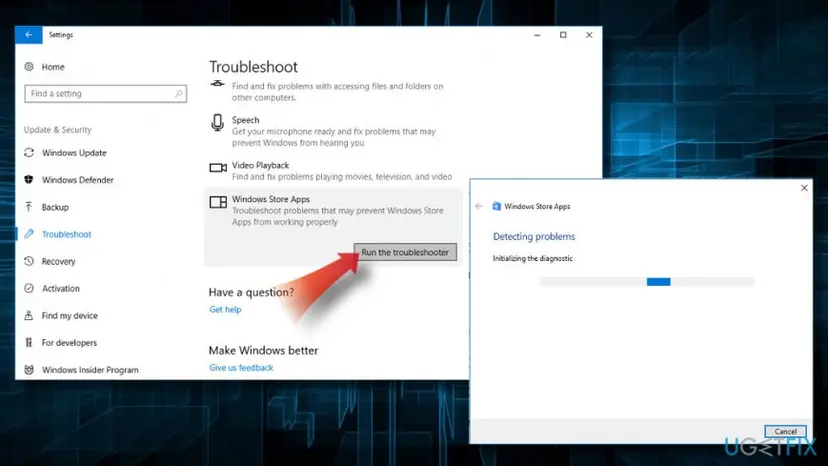
Microsoft's support staff suggested the Windows apps troubleshooter to the first reader who reported 0x80240013. It checks Store settings, services and permissions that the manual resets above do not change.
- Windows 10: press Win + I and open Update & Security > Troubleshoot.
- Select Additional troubleshooters.
- Select Windows Store Apps, then Run the troubleshooter.
- Apply the fixes it offers, restart the PC and try the app again in the Store.
Windows 11: run the Windows Update troubleshooter, because the code comes from the update client the Store downloads through. Step by step: Run the Windows Update troubleshooter
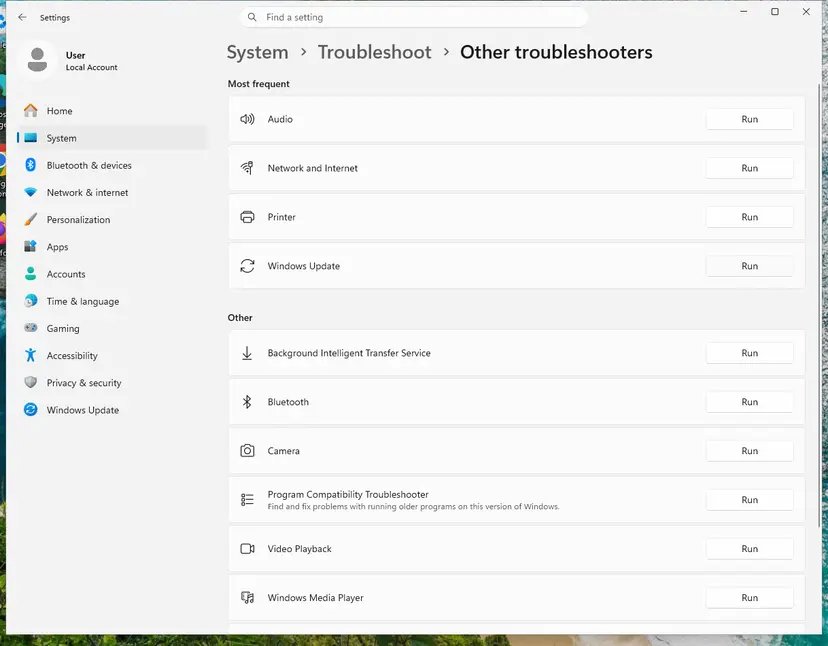
It worked if: The troubleshooter reports that it fixed a problem, and the app installs on the next try.
If not: If it finds nothing, re-register Microsoft Store with Fix 5.
Fix 5. Re-register Microsoft Store with PowerShell
5 minutesLow riskMicrosoft Store itself will not update, closes at once or opens blank, and Fix 1 did not help.
Re-registering reads the Store's own app manifest again and repairs its registration with Windows, while it keeps the installed Store files. It helps when the Store app is damaged rather than one of the apps it installs.
Use the package name Microsoft.WindowsStore when the procedure asks which app to re-register. Do it for the Store only, not for every app on the PC.
- Open PowerShell. Select Start, type PowerShell and select Windows PowerShell. Open it the normal way, not as administrator: in an administrator window the app is registered to the administrator account instead of yours.
- Find the app's package. Type the command below with a part of the app's name between the asterisks and press Enter. If the app is installed, PowerShell prints its details, including Name and InstallLocation. If nothing is printed, the app is not installed for your account: see the section below.
Get-AppxPackage -Name '*WindowsCalculator*' - Re-register the app. Paste the three commands below, with the same name between the asterisks, and press Enter. They read the folder the app is installed in and register its manifest again. If no red text appears, it worked.
$InstallLocation = Get-AppxPackage -Name '*WindowsCalculator*' | Select-Object -ExpandProperty InstallLocation $ManifestPath = $InstallLocation + '\Appxmanifest.xml' Add-AppxPackage -Path $ManifestPath -Register -DisableDevelopmentMode - Open the app. Close PowerShell and start the app from Start. If it still fails, restart the PC and try once more.
These steps were written for Windows 11 25H2 and 26H2, Windows 10 22H2. The full page with the other versions and what each result means: How to re-register Microsoft Store apps with PowerShell
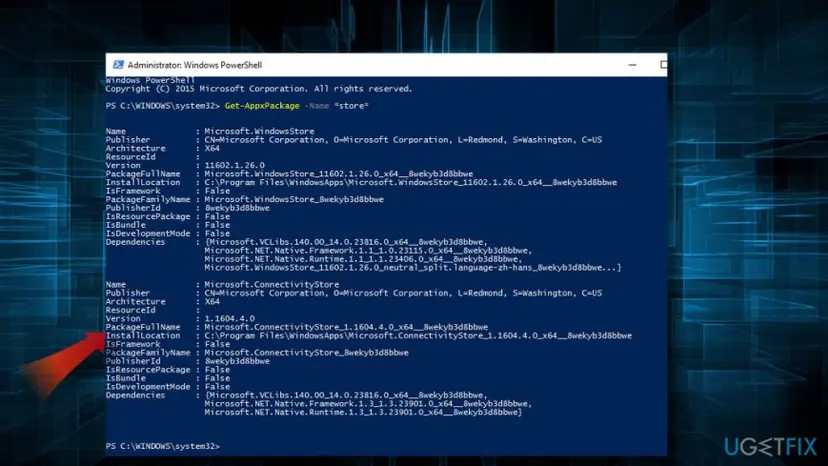
It worked if: PowerShell returns to the prompt without red error text, and the Store opens and updates.
If not: If PowerShell shows errors or the Store still fails, repair the system files with Fix 6.
Fix 6. Repair system files with SFC and DISM
20 to 30 minutesLow riskStore and Windows Update both fail, also with other codes, or nothing above helped.
DISM repairs the component store that apps and updates install into, and SFC repairs protected system files. When those are damaged, the update client can keep writing broken entries that cause duplicates.
- Open an elevated command window. Right-click Start and select Terminal (Admin), or type cmd in the search box, right-click Command Prompt and select Run as administrator. Select Yes when Windows asks for permission.

Search for cmd and choose Run as administrator. Screenshot: Windows 11 26H2. - Run DISM first. Type the command below and press Enter. DISM downloads clean copies of damaged components from Windows Update, so it can take several minutes. Wait until it says The operation completed successfully.
DISM.exe /Online /Cleanup-Image /RestoreHealth
DISM /RestoreHealth running. Screenshot: Windows 11 26H2. - Run System File Checker. In the same window, type the command below and press Enter. Do not close the window until the verification reaches 100%.
sfc /scannow
sfc /scannow at 100%. Screenshot: Windows 11 26H2. - Read the result and restart. Compare the last message with the table below this guide, then restart the PC so that repaired files are loaded.

The result line tells you what SFC did. Screenshot: Windows 11 26H2.
These steps were written for Windows 11 24H2 and 25H2. The full page with the other versions and what each result means: Run DISM and SFC to repair Windows system files
It worked if: SFC reports that it found no problems or repaired them, and the Store installs the app.
If not: Read the log in the next section. As a last step, a repair install keeps your files and apps: Reinstall Windows without losing files
If error 0x80240013 is still there
The Windows Update log shows which item the client tried to add twice. Open PowerShell and run the command below. It builds a readable WindowsUpdate.log on your desktop from the trace files.
Get-WindowsUpdateLog| Where to look | What it means |
|---|---|
0x80240013 in WindowsUpdate.log | The lines just above it name the app or update that was added twice. |
| Event Viewer: Applications and Services Logs > Microsoft > Windows > Store | Store events at the time of the pop-up, with the app's package name. |
Errors in C:\Windows\Logs\CBS\CBS.log | The component store reports damage. Run Fix 6 again or do a repair install. |
| The error stops in Safe Mode with Networking | Another program is in the way. Find it with a clean boot: How to perform a clean boot in Windows |
Some third-party firewalls block Store downloads. Pause your antivirus for one download, then turn it back on at once: Turn off Microsoft Defender protection for a moment. If that was it, add an exception or ask its maker for an update. Never leave protection off.
If you ask Microsoft Support for help, send your Windows version and build from winver, the name of the app that fails, and the log lines around the code. This is not a hardware fault: the code is about a list inside the update client, not a part of the PC.
How to keep error 0x80240013 from coming back
- Let one Store download finish before you start the same app again.
- Restart the PC when Windows Update asks you to. A pending restart leaves downloads half done.
- Let Microsoft Store update itself from Library > Get updates.
- Run a supported Windows: Windows 11, or Windows 10 only with Extended Security Updates. Windows 10 left support on 14 October 2025.
- Do not click Install or Update again and again while the first try still runs.
- Do not turn off the PC while apps or updates download.
- Do not delete files in
C:\Windows\SoftwareDistributionby hand while updates run. Use Fix 3.
If the Store shows 0x80240008 instead, the client could not find an item rather than finding it twice. That one has its own guide: error 0x80240008.
Frequently asked questions
What does error 0x80240013 mean?
It means the Windows Update client tried to add an item to one of its lists and found the same item there already. Microsoft's Windows Update error code list names it WU_E_DUPLICATE_ITEM, with the description "Operation tried to add a duplicate item to a list." In Microsoft Store the item is usually the app or update you asked for, still listed from an earlier try. Clearing the Store cache and repairing the Store with Fix 1 is the first step.
Why does Microsoft Store say Something unexpected happened?
That is the Store's general pop-up for a download that failed in a way it does not explain itself. The code under it tells you the real reason, and 0x80240013 says the download was refused as a duplicate. So the message does not mean your account or the app is blocked. Run wsreset and repair the Store (Fix 1), then retry the app. If one app keeps failing, repair or reinstall that app with Fix 2.
Is 0x80240013 a Windows 10 bug?
Not only. The first reports on Microsoft's forum came from Windows 10 PCs in December 2017, and the old version of this guide called it a Windows 10 bug. But the code belongs to the Windows Update client, which Windows 11 uses too, and Microsoft lists no bug or patch tied to it. The same fixes work on Windows 11 and Windows 10. Windows 10 left support on 14 October 2025, so keep it on Extended Security Updates or move to Windows 11.
Why can I not update only one app, like Minecraft?
When most apps update and one does not, that app's installed package or data clashes with the update the Store is trying to add. Repair the app in Settings first, which keeps its data. If that does not help, reset or uninstall it and install it again from Library in the Store. Back up local game saves first if the game does not sync them to your account. Fix 2 has the steps for Windows 11 and Windows 10.
Will wsreset or a Store reset delete my apps?
No. wsreset clears only the Store's cache and keeps your installed apps and your account. Repair keeps everything as well. Reset deletes the Store app's own data on this PC, so you may need to sign in again, but installed apps stay and purchases stay in your Microsoft account. Only resetting or uninstalling the failing app itself, in Fix 2, removes that one app's local data.
Can 0x80240013 appear in Windows Update?
Yes. Administrators report it in Windows Update on Windows Server 2016 as well as on Windows 10 PCs. The meaning is the same: the update client tried to add an update that was already on its list. Reset the update components (Fix 3), restart and check for updates again. If one update keeps failing, download it from the Microsoft Update Catalog and install it by hand: Install an update from the Microsoft Update Catalog
What is 0x80240013(-2145124333)?
It is the same error printed with its signed decimal value. Windows error codes are 32-bit numbers, and some logs and tools show them as negative decimals: 0x80240013 is -2145124333. The meaning does not change. It is WU_E_DUPLICATE_ITEM, a duplicate entry in a list of the update client. Use the same fixes, starting with Fix 1 for the Store or Fix 3 for Windows Update.
Should I just wait and try again later?
Waiting helps only when a download is still running in the background, so restart the PC once and try again. If the same pop-up comes back right away, waiting longer will not fix it, because the duplicate entry stays in the Store's cache or the update client's records. Clear and repair the Store with Fix 1. Microsoft Store server problems give other codes and usually affect all users at once, not one PC.
What does 0x80240012 mean?
It is the neighbour of 0x80240013 in Microsoft's Windows Update list. 0x80240012 is WU_E_REG_VALUE_INVALID: the update client read an invalid value from the registry. It is a different problem with a different cause, so the duplicate fixes on this page are not the best first step for it. For 0x80240008, where the client could not find an item, see the 0x80240008 guide.
Is error 0x80240013 a hardware fault?
No. The code is about a list inside the update client, not about a part of the PC. The same PC installs the app normally once the cache or records are rebuilt. If the PC also freezes, restarts by itself or reports disk errors, check the drive with Check a disk for errors (chkdsk), because that is a separate problem. If several apps and updates fail with different codes, repair Windows with Fix 6.
Sources
- Microsoft Learn: Windows Update error code list by component (learn.microsoft.com)
- Microsoft Q&A: Error 0x80240013 in Windows Store when updating and installing some apps (learn.microsoft.com)
Did this fix work?
One click, no account. It tells the next reader which guides are worth their time.
Questions and experiences: fix error 0x80240013 in Microsoft Store (Windows Store)
Still broken, or found a fix we did not cover? Ask here: members and our editors answer. Reading is open; writing needs a free account.
…