
How to fix Wo Long: Fallen Dynasty crashes on Windows?

Prefer to fix it yourself? The manual steps follow.
- 8methods
- 5 to 20 minutes for the first fixes, longer to verify the game files
- Easy
Applies to Wo Long: Fallen Dynasty and its Complete Edition on Windows PC, bought on Steam or the Microsoft Store (Xbox app and PC Game Pass)
8 methods in this guide
Hello. I just got the Wo Long: Fallen Dynasty game, but it keeps crashing. What can I do to fix this?
Wo Long: Fallen Dynasty crashes on PC most often on an old game version, at startup with Windows HDR turned on, or with a black screen in the opening cutscene when the VP9 video codec is missing. Update the game first; Team Ninja says the latest update fixes the startup crashes it confirmed.
Yes, it is usually fixable. Update Wo Long: Fallen Dynasty to the latest patch in Steam or the Xbox app first (Fix 1): Team Ninja confirmed that its known startup crashes are gone on the latest update. If the game still closes at startup, turn Windows HDR off (Fix 2). For a black screen in the opening cutscene, install VP9 Video Extensions (Fix 3).
| Error | Wo Long: Fallen Dynasty crashes: the game closes to the desktop with no message, will not start, or shows a black screen in the opening cutscene. |
|---|---|
| Where it appears | Right at startup, in the opening cutscene of a new game, or during play. On the Steam and Microsoft Store (Xbox app, PC Game Pass) copies alike. |
| Main cause | An old game version, Windows HDR turned on (a startup crash Team Ninja confirmed after Ver1.300), or the VP9 video codec missing for the cutscenes. |
| Fastest fix | Update the game (Fix 1). If it still closes at startup, turn Use HDR off in Windows display settings (Fix 2). |
| Also written as | Wo Long crashing on PC, Wo Long Fallen Dynasty crash on startup, Wo Long black screen on new game, Wo Long not launching. |
| Affects | The PC version released on 3 March 2023 by Team Ninja and Koei Tecmo, on 64-bit Windows 10 or Windows 11. It runs on the Katana Engine with DirectX 12. |
| Minimum PC | Intel Core i5-8400 or AMD Ryzen 5 3400G, 8 GB RAM, GeForce GTX 1650 or Radeon RX 570 with 4 GB of video memory, 60 GB of space. |
| Vendor status | Team Ninja lists two startup crashes as fixed by updates: one with double-byte characters in the install path or Windows user name, and one with HDR on after Ver1.300 (fixed on 15 December 2023). |
| Time to fix | A few minutes for most fixes, longer to verify about 60 GB of game files. |
Facts checked on 16 October 2026. Steps written for Windows 11 (25H2 and 26H2) and Windows 10 22H2, with the game facts read from Team Ninja's official Wo Long FAQ and news pages and from PCGamingWiki.
What a Wo Long: Fallen Dynasty crash on PC looks like
A Wo Long: Fallen Dynasty crash rarely shows an error code. The game closes to the desktop a moment after you start it, the screen stays black when the opening cutscene of a new game should play, or the game freezes and closes during play. Some players search for it in their own language, such as the Chinese word for a crash to desktop or the Turkish word for not working.
Because there is no code, the moment of the crash is your best clue. Team Ninja's own FAQ names three PC problems: the game will not start or crashes just after startup, the screen goes black when the opening cutscene plays, and flicker or corrupted rendering. Each one has its own fix.
| What you see | What it usually means | Start with |
|---|---|---|
| The game closes right after you start it | An old game version, or Windows HDR is on | Fix 1, Fix 2 |
| Black screen in the opening cutscene of a new game | The VP9 video codec is missing in Windows | Fix 3 |
| Flicker, corrupted picture or random crashes in play | An old or broken graphics driver | Fix 4 |
| Crashes after a cut update or a move to another drive | Damaged or missing game files | Fix 5 |
| Crashes or freezes while Discord or an FPS counter runs | An overlay hooking into the game | Fix 6 |
| Laptop: very low frame rate, then a crash | The game runs on the weak built-in graphics chip | Fix 7 |
Why Wo Long: Fallen Dynasty keeps crashing, most common cause first
Most often the copy is not on the latest update: both startup crashes Team Ninja confirmed were fixed by updates. Less often Windows HDR, a missing VP9 codec or an old graphics driver is the cause. Rarely damaged files, an overlay, a laptop's built-in graphics chip or a compatibility setting is to blame.
| Cause | How common | Fix |
|---|---|---|
| Game older than the latest update | Most common, Team Ninja's first answer to startup crashes | Fix 1 |
| Windows HDR on while the game starts | Common on HDR monitors, confirmed after Ver1.300 | Fix 2 |
| VP9 video codec missing, so cutscenes cannot play | Common on fresh or trimmed Windows installs | Fix 3 |
| Old, broken or mismatched graphics driver | Common | Fix 4 |
| Damaged or incomplete game files | Less common, after a cut update or a drive move | Fix 5 |
| Steam, Discord, NVIDIA or Xbox Game Bar overlay | Less common | Fix 6 |
| Laptop running the game on the built-in graphics chip | Only on laptops with two graphics chips | Fix 7 |
| Fullscreen optimizations or missing rights to the game folder | Rare | Fix 8 |
The game needs 64-bit Windows 10 or Windows 11, an Intel Core i5-8400 or AMD Ryzen 5 3400G and 8 GB of RAM. It also needs a GeForce GTX 1650 or Radeon RX 570 with 4 GB of video memory, DirectX 12 and 60 GB of space. The recommended PC has an Intel Core i7-8700 or AMD Ryzen 5 3600XT, 16 GB of RAM and a GeForce RTX 2060 or Radeon RX 5700 XT. Below the minimum, crashes are hard to avoid.
How to fix Wo Long: Fallen Dynasty crashes on Windows
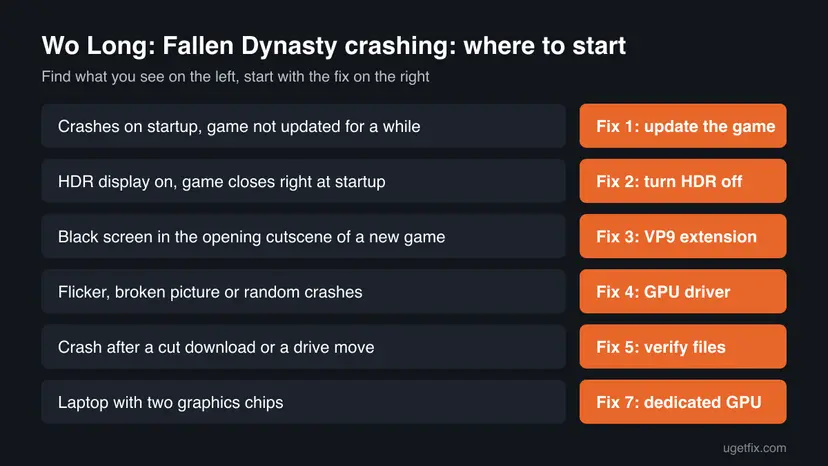
The fixes are ordered by how often they help and how little they cost. Test the game after each one at the moment it crashed. Fix 1 to Fix 3 come straight from Team Ninja's own notes; the rest rule out the driver, the files, overlays and laptop graphics.
| What you see or what your PC has | Start with |
|---|---|
| Auto updates are off or you have not started the game for months | Fix 1 |
| HDR monitor, and the game closes right at startup | Fix 2 |
| Black screen in the opening cutscene of a new game | Fix 3 |
| Flicker, corrupted picture, or a driver older than a few months | Fix 4 |
| Crash after a cut download or a move to another drive | Fix 5 |
| Discord, the Steam overlay or an FPS counter runs during play | Fix 6 |
| Gaming laptop with NVIDIA or AMD graphics and a built-in chip | Fix 7 |
Fix 1. Update Wo Long: Fallen Dynasty to the latest version
5 to 15 minutesNo riskThe game will not start, crashes just after startup, or auto updates are off.
Team Ninja's FAQ says the startup crash once caused by double-byte characters in the install folder or the Windows user name now works without issue with the latest update. The HDR startup crash after Ver1.300 was also fixed by an update on 15 December 2023.
- Steam: open Library, select Wo Long: Fallen Dynasty and let any update shown on its page download.
- If no update shows, right-click the game, select Properties > Updates and set it to keep the game up to date.
- Xbox app (Microsoft Store, PC Game Pass): select the game, then the three dots, Manage > Files > Check for updates.
- Also open Microsoft Store > Library and select Get updates, so the store copy and its add-ons match.
- Restart the launcher, then start the game.
Team Ninja also confirmed a load error after Ver1.300: "The game could not be started with this saved data as you are no longer able to access the add-on content: Battle of Zhongyuan". It asked players not to delete their saves and wait for the patch, which came on 15 December 2023. On the latest version this message should not appear.
It worked if: The launcher shows the game as up to date and it passes the point where it crashed.
If not: If it still closes at startup and your monitor supports HDR, try Fix 2.
Fix 2. Turn off Windows HDR before you start the game
2 minutesNo riskYour monitor or TV supports HDR, and the game closes right at startup.
Team Ninja confirmed that the game may crash at startup when HDR is enabled, and gave turning Windows HDR off as the workaround. The game then sets its own HDR option to Disabled by itself. The fixing update came later, but this test still rules HDR out in two minutes.
- Close the game.
- Windows 11: open Start > Settings > System > Display.
- If several displays are connected, select the HDR display at the top.
- Set Use HDR to off.
- Windows 10: open Start > Settings > System > Display, select the HDR display under Rearrange your displays, and turn Use HDR off under Windows HD Color.
- Start the game.
If the game starts with HDR off, keep it off while you play, or turn it back on after the next game update and test again. Press Win + Alt + B to switch Windows HDR on or off quickly.
It worked if: The game passes the startup logos and reaches the title menu.
If not: If the screen goes black when a new game starts, install the VP9 codec with Fix 3. If it still closes at startup, go to Fix 4.
Fix 3. Install VP9 Video Extensions for a black screen in the opening cutscene
3 minutesNo riskYou start a new game and the screen goes black when the opening cutscene should play.
The opening cutscene is a VP9 video. Team Ninja's FAQ says the screen goes black when it plays if Windows lacks the VP9 codec, and points to the free VP9 Video Extensions app in the Microsoft Store. Windows N editions and trimmed Windows installs often miss it.
- Close the game.
- Open the Microsoft Store and search for VP9 Video Extensions from Microsoft Corporation.
- Select Get or Install. If it shows Update, install the update.
- Restart the PC.
- Start the game and begin a new game again.
The Store page Team Ninja links to is VP9 Video Extensions. If the Microsoft Store itself will not open or install apps, reset it first: Reset the Microsoft Store.
It worked if: The opening cutscene plays with picture and sound, and the game moves on to the character creation.
If not: If the cutscene still stays black, update the graphics driver with Fix 4.
Fix 4. Install the current graphics driver from NVIDIA, AMD or Intel
10 minutesLow riskFlicker, corrupted rendering, random crashes in play, or a driver older than a few months.
Team Ninja's FAQ says that for flicker or corrupted rendering, updating to the latest drivers may resolve the issue, and it points to the card maker's site. The game is DirectX 12 only and uses DLSS, FSR 2 and XeSS, which lean on recent drivers.
- Find your card: right-click Start, open Device Manager and expand Display adapters.
- Download the current driver for that card from NVIDIA, AMD or Intel.
- Install it, choosing the clean installation option if the installer offers one.
- Restart Windows and start the game.
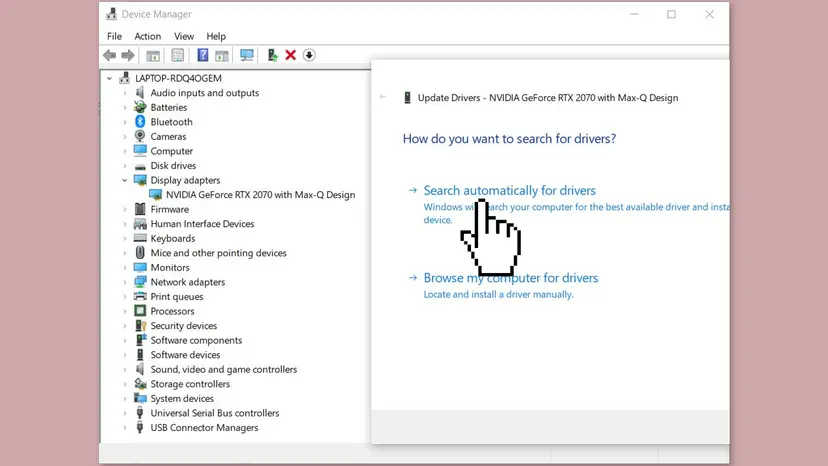
Device Manager often finds no newer driver, so the card maker's site is the better source. If the crashes began right after a new driver, roll it back instead: Update, roll back or reinstall a driver.
It worked if: The Driver tab shows a new driver version, and the flicker or the crash is gone.
If not: If it still crashes, verify the game files with Fix 5.
Fix 5. Verify the Wo Long: Fallen Dynasty game files
10 to 30 minutesLow riskThe game crashes on startup after a cut update, a move to another drive, or always at the same spot.
The game needs about 60 GB. An update cut short or a drive error leaves damaged files that crash the game when they load. The launcher compares the files and downloads only the broken ones again.
- Steam: right-click Wo Long: Fallen Dynasty in the library and select Properties.
- Open Installed Files and select Verify integrity of game files.
- Xbox app: select the game, the three dots, Manage > Files and Verify and repair.
- Wait until the launcher reports it has finished, then start the game.
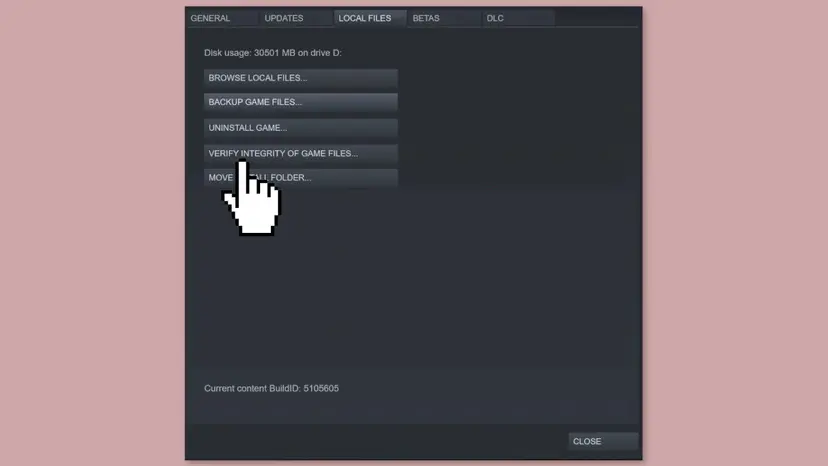
Every launcher step by step: How to verify game files in Steam, Epic Games, Xbox app, EA app, Battle.net and GOG Galaxy.
It worked if: The launcher reports the files are fine or were downloaded again, and the game starts.
If not: If the game still crashes during play, turn off overlays with Fix 6.
Fix 6. Turn off the Steam, Discord, NVIDIA and Xbox Game Bar overlays
5 minutesNo riskCrashes or freezes while Discord, the Steam overlay, the NVIDIA overlay, Xbox Game Bar or an FPS counter runs.
An overlay hooks into the game's DirectX 12 frames and uses extra video memory. On a 4 GB card at the minimum, that extra load can tip the game into a crash.
- Steam: open Steam > Settings > In Game and turn off Enable the Steam Overlay while in-game.
- Discord: open User Settings, go to Game Overlay and turn off Enable in-game overlay.
- NVIDIA: open the NVIDIA app settings and turn off the in-game overlay.
- Xbox Game Bar: press Win + I, open Gaming > Game Bar and turn it off.
- Close FPS counters such as MSI Afterburner and RivaTuner, then start the game.
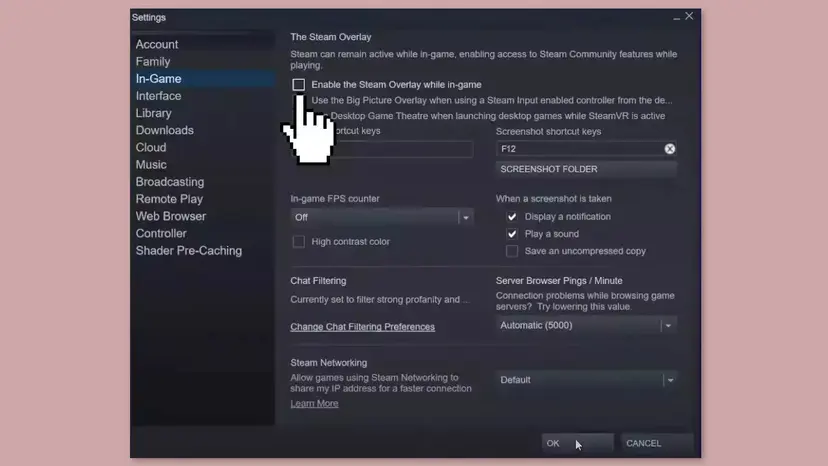
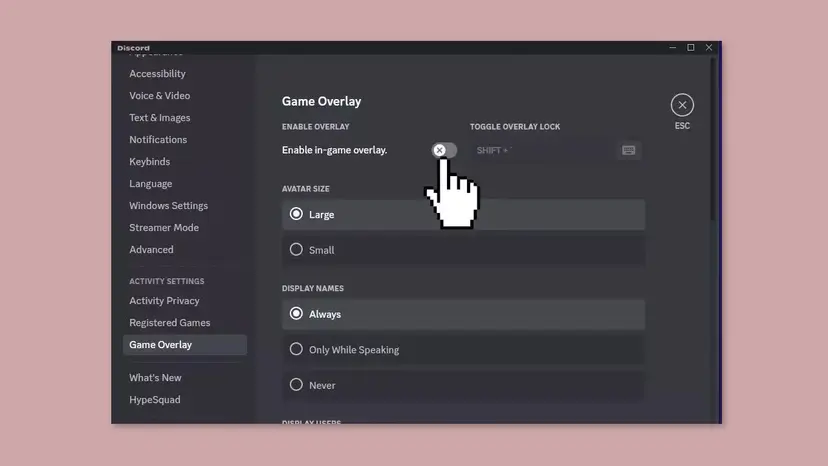
It worked if: The game runs with no overlay and the crash does not come back.
If not: Turn the overlays back on if they made no difference. On a laptop, try Fix 7; on a desktop, go to Fix 8.
Fix 7. Make a gaming laptop run the game on its dedicated graphics card
3 minutesNo riskA laptop with NVIDIA or AMD graphics plus a built-in Intel or AMD chip, and the game is very slow before it crashes.
The minimum is a GeForce GTX 1650 or Radeon RX 570 with 4 GB of video memory. A built-in graphics chip is far below that, and if Windows starts the game on it, the game can fail at startup or crash under load.
- Press Win + I and open System > Display > Graphics.
- Find Wo Long: Fallen Dynasty in the list. If it is not there, select Browse (Windows 10: Desktop app > Browse) and pick the game's .exe file in its install folder.
- Select the game, then Options, or open its drop-down menu on Windows 11.
- Choose High performance, which names your NVIDIA or AMD card, and select Save.
- Plug the laptop into power and start the game.
To find the install folder in Steam, right-click the game and select Manage > Browse local files. The NVIDIA Control Panel and AMD Software also have a per-game graphics setting, but the Windows setting above works for both.
It worked if: Task Manager's Performance tab shows the NVIDIA or AMD card busy while you play, and the game no longer crashes.
If not: If it still crashes, try the compatibility settings in Fix 8.
Fix 8. Turn off fullscreen optimizations and run the game as administrator
3 minutesLow riskAll fixes above failed and the game still closes at startup.
Fullscreen optimizations change how Windows hands the screen to a fullscreen game, and running as administrator rules out blocked access to the game folder. Neither is a known Wo Long bug; this is a cheap last test.
- In Steam, right-click the game and select Manage > Browse local files.
- Right-click the game's .exe file and select Properties.
- Open the Compatibility tab.
- Tick Disable fullscreen optimizations and Run this program as an administrator.
- Select Apply and OK, then start the game from Steam.
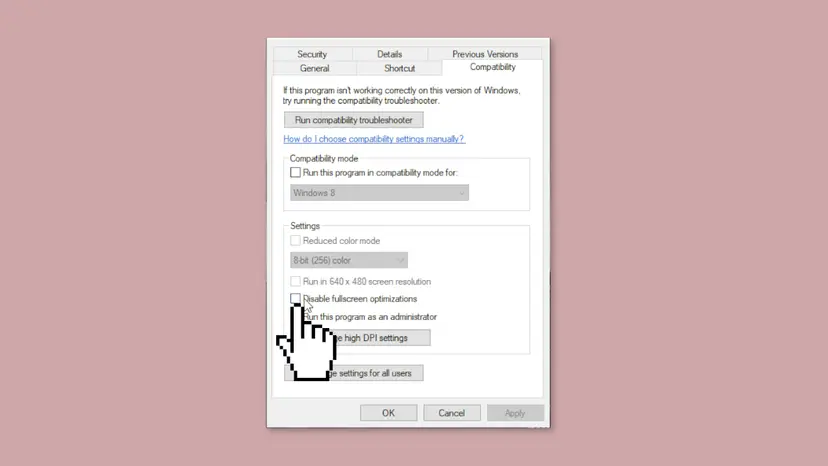
Step by step with screenshots: How to run a program as administrator or in compatibility mode. If it makes no difference, clear both boxes again.
It worked if: The game starts and reaches the title menu.
If not: Read where the real cause is written, as the next section explains, and contact Koei Tecmo support.
If Wo Long: Fallen Dynasty keeps crashing on PC: where the real cause is written
Before you reinstall 60 GB, look at what Windows recorded at the moment of the crash. It shows whether the game, the graphics driver or the hardware failed.
| Where to look | What it holds |
|---|---|
| Event Viewer, Windows Logs > Application | An Application Error for the game's .exe at the crash time, with the faulting module name |
| Event Viewer, Windows Logs > System | Display driver events at the crash time, which point at the driver or the card |
%USERPROFILE%\Documents\KoeiTecmo\Wolong\Savedata | Saves (SAVEDATA00) and settings (SYSTEMSAVEDATA00) of the Steam copy, in a folder named after your user ID |
%LOCALAPPDATA%\Packages\946B6A6E.WoLongFallenDynasty_dkffhzhmh6pmy\SystemAppData\wgs | Saves of the Microsoft Store copy; its settings are in the Documents path above |
We could not confirm whether the game writes its own crash log, so send Koei Tecmo support the Event Viewer details and a DxDiag report.
- Make a DxDiag report: press Win, type
dxdiag, press Enter and select Save All Information. - Send to Koei Tecmo support: CPU, GPU and driver version, RAM, Windows version, store, game version, HDR on or off, and when it crashes.
- Reinstall last: uninstall the game in the launcher, restart and install it again. Copy the save folder above to another drive first.
- Signs of hardware: other heavy games crash too, the PC restarts or shows a blue screen, or crashes continue with a fresh driver. Test the memory with How to test your RAM with Windows Memory Diagnostic and check cooling and the power supply.
How to keep Wo Long: Fallen Dynasty running without crashes
- Keep the game on the latest update and the driver from NVIDIA, AMD or Intel current.
- Keep VP9 Video Extensions installed and updated in the Microsoft Store.
- Turn Windows HDR off for a test whenever the game starts closing at startup again.
- Back up the
KoeiTecmo\Wolong\Savedatafolder before a reinstall.
- Do not delete your saves when a patch shows a save or add-on error; Team Ninja asked players to wait for the fix.
- Do not download "crash fix" executables from unknown sites: they replace game files and can carry malware.
- Do not turn off Windows Security or your antivirus to make the game run.
- Do not run the game on a laptop's built-in graphics chip.
Windows 10 left support on 14 October 2025. The game still lists Windows 10 64-bit as a supported system, and every step on this page works on Windows 10 and Windows 11.
Frequently asked questions
Why does Wo Long: Fallen Dynasty keep crashing on PC?
Most often because the game is not on the latest update. Team Ninja confirmed two startup crashes, one with double-byte characters in the install path or user name and one with HDR on after Ver1.300, and both were fixed by updates. Less often the cause is Windows HDR, a missing VP9 codec or an old graphics driver. Update the game, turn HDR off for one test and install the current driver.
Why does Wo Long: Fallen Dynasty show a black screen when I start a new game?
The opening cutscene of a new game is a VP9 video, and Team Ninja's FAQ says the screen goes black when it plays if Windows lacks the VP9 codec. Install the free VP9 Video Extensions app from the Microsoft Store, restart the PC and start a new game again. If the screen is still black, update the graphics driver and verify the game files.
Why does Wo Long: Fallen Dynasty crash on startup?
A crash right at startup usually means an old game version or Windows HDR. Team Ninja confirmed that the game may crash at startup when HDR is enabled, and its workaround is to turn Use HDR off in Settings > System > Display before you start the game. Update the game first, then test with HDR off. If that does not help, verify the game files and try the compatibility settings.
Does Wo Long: Fallen Dynasty run on an RTX 3060 Ti?
Yes. The GeForce RTX 3060 Ti is faster than the recommended GeForce RTX 2060 and has 8 GB of video memory, double the 4 GB minimum. If the game crashes on such a card, the card itself is rarely the cause. Install the current NVIDIA driver, update the game, turn Windows HDR off for one test and turn off overlays. You can also turn on DLSS in the game's graphics settings to lower the load.
Can I play Wo Long: Fallen Dynasty with HDR now?
Team Ninja confirmed on 15 December 2023 that the HDR startup issue works without problems with the latest update. So on an updated game you can use HDR. If the game starts closing at startup again after an update or a Windows change, turn Use HDR off in Windows for one test. If the game then starts, keep HDR off and report it to Koei Tecmo support.
What does the Battle of Zhongyuan save data error mean?
After Ver1.300 some players saw "The game could not be started with this saved data as you are no longer able to access the add-on content: Battle of Zhongyuan". Team Ninja said it was a bug, asked players not to delete their saves, and fixed it with the update of 15 December 2023. Update the game, and make sure the Season Pass or Battle of Zhongyuan add-on is installed in your launcher.
Will reinstalling Wo Long: Fallen Dynasty delete my saves?
Uninstalling normally leaves the saves in Documents\KoeiTecmo\Wolong\Savedata for the Steam copy, and the game syncs saves through Steam Cloud and Xbox Cloud. The settings also live in Documents, which OneDrive can back up if Documents backup is on. Still copy the Savedata folder to another drive before you reinstall, so nothing depends on the cloud.
The page shows a question in another language. What does it ask?
Some searches that lead here are in Chinese, Turkish and Arabic: the Chinese one is the word for a game that closes to the desktop, and the Turkish one means not working. The answer is the same in any language: update the game, turn Windows HDR off for one test, install VP9 Video Extensions for a black cutscene and install the current graphics driver, in that order.
The fixes did not help. What should I do?
Collect the facts and contact Koei Tecmo support. Include your CPU, GPU and driver version, RAM, Windows version, the store and game version, whether HDR is on, and when the game crashes. Attach a DxDiag report and the Event Viewer Application Error details. If other heavy games also crash, or the PC restarts or shows a blue screen, test the memory and check cooling and the power supply.
Sources
- Team Ninja: Wo Long: Fallen Dynasty FAQ, Troubleshooting (startup crash, black opening cutscene and VP9, flicker and drivers) (teamninja-studio.com)
- Team Ninja: Regarding issues in Ver1.300 (HDR startup crash, Battle of Zhongyuan save error, fixed 15 December 2023) (teamninja-studio.com)
- PCGamingWiki: Wo Long: Fallen Dynasty (engine, release date, file locations, video settings, system requirements) (pcgamingwiki.com)
Did this fix work?
One click, no account. It tells the next reader which guides are worth their time.
Questions and experiences: fix Wo Long: Fallen Dynasty crashes on Windows
Still broken, or found a fix we did not cover? Ask here: members and our editors answer. Reading is open; writing needs a free account.
…