
How to fix Xbox app error code 0x87e00004 in Windows?

Prefer to fix it yourself? The manual steps follow.
- 8methods
- 5 to 40 minutes
- Beginner to intermediate
Applies to Windows 11 and Windows 10; the Xbox app for PC, Gaming Services, Microsoft Store and PC Game Pass games
8 methods in this guide
Why does my Xbox app on Windows keep showing error 0x87e00004 when I try to launch a game? It won't let me play, and rebooting doesn't do anything. Does anyone know a fix for this?
Error 0x87E00004 stops a game download, install or launch in the Xbox app for PC. Xbox Support does not list this exact code, but its 0x87E0 family covers downloads and installs, so Gaming Services and the download itself are the usual suspects. Check the Xbox status, sign in again and restart first.
0x87E00004 means the Xbox app could not finish getting a game ready: the download, install or first launch stopped. Check the Xbox status, sign in with one account and restart (Fix 1), then cancel and download the game again (Fix 2). If every game fails, run Support > Gaming Services Repair Tool in the Xbox app (Fix 3).
| Error | 0x87E00004 in the Xbox app for PC when a game downloads, installs or starts for the first time. |
|---|---|
| Where it appears | In the Xbox app's install queue or on the game's page, sometimes in Microsoft Store > Library, right after Install, Update or Play. |
| Main cause | A download that stopped halfway, or Gaming Services, the part of Windows that installs Xbox PC games, being damaged or out of date. |
| Fastest fix | Check the Xbox status, sign in and restart (Fix 1), then cancel and download again (Fix 2). |
| Also written as | 0x87e00004, 87E00004, "Error code: 0x87E00004". Not the same as 0x87DD0004, which has its own Xbox Support page. |
| Affects | Windows 11 and Windows 10 22H2 PCs with the Xbox app and Game Pass or bought games. |
| Vendor status | Not in Xbox Support's error code list in our check on 15 October 2026. Its general PC install steps apply. |
| Time to fix | 5 minutes for a restart and a new download; up to 40 minutes when Gaming Services is reinstalled or a large game downloads again. |
Facts checked on 15 October 2026. Steps written for Windows 11 (25H2 and 26H2) and Windows 10 22H2.
What Xbox app error code 0x87e00004 means
0x87E00004 appears when the Xbox app for PC cannot get a game ready to play. The download may stop partway, the install may never finish, or the Play button may fail on a game that is still being written to the disk. Users report a message such as "Something went wrong. Try again later." next to the code.
- Code
- 0x87E00004 (also 0x87e00004, 87E00004)
- Shown by
- The Xbox app for PC, sometimes Microsoft Store
- When
- While a game downloads, installs or starts for the first time
- Part of Windows involved
- Gaming Services and the Store's download system
Xbox Support has no page for this exact code. Its neighbours in the same 0x87E0 family do have pages, and they are all about getting content onto the device. Examples: 0x87E00007 when you start a game that is still downloading, 87E0000F when downloading a game or app, 0x87e00016 when installing in the Xbox app. That is why the fixes below focus on the download and on Gaming Services.
Xbox Support says 0x87DD0004 appears when you download content on Xbox One or PC, and that the content cannot be downloaded from Microsoft Store or there is an Xbox service issue. Its two steps, check the Xbox status and download again, are Fix 1 and Fix 2 here. If your code has DD in it, use that page.
Why the Xbox app shows 0x87e00004: the causes, ranked
Microsoft publishes no numbers for this code. The order below is our reading of Xbox Support's own order for PC install problems and of what the related codes mean.
| Cause | How often | How to tell | Fix |
|---|---|---|---|
| An Xbox service outage, or the Store and the Xbox app signed in with different accounts. | Often, and quick to rule out | It started suddenly; other people report problems. | Fix 1 |
| A download that stopped halfway after sleep, a network drop or a full queue. | Often | One game fails, its progress bar stopped. | Fix 2 |
| Gaming Services is damaged, half updated or missing. | Most often when it repeats | Every game fails, or the Xbox app opens with missing content. | Fix 3, then Fix 4 |
| The Microsoft Store cache or the Xbox app's data is damaged. | Sometimes | Store apps that are not games also fail. | Fix 5 |
| Windows, the Xbox app or Gaming Services is out of date. | Sometimes | Updates wait in Windows Update or Store Library. | Fix 6 |
| An Xbox service in Windows is disabled. | Rarely | A tuning tool was used, or sign-in also fails. | Fix 7 |
| The game's own files are damaged. | Rarely | The game installed but fails on Play. | Fix 8 |
How to fix error 0x87e00004 in the Xbox app on Windows 11 and Windows 10
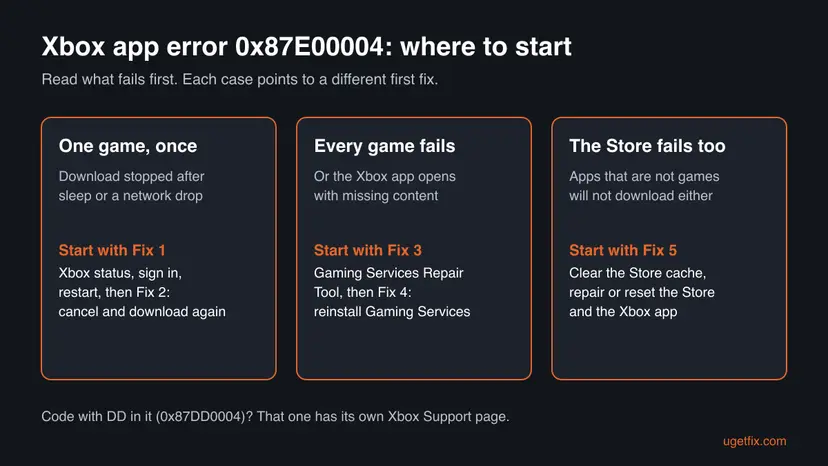
Fixes 1 and 2 take a few minutes and clear most one-off failures. Fixes 3 and 4 repair Gaming Services, which is behind most repeated cases. Fixes 5 to 8 deal with the Store, updates, services and the game files.
| What you see or have | Start with |
|---|---|
| 0x87E00004 appeared suddenly, maybe for friends too. | Fix 1 |
| One game stopped downloading or installing. | Fix 2 |
| Every game in the Xbox app fails with the code. | Fix 3, then Fix 4 |
| Microsoft Store apps that are not games fail to download too. | Fix 5 |
| Updates wait in Windows Update or Store Library. | Fix 6 |
| The game installed fine but fails when you select Play. | Fix 8 |
Fix 1. Check the Xbox status, sign in with one account and restart
5 minutesLow riskEveryone, first. Especially when the error appeared suddenly or after the PC slept.
Xbox Support lists checking the Xbox status and verifying that you are signed in and restarting as its first steps when a PC game will not install or launch. A service outage or two different accounts in the Store and the Xbox app stop a download that is otherwise fine.
- Open
support.xbox.com/xbox-live-status. If store, games or account services show a problem, wait until it clears. - Open Microsoft Store, select your profile picture and note the account.
- Open the Xbox app, select your profile picture and check it is the same account. If not, sign out and sign in with the right one.
- If the game comes with PC Game Pass, check that the subscription is active on that account.
- Check that the PC is online and the connection is stable. Step by step: How to check your internet connection in Windows
- Restart with Start > Power > Restart, not Shut down, and try the game again.
It worked if: The download continues past the point where it stopped, or the game starts.
If not: If 0x87E00004 comes back on the same game, go to Fix 2.
Fix 2. Cancel the download and download the game again
5 minutes plus the downloadLow riskOne game is stuck or fails, and other games work.
Xbox Support's answer for the related download error 0x87DD0004 is to check the status and then download the content again. A fresh download replaces the half-written files that a stopped download leaves behind.
- In the Xbox app, select Show Queue at the bottom left.
- Find the game, select the three dots and Cancel.
- If the game shows as installed but broken, go to My Library, select the three dots on the game and Uninstall.
- Restart the PC.
- Open the game's page and select Install again. Keep the PC awake until it finishes.
Xbox PC games keep saves in the cloud for your account in most cases. If a game keeps local saves or mods outside the cloud, copy that folder before you uninstall.
It worked if: The game downloads and installs from the start with no error.
If not: If every game fails the same way, go to Fix 3.
Fix 3. Run the Gaming Services Repair Tool from the Xbox app
5 to 10 minutesLow riskThe error repeats, every game fails, or the Xbox app opens with missing content.
Gaming Services does the actual install and launch of Xbox PC games. Xbox Support lists running the Gaming Services Repair Tool among its fixes when you cannot install or launch a PC game from the Xbox app.
- Open the Xbox app and select your profile picture at the top.
- Select Support.
- Select Gaming Services Repair Tool, then Start Troubleshooting.
- Follow what it reports. It may reinstall Gaming Services by itself.
- Restart the PC and try the game again.
We used the same tool for the install error in our 0x87e00005 guide, a close relative of this code.
It worked if: The tool reports that Gaming Services is repaired or healthy, and the game downloads or starts.
If not: If the code returns or the tool will not run, go to Fix 4.
Fix 4. Remove Gaming Services with PowerShell and install it again
10 minutesLow riskThe repair tool did not help or could not run, or Gaming Services will not update in the Store.
A half-updated Gaming Services package makes every download and install fail. Removing it for all users and installing a fresh copy from Microsoft Store replaces it completely, while your games stay installed.
- Close the Xbox app and Microsoft Store.
- Right-click Start and select Terminal (Admin). On Windows 10 select Windows PowerShell (Admin). Select Yes.
- Paste the first command below and press Enter.
- Paste the second command and press Enter. Microsoft Store opens on the Gaming Services page.
- Select Get or Install and wait until it is done.
- Restart the PC and try the game again.
Terminal (Admin): remove Gaming Services
Get-AppxPackage -AllUsers Microsoft.GamingServices | Remove-AppxPackage -AllUsersTerminal (Admin): open Gaming Services in Microsoft Store
start ms-windows-store://pdp/?productid=9MWPM2CQNLHNIt worked if: Gaming Services shows as installed in Microsoft Store and the game downloads or starts.
If not: If the Store itself will not download anything, go to Fix 5.
Fix 5. Clear the Store cache, then repair or reset Microsoft Store and the Xbox app
5 to 10 minutesLow riskStore apps that are not games fail too, or the Xbox app itself misbehaves.
Xbox PC games download through the same system as Microsoft Store. A damaged Store cache stops every download, and damaged Xbox app data can keep a failed download stuck in the queue.
Clear the cache with wsreset.exe, then use Repair and, if needed, Reset on Microsoft Store. Step by step: Reset the Microsoft Store

- Press Win + I and open Apps > Installed apps. On Windows 10 open Apps > Apps & features.
- Find Xbox, select the three dots and Advanced options.
- Select Terminate, then Repair. Try the game.
- If it still fails, come back and select Reset, then sign in to the Xbox app again.
- Do the same for Gaming Services if it is listed with Advanced options.
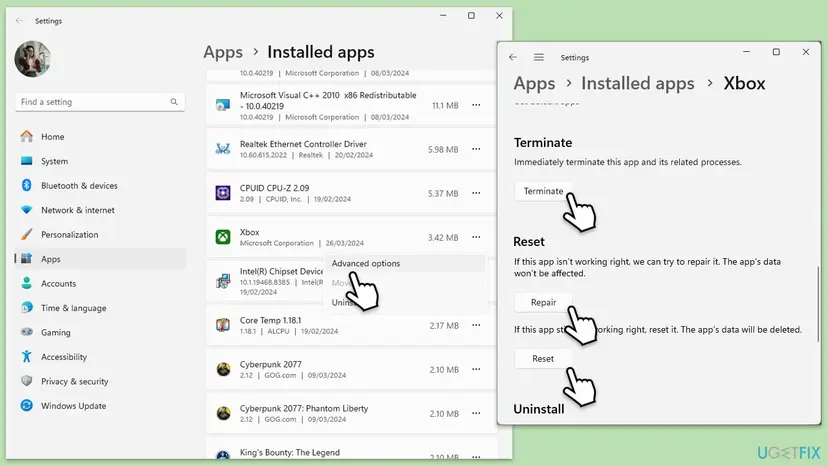
Every screen for any app: How to repair or reset an app in Windows. If the Store will not open at all, re-register it: How to re-register Microsoft Store apps with PowerShell
It worked if: Microsoft Store downloads apps again and the Xbox app downloads the game.
If not: If the Store works but the game still fails, go to Fix 6.
Fix 6. Update Windows, the Xbox app and Gaming Services
10 to 30 minutesLow riskUpdates wait in Windows Update or Store Library, or Windows 10 is older than 22H2.
Xbox Support says Windows 10 22H2 or newer is required for some features of the Xbox app, and lists updating Windows among its install fixes. New games expect a current Xbox app and Gaming Services.
- Open Microsoft Store > Library and select Get updates. Let Xbox and Gaming Services update.
- Press Win + I and open Windows Update. On Windows 10 open Update & Security > Windows Update.
- Select Check for updates, install everything offered and restart.
- Check your version in Settings > System > About. Windows 10 must be 22H2.
- Open the Xbox app and try the game again.
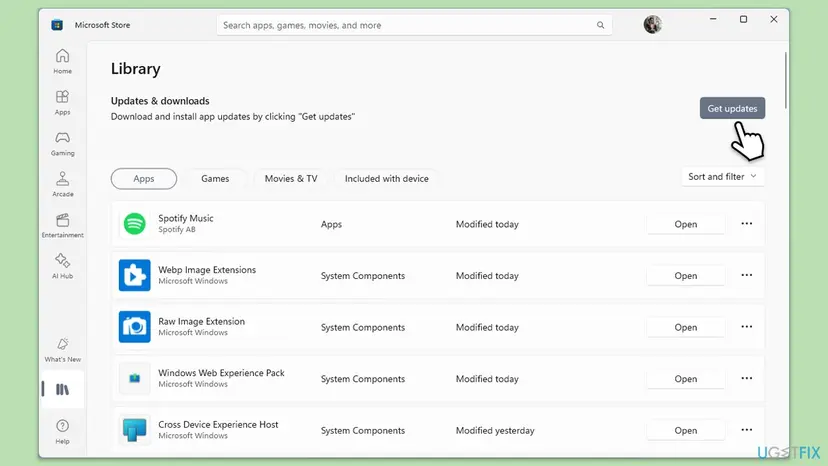
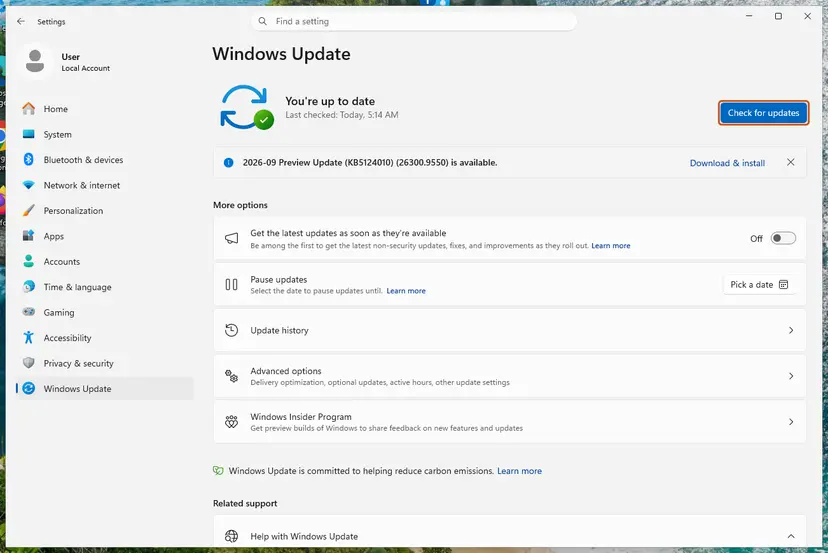
It worked if: Store Library shows no pending updates, Windows Update says you are up to date, and the game installs.
If not: If it still fails, go to Fix 7.
Fix 7. Make sure the Xbox and Gaming Services services can start
5 minutesLow riskA tuning or debloat tool was used, or sign-in in the Xbox app also misbehaves.
The Xbox app relies on Windows services such as Xbox Live Auth Manager for sign-in and Gaming Services for installs. A service set to Disabled stops downloads and launches with codes like this one.
- Press Win + R, type
services.mscand press Enter. - Find Xbox Live Auth Manager, Xbox Live Game Save, Xbox Live Networking Service and Gaming Services.
- Double-click each one. If Startup type says Disabled, set it to Manual or Automatic.
- Select Start if the service is stopped, then OK.
- Restart the PC and try the game again.
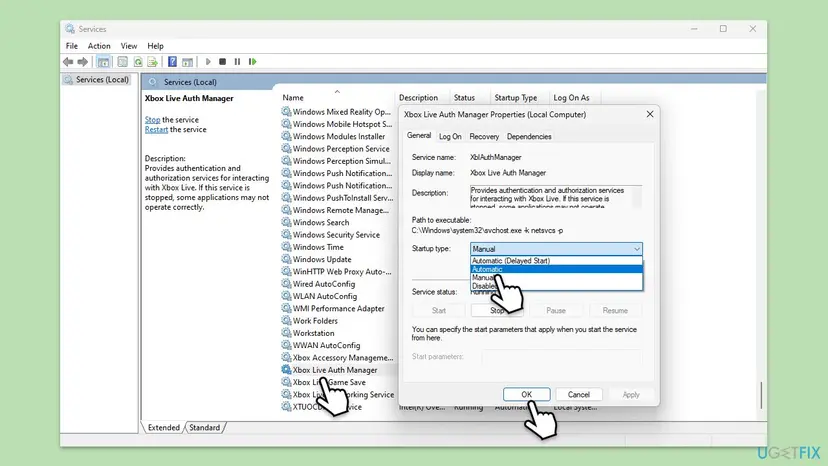
More on starting a stopped service: Check and restart Windows services
It worked if: None of the Xbox services is Disabled, and the game downloads or starts.
If not: If the game installs but fails on Play, go to Fix 8.
Fix 8. Repair the game's files in the Xbox app
5 to 20 minutesLow riskThe game finished installing, but 0x87E00004 appears when you select Play.
Xbox Support lists updating and repairing the game among its fixes for PC games that will not launch. A file that was damaged while writing makes the first start fail even after the download is complete.
- Open the Xbox app and go to My Library.
- Select the three dots on the game, or right-click it, and select Manage.
- Open Files and select Verify and repair.
- Wait until the check ends, then select Play.
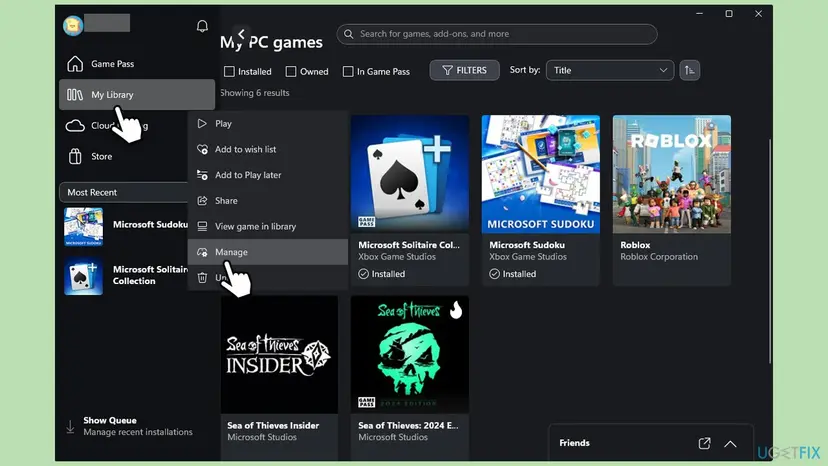
Full steps for other launchers too: How to verify game files in Steam, Epic Games, Xbox app, EA app, Battle.net and GOG Galaxy. If repair fails, uninstall the game and install it again as in Fix 2.
It worked if: The repair finds and replaces damaged files, and the game starts.
If not: Read "If 0x87e00004 is still there" below.
If 0x87e00004 is still there
The Xbox app shows only the code. The detailed reason is written by Windows when a package fails to install. Look there before you contact Xbox Support.
- Try the game once more and note the time it fails.
- Open Windows PowerShell and run
Get-AppxLog | Out-GridView. Look for red entries at that time. - In Event Viewer (
eventvwr.msc), open Applications and Services Logs > Microsoft > Windows > AppXDeployment-Server and check the same time. - Note any line that names a drive, a folder or access denied.
- What to send to Xbox Support: the code, the game, where it stops (percent or on Play), the drive, your Windows version from Settings > System > About, and the fixes you tried.
- When it may be the drive: installs fail only on one drive, or large file copies to that drive fail too. Check it with Check a disk for errors (chkdsk) and make room with Free up disk space and delete temporary files.
- When it is the account: the same game installs for another Microsoft account on the same PC. Then check the licence and Game Pass status on yours.
- When it is Windows: nothing above helps and other Store apps fail too. Run Run DISM and SFC to repair Windows system files before anything bigger.
How to keep 0x87e00004 from coming back
- Keep the Xbox app and Gaming Services updated through Microsoft Store > Library.
- Use the same Microsoft account in Microsoft Store and the Xbox app.
- Do not let the PC sleep or lose its connection while a game downloads.
- Install games on an internal drive with space to spare for updates.
- Do not use tuning tools that remove Gaming Services or disable Xbox services.
Windows 10 left support on 14 October 2025. The Xbox app still runs on Windows 10 22H2, but a PC that gets no updates can fall behind what new games and Gaming Services expect.
Frequently asked questions
What does error code 0x87e00004 mean in the Xbox app?
It means the Xbox app could not get a game ready: the download, install or first start stopped. Xbox Support has no page for this exact code in our check on 15 October 2026. The codes next to it in the 0x87E0 family, such as 0x87E00007 and 87E0000F, are all about downloading and installing. So a stopped download and Gaming Services are the first things to fix, as Fixes 1 to 4 describe.
What is xbox.com/errorhelp?
It is the short address Xbox uses for error help. When we opened xbox.com/errorhelp on 15 October 2026, it led to Xbox Support's page Find your error code, a long list of codes with their own fix pages. 0x87E00004 is not on that list, which is why this page explains it. If your code is on the list, such as 0x87DD0004, follow Microsoft's page for it first.
Is 0x87DD0004 the same error as 0x87E00004?
No, but they are close. Xbox Support says 0x87DD0004 appears when you download content on Xbox One or PC and means the content cannot be downloaded from Microsoft Store or there is an Xbox service issue. Its steps are to check the Xbox status and download the content again. Those are Fix 1 and Fix 2 on this page, so they help with both codes.
I see 0x87DD0004 on my Xbox One. Does this page help?
Only in part. This page is about the Xbox app on Windows PCs. On an Xbox One console, Xbox Support's 0x87DD0004 steps are to check the Xbox status and download the content again. Its page also says that if the code appears during a console system update or setup, you should follow its system update troubleshooting instead. Restarting the console and checking storage space are sensible extra checks.
What is xbox.com/xboxone/startuperror?
It is an Xbox One console address, not a PC one. When we opened it on 15 October 2026, it led to Xbox Support's console startup error page. A console startup error is a different problem from 0x87E00004 in the Xbox app on Windows. If your console shows a startup error screen, follow that Xbox Support page rather than the fixes here.
Does 0x87e00004 happen on Windows 11 and Windows 10?
Yes, the Xbox app behaves the same on both, and so do the fixes. Only some Settings paths differ, and the steps give both. On Windows 10, make sure you run version 22H2, because Xbox Support says some Xbox app features need 22H2 or newer. Windows 10 left support on 14 October 2025, so it no longer gets fixes, which can make Store and Gaming Services problems more likely over time.
Will resetting the Xbox app or reinstalling Gaming Services delete my games?
No. A reset of the Xbox app clears its settings and signs you out, and removing the Gaming Services package does not uninstall your games. Games will not start until Gaming Services is back, which is why Fix 4 ends with installing it from Microsoft Store. Xbox PC games keep saves in the cloud in most cases. Copy local saves or mods first if a game keeps them outside the cloud.
Is 0x87e00005 the same as 0x87e00004?
They are close relatives in the same 0x87E0 family, and both stop games in the Xbox app. 0x87e00005 mostly appears during installs and points strongly at Gaming Services. The first fixes overlap: the Gaming Services Repair Tool, a Gaming Services reinstall and a Store reset. If your screen shows 0x87e00005, our separate guide for that code covers it step by step.
I searched in another language. Is this the right page?
Some people reach this page with searches such as "ce trebuie făcut" (Romanian for what to do), "jogando no pc" (Portuguese for playing on PC) or "vad betyder detta" (Swedish for what does this mean). If you see 0x87E00004 in the Xbox app on a Windows PC, yes. Start with the Xbox status, a restart and a new download, then the Gaming Services Repair Tool.
Should I turn off my antivirus to fix 0x87e00004?
Not as a fix. Xbox Support does list checking antivirus settings for PC install problems, but a security tool is a rare cause of this code. If everything else failed, pause a third-party antivirus for one install test only, then turn it on again at once. If the game installs while it is paused, add the Xbox app as an allowed app instead. Step by step: Turn off Microsoft Defender protection for a moment.
Sources
- Xbox Support: Fix gaming issues with the Xbox app for PC and handhelds (support.xbox.com)
- Xbox Support: Find your error code (where xbox.com/errorhelp leads) (support.xbox.com)
- Xbox Support: Error 0x87DD0004 occurs when you download content on Xbox One or PC (support.xbox.com)
Did this fix work?
One click, no account. It tells the next reader which guides are worth their time.
Questions and experiences: fix Xbox app error code 0x87e00004 in Windows
Still broken, or found a fix we did not cover? Ask here: members and our editors answer. Reading is open; writing needs a free account.
…