
How to fix "You were disconnected from Blizzard services" error in Windows?

Prefer to fix it yourself? The manual steps follow.
- 9methods
- 5 minutes for the first fix, 10 to 30 minutes for the others
- Medium
Applies to Battle.net games such as World of Warcraft, WoW Classic, Heroes of the Storm, Hearthstone, Overwatch, Diablo and Call of Duty titles bought on Battle.net, on Windows 11 and Windows 10
9 methods in this guide
Hi. I have recently started experiencing disconnects while playing World of Warcraft. Whenever it happens, I receive the "You were disconnected from Blizzard services" error. Any tips on how to stop this?
"You were disconnected from Blizzard services" means the game lost its connection to Battle.net, the service that handles sign in, friends and chat. Your account and game files are usually fine. Check Blizzard's service status first, then restart Battle.net, the PC and the router.
The game lost its connection to Battle.net. Start with Fix 1: check Blizzard's service status, then exit Battle.net, restart the PC and the router. If it comes back, flush DNS and renew the IP address (Fix 3), turn off any proxy or VPN (Fix 4) and add Battle.net to your security program's exception list (Fix 5). Blizzard's own troubleshooting follows this same order.
| Error | "You were disconnected from Blizzard services". In some games the window is titled Closed and the game shuts. |
|---|---|
| Where it appears | In the game, while you play or right after sign in. In World of Warcraft it can show in the chat, followed by "You are now connected to Blizzard services". |
| Main cause | The connection between the PC and Battle.net drops: a router or Wi-Fi problem, a stale DNS or IP setting, a proxy, or security software that blocks the login module. |
| Fastest fix | Check Blizzard's service status, exit Battle.net, restart the PC and the router (Fix 1). |
| Also written as | You have been disconnected from Blizzard services, disconnected from Blizzard services, disconnected by Battle.net services, Closed. You were disconnected from Blizzard services. |
| Affects | Battle.net games on Windows 11 and Windows 10: World of Warcraft and WoW Classic, Heroes of the Storm, Hearthstone, Overwatch, Diablo, StarCraft and Call of Duty titles on Battle.net. |
| Vendor status | Not a bug with a patch. Blizzard Support has disconnection articles per game with the same steps: reset network devices, renew the IP and flush DNS, update drivers, close other apps, check proxies and security programs. |
| Windows 10 | Microsoft ended support for Windows 10 on 14 October 2025. That does not cause this error, but an unpatched PC is one more reason to update. |
| Time to fix | 5 minutes for Fix 1, about 5 minutes each for Fixes 2 to 5, up to 30 minutes for a repair of a large game. |
Facts checked on 16 October 2026. Steps written for the Battle.net desktop app on Windows 11 (25H2 and 26H2) and Windows 10 22H2, read against Blizzard Support's disconnection troubleshooting article.
What "You were disconnected from Blizzard services" means
Every Blizzard game keeps a live connection to Battle.net while you play. Battle.net is the layer that signs you in, shows your friends, carries chat and groups, and checks your licence. The message says that link broke. It is not about one game server and it is not a ban or a problem with your account.
What happens next depends on the game. In World of Warcraft users report the line in the chat window, then "You are now connected to Blizzard services" a few seconds later, while the character stays in the world. In Heroes of the Storm and Hearthstone users report a window titled Closed and the game shuts down.
| Text on screen or in search | Where users see it | Start with |
|---|---|---|
| You were disconnected from Blizzard services | Heroes of the Storm, Hearthstone, Overwatch, often in a window titled Closed | Fix 1 |
| You have been disconnected from Blizzard services | World of Warcraft and WoW Classic, in the chat window | Fix 1, then Fix 2 |
| Disconnected by Battle.net services | How many readers search for it, not the exact text on screen | Fix 1 |
| A code such as WOW51900328 or BLZ51901016 | A separate WoW error window with its own code | The code's own Blizzard article, see the FAQ |
We could not find a Blizzard Support page that defines this message word for word. Blizzard's disconnection articles for each game give the same steps, and this guide follows them in Blizzard's order. Where a fix comes from our old guide and not from Blizzard, the method says so.
What causes the Blizzard services disconnect, from most to least likely
Blizzard publishes no numbers on how often each cause happens. The order below follows the order of Blizzard's own troubleshooting list, which starts with the network devices and ends with security programs. Users also report that the problem often starts after a game update, and sometimes with no trigger at all.
| Cause | How to tell | Fix |
|---|---|---|
| A Blizzard service outage. | Many players report it at the same hour. Blizzard posts it on its customer support channel. | Fix 1 |
| A router flooded with data, in Blizzard's words. | The router has run for weeks, or other devices also lag. | Fix 1 |
| A weak Wi-Fi link or other apps using the line. | It happens on Wi-Fi, or while a download, stream or cloud sync runs. | Fix 2 |
| Stale IP or DNS settings, the network conflicts Blizzard names. | Web pages sometimes fail to load too, or it began after a network change. | Fix 3 |
| A proxy or VPN in the way of the login module. | You use a VPN, a proxy, or a school or office network. | Fix 4 |
| Security software that flags the login module as a threat. | It began after an antivirus or firewall update. | Fix 5 |
| Damaged game files or a stale Battle.net cache. | One game fails while other Blizzard games work. | Fixes 6 and 7 |
| A slow or unreliable DNS server at your provider. | Sites take long to start loading, then load fine. | Fix 8 |
| An old network driver, missing Windows updates or malware. | Nothing above helped, and the connection drops outside games too. | Fix 9 |
Many guides, our own earlier version among them, tell you to disable the antivirus or firewall. Blizzard asks you to update the security program or add Battle.net to its exceptions. Fix 5 does that and keeps the protection on.
How to fix "You were disconnected from Blizzard services"
Fixes 1 to 5 follow Blizzard Support's disconnection steps and take a few minutes each. Fixes 6 and 7 repair the game and the Battle.net cache. Fixes 8 and 9 are for the stubborn cases.
| What you see or did | Start with |
|---|---|
| It started for everyone at the same time, or out of nowhere. | Fix 1 |
| You play on Wi-Fi, or something else downloads while you play. | Fix 2 |
| Web pages also fail now and then, or you changed router or provider. | Fix 3 |
| You use a VPN, a proxy, or a school or office network. | Fix 4 |
| It began after an antivirus or firewall update. | Fix 5 |
| Only one Blizzard game shows it, or it began after a game update. | Fix 6, then Fix 7 |
| Nothing above helped. | Fix 8, then Fix 9 |
Fix 1. Check Blizzard's service status, then restart Battle.net, the PC and the router
5 minutesNo riskEveryone starts here, and above all when the error came out of nowhere.
Blizzard asks you to check its customer support channel for service interruptions before any other step, because no fix on your PC helps during an outage. Its first fix is to reset your network devices so the router is not flooded with data.
- Check Blizzard's customer support channel, BlizzardCS, for a current outage. If there is one, wait for it to end.
- Close the game.
- Exit Battle.net completely: right-click its icon in the system tray and select Exit. Closing the window only hides it.
- Turn off the router and the modem, wait 30 seconds, and turn them back on.
- Restart Windows: Start > Power > Restart.
- Start Battle.net, let it finish any update, and start the game again.
If Battle.net will not close, end it in Task Manager. Step by step: Close a frozen app (Task Manager, Force Quit)
It worked if: The game signs in and stays connected without the message.
If not: If the message comes back while you play, check the Wi-Fi and other apps with Fix 2.
Fix 2. Use a cable instead of Wi-Fi and close other programs that use the connection
5 minutesNo riskYou play on Wi-Fi, or a download, stream, cloud sync or second game runs at the same time.
Blizzard asks you to optimise a wireless connection to rule it out and to close all other applications to resolve software conflicts and free up resources. A short Wi-Fi dropout is enough to break the Battle.net link.
- Connect the PC to the router with a network cable for one test session. If that is not possible, move closer to the router.
- Pause downloads in Battle.net, Steam, the Xbox app and your browser.
- Pause cloud sync in OneDrive or another sync app.
- Close the programs you do not need while you play, including their tray icons.
- Play for as long as it usually takes for the message to appear.
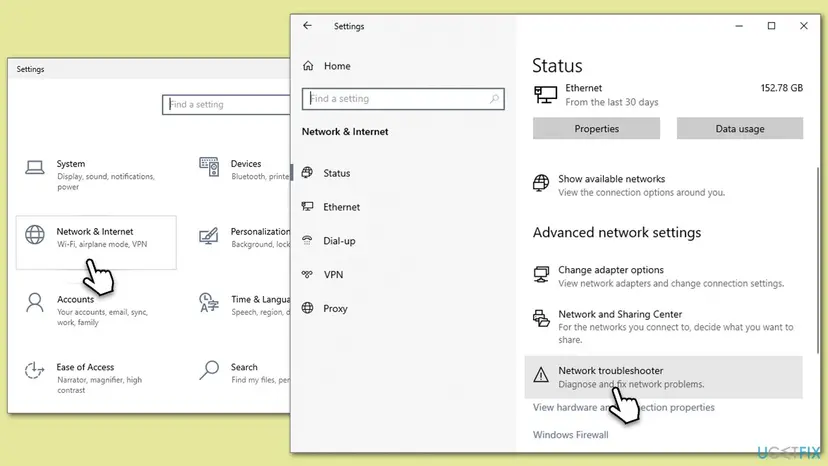
To check whether Windows itself sees a problem with the connection, on Windows 11 or Windows 10: How to check your internet connection in Windows
It worked if: On a cable, or with the other programs closed, the game stays connected for a whole session.
If not: If it still drops on a cable, the network settings themselves may be stale. Go to Fix 3.
Fix 3. Release and renew the IP address and flush the DNS cache
5 minutesLow riskWeb pages also fail to load now and then, or the error began after a change of router, provider or network.
Blizzard lists releasing and renewing the IP and flushing the DNS as its second step, to resolve network conflicts. A stale DNS entry can point Battle.net at an old address, and a fresh lease gives the PC a clean connection.
Exit the game and Battle.net first. These are the commands our old guide listed, and the procedure below runs them in order:
ipconfig /flushdns
ipconfig /registerdns
ipconfig /release
ipconfig /renew
netsh int ip reset
netsh winsock reset- Open an elevated command window. Right-click Start and select Terminal (Admin), or type cmd in the search box, right-click Command Prompt and select Run as administrator. Select Yes when Windows asks for permission.
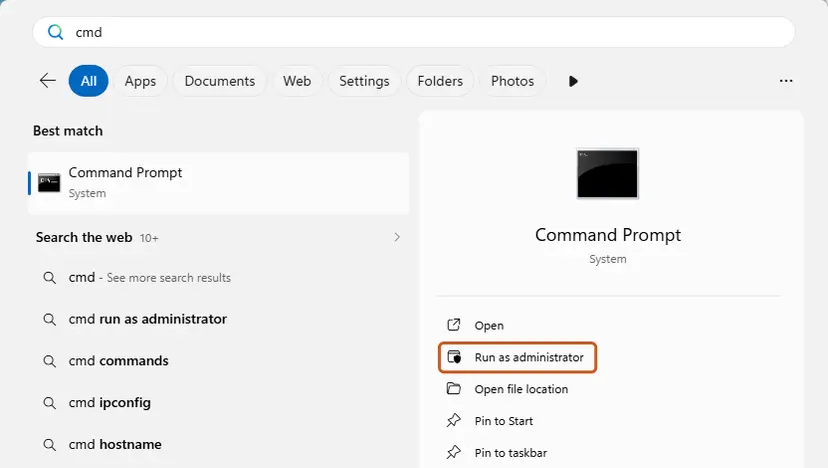
Search for cmd and choose Run as administrator. Screenshot: Windows 11 26H2. - Flush the DNS cache. Type the command below and press Enter. Windows forgets the website addresses it looked up earlier and asks for them again.
ipconfig /flushdns - Reset Winsock. Type the command below and press Enter. It returns the Windows sockets catalog to its default state.
netsh winsock reset
Both commands report success; the Winsock reset asks for a restart. Screenshot: Windows 11 26H2. - Reset TCP/IP. Type the command below and press Enter. If you entered an IP address or DNS server by hand, note it first: you may need to enter it again.
netsh int ip reset - Get a new IP address. Run these two commands one after the other. The connection drops for a moment between them.
ipconfig /release ipconfig /renew - Restart the PC. Restart Windows so the Winsock and TCP/IP resets take effect, then test the connection. If it still does not work, continue with the network reset below.
- Open Network reset. Open Settings > Network & internet > Advanced network settings and select Network reset.
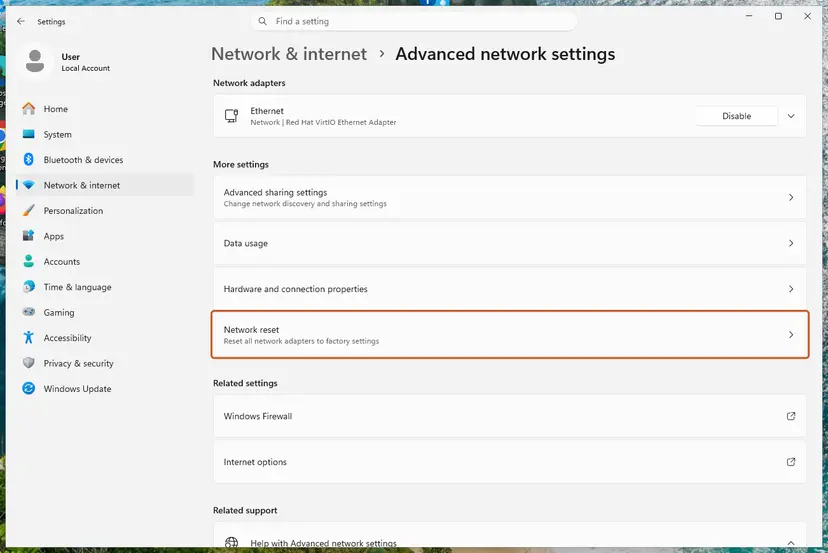
Network reset is under More settings in Advanced network settings. Screenshot: Windows 11 26H2. - Reset now. Select Reset now, then Yes to confirm. Windows removes and reinstalls all network adapters and restarts the PC.
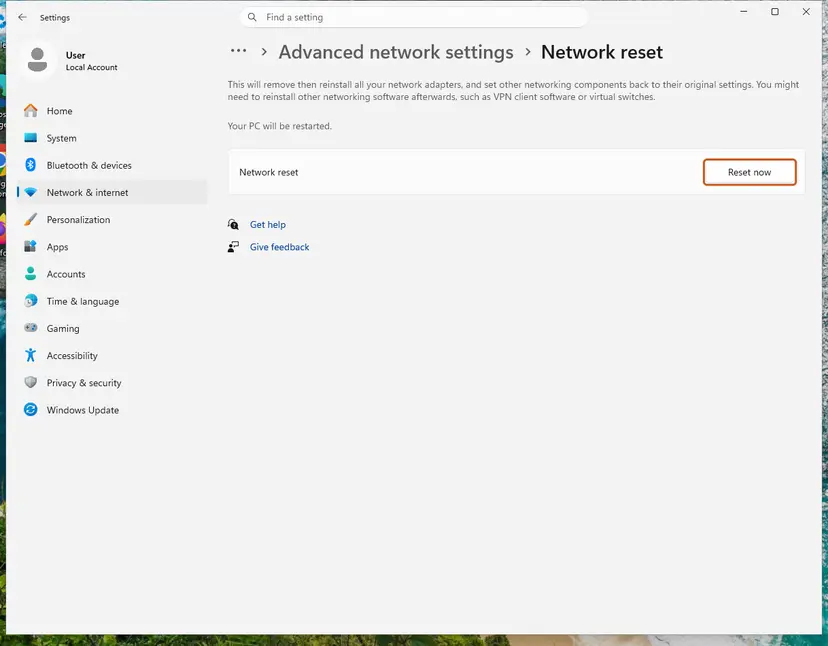
Network reset warns that VPN software or virtual switches may need to be reinstalled. Screenshot: Windows 11 26H2. - Reconnect. After the restart, connect to your Wi-Fi network again (you will need its password) and reinstall or reconfigure VPN software if it stopped working.
These steps were written for Windows 11 24H2 and later. The full page with the other versions and what each result means: Reset the network and flush DNS
ipconfig /release cuts the network until ipconfig /renew runs. The two netsh resets need a restart. A manual IP address or a VPN adapter may have to be set up again afterwards, so note those settings first.
It worked if: Each command reports success, and after the restart the game stays connected.
If not: If you use a VPN or a proxy, turn it off with Fix 4.
Fix 4. Turn off proxies and disconnect the VPN
5 minutesNo riskYou use a VPN, a proxy, an IP masking tool, or a school, office or hotel network.
Blizzard asks you to disable any proxies that may interfere with the login module. A VPN that reconnects or changes its exit server cuts the Battle.net session the same way.
- Disconnect your VPN and exit its app, including the tray icon.
- Press Win + I and open Network & internet > Proxy.
- Under Manual proxy setup, make sure Use a proxy server is off. On Windows 10 the switch is named the same.
- Leave Automatically detect settings as it is, unless your network administrator told you otherwise.
- Restart Battle.net and the game.
Such networks often send all traffic through a proxy you cannot turn off. Test on a phone hotspot. If the game stays connected there, ask the network administrator about access to Battle.net.
It worked if: With the VPN and proxy off, the game stays connected.
If not: If you use no proxy or VPN, or it made no difference, check the security software with Fix 5.
Fix 5. Add Battle.net and the game to your security software's exception list
5 to 10 minutesLow riskThe error began after an antivirus or firewall update, or you use a third-party security suite.
Blizzard says security programs may mistakenly identify the login module as a security threat, and asks you to update them. An exception lets Battle.net and the game through while the protection stays on.
- Update your security program to its latest version, as Blizzard asks.
- Open your antivirus or firewall program.
- Find the setting to add exceptions or manage firewall rules. Its name differs by program: exclusions, trusted apps or allowed programs.
- Add the Battle.net app and each Blizzard game you play, such as World of Warcraft or Heroes of the Storm, to the list.
- Restart Battle.net and the game.
If you cannot find the setting, pause protection for one test session only, and turn it back on right after. If the error stops while it is paused, the security program is the cause and needs the exception. Step by step: Turn off Microsoft Defender protection for a moment
Our old guide offered disabling the antivirus or firewall as an alternative. That leaves the PC open and is not needed for Battle.net. Pause for one test at most, then add the exception.
It worked if: After the exception is added, the game stays connected with the protection on.
If not: If only one game shows the message, repair it with Fix 6.
Fix 6. Scan and repair the game in the Battle.net app
5 to 30 minutes, by the size of the gameNo riskOnly one Blizzard game shows the message, or it began right after a game update.
Users report that this disconnect often starts after a game update. Scan and Repair compares the game folder with the current version and replaces damaged or missing files, so a half-applied update cannot break the connection.
- Open Battle.net. Open the Battle.net desktop app.
- Select the game. Select the icon of the game you want to repair.
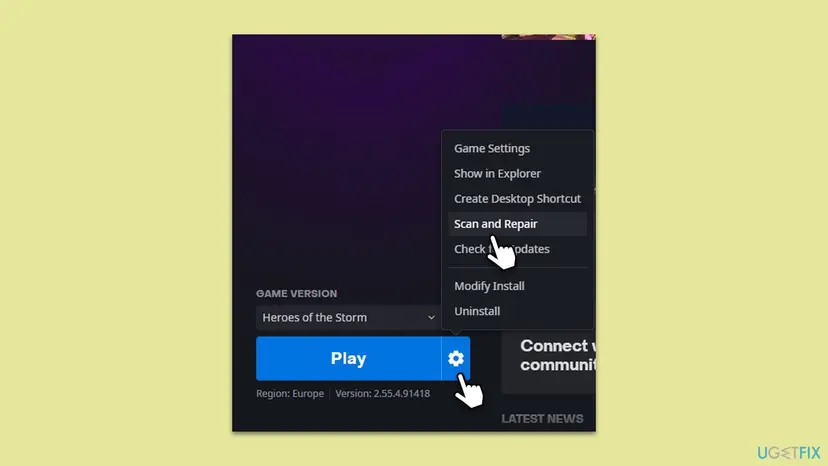
- Check for updates first. Select the cogwheel next to the Play button and select Check for Updates. An update often fixes the problem on its own.
- Open Scan and Repair. If the game is up to date, select the cogwheel again and select Scan and Repair.
- Begin the scan. Select Begin Scan and wait for the repair to finish.
These steps were written for Battle.net on Windows. The full page with the other versions and what each result means: How to verify game files in Steam, Epic Games, Xbox app, EA app, Battle.net and GOG Galaxy
It worked if: Battle.net finishes the scan, repairs any files it found, and the game stays connected.
If not: If the scan found nothing, clear the Battle.net cache with Fix 7.
Fix 7. Clear the Battle.net cache folders
5 minutesLow riskScan and Repair did not help, or Battle.net itself also acts up.
Battle.net keeps cached data in Blizzard Entertainment folders under ProgramData and your local app data. Damaged cache data can make the app or game misbehave or disconnect. Deleting it makes Battle.net build it again. This fix comes from our old guide, not from Blizzard's disconnection article.
These folders hold cache data, not your installed games. Battle.net may ask you to sign in again afterwards, so have your password and authenticator ready. Do not delete the folder where your games are installed.
- Completely exit the game and the Battle.net app, including the tray icon.
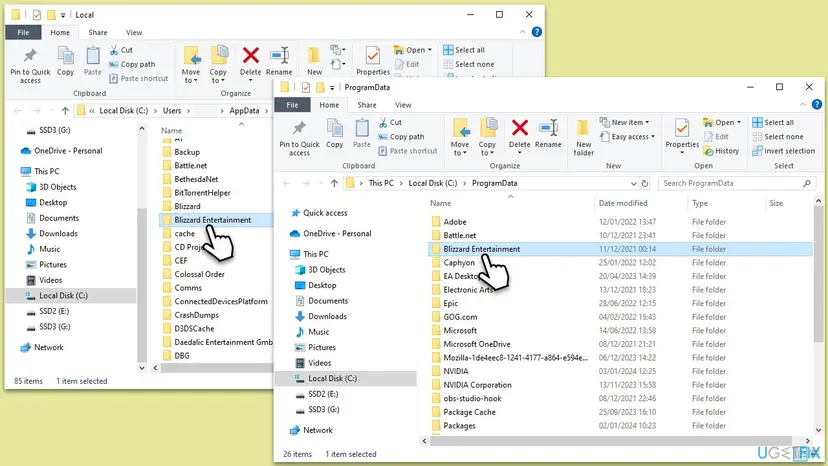
- In Windows search, type %programdata% and press Enter.
- Delete the Blizzard Entertainment folder.
- In Windows search, type %localappdata% and press Enter, then delete the Blizzard Entertainment folder there too.
- Type %Temp% in Windows search, press Enter, and delete what is in that folder. Skip any file Windows says is in use.
- Start Battle.net, sign in if asked, and start the game.
It worked if: Battle.net starts a little slower once while it rebuilds the cache, and the game stays connected.
If not: If the message stays, try another DNS server with Fix 8.
Fix 8. Use a public DNS server instead of your provider's
5 minutesLow riskFixes 1 to 7 did not help, and sites often take long to start loading.
Your provider's DNS server turns Battle.net's names into addresses. When it answers slowly or fails, the game cannot reconnect in time. A public DNS server such as Google's is a common test. This fix comes from our old guide, not from Blizzard.
- Press Win + R, type
ncpa.cpland press Enter. Network Connections opens on Windows 11 and Windows 10. - Right-click your connection, Ethernet or Wi-Fi, and select Properties.
- Select Internet Protocol Version 4 (TCP/IPv4) once and select Properties.
- Select Use the following DNS server addresses and type the two addresses below.
- Select OK, then Close, and restart the game.
Preferred DNS server: 8.8.8.8
Alternate DNS server: 8.8.4.4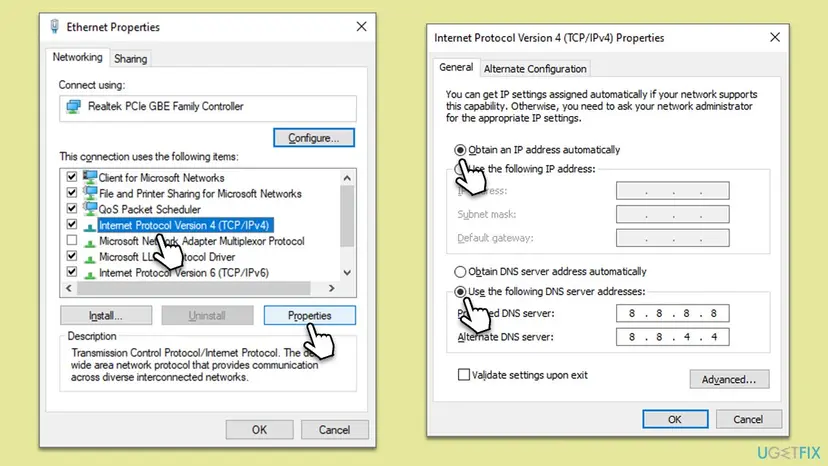
To undo it, open the same window and select Obtain DNS server address automatically.
It worked if: Pages start loading faster and the game stays connected.
If not: If nothing changed, put the setting back to automatic and go to Fix 9.
Fix 9. Update the network driver and Windows, then scan for malware
20 to 40 minutesLow riskNothing above helped, or the connection drops outside games too.
Blizzard asks you to update your drivers and operating system to resolve compatibility issues, and to run a security scan to remove viruses or malware. An old network adapter driver can drop the link for a second, which is enough for this message.
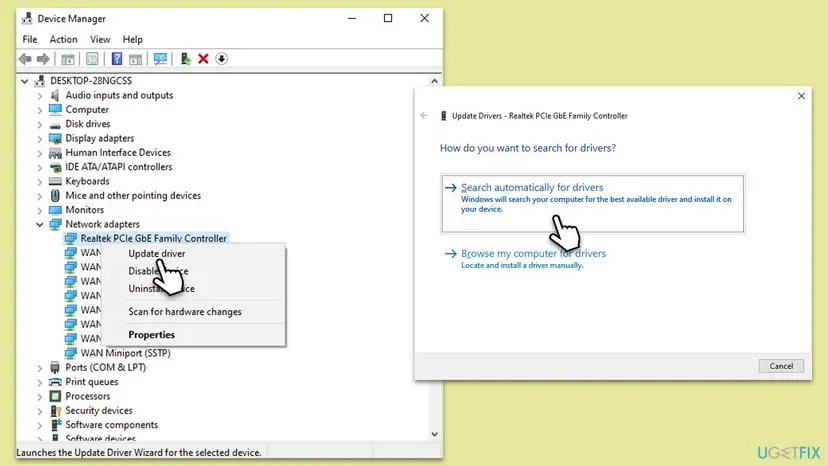
- Open Device Manager, expand Network adapters, and update the adapter you use. Step by step: Update, roll back or reinstall a driver
- Install all updates in Settings > Windows Update and restart.
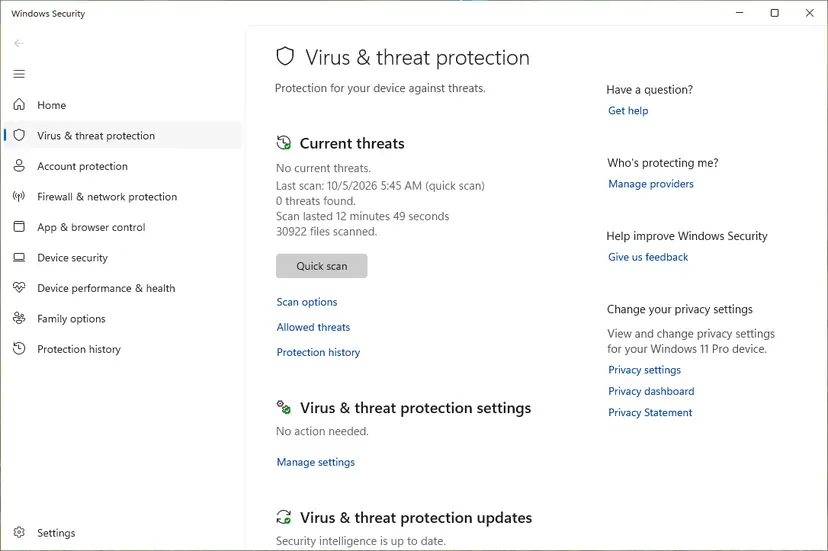
- Run a full scan with Microsoft Defender while the game is closed. Step by step: How to scan for malware with Microsoft Defender
- Start Battle.net and play.
It worked if: The driver and Windows are current, the scan is clean, and the game stays connected.
If not: If the message still shows, collect the details below and contact Blizzard Support.
If you are still disconnected from Blizzard services: what to check and whom to ask
Blizzard asks players who tried every step to post on its Technical Support Forums or to contact support. What helps them most is a clear picture of when the drop happens and on which network.
- Note the exact text and the time of each disconnect, and the game you were in.
- Note whether it happens on Wi-Fi only, on a cable too, and on a phone hotspot.
- List the VPN, proxy and security programs on the PC.
- Note whether other Blizzard games disconnect too.
- Open Blizzard Support, choose the game, and attach what you collected to the ticket or forum post.
- When it is your provider: it drops on a cable straight to the modem, at the same hours, and other online games or calls drop too. Ask the provider to check the line.
- When it is the network: it works on a phone hotspot but not at home, school or work. The router or the network administrator has to fix it.
- When it is Blizzard: many players report it at the same time. Wait for the service to recover.
How to keep the Blizzard services disconnect from coming back
- Restart the router now and then, as Blizzard suggests for a flooded router.
- Play on a cable when you can.
- Pause downloads and cloud sync while you play.
- Keep the security program updated, with Battle.net on its exception list.
- Run Scan and Repair after a game update that acts up.
- Do not leave the antivirus or firewall off to play.
- Do not play through a proxy or a VPN that changes servers.
- Do not delete the folder where your games are installed when you clear the cache.
- Do not run several big downloads while you play online.
The rule behind all this is short. Battle.net needs a steady line from the PC to Blizzard, with no proxy in the way and a security program that trusts it. Keep those as they are and the message stays rare.
Frequently asked questions
What does "You were disconnected from Blizzard services" mean?
It means the game lost its connection to Battle.net, the service that signs you in and carries friends, chat and groups. It is not a ban and it does not mean your game is broken. Most often the cause is the network: a router that needs a restart, a weak Wi-Fi link, stale DNS settings, a proxy or VPN, or a security program that blocks the login module. Start with Fix 1 on this page, then follow the fixes in order. Blizzard's own disconnection steps follow the same order.
Why do I get "You were disconnected from Blizzard services" in Heroes of the Storm?
Heroes of the Storm keeps its Battle.net link open during a match, and users report that the game closes with a window titled Closed when that link drops. The fixes are the same as for other Blizzard games. Check the service status and restart the router (Fix 1), and play on a cable with other downloads paused (Fix 2). Then flush DNS and renew the IP (Fix 3) and turn off any proxy or VPN (Fix 4). If only Heroes of the Storm shows it, run Scan and Repair on it in the Battle.net app (Fix 6).
What does HotS mean in Blizzard error searches?
HotS is the short name players use for Heroes of the Storm, Blizzard's team battle game. Searches such as "hots disconnected from Blizzard services" mean the same message this page fixes. Heroes of the Storm runs through the Battle.net app like other Blizzard games, so the same fixes apply. Start with Fix 1. If you only see the problem in Heroes of the Storm and not in other Blizzard games, the game repair in Fix 6 and the cache clean in Fix 7 are the most likely to help.
Why does WoW Classic say "You have been disconnected from Blizzard services"?
World of Warcraft and WoW Classic use the same Battle.net connection, and users report the line in the chat window, often followed by "You are now connected to Blizzard services" a few seconds later. While the link is down, friends, communities and chat may stop working, even if your character stays in the world. When it repeats every few minutes, the line is unstable. Play on a cable for one session (Fix 2), flush DNS (Fix 3), and check the VPN and security program (Fixes 4 and 5).
What is WOW51900328?
It is a separate World of Warcraft error code with its own error window, not the Blizzard services message itself. We could not confirm its exact meaning from a Blizzard page today, so we do not state one. Blizzard Support keeps an article for many WoW codes, such as BLZ51901016 and BLZ51903006. Search the code at Blizzard Support to read its own steps. Because most WoW disconnect codes point at the connection, Fixes 1 to 4 on this page are a sound start while you look it up.
How do I configure my security software's exception list to allow Blizzard applications to run?
Open your antivirus or firewall program and look for a setting called exceptions, exclusions, trusted apps or allowed programs. Add the Battle.net app and every Blizzard game you play. Update the security program first, because Blizzard says older versions may mistakenly flag the login module as a threat. If you cannot find the setting, pause protection for one test session only and turn it back on right after. If the error stops while paused, the program is the cause and needs the exception. Fix 5 shows the steps.
Should I turn off my antivirus or firewall to stop the disconnects?
No. Blizzard asks you to update security programs, which may mistakenly identify the login module as a threat, and our advice is to add Battle.net and the game to the exception list. That keeps the protection on. Pausing the antivirus for one short test is fine, as long as you turn it back on at once. If the test shows the program is the cause, add the exception and keep it running. A PC left without protection to play is a bigger risk than a disconnect.
Is it my internet or Blizzard's servers?
Check Blizzard's customer support channel, BlizzardCS, first. If it reports an outage, or many players report the same disconnect at the same hour, it is on Blizzard's side and you can only wait. If not, test your line: play one session on a cable, then one on a phone hotspot. If the game stays connected on the hotspot, your home network or provider is the cause. If it drops everywhere, the cause is on the PC, and Fixes 3 to 9 apply.
"No me sale esa opción": what if I cannot find an option from the steps?
That Spanish search means "that option does not show for me". Menus differ between Windows 11 and Windows 10 and between security programs. For DNS, use Win + R and ncpa.cpl, which opens the same Network Connections window on both versions (Fix 8). For the proxy, the switch is in Settings > Network & internet > Proxy. In a security program, the exception list can be named exclusions, trusted apps or allowed programs. In the Battle.net app, Scan and Repair is under the cogwheel next to Play.
Do I lose anything when I clear the Battle.net cache?
No game data is lost. The Blizzard Entertainment folders in ProgramData and Local app data hold cache data, not your installed games, and your characters and progress live on Blizzard's servers. Battle.net builds the cache again on the next start and may ask you to sign in, so have your password and authenticator ready. Some in-app settings may go back to default. Do not delete the folder where your games are installed, or you will have to download them again.
Sources
- Blizzard Support: Overwatch Disconnection Problems (Blizzard's disconnection steps: service status, network devices, IP and DNS, drivers, other apps, proxies, security scan, security programs) (us.support.blizzard.com)
- Blizzard Support: article search for disconnection problems and error codes per game (StarCraft II, Diablo IV, World of Warcraft BLZ codes) (us.support.blizzard.com)
Did this fix work?
One click, no account. It tells the next reader which guides are worth their time.
Questions and experiences: fix "You were disconnected from Blizzard services" error in Windows
Still broken, or found a fix we did not cover? Ask here: members and our editors answer. Reading is open; writing needs a free account.
…