
How to fix 0x80070102 error when playing games on Windows?

Prefer to fix it yourself? The manual steps follow.
- 9methods
- 5 to 40 minutes
- Beginner to advanced
Applies to Windows 11 and Windows 10; the Xbox app for PC, Gaming Services, Microsoft Store and PC Game Pass games such as Halo Infinite, Age of Empires IV, Football Manager 2022 and Deathloop
9 methods in this guide
Hello. I tried to launch a game I recently downloaded through Xbox Game Pass, but I receive the 0x80070102 error. What could be the issue?
Error 0x80070102 stops a game you installed through the Xbox app or Game Pass from starting on a Windows PC. The code means a wait timed out, so Windows asked for something and got no answer in time. Start with sign in, restart and the Gaming Services Repair Tool.
0x80070102 is the Windows code for "The wait operation timed out". The game launcher waited for a reply from Gaming Services, the Store or Microsoft's servers and did not get one. Sign in with one account and restart (Fix 1), check the connection and clock (Fix 2), then run the Gaming Services Repair Tool in the Xbox app (Fix 3). If it returns, reinstall Gaming Services (Fix 4).
| Error | 0x80070102, the Windows timeout code WAIT_TIMEOUT (Win32 error 258): "The wait operation timed out." |
|---|---|
| Where it appears | When you press Play on a game installed through the Xbox app or Game Pass. Searches also show it on download and install screens and, rarely, in Windows Update. |
| Main cause | Gaming Services or the Microsoft Store does not answer in time: a damaged or stuck Gaming Services, a sign in or licence check that hangs, or a weak connection. |
| Fastest fix | Sign in with one account and restart (Fix 1), then Xbox app > profile picture > Support > Gaming Services Repair Tool (Fix 3). |
| Also written as | 0x80070102, 0X80070102, 80070102, error 258, decimal 2147942658 or -2147024638. |
| Affects | Windows 11 and Windows 10 PCs with the Xbox app. Old reports name Halo Infinite, Age of Empires IV, Football Manager 2022 and Deathloop. Not an Xbox console error. |
| Vendor status | Microsoft defines the code as a timeout, but we found no Xbox Support page about 0x80070102 in our check on 16 October 2026. Xbox Support's general PC steps apply. |
| Time to fix | 5 to 15 minutes for Fixes 1 to 4. Longer when Windows updates or a large game has to download again. |
Facts checked on 16 October 2026. Steps written for Windows 11 (25H2 and 26H2) and Windows 10 22H2.
What error code 0x80070102 means when a game will not start on Windows
0x80070102 appears when a game from the Xbox app or Game Pass does not open and Windows shows only the code. Reports name Halo Infinite, Age of Empires IV, Football Manager 2022 and Deathloop, but the code does not belong to one game. Searches show it on download and install screens too.
- Code
- 0x80070102 (also 80070102, 0X80070102)
- Name
- WAIT_TIMEOUT, Win32 error 258, shown as the HRESULT 0x80070102
- Microsoft's text
- "The wait operation timed out."
- Decimal forms
- 2147942658, or -2147024638 when shown as a signed number
- Part of Windows involved
- Gaming Services, Microsoft Store and the sign in that checks your game licence
The first four digits, 0x8007, mean the error comes from the Windows system itself. The last three, 0x102, are 258 in decimal, the number Microsoft's Win32 error list gives to a wait that ran out of time. So the code does not say a file is damaged. It says Windows waited for an answer and none arrived.
A timeout is a symptom. It does not name the part that stayed silent. In practice that is Gaming Services, the Store's licence check or the connection to Microsoft, and the fixes below test them in that order. This ranking is our reading of the code and of user reports, not a statement by Microsoft.
The code also shows up in Windows Update, because any Windows part that waits too long can return it. This page is about games. For a failing update see Run the Windows Update troubleshooter.
Why a game shows 0x80070102 on Windows: the causes, ranked
Microsoft publishes no numbers for this code, and the old text of this page said the cause was unknown. The code itself narrows it down: something did not answer in time. The order below is our reading of the reports and of Xbox Support's own order of steps for PC games.
| Cause | How often | How to tell | Fix |
|---|---|---|---|
| A sign in, subscription or licence check hangs: two accounts, an expired Game Pass or another launcher in the way. | Often, and quick to rule out | It began after a restart, a sleep or a sign in change. | Fix 1 |
| A slow or unstable connection, or a wrong clock, makes the check to Microsoft time out. | Often | Store pages load slowly or the clock is off by minutes or more. | Fix 2 |
| Gaming Services is damaged, half updated or not running. | Most often when it repeats | Every Game Pass game fails, or the Xbox app opens with missing content. | Fix 3, then Fix 4 |
| Windows, the Xbox app or the game is out of date. | Sometimes | Updates are waiting, or Windows 10 is older than 22H2. | Fix 5 |
| The Microsoft Store cache or the Store app is damaged. | Sometimes | Store apps that are not games also fail. | Fix 6, then Fix 7 |
| Damaged Windows system files. | Rarely | Other Windows features also misbehave. | Fix 8 |
| A Windows installation that is damaged beyond repair by the tools above. | Rarely | Nothing above changes the result. | Fix 9 |
How to fix error 0x80070102 when a Game Pass game will not start on Windows 11 and Windows 10
Fixes 1 and 2 test the account, the connection and the clock, which cost nothing. Fixes 3 and 4 repair Gaming Services, which is behind most repeated cases. Fixes 5 to 7 deal with updates and the Store. Fixes 8 and 9 are the last tests.
| What you see or have | Start with |
|---|---|
| 0x80070102 once, after a restart, a sleep or a change of account. | Fix 1 |
| Store pages and downloads are slow, or the clock is wrong. | Fix 2 |
| Every Game Pass game fails with 0x80070102, or the Xbox app opens with missing content. | Fix 3, then Fix 4 |
| Windows updates are waiting, or Windows 10 is older than 22H2. | Fix 5 |
| Apps that are not games also fail to download from Microsoft Store. | Fix 6, then Fix 7 |
| Everything worked until a Windows crash or a failed update. | Fix 8 |
Fix 1. Sign in with one account, close other launchers and restart
5 minutesLow riskThe error appeared once, after a restart, a sleep or a change of account. Everyone should start here.
Xbox Support lists the Xbox status, the sign in, the Game Pass subscription and other running launchers as its first checks for a PC game that will not start. A licence check that cannot finish is exactly what a wait that times out looks like.
- Open
support.xbox.com/xbox-live-statusand check the services. If Xbox network or store services show a problem, wait for it to clear. - Open Microsoft Store, select your profile picture and note the account name.
- Open the Xbox app, select your profile picture and check it is the same account. If not, sign out and sign in with the right one.
- If you play through PC Game Pass, check that the subscription is active on that account.
- Close other game launchers that are running, such as the one that belongs to the game.
- Restart the PC with Start > Power > Restart, not Shut down, then open the game from the Xbox app.
It worked if: The game starts and the code does not appear.
If not: If 0x80070102 comes back, go to Fix 2.
Fix 2. Check the connection and the clock
10 minutesLow riskStore pages load slowly, you use Wi-Fi with a weak signal, or the clock shows the wrong time or zone.
The licence check talks to Microsoft's servers. If that connection is slow or the clock is far off, the check can run out of time. Xbox Support does not list the clock, so treat it as a cheap test, not a known cause.
- Open a web page and Microsoft Store. If either loads slowly or not at all, test the connection: How to check your internet connection in Windows
- If you use a VPN or a proxy, turn it off for one test and try the game.
- Open Settings > Time & language > Date & time and turn on Set time automatically and Set time zone automatically.
- Select Sync now if your Windows version shows the button. The older page of this guide set the time by hand; do that only if the automatic sync fails. Full steps: How to fix the date and time in Windows
- Restart the Xbox app and try the game again.
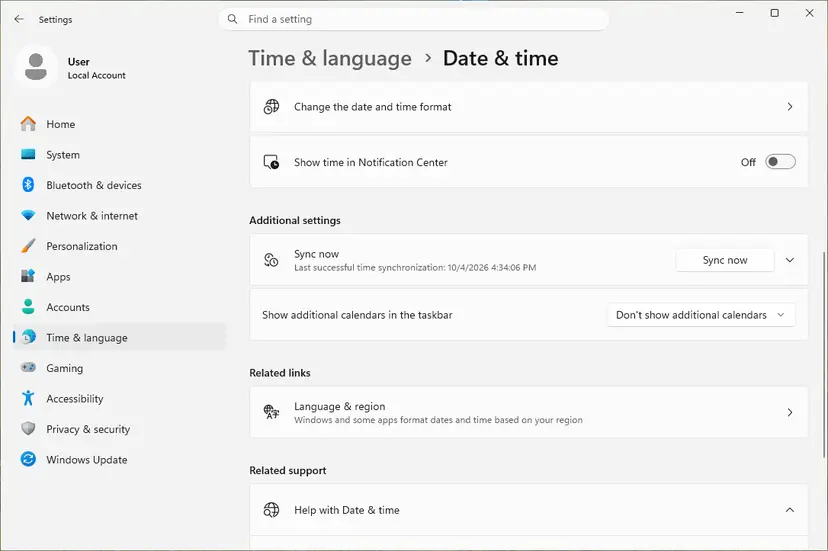
It worked if: Store pages load quickly, the clock is right and the game starts.
If not: If nothing changed, go to Fix 3.
Fix 3. Run the Gaming Services Repair Tool from the Xbox app
5 to 10 minutesLow riskThe error repeats, every Game Pass game fails, or the Xbox app opens with missing content.
Xbox Support offers this tool for problems installing or updating Gaming Services and for an Xbox app that launches with missing content. Gaming Services starts the PC games, so a service that does not answer is the most likely silent part.
- Open the Xbox app and select your profile picture at the top.
- Select Support.
- Select Gaming Services Repair Tool, then Start Troubleshooting.
- Let it run and follow what it reports. It may reinstall Gaming Services by itself.
- Restart the PC and open the game.
Xbox Support says you may need to be signed in as the Local Administrator to run it when Windows is 22H2 or older, and that updating Windows is the answer (Fix 5). Xbox Support also offers a downloadable version of the tool.
It worked if: The tool reports that Gaming Services is repaired, and the game starts.
If not: If the code returns, go to Fix 4 and reinstall Gaming Services by hand.
Fix 4. Remove Gaming Services with PowerShell and install it again
10 minutesLow riskThe repair tool did not help or could not run, or Gaming Services will not update in the Store.
A Gaming Services package that is half updated can keep timing out for every game. Removing it for all users and installing a fresh copy from Microsoft Store replaces it completely. Your games stay installed.
- Close the Xbox app and Microsoft Store.
- Right-click Start and select Terminal (Admin). On Windows 10 select Windows PowerShell (Admin). Select Yes on the User Account Control (UAC) prompt.
- Paste the first command below and press Enter. It removes Gaming Services for all users.
- Paste the second command and press Enter. Microsoft Store opens on the Gaming Services page.
- Select Get or Install and wait until it is done.
- Restart the PC, open the Xbox app and start the game.
Terminal (Admin): remove Gaming Services
Get-AppxPackage -AllUsers Microsoft.GamingServices | Remove-AppxPackage -AllUsersTerminal (Admin): open Gaming Services in Microsoft Store
start ms-windows-store://pdp/?productid=9MWPM2CQNLHNIt worked if: Gaming Services shows as installed in Microsoft Store, the Xbox app opens normally and the game starts.
If not: If the Store will not download Gaming Services, go to Fix 5.
Fix 5. Install Windows updates, then update the Xbox app, Gaming Services and the game
10 to 30 minutesLow riskWindows updates are waiting, Windows 10 is older than 22H2, or Microsoft Store Library shows pending updates.
Xbox Support says Windows 10 22H2 or newer is required for some Xbox app features and lists updating Windows and the game as steps for PC games that will not start. An old Windows or an old Xbox app can wait on a service that no longer matches it.
- Press Win + I and open Windows Update. On Windows 10 open Update & Security > Windows Update.
- Select Check for updates and wait until the process is finished.
- If optional updates are listed, install them too, then restart the PC.
- Check your version in Settings > System > About. Windows 10 must be 22H2.
- Open Microsoft Store > Library, select Get updates and let Xbox, Gaming Services and the game update.
- Open the Xbox app and start the game.
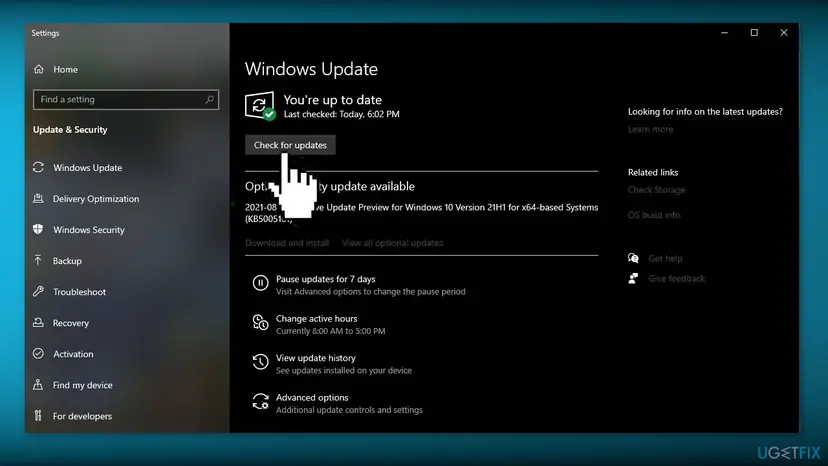
If an update itself fails, run Run the Windows Update troubleshooter first.
It worked if: Windows Update says you are up to date, Store Library shows nothing pending and the game starts.
If not: If the error remains and other Store apps also fail, go to Fix 6.
Fix 6. Clear the Microsoft Store cache and the temporary files
10 minutesLow riskStore apps that are not games fail too, or the Gaming Services install in Fix 4 stopped.
Games download and license through the same system as Microsoft Store. A damaged Store cache can stall that system, and the old text of this page reported that deleting the local cache helped some users. Clearing temporary files is the weakest step here, so keep it last.
Clear the cache with wsreset.exe first. Step by step: Reset the Microsoft Store
- Close Microsoft Store and the Xbox app.
- Press Win + R, paste the path below and press Enter.
- Open the LocalCache folder and delete everything inside it. Do not delete the folder.
- Open Settings > System > Storage > Temporary files, tick every box except Downloads and select Remove files.
- Restart Windows and start the game.
Run box: the Store's LocalCache folder
%LocalAppData%\Packages\Microsoft.WindowsStore_8wekyb3d8bbwe\LocalCache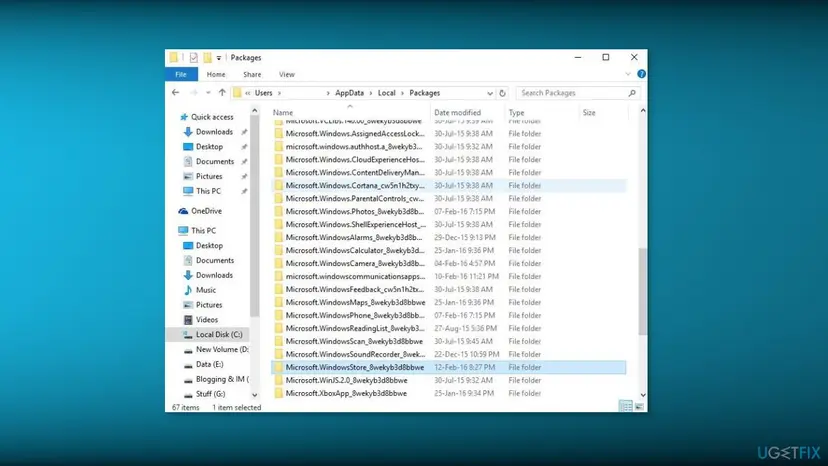
Removing temporary files does not change a timeout by itself. It matters only when the system drive is nearly full: Free up disk space and delete temporary files
It worked if: Microsoft Store opens and downloads apps again, and the game starts.
If not: If the Store still fails or will not open, go to Fix 7.
Fix 7. Re-register Microsoft Store and reinstall the Xbox app
15 minutesLow riskMicrosoft Store will not open or download, or the Xbox app itself is damaged.
Xbox Support says to reinstall the Xbox app from Microsoft Store when the problem is with the app itself and not the games. Re-registering the Store repairs its link to Windows without downloading it again.
Re-register the Store in PowerShell. Step by step: How to re-register Microsoft Store apps with PowerShell
- Open PowerShell and re-register Microsoft Store as the procedure above describes, then restart Windows.
- Open Microsoft Store, search for Xbox and select Install or Get. Install the add-on applications the app asks for.
- Sign in to the Xbox app, then start the game.
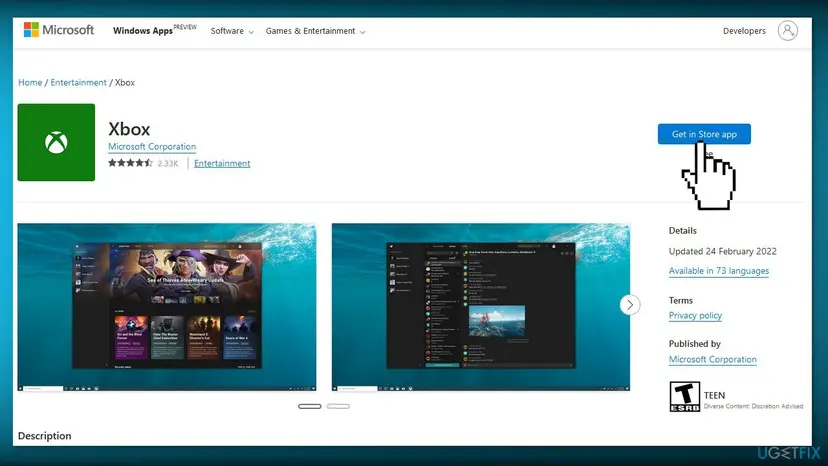
To repair the Store or the Xbox app without removing them: How to repair or reset an app in Windows
It worked if: Microsoft Store opens, the Xbox app installs and signs in, and the game starts.
If not: If the code returns, go to Fix 8.
Fix 8. Repair Windows system files with DISM and SFC
20 to 40 minutesNo riskOther Windows features also misbehave, or the error began after a crash or a failed update.
The older text of this page ran the DISM cleanup command. DISM and the System File Checker repair the Windows files that Gaming Services and the Store depend on, which a timeout can hide.
Run the repair tools. Step by step: Run DISM and SFC to repair Windows system files
- Open Command Prompt or Terminal as administrator.
- Run
DISM /Online /Cleanup-Image /RestoreHealthand wait until it finishes. - Run
sfc /scannowand wait for the result. - Restart the PC and start the game.
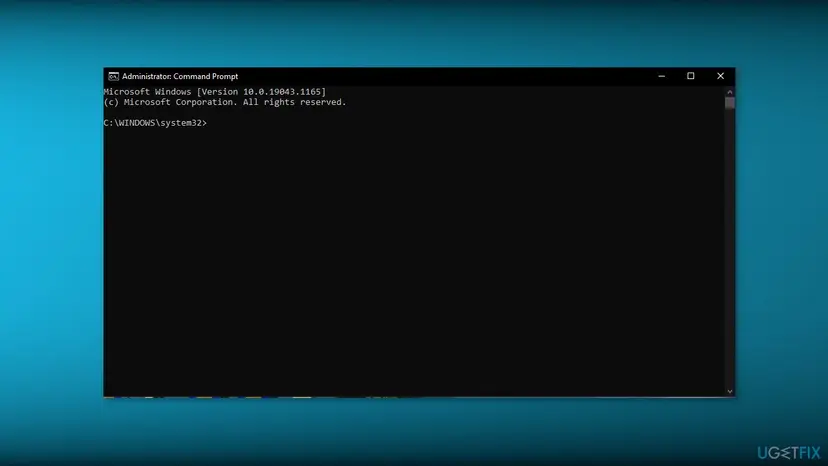
The older page ran Dism.exe /online /Cleanup-Image /StartComponentCleanup. That command only cleans the component store. It does not repair files, so this method uses RestoreHealth instead.
It worked if: SFC reports that it found no integrity violations or that it repaired the files, and the game starts.
If not: If the code returns, read the last method.
Fix 9. Repair Windows with an in-place reinstall that keeps your files
1 to 2 hoursRead the warningNothing above worked, and other Windows features also misbehave.
An upgrade install over the running Windows replaces system files while keeping your files and apps. The older page of this guide used the same idea with a Windows 10 ISO. It also rebuilds what Gaming Services and the Store depend on.
An in-place reinstall keeps personal files and apps when you choose that option, but a power cut or a wrong choice can cost data. Copy what matters first: Back up your files (Windows Backup, File History, Time Machine)
- Run the system file check from Fix 8 first, then restart and try the game.
- If it still fails, back up your files.
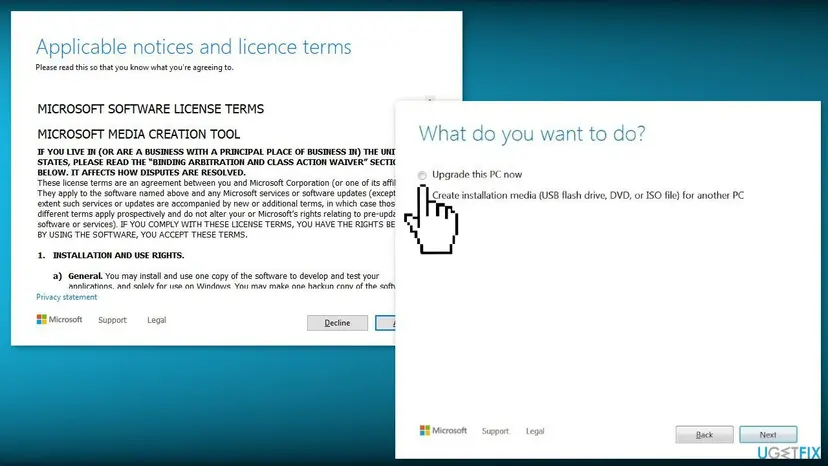
- Reinstall Windows over itself with the media from Microsoft and choose to keep your files and apps: Reinstall Windows without losing files
- Select Download and install updates, check that Keep personal files and apps is selected and select Install.
- When Windows is back, install Gaming Services from Microsoft Store if it is missing, then start the game.
It worked if: Windows starts with your files in place and the game starts.
If not: Read "If 0x80070102 is still there" below.
If 0x80070102 is still there
The game shows only the code. Windows writes more detail when the app package or the service fails. Look there before you contact support, and note the time of the failure first.
- Start the game once more and note the time it fails.
- Open Windows PowerShell and run
Get-AppxLog | Out-GridView. Look for red entries at that time. - Open Event Viewer (
eventvwr.msc) and go to Applications and Services Logs > Microsoft > Windows > AppXDeployment-Server > Microsoft-Windows-AppXDeploymentServer/Operational. - Check the same time for entries that name Gaming Services or the game.
- What to send to Xbox Support: the code, the game, when it fails, your Windows version from Settings > System > About and the fixes you tried.
- When it may be the account: the same game starts for another Microsoft account on the same PC. Then check the licence and Game Pass status on yours.
- When it may be hardware: other apps also freeze for long periods, or the drive reports errors in Check a disk for errors (chkdsk).
How to keep 0x80070102 from coming back
- Keep Windows, the Xbox app and Gaming Services updated through Windows Update and Microsoft Store > Library.
- Use the same Microsoft account in Microsoft Store and the Xbox app.
- Let a game finish updating before you start it, and do not put the PC to sleep during an update.
- Keep the clock and time zone on automatic.
- Do not use tuning tools that stop Store or Gaming Services.
Windows 10 left support on 14 October 2025. The Xbox app still runs on Windows 10 22H2, but a PC that gets no updates can fall behind what new games and Gaming Services expect.
Frequently asked questions
What does error code 0x80070102 mean?
It means "The wait operation timed out". The code is the Windows timeout WAIT_TIMEOUT, Win32 error 258, shown with the 0x8007 prefix. Windows asked a service, a server or a process for an answer and did not get one in time. It does not say a file is damaged. When it appears after you press Play on a Game Pass game, the likely silent part is Gaming Services, the Store's licence check or the connection to Microsoft. That is why the fixes on this page start with sign in, connection and Gaming Services.
Is 0x80070102 a Windows Update error or a game error?
It can be both, because the code is a general Windows timeout. Searches for 0x80070102 Windows Update describe an update that waits too long, while searches from gamers describe a Game Pass game that will not start. This page is about games. If Windows Update shows the code, run the Windows Update troubleshooter and reset the update components. The repairs in Fix 8, DISM and SFC, also help an update that keeps timing out, because they test the same Windows files.
How do I fix a download error or install error 0x80070102?
Start with Fix 1 and Fix 2, then reset the Store. A download or install error with this code means the Store or Xbox app waited for Microsoft's servers and gave up. Check the Xbox status page, sign in with one account, check your connection and clock, then use Fix 6 to clear the Store cache with wsreset and Fix 4 to reinstall Gaming Services. Games install through the same system as Microsoft Store, so a damaged cache or Gaming Services can stop a download as well as a launch.
Will reinstalling Gaming Services delete my games or saves?
No. Removing the Gaming Services package does not uninstall your games, and Xbox PC games usually keep saves in the cloud for your account. The games will not start until Gaming Services is installed again, which is why Fix 4 ends with installing it from Microsoft Store and restarting. If a game keeps local saves or mods outside the cloud, copy that folder before you start. The repair tool in Fix 3 is the safer first step because it repairs the package without removing it.
Can the wrong date and time cause 0x80070102?
Possibly, but Xbox Support does not list it. A clock that is far off can make secure connections to Microsoft fail or run out of time, and a licence check that times out matches this code. So Fix 2 turns on automatic time and sync, which costs nothing. The older text of this page set the time by hand, which we replaced: automatic time is more reliable, and a hand-set clock drifts. If your clock was right, move on to Fix 3.
Does deleting the Microsoft Store LocalCache folder remove my games?
No. The LocalCache folder in the Microsoft Store package holds the Store's own cache, such as temporary data and thumbnails. Your installed games and your Microsoft account are not stored there. After you empty it and restart, the Store rebuilds the cache the next time it opens. Delete only what is inside the folder, never the folder itself, and close the Store and the Xbox app first. The wsreset command in Fix 6 clears the same cache without opening File Explorer.
Does 0x80070102 happen on Windows 11 and Windows 10 alike?
Yes. The code is a Windows timeout, so it can appear on both, and the fixes are the same. Only some menu paths differ, and the steps give both. On Windows 10 make sure you run version 22H2, because Xbox Support says some Xbox app features need 22H2 or newer. Windows 10 left support on 14 October 2025, so a Windows 10 PC no longer gets fixes, which can make Gaming Services problems more likely over time.
Has Microsoft fixed 0x80070102?
We could not confirm a Microsoft fix. The older text of this page said Microsoft had not addressed the problem, and we found no Xbox Support page or release note that names 0x80070102 in our check on 16 October 2026. The steps that Xbox Support does publish for PC games, such as the Gaming Services Repair Tool and updating Windows, are the ones on this page. The fixes are what users report working, not a patch from Microsoft.
¿Qué significa el error de descarga 0x80070102?
This page is in English, but the answer is the same. "Error de descarga 0x80070102" is a download error whose code means that a wait timed out. Check your connection and the date and time (Fix 2), restart and sign in with one account (Fix 1) and run the Gaming Services Repair Tool (Fix 3). Games download through Microsoft Store, so clearing the Store cache in Fix 6 also helps. The menu names in Spanish Windows differ, but the order of the steps is the same.
Is 0x80070102 the same on an Xbox console or in Steam?
The code is a Windows code, so it can appear in any app that waits too long, including other launchers. This page covers Game Pass games in the Xbox app on a Windows PC. An Xbox console uses its own error codes and its own install system, so use the console's steps and look the exact code up on the Xbox Support site. For a Steam or Epic game, verify the game files in the launcher: How to verify game files in Steam, Epic Games, Xbox app, EA app, Battle.net and GOG Galaxy
Sources
- Xbox Support: Fix gaming issues with the Xbox app for PC and handhelds (support.xbox.com)
- Xbox Support: Gaming Services Repair Tool for PC (support.xbox.com)
- Microsoft Open Specifications: MS-ERREF Win32 error codes (WAIT_TIMEOUT, 258) (learn.microsoft.com)
Did this fix work?
One click, no account. It tells the next reader which guides are worth their time.
Questions and experiences: fix 0x80070102 error when playing games on Windows
Still broken, or found a fix we did not cover? Ask here: members and our editors answer. Reading is open; writing needs a free account.
…