
How to fix the amdkmdag.sys error (blue screen) in Windows 10 and 11

Prefer to fix it yourself? The manual steps follow.
- 8methods
- 20 to 60 minutes
- Intermediate
Applies to Windows 11 and Windows 10 PCs and laptops with AMD Radeon graphics
8 methods in this guide
Hello. Each time I start my Windows 10 PC, it crashes several minutes later with the amdkmdag.sys BSOD. Is there anything that can be done to fix this, please?
amdkmdag.sys is the kernel-mode part of the AMD Radeon graphics driver. When a blue screen names it, the graphics card stopped answering or the driver hit bad memory. Start with a clean reinstall of the AMD driver, then return the card and the PC to factory settings.
amdkmdag.sys is AMD's Radeon display driver, not a virus. A blue screen that names it means the graphics driver was running when Windows stopped. Remove the AMD driver completely with the AMD Cleanup Utility or the installer's Factory Reset option and install the newest one (Fix 1). If crashes return, go back to the last driver that worked (Fix 2) and remove any overclock or undervolt (Fix 3).
| Error | A stop screen (blue, or black on recent Windows 11 builds) with What failed: amdkmdag.sys. The stop code varies: most often VIDEO_TDR_FAILURE, also SYSTEM_SERVICE_EXCEPTION, DRIVER_IRQL_NOT_LESS_OR_EQUAL and PAGE_FAULT_IN_NONPAGED_AREA. |
|---|---|
| Where it appears | In games and videos, a few minutes after startup, after waking from sleep, or as a black screen followed by a restart. |
| Main cause | A damaged or mismatched AMD graphics driver, then unstable clocks or voltages, then power, heat or memory faults. |
| Fastest fix | A clean driver install with the AMD Cleanup Utility or Factory Reset (Fix 1), in Safe Mode if the PC crashes too soon. |
| Also written as | amdkmdag, amdkmdag sys, amdkmdag.sys failed, amdkmdag Advanced Micro Devices, Inc., and on older drivers atikmdag.sys. |
| Who makes it | AMD (Advanced Micro Devices, Inc.). It is installed with the Radeon graphics driver, not with Windows. |
| Vendor status | No single known bug. AMD lists TDRs and BSODs as stability issues and asks for a clean driver install, factory default settings and a check of the driver's release notes for known issues. |
| Where the cause is logged | C:\Windows\Minidump (one .dmp per crash) and Event Viewer, Windows Logs > System, source BugCheck, event ID 1001. |
| Time to fix | 20 minutes for a clean driver install. Hardware checks take an hour or more. |
Facts checked on 15 October 2026. Steps written for Windows 11 (25H2 and 26H2) and Windows 10 22H2.
What amdkmdag.sys is and why a blue screen names it
amdkmdag.sys is the kernel-mode driver of AMD Radeon graphics cards and of the Radeon graphics built into Ryzen processors. The name reads as AMD kernel mode driver. It is installed with the AMD graphics driver package and lives in the Windows driver store, not in a folder you created.
The What failed line on a stop screen names the driver that was running when Windows stopped. It does not prove the driver file is broken. Microsoft explains that Windows resets the graphics driver when the GPU does not answer in time, by default within 2 seconds. When that reset fails, or more than five resets happen in one minute, Windows stops with VIDEO_TDR_FAILURE, bug check 0x116.
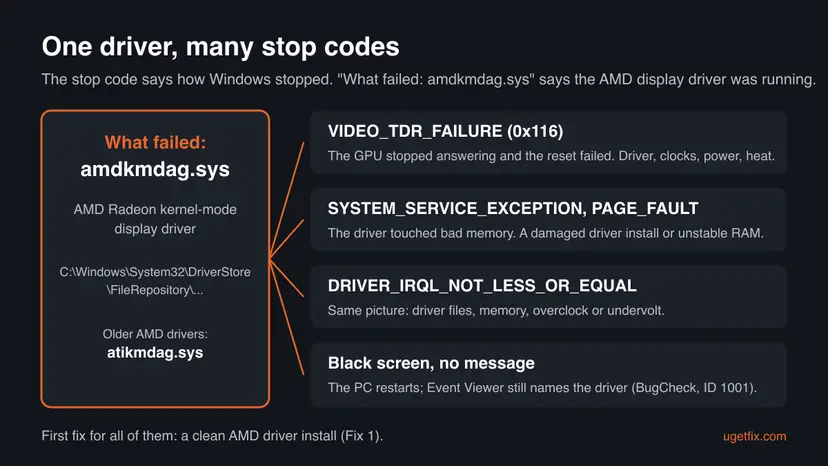
| What you see | What it means |
|---|---|
| What failed: amdkmdag.sys on a blue or black stop screen | The AMD display driver was running at the moment of the crash |
| VIDEO_TDR_FAILURE (0x116) with amdkmdag.sys | The graphics card stopped answering and Windows could not reset its driver |
| SYSTEM_SERVICE_EXCEPTION or PAGE_FAULT_IN_NONPAGED_AREA | The driver read memory it should not: a damaged install, an old driver or unstable RAM |
| DRIVER_IRQL_NOT_LESS_OR_EQUAL amdkmdag.sys | The same kind of memory fault, often after a driver update or with an overclock |
| The computer has rebooted from a bugcheck in Event Viewer or Reliability Monitor | The crash happened while you were away or the screen went black; the event names the driver |
| VIDEO_ENGINE_TIMEOUT_DETECTED or AMD Software detected that a driver timeout has occurred | The driver hung but Windows recovered without a blue screen; the same causes and fixes apply |
Why amdkmdag.sys crashes: the causes, most common first
AMD groups TDRs and blue screens under system stability issues and names six sources: an outdated or wrongly set BIOS, an unsupported memory setup, unstable overclocking and overheating, outdated or damaged drivers, conflicting software, and faulty hardware. For this driver they rank as follows.
| How often | Cause | Sign | Fix |
|---|---|---|---|
| Most often | A damaged, mixed or half-updated AMD driver install | Crashes began after a driver update, a Windows update or a GPU swap | Fix 1 |
| Often | A new driver version with a bug on your card or game | The previous driver ran fine; the release notes list a known issue | Fix 2 |
| Often | GPU or CPU overclock, undervolt, a memory profile or a tuning tool | Radeon tuning, Ryzen Master, MSI Afterburner, EXPO or XMP in use | Fix 3 |
| Less often | Old BIOS or chipset driver | BIOS more than a year old, new CPU or GPU in an older board | Fix 4 |
| Less often | Power, heat or a loose connection | Crashes only under load, a riser cable, a weak or old power supply | Fix 5 |
| Rarely | Failing RAM | Stop codes change, other programs crash too | Fix 6 |
| Rarely | Software conflict or damaged Windows files | Crashes stop in Safe Mode, SFC finds errors | Fixes 7 and 8 |
Without the file Windows falls back to a basic display driver, and the next AMD driver install puts it back. The real fault lies in the driver version, the settings or the hardware around it.
Check what the crash really says
Write down the stop code, the driver version and when the crash happens before you change anything. They pick your first fix in the table above the methods.
- Press Win + R, type
eventvwr.mscand press Enter. - Open Windows Logs > System and select Filter Current Log on the right.
- Type
1001in the event ID box and select OK. Open the newest BugCheck event: it holds the stop code and the dump path. - Press Win + R, type
perfmon /reland press Enter to see the same crashes on a timeline in Reliability Monitor. - Open
C:\Windows\Minidumpin File Explorer. One.dmpfile is written per crash; keep the newest three. - Right-click Start, select Device Manager, expand Display adapters, open your AMD card and note Driver Version and Driver Date on the Driver tab.
If the first BugCheck event matches the day a new AMD driver or a Windows update arrived, start with Fix 1 and Fix 2. If the crashes started after you changed clocks, memory or parts, start with Fix 3 or Fix 5.
How to fix the amdkmdag.sys blue screen
Fixes 1 and 2 treat the AMD driver, where this crash starts for most readers. Fixes 3 to 6 bring the PC back to factory settings and test the hardware, as AMD's own stability checklist asks. Fixes 7 and 8 are the general Windows checks for when the cause is still unknown.
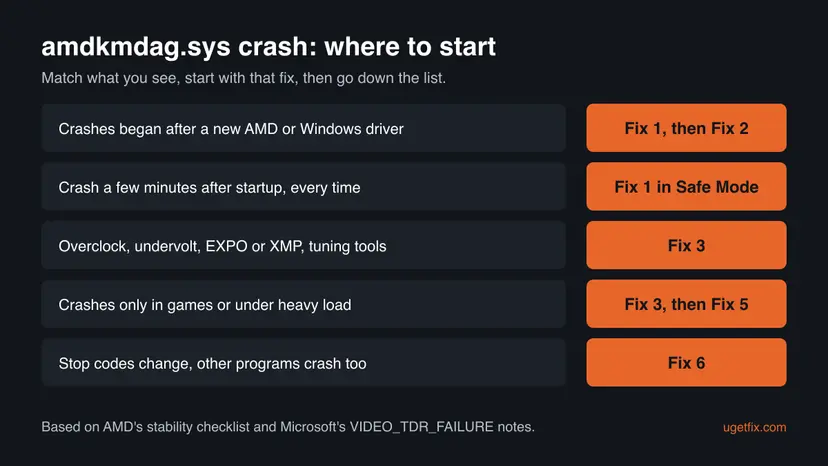
| What you see or what your PC has | Start with | Then |
|---|---|---|
| Crashes began after a new AMD driver or a Windows update | Fix 1 | Fix 2 |
| The PC crashes a few minutes after every startup | Fix 1 in Safe Mode | Fix 2 |
| Overclock, undervolt, EXPO or XMP, or a tuning tool | Fix 3 | Fix 1 |
| Crashes only in games or under heavy load | Fix 3 | Fix 5 |
| Stop codes change, other programs crash too | Fix 6 | Fix 4 |
Fix 1. Remove the AMD graphics driver completely and install the newest one
20 minutesLow riskEvery reader, and above all when the crashes began after a driver update, a Windows update or a graphics card swap.
AMD's first step for TDRs and blue screens is a clean install: the installer's Factory Reset option, or the AMD Cleanup Utility before the install. Both remove old driver files and settings that a normal update leaves behind, so amdkmdag.sys loads as one matched set.
- Download the newest driver for your exact card or processor from AMD's driver page and save it. Note your card model from Device Manager first.
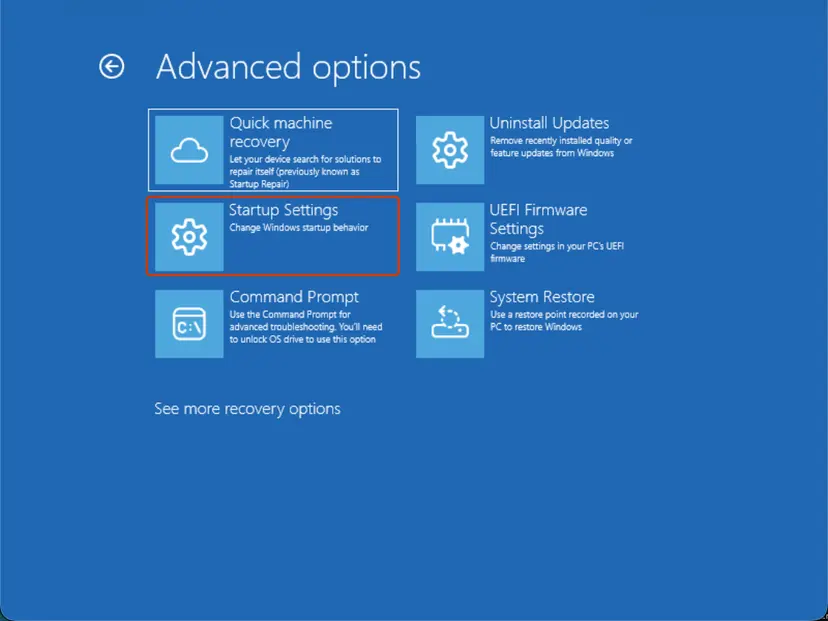
- If the PC crashes within minutes of startup, restart into Safe Mode before the next steps: Start Windows or a Mac in Safe Mode
- Run the AMD Cleanup Utility from AMD's support site and let it remove the AMD display and audio drivers. Restart when it asks.
- Run the driver package you downloaded. If you skipped the Cleanup Utility, choose the Factory Reset option during setup.
- Finish the install, restart, and use the PC as you did when it crashed.
Your files and games are not touched. The AMD Software settings, game profiles and any GPU tuning go back to defaults, which is part of the fix. Write down custom settings first if you want them back later.
It worked if: The driver installs without errors, Device Manager shows the AMD card with no warning mark, and no new file appears in C:\Windows\Minidump after a day of normal use.
If not: If the crashes came back with the newest driver, go to Fix 2 and use an older one.
Fix 2. Go back to the last AMD driver that worked
15 minutesLow riskThe crashes started with a new driver, or the newest driver still crashes after a clean install.
AMD asks users to read the release notes of the installed driver: if the issue is listed as known, apply the workaround, and if no fix exists yet, go back to the last driver version where the issue did not exist.
- Open the release notes of your driver version on AMD's site and read Known Issues for your card, game or crash.
- If a workaround is listed, apply it and test before you change the driver.
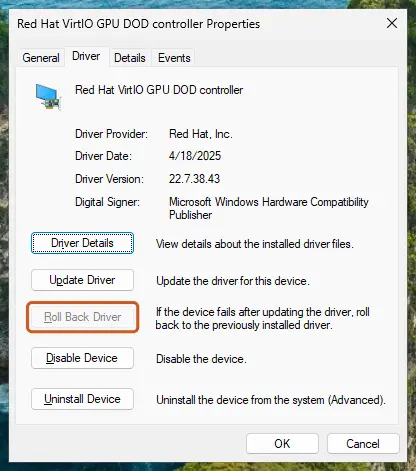
- If Windows replaced the driver on its own, open Device Manager, open the AMD card and select Roll Back Driver on the Driver tab. Step by step: Update, roll back or reinstall a driver
- Otherwise download the previous AMD driver for your card, run the AMD Cleanup Utility again and install that version.
- Keep that version until a newer release note mentions a fix for your problem.
It worked if: The older driver runs the games and videos that used to crash, and no new BugCheck events appear in Event Viewer.
If not: If every driver version crashes, the cause is outside the driver. Go to Fix 3.
Fix 3. Return the graphics card, CPU and memory to factory settings
15 minutesLow riskYou use Radeon tuning, Ryzen Master, MSI Afterburner, an undervolt, a factory overclock profile, EXPO or XMP, or a monitoring tool.
Microsoft names overclocked parts and wrong memory settings as hardware reasons for VIDEO_TDR_FAILURE, and AMD asks that CPU, GPU and RAM run at factory recommended settings. A clock that passes a benchmark can still miss the driver's timeout in a game.
- Open AMD Software: Adrenalin Edition, open its GPU tuning page and reset the tuning to the default profile.
- Reset any CPU tuning in Ryzen Master or in the tool you used, and turn off its start with Windows: Stop apps from opening at startup
- Close or uninstall third-party overclocking and monitoring tools, as AMD's checklist asks: Uninstall a program or app in Windows
- Restart into the BIOS and load the optimized defaults. Turn off EXPO or XMP for the test period.
- Save, start Windows and play the game or video that used to crash.
If the crashes stop, turn the memory profile back on first and test for a day. Leave GPU undervolts and overclocks off; they are the settings most tied to driver timeouts.
It worked if: No new crash after a day of the same games and videos with default clocks.
If not: If it still crashes at default settings, update the BIOS and chipset driver in Fix 4.
Fix 4. Update the BIOS and the chipset driver
30 minutesRead the warningThe BIOS is more than a year old, you fitted a new graphics card or processor, or Fixes 1 to 3 did not help.
AMD's standard system configuration starts with the newest motherboard BIOS on optimized defaults and the newest chipset driver. An older BIOS can set up the PCIe link and memory in ways a new Radeon driver does not expect.
A BIOS update that is interrupted can leave the PC unable to start. Plug a laptop into power, do not switch off during the update, and note your custom BIOS settings, since the update usually resets them. Your files are not touched.
- Press Win + R, type
msinfo32and press Enter. Note System Model or BaseBoard Product and BIOS Version/Date. - Open the support page of your PC or motherboard maker for that exact model and compare the newest BIOS with yours.
- Update the BIOS the way the maker's manual describes, then load the optimized defaults.
- Install the newest chipset driver: AMD's for a Ryzen board, Intel's or the PC maker's for an Intel board.
- Run the clean graphics driver install from Fix 1 once more.
It worked if: msinfo32 shows the new BIOS date, and the PC runs through the games and videos that used to crash.
If not: If crashes continue on the new BIOS, check power and cooling in Fix 5.
Fix 5. Check the power supply, cooling and the card's connections
30 minutesLow riskCrashes happen only under load, in games or renders, or the PC has a riser cable, an older power supply or a dusty case.
Microsoft lists too little power and too little cooling as reasons the GPU misses its timeout. AMD asks you to check the power supply rating, the PCIe power cables and any riser cable, and to set Power Supply Idle Control to Typical.
- Check that the power supply meets the wattage your graphics card maker recommends.
- Shut down, unplug the PC and check that every PCIe power cable is pushed fully into the card. Use separate cables when the card has several sockets.
- If the card sits on a PCIe riser cable or adapter, connect it directly to the motherboard for the test.
- Clean dust from the card, the CPU cooler and the case fans and make sure air can flow.
- In the BIOS, find Power Supply Idle Control in the advanced section and set it to Typical, if your board has it.
Unplug the power cable and touch a metal part of the case first. Read your PC or card manual, because opening some prebuilt PCs and laptops can affect the warranty.
It worked if: The card stays stable in the game that used to crash, and its temperature in AMD Software stays below the limit your card maker gives.
If not: If you have another known good card or power supply, a swap test settles it. Otherwise test the memory in Fix 6.
Fix 6. Test the memory
60 minutes or moreNo riskThe stop codes change from crash to crash, other programs crash too, or the crash says PAGE_FAULT_IN_NONPAGED_AREA.
Microsoft's notes on VIDEO_TDR_FAILURE recommend a memory test, and AMD names unsupported memory setups and faulty RAM. A driver that reads bad memory is named on the stop screen even though the RAM is at fault.
- Run the memory test built into Windows and read its result in Event Viewer: How to test your RAM with Windows Memory Diagnostic
- Check that the RAM is in the slots your motherboard manual names and that the kit is on the board maker's list of supported memory.
- With more than one module, test with one module at a time and see whether the crashes follow one stick.
- Replace a module that fails the test or causes the crashes on its own.
It worked if: The memory test reports no errors, or the crashes stop after the faulty module is removed.
If not: If the memory passes and crashes go on, look for a software conflict in Fix 7.
Fix 7. Find a conflicting program with a clean boot
30 minutesLow riskThe crash happens with one program open, such as an overlay, a screen recorder or RGB software, or it stops in Safe Mode.
AMD suggests turning off non-Microsoft services and startup items to rule out conflicts. Overlays and monitoring tools hook into the graphics driver, so one of them can push it into a timeout.
- Open System Configuration. Select Search on the taskbar, type msconfig and select System Configuration from the results.
- Hide Microsoft services. On the Services tab, select the Hide all Microsoft services check box. Only services from other companies stay in the list.

With Hide all Microsoft services ticked, only third-party services stay in the list. Screenshot: Windows 11 26H2. - Disable the remaining services. Select Disable all, then select Apply.
- Open Task Manager. On the Startup tab of System Configuration, select Open Task Manager.

The Startup tab only links to Task Manager. Screenshot: Windows 11 26H2. - Disable the startup apps. On the Startup apps tab in Task Manager, select each item whose status is Enabled and select Disable. Write down or take a screenshot of the items you disable: you need the list to turn them back on.

Select an app, then Disable. Screenshot: Windows 11 26H2. - Confirm the changes. Close Task Manager. On the Startup tab of System Configuration, select OK.
- Restart and test. Restart the PC. Windows now starts in a clean boot environment: try again the thing that failed (run the app, install the update, uninstall the program).
These steps were written for Windows 11 25H2 and 26H2. The full page with the other versions and what each result means: How to perform a clean boot in Windows
If the crashes stop, turn the services and startup items back on in small groups until one brings them back. Update or remove that program, then return to a normal startup.
It worked if: The PC runs without crashing in a clean boot, and the crash returns only with one program turned on.
If not: If it crashes even in a clean boot, repair Windows in Fix 8.
Fix 8. Repair Windows files, then use System Restore
30 minutesLow riskSFC has never run on this PC, or the crashes began after a change you cannot undo another way.
AMD lists damaged system files and System Restore as the last software checks. They rarely fix this crash alone, but they rule out a damaged Windows graphics stack around the AMD driver.
- Right-click Start and select Terminal (Admin).
- Run
DISM.exe /Online /Cleanup-Image /RestoreHealth, thensfc /scannow. Step by step with screenshots: Run DISM and SFC to repair Windows system files - Restart and test.
- If the crashes go on and you have a restore point from before they began, return to it: Undo recent changes with System Restore
It worked if: SFC reports no integrity violations or says it repaired them, and the PC runs without new BugCheck events.
If not: Collect the crash details as described in the next section and contact AMD or your PC maker.
Still crashing: what to collect and where to send it
When the PC still crashes on a clean driver with factory settings, the card, the power supply or the board may be at fault. AMD asks for the facts below, together with the System Information and DirectX Diagnostic reports.
- The three newest
.dmpfiles fromC:\Windows\Minidump, zipped. - A System Information report: press Win + R, type
msinfo32, then File > Save. - A DirectX Diagnostic report: press Win + R, type
dxdiag, then Save All Information. - The part number and serial number of the AMD card or processor, and the make and model of the motherboard, RAM, cooler and power supply.
- When it crashes, and which fixes above you tried.
| Where to report | When |
|---|---|
| AMD Customer Care | A retail AMD Radeon card or Ryzen processor that crashes at default settings on a clean driver |
| Your PC or laptop maker | Laptops and prebuilt PCs: they ship their own tested graphics drivers and handle the warranty |
| The shop that sold the card | A new card that crashes in every test, for a return or a swap |
How to keep the amdkmdag.sys crash from coming back
- Read the release notes before you install a new AMD driver.
- Keep the installer of the last driver that worked.
- Use Factory Reset or the AMD Cleanup Utility when you change driver versions or cards.
- Keep the case clean and the power cables firmly seated.
- Delete or rename amdkmdag.sys.
- Download driver files from DLL or driver download sites.
- Run a GPU undervolt or overclock on a card that has crashed this way.
- Mix graphics driver tools from several makers on one PC.
Windows 10 left support on 14 October 2025. AMD drivers still install on Windows 10 22H2 for now, but Windows itself no longer gets fixes, so the clean driver steps above are the main tool there. Windows 11 with a current BIOS is the setup that still gets fixes from both sides.
Frequently asked questions
What is amdkmdag.sys?
amdkmdag.sys is the kernel-mode driver of AMD Radeon graphics, both separate cards and the Radeon graphics inside Ryzen processors. It is installed with the AMD graphics driver and talks to the card on behalf of Windows. Its properties name Advanced Micro Devices, Inc. as the maker. It is a normal, signed driver and not malware, which is why it appears on so many PCs with AMD graphics.
What does What failed: amdkmdag.sys mean?
It means the AMD display driver was running at the moment Windows stopped. It does not prove that the file is damaged. Most often the graphics card did not answer in time, because of a bad driver install, an unstable clock or a power or heat problem. The clean driver install in Fix 1 and the factory settings in Fix 3 help most readers.
How do I fix VIDEO_TDR_FAILURE amdkmdag.sys?
VIDEO_TDR_FAILURE, bug check 0x116, means Windows tried to reset the graphics driver after a timeout and the reset failed. Microsoft names the display driver version, overclocking, memory settings, cooling and power as the causes. Do a clean AMD driver install first (Fix 1), then try the previous driver (Fix 2), remove any overclock or undervolt (Fix 3), and check power and cooling (Fix 5).
What about SYSTEM_SERVICE_EXCEPTION or DRIVER_IRQL_NOT_LESS_OR_EQUAL with amdkmdag.sys?
Both stop codes mean the driver read memory it was not allowed to read. With amdkmdag.sys this usually points to a damaged or mismatched driver install, so start with Fix 1 and Fix 2. If the stop codes keep changing between crashes, or other programs crash as well, test the RAM in Fix 6 and return memory profiles to default in Fix 3.
Why does the amdkmdag.sys blue screen happen a few minutes after startup?
A crash soon after every start often means a damaged driver or a program that starts with Windows and hooks into the graphics driver. Restart into Safe Mode, where the AMD driver does not load, and do the clean install from Fix 1 there. If the crash then stops in normal mode only after a clean boot, a startup program is the cause (Fix 7).
Is atikmdag.sys the same as amdkmdag.sys?
They play the same role. atikmdag.sys is the name the kernel-mode driver carried in older ATI and AMD graphics driver packages, and amdkmdag.sys is the name in current AMD drivers. The fixes are the same: a clean driver install, the right driver version for the card, and factory settings. Very old Radeon cards may only have older drivers, which AMD no longer updates.
Is the amdkmdag.sys error a sign my graphics card is dying?
Sometimes, but rarely first. Most crashes stop after a clean driver install or a return to default settings. Suspect the hardware when the PC crashes on several driver versions at factory settings, crashes only under load even with good cooling, or the card shows lines or artifacts. A swap test with another card or power supply, then a warranty claim, is the next step.
Why does LatencyMon show high latency in amdkmdag.sys?
Users report that LatencyMon names amdkmdag.sys when audio crackles or the PC stutters. That is a delay inside the graphics driver, not a crash. The same steps help: a clean driver install, a different driver version, and closing overlays and monitoring tools that poll the card. We could not confirm one setting that fixes the latency on every card.
Does the amdkmdag.sys blue screen happen on Windows 11 too?
Yes. The driver and the crash are the same on Windows 10 and Windows 11. On recent Windows 11 builds the stop screen can be black rather than blue, but it still shows the What failed line. The fixes on this page work on both. Windows 10 left support in October 2025, so only the driver and hardware fixes still change anything there.
What does amdkmdag.sys синий экран or amdkmdag.sys Fehler mean?
They are the Russian and German ways to search for the amdkmdag.sys blue screen and error, the same crash this page covers. The driver, the stop codes and the fixes are the same in every language of Windows. Menu names differ by language, but the file names, the commands in Fix 8 and the Event Viewer event ID 1001 do not.
Sources
Did this fix work?
One click, no account. It tells the next reader which guides are worth their time.
Questions and experiences: fix the amdkmdag.sys error (blue screen) in Windows 10 and 11
Still broken, or found a fix we did not cover? Ask here: members and our editors answer. Reading is open; writing needs a free account.
…