
How to fix Clock app not working in Windows?

Prefer to fix it yourself? The manual steps follow.
- 8methods
- 5 to 30 minutes
- Easy
Applies to The Windows Clock app (alarms, timers, stopwatch, world clock and focus sessions) on Windows 11 and Windows 10
8 methods in this guide
Hello. The Clock app on my Windows PC has stopped working. How do I fix it?
When the Windows Clock app will not open, closes at once or says "Clock needs an update", the app package is usually out of date or cannot be updated. Most often Microsoft Store or the Windows Update service is blocked. Update Clock in the Store's Library first, then repair or reset the app.
Clock is a Microsoft Store app, so it breaks like one: an update that did not finish, a stopped Windows Update service or damaged app data. Open Microsoft Store > Library > Get updates and update Clock (Fix 1). If the Store cannot apply the update, start the Windows Update service (Fix 2). If Clock still fails, select Repair, then Reset in its Advanced options (Fix 3).
| Error | Clock does not open, closes at once, freezes, or shows "Clock needs an update, but we're unable to apply the update right now." No error code is shown. |
|---|---|
| Where it appears | When you open Clock from Start or the taskbar search, on Windows 11 and Windows 10. |
| Main cause | A Clock update that Microsoft Store could not install. Less often damaged app data, a broken package registration or damaged system files. |
| Fastest fix | Microsoft Store > Library > Get updates (Fix 1). If that fails, start the Windows Update service (Fix 2). |
| Also written as | Windows Clock not working, Clock app not opening, Clock needs an update, Windows 11 Clock app missing, reset Windows Clock |
| App name in the Store | Windows Clock, published by Microsoft. In Settings and Start it is listed as Clock. |
| Affects | Windows 11 and Windows 10. Windows 10 left support on 14 October 2025, so new Clock versions target Windows 11 first. |
| Vendor status | Microsoft has no known issue page for Clock. Its general order for Store apps is: sign in, update Windows, update the Store, repair or reset, reinstall. |
| Time to fix | 5 minutes for an update or a reset. Up to 30 minutes if Windows files need repair. |
Facts checked on 16 October 2026. Steps written for Windows 11 (25H2 and 26H2) and Windows 10 22H2.
What "Clock app not working" and "Clock needs an update" mean
The Clock app is a built-in Windows app that shows the current time, date and time zones of other cities. It also includes an alarm, a timer and a stopwatch, and on Windows 11 the focus sessions. It is not part of the taskbar clock: it is a separate app that Microsoft updates through Microsoft Store, like Photos or Calculator.
That is why the problem shows up in three ways. Either the app window never opens, or it opens and closes at once, or a small window asks for an update. The update window reads:
The message when you open Clock
Clock needs an update, but we're unable to apply the update right now.- "Clock needs an update" means Windows found a newer Clock package, or a part that Clock needs, and wants to install it before the app starts.
- "We're unable to apply the update right now" means the install did not run. Microsoft's own article on the same message for another of its Store apps names the cause: the Windows Update service is not running or is disabled.
- "We are getting the update ready for you" is the same request while the download is still going. If it never ends, the download is stuck: go to Fix 1 and Fix 2.
- No message at all, with the window flashing and closing, points to damaged app data or a broken registration: Fix 3 to Fix 5.
Clock shows no error code for this problem, only the message above. If the Store shows an error code while it updates Clock, the problem is the Store install, and Fix 6 applies.
If the time and date are missing from the taskbar, or the calendar does not open when you click the taskbar time, the Clock app is not involved. If Clock opens but shows the wrong time, the PC's own clock is wrong: see Time synchronization failed with time.windows.com.
Why the Windows Clock app stops working: the causes, ranked
The old explanation of this problem named a bug in the app, an outdated version or a problem with the system files. All three are still true, but they are not equally common. Ranked by how often each one fits what readers see:
| Cause | How often | How to tell | Fix |
|---|---|---|---|
| Clock or a part it needs is out of date, and Microsoft Store has not installed the update. | Most often | The "Clock needs an update" message, or Clock stopped working after a Windows update. | Fix 1 |
| The Windows Update service is stopped or disabled, so the update cannot be applied. | Often | The message says "unable to apply the update right now"; Windows Update in Settings fails too. | Fix 2 |
| The app's data or settings are damaged. | Often | Clock opens and closes at once, or freezes on the same page, with no message. | Fix 3 |
| The Clock package is missing, half installed or removed by a cleanup tool. | Sometimes | Clock is not in Start or in Installed apps, or Reset did not help. | Fix 4, Fix 5 |
| Microsoft Store's cache is damaged. | Sometimes | The Store itself hangs at the Clock update or shows an error code. | Fix 6 |
| Windows system files are damaged. | Rarely | Other built-in apps fail too, such as Calculator or Photos. | Fix 7, Fix 8 |
Microsoft publishes no numbers for Clock failures. The column "How often" is our reading of Microsoft's support order for Store apps and of the reports of the update message on Microsoft's forum.
- Alarms do not ring, but the app works: this is usually not a fault. The Alarm page of Clock warns that notifications only show when the PC is awake. A PC that sleeps or is shut down does not ring.
- The time in Clock is wrong: Clock reads the time of Windows. Fix the PC clock, step by step: How to fix the date and time in Windows
How to fix the Clock app in Windows 11 and Windows 10
Before Fix 1, close Clock and restart the PC once. A restart clears a temporary glitch and lets a waiting update finish. Then work through the fixes in order and open Clock after each one. Windows 11 and Windows 10 paths are both given where they differ.
| What you see or have | Start with |
|---|---|
| "Clock needs an update" or "getting the update ready" that never ends. | Fix 1 |
| "We're unable to apply the update right now", or Windows Update fails too. | Fix 2 |
| Clock opens and closes at once, or freezes, with no message. | Fix 3 |
| Clock is missing from Start and from Installed apps. | Fix 4 |
| Clock is installed but will not start even after Reset. | Fix 5 |
| Microsoft Store hangs or shows an error while it updates Clock. | Fix 6 |
| Calculator, Photos and other built-in apps fail too. | Fix 8 |
Fix 1. Update Windows Clock and Microsoft Store from the Library
5 minutesNo riskClock shows "Clock needs an update", or it stopped working after Windows was updated.
The update message means Clock waits for a newer package. Microsoft Store installs it, and on many PCs the Store update queue stops until you open it. Updating the Store first lets the Clock update install too.
- Open Microsoft Store from Start and check that you are signed in with your Microsoft account (your picture at the top).
- On Windows 11, select Library, then Get updates. On Windows 10, select See more (the three dots), then Downloads and updates > Get updates.
- Wait until Microsoft Store and Windows Clock are updated. Leave the Store open until the list is empty.
- If Clock is not in the list, search the Store for Windows Clock and open its page.
- Select Update if it is shown. If you see Open instead, Clock is already up to date.
- Select your profile picture, then Settings, and turn on App updates so the next update installs by itself.
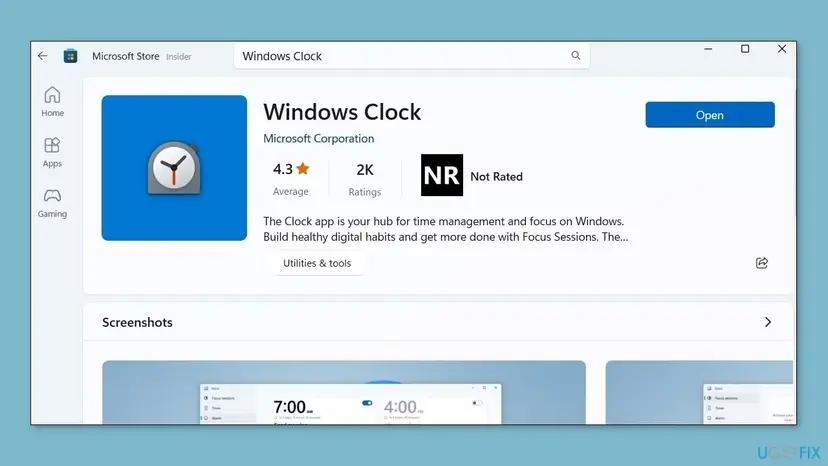
It worked if: The Library shows no pending update for Windows Clock, and Clock opens without the update message.
If not: If the update starts but never finishes, or the message comes back, start the Windows Update service (Fix 2).
Fix 2. Start the Windows Update service and install Windows updates
10 to 20 minutesLow riskThe message says "we're unable to apply the update right now", or the Store update in Fix 1 did not finish.
Microsoft's article on this exact message names the stopped or disabled Windows Update service as the usual cause. Store app updates and the parts they depend on are installed through it, so a disabled service blocks them.
- Check that the PC is online: open any web page in a browser.
- Press Win + R, type
services.mscand press Enter. - Double-click Windows Update. If Startup type is Disabled, set it to Manual and select Apply.
- Select Start, then OK. The status should read Running.
- On Windows 11, open Start > Settings > Windows Update > Check for updates. On Windows 10: Settings > Update & Security > Windows Update.
- Install what is offered, restart the PC and open Clock.
With pictures of the Services window: Check and restart Windows services
Update blockers and tweak tools often set the Windows Update service to Disabled. Clock then shows the update message every time. Undo the setting in that tool, or Windows sets the service back to Disabled after the next restart.
It worked if: Windows Update shows that you are up to date, and Clock opens without the message.
If not: If Windows Update fails with an error code, fix that first: Reset Windows Update components. If updates work but Clock still fails, go to Fix 3.
Fix 3. Repair the Clock app, then reset it if Repair does not help
5 minutesRead the warningClock is up to date but opens and closes at once, freezes, or shows a blank window.
Microsoft lists Repair and Reset as the step for a Store app that does not work. Repair checks the Clock files and keeps your alarms. Reset deletes the app's local data, where a damaged setting usually sits.
Reset removes the alarms, timers, world clocks and focus session settings saved in Clock on this PC. Write down your alarm times before you select Reset, so you can set them again.
- On Windows 11, select Start > Settings > Apps > Installed apps. On Windows 10: Settings > Apps > Apps & features.
- Find Clock in the list or type it in the search box.
- Select the three dots next to Clock and Advanced options. On Windows 10, select Clock, then Advanced options.
- Select Terminate to close Clock fully.
- Scroll to the Reset section and select Repair. Wait for the check mark, then open Clock.
- If Clock still fails, return to the same page and select Reset, then confirm.
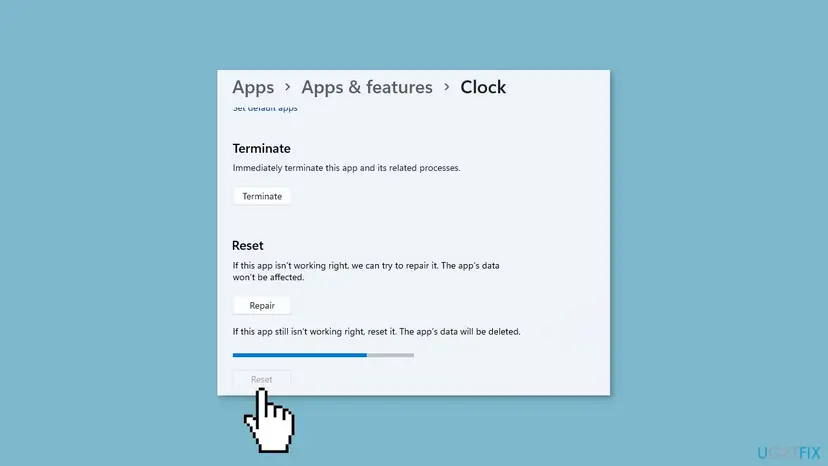
What Repair, Reset and Terminate do, for any app: How to repair or reset an app in Windows
It worked if: Clock opens. After Reset it starts like a new install with no alarms set.
If not: If Clock still closes at once, or it is not in the list at all, reinstall it (Fix 4).
Fix 4. Reinstall Windows Clock from Microsoft Store
5 minutesRead the warningClock is missing from Start and Installed apps, or Reset in Fix 3 did not help.
Microsoft's last step for one Store app is to install it again from the Library. A fresh install replaces the whole Clock package, including files that Repair cannot fix, and brings back a Clock that a cleanup tool removed.
Removing Clock deletes its alarms, timers and world clocks on this PC, the same as Reset. Note your alarm times first.
- Select Start > Settings > Apps > Installed apps. On Windows 10: Settings > Apps > Apps & features.
- Select the three dots next to Clock, then Uninstall, and confirm. Skip this step if Clock is not listed.
- Restart the PC.
- Open Microsoft Store and search for Windows Clock.
- Select Get or Install and wait until the button changes to Open.
- Select Open, or find Clock in Start.
It worked if: Clock is back in Start and opens with its Alarm, Timer, Stopwatch and World clock pages.
If not: If the Store will not install Clock or shows an error, reset the Store (Fix 6). If Clock is installed but still will not start, re-register it (Fix 5).
Fix 5. Re-register only the Clock app with PowerShell
5 minutesLow riskClock is installed but will not start after Repair and Reset, or it has no Uninstall button.
Every Store app is registered to your user account. When that link is damaged, Clock is on the disk but Windows cannot start it. Registering the Clock package again rebuilds the link without downloading anything.
- Close Clock. Select Start, type PowerShell and open Windows PowerShell the normal way, not as administrator, so the app is registered to your account.
- Type the command below and press Enter. Clock's package is named Microsoft.WindowsAlarms; the command finds it by that name.
- Wait until the prompt comes back. Red text that names other apps can be ignored.
- Close PowerShell and open Clock from Start.
Re-register Clock (Windows PowerShell)
Get-AppxPackage -Name '*WindowsAlarms*' | Foreach {Add-AppxPackage -DisableDevelopmentMode -Register "$($_.InstallLocation)\AppXManifest.xml"}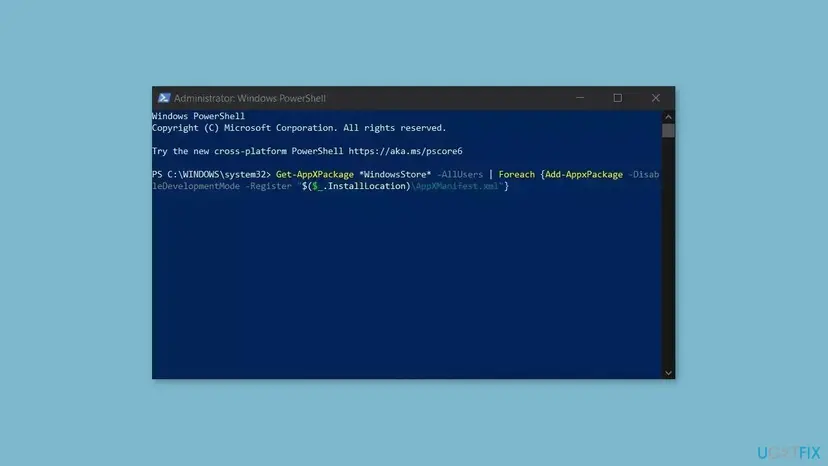
If the first command prints nothing, Clock is not installed for your account; use Fix 4. More on this command: How to re-register Microsoft Store apps with PowerShell
It worked if: PowerShell returns to the prompt without a red error about Microsoft.WindowsAlarms, and Clock opens.
If not: If PowerShell reports that the package cannot be registered, reset Microsoft Store (Fix 6), then reinstall Clock (Fix 4).
Fix 6. Reset Microsoft Store when it cannot update or install Clock
5 to 10 minutesLow riskThe Store hangs on the Clock update, shows an error code, or will not install Windows Clock.
Clock gets every update through Microsoft Store. A damaged Store cache can leave the Clock update half downloaded, which keeps the update message on screen. Clearing the cache with wsreset removes no app.
- Clear the Store cache. Press Windows + R, type wsreset.exe and select OK. A blank Command Prompt window opens; after a short while it closes and Microsoft Store opens by itself.
After wsreset, the Store opens and loads again. Screenshot: Windows 11 26H2. - Open System components. If the problem stays, select Start > Settings > System > System components. Next to Microsoft Store, select the three dots and Advanced options. If Microsoft Store is not listed there, look for it in Settings > Apps > Installed apps.
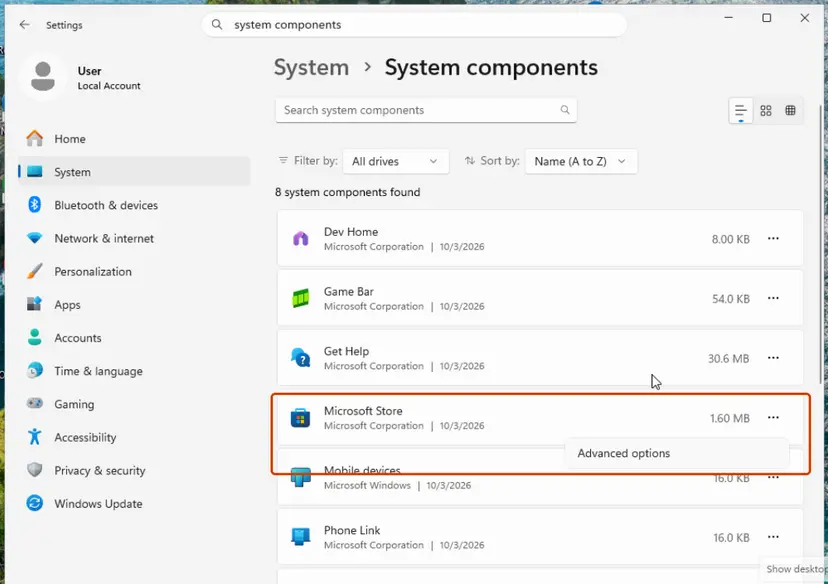
Microsoft Store is listed under System components. Screenshot: Windows 11 26H2. - Repair first. Scroll to Reset and select Repair. Repair keeps the app's data. Open the Store and check whether it works.
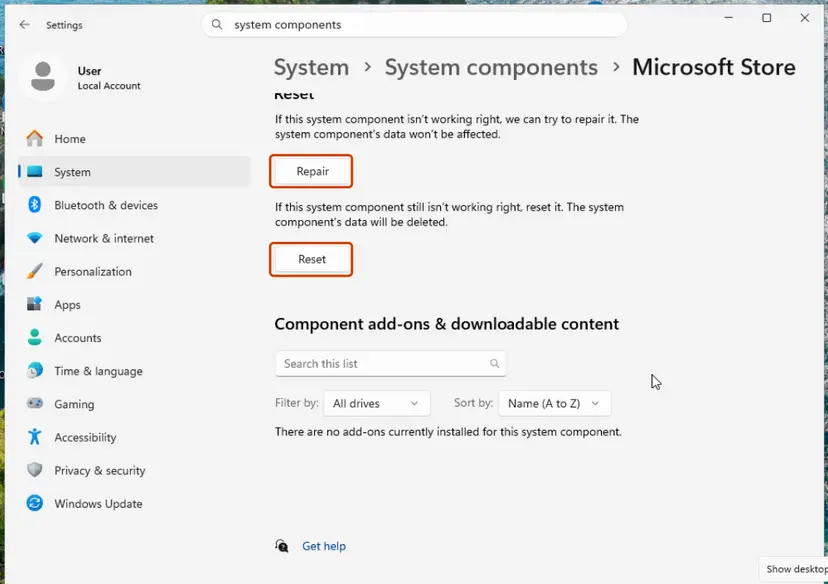
Repair keeps the app's data; Reset deletes it. Screenshot: Windows 11 26H2. - Reset if Repair did not help. Select Reset and confirm. This deletes the Store app's data on this PC; your purchases stay in your Microsoft account. Open the Store and sign in again.
These steps were written for Windows 11 26H2 (build 26300). The full page with the other versions and what each result means: Reset the Microsoft Store
After the Store opens again, repeat Fix 1 to install the Clock update.
It worked if: Microsoft Store opens, the Library installs the Windows Clock update, and Clock starts.
If not: If the Store still fails, run the troubleshooters that your Windows still has (Fix 7).
Fix 7. Run the Windows Update and Store Apps troubleshooters
10 minutesLow riskWindows 10, or a Windows 11 build that still lists these troubleshooters, after Fix 1 to Fix 6 did not help.
Microsoft's article on the update message lists the Windows Update troubleshooter as a fix, and the Store Apps one checks the settings Store apps depend on. Newer Windows 11 releases have removed some of these, so skip what you cannot find.
- On Windows 11, open Start > Settings > System > Troubleshoot > Other troubleshooters.
- On Windows 10, open Settings > Update & Security > Troubleshoot > Additional troubleshooters.
- Select Run next to Windows Update and follow the prompts.
- Select Run next to Microsoft Store Apps (on Windows 10: Windows Store Apps) and follow the prompts.
- Restart the PC and open Clock.
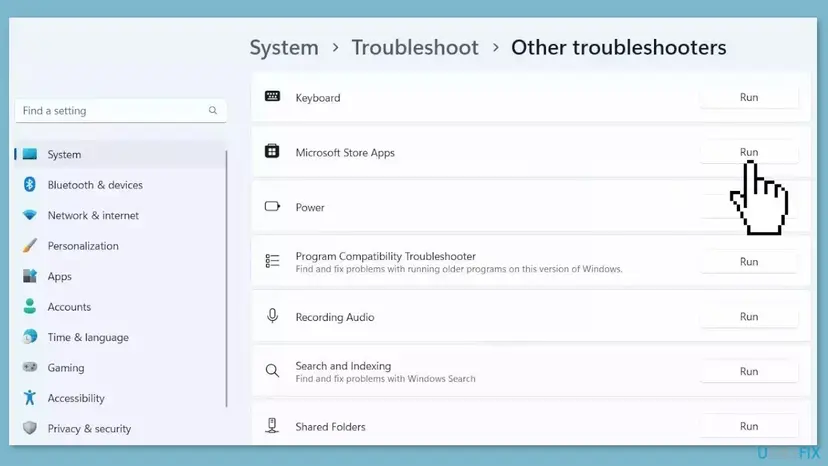
Step by step, including where it went on newer builds: Run the Windows Update troubleshooter
It worked if: The troubleshooters report fixed items or no problems, and Clock opens after the restart.
If not: If they find nothing and Clock still fails, repair the Windows system files (Fix 8).
Fix 8. Repair Windows system files with DISM and SFC
20 to 30 minutesLow riskClock and other built-in apps such as Calculator or Photos fail, or nothing above helped.
Clock runs on shared Windows components. If those files are damaged, no update, reset or reinstall of Clock can help. DISM repairs the Windows image and SFC then repairs the files from it.
- Open an elevated command window. Right-click Start and select Terminal (Admin), or type cmd in the search box, right-click Command Prompt and select Run as administrator. Select Yes when Windows asks for permission.
- Run DISM first. Type the command below and press Enter. DISM downloads clean copies of damaged components from Windows Update, so it can take several minutes. Wait until it says The operation completed successfully.
DISM.exe /Online /Cleanup-Image /RestoreHealth - Run System File Checker. In the same window, type the command below and press Enter. Do not close the window until the verification reaches 100%.
sfc /scannow - Read the result and restart. Compare the last message with the table below this guide, then restart the PC so that repaired files are loaded.
These steps were written for Windows 11 24H2 and 25H2. The full page with the other versions and what each result means: Run DISM and SFC to repair Windows system files
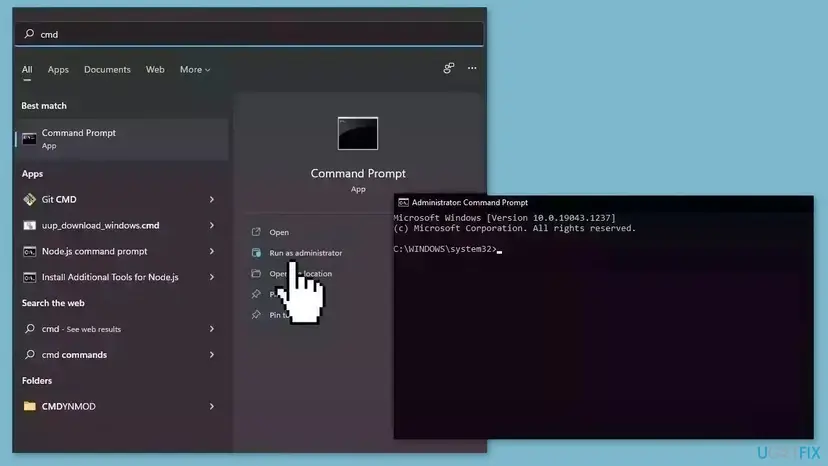
It worked if: SFC reports that it found no integrity violations or that it repaired them, and Clock opens after a restart.
If not: If SFC reports files it could not repair, read the next section.
If the Clock app still does not work: logs, support and Reset this PC
Look at what Windows recorded when Clock failed. Press Win + R, type perfmon /rel and open the day Clock failed. A line for Clock or Microsoft.WindowsAlarms that says Stopped working confirms a crash. In Event Viewer (eventvwr.msc), Windows Logs > Application has the matching Application Error entry.
- Only Clock fails, after Fix 3 to Fix 5: the installed Clock version may have a bug. Check its Store page for an update in the next days, and send the report through the Feedback Hub app.
- What to send to support: the full text of the message, the Clock version from the Store page, the Windows build from
winver, and the Event Viewer entry. - Clock and every other built-in app fail, and SFC could not repair files: reset Windows and keep your files, as below.
- It is not hardware. Clock problems come from software. If the PC also freezes or shows blue screens, that is a different problem.
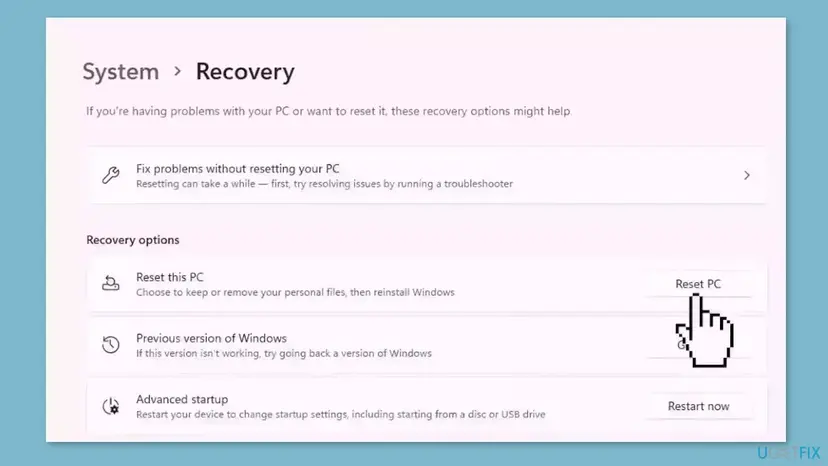
If none of the fixes help, consider resetting Windows. It takes time, and it removes the apps you installed, so you need to install them again. Choose Keep my files so your documents stay. Step by step: Reinstall Windows without losing files
How to keep the Windows Clock app working
- Keep App updates on in Microsoft Store. The update message comes back whenever Clock waits for an update that nobody installs.
- Leave the Windows Update service on Manual. Tools that disable Windows Update also block Store app updates.
- Do not remove built-in apps with cleanup scripts unless you mean to. Debloat scripts can remove built-in apps, Clock (Microsoft.WindowsAlarms) included.
- Restart after Windows updates. A pending restart leaves the parts that Clock uses half replaced.
- Keep the PC awake for alarms that matter. Clock rings only while the PC is awake, so use a phone for wake-up alarms.
- Plan the move from Windows 10. It left support on 14 October 2025, and app updates are tested on Windows 11 first.
Frequently asked questions
Why is my Clock app not working?
Most often because Clock waits for an update that Microsoft Store has not installed, or because the Windows Update service is stopped so the update cannot be applied. Less often the app's data is damaged, its package is broken or removed, or Windows system files are damaged. Start with Microsoft Store > Library > Get updates, then check that the Windows Update service runs, then repair or reset Clock in Settings.
How do I fix "Clock needs an update, but we're unable to apply the update right now"?
Make sure the PC is online, then open services.msc and check that the Windows Update service is not Disabled. Set it to Manual, start it, and install Windows updates. Then open Microsoft Store, select Library and Get updates, and let Windows Clock update. Microsoft gives this cause and order for the same message in another of its Store apps. If the message stays, reset the Store with wsreset and update again.
The Windows 11 Clock app is missing. How do I get it back?
Type Clock in Start first; it is listed as Clock, not Windows Clock. If it is not found, it was removed, often by a cleanup script. Open Microsoft Store, search for Windows Clock, the app published by Microsoft, and select Get or Install. It installs in a minute and appears in Start as Clock. If the Store will not install it, reset the Store with wsreset.exe and try again.
How do I reset the Windows Clock app?
On Windows 11, open Start > Settings > Apps > Installed apps, select the three dots next to Clock and Advanced options, then select Reset. On Windows 10 the path is Settings > Apps > Apps & features > Clock > Advanced options. Try Repair on the same page first, because Reset deletes your alarms, timers and world clocks. Write down your alarm times before you reset, then set them again.
What does "We are getting the update ready for you" mean in Clock?
It means Clock found a newer version and Windows is downloading it before the app starts. Normally the window closes by itself within a minute or two. If it stays for a long time, the download is stuck. Open Microsoft Store > Library and check whether the Windows Clock update is waiting or has failed, then check that the Windows Update service is running, as in Fix 2.
Why do my Clock alarms not ring?
Clock alarms ring only while the PC is awake. The Alarm page of the app says that notifications only show when the PC is awake, so a PC that sleeps, hibernates or is shut down stays silent. Also check that notifications for Clock are on in Settings > System > Notifications and that Do not disturb is off. If the app itself does not open, use the fixes on this page.
Will I lose my alarms if I reset or reinstall Clock?
Yes. Reset and uninstall both delete the alarms, timers, world clocks and focus session settings that Clock keeps on this PC. Repair, updating and re-registering keep them. So try Fix 1, Fix 2 and Repair first, and write down your alarm times before you select Reset or Uninstall. Setting them again takes a minute once the app works.
Does Clock show an error code when it fails?
No. Clock itself shows no error code; it either does not open or shows the update message. An error code can appear in Microsoft Store when the Clock update fails to install. That points to the Store or Windows Update, not to Clock: reset the Store with wsreset (Fix 6) and make sure the Windows Update service is running (Fix 2).
Can I uninstall the Clock app safely?
Yes. Clock is a separate Store app and Windows works without it; the taskbar time and calendar do not depend on it. You only lose the alarms, timers, stopwatch, world clock and focus sessions in the app. You can install it again at any time from Microsoft Store by searching for Windows Clock. Uninstalling and installing again is also Fix 4 on this page.
Sources
Did this fix work?
One click, no account. It tells the next reader which guides are worth their time.
Questions and experiences: fix Clock app not working in Windows
Still broken, or found a fix we did not cover? Ask here: members and our editors answer. Reading is open; writing needs a free account.
…