
How to fix Discord stuck at gray screen on Windows?

Prefer to fix it yourself? The manual steps follow.
9 methods in this guide
Upon starting Discord, it does not load anymore and all I can see is a gray screen. I tried restarting it several times and rebooting the PC, but it is not helping. What can I do to fix it?
A gray Discord window means the desktop app started but its interface never drew, and there is no error message to read. Close every Discord process first, then clear the cache folders. If the window stays gray, do the clean reinstall that Discord Support recommends.
Your account is fine; the desktop app's local files or its drawing are stuck. End every Discord entry in Task Manager and start it again (Fix 1). If it is still gray, delete the Cache folders (Fix 2), then do the clean reinstall that Discord Support recommends (Fix 3). Your servers and messages stay on your account.
| Error | None. The Discord window opens and stays gray or blank, with no message, no code and no buttons. Restarting the app or the PC does not change it. |
|---|---|
| Where it appears | In the Discord desktop app for Windows, right after you start it or sign in to Windows. The browser version at discord.com/app is a separate program and is not affected by the app's local files. |
| Main cause | Damaged or stale local files (the cache or a half-finished update) are the most common. Less often a graphics driver, a missing permission or a blocked connection. |
| Fastest fix | End every Discord process in Task Manager and start again (Fix 1). Next, clear the Cache folders (Fix 2). Then the clean reinstall (Fix 3). |
| Also written as | discord gray screen, discord grey screen, discord stuck on gray screen, discord gray screen on startup, discord grey screen on launch. |
| Affects | The Discord desktop app on Windows 11 and Windows 10. Discord lists Windows 10 or newer and 4 GB of RAM as the recommended minimum. |
| Discord's status | We found no single bug or patch date for the gray window. Discord Support lists clearing the cache, running as administrator and turning off hardware acceleration for loading screen freezes, and a clean reinstall for damaged installs. |
| Not the cause | Your account, your password, your servers or your messages. Those are stored on Discord's servers, not in the gray window. |
| Time to fix | 2 minutes for Fix 1, about 5 minutes for Fix 2, 10 to 15 minutes for the clean reinstall in Fix 3. |
Facts checked on 16 October 2026. Steps written for Windows 11 (25H2 and 26H2) and Windows 10 22H2 with the Discord desktop app.
What the Discord gray screen means and how it differs from other loading screens
The Discord desktop app is a program that draws its interface from files stored on your PC: a cache, settings and the app's own modules. A gray screen means the window was created but the interface was never drawn into it. Discord shows no error text in that state, which is why there is no code to search for.
Readers also search for the same problem as a grey screen, a blank screen or a window that never finishes loading. The words differ, the symptom is the same: you see an empty gray window, the tray icon is there, and nothing responds.
| What you see | What it usually means | Where to go |
|---|---|---|
| An empty gray window, no text, no buttons | The interface did not draw: stale cache, damaged files, a graphics rendering problem or missing permissions | Fix 1, then Fix 2 |
| Gray window that stays after every restart, even of the PC | Local files are damaged and are reloaded every time | Fix 2, then Fix 3 |
| A Discord logo or the word Connecting that never ends | Discord cannot reach its servers: date, proxy, firewall or network | Fix 9 |
| A banner that says your Discord installation is corrupt | Discord found damaged files itself | Fix 3 |
| The app opens off the screen or is not visible at all | A window placement problem, not a gray screen | Not covered here |
No. Servers, friends, messages and Nitro are tied to your account on Discord's side. Open discord.com/app in a browser and sign in to confirm. If the browser works and the app is gray, the problem is local and the fixes below apply.
What causes the Discord gray screen, from most to least common
Discord does not publish a list of causes for the gray window. The order below is ours: it follows how often each cause is reported and how little each fix costs. Most often the cache or the app's local files are stale or damaged. Less often the graphics driver, Windows itself or a blocked connection is involved.
| Cause | How often | How to tell | Fix |
|---|---|---|---|
| Discord is still running in the background from an earlier start and holds its own files | Often | Task Manager shows Discord processes even though no window is open | Fix 1 |
| Corrupt or stale cache files that the interface needs to draw | Most often | The gray window appears after a crash, a sudden shutdown or an update | Fix 2 |
| A damaged or half-finished install of the app | Often | Restarting and cache clearing change nothing | Fix 3 |
| Missing permission to read or write a Discord resource | Sometimes | Started after an account change, a permission change or a Windows reset | Fix 4 |
| Graphics rendering (hardware acceleration) fails on your GPU or driver | Sometimes | Other apps that use the GPU also glitch; the gray window follows a driver update | Fixes 5 and 6 |
| Windows is missing updates that apps rely on | Rarely | Windows Update shows pending or failed updates | Fix 7 |
| An OS compatibility conflict after a recent Windows update | Rarely | The problem started right after a Windows update | Fix 8 |
| Wrong date, a proxy or a broken network connection | Rarely | The window shows Connecting rather than plain gray, or other apps cannot reach the internet | Fix 9 |
Discord's troubleshooting guide groups a loading screen that freezes under three actions: clear the cache and temporary files, run Discord as administrator, and turn off hardware acceleration. Fixes 2, 4 and 5 follow exactly that list.
How to fix Discord stuck at a gray screen on Windows
Fixes 1 to 3 solve most cases and match Discord Support's own advice, so start there. Fixes 4 to 6 target permissions and graphics rendering. Fixes 7 to 9 are for the cases where the first six did not help or the symptom looks like a connection problem.
| What you see | Start with |
|---|---|
| A gray window, and Task Manager lists Discord processes after you closed it | Fix 1 |
| A gray window that came back after you restarted Discord and the PC | Fix 2 |
| Cache cleared and still gray, or a banner says the installation is corrupt | Fix 3 |
| The gray window started after you changed permissions or reset Windows | Fix 4 |
| The gray window started after a graphics driver update or a game install | Fix 5 and Fix 6 |
| The window says Connecting, or the browser version of Discord also fails | Fix 9 |
| The gray window started right after a Windows update | Fix 7 and Fix 8 |
Fix 1. Close every Discord process and start Discord again
2 minutesNo riskEveryone first, especially if the gray window opened and you closed it before.
Closing the Discord window does not always quit the app, because it can keep running in the tray. A leftover copy can hold its files open, so a new start loads a broken state. Discord Support also says stray processes can hide in the tray and in Task Manager.
- Click the hidden icons arrow in the notification area. If the Discord icon is there, right-click it and choose Quit Discord.
- Press Ctrl + Shift + Esc to open Task Manager. If it opens in a small window, click More details.
- Find every Discord entry, under Apps and under Background processes.
- Right-click each one and choose End task. Discord usually runs as several entries.
- Wait 30 seconds, as Discord's troubleshooting guide suggests, then start Discord from the Start menu.
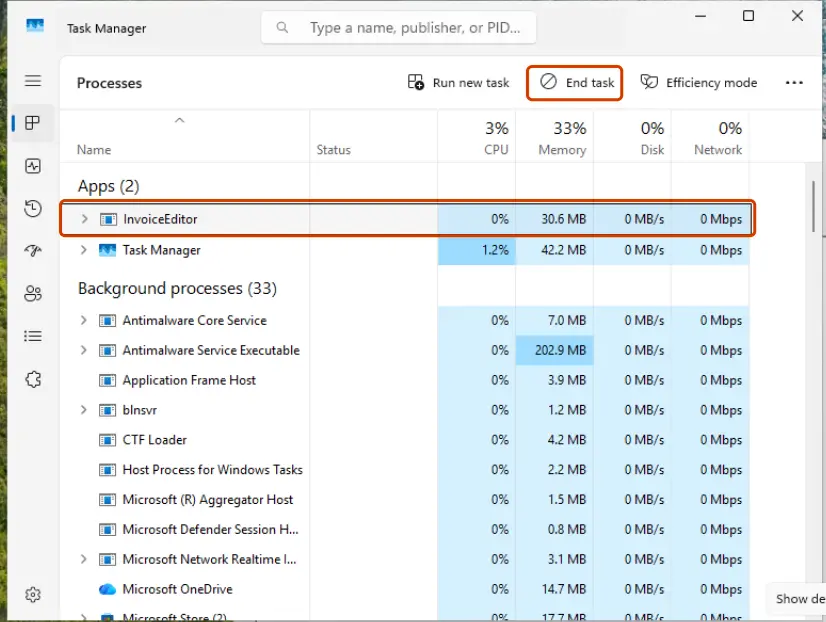
Step by step with Task Manager: Close a frozen app (Task Manager, Force Quit).
It worked if: Discord starts, shows its normal update or loading screen and then your servers.
If not: If the window is still gray, go to Fix 2.
Fix 2. Clear Discord's cache folders
5 minutesLow riskThe gray window comes back after restarts, or started after a crash or a sudden shutdown.
Discord's troubleshooting guide lists clearing the cache first for loading screen freezes and names the folder %appdata%/discord/Cache. Discord rebuilds the cache on the next start, so a damaged cache cannot stay behind. Your account data is not stored there.
- Make sure Discord is fully closed (Fix 1).
- Press Win + R, type
%appdata%\discordand press Enter. - Delete the Cache folder. Discord names this folder in its own guide.
- Delete the Code Cache and GPUCache folders if they are there. Discord is built on Chromium, which keeps these two next to Cache and rebuilds them. Discord's guide does not name them, so this part is our addition.
- Start Discord and wait for it to rebuild. The first start is slower than usual.
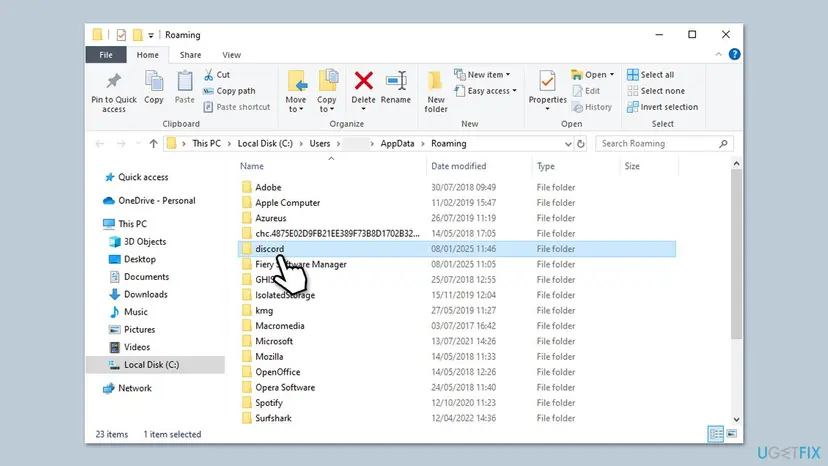
Deleting the whole %appdata%\discord folder also resets your local settings and signs you out on this PC. That is the first half of Fix 3. Clear only the cache folders first, because it costs nothing.
It worked if: Discord loads past the gray window, you may need to sign in again, and your servers appear.
If not: If it is still gray, go to Fix 3.
Fix 3. Do the clean reinstall that Discord Support recommends
10 to 15 minutesLow riskFixes 1 and 2 did not help, or Discord says the installation is corrupt.
Discord Support's corrupt installation article gives one fix for damaged installs: close Discord completely, delete its two folders, restart and reinstall. This removes damaged files from both the settings folder and the program folder, which is something removing the app alone does not do.
- Quit Discord from the notification area and end every Discord entry in Task Manager (Fix 1).
- Press Win + R, type
%appdata%and press Enter. Find the Discord folder and delete it. - Press Win + R again, type
%localappdata%and press Enter. Find the Discord folder there and delete it. - If Windows says a file is in use, go back to Task Manager and end every Discord entry, including those on the Startup apps tab.
- Restart the PC.
- Download Discord from
discord.com/downloadand install it. Sign in again.
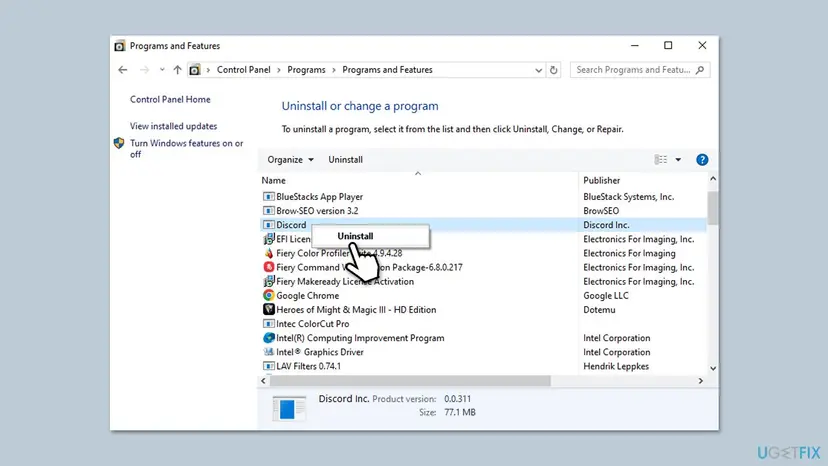
If you prefer to uninstall the app from Windows first, see Uninstall a program or app in Windows. Discord's steps still require deleting the two folders afterward.
The steps are the same on both. Discord's own article was written for Windows in general, and its current troubleshooting guide lists Windows 10 or newer.
It worked if: The new install runs its first update, opens, and you see the sign-in screen or your servers instead of gray.
If not: If the new install is gray as well, go to Fix 4.
Fix 4. Run Discord as administrator
2 minutesLow riskThe gray window started after a permissions change, an account change or a Windows reset.
Discord's troubleshooting guide lists running Discord as administrator for loading screen freezes. It rules out a permission problem when Discord reads or writes its own files. It is a test, not a lasting setting.
- Close Discord completely (Fix 1).
- Right-click the Discord shortcut on the desktop or in the Start menu.
- Choose Run as administrator.
- Confirm the User Account Control prompt with Yes.
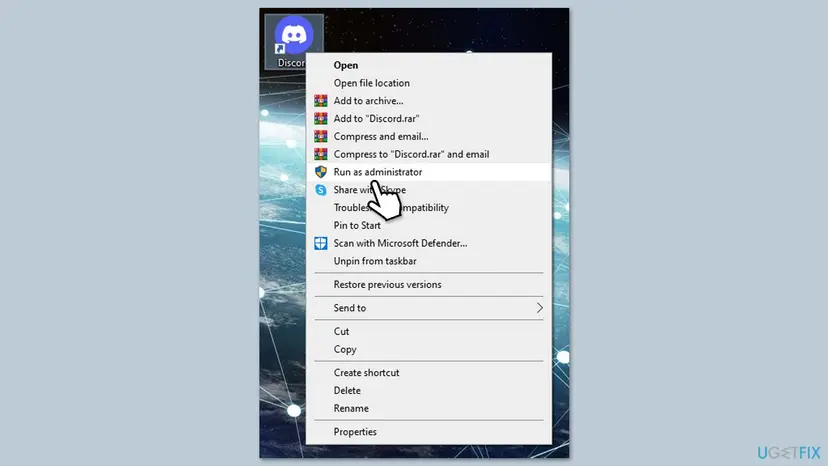
If Discord loads only when started this way, a folder permission is wrong. Elevated installs can also create files that your normal account cannot read. Reinstall (Fix 3) without elevation rather than leaving the shortcut on administrator for good.
It worked if: Discord loads normally when started as administrator.
If not: If it is still gray, go to Fix 5.
Fix 5. Turn off hardware acceleration in Discord's settings file
5 minutesLow riskThe window stays gray and you cannot open Discord's settings, or the problem followed a driver or game install.
Discord Support lists turning off hardware acceleration under User Settings > Advanced for loading screen freezes. That screen is unreachable when the window is gray, so users report editing settings.json instead. We did not find the key in Discord's own documentation, so treat it as a user report and keep the backup.
- Close Discord completely (Fix 1).
- Press Win + R, type
%appdata%\discordand press Enter. - Copy
settings.jsonand paste the copy in the same folder as a backup. - Right-click
settings.json, choose Open with and pick Notepad. - If a line with
enableHardwareAccelerationexists, changetruetofalse. If it does not exist, add the line shown below. - Save the file and start Discord.
Example of a minimal settings.json
{
  "enableHardwareAcceleration": false
}The file must stay valid JSON, so keep the braces, quotation marks and the comma between lines. If Discord resets or ignores the file, restore your backup copy and use Fix 6 instead.
It worked if: Discord loads into the app and the gray window does not return after a restart.
If not: If it is still gray, restore the backup of settings.json and go to Fix 6.
Fix 6. Update the graphics driver
10 minutesLow riskThe gray window started after a driver update, a game install or a display change, or your driver is old.
Discord draws its interface through the graphics driver, so a driver that fails to render can leave an empty window. An outdated driver can also lack what recent versions of the app expect.
- Right-click Start and open Device Manager.
- Expand Display adapters.
- Right-click your GPU and choose Update driver, then Search automatically for drivers.
- Restart the PC and start Discord.
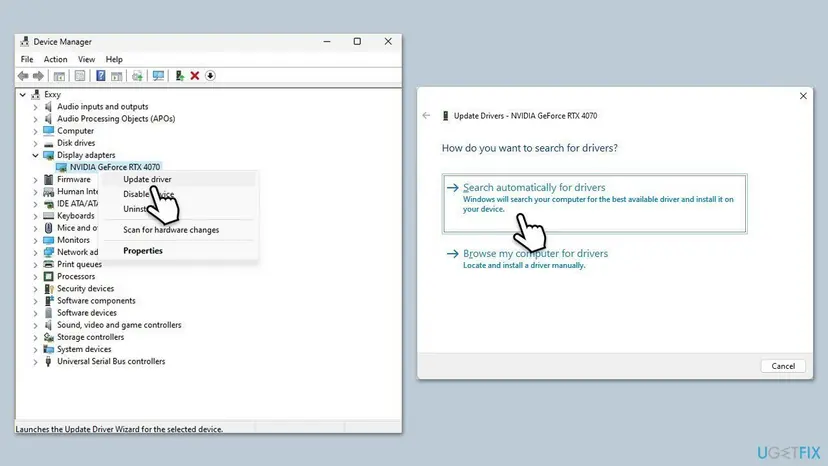
Step by step with rollback, reinstall and the optional driver updates in Windows Update: Update, roll back or reinstall a driver. Use the driver from Windows Update or your PC or graphics card maker, not a driver updater program.
It worked if: Discord loads normally after the restart.
If not: If it is still gray, go to Fix 7.
Fix 7. Install pending Windows updates
15 minutesLow riskWindows Update shows pending or failed updates, or the gray window began after an update.
Discord lists Windows 10 or newer as its system requirement. A PC that lacks updates can miss components that apps rely on, and an interrupted update can leave files in a state that causes compatibility conflicts.
- Press Win + I to open Settings.
- On Windows 11 open Windows Update; on Windows 10 open Update & Security > Windows Update.
- Click Check for updates and let Windows download and install everything.
- Open Advanced options > Optional updates (Windows 11) or View optional updates (Windows 10) and install any graphics driver updates listed there.
- Restart the PC.
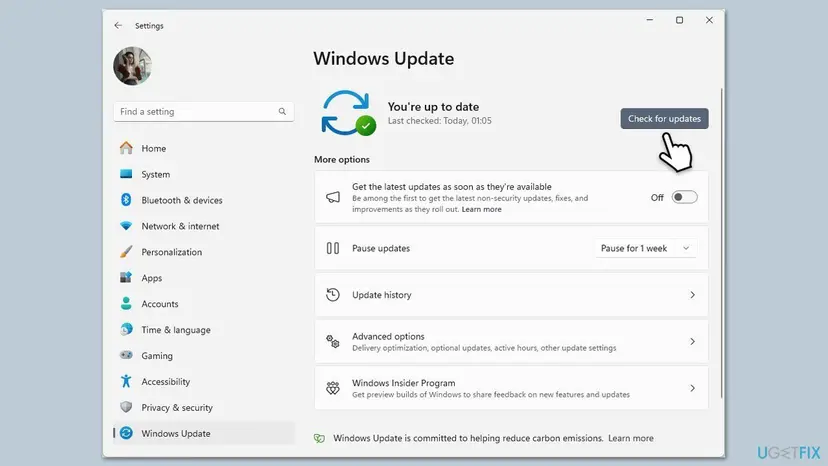
If updating fails with an error, see the Windows Update repair steps: Run the Windows Update troubleshooter.
It worked if: Windows reports it is up to date, and Discord loads after the restart.
If not: If the gray window started right after an update and is still there, go to Fix 8.
Fix 8. Run Discord in compatibility mode
5 minutesLow riskThe gray window began right after a Windows update, and Fixes 3 and 4 did not help.
Discord Support's corrupt installation article lists running the newest Discord app folder as administrator with compatibility set to Windows 7 or 8 as an extra step. That article is old, and Discord's current guide lists Windows 10 or newer, so choose the earliest Windows 10 option and treat this as a last test.
- Close Discord completely (Fix 1).
- Open
%LocalAppData%\Discord, then the newest app- folder, and right-click Discord.exe, or use the Discord shortcut. - Choose Properties and open the Compatibility tab.
- Check Run this program in compatibility mode for and pick Windows 8. If that fails, pick Windows 7.
- Click Apply, then OK, and start Discord.
Step by step for Windows 11 and Windows 10: How to run a program as administrator or in compatibility mode.
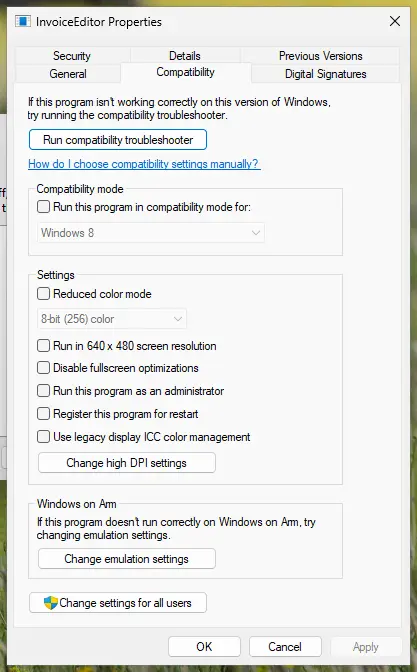
It worked if: Discord loads normally in compatibility mode.
If not: If it is still gray, clear the compatibility setting again and go to Fix 9.
Fix 9. Check the date, the proxy and the network
15 minutesRead the warningThe window says Connecting or never leaves the loading screen, or the browser version of Discord also fails.
Discord's connecting screen article lists the date and time set automatically, a malware scan, firewall rules that allow Discord and no proxy as the checks for a Discord that cannot connect. The article is about the Connecting screen, not the gray window, so use it only if your window shows that message.
- Set the date and time to automatic: How to fix the date and time in Windows.
- Press Win + R, type
inetcpl.cpland press Enter. - Open the Connections tab and click LAN settings.
- Make sure Automatically detect settings is checked and Use a proxy server for your LAN is unchecked, then click OK.
- Scan the PC with Microsoft Defender: How to scan for malware with Microsoft Defender. Discord's article names a third-party scanner, and Defender does the same job.
- As the last step, reset the network: Reset the network and flush DNS.
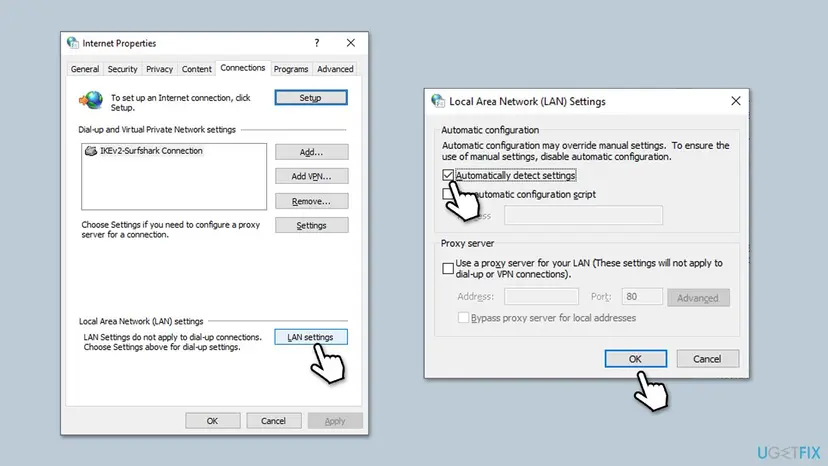
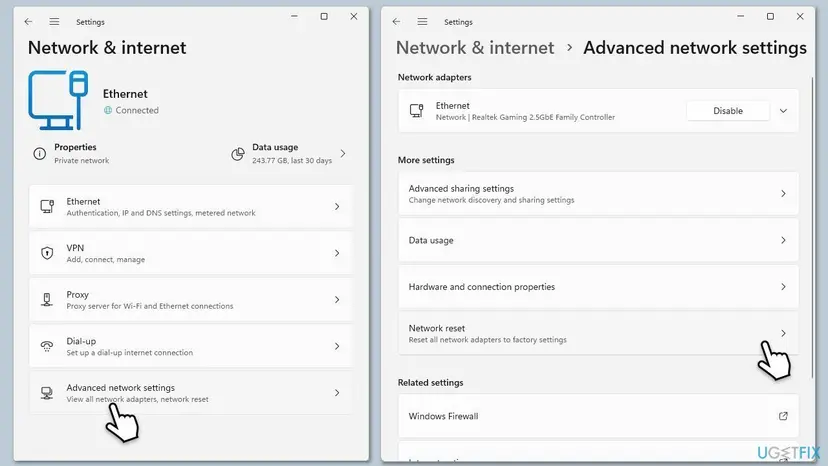
Network reset reinstalls your network adapters and sets networking back to defaults. You may have to reconnect to Wi-Fi with its password and set up a VPN client again. Note your Wi-Fi password and VPN details before you run it, and only do it after the earlier steps in this fix.
It worked if: Discord connects, and the loading screen is replaced by your servers.
If not: If nothing worked, see Still broken for what to send to Discord Support.
Still stuck on the Discord gray screen? What to check and send to Discord
If all nine fixes failed, check Discord's status page at status.discord.com first, because an outage can look like a stuck window. Then compare with the browser version at discord.com/app. If the browser works, the problem is in the desktop app's files or its drawing, and a bug report is the next step.
- What you see: describe the gray window and whether the tray icon is present.
- Your Windows version: press Win + R, type
winverand press Enter. - Your graphics card: the name under Display adapters in Device Manager and the driver date from its Driver tab.
- What you already tried, in order, and the result of each fix, including whether the gray window changed after a clean reinstall.
- A screenshot of the gray window and of Task Manager with the Discord entries visible.
Discord's troubleshooting guide says to submit a bug report through the support portal when standard fixes do not help. It also asks you to describe steps that reproduce the problem and to include your system details. Searching Discord's support forum first can show whether others report the same gray window.
If many programs show gray or blank windows, and not only Discord, the cause is probably the graphics driver or the display setup, not Discord. A hardware fault is rare, but a PC that also crashes or freezes in other apps needs Run DISM and SFC to repair Windows system files and a driver check, not another Discord reinstall.
How to keep Discord from getting stuck on a gray screen again
- Quit Discord from the notification area before you shut down for an update or install a new copy.
- Let Discord finish its update screen when it starts.
- Keep Windows and your graphics driver up to date through Windows Update or the maker's website.
- Download Discord only from
discord.com/download.
- Do not leave the Discord shortcut set to run as administrator.
- Do not delete files inside
%LocalAppData%\Discordby hand or with cleanup tools. - Do not edit
settings.jsonwithout a backup copy. - Do not install Discord from a mirror or a download site.
If you need Discord while you work on the desktop app, open it in a browser at discord.com/app. It uses the same account and does not depend on the app's local files.
Frequently asked questions
Why is Discord stuck on a gray screen when I open it?
The Discord desktop app started but could not draw its interface, and it shows no error text when that happens. The most common reasons are a stale or damaged cache, damaged local files, or a graphics rendering problem. Discord Support lists clearing the cache, running as administrator and turning off hardware acceleration for loading screen freezes. Start with Fix 1 to close every Discord process, then Fix 2 to clear the cache folders. A clean reinstall in Fix 3 handles damaged files.
Is a gray screen the same as a grey screen or a black screen in Discord?
Gray and grey are two spellings of the same symptom, and the fixes are the same. A black or blank window usually has the same causes, since the interface is not drawn in either case. A Connecting message that never ends is different: that points to the date, a proxy, a firewall or the network, which Fix 9 covers. If a banner says the installation is corrupt, go to Fix 3.
Will I lose my messages and servers if I delete Discord's folders?
No. Messages, servers, friends and Nitro are stored on your Discord account, not in the folders. Deleting %AppData%\Discord signs you out on this PC and resets local settings such as keybinds and startup behavior. Deleting %LocalAppData%\Discord removes the program, which the installer downloads again. Know your password and keep your two-factor codes ready, because you must sign in again after the reinstall.
Should I delete the whole discord folder or only the Cache folder?
Start with the Cache folders in Fix 2. That is what Discord's troubleshooting guide names for loading screen freezes, and it keeps your local settings. Delete both whole Discord folders only in the clean reinstall in Fix 3, which is Discord Support's fix for damaged installs. Shift + Delete removes a folder permanently, with no Recycle Bin copy, so be sure you are in the right folder before you confirm.
Why does restarting the PC not fix the gray screen?
A restart ends the running programs but keeps the files on disk. If the cause is a damaged cache or a broken install, Discord loads the same bad files again after the restart. That is why the fixes target the files: clear the cache in Fix 2, or delete both Discord folders and reinstall in Fix 3. A restart still helps after a driver, Windows or reinstall step.
Does Discord work in the browser when the app is gray?
Usually yes. The browser version at discord.com/app uses your account but not the desktop app's local files, so a gray desktop window does not affect it. That makes it a good test: if the browser version works, your account is fine and the problem is local. If it also fails to load, check Discord's status page and your connection, and use Fix 9.
Is the Discord gray screen a virus?
Not usually. A gray window is almost always a cache, install or graphics problem. Discord's connecting screen article does suggest scanning for malware when Discord cannot connect, because malware can interfere with connections. Run a Microsoft Defender scan if you also see other odd behavior: How to scan for malware with Microsoft Defender. Do not turn off your protection to make Discord start.
What Windows version does Discord need?
Discord's troubleshooting guide lists Windows 10 or newer, and at least 4 GB of RAM is recommended. Windows 10 22H2 and Windows 11 both qualify. If you run an older Windows version, the desktop app is not expected to work, and the browser version is the alternative. Discord's old corrupt installation article mentions compatibility with Windows 7 or 8, but that article predates the current requirements.
Should I leave hardware acceleration turned off?
Turn it off if it fixes the gray window, since Discord Support lists it for loading screen freezes. It can raise CPU use, because drawing moves from the GPU to the processor. Once Discord opens, you can try turning it back on in User Settings > Advanced after updating the graphics driver in Fix 6. If the gray window returns, turn it off again.
What do I do if none of the fixes work?
Check Discord's status page, test the browser version and write down what you tried. Then submit a bug report through Discord's support portal with a screenshot, your Windows version and your graphics card. Discord's troubleshooting guide asks for steps that reproduce the problem and your system details. If other programs also show blank or gray windows, look at the graphics driver and the display setup first.
Sources
- Discord Support: Discord Troubleshooting Guide (support.discord.com)
- Discord Support: [Windows] Corrupt Installation (support.discord.com)
- Discord Support: Stuck on the Main Connecting Screen (support.discord.com)
Did this fix work?
One click, no account. It tells the next reader which guides are worth their time.
Questions and experiences: fix Discord stuck at gray screen on Windows
Still broken, or found a fix we did not cover? Ask here: members and our editors answer. Reading is open; writing needs a free account.
…