
How to fix "dxcore.dll is either not designed to run on Windows or it contains an error"?

Prefer to fix it yourself? The manual steps follow.
- 7methods
- 5 minutes to 2 hours
- Easy to medium
Applies to Windows 11 and Windows 10: the Bad Image window naming C:\Windows\system32\dxcore.dll, and the "dxcore.dll was not found" window from Adobe apps and other programs
7 methods in this guide
When I start Windows on my laptop, I receive the following error every time: "C:\Windows\system32\dxcore.dll is either not designed to run on Windows or it contains an error." How can I fix it?
dxcore.dll is a Windows file that DirectX 12 programs use to find your graphics card. If Photoshop or another app says it was not found, your Windows is older than Windows 10 version 2004: update the app, then Windows. If a Bad Image window says it is either not designed to run on Windows, the Windows copy is damaged or a startup program trips on it.
First read which window you have. "dxcore.dll was not found" from Photoshop, Illustrator or Audition: update the app (Fix 1), and if your Windows build is below 19041, update Windows (Fix 2). "dxcore.dll is either not designed to run on Windows" at sign-in: reinstall the program named in the window title (Fix 3), then repair Windows files with DISM and SFC (Fix 4). Never download dxcore.dll from a DLL site.
| Error | "C:\Windows\system32\dxcore.dll is either not designed to run on Windows or it contains an error" (a Bad Image window), or "The code execution cannot proceed because dxcore.dll was not found". |
|---|---|
| Where it appears | The Bad Image window at sign-in, sometimes followed by a black screen. The "not found" window when you open Photoshop, Illustrator, Audition or another program that uses DirectX 12. |
| Main cause | "Not found": Windows is older than Windows 10 version 2004 (build 19041), the first version Microsoft lists for DXCore. "Not designed to run": a damaged Windows copy of the file, or a startup program that loads it badly. |
| Fastest fix | Update the app that shows the error (Fix 1). For the Bad Image window, reinstall the program in the window title (Fix 3), then run DISM and SFC (Fix 4). |
| Also written as | dxcore.dll error, dxcore.dll missing, dxcore.dll was not found, dxcore dll photoshop, "Failed to continue code execution because the system did not detect dxcore.dll". |
| What the file is | A Windows system file in C:\Windows\System32, the library behind DXCore, Microsoft's "adapter enumeration API for graphics and compute devices" used by Direct3D 12. |
| Affects | Windows 10 builds older than 19041 (the "not found" case) and any Windows 10 or 11 PC with a damaged system file (the Bad Image case). Windows 10 left support on 14 October 2025. |
| Vendor status | Adobe confirmed the Photoshop 26.1 case in late 2024: the new dxcore.dll dependency failed on Windows older than Photoshop's requirements. Users reported a later update fixed it. |
| Time to fix | 5 to 10 minutes for an app update. 20 to 30 minutes for DISM and SFC. 1 to 2 hours for a Windows feature update or a repair install. |
Facts checked on 15 October 2026. Steps written for Windows 11 (25H2 and 26H2) and Windows 10 22H2.
What dxcore.dll is and why programs need it
dxcore.dll belongs to Windows, not to any app. Microsoft describes DXCore as "an adapter enumeration API for graphics and compute devices" that "is used by Direct3D 12". In plain words: a program asks dxcore.dll which graphics cards and AI chips the PC has before it starts drawing or computing on them.
- File
dxcore.dll, with the librarydxcore.liband the headersdxcore.handdxcore_interface.hfor developers- Location
C:\Windows\System32(the path in the Bad Image window)- First Windows with DXCore
- Windows 10, version 2004 (build 19041), per Microsoft's requirements table
- Who uses it
- Direct3D 12 programs. Photoshop added it as a dependency in version 26.1 (late 2024); users also report it in Illustrator, Audition and NVIDIA software
Because the file is part of Windows, the only right copy is the one Windows installs and repairs itself. A single DLL copied from a download site may be the wrong version, may be unsigned, and may carry malware. On an old Windows build it cannot help either: the rest of DXCore is still missing.
uGetFix has no separate dxcore.dll page. If the Bad Image window names another Windows file, the same logic holds: repair Windows, do not replace single files by hand.
What the dxcore.dll error means: two different messages
People search "dxcore.dll error" for two windows that look alike but are not the same problem. Read the text before you select OK, because it decides your fix.
Message 1: the Bad Image window at sign-in (as a reader quoted it on Microsoft Q&A, April 2024)
C:\Windows\system32\dxcore.dll
is either not designed to run on Windows or it contains an error.
Try installing the program again using the original installation media
or contact your system administrator or the software vendor for support.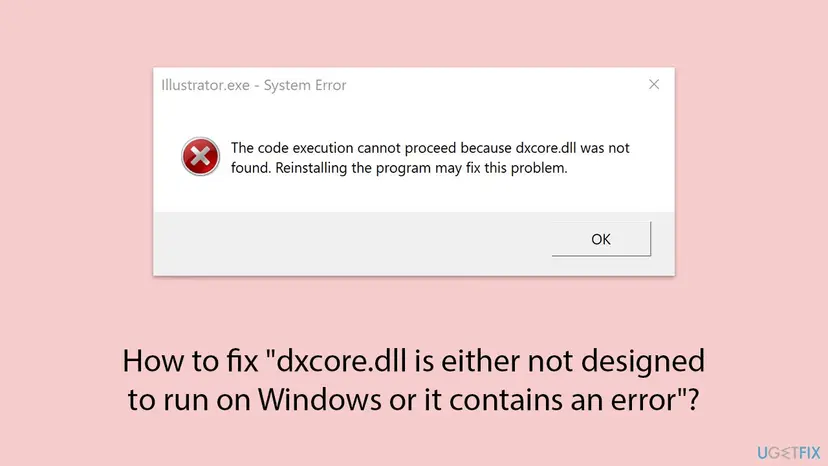
| What the window says | What it means | Start with |
|---|---|---|
"dxcore.dll is either not designed to run on Windows or it contains an error", path C:\Windows\system32 | Windows found the file but refused to load it: its content is damaged or not what the loader expects. The window title names the program that tried to load it. | Fix 3, then Fix 4 |
| "The code execution cannot proceed because dxcore.dll was not found" | The program needs dxcore.dll and Windows has none. Almost always a Windows 10 build older than 2004. | Fix 1, then Fix 2 |
| "Failed to continue code execution because the system did not detect dxcore.dll" | The same "not found" message in a different translation, as a Photoshop Beta user reported it. | Fix 1, then Fix 2 |
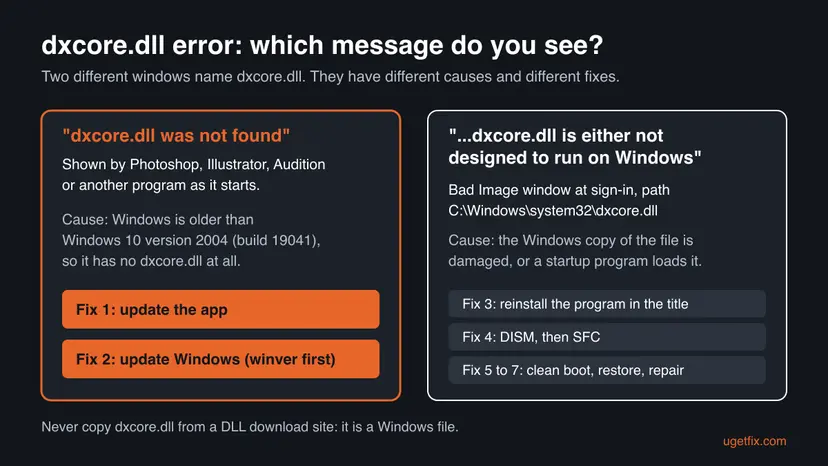
- The window title matters. Bad Image windows are titled "<program>.exe - Bad Image". One reader on Microsoft Q&A traced the dxcore.dll window to NVIDIA Web Helper, a part of older NVIDIA software. Write the title down.
- The status code. Bad Image windows can end with an Error status code. We could not confirm which code the dxcore.dll window shows. Our OneDrive Bad Image guide explains what each code means.
What causes the dxcore.dll error, from most to least common
Most often an app that newly depends on dxcore.dll runs on a Windows 10 build that is too old to have it. Less often the Windows copy of the file is damaged, or a startup program fails on it. Rarely Windows itself is broken past what SFC can repair.
| Cause | How often | How to tell | Fix |
|---|---|---|---|
| An app update added dxcore.dll as a dependency, and Windows is older than version 2004. | Most often | "was not found" from Photoshop, Illustrator or Audition right after an update. winver shows a build below 19041. | Fix 1, Fix 2 |
| A startup program, such as older NVIDIA software, fails while loading dxcore.dll. | Often | Bad Image window at every sign-in, with a program name in the title. | Fix 3, Fix 5 |
| The Windows copy of dxcore.dll is damaged. | Sometimes | Bad Image window, several programs affected, or SFC reports repairs. | Fix 4 |
| A driver or update changed system files shortly before. | Sometimes | The window started on a known day. | Fix 6 |
| Windows is damaged beyond SFC. | Rarely | SFC says it could not repair files, as one Microsoft Q&A reader reported. | Fix 7 |
- Why Photoshop broke "overnight". An Adobe community manager wrote that the dxcore.dll dependency "doesn't work on older operating systems that are outside Ps system requirements". The reported PC ran Windows 10 build 17763, a 2018 release, four years older than Photoshop's minimum.
- Why reinstalling the app did not help. Reinstalling Photoshop does not add a Windows file. Users in the Adobe thread reinstalled several times and ran the Creative Cloud Cleaner Tool without effect.
- Re-registering the DLL. The older version of this page suggested
regsvr32. Registering a DLL does not change its content and cannot create a missing Windows component, so that method is gone.
How to fix the dxcore.dll error in Windows
Fix 1 and Fix 2 are for the "dxcore.dll was not found" window from an app. Fix 3 to Fix 7 are for the Bad Image window that says dxcore.dll "is either not designed to run on Windows". Within each group, the first fix is the one that helps most readers.
| What you see or what your PC has | Start with |
|---|---|
| "dxcore.dll was not found" in Photoshop, Illustrator or Audition after an update | Fix 1 |
winver shows a Windows 10 build below 19041 (for example 17763) | Fix 2 |
| Bad Image window at sign-in with a program name in the title, such as NVIDIA Web Helper | Fix 3 |
Bad Image window naming C:\Windows\system32\dxcore.dll and no clear program | Fix 4, then Fix 5 |
| The window started right after a driver or Windows update | Fix 6 |
| SFC says it could not repair some files | Fix 7 |
Fix 1. Update Photoshop or the Adobe app that says dxcore.dll was not found
5 to 10 minutesNo riskPhotoshop, Illustrator, Audition or another app shows "dxcore.dll was not found" right after it updated.
Adobe introduced the dxcore.dll dependency in Photoshop 26.1 and then worked around it for older systems in a later build. Users in Adobe's bug thread reported that the following update let Photoshop start again.
- Close the app that shows the error.
- Open the Creative Cloud desktop app from the Start menu.
- Open the list of app updates and let Creative Cloud check for new ones.
- Install the update offered for the app that shows the error.
- Open the app again.
Adobe's staff suggested two stopgaps while the fix was on its way: the Photoshop (Beta) build, which got the workaround first, and Photoshop on the web, opened from the Creative Cloud app. Files from the web version open in desktop Photoshop later.
For other programs, update them from their maker or reinstall them in the usual way: Uninstall a program or app in Windows. Reinstalling alone does not help when Windows itself has no DXCore: check Fix 2.
It worked if: The app starts and shows its home screen without the dxcore.dll window.
If not: If the window stays after the update, check your Windows build with Fix 2.
Fix 2. Check your Windows build and update Windows 10 to 22H2
1 to 2 hoursLow riskThe "not found" window stays after Fix 1, or winver shows a build below 19041.
Microsoft lists Windows 10 version 2004 (build 19041) as the first version that supports DXCore. Adobe's product manager advised updating to Windows 10 22H2, which has dxcore.dll. No app update can add it to an older build.
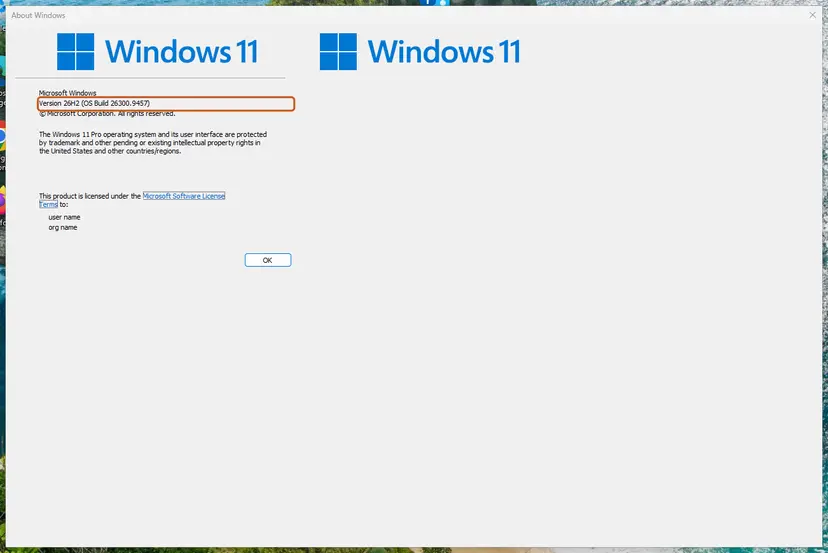
- Press Win + R, type
winverand press Enter. - Read OS Build. A number below 19041, such as 17763, is too old for DXCore.
- Back up your files first: Back up your files (Windows Backup, File History, Time Machine)
- Open Settings > Update & Security > Windows Update and select Check for updates.
- Install the feature update to Windows 10 version 22H2 if it is offered, and restart when asked.
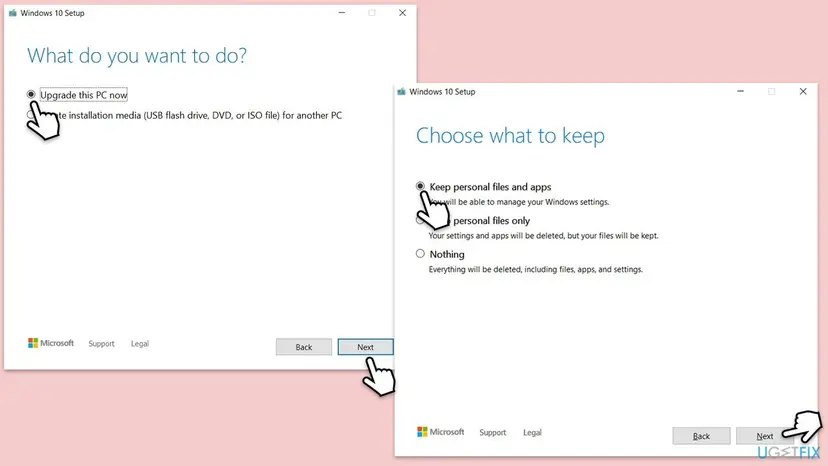
- If no feature update appears, use Microsoft's Windows 10 setup tool: choose Upgrade this PC now, then Keep personal files and apps.
- Run
winveragain and confirm a build of 19041 or higher, then open the app.
On a company PC, IT may hold Windows at an old build on purpose: ask them instead of upgrading yourself. Windows 10 left support on 14 October 2025, so if the PC qualifies, Windows 11 is the longer-term step.
It worked if: winver shows build 19041 or newer, and the app starts without the dxcore.dll window.
If not: If the build is already new and the window still says "not found", the Windows copy may be gone or damaged: run DISM and SFC with Fix 4.
Fix 3. Reinstall the program named in the Bad Image window title
15 to 30 minutesLow riskA Bad Image window naming dxcore.dll appears at every sign-in and its title names a program, for example NVIDIA Web Helper.
The Bad Image window comes from the program that tried to load dxcore.dll. A reader on Microsoft Q&A found the window came from NVIDIA Web Helper, and another suggested a clean reinstall of the NVIDIA driver and software.
- Note the name before - Bad Image in the window title, then select OK.
- Open Settings > Apps > Installed apps (Windows 11) or Settings > Apps > Apps & features (Windows 10).
- Uninstall that program. For NVIDIA Web Helper, uninstall NVIDIA GeForce Experience or the NVIDIA app.
- Restart the PC and check whether the window still appears.
- Install the current version of the program from its maker's own website.
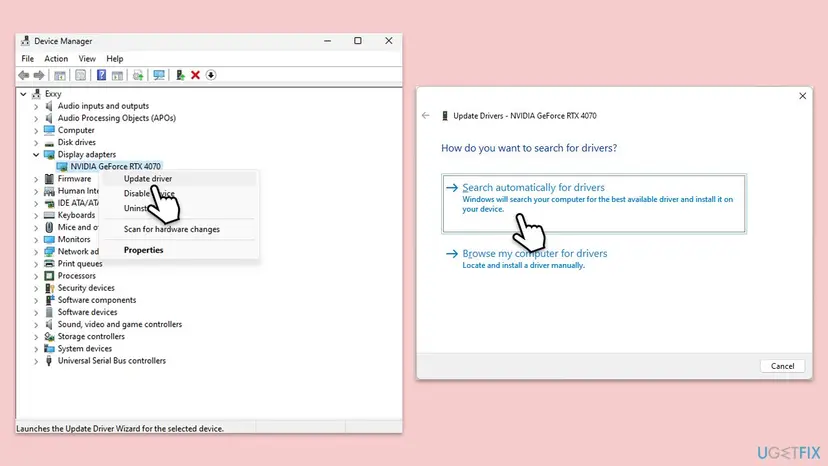
- For NVIDIA, also reinstall the graphics driver as shown below.
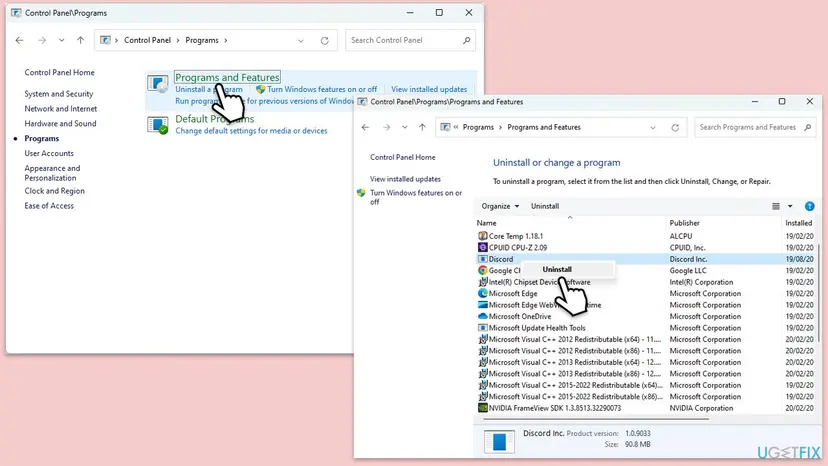
Reinstall the graphics driver from Device Manager or from the card maker: Update, roll back or reinstall a driver
It worked if: The next sign-in shows no Bad Image window, and the program works after its reinstall.
If not: If the window comes back with another title, or with the same one after a clean reinstall, the Windows file itself is suspect: go to Fix 4.
Fix 4. Repair Windows system files with DISM and SFC
20 to 30 minutesNo riskThe Bad Image window names C:\Windows\system32\dxcore.dll, or Fix 2 left a new build without the file.
dxcore.dll is a protected Windows file. DISM repairs the store Windows keeps its components in, and SFC then replaces a damaged dxcore.dll from that store with the right version for your build.
- Open an elevated command window. Right-click Start and select Terminal (Admin), or type cmd in the search box, right-click Command Prompt and select Run as administrator. Select Yes when Windows asks for permission.

Search for cmd and choose Run as administrator. Screenshot: Windows 11 26H2. - Run DISM first. Type the command below and press Enter. DISM downloads clean copies of damaged components from Windows Update, so it can take several minutes. Wait until it says The operation completed successfully.
DISM.exe /Online /Cleanup-Image /RestoreHealth
DISM /RestoreHealth running. Screenshot: Windows 11 26H2. - Run System File Checker. In the same window, type the command below and press Enter. Do not close the window until the verification reaches 100%.
sfc /scannow
sfc /scannow at 100%. Screenshot: Windows 11 26H2. - Read the result and restart. Compare the last message with the table below this guide, then restart the PC so that repaired files are loaded.

The result line tells you what SFC did. Screenshot: Windows 11 26H2.
These steps were written for Windows 11 24H2 and 25H2. The full page with the other versions and what each result means: Run DISM and SFC to repair Windows system files
Run DISM first, then SFC, then restart. SFC alone can fail if the component store is damaged too.
It worked if: SFC reports no integrity violations or that it repaired files, and the window is gone after a restart.
If not: If SFC says it could not repair some files, go to Fix 7. If it repaired files but the window stays, find the startup program with Fix 5.
Fix 5. Find the startup program that triggers the window with a clean boot
15 to 40 minutesLow riskThe Bad Image window appears at sign-in, but its title is unclear or reinstalling did not help.
A window at every sign-in means something that starts with Windows loads dxcore.dll. A clean boot starts Windows with Microsoft services only, so if the window is gone, one of the disabled items caused it.
- Open System Configuration. Select Search on the taskbar, type msconfig and select System Configuration from the results.
- Hide Microsoft services. On the Services tab, select the Hide all Microsoft services check box. Only services from other companies stay in the list.

With Hide all Microsoft services ticked, only third-party services stay in the list. Screenshot: Windows 11 26H2. - Disable the remaining services. Select Disable all, then select Apply.
- Open Task Manager. On the Startup tab of System Configuration, select Open Task Manager.

The Startup tab only links to Task Manager. Screenshot: Windows 11 26H2. - Disable the startup apps. On the Startup apps tab in Task Manager, select each item whose status is Enabled and select Disable. Write down or take a screenshot of the items you disable: you need the list to turn them back on.

Select an app, then Disable. Screenshot: Windows 11 26H2. - Confirm the changes. Close Task Manager. On the Startup tab of System Configuration, select OK.
- Restart and test. Restart the PC. Windows now starts in a clean boot environment: try again the thing that failed (run the app, install the update, uninstall the program).
These steps were written for Windows 11 25H2 and 26H2. The full page with the other versions and what each result means: How to perform a clean boot in Windows
- If the window is gone in the clean boot, turn on half of the disabled services and restart.
- Repeat with the half that brings the window back until one item remains.
- Update or uninstall that program, then turn the rest back on.
It worked if: No Bad Image window in the clean boot, and you find the one program that brings it back.
If not: If the window appears even in a clean boot, Windows itself loads the damaged file: try Fix 6 or Fix 7.
Fix 6. Undo a recent change with System Restore
20 to 40 minutesLow riskThe window started right after a driver, app or Windows update, and a restore point from before exists.
System Restore puts back system files, drivers and settings from a restore point. If an update left a bad dxcore.dll or a broken driver, the copy from the restore point predates it.
- Open System Restore. Press Windows+R, type the command below and press Enter. You can also open Control Panel > Recovery > Open System Restore. If a first page opens, select Next.
rstrui.exe - Choose a restore point. Select a restore point from a time before the problem started. The Description often names the event, such as a driver or app install. If the one you need is missing, select Show more restore points (shown only when there are more).
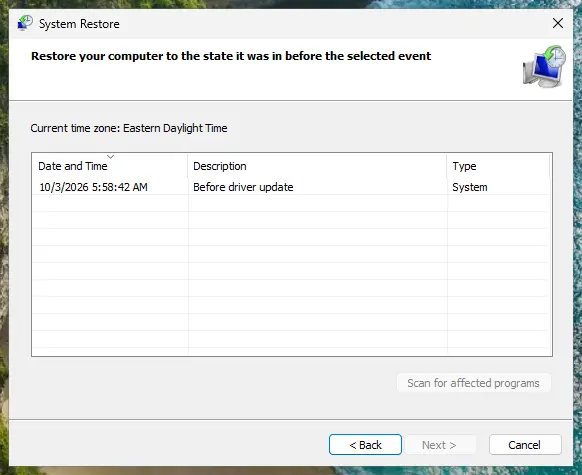
Pick a restore point from before the problem started. Screenshot: Windows 11 26H2. - See what will change. Select Scan for affected programs. The upper list shows programs and drivers that will be removed; the lower list shows those that might come back and may need to be reinstalled. Select Close.
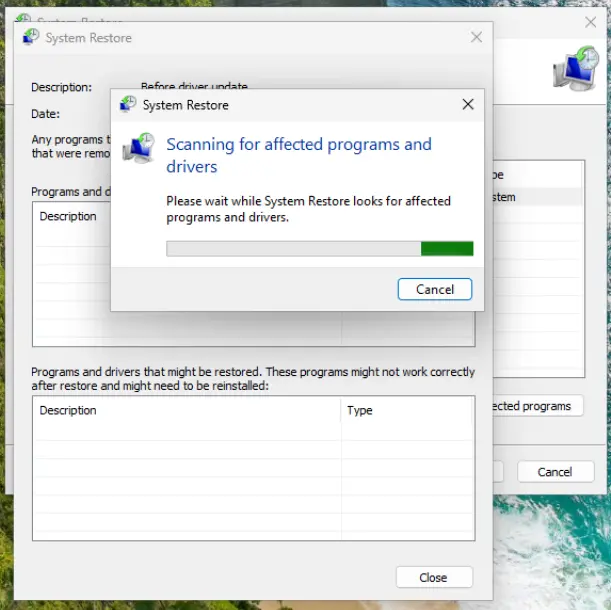
The scan lists programs and drivers the restore removes or brings back. Screenshot: Windows 11 26H2. - Start the restore. Select Next, check the summary and select Finish. Windows restarts and applies the restore point. Do not turn the PC off.
- Check the result. After sign-in Windows reports whether the restore succeeded. Check whether the problem is gone.
These steps were written for Windows 11 and Windows 10 (the steps are the same). The full page with the other versions and what each result means: Undo recent changes with System Restore
Your documents and photos stay. Programs and drivers installed after the restore point are removed, so note them first with Scan for affected programs.
It worked if: Windows reports that the restore completed, and the next sign-in has no Bad Image window.
If not: If there is no restore point, or the window returns, repair Windows in place with Fix 7.
Fix 7. Reinstall Windows and keep your files and apps
1 to 2 hoursRead the warningSFC cannot repair files, or the window survives every fix above.
A repair install replaces every Windows file, dxcore.dll included, with a fresh copy of your version. One reader on Microsoft Q&A said SFC could not proceed on this error; this is the step after that.
A repair install keeps files and apps when you choose to keep them, but a power cut or a wrong choice can cost data. Copy your documents to an external drive or the cloud first: Back up your files (Windows Backup, File History, Time Machine)
- Open Recovery in Settings. Open Settings > System > Recovery. Next to Fix problems using Windows Update, select Reinstall now. This keeps your apps, files and settings.

Fix problems using Windows Update reinstalls the current version and keeps apps, files and settings. Screenshot: Windows 11 26H2. - Start the reinstall. Choose whether the PC may restart on its own 15 minutes after the installation, then select OK.
- Wait and restart. Windows Update downloads and installs a repair copy of your current Windows version. Keep the PC plugged in and online, and restart it when asked.
- If that did not help: Reset PC. Back in Settings > System > Recovery, next to Reset this PC, select Reset PC. This keeps your personal files but removes installed apps and settings.
- Choose Keep my files. Select Keep my files. Do not select Remove everything.
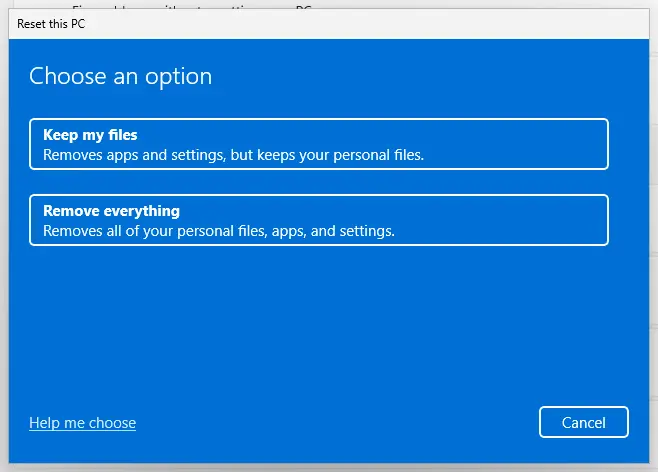
Keep my files removes apps and settings but keeps personal files. Screenshot: Windows 11 26H2. - Choose where Windows comes from. Select Cloud download to download a fresh copy of Windows, or Local reinstall to use the files already on the PC (faster, but may not include the latest updates).
- Reset. Review the summary and select Reset. The PC restarts several times.
These steps were written for Windows 11 22H2 and later. The full page with the other versions and what each result means: Reinstall Windows without losing files
It worked if: Windows starts after several restarts, your files and apps are still there, and no Bad Image window shows.
If not: If the window comes back even after a repair install, collect the details in "If the dxcore.dll error is still there" below.
If the dxcore.dll error is still there
Stop changing things and collect what support needs. Three facts decide the next step: the exact window text, the program in the title and your Windows build.
- Photograph the window with the title, the path and any Error status code visible.
- Run
winverand note the version and OS build. - Open
C:\Windows\Logs\CBS\CBS.logafter SFC and look for lines that mentiondxcore.dll: they say whether SFC replaced the file or could not. - For an Adobe app, open a post in the app's bug forum with the build. For Windows, ask on Microsoft Q&A with the photo and the CBS lines.
- Black screen after the window. The Microsoft Q&A reader saw only a black screen after selecting OK. Sign in with Start Windows or a Mac in Safe Mode and run Fix 4 or Fix 6 from there.
- When it is hardware. If other programs also show Bad Image or files break again after a repair, check the disk with Check a disk for errors (chkdsk) and the memory with How to test your RAM with Windows Memory Diagnostic.
How to keep the dxcore.dll error from coming back
- Keep Windows on a supported version. New Photoshop and other DirectX 12 apps assume a current Windows. Check the app's system requirements before a big update on an old PC.
- Update the app and Windows together. The Adobe case came from an app that moved ahead of an old Windows build.
- Never replace system files by hand. A DLL from a download site is the shortest road to the next Bad Image window.
- Keep restore points on. They make Fix 6 possible after a bad driver or update.
- Shut down properly. A power cut during an update is one way system files get damaged.
If you run Windows 10, plan the move to Windows 11 or an extended security option: Windows 10 left support on 14 October 2025 and no longer gets regular fixes.
Frequently asked questions
What is dxcore.dll?
dxcore.dll is a Windows system file in C:\Windows\System32. It is the library behind DXCore, which Microsoft describes as an adapter enumeration API for graphics and compute devices, used by Direct3D 12. Programs call it to list the graphics cards and compute chips in the PC before they use them. It ships with Windows 10 version 2004 and newer and with Windows 11. It is not part of Photoshop, NVIDIA software or any other app, even when their error windows name it.
Is it safe to download dxcore.dll from a DLL website?
No. dxcore.dll is a Windows file, so the right copy depends on your exact Windows build and comes only from Windows itself. A single file from a download site can be the wrong version, unsigned or infected. On a Windows build older than 2004 a downloaded file cannot work, because the rest of DXCore is missing. Update Windows (Fix 2) or repair it with DISM and SFC (Fix 4) instead.
Where can I get dxcore.dll for Windows 10?
From a Windows update, not from a download. Microsoft lists Windows 10 version 2004 (build 19041) as the first version with DXCore. If winver shows an older build, install the feature update to Windows 10 22H2, as Adobe's staff advised Photoshop users. If your build is already 19041 or newer and the file is missing or damaged, DISM and SFC restore it from Windows' own component store. Windows 10 left support on 14 October 2025.
Why does Photoshop say dxcore.dll was not found?
Photoshop 26.1, released in late 2024, started to depend on dxcore.dll. Adobe's community manager explained that this dependency does not work on older Windows versions outside Photoshop's system requirements, and the reported PC ran a 2018 build of Windows 10. Adobe added a workaround to the Beta first, and users reported a later regular update fixed it. Update Photoshop from Creative Cloud (Fix 1). If it persists, check your Windows build and update Windows (Fix 2).
Will reinstalling Photoshop fix the dxcore.dll error?
Usually not. Reinstalling Photoshop puts back Photoshop's own files, but dxcore.dll belongs to Windows, so a reinstall cannot add it. Users in Adobe's bug thread reinstalled several times and even ran the Creative Cloud Cleaner Tool without result. What helps is a Photoshop update that works around the dependency, or a Windows version that has the file. While you wait, Adobe suggested the Photoshop Beta or Photoshop on the web.
Why does the dxcore.dll window appear every time Windows starts?
A window at every sign-in means a program that starts with Windows tries to load dxcore.dll and fails. The title of the window names it. One reader on Microsoft Q&A found it was NVIDIA Web Helper, part of older NVIDIA software. Reinstall that program (Fix 3). If the title is unclear, a clean boot (Fix 5) finds the startup item. If even a clean boot shows the window, repair Windows files with Fix 4.
Does regsvr32 fix dxcore.dll?
No. Some pages, including the old version of this one, suggest regsvr32 /u and regsvr32 for dxcore.dll. Registering a DLL only adds entries for programs that look it up by name in the registry. It does not change a damaged file and cannot create a missing Windows component. For a damaged copy, run DISM and SFC. For a missing one on an old Windows build, update Windows.
Is the dxcore.dll error a virus?
The message itself is not a sign of infection. It appears when a file is missing or cannot be loaded. Malware can damage system files, though, so if the window names a dxcore.dll outside C:\Windows\System32, or other files break too, scan the PC with Microsoft Defender: How to scan for malware with Microsoft Defender. A dxcore.dll in Downloads, Temp or an app folder that you did not put there is worth scanning.
How do I fix this dxcore.dll error if nothing on my screen works?
If the Bad Image window is followed by a black screen, start Windows in Safe Mode, which loads only basic drivers and no startup programs. From there, run DISM and SFC (Fix 4) or System Restore (Fix 6). If Windows does not start at all, the recovery screen that appears after failed starts also offers System Restore and Startup Repair. Keep the photo of the window for support.
Sources
- Microsoft Learn: DXCore (what it is, minimum Windows 10 version 2004, build 19041, dxcore.dll) (learn.microsoft.com)
- Adobe Community: Photoshop Beta and v26.1 on Windows, Launch Error: dxcore.dll (staff answers on old Windows builds and the fix) (community.adobe.com)
- Microsoft Q&A: having trouble with dxcore.dll error (the Bad Image window at startup, user reports) (learn.microsoft.com)
Did this fix work?
One click, no account. It tells the next reader which guides are worth their time.
Questions and experiences: fix "dxcore.dll is either not designed to run on Windows or it contains an error"
Still broken, or found a fix we did not cover? Ask here: members and our editors answer. Reading is open; writing needs a free account.
…