
How to fix Epic Games error code LS-0013 in Windows?

Prefer to fix it yourself? The manual steps follow.
- 9methods
- 5 minutes for Fixes 1 and 2, up to an hour if you reinstall the game
- Easy
Applies to Epic Games Launcher on Windows 11 and Windows 10, with any game from the Epic Games Store, including Fortnite, Rocket League and GTA V
9 methods in this guide
- What the error means
- Causes, ranked
- The fixes
- 1. Verify the game files
- 2. Clear the launcher cache
- 3. Two launchers, same rights
- 4. Remove old admin ticks
- 5. Antivirus exception
- 6. Clean boot test
- 7. Windows and Visual C++
- 8. DNS and router filters
- 9. Reinstall game, launcher
- Still broken: get help
- Prevent it
- FAQ
I'm encountering error code LS-0013 when trying to launch games through the Epic Games Launcher. It keeps saying the game is running, but nothing opens. I've tried restarting, but it doesn't help. How do I fix this?
LS-0013 is the Epic Games Launcher's code for "Game is unable to launch": the launcher tried to start the game and the game never came up. Epic's own first step is to verify the game files. Before that, end any half-started copy of the game that is still running in the background.
LS-0013 means the Epic Games Launcher could not start the game. Close any leftover game process in Task Manager, then open Library, select the three dots next to the game, choose Manage and Verify (Fix 1). If it stays, exit the launcher and delete the webcache folders in %localappdata%\EpicGamesLauncher\Saved (Fix 2). GTA V and Ubisoft games also need their own launcher started as administrator (Fix 3).
| Error | Launch Failed, "Could not launch Fortnite. Please verify the installation." with Error Code: LS-0013. Epic's article calls it "LS-0013: Game is unable to launch". |
|---|---|
| Where it appears | In the Epic Games Launcher, a few seconds after you select Launch on a game in your Library. Often the button shows the game as running while no window opens. |
| Main cause | Damaged or missing game files, which Epic names first. Then a broken launcher cache, a mismatch in administrator rights, and security software or background apps that stop the game's start. |
| Fastest fix | End leftover game processes, then Library > three dots > Manage > Verify (Fix 1). |
| Also written as | LS-0013, LS 0013, ls0013, "LS-0013: Game is unable to launch", Launch Failed LS-0013, epic games error code ls-0013. |
| Affects | Any game started from the Epic Games Launcher on Windows 11 and Windows 10, and on Mac. Windows 10 left Microsoft support on 14 October 2025. |
| Epic's status | A known launch error with its own support article and 13 steps, not a single bug with a patch. For Pathfinder: Kingmaker, Epic says to reinstall the Royal Ascension DLC. |
| Is it your account? | No. Your account and licence are fine: the game is in your library and the launcher is trying to start it. |
| Time to fix | Minutes for a file check or a cache clear. A full reinstall takes as long as the game's download. |
Facts checked on 15 October 2026. Steps written for the Epic Games Launcher on Windows 11 (25H2 and 26H2) and Windows 10 22H2, read against Epic Games Store Support's LS-0013, launcher cache and verify articles.
What Epic Games error LS-0013 means: "Game is unable to launch"
LS stands for a launch error. The launcher handed the start over to the game's own program, and the game either did not start or closed before its window appeared. The message usually reads Launch Failed, names the game, asks you to verify the installation and shows Error Code: LS-0013. Epic Games Store Support files it under Error messages as "LS-0013: Game is unable to launch".
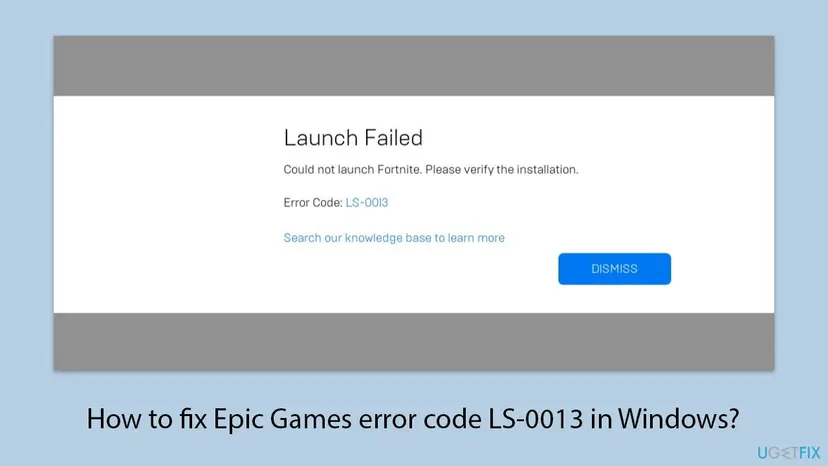
- Every spelling is the same error.
LS-0013,LS 0013,ls0013and "ls-0013 game is unable to launch" all point to this one code. - "The game is running" with nothing on screen is the most common report. A previous start left the game's process alive in the background, so the launcher thinks the game is open. Fix 1 clears that first.
- It is not a sign-in or purchase error. Those come with other codes before the game ever reaches your library.
- Unreal Engine users see it too. Threads on the Unreal Engine forums report LS-0013 when the Unreal Editor is started from the launcher. Epic's article covers games only, so this page does as well.
What causes LS-0013, from most to least likely
Epic publishes no numbers on how often each cause appears. The order below follows the order of Epic's own article, which starts with the files and the cache, and the way readers of the old version of this page described the error.
| Cause | How to tell | Fix |
|---|---|---|
| Damaged or missing game files. Epic: "Corrupted or missing files can cause this error." | The message asks you to verify the installation, often after an update or a stopped download. | Fix 1 |
| A game process left running. | The launcher shows the game as running, but no window opens. | Fix 1 |
| A broken launcher cache. Epic: "A corrupted cache may prevent games from launching." | Several games fail, or store pages in the launcher look wrong. | Fix 2 |
| A second launcher without the same rights. Games that start through Rockstar Games Launcher or Ubisoft Connect. | GTA V or a Ubisoft game fails while other Epic games start. | Fix 3 |
| Old administrator or compatibility ticks on the game or the launcher. | You once set Run this program as an administrator or compatibility mode on an .exe. | Fix 4 |
| Antivirus, firewall or background apps blocking the start. | A security warning at launch, or overlays and tuning tools in the tray. | Fixes 5 and 6 |
| Outdated Windows or runtimes, DNS or router filters, a broken install. | Nothing above helped. | Fixes 7 to 9 |
Many guides tell you to turn the antivirus off and to run everything in compatibility mode for an older Windows. Epic does neither: it asks you to add the game as an exception in your antivirus and firewall, and it even lists unticking Run this program as an administrator as a step. Compatibility mode is not in Epic's list at all.
How to fix Epic Games error code LS-0013
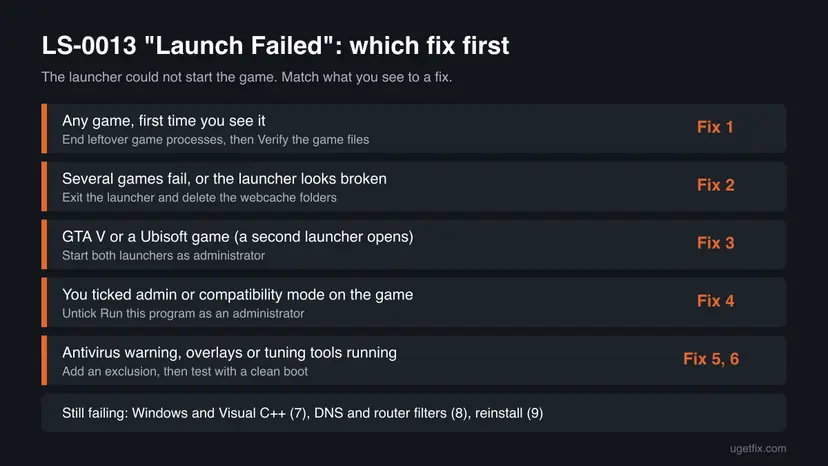
Start with Fix 1 and test the game after each fix. Fixes 1 and 2 are Epic's own first two steps and take minutes. Fix 3 is only for games that open a second launcher.
| What you see | Start with |
|---|---|
| The launcher says the game is running, but nothing opens. | Fix 1 |
| One game fails after an update or a stopped download. | Fix 1 |
| Several games fail, or the launcher's pages look broken. | Fix 2 |
| GTA V, or a game that opens Ubisoft Connect first. | Fix 3 |
| You set administrator or compatibility mode on the game before. | Fix 4 |
| Your antivirus showed a warning when you pressed Launch. | Fix 5 |
| Overlays, recording or tuning tools run in the background. | Fix 6 |
Fix 1. End the stuck game process, then verify the game files
5 to 15 minutesNo riskEveryone, first. Especially when the launcher says the game is running and nothing opens.
Epic's article starts here: corrupted or missing files can cause LS-0013. Verify compares the files on your PC with Epic's copy and repairs those that differ. A leftover process from the failed start keeps files locked, so it goes first.
First close what is left of the last attempt. Press Ctrl + Shift + Esc, look under Processes for the game's name (for Fortnite, entries starting with FortniteClient) and end it. Step by step: Close a frozen app (Task Manager, Force Quit).
- Open the Epic Games Launcher and select Library.
- Find the game and select the three dots on the right of it.
- Select Manage.
- Select Verify next to Verify Files.
- Wait until the check finishes. Epic says it may take a while, and your saved data is not affected.
- Select Launch again.
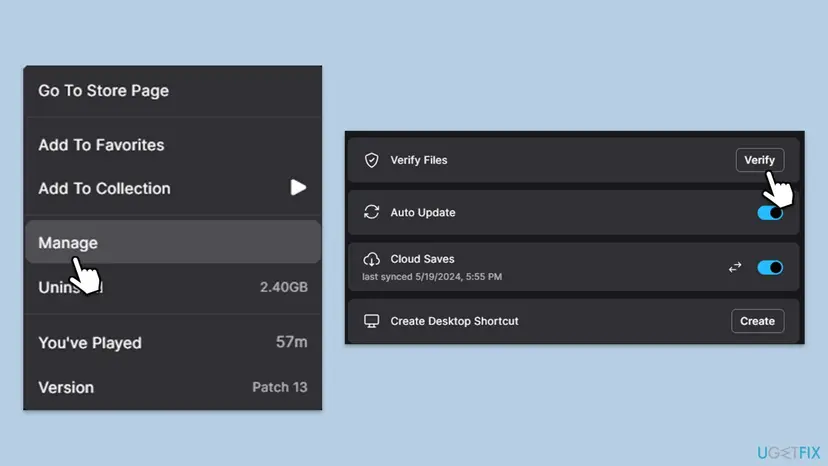
In the Epic Games Launcher Early Preview the path is Library, the game, the three dots next to Play, then Manage and Verify. Epic notes that Verify works only for games that have Epic Games as their source.
It worked if: The launcher shows the check finishing, may download a few files, and the game starts on the next Launch.
If not: If LS-0013 comes back right away, clear the launcher cache with Fix 2.
Fix 2. Clear the Epic Games Launcher cache
3 minutesNo riskVerify found nothing, several games fail, or the launcher's pages load wrongly.
Epic's second step: a corrupted cache may prevent games from launching. The webcache folders hold the launcher's stored pages and data. Deleting them makes the launcher build them fresh, and your games and sign-in stay.
- In the lower right corner of the taskbar, select the arrow pointing up.
- Right-click the Epic Games icon and select Exit.
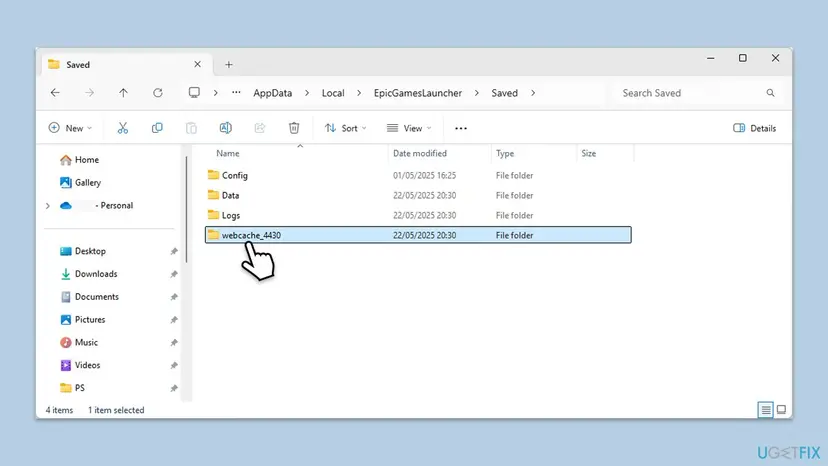
- Press Win + R, type
%localappdata%and press Enter. - Open the EpicGamesLauncher folder, then the Saved folder.
- Delete the folders
webcache,webcache_4147andwebcache_4430, whichever of them are there. - Start the Epic Games Launcher and launch the game.
There is no folder to delete. Select the Epic Games logo in the top left corner, then Settings, About, and under Cached data select Clear and restart.
It worked if: The launcher takes a little longer to open the first time, then the game starts.
If not: If the game opens a second launcher, go to Fix 3. Otherwise go to Fix 4.
Fix 3. GTA V and Ubisoft games: start both launchers as administrator
3 minutesLow riskThe game starts through another launcher, such as Rockstar Games Launcher for GTA V or Ubisoft Connect.
Such a game is started by two programs in a row. Epic's step 7 is to run both the third-party launcher and the Epic Games Launcher as administrator, so neither is blocked from handing the start to the other.
- Exit the Epic Games Launcher and the other launcher from the taskbar's notification area.
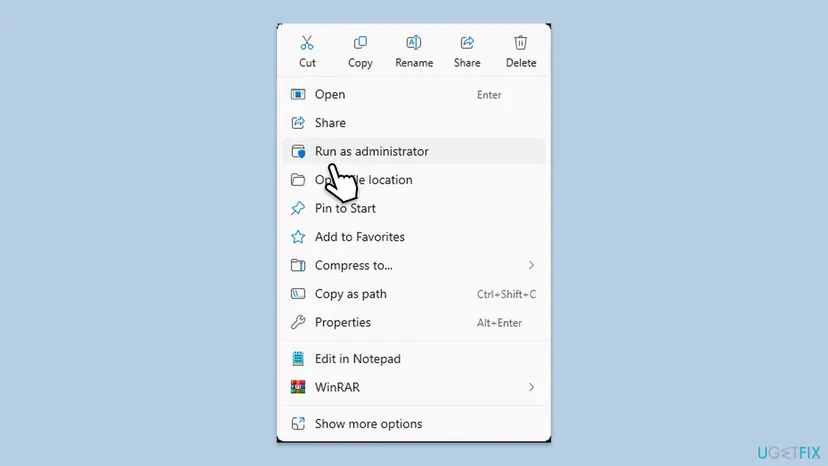
- Right-click the third-party launcher, for example Rockstar Games Launcher, and select Run as administrator, then Yes.
- Right-click the Epic Games Launcher shortcut and select Run as administrator, then Yes.
- In the Epic Games Launcher, open Library and launch the game.
It worked if: The second launcher opens, signs in and passes the start on to the game.
If not: If it still fails, verify the files inside the other launcher as well, then go to Fix 5.
Fix 4. Remove old administrator and compatibility ticks from the game and the launcher
5 minutesLow riskThe game is not a two-launcher game, or you once set compatibility mode or Run this program as an administrator on an .exe.
When the launcher runs with normal rights and the game is set to always run as administrator, or the other way round, the start can fail. That is why Epic lists running the launcher as administrator once, and also unticking the permanent setting.
First try a one-time start: right-click the Epic Games Launcher and select Run as administrator. If the game then starts, you are done. If not, remove the permanent ticks below.
- Open File Explorer and go to
C:\Program Files\Epic Games\Launcher\Portal\Binaries\Win32. - Right-click
EpicGamesLauncher.exe, select Properties and open the Compatibility tab. - Untick Run this program as an administrator. Untick Run this program in compatibility mode for as well, if it is ticked.
- Select Apply, then OK.
- Repeat for the game's
.exein its folder underC:\Program Files\Epic Games. For Fortnite that isFortniteGame\Binaries\Win64, withFortniteClient-Win64-Shipping.exe,FortniteClient-Win64-Shipping_BE.exe,FortniteClient-Win64-Shipping_EAC.exeandFortniteLauncher.exe. - Start the launcher normally and launch the game.
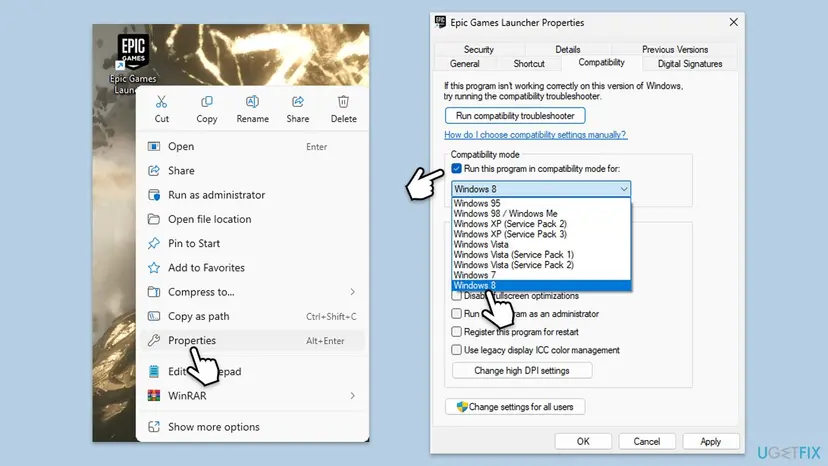
More about these two settings: How to run a program as administrator or in compatibility mode.
It worked if: The game starts from a normally opened launcher.
If not: If your antivirus showed anything at launch, go to Fix 5. Otherwise Fix 6.
Fix 5. Add the game as an exception in your antivirus and firewall
5 minutesLow riskYour security program showed a warning, moved a file to quarantine, or you use a third-party antivirus.
Epic's step 6: depending on how it is set up, a firewall or antivirus can block the game. An exception for the game's folder lets it start while protection stays on for everything else.
- Open your security program's quarantine or protection history and check whether a file of the game was blocked. Restore it only if it came from the game's folder.
- In Windows Security, open Virus & threat protection and select Manage settings under the settings heading.
- Scroll to Exclusions and select Add or remove exclusions, then Yes.
- Select Add an exclusion, then Folder, and choose the game's folder under
C:\Program Files\Epic Games. - For a third-party antivirus or firewall, use its own exception setting. Epic points to the maker's website for the steps.
- Verify the game files again (Fix 1) and launch the game.
Add an exception for the game's own folder only, never for a whole drive or for downloads. If you want a quick test with protection paused, follow Turn off Microsoft Defender protection for a moment and turn it back on right after the test.
It worked if: No new warning appears and the game opens.
If not: If nothing was blocked, test without background apps in Fix 6.
Fix 6. Start Windows without background apps (clean boot)
15 minutesLow riskOverlays, screen recorders, RGB or tuning tools, or a second game launcher run in the background.
Epic's step 5: background programs can interfere with game launches. A clean boot starts Windows with only Microsoft services. If the game starts then, one of the switched off programs is the cause.
- Open System Configuration. Select Search on the taskbar, type msconfig and select System Configuration from the results.
- Hide Microsoft services. On the Services tab, select the Hide all Microsoft services check box. Only services from other companies stay in the list.

With Hide all Microsoft services ticked, only third-party services stay in the list. Screenshot: Windows 11 26H2. - Disable the remaining services. Select Disable all, then select Apply.
- Open Task Manager. On the Startup tab of System Configuration, select Open Task Manager.

The Startup tab only links to Task Manager. Screenshot: Windows 11 26H2. - Disable the startup apps. On the Startup apps tab in Task Manager, select each item whose status is Enabled and select Disable. Write down or take a screenshot of the items you disable: you need the list to turn them back on.

Select an app, then Disable. Screenshot: Windows 11 26H2. - Confirm the changes. Close Task Manager. On the Startup tab of System Configuration, select OK.
- Restart and test. Restart the PC. Windows now starts in a clean boot environment: try again the thing that failed (run the app, install the update, uninstall the program).
These steps were written for Windows 11 25H2 and 26H2. The full page with the other versions and what each result means: How to perform a clean boot in Windows
Do not tick Safe boot on the Boot tab of System Configuration for this test. The old version of this page did, which starts Windows with almost no drivers. Use only the Services and Startup steps above, then turn the items back on one at a time to find the one that blocks the game.
It worked if: After the restart the game starts. Turning items back on in groups shows which one breaks it.
If not: If LS-0013 also appears in a clean boot, undo the clean boot and go to Fix 7.
Fix 7. Update Windows and repair Visual C++
20 minutesLow riskWindows has updates waiting, or the game also shows a missing .dll or runtime message.
Epic's step 3 is to update the operating system. Games also need the Microsoft Visual C++ runtimes; this is not in Epic's LS-0013 list, but a damaged runtime stops a game before its window opens in the same way.
- Press Win + I and open Windows Update (Windows 11) or Update & Security > Windows Update (Windows 10).
- Select Check for updates, install what is offered and restart.
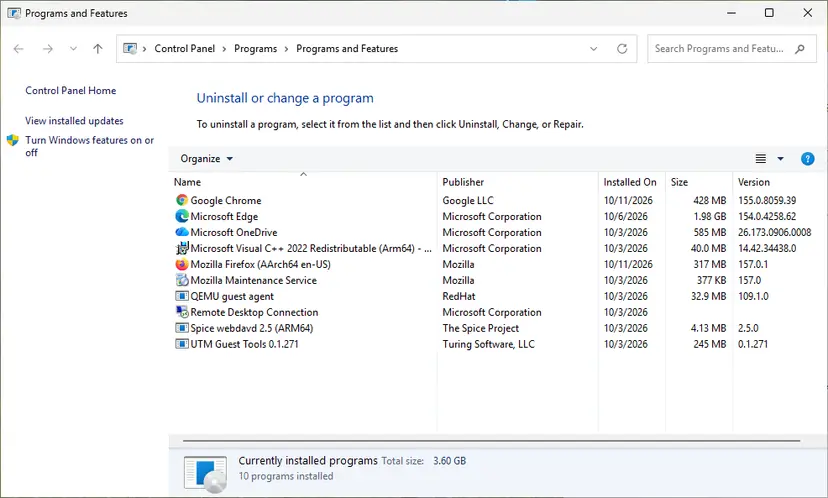
- Repair or reinstall the Visual C++ Redistributables as described in How to repair Microsoft Visual C++ Redistributable and .NET Framework.
- Restart the PC and launch the game.
It worked if: Windows reports it is up to date and the game starts.
If not: If the game starts but online games then fail, or nothing changed, go to Fix 8.
Fix 8. Flush DNS and check parental controls on the router
5 minutesLow riskThe launcher also struggles with downloads or store pages, or your router or provider has parental controls or block lists.
Epic's steps 10 and 13: flushing DNS removes old address entries, and parental controls or block lists on the Wi-Fi router can block Epic Games servers that a game checks at start.
- Right-click Start and select Terminal (Admin) or Command Prompt (Admin), then Yes.
- Run
ipconfig /flushdns. - Close the window and restart the launcher.
- If you use parental controls, a block list or a filtering service on the router, pause it for one test, as Epic suggests, and turn it back on afterwards.
If other online apps fail too, reset the whole network stack: Reset the network and flush DNS.
It worked if: The launcher loads normally and the game starts.
If not: If LS-0013 stays, reinstall the game with Fix 9.
Fix 9. Reinstall the game by hand, then the launcher if needed
30 minutes or more, depending on the downloadRead the warningEvery fix above failed, or Verify itself stops with an error.
Epic's steps 11 and 12. Deleting the game's folder removes everything Verify could not repair, including files that do not belong to the game. Reinstalling the launcher replaces its own files.
Many Epic games keep saves in the cloud, shown as Cloud Saves in Manage. Some keep them in your Documents or %localappdata% folder instead. If a game has no cloud saves, copy its save folder first, as in Back up your files (Windows Backup, File History, Time Machine). The whole download has to be repeated.
- Exit the Epic Games Launcher from the notification area.
- Open
C:\Program Files\Epic Gamesin File Explorer. - Delete the folder of the affected game.
- Open the launcher, find the game in Library and install it again. Epic suggests another drive, such as D:, as an option.
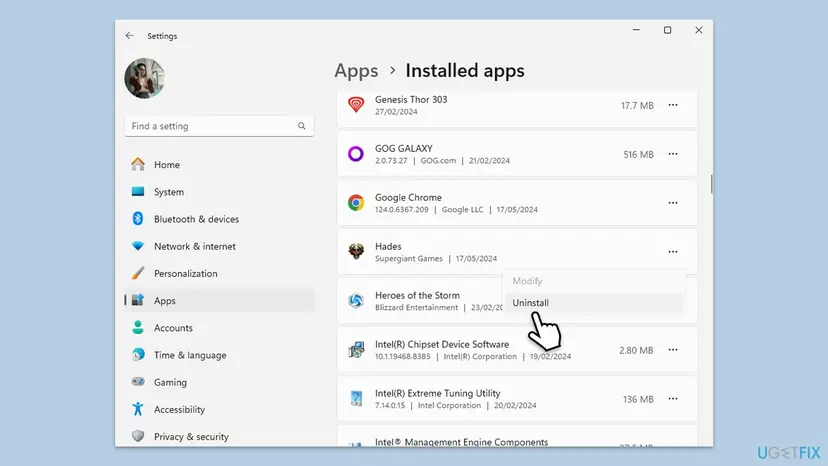
- If the launcher itself misbehaves, uninstall Epic Games Launcher in Settings > Apps > Installed apps and install it again from the Epic Games website.
It worked if: After the new download the game starts on the first Launch.
If not: If a fresh install also fails, collect the details in the next section and contact Epic Support.
If LS-0013 is still there: the logs to read and what to send Epic Support
At this point the game is installed cleanly and still does not start, so the reason is in the game's or the launcher's own logs. The launcher keeps a Logs folder next to the cache, in %localappdata%\EpicGamesLauncher\Saved, which you saw in Fix 2. Epic's LS-0013 article does not describe the logs, so send them only if Support asks.
- Take a screenshot of the message with the code and the game's name.
- Write down the game, its version, and what you tried from this page.
- Check that the version is still playable. Epic says alpha, beta or press versions may no longer be supported; ask the game's developer if unsure.
- Open the LS-0013 article on the Epic Games help site and select Contact us or the Epic Support Assistant.
- Attach the screenshot and, if asked, the files from the Logs folder.
- When it is the game: the error only appears in one title on two PCs. Then the game's developer can help more than Epic.
- When it is the PC: every game fails, even after a clean boot and a reinstall. Look for a crash of the game in Event Viewer under Windows Logs > Application.
- When it is hardware: LS-0013 itself is not a hardware error. Sudden restarts, blue screens or crashes in other games point to the PC, not to the launcher.
How to avoid LS-0013 next time
- Let updates finish. Do not close the launcher or shut down the PC while a game update is downloading.
- Exit the launcher from the tray instead of closing its window, so no half-closed game process stays behind.
- Leave the compatibility settings alone. Neither the launcher nor the game needs a permanent administrator or compatibility tick.
- Keep exceptions narrow. Add the game's folder to your antivirus, not the whole drive.
- Keep Windows updated. Windows 10 no longer gets security updates since 14 October 2025.
Another Epic Games Store message with its own codes is covered in Product Activation Failed in the Epic Store.
Frequently asked questions
What does error code LS-0013 mean on Epic Games?
It means the game is unable to launch. The Epic Games Launcher tried to start the game, and the game did not start or closed before its window appeared. Epic Games Store Support lists it as "LS-0013: Game is unable to launch" and starts its fixes with verifying the game files. The message on screen usually says Launch Failed, names the game and asks you to verify the installation. It is not an account or purchase problem: the game is in your library.
How do I fix LS-0013 in Fortnite?
End any FortniteClient process in Task Manager, then verify Fortnite in the launcher: Library, the three dots, Manage, Verify. If that does not help, clear the launcher cache. Epic also lists four Fortnite files in C:\Program Files\Epic Games\Fortnite\FortniteGame\Binaries\Win64 whose Run this program as an administrator tick should be off. Uncheck it on each of them in the Compatibility tab, as in Fix 4, and launch Fortnite again.
Why does the launcher say the game is running when nothing opens?
Because a process from the last start is still alive in the background. The launcher sees it and treats the game as open, so pressing Launch again does nothing or ends in LS-0013. Open Task Manager with Ctrl + Shift + Esc, find the game's process under Processes and select End task. If the game uses another launcher, close that one too. Then verify the game files and start it once more.
How do I fix LS-0013 for GTA V on Epic Games?
GTA V starts through Rockstar Games Launcher, so two launchers must work together. Epic's article says to run the third-party launcher as administrator first, then the Epic Games Launcher, and start the game from the Epic Library. Before that, verify GTA V in the Epic launcher. If it still fails, check that Rockstar Games Launcher is up to date and that your antivirus did not block one of its files.
Does LS-0013 happen in Rocket League?
Yes, it can happen in any game started from the Epic Games Launcher, including Rocket League. Rocket League is published by Epic and does not use a second launcher, so Fix 3 does not apply. Verify the files, clear the launcher cache, then check the administrator and compatibility ticks on the game's .exe and the launcher. If your antivirus reported something, add the game's folder as an exception.
Should I run the Epic Games Launcher as administrator or not?
Once, as a test, yes. Epic lists running the launcher as administrator as step 4, and for games with a second launcher both should run that way. As a permanent setting, no: Epic's step 9 is to untick Run this program as an administrator on the launcher and the game. A permanent tick on one program and not the other is a common reason a start fails. Use the right-click menu for one start.
Will verifying or clearing the cache delete my saves?
No. Epic says verifying the game files does not affect your saved data, and the cache folders only hold the launcher's stored pages and data. Your installed games and your sign-in stay. Only a manual reinstall, where you delete the game's folder, can remove local saves of a game without cloud saves. Check the Cloud Saves line in Manage, or copy the save folder first.
I see LS-0013 when I open Unreal Engine. Is it the same error?
It is the same code from the same launcher, but this page is written for games. Epic's LS-0013 article covers games, and we could not confirm an Epic article for the Unreal Editor. Threads on the Unreal Engine forums report it after engine updates. The general steps here, clearing the launcher cache, removing permanent administrator ticks and checking the antivirus, also apply there.
The error is in another language. Is it the same?
Yes. The launcher shows the message in the language of your account or system, and people search for it in Portuguese and Spanish too. The code LS-0013 is the same in every language, and so are the fixes. This page answers the code, so use the chooser table above whatever language your launcher shows.
Sources
Did this fix work?
One click, no account. It tells the next reader which guides are worth their time.
Questions and experiences: fix Epic Games error code LS-0013 in Windows
Still broken, or found a fix we did not cover? Ask here: members and our editors answer. Reading is open; writing needs a free account.
…