
How to fix "Error 1067: The process terminated unexpectedly" in Windows?

Prefer to fix it yourself? The manual steps follow.
- 7methods
- 5 minutes to find the reason, 5 to 30 minutes to fix it
- Intermediate
Applies to Windows 11, Windows 10, Windows Server
7 methods in this guide
Hi. Whenever I attempt to enable the Application Server service, I keep receiving "Error 1067: The process terminated unexpectedly." How do I get past this error?
Error 1067 means Windows started a service's program, and the program quit before it reported that it was running. Windows only sees that it stopped, so the real reason is in the program's own log or in Event Viewer. Read that first, then fix what it names: folder permissions, a bad setting or damaged files.
Error 1067 is not the cause, it only says the service's program quit. Open the service's Properties, note the Path to executable, and read that program's own log and the Application log in Event Viewer (Fix 1). Most often the log names a folder the service account cannot write to (Fix 2) or a wrong setting in the program's config file (Fix 3). Repair the program next, and Windows files last.
| Error | Windows error 1067 (0x42B): "The process terminated unexpectedly." |
|---|---|
| Where it appears | A Services dialog that starts with "Windows could not start the <name> service on Local Computer", the line "System error 1067 has occurred." after net start, and Service Control Manager event 7034 in Event Viewer. |
| Main cause | The service's own program fails at startup: it cannot write to its folders, it reads a bad setting, or one of its files is missing or damaged. |
| Fastest fix | Read the program's own log and Event Viewer (Fix 1), then fix the folder permissions (Fix 2) or the config file (Fix 3) it names. |
| Also written as | Error 1067, system error 1067, error code 1067, "system error 1067 has occurred", "the process terminated unexpectedly", and translated as errore 1067 or erreur 1067. |
| Services it hits | Any Windows service. Searches name MySQL, SQL Server, OpenSSH SSH Server, Windows Defender Advanced Threat Protection and services of business apps. |
| Related codes | 1053: the service did not answer in time. 1068: a dependency did not start. 1069: the service could not log on. |
| Microsoft's status | A standard Windows error code, the same on Windows 10 and 11. Microsoft documents one known case: OpenSSH Server after updates from 8 October 2024 to 11 March 2025. |
| Time to fix | 5 minutes to read the log. 5 to 15 minutes for permissions or a setting, up to 30 minutes to repair a program or Windows files. |
Facts checked on 15 October 2026. Steps written for Windows 11 (25H2 and 26H2) and Windows 10 22H2.
What "Error 1067: The process terminated unexpectedly" means
A Windows service is a program that Windows starts in the background. When you press Start in Services, Windows runs the program and waits for it to report that it is running. If the program quits before that, Windows shows error 1067. Microsoft's list of system error codes gives 1067 (0x42B) the text "The process terminated unexpectedly."
So the message tells you only that the program stopped, not why. Windows did its part. The reason is written by the program itself, in its own log file, or by Windows in the Application log when the program crashed. That is why the same error shows up for MySQL, SQL Server, OpenSSH and business apps with very different causes.
The two places you see it (the service name changes)
Windows could not start the MySQL80 service on Local Computer.
Error 1067: The process terminated unexpectedly.

C:\> net start MySQL80
System error 1067 has occurred.
The process terminated unexpectedly.| Code | Microsoft's text | What it tells you |
|---|---|---|
| 1067 | The process terminated unexpectedly. | The program started and quit. Read its own log. |
| 1053 | The service did not respond to the start or control request in a timely fashion. | The program hangs instead of quitting. It often has the same causes. |
| 1058 | The service cannot be started, either because it is disabled or because it has no enabled devices associated with it. | The service is set to Disabled. Not this error. |
| 1068 | The dependency service or group failed to start. | Another service it needs did not start. See the 1068 guide. |
| 1069 | The service did not start due to a logon failure. | The account or password on the Log On tab is wrong. |
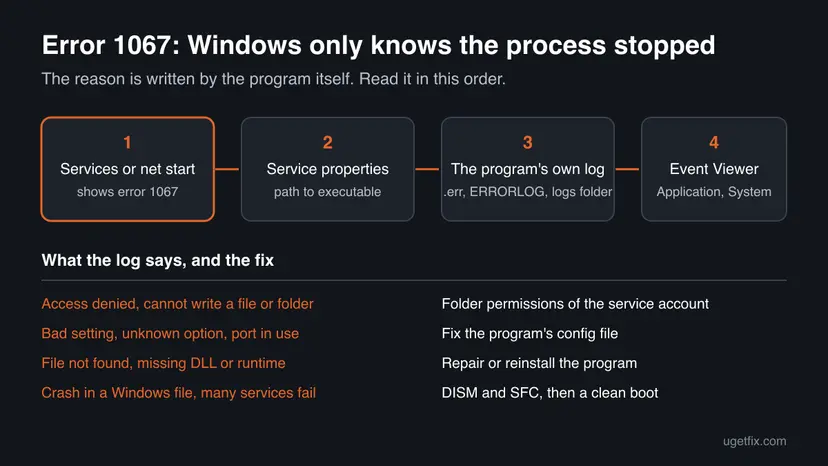
Why error 1067 appears, most common cause first
Every case has the same shape: the program behind the service cannot finish starting and exits. These are the reasons, from the most common to the rarest, each with the fix that matches it.
| Why the program quits | How it looks | Fix |
|---|---|---|
| The service account cannot write to its folders (data, logs, config). Microsoft documents this for OpenSSH Server. | The log says access denied, permission denied or cannot create a file. | Fix 2 |
| A wrong setting in the program's config file, often after an edit or an upgrade. | The log names an unknown option, a bad path, or a network port that is already in use. | Fix 3 |
| A database server cannot open its data files after a crash, a power cut or a version change. | MySQL, MariaDB or SQL Server fail with 1067, and their own error log shows the details. | Fix 3 |
| The program is damaged, half updated or unsupported on this PC, or it needs a runtime that is missing. | The log says file not found or a DLL is missing, or the service never ran on this PC. | Fix 4 |
| A Windows update changed a Microsoft service such as OpenSSH Server. | The error started right after Patch Tuesday. | Fix 5 |
| Another program, often security software, blocks it. | The error began after you installed such a program. | Fix 6 |
| Windows files are damaged. | Several Microsoft services fail, and the Application log shows crashes in Windows files. | Fix 7 |
Check the number in the message. With 1068 the service never ran, because a service it needs did not start: error 1068: the dependency service or group failed to start. With 1069 the account on the Log On tab cannot sign in.
How to fix error 1067, the process terminated unexpectedly
Fix 1 shows why the program quits, and it takes about five minutes. The other fixes each match one reason, so start with Fix 1 and use the table to choose the next step.
| What the log says or what you see | Go to |
|---|---|
| Access denied, permission denied, cannot create or write a file. | Fix 2 |
| Unknown option, bad value, port already in use, or a MySQL or SQL Server error. | Fix 3 |
| File not found, a missing DLL, or the program never worked on this PC. | Fix 4 |
| OpenSSH Server or another Microsoft service broke after a Windows update. | Fix 5 |
| The error began after you installed security software or another tool. | Fix 6 |
| Several Windows services fail, or the logs show nothing useful. | Fix 7 |
Fix 1. Find out why the program quits: path to executable, its own log and Event Viewer
5 minutesNo riskEveryone with error 1067, before changing anything.
Error 1067 only says that the program stopped. The program usually writes the reason to its own log just before it quits, and Windows records a crash in the Application log. Five minutes here saves guessing through every other fix.
- Press Win + R, type
services.mscand press Enter. - Double-click the service that fails and note the Service name and the Path to executable on the General tab.
- Open the folder of that program, and the program's data folder under
C:\ProgramDataif it has one. Look for alogsfolder, or files that end in.logor.err. - Open the newest log in Notepad and read the last lines, written at the time you pressed Start.
- Press Win + R, type
eventvwr.mscand press Enter. - Open Windows Logs > Application and look for Error entries at the same time, with the program's name or Application Error as the source.
- Open Windows Logs > System and filter by the source Service Control Manager to see when the service stopped.

- MySQL and MariaDB write a file named after the PC with the ending
.errin their data folder, by default underC:\ProgramData\MySQL. - SQL Server writes a file named
ERRORLOGin theMSSQL\Logfolder of its instance underC:\Program Files\Microsoft SQL Server. - OpenSSH Server writes to
C:\ProgramData\ssh\logs. - Other programs often name their log in their settings or in their help pages; search the maker's site for the program's name and "log file".
It worked if: You have one line that says why the program stopped, such as access denied, an unknown setting or a missing file.
If not: If no log exists and Event Viewer shows only the Service Control Manager entry, try Fix 2 first, because a program that cannot write its log also cannot tell you why.
Fix 2. Give the service account access to the program's folders
10 minutesLow riskThe log says access denied or cannot write, or there is no log at all.
A service runs under its own account, shown on the Log On tab. If that account cannot write to its data, log or config folder, the program quits at once. Microsoft documents exactly this for OpenSSH Server: wrong permissions on C:\ProgramData\ssh and C:\ProgramData\ssh\logs give error 1067. Permissions that are too open can stop it too.
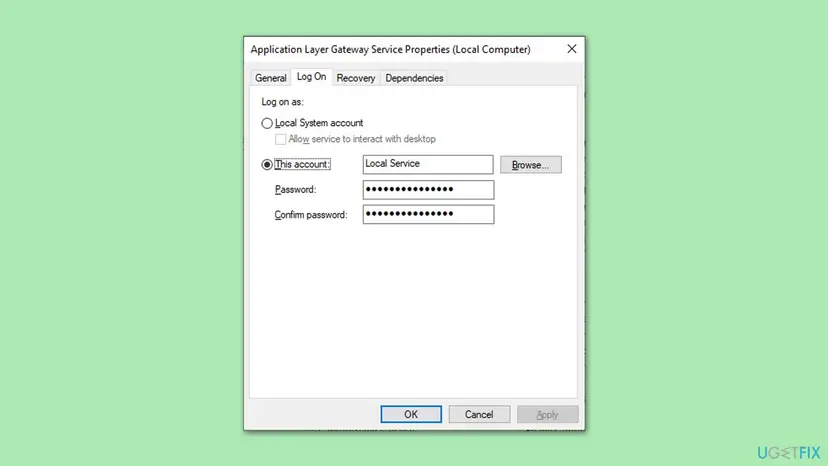
- In Services, open the service's Properties and select the Log On tab. Note the account: Local System account, Local Service, Network Service or a named user.
- In File Explorer, right-click the program's data or log folder and select Properties > Security.
- Check that SYSTEM and Administrators have Full control.
- If the service runs as Local Service, Network Service or a named user, check that this account has Modify on the folder.
- Check that ordinary users, such as Authenticated Users or Users, have only Read & execute, List folder contents and Read.
- Select Edit to change what is wrong, then Apply, and start the service again.
PowerShell: see who has access to a folder (Microsoft's example for OpenSSH)
Get-Acl C:\ProgramData\ssh | Select-Object -Property AccessToString | fl *
Get-Acl C:\ProgramData\ssh\logs | Select-Object -Property AccessToString | fl *Giving Everyone or Users full control may let the service start, but any program on the PC can then change the service's files. Some services, OpenSSH among them, refuse to start when ordinary users can write to their folders. Give the service account only what it needs.
It worked if: The service starts and shows Running in Services.
If not: If the service account is a named user whose password changed, Windows shows 1069, not 1067. Type the new password on the Log On tab. Otherwise go to Fix 3.
Fix 3. Fix the program's settings, and the special cases of MySQL and SQL Server
10 to 20 minutesRead the warningThe log names a setting, a path or a port, or the service is a database server such as MySQL, MariaDB or SQL Server.
The program reads its config file each time it starts. One wrong line, a path to a folder that no longer exists, or a port another program already uses makes it stop at once. Database servers also stop when they cannot open their data files.
Copy the config file before you edit it, so you can put it back. On a database server, copy the whole data folder while the service is stopped. Never delete database files to make the service start; you can lose data that is not in any backup.
- Find the line the log names and open the config file in Notepad as administrator. MySQL uses
my.ini, which the Path to executable shows after--defaults-file. - Undo the last change, or fix the path so it points to a folder that exists.
- If the log says the port is in use, run
netstat -ano | findstr :3306(use your port) in Command Prompt to see the process ID that holds it, and stop that program or the second copy of the server. - Save the file and start the service again.
- For MySQL, if the service still fails, run the server program from an administrator Command Prompt with
--consoleto see its messages on screen. - For SQL Server, read the last lines of
ERRORLOG; it names the database or file that stops the start.
Command Prompt as administrator (MySQL 8.0 example, adjust the paths)
"C:\Program Files\MySQL\MySQL Server 8.0\bin\mysqld.exe" --defaults-file="C:\ProgramData\MySQL\MySQL Server 8.0\my.ini" --consoleIf the log shows that the data files themselves are damaged, follow the database maker's recovery guide or restore a backup. That is a database repair, not a Windows fix, and it is safer to do it with the maker's documentation open.
It worked if: The program starts without errors in its log, and the service shows Running.
If not: If the log names a missing file or the program was just updated, go to Fix 4.
Fix 4. Repair or reinstall the program that owns the service
10 to 20 minutesLow riskThe log names a missing file or DLL, an update of the program failed, or the service never worked on this PC.
A service program with missing or mixed up files quits as soon as it loads. A repair or a clean reinstall from the maker puts every file and the service's registration back as the maker meant them.
- Press Win + I and open Apps > Installed apps (Windows 10: Apps > Apps & features).
- Find the program, select … or the program's name, then Modify if it offers a repair, and run it.
- If there is no repair, uninstall it, restart, and install the newest version from the maker's own site.
- Install any runtime the maker lists, such as Microsoft Visual C++ Redistributable, .NET or Java.
- Check the maker's system requirements: some services do not run on Windows on Arm or in a virtual machine.
Removing a program fully: Uninstall a program or app in Windows Repairing Visual C++ and .NET: How to repair Microsoft Visual C++ Redistributable and .NET Framework
On Microsoft Q&A, an independent advisor explained one case: the Autodesk File System Monitor Service failed with 1067 in a Windows 11 virtual machine on an Apple Silicon Mac. Services with low level file system drivers may not run on Windows on Arm, so check that the maker supports it.
It worked if: After the reinstall, the service starts.
If not: If it is a Microsoft service and the error began after an update, go to Fix 5. Otherwise try Fix 6.
Fix 5. Install the latest Windows updates when a Microsoft service broke after an update
15 to 30 minutesLow riskOpenSSH Server or another Microsoft service fails with 1067 right after a monthly update.
Microsoft documents that OpenSSH Server (version 9.5.2.1) could stop with error 1067 after updates released from 8 October 2024 to 11 March 2025, when its folders had wrong permissions. Updates from 11 March 2025 on let the service start anyway and only write a warning, Event ID 4.
- Press Win + I and open Windows Update.
- Select Check for updates and install everything offered.
- Restart, then start the service again.
- For OpenSSH, set the folder permissions as Fix 2 shows even after the update, because the warning stays in the log until you do.
It worked if: The service starts after the restart.
If not: If the updates do not install, see Reset Windows Update components. If they install and the service still fails, go to Fix 6.
Fix 6. Use a clean boot to find a program that blocks the service
15 minutesLow riskThe error began after you installed security software, a backup tool or a driver, or the logs show nothing useful.
Security software and some tools can block or end another program at startup. A clean boot starts Windows with only Microsoft services, so if the service then starts, one of the others is the cause.
- Open System Configuration. Select Search on the taskbar, type msconfig and select System Configuration from the results.
- Hide Microsoft services. On the Services tab, select the Hide all Microsoft services check box. Only services from other companies stay in the list.
- Disable the remaining services. Select Disable all, then select Apply.
- Open Task Manager. On the Startup tab of System Configuration, select Open Task Manager.
- Disable the startup apps. On the Startup apps tab in Task Manager, select each item whose status is Enabled and select Disable. Write down or take a screenshot of the items you disable: you need the list to turn them back on.
- Confirm the changes. Close Task Manager. On the Startup tab of System Configuration, select OK.
- Restart and test. Restart the PC. Windows now starts in a clean boot environment: try again the thing that failed (run the app, install the update, uninstall the program).
These steps were written for Windows 11 25H2 and 26H2. The full page with the other versions and what each result means: How to perform a clean boot in Windows

If you think your antivirus blocks the service, pause it for one test only and turn it back on at once: Turn off Microsoft Defender protection for a moment If the service then starts, add the program's folder as an exclusion in the antivirus instead of leaving protection off.
It worked if: In a clean boot the service starts. Turn the other services back on in small groups to find the program, then update or reconfigure it.
If not: If the error stays in a clean boot, undo the clean boot and go to Fix 7.
Fix 7. Repair Windows system files with DISM and SFC
15 to 30 minutesNo riskSeveral Microsoft services fail, or the Application log shows the crash in a Windows file.
A service program uses Windows files. If one of them is damaged, the program crashes at startup whatever its own settings are. DISM repairs the store of Windows components, and SFC then puts damaged system files back from it.
- Open an elevated command window. Right-click Start and select Terminal (Admin), or type cmd in the search box, right-click Command Prompt and select Run as administrator. Select Yes when Windows asks for permission.
- Run DISM first. Type the command below and press Enter. DISM downloads clean copies of damaged components from Windows Update, so it can take several minutes. Wait until it says The operation completed successfully.
DISM.exe /Online /Cleanup-Image /RestoreHealth - Run System File Checker. In the same window, type the command below and press Enter. Do not close the window until the verification reaches 100%.
sfc /scannow - Read the result and restart. Compare the last message with the table below this guide, then restart the PC so that repaired files are loaded.
These steps were written for Windows 11 24H2 and 25H2. The full page with the other versions and what each result means: Run DISM and SFC to repair Windows system files

If SFC repairs files and the service still fails, go back to a restore point from before the error: Undo recent changes with System Restore
It worked if: SFC reports no integrity violations or says it repaired them, and the service starts after a restart.
If not: Collect the details in the next section before you contact the program's maker or Microsoft.
If error 1067 is still there: what to read and what to send
Error 1067 almost always belongs to the program, not to Windows. The program's maker can help only with its log, so collect these before you open a ticket or post in a forum.
- The service name and the Path to executable from the General tab.
- The last 30 lines of the program's own log, written when you pressed Start.
- The Application log entries from Event Viewer at the same time, with the faulting module name if there is one.
- The System log entry from Service Control Manager, such as event 7034, "terminated unexpectedly. It has done this X time(s)."
- What changed. Run
perfmon /relto open Reliability Monitor, which lists installs, updates and crashes by day. - Your Windows version and build. Press Win + R, type
winverand note both.
| Sign | What it means |
|---|---|
| The database log says pages or tables are damaged. | A data problem. Follow the database maker's recovery steps or restore a backup. |
| The program's maker says the platform is not supported. | It will not run on this PC, for example on Windows on Arm or in a virtual machine. |
| Many programs crash, and CHKDSK or the disk's own tool reports errors. | The drive may be failing. Back up first, then check it: Check a disk for errors (chkdsk) |
| Services crash at random and the PC also freezes or restarts. | Test the memory: How to test your RAM with Windows Memory Diagnostic |
Windows 10 left support on 14 October 2025. Makers of server programs drop older Windows versions over time, so check the program's requirements if you are still on Windows 10.
How to avoid error 1067 in the future
- Copy a service's config file before you edit it.
- Stop the service before you upgrade the program, and read the maker's upgrade notes.
- Keep backups of database data folders, made while the service is stopped or with the database's own backup tool.
- Keep System Protection on for drive C:, so a restore point exists before big changes.
- Do not change permissions on program folders by hand unless a log or the maker tells you to.
- Do not delete database log or data files to make a service start.
- Do not run two copies of the same server on one port.
- Do not give Everyone full control of a service folder as a quick fix.
Frequently asked questions
What is error 1067?
Error 1067 is a Windows system error code with the value 0x42B and the text "The process terminated unexpectedly." You see it when you start a service and its program quits before it tells Windows it is running. Windows does not know why the program quit, so the message is the same for every program. The reason is in the program's own log file or in the Application log in Event Viewer, as Fix 1 shows.
How do I fix "The process terminated unexpectedly"?
Start by reading why the program quits: open the service's Properties, note the Path to executable, and read the program's log and the Application log in Event Viewer. If the log says access denied, give the service account access to its folders. If it names a setting or a port, fix the config file. If files are missing, repair or reinstall the program. A clean boot and a Windows file repair with DISM and SFC come last.
What does "System error 1067 has occurred" mean?
It is the same error shown by the net start command instead of the Services window. The next line, "The process terminated unexpectedly", is Microsoft's text for 1067. The fix is the same as for the dialog: find the program behind the service and read its log. Running the program itself in a Command Prompt, where it supports that, often prints the reason on screen, as Fix 3 shows for MySQL with --console.
MySQL shows error 1067 the process terminated unexpectedly. What should I do?
Open the .err file in the MySQL data folder, by default under C:\ProgramData\MySQL, and read the last lines. Common reasons are a wrong line in my.ini, a data folder path that changed, and another program on port 3306. Older guides, including the earlier version of this page, said to delete the ib_logfile files. Do not do that before you have a copy of the data folder, because it can lose data. Fix 3 has the steps.
SQL Server fails to start with error 1067. Where is the reason?
SQL Server writes a file named ERRORLOG in the MSSQL\Log folder of its instance under C:\Program Files\Microsoft SQL Server. Its last lines name what stops the start, such as a database file it cannot open or a folder it cannot write. Fix 2 covers folder access for the service account, and Fix 3 covers settings. If a system database is damaged, follow Microsoft's SQL Server recovery documentation.
Windows Defender Advanced Threat Protection service shows error 1067. Is my PC at risk?
Not by this error alone. This service is the sensor of Microsoft Defender for Endpoint, which organisations use to manage business PCs. It is a different service from the Microsoft Defender Antivirus that protects home PCs. We could not confirm from Microsoft why it shows 1067 when started by hand on a PC that no organisation manages. Check that Windows Security shows your protection is on, and leave this service as it is. On a work PC, contact your IT team.
Is error 1067 the same on Windows 11 and Windows 10?
Yes. The code, the text and the causes are the same on Windows 11, Windows 10 and Windows Server, and so are Services, Event Viewer and net start. Only the Settings path to installed apps differs a little, and Fix 4 gives both. Windows 10 left support on 14 October 2025, so some program makers no longer support it.
I see errore 1067 or erreur 1067. Is it the same error?
Yes. Windows translates the text, but the code 1067 and the fixes are the same in every language. Italian, French and other language versions of Windows show the same error when a service's program quits at startup. The commands net start, netstat and sfc and the names of log files are not translated, so the steps on this page work as written.
I searched for error 1607 or a Gemini error 1067. Is that this error?
Probably not. This page is about Windows error 1067, shown when a Windows service stops at startup. Error 1607 is a different number, so check the code in your message again. An error 1067 shown inside an app or a web service such as Gemini is that app's own code and has nothing to do with Windows services; check that app's help pages instead.
Should I change the service's Log On account to my own administrator account?
No. The earlier version of this page suggested changing the account, but a wrong account gives error 1069, not 1067. Running a service as your own user also stops it when your password changes and gives it more rights than it needs. Keep the account the program's maker set, and give that account access to the folders it needs, as Fix 2 shows.
Sources
- Microsoft Learn: System Error Codes (1000-1299), 1053, 1058, 1067 (0x42B), 1068 and 1069 (learn.microsoft.com)
- Microsoft Learn: "Error 1053," "Error 1067," or Event ID 7034 and OpenSSH Server service doesn't start after you install a Windows update (learn.microsoft.com)
- Microsoft Q&A: Error 1067: The process terminated unexpectedly (Autodesk service in a Windows 11 virtual machine) (learn.microsoft.com)
Did this fix work?
One click, no account. It tells the next reader which guides are worth their time.
Questions and experiences: fix "Error 1067: The process terminated unexpectedly" in Windows
Still broken, or found a fix we did not cover? Ask here: members and our editors answer. Reading is open; writing needs a free account.
…