
How to fix FIFA 22 not launching in Windows?

Prefer to fix it yourself? The manual steps follow.
- 9methods
- 5 minutes for Fix 1 to Fix 3, 15 to 60 minutes when the game files must be repaired
- Easy
Applies to FIFA 22 on Windows PC, bought on the EA app (formerly Origin) or on Steam
9 methods in this guide
- What the problem means
- Causes, most common first
- The fixes
- 1. Use the EA app
- 2. Switch the DirectX mode
- 3. End stuck processes
- 4. Repair the game files
- 5. Allow it in Windows Security
- 6. Update the graphics driver
- 7. Page file for Iris Xe
- 8. Administrator and Visual C++
- 9. Clean boot test
- Still not launching
- Keep it working
- FAQ
Hello. I just bought FIFA 22, but when I press Play, the game does not launch. I do not get any error, so I do not know what the problem could be. Any suggestions would be appreciated.
FIFA 22 that does not launch on a Windows PC usually fails before any error appears: you select Play and nothing opens, or the game closes at once. Today the most common reasons are the retired Origin client, a lost EA Play licence and the DirectX setting in fifasetup.ini. Start the game from the EA app first.
Start FIFA 22 from the EA app, signed in with the EA Account that owns the game, because Origin no longer works on Windows and EA Play lost FIFA 22 on 30 June 2024 (Fix 1). If nothing opens, change DIRECTX_SELECT in Documents\FIFA 22\fifasetup.ini from 0 to 1, or from 1 to 0 (Fix 2). Then end leftover FIFA processes (Fix 3) and repair the game files (Fix 4).
| Error | FIFA 22 not launching on PC: Play does nothing, a black window opens and closes, or the game exits before the EA SPORTS intro. Usually there is no error text at all. |
|---|---|
| Where it appears | Right after you select Play in the EA app or in Steam. Some players see "FIFA 22 is already running", others a DirectX or DXGI error box. |
| Main cause | The launcher, not Windows: Origin is no longer available for Windows, and EA Play removed FIFA 22 on 30 June 2024. On working copies, the DirectX mode in fifasetup.ini. |
| Fastest fix | Install the EA app, sign in with the account that owns FIFA 22 and start it there (Fix 1). Then switch DIRECTX_SELECT between 0 and 1 (Fix 2). |
| Also written as | FIFA 22 not opening, FIFA 22 does not launch, FIFA 22 won't launch, FIFA22.exe not starting, FIFA 22 launcher not working. |
| Affects | The PC version on 64-bit Windows 10 and Windows 11. Steam lists Windows 10 64-bit as the only supported system; Windows 11 is not named. |
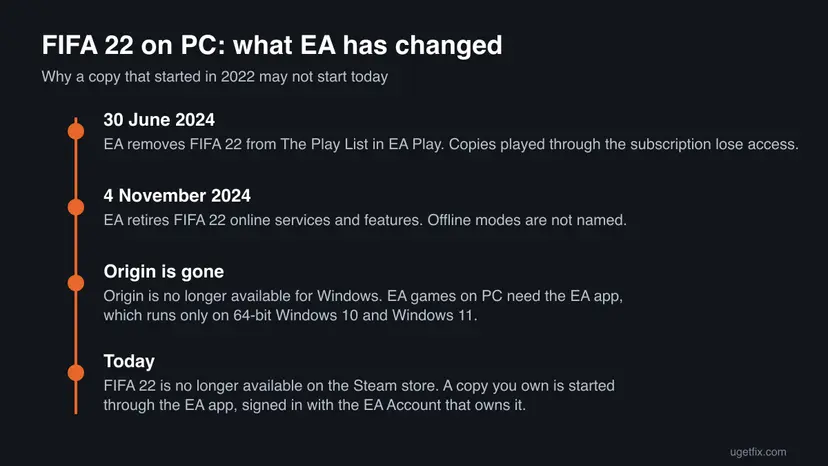
| EA's status | No longer sold on Steam. Online services and features retired on 4 November 2024. No game patch is expected, so every fix is on your PC. |
| Minimum PC | Intel Core i3-6100 or AMD Athlon X4 880K, 8 GB RAM, NVIDIA GTX 660 2GB or AMD Radeon HD 7850 2GB, 50 GB of free space. |
| Time to fix | 2 to 5 minutes for Fix 1 to Fix 3. Up to an hour when the EA app must repair or download the 50 GB game again. |
Facts checked on 15 October 2026. Steps written for Windows 11 (25H2 and 26H2) and Windows 10 22H2, with the game steps read from EA Help, the FIFA 22 Steam page and Intel Support.
What "FIFA 22 not launching" means, and why it happens more often now
FIFA 22 has no single error code for a failed start. The game file FIFA22.exe is started by a launcher: the EA app for every PC copy, and Steam on top of it for copies bought on Steam. If the launcher cannot confirm your licence, or the game cannot create its graphics device, the window never appears. That is why most readers, like the one above, see nothing at all.
Since the game came out, EA has changed what a PC needs to run it. A copy that started fine in 2022 can fail today without anything being broken on your PC.
| What you see | What it usually means |
|---|---|
| Play does nothing, no window | The EA app or Origin cannot start the game or confirm the licence |
| A black window opens and closes | The graphics device fails, often the DirectX mode in fifasetup.ini |
| "FIFA 22 is already running" | A FIFA22.exe process from an earlier start is still open (a user report on EA Forums) |
| A DirectX error with DXGI_ERROR_DEVICE_HUNG | The graphics driver stopped responding; Intel documents this on Iris Xe laptops |
| The game opens, then quits at the first menu | Damaged game files, an overlay, or a blocked write to Documents\FIFA 22 |
What stops FIFA 22 from launching, from the most common cause to the rarest
Most often the launcher is the problem: Origin, EA Play or an EA app signed in with the wrong account. Less often the game starts but cannot draw its first frame because of the DirectX setting or the graphics driver. Rarely, Windows Security or another program blocks it.
| Cause | How common | Fix |
|---|---|---|
| Origin still installed, or EA app not signed in with the account that owns FIFA 22 | Most common since Origin left Windows | Fix 1 |
| Game played through EA Play or the 10-hour trial, both ended | Common | Fix 1 |
Wrong DirectX mode for your graphics card in fifasetup.ini | Common | Fix 2 |
A stuck FIFA22.exe process or an in-game overlay | Less common | Fix 3 |
| Damaged or incomplete game files after an update or a crash | Less common | Fix 4 |
Controlled folder access blocks writes to Documents\FIFA 22 | Rare | Fix 5 |
| Old graphics driver, or Intel Iris Xe page file settings | Rare | Fix 6, Fix 7 |
| Missing Visual C++ files, permissions, background programs | Rare | Fix 8, Fix 9 |
FIFA 22 needs a 64-bit processor and 64-bit Windows, 8 GB of RAM and at least an NVIDIA GTX 660 2GB or AMD Radeon HD 7850 2GB, as the Steam page lists. Below that, no fix on this page will make it start.
How to fix FIFA 22 not launching on PC
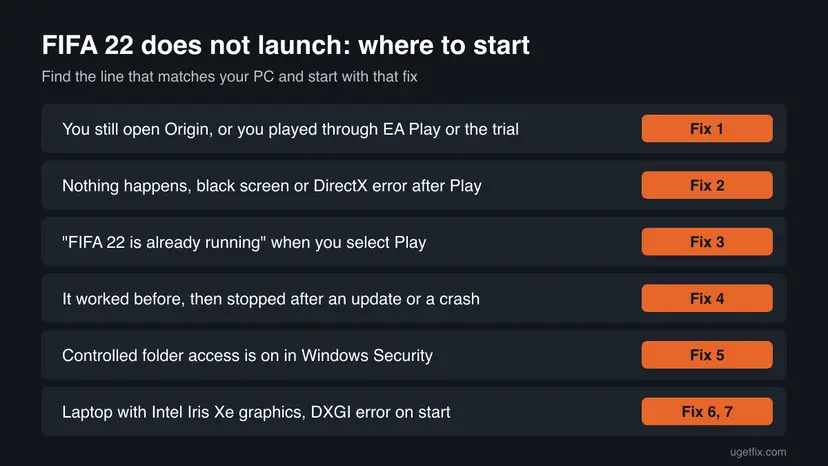
The fixes are ordered by how often they solve the problem and how little they cost. Test the game after each one. Fix 1 to Fix 3 take a few minutes; the generic Windows repairs come last.
| What you see or what your PC has | Start with |
|---|---|
| You still open Origin, or you played through EA Play or the trial | Fix 1 |
| Nothing happens, a black screen, or a DirectX error after Play | Fix 2 |
| "FIFA 22 is already running" when you select Play | Fix 3 |
| It worked before, then stopped after an update or a crash | Fix 4 |
| Controlled folder access is on in Windows Security | Fix 5 |
| Laptop with Intel Iris Xe graphics and a DXGI error on start | Fix 6, then Fix 7 |
Fix 1. Start FIFA 22 from the EA app with the account that owns it
5 minutesNo riskAnyone who still has Origin, played through EA Play or the trial, or bought the game on Steam.
EA Help says Origin is no longer available for Windows and EA games need the EA app. FIFA 22 also left EA Play on 30 June 2024, so a copy played through the subscription has no licence any more and will not start.
- Close Origin if it is still installed: right-click its icon in the system tray and select Exit.
- Download the EA app from
https://www.ea.com/ea-appand install it. It needs 64-bit Windows 10 or Windows 11. - Sign in with the EA Account that bought FIFA 22. For a Steam copy, sign in with the EA Account linked to your Steam account.
- Open Library and check that FIFA 22 is listed as owned. If it shows only as an EA Play or trial game, your access has ended.
- Select the game tile and Play. For a Steam copy, start it from Steam: Steam opens the EA app for you.
- If the EA app shows an error with a code, look it up on EA Help's error code page before you go on.
The FIFA 22 trial and the EA Play version cannot be bought back. If the game is not listed as owned in any account you have, the only way to play is to own a copy on that account.
It worked if: The EA app shows FIFA 22 as owned and the EA SPORTS intro starts after Play.
If not: If the game is owned but still does not open, go to Fix 2.
Fix 2. Switch DIRECTX_SELECT in fifasetup.ini between 0 and 1
3 minutesLow riskThe game is owned but shows nothing, a black window or a DirectX error after Play.
FIFA 22 can draw with two graphics modes, and some cards and drivers fail in one of them. Intel Support tells FIFA 22 players to change DIRECTX_SELECT = 0 to 1 in fifasetup.ini, and to try the other value when the first does not help.
- Close FIFA 22, the EA app and Steam.
- Open File Explorer and paste this path in the address bar:
%USERPROFILE%\Documents\FIFA 22 - Copy
fifasetup.inito your desktop as a backup. - Right-click
fifasetup.iniand select Open with > Notepad. - Find the line
DIRECTX_SELECT = 0and change it toDIRECTX_SELECT = 1. If it already says 1, change it to 0. - Press Ctrl + S to save, close Notepad and start FIFA 22 from the EA app or Steam.
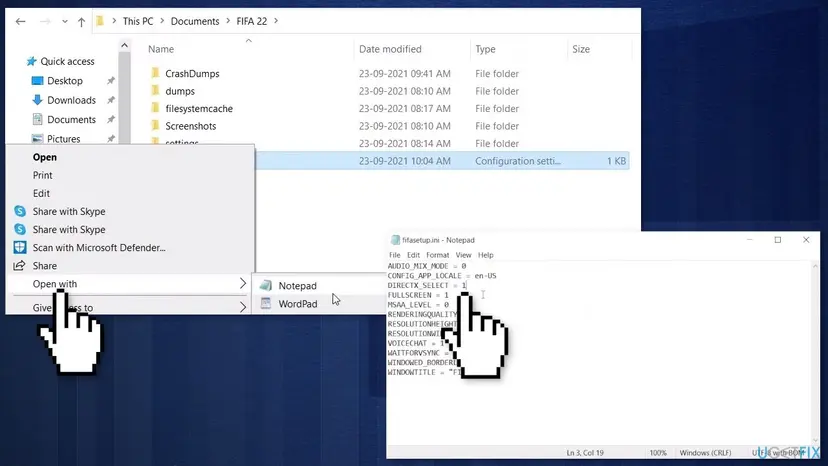
fifasetup.ini file in Documents\FIFA 22, opened in Notepad on Windows 10; the folder and file are the same on Windows 11.Users report that 0 means DirectX 12 and 1 means DirectX 11. EA has not published what the values mean, so we could not confirm this. If the game later writes the old value back, Intel's article sets the file to read-only after the change.
It worked if: The EA SPORTS intro plays and the language or main menu appears.
If not: Put the original value back from your backup, then go to Fix 3.
Fix 3. End leftover FIFA processes and turn off the overlays
3 minutesNo riskYou see "FIFA 22 is already running", or the game starts and closes within seconds.
A FIFA22.exe that crashed without closing blocks the next start, which is what players report with the "already running" message. EA Help also says the in-game overlay can make a game crash at launch.
- Press Ctrl + Shift + Esc to open Task Manager and select Processes.
- Select FIFA22.exe or FIFA 22 if it is listed and choose End task. Do the same for FIFA22_Trial.exe.
- In the EA app, select your profile picture, open Settings > Application and turn off In-game overlay.
- For a Steam copy, open Steam > Settings > In Game and turn off Enable the Steam Overlay while in-game.
- Close Discord, MSI Afterburner, RivaTuner and recording tools in the system tray, then start the game.
If Task Manager will not close the process, the steps for a frozen app are here: Close a frozen app (Task Manager, Force Quit). Turn the EA app overlay back on once the game runs, because EA uses it for invites and messages.
It worked if: No "already running" message, and the game window stays open past the intro.
If not: If it still closes, repair the game files with Fix 4.
Fix 4. Repair the game files in the EA app or verify them in Steam
15 to 60 minutesLow riskThe game worked before and stopped after an update, a crash or a move to another drive.
EA Help's first step for a game that will not load is Repair: the EA app compares the 50 GB install with EA's copy and downloads only the damaged or missing files.
- Open the EA app and go to Library.
- Select the three-dot menu on the FIFA 22 tile.
- Choose Repair and wait until the EA app says it has finished.
- Start the game again.
For a Steam copy, run Verify integrity of game files in Steam as well. The steps for Steam and the EA app are in one place: How to verify game files in Steam, Epic Games, Xbox app, EA app, Battle.net and GOG Galaxy.
If the EA app itself hangs on "preparing", clear its cache first: Help > App Recovery > Clear Cache, as EA Help describes.
It worked if: The repair ends without errors and FIFA 22 opens to the main menu.
If not: If the repair fails or the game still does not open, go to Fix 5.
Fix 5. Allow FIFA22.exe through Controlled folder access
3 minutesNo riskYou turned on ransomware protection in Windows Security, or you see a blocked app notice.
FIFA 22 writes fifasetup.ini, settings and crash dumps to Documents\FIFA 22. Controlled folder access stops untrusted apps from changing files in protected folders like Documents, so the game can fail at start. Allowing only this one program keeps the protection on.
- Open Start, search for Windows Security and open it.
- Select Virus & threat protection, then Manage ransomware protection under Ransomware protection.
- If Controlled folder access is off, skip this fix: it is not your cause.
- Select Allow an app through Controlled folder access and choose Yes in the User Account Control prompt.
- Select Add an allowed app > Browse all apps and pick
FIFA22.exein the game folder. The EA app's default isC:\Program Files\EA Games\FIFA 22. - Start the game again.
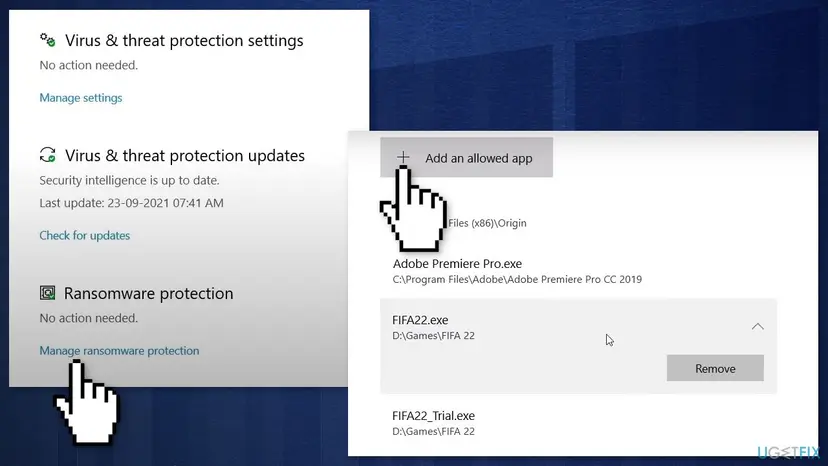
It worked if: FIFA22.exe is in the allowed list and the game starts without a blocked app notice.
If not: If Controlled folder access was off or this did not help, go to Fix 6.
Fix 6. Install the current graphics driver from NVIDIA, AMD or Intel
15 minutesLow riskThe driver is older than a year, or you see a DirectX or DXGI error box.
The DXGI error FIFA 22 shows says it is usually caused by the graphics driver crashing and asks you to install the latest driver. The driver Windows installs on its own is often older than the maker's.
- Open Device Manager. Right-click Start and select Device Manager.
- Open the device's Driver tab. Expand the category (for example Display adapters), right-click the device, select Properties and open the Driver tab. Driver Date and Driver Version show what is installed now.
- Update the driver. Select Update Driver and let Windows search automatically. To use a driver you downloaded from the device maker, select Browse my computer for drivers instead and point to the unpacked folder.
These steps were written for Windows 11 24H2 and later. The full page with the other versions and what each result means: Update, roll back or reinstall a driver

Device Manager often finds no newer driver. Download the driver for your card from the maker's site instead, run its installer and restart. If the problem started after a driver update, roll it back with step 4 of Update, roll back or reinstall a driver.
It worked if: The new driver version shows on the Driver tab and the game opens after a restart.
If not: On an Intel Iris Xe laptop, go to Fix 7. On other PCs, go to Fix 8.
Fix 7. Set a fixed page file on Intel Iris Xe laptops
5 minutesLow riskLaptops with Intel Iris Xe graphics that show DXGI_ERROR_DEVICE_HUNG when FIFA 22 starts.
Intel Support says this FIFA 22 crash on Iris Xe happens when virtual memory is turned off or set to automatic, and fixes it with a custom page file of 4096 MB.
- Press Win + R, type
sysdm.cpland press Enter. - On the Advanced tab, under Performance, select Settings.
- Open the Advanced tab and select Change under Virtual memory.
- Clear Automatically manage paging file size for all drives and select the drive Windows is on.
- Select Custom size, type
4096in Initial size and Maximum size, then select Set. - Select OK and restart Windows when asked.
This is Intel's advice for Iris Xe graphics only. If it does not help, tick Automatically manage paging file size for all drives again so Windows manages it as before.
It worked if: FIFA 22 passes the intro without the DXGI_ERROR_DEVICE_HUNG box.
If not: Undo the page file change and go to Fix 8.
Fix 8. Run FIFA22.exe as administrator and repair Visual C++
10 minutesLow riskThe game and the EA app are fine, but FIFA22.exe still closes without a message.
EA Help suggests running the EA app as administrator and installing missing Visual C++ Redistributables when EA software will not start. A game installed in Program Files can also fail when it cannot write to its own folder.
- Open the game folder, by default
C:\Program Files\EA Games\FIFA 22. - Right-click
FIFA22.exe, select Properties and open the Compatibility tab. - Tick Run this program as an administrator and select OK.
- Right-click the EA app shortcut, select Run as administrator, then start FIFA 22 from it.
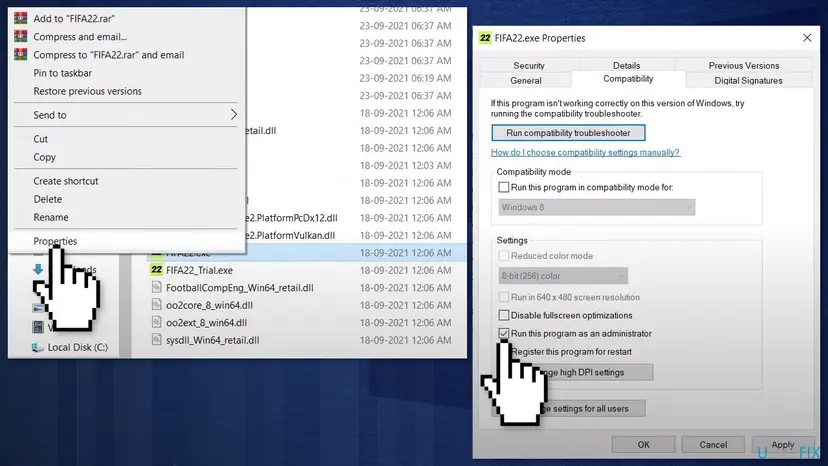
If that does not help, repair the Visual C++ Redistributables the game and the EA app use: How to repair Microsoft Visual C++ Redistributable and .NET Framework. More about the Compatibility tab: How to run a program as administrator or in compatibility mode.
It worked if: The game opens with a User Account Control prompt and reaches the main menu.
If not: Clear the administrator tick again and try a clean boot with Fix 9.
Fix 9. Test FIFA 22 after a clean boot
15 minutesLow riskEvery fix above failed and you run many background tools or RGB and tuning software.
EA Help lists a clean boot for EA games that will not start: Windows starts with Microsoft services only, so a program that hooks into games cannot block FIFA 22.
- Do a clean boot as described in How to perform a clean boot in Windows. Keep the list of what you turn off.
- Start the EA app and FIFA 22 and test.
- If the game now starts, turn the services and startup apps back on in small groups until it fails again. The last group holds the cause.
- Undo the clean boot when you are done, as the procedure explains.
Your security software stays on. If you suspect a third-party antivirus, pause it for one test only, then turn it back on and add FIFA 22 as a trusted program in that antivirus: Turn off Microsoft Defender protection for a moment.
It worked if: FIFA 22 starts in the clean boot, and you know which program blocked it.
If not: Read the crash files and contact EA as the next section explains.
If FIFA 22 still does not launch: where the real cause is written
FIFA 22 and Windows both keep a record of a failed start. Read them before you reinstall 50 GB, because they tell you whether the launcher, the game or the graphics driver failed.
| Where to look | What to look for |
|---|---|
Documents\FIFA 22\CrashDumps | New files with today's time mean the game itself started and crashed, so the launcher is fine |
| Event Viewer, Windows Logs > Application | An Application Error entry for FIFA22.exe with the faulting module, for example a graphics driver file |
| The EA app, Help > Error Reporter | An error report ID that EA support can read |
| The DirectX error box | The GPU name and driver date, as in Intel's DXGI example |
- Send to EA: the error report ID from the EA app's Error Reporter, your Windows version and the faulting module from Event Viewer.
- Signs of hardware: the PC is below the minimum, or other games crash too with the same DXGI error. Then the graphics card, its cooling or the power supply is the more likely cause.
- Signs of a licence problem: the game is not listed as owned in the EA app on any of your accounts. No PC fix helps; EA support can check the purchase.
How to keep FIFA 22 launching after you fix it
- Start FIFA 22 from the EA app, or from Steam for a Steam copy, and keep the EA app updated.
- Keep a copy of a working
fifasetup.iniso you can put it back after a driver change. - Install graphics drivers from NVIDIA, AMD or Intel and restart after each one.
- Close the game from its menu, so
FIFA22.exedoes not stay in the background.
- Do not reinstall Origin: it no longer works on Windows.
- Do not use "fix" files or cracked launchers from download sites: they replace game files and often carry malware.
- Do not leave Windows Security or your antivirus turned off after a test.
- Do not move the game folder by hand; use the EA app to move or reinstall it.
Windows 10 left support on 14 October 2025. FIFA 22's Steam page names only Windows 10, but the EA app runs on Windows 11 too, and the steps on this page are the same on both.
Frequently asked questions
Why is FIFA 22 not launching on my PC with no error?
Most often the launcher cannot confirm your licence, so the game is never started. Origin no longer works on Windows, and FIFA 22 left EA Play on 30 June 2024, so a copy from either of those no longer opens. Start the game from the EA app signed in with the account that owns it. If it is owned and still shows nothing, switch DIRECTX_SELECT in Documents\FIFA 22\fifasetup.ini between 0 and 1, which Intel Support recommends for FIFA 22 graphics failures.
How do I fix FIFA 22 not opening on Windows 11?
Use the same fixes as on Windows 10: the EA app first, then the DirectX value in fifasetup.ini, then a repair in the EA app. The Steam page lists only Windows 10 64-bit as the supported system and does not name Windows 11, so EA gives no Windows 11 promise. The EA app itself runs on 64-bit Windows 10 and 11. If the game fails only on Windows 11, update the graphics driver from the card maker and check Controlled folder access in Windows Security.
Is FIFA 22 still playable in 2026?
Partly. EA retired FIFA 22 online services and features on 4 November 2024, so online modes no longer work. EA's notice does not name the offline modes, and we could not confirm from EA which ones still run. A copy you own is still started through the EA app, and FIFA 22 is no longer available to buy on the Steam store. If you played FIFA 22 through EA Play, the subscription lost it on 30 June 2024.
Do I still need Origin to play FIFA 22?
No. EA Help says Origin is no longer available for Windows and that you need to install the EA app to play EA games on PC. The old Steam page still says Origin is required, which dates from before the switch. Uninstall Origin, install the EA app from ea.com, and sign in with the same EA Account. Your FIFA 22 copy and, for a Steam purchase, your linked Steam account carry over to the EA app.
What does DIRECTX_SELECT in fifasetup.ini do?
It picks the graphics mode FIFA 22 starts with. The file sits in Documents\FIFA 22 and holds the line DIRECTX_SELECT = 0 or DIRECTX_SELECT = 1. Intel Support tells players to change 0 to 1 when the game fails on Intel graphics, and to try the other way round when that does not help. Users report that 0 is DirectX 12 and 1 is DirectX 11, but EA has not published this, so treat it as a report. Back the file up before you edit it.
Why does the EA app say FIFA 22 is already running?
Players report this message on EA Forums when an earlier FIFA22.exe did not close after a crash. The EA app sees the old process and refuses to start a second one. Open Task Manager with Ctrl + Shift + Esc, end every FIFA22.exe or FIFA22_Trial.exe process, and start the game again. If the message comes back after a restart of Windows, repair the game in the EA app and turn off its in-game overlay.
Will a FIFA 22 online fix or crack fix make the game launch?
No, and this page does not cover them. "Online fix" and "crack fix" files are made to run copies that were not bought, and they replace FIFA 22 files with ones from unknown sources. Searches such as "fifa fix.com" lead to the same kind of download. Such files are a common way to get malware, and they cannot bring back the online services EA retired in November 2024. A bought copy needs none of them: start it from the EA app as Fix 1 shows.
Can I still play FIFA 22 if I bought it on Steam?
Yes, if it is in your Steam library. The game is no longer sold on the Steam store, but owned copies stay in your library. FIFA 22 on Steam needs an EA Account linked to your Steam account, and Steam starts the EA app in the background. If Steam's Play button does nothing, open the EA app, sign in with the linked account, and make sure FIFA 22 shows as owned there. Then verify the files in Steam.
Why does FIFA 22 crash on my Intel Iris Xe laptop?
Intel Support documents a FIFA 22 crash on Iris Xe graphics with the message DXGI_ERROR_DEVICE_HUNG and "The GPU will not respond to more commands". Intel says it happens when virtual memory is turned off or set to automatic, and fixes it with a custom page file of 4096 MB for both the initial and maximum size. Fix 7 shows the steps. Update the Intel graphics driver first, since the same error text asks for the latest driver.
Sources
Did this fix work?
One click, no account. It tells the next reader which guides are worth their time.
Questions and experiences: fix FIFA 22 not launching in Windows
Still broken, or found a fix we did not cover? Ask here: members and our editors answer. Reading is open; writing needs a free account.
…