
How to fix File System Error (-1073741515) in Windows 10?

Prefer to fix it yourself? The manual steps follow.
- 7methods
- 20 minutes to 2 hours
- Intermediate
Applies to Windows 10 and Windows 11; Command Prompt, Task Manager, Device Manager, installers, Settings and any program that needs administrator rights or a missing DLL
7 methods in this guide
Windows 10 shows file system error 1073741515. I need your help, as I can't open apps, run Windows 10 as admin or even reboot into Safe Mode. There are very few articles on this error and no useful information. I need help as soon as possible.
File system error (-1073741515) appears when you open Command Prompt, Task Manager, an installer or another program that needs administrator rights. It is the Windows code 0xC0000135: a DLL file the program needs was not found. When every admin tool fails at once, Windows files are damaged, so repair them from the recovery screen first.
File system error (-1073741515) is the Windows status code 0xC0000135, STATUS_DLL_NOT_FOUND: a program could not start because a DLL file it needs was not found. When Command Prompt, Task Manager and installers all fail, the missing file is part of Windows. Run CHKDSK and an offline SFC from the recovery Command Prompt (Fix 1). If SFC cannot repair everything, run DISM with a Windows ISO as the source (Fix 2).
| Error | A box with the program's path in the title bar, for example C:\Windows\System32\cmd.exe or taskmgr.exe, the line File system error (-1073741515). and an OK button. |
|---|---|
| Where it appears | When you start anything with administrator rights: Command Prompt or PowerShell as admin, Task Manager, Device Manager, installers. Settings, the Start search and built-in apps can stop working at the same time. |
| Main cause | Damaged or missing Windows system files, so a DLL that elevated programs load is not found. |
| Fastest fix | chkdsk C: /f and an offline sfc /scannow from Troubleshoot > Advanced options > Command Prompt on the recovery screen (Fix 1). |
| Also written as | -1073741515, 1073741515, "file system error 1073741515", 0xC0000135, 0xc0000135. |
| Microsoft's name | STATUS_DLL_NOT_FOUND: "{Unable To Locate Component} This application has failed to start because %hs was not found. Reinstalling the application might fix this problem." |
| Affects | Windows 10 and Windows 11. The box and the fixes are the same on both. |
| Vendor status | Not a known issue tied to one update. Microsoft's code list only names the status; Microsoft Q&A answers point to System Restore or a reinstall that keeps your files. |
| Time to fix | 20 to 40 minutes for Fix 1, up to 2 hours for a repair install (Fix 7). |
Facts checked on 15 October 2026. Steps written for Windows 11 (25H2 and 26H2) and Windows 10 22H2.
What File system error (-1073741515) means
You right-click Command Prompt and select Run as administrator, open Task Manager or start an installer. Instead of the program, Windows shows a box with the program's path and the line File system error (-1073741515). In the Microsoft Q&A thread on this error, the user also lost Control Panel, the Start search, Settings and the built-in apps, while Firefox, Chrome, sound and videos kept working.
The number is a Windows status code written as a negative decimal. In hex, -1073741515 is 0xC0000135. Microsoft's list of NTSTATUS values names it STATUS_DLL_NOT_FOUND, with the text "This application has failed to start because %hs was not found. Reinstalling the application might fix this problem." Here %hs stands for the name of the DLL file.
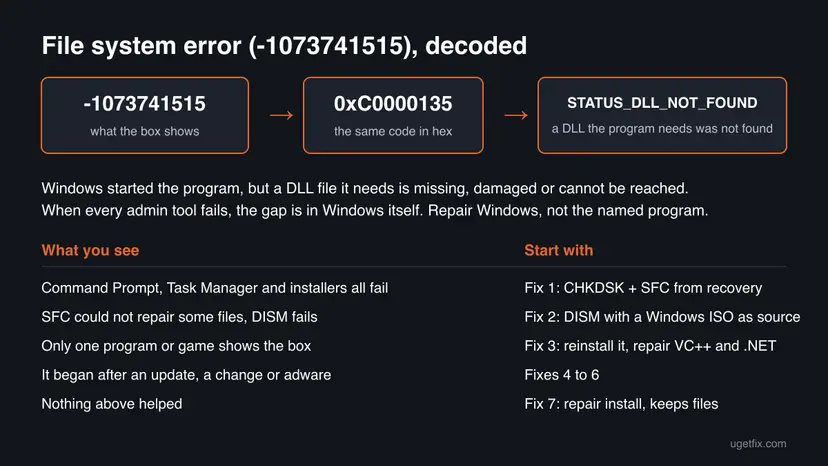
The path in the title bar is the program that could not start, not the file that is missing. Command Prompt, Task Manager and every installer fail together because they all go through the same elevation step and load the same Windows DLL files. One missing or damaged system file stops all of them. That is why Microsoft's hint, "reinstalling the application", only helps when a single program shows the box.
The usual advice, "open Command Prompt as administrator and run SFC", then fails with the same box. The fixes below start from the recovery screen or Safe Mode, where these tools already run with full rights. In a BleepingComputer forum thread, most programs did work in Safe Mode for the user who had this error.
Why the file system error -1073741515 appears
The code says a needed DLL was not found. Rank the reasons like this and start at the top.
| Cause | How often | How to tell | Fix |
|---|---|---|---|
| Damaged or missing Windows system files. | Most often | Command Prompt, Task Manager, Device Manager and installers all fail with the box; SFC reports files it could not fix. | Fix 1 |
| Damage too wide for SFC, and DISM cannot download a repair source. | Often | DISM stops with error 0x800f081f, even with Windows Update as the source. | Fix 2 |
| One program's own DLL or a runtime it needs is missing. | Sometimes | Only one program or game shows the box; admin tools open fine. | Fix 3 |
| Changes from the last days you cannot pin down. | Sometimes | You have a restore point from before the error. | Fix 4 |
| A Windows update that did not install cleanly. | Sometimes | The error began right after an update. | Fix 5 |
| Malware, or a cleanup or security tool that deleted system files. | Less often | Adware, a recent cleaner run or an antivirus that removed files before the error began. | Fix 6 |
| Damage no tool inside Windows can repair. | Rarely | Fixes 1 to 6 changed nothing. | Fix 7 |
In the Q&A thread, the trouble began after an antivirus removed files from AppData and the user then removed that antivirus. In 2017 some users also linked the error to Bitdefender together with Malwarebytes Anti-Exploit. We could not confirm a fixed link to any product, so treat these as reports, and do not leave your protection off as a fix.
A similar box with another number is a different code with its own fixes. File system error (-1073741521) is 0xC000012F, a damaged program file: File system error (-1073741521).
How to fix File System Error (-1073741515) in Windows 10 and 11
Fix 1 repairs the disk and system files from the recovery screen and helps most readers. Fix 2 finishes the repair with DISM and a Windows ISO when SFC cannot. Fix 3 is for readers whose error comes from one program. Fixes 4 to 6 undo recent changes and rule out malware, and Fix 7 reinstalls Windows while keeping your files and apps.
| What you see or have | Start with |
|---|---|
| Command Prompt, Task Manager and installers all fail with the box. | Fix 1 |
| SFC could not repair some files, or DISM fails with 0x800f081f. | Fix 2 |
| Only one program or game shows the box. | Fix 3 |
| You have a restore point from before the error. | Fix 4 |
| The error began right after a Windows update. | Fix 5 |
| Adware, a cleaner or an antivirus removed files before the error. | Fix 6 |
| Fixes 1 to 6 did not help. | Fix 7 |
Fix 1. Check the disk and repair system files from the recovery Command Prompt
20 to 40 minutesLow riskEveryone, first. It works even when no program opens with administrator rights inside Windows.
The code means a DLL Windows needs was not found. CHKDSK fixes the file system errors that lose or damage files, and SFC then puts back good copies of Windows files. The recovery Command Prompt already has full rights, so the broken elevation step inside Windows is not used.
- Select Start > Power, hold Shift and select Restart. This needs no administrator rights. If Start does not respond, use the power icon on the sign-in screen the same way.
- Select Troubleshoot > Advanced options > Command Prompt. Pick your account and type its password. If Windows asks for the BitLocker recovery key, enter it.
- Type
dir C:\Windowsand press Enter. If it lists files, Windows is on C:. If not, tryD:and use that letter below. - Run
chkdsk C: /fand wait until it finishes. - Run the offline system file check (command below) and wait until it reaches 100 %.
- Type
exit, select Continue to start Windows, and open Command Prompt as administrator to test.
Offline system file check (recovery Command Prompt)
sfc /scannow /offbootdir=C:\ /offwindir=C:\Windows
What the SFC messages mean: Run DISM and SFC to repair Windows system files More about CHKDSK and how to read its result: Check a disk for errors (chkdsk)
It worked if: CHKDSK finishes, SFC reports that it repaired the damaged files or found none, and Command Prompt opens as administrator again.
If not: If SFC says it found damaged files but could not fix some of them, go to Fix 2. If it found nothing and only one program fails, go to Fix 3.
Fix 2. Run DISM with a Windows ISO as the repair source in Safe Mode
40 to 60 minutesLow riskSFC in Fix 1 could not repair every file, or DISM already failed with error 0x800f081f.
SFC takes good files from the Windows component store, and when that store is damaged too, SFC cannot finish. DISM repairs the store, but it needs a source. In the BleepingComputer thread, DISM in Safe Mode failed with 0x800f081f even with Windows Update as the source, and the error went away once DISM and SFC ran with a Windows ISO as the source.
- On any working PC, download the Windows ISO for your version from Microsoft's official download page and copy it to a USB stick, or download it on this PC in Safe Mode with Networking. Use the same Windows version and language that is installed.
- Select Start > Power, hold Shift and select Restart, then Troubleshoot > Advanced options > Startup Settings > Restart.
- Press 5 or F5 for Enable Safe Mode with Networking and sign in.
- Double-click the ISO file to mount it, and note the drive letter it gets, for example
E:. - Select Start, type
cmd, right-click Command Prompt and select Run as administrator. - Run the DISM command below with your drive letter, and wait until it reaches 100 %. If the ISO has
install.esdinstead ofinstall.wimin itssourcesfolder, writeESD:andinstall.esd. - Run
sfc /scannowand wait until it finishes, then restart normally and test Command Prompt as administrator.
DISM with the mounted ISO as the only source (elevated Command Prompt in Safe Mode)
DISM /Get-WimInfo /WimFile:E:\sources\install.wim
DISM /Online /Cleanup-Image /RestoreHealth /Source:WIM:E:\sources\install.wim:1 /LimitAccess
The first command lists the editions in the ISO. Replace the 1 at the end of the second command with the index of your edition, for example Windows 11 Home or Pro. /LimitAccess keeps DISM from trying Windows Update, which already failed.
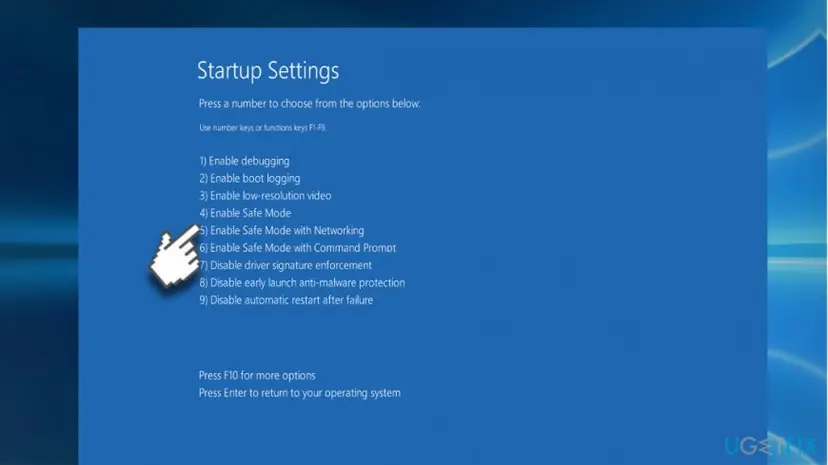
If Command Prompt also fails with the box in Safe Mode, skip to Fix 4 or straight to Fix 7. Safe Mode in full: Start Windows or a Mac in Safe Mode
It worked if: DISM says "The restore operation completed successfully", SFC then repairs the remaining files, and programs open with administrator rights again.
If not: If DISM still fails or SFC still reports files it cannot repair, go to Fix 4, or to Fix 7 if you have no restore point.
Fix 3. Reinstall the one program and repair Visual C++ and .NET
15 to 30 minutesLow riskOnly one program or game shows the box, and Command Prompt and Task Manager open as administrator without it.
When other programs start fine, the missing DLL most likely belongs to that one program or to a runtime it uses, such as Microsoft Visual C++ or .NET Framework. Microsoft's own text for this code says "Reinstalling the application might fix this problem."
- Press Win + I and open Apps > Installed apps (on Windows 10, Apps > Apps & features).
- Find the program that shows the box, select the three dots or the entry, and then Uninstall.
- Restart the PC.
- Download the latest version from its maker's own website and install it.
- If the box comes back, repair every Microsoft Visual C++ entry in Control Panel > Programs and Features with Change > Repair, as shown below.
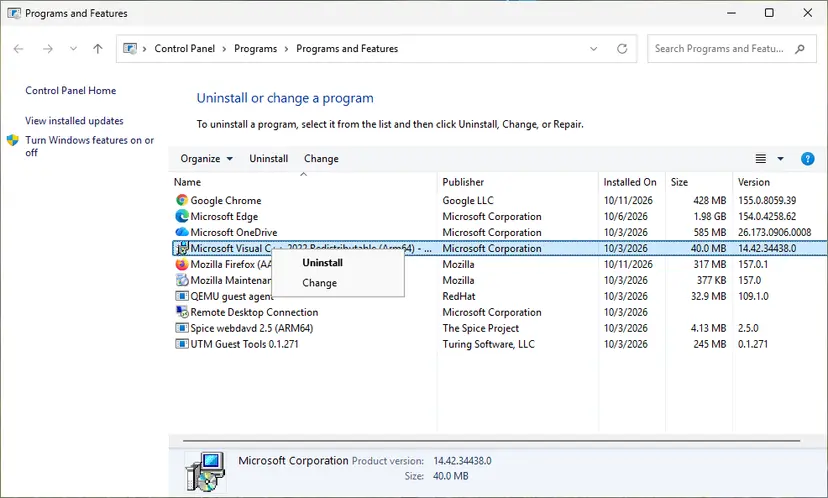
Visual C++ and .NET Framework in full: How to repair Microsoft Visual C++ Redistributable and .NET Framework Removing a program cleanly: Uninstall a program or app in Windows
Do not download the missing DLL from a "DLL download" website. The file may be the wrong version or unsafe, and it does not repair what removed it.
It worked if: The program starts without the box.
If not: If several programs fail, the missing file is part of Windows. Go back to Fix 1, or to Fix 4.
Fix 4. Roll Windows back with System Restore from the recovery screen
20 minutesRead the warningSystem Restore was on before the error began. This is the accepted answer in the Microsoft Q&A thread.
A restore point puts Windows system files, settings and drivers back to a day before the DLL went missing. Opening System Restore inside Windows needs administrator rights, which this error blocks, so start it from the recovery screen, as the Q&A answer suggests.
Programs and drivers installed after the restore point are removed. Your documents, pictures and other personal files are not changed. Note which programs you installed recently so you can install them again.
- Select Start > Power, or the power icon on the sign-in screen, hold Shift and select Restart.
- Select Troubleshoot > Advanced options > System Restore and sign in.
- Choose a restore point from before the error started and select Next.
- Select Finish and wait. Do not turn the PC off.
- After the restart, open Command Prompt as administrator to test.
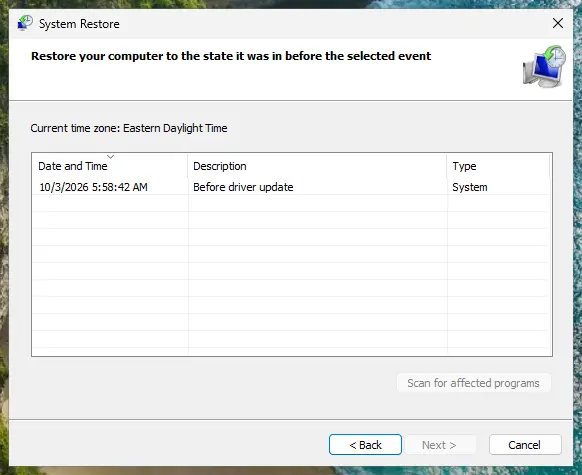
More on restore points: Undo recent changes with System Restore
It worked if: Windows reports that the restore finished, and programs open with administrator rights again.
If not: If there is no restore point or it did not help, remove the last update with Fix 5.
Fix 5. Remove the latest Windows update from the recovery screen
15 minutesLow riskThe error started right after Windows installed an update.
An update that stopped halfway can leave Windows files missing or partly written. Removing an update in Settings needs administrator rights, which this error blocks. The recovery screen removes the latest update without that prompt.
- Select Start > Power, hold Shift and select Restart.
- Select Troubleshoot > Advanced options > Uninstall Updates.
- Select Uninstall latest quality update first. Use Uninstall latest feature update only if a version upgrade came just before the error.
- Sign in with your account when asked and confirm.
- Let the PC restart and test the program that showed the box.
Windows installs the update again later. If the error comes back with it, pause updates in Settings > Windows Update for a week. Removing updates in Settings, once administrator rights work again: How to uninstall a Windows update
It worked if: The PC starts with the previous update level and programs open without the box.
If not: Rule out malware with Fix 6.
Fix 6. Scan for malware with Microsoft Defender, including the offline scan
15 minutes to 2 hoursLow riskAdware, a cleaner or an antivirus removed files before the error, or Defender already showed a warning.
Malware can delete or replace system files, and so can a security or cleanup tool that removes an infected file. We could not confirm a malware family tied to this code, so treat this as a check, not the main fix. The offline scan runs before Windows loads, so it does not need the elevation that fails.
- Select Start, type Windows Security and open the app.
- Select Virus & threat protection > Scan options.
- Select Full scan and Scan now, and wait until it finishes.
- If the full scan fails or finds nothing, go back to Scan options, choose the offline scan and select Scan now. The PC restarts and scans for about 15 minutes.
- Open Protection history to see what was found and removed.
- Run Fix 1 again afterwards, because removing malware does not put back the files it deleted.
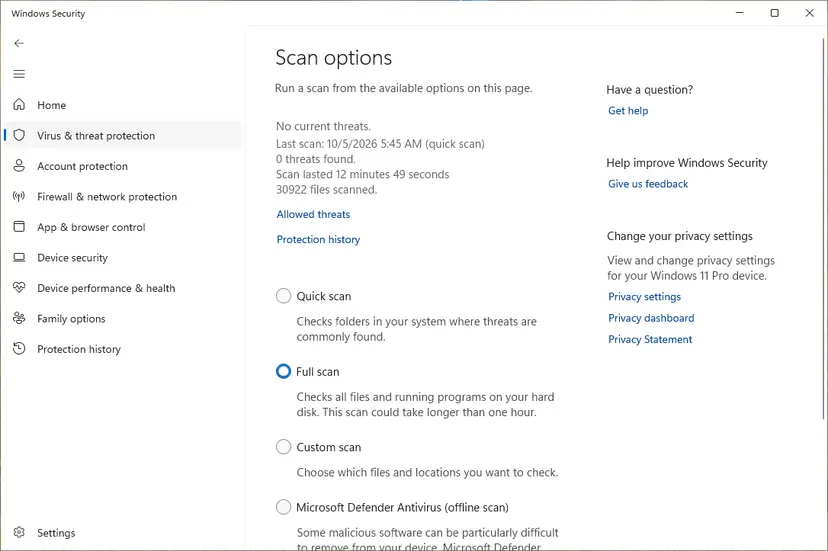
Full steps and how to read the results: How to scan for malware with Microsoft Defender
It worked if: Defender reports no threats, or removes them and lists them in Protection history.
If not: If threats come back or files stay missing after Fix 1, reinstall Windows with Fix 7.
Fix 7. Reinstall Windows while keeping your files and apps
1 to 2 hoursRead the warningFixes 1 to 6 did not help, or SFC and DISM could not repair every file.
A repair install replaces every Windows file, including the DLL files SFC and DISM could not put back, and keeps your apps, settings and files. In the BleepingComputer thread, a forum member suggested it as the next step, and Microsoft's Q&A answer pointed to reinstalling from installation media.
A repair install keeps your files, but a power cut or a failing drive during setup can lose data. Copy your documents, pictures and other important files to an external drive or cloud storage first: Back up your files (Windows Backup, File History, Time Machine)
- On Windows 11, open Settings > System > Recovery and select Reinstall now next to Fix problems using Windows Update.
- If that option is missing or fails, or you use Windows 10, mount the Windows ISO from Fix 2 and run
setup.exe. - Choose Keep personal files and apps when setup asks what to keep, and start the install.
- If setup shows the same File system error box, restart with Shift + Restart and use Troubleshoot > Reset this PC > Keep my files. This keeps your files but removes installed apps.
- After Windows starts, open Command Prompt as administrator to test.

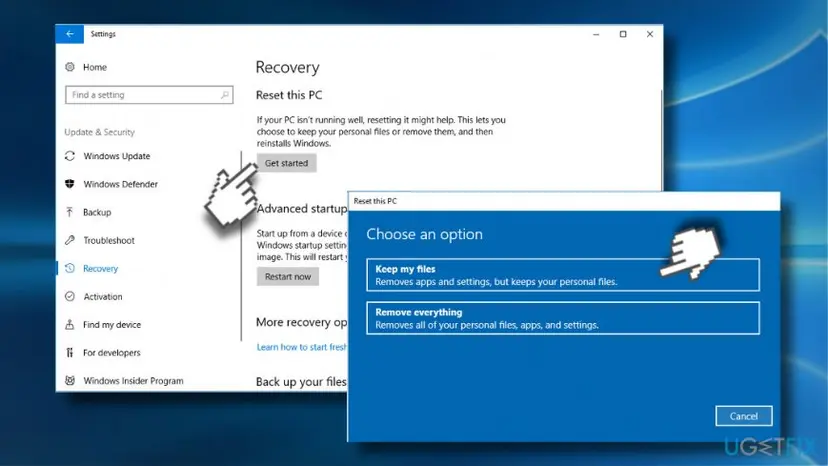
Full steps for both routes: Reinstall Windows without losing files
It worked if: Windows starts with your files in place, and programs open without the box.
If not: Read "If the file system error is still there" below.
If the file system error -1073741515 is still there
Three logs tell you what the repairs found. Read them before you contact support.
- Open
C:\Windows\Logs\CBS\CBS.login Notepad and search for lines with[SR]to see which files SFC could not repair. - Open
C:\Windows\Logs\DISM\dism.logand look at the last lines for the reason DISM stopped, such as0x800f081f, which means no usable source was found. - If Event Viewer opens, go to Windows Logs > Application and filter by the sources Chkdsk and Wininit to read the CHKDSK result.
- If CHKDSK reports bad sectors, or the same files stay missing after Fix 7, suspect the drive.
- What to send to support: the full message with the path, the CHKDSK, SFC and DISM results, the Windows version and what Fixes 1 to 7 showed.
- Where to ask: Microsoft Q&A or Microsoft Support when Windows tools fail, or the program's maker when only its own program shows the box.
- When it is not software: clicking noises, very slow copying, bad sectors or files that vanish point to a failing drive. Back up and replace the drive; no Windows repair fixes that.
- If the PC also freezes or shows blue screens: test the memory, since bad RAM can damage files as they are written: How to test your RAM with Windows Memory Diagnostic
How to keep Windows files from going missing again
- Shut Windows down from Start > Power, and let updates finish before you turn the PC off.
- Keep System Restore on for the Windows drive, so Fix 4 has a point to return to.
- Keep Microsoft Defender or another antivirus on and up to date.
- Keep a Windows ISO or a USB installer of your version, so DISM and a repair install have a source.
- Back up your files regularly to an external drive or cloud storage.
- Do not hold the power button during an update or a CHKDSK run.
- Do not let cleaner or "registry repair" tools delete files in
C:\WindowsorSystem32. - Do not download DLL files from "DLL download" sites to replace a missing one.
- Do not leave User Account Control lowered to get around the box; it removes a key protection and does not repair the files.
Windows 10 left support on 14 October 2025. The fixes above work the same on Windows 10 22H2, but it no longer gets most security and repair updates, so an upgrade to Windows 11 is the lasting route.
Frequently asked questions
What is File system error (-1073741515)?
It is the Windows status code 0xC0000135, written as a negative decimal number. Microsoft names it STATUS_DLL_NOT_FOUND: the program could not start because a DLL file it needs was not found. When one program shows it, reinstall that program. When Command Prompt, Task Manager and installers all show it, the missing file is part of Windows, so start with Fix 1: CHKDSK and SFC from the recovery screen.
Why can't I open Command Prompt, Task Manager or Device Manager?
Because they start with administrator rights, and every elevated program loads the same Windows files. If one of them is missing, all of them fail with the box while Firefox, Chrome or a video player may still work, as in the Microsoft Q&A thread. That is why Fix 1 runs from the recovery Command Prompt, which already has full rights, and Fix 2 runs from Safe Mode, where most tools still worked for the user in the BleepingComputer thread.
Is it a permissions problem?
It looks like one, and a Q&A answer said so, but the code says a file was not found, not that access was denied. Elevated programs fail because the files they load are missing or damaged. Changing folder permissions or taking ownership of System32 does not help and can make things worse. Repair the files with Fixes 1 and 2, or roll back with System Restore in Fix 4, which the same answer suggested.
What if Reset this PC does nothing when I select Get started?
That happens because Reset this PC in Settings needs the same elevation that fails. Start it from the recovery screen instead: hold Shift, select Restart, then Troubleshoot and Reset this PC, and choose Keep my files. Before that, try the repair install in Fix 7, which keeps your apps too. Both routes need no working administrator prompt inside Windows.
What does DISM error 0x800f081f mean here?
It means DISM could not find the files it needs to repair the component store. Windows Update did not work as a source for the user in the BleepingComputer thread either. Point DISM at a Windows ISO of the same version and language with /Source and /LimitAccess, as Fix 2 shows. Afterwards run sfc /scannow again so it can replace the damaged files from the repaired store.
Can I just download the missing DLL file?
No. The box does not even say which file is missing, and the file it needs must match your exact Windows build. Files from DLL download sites are often the wrong version and can be unsafe. If one program needs it, reinstall that program and repair Visual C++ (Fix 3). If Windows needs it, SFC, DISM or a repair install puts back the right copy (Fixes 1, 2 and 7).
Did my antivirus cause it?
Sometimes it plays a part. In the Microsoft Q&A thread the problems began after an antivirus removed files and was then uninstalled, and in 2017 some users linked the error to Bitdefender with Malwarebytes Anti-Exploit. We could not confirm a fixed cause. Do not turn your protection off as a fix. Repair the files with Fix 1, run the Defender offline scan in Fix 6, and if one security product keeps breaking Windows, ask its maker.
Does this error happen on Windows 11 too?
Yes. The title of this page says Windows 10 because the first reports came from there, but Microsoft Q&A has the same error on Windows 11, and the code means the same. The fixes are the same on both. Only one path differs: Reinstall now in Settings > System > Recovery exists on Windows 11, while on Windows 10 you start the repair install from the Windows ISO.
Will a repair install delete my files?
No, when you choose Keep personal files and apps. Setup replaces Windows files and keeps your documents, settings and installed programs. Reset this PC with Keep my files also keeps your documents but removes installed apps, so you reinstall them afterwards. Back up your important files first in either case, because a power cut or a failing drive during setup can still cause loss.
Is there a guide in Spanish, Portuguese or Italian?
Not yet; this page is in English. Readers who search "como solucionar", "da esse erro" or "errore" with this code have the same error, and the steps are the same in every Windows language. The menu names differ, so follow the order of the steps: the recovery screen opens with Shift and Restart, and the commands in the grey boxes are typed exactly as shown, in any language.
Sources
- Microsoft Learn [MS-ERREF]: NTSTATUS Values, entry 0xC0000135 STATUS_DLL_NOT_FOUND (learn.microsoft.com)
- Microsoft Q&A: Windows 10 file system error -1073741515, user report where cmd.exe, Task Manager, Settings and built-in apps failed and the accepted answer suggested System Restore from the recovery screen (learn.microsoft.com)
- BleepingComputer forums: Can't run programs as administrator, Error -1073741515, user report where DISM failed with 0x800f081f and DISM and SFC with a Windows ISO fixed it (bleepingcomputer.com)
Did this fix work?
One click, no account. It tells the next reader which guides are worth their time.
Questions and experiences: fix File System Error (-1073741515) in Windows 10
Still broken, or found a fix we did not cover? Ask here: members and our editors answer. Reading is open; writing needs a free account.
…