
How to fix File System Error (-1073741521) in Windows?

Prefer to fix it yourself? The manual steps follow.
- 7methods
- 20 minutes to 2 hours
- Intermediate
Applies to Windows 11 and Windows 10; Command Prompt, Task Manager, installers, Microsoft Office and any program that needs administrator rights
7 methods in this guide
Hello. When I try to open a Word document on my Windows PC, I receive the "File System Error (-1073741521)" message. How do I fix this?
File system error (-1073741521) appears when you open Command Prompt, Task Manager, an installer or an Office file. It is the Windows code 0xC000012F: a program or library file Windows tried to load is not a valid program any more, so it is damaged. Repair the disk and Windows files from the recovery screen first.
File system error (-1073741521) is the Windows status code 0xC000012F, STATUS_INVALID_IMAGE_NOT_MZ: a .exe or .dll file Windows had to load is damaged and no longer looks like a program. Run CHKDSK and an offline SFC from the recovery Command Prompt (Fix 1). If SFC cannot repair everything, run DISM in Safe Mode with Networking (Fix 2). If only Word or one app fails, repair that app (Fix 3).
| Error | A box with the program's path in the title bar, for example C:\Windows\System32\cmd.exe, the line File system error (-1073741521). and an OK button. |
|---|---|
| Where it appears | When you start a program with administrator rights (Command Prompt, Task Manager, installers), and sometimes when you open Word or another Office program. |
| Main cause | A damaged Windows system file or DLL, often after file system errors on the Windows drive, so the file Windows loads is not a valid program. |
| Fastest fix | chkdsk C: /f and an offline sfc /scannow from Troubleshoot > Advanced options > Command Prompt on the recovery screen (Fix 1). |
| Also written as | -1073741521, 1073741521, "file system error 1073741521", 0xC000012F, 0xc000012f. |
| Microsoft's name | STATUS_INVALID_IMAGE_NOT_MZ: "The specified image file did not have the correct format: it did not have an initial MZ." |
| Affects | Windows 10 and Windows 11. The box and the fixes are the same on both. |
| Vendor status | Not a known issue tied to one update or one version. Microsoft's code list only names the status; the fix is repairing the damaged files. |
| Time to fix | 20 to 40 minutes for Fix 1, up to 2 hours for a repair install (Fix 7). |
Facts checked on 15 October 2026. Steps written for Windows 11 (25H2 and 26H2) and Windows 10 22H2.
What File system error (-1073741521) means
You start Command Prompt as administrator, open Task Manager, run an installer or open a Word document. Instead of the program, Windows shows a box with the program's path and the line File system error (-1073741521). In the Microsoft Q&A thread on this error, the user could not run anything with administrator rights, and Office programs also said that MSIMG32.dll was missing, although the file was in its place.
The number is a Windows status code written as a negative decimal. In hex, -1073741521 is 0xC000012F. Microsoft's list of NTSTATUS values names it STATUS_INVALID_IMAGE_NOT_MZ, with the text "The specified image file did not have the correct format: it did not have an initial MZ."
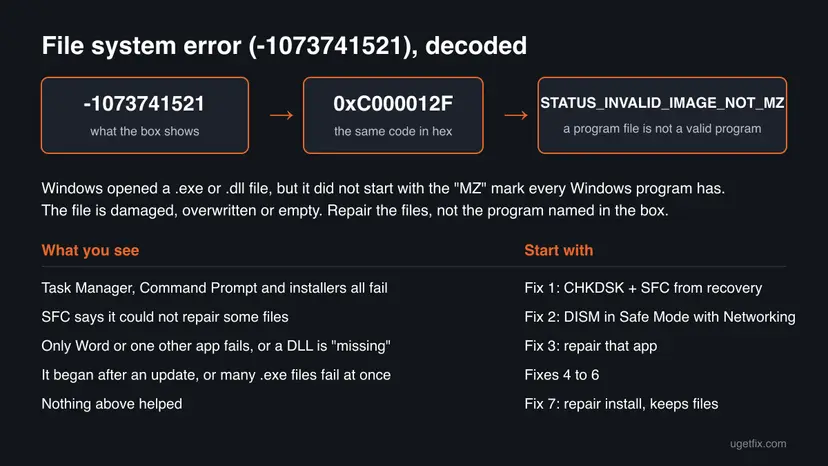
Every Windows program and DLL file starts with the two letters MZ. An "image" here is such a file. When the first bytes are wrong, the file has been damaged, overwritten or emptied, and Windows refuses to run it. The file is real and in its place, which is why the Office message about a missing DLL is misleading.
Because every program started with administrator rights can fail at once, the damaged file is often part of Windows itself, not the program named in the box. The usual advice, "open Command Prompt as administrator and run SFC", then fails with the same box. The fixes below run from the recovery screen or Safe Mode instead.
Why the file system error -1073741521 appears
The code says a program file is not a valid program. Rank the reasons like this and start at the top.
| Cause | How often | How to tell | Fix |
|---|---|---|---|
| Damaged Windows system files after file system errors on the Windows drive. | Most often | Command Prompt, Task Manager and installers all fail; in the Q&A thread CHKDSK found and fixed errors. | Fix 1 |
| Damage too wide for SFC alone, with no repair source in recovery. | Often | SFC says it found damaged files but could not fix some of them. | Fix 2 |
| One program's own files are damaged. | Sometimes | Only Word, Office or one app shows the box, or says a DLL is missing. | Fix 3 |
| A Windows update that did not install cleanly. | Sometimes | The error began right after an update. | Fix 4 |
| Changes from the last days you cannot pin down. | Sometimes | You have a restore point from before the error. | Fix 5 |
| Malware that overwrote program files. | Less often | Many unrelated .exe files fail, or Defender reports threats. | Fix 6 |
| Damage no tool inside Windows can repair. | Rarely | Fixes 1 to 6 changed nothing. | Fix 7 |
A failing drive can also damage files. If the PC also freezes, copies files very slowly or CHKDSK reports bad sectors, back up your files before anything else: Back up your files (Windows Backup, File History, Time Machine)
A similar box with another number is a different code with its own fixes. File system error (-1073741792), for example, is 0xC0000020: File system error (-1073741792).
How to fix File System Error (-1073741521) in Windows
Fix 1 repairs the disk and system files from the recovery screen and helps most readers. Fix 2 finishes the repair with DISM when SFC cannot. Fix 3 is for readers whose error comes from Word or one app. Fixes 4 to 6 undo recent changes and rule out malware, and Fix 7 reinstalls Windows while keeping your files and apps.
| What you see or have | Start with |
|---|---|
| Command Prompt, Task Manager and installers all fail with the box. | Fix 1 |
| SFC found damaged files but could not repair some of them. | Fix 2 |
| Only Word, Office or one app shows the box or a missing DLL. | Fix 3 |
| The error began right after a Windows update. | Fix 4 |
| You have a restore point from before the error. | Fix 5 |
| Many unrelated programs fail, or you suspect an infection. | Fix 6 |
| Fixes 1 to 6 did not help. | Fix 7 |
Fix 1. Check the disk and repair system files from the recovery Command Prompt
20 to 40 minutesLow riskEveryone, first. It works even when no program opens with administrator rights inside Windows.
The code means a program file is damaged. CHKDSK fixes the file system errors that damage files, and SFC then replaces damaged Windows files with good copies. The recovery Command Prompt already has full rights, so the broken administrator prompt is not used.
- Select Start > Power, hold Shift and select Restart. This needs no administrator rights.
- Select Troubleshoot > Advanced options > Command Prompt. Pick your account and type its password. If Windows asks for the BitLocker recovery key, enter it.
- Type
dir C:\Windowsand press Enter. If it lists files, Windows is on C:. If not, tryD:and use that letter below. - Run
chkdsk C: /fand wait until it finishes. - Run the offline system file check (command below) and wait until it reaches 100 %.
- Type
exit, select Continue to start Windows, and open Command Prompt as administrator to test.
Offline system file check (recovery Command Prompt)
sfc /scannow /offbootdir=C:\ /offwindir=C:\Windows
What the SFC messages mean: Run DISM and SFC to repair Windows system files More about CHKDSK and how to read its result: Check a disk for errors (chkdsk)
It worked if: CHKDSK finishes, SFC reports that it repaired the damaged files or found none, and programs start with administrator rights again.
If not: If SFC says it could not fix some files, go to Fix 2. If it found nothing and only one app fails, go to Fix 3.
Fix 2. Run DISM and SFC in Safe Mode with Networking
30 to 60 minutesLow riskSFC in Fix 1 found damaged files but could not repair some of them.
SFC copies good files from the Windows component store, and when that store is damaged too, SFC cannot finish. DISM repairs the store, but it needs a source. In the Microsoft Q&A thread, DISM in recovery failed because it found no source, and it worked once it could reach Windows Update. Safe Mode with Networking gives it that connection.
- Select Start > Power, hold Shift and select Restart.
- Select Troubleshoot > Advanced options > Startup Settings > Restart.
- Press 5 or F5 for Enable Safe Mode with Networking and sign in. Check that the PC is online.
- Select Start, type
cmd, right-click Command Prompt and select Run as administrator. - Run
DISM /Online /Cleanup-Image /RestoreHealthand wait until it reaches 100 %. It can pause at 20 % or 62 % for a while. - Run
sfc /scannowand wait until it finishes. - Restart normally and test the program that showed the box.
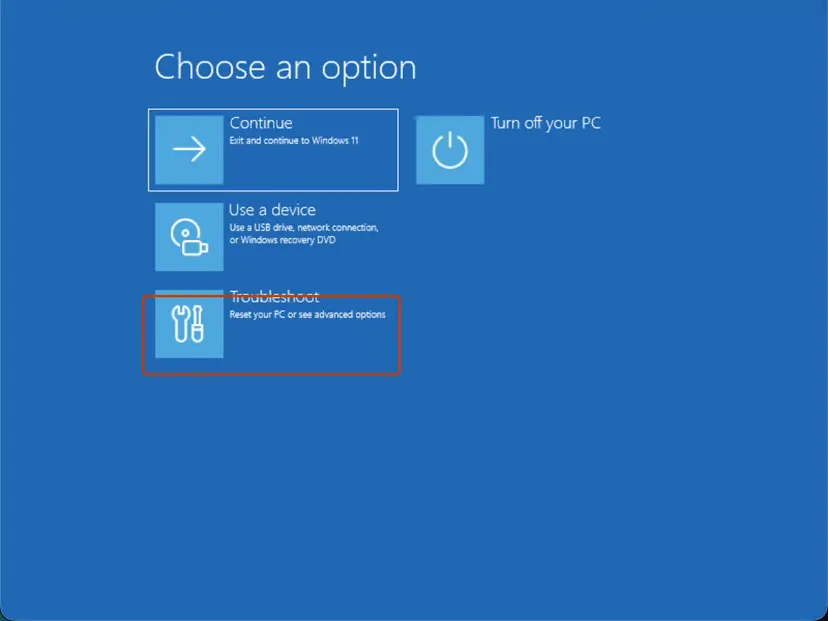
If Command Prompt also fails with the box in Safe Mode, skip to Fix 4 or straight to Fix 7. Do not lower User Account Control to get around it: see the FAQ below. Safe Mode in full: Start Windows or a Mac in Safe Mode
It worked if: DISM says "The restore operation completed successfully", SFC then repairs the remaining files, and the box no longer appears.
If not: If DISM fails or SFC still reports files it cannot repair, go to Fix 7.
Fix 3. Repair Microsoft Office or the one app that shows the error
10 to 30 minutesLow riskOnly Word, another Office program or one app shows the box, or an Office program says a DLL such as MSIMG32.dll is missing.
When other programs start fine, the damaged file most likely belongs to that one app. A repair replaces the app's own program files. Run Fix 1 first, because a missing-DLL message from Office can also point to a damaged Windows file, as in the Q&A thread.
- Press Win + I and open Apps > Installed apps.
- Find Microsoft 365 or Microsoft Office, select the three dots and then Modify.
- Choose Quick Repair and select Repair. Close all Office programs when asked.
- Open the Word document again.
- If the box is still there, run the repair again with Online Repair, which reinstalls Office.
- For another app, select it in Installed apps, then Advanced options > Repair, or uninstall it and install the latest version from its maker.
Office repair step by step: How to repair Microsoft 365 or Office Repairing other apps: How to repair or reset an app in Windows
It worked if: Word and the other Office programs open, and the document shows without the box.
If not: If the app still fails after Online Repair, the damaged file is part of Windows. Go back to Fix 1 or to Fix 7.
Fix 4. Remove the latest Windows update from the recovery screen
15 minutesLow riskThe error started right after Windows installed an update.
An update that stopped halfway can leave Windows files partly written, so they no longer start with a valid header. Removing an update in Settings needs administrator rights, which this error blocks. The recovery screen removes the latest update without that prompt.
- Select Start > Power, hold Shift and select Restart.
- Select Troubleshoot > Advanced options > Uninstall Updates.
- Select Uninstall latest quality update first. Use Uninstall latest feature update only if a version upgrade came just before the error.
- Sign in with your account when asked and confirm.
- Let the PC restart and test the program that showed the box.
Windows installs the update again later. If the error comes back with it, pause updates in Settings > Windows Update for a week. Removing updates in Settings, once administrator rights work again: How to uninstall a Windows update
It worked if: The PC starts with the previous update level and programs open without the box.
If not: Roll Windows back with System Restore in Fix 5.
Fix 5. Roll Windows back with System Restore from the recovery screen
20 minutesRead the warningSystem Restore was on before the error began and Fixes 1 to 4 did not help.
A restore point puts Windows system files, settings and drivers back to a day before the files were damaged. Opening System Restore inside Windows needs administrator rights, so start it from the recovery screen.
Programs and drivers installed after the restore point are removed. Your documents, pictures and other personal files are not changed. Note which programs you installed recently so you can install them again.
- Select Start > Power, hold Shift and select Restart.
- Select Troubleshoot > Advanced options > System Restore and sign in.
- Choose a restore point from before the error started and select Next.
- Select Finish and wait. Do not turn the PC off.
- After the restart, test the program that showed the box.
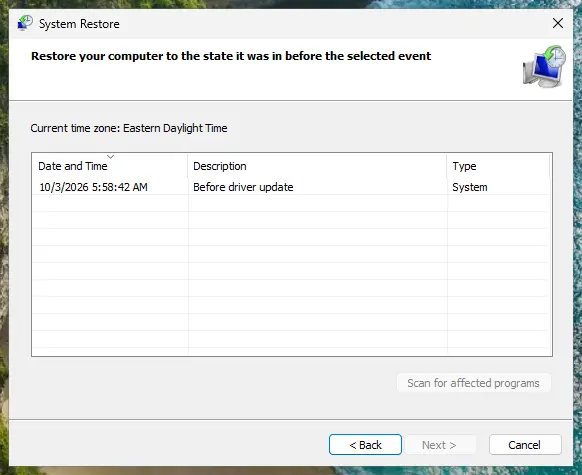
More on restore points: Undo recent changes with System Restore
It worked if: Windows reports that the restore finished, and programs open with administrator rights again.
If not: Rule out malware with Fix 6.
Fix 6. Scan for malware with Microsoft Defender, including the offline scan
15 minutes to 2 hoursLow riskMany unrelated programs fail, the error appeared with no update or crash before it, or Defender already showed a warning.
Some malware overwrites or replaces program files, which leaves them without a valid header. We could not confirm a specific malware family tied to this code, so treat this as a check, not the main fix. The offline scan runs before Windows loads, so it does not need the administrator prompt that fails.
- Select Start, type Windows Security and open the app.
- Select Virus & threat protection > Scan options.
- Select Full scan and Scan now, and wait until it finishes.
- If the full scan fails or finds nothing, go back to Scan options, choose the offline scan and select Scan now. The PC restarts and scans for about 15 minutes.
- Open Protection history to see what was found and removed.
- Run Fix 1 again afterwards, because removing malware does not repair the files it damaged.
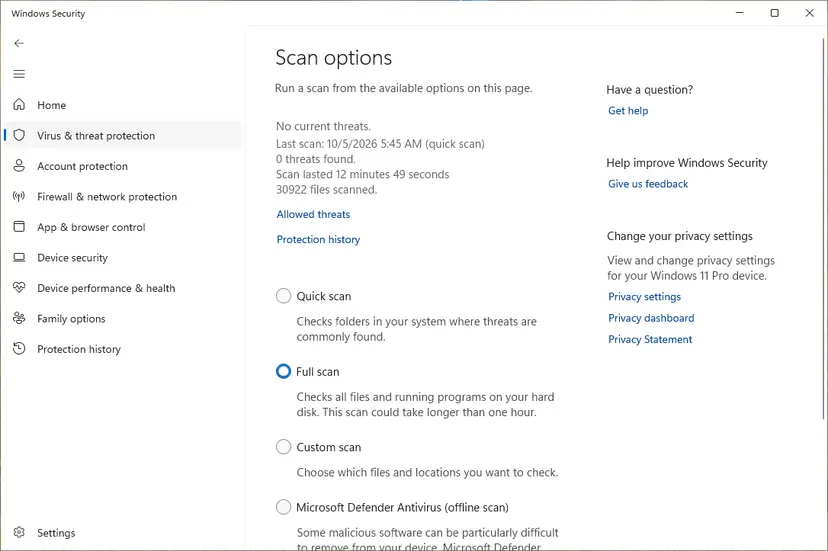
Full steps and how to read the results: How to scan for malware with Microsoft Defender
It worked if: Defender reports no threats, or removes them and lists them in Protection history.
If not: If threats came back or the damage stays after Fix 1, reinstall Windows with Fix 7.
Fix 7. Reinstall Windows while keeping your files and apps
1 to 2 hoursRead the warningFixes 1 to 6 did not help, or SFC and DISM could not repair every file.
A repair install replaces every Windows file, including the damaged program and DLL files SFC could not reach, and keeps your apps, settings and files. In the Q&A thread, the user planned a refresh of the install because SFC still found errors after DISM.
A repair install keeps your files, but a power cut or a failing drive during setup can lose data. Copy your documents, pictures and other important files to an external drive or cloud storage first: Back up your files (Windows Backup, File History, Time Machine)
- On Windows 11, open Settings > System > Recovery and select Reinstall now next to Fix problems using Windows Update.
- If that option is missing or fails, download the Windows ISO from Microsoft's official download page, double-click it to mount it and run
setup.exe. - Choose Keep personal files and apps when setup asks what to keep, and start the install.
- If setup shows the same File system error box, restart with Shift + Restart and use Troubleshoot > Reset this PC > Keep my files. This keeps your files but removes installed apps.
- After Windows starts, test the program that showed the box.

Full steps for both routes: Reinstall Windows without losing files
It worked if: Windows starts with your files and apps in place, and programs open without the box.
If not: Read "If the file system error is still there" below.
If the file system error -1073741521 is still there
Three logs tell you what the repairs found. Read them before you contact support.
- Press Win + R, type
eventvwr.mscand press Enter. - Open Windows Logs > Application and filter by the sources Chkdsk and Wininit to read the CHKDSK result.
- Open
C:\Windows\Logs\CBS\CBS.logand search for lines with[SR]to see which files SFC could not repair. - Open
C:\Windows\Logs\DISM\dism.logand look at the last lines for the reason DISM stopped, such as a missing source. - If CHKDSK reports bad sectors, or the same files stay damaged after Fix 7, suspect the drive.
- What to send to support: the full message with the path, the CHKDSK, SFC and DISM results, the Windows version from Settings > System > About, and what Fixes 1 to 7 showed.
- Where to ask: Microsoft Q&A or Microsoft Support when the damaged files are part of Windows, or the app's maker when only its files are named.
- When it is not software: clicking noises, very slow copying, bad sectors or files that change by themselves point to a failing drive. Back up and replace the drive; no Windows repair fixes that.
- If the PC also freezes or shows blue screens: test the memory, since bad RAM can damage files as they are written: How to test your RAM with Windows Memory Diagnostic
How to keep program files from being damaged again
- Shut Windows down from Start > Power, and let updates finish before you turn the PC off.
- Keep System Restore on for the Windows drive, so Fix 5 has a point to return to.
- Keep Microsoft Defender or another antivirus on and up to date.
- Back up your files regularly to an external drive or cloud storage.
- Do not hold the power button during an update or a CHKDSK run.
- Do not download DLL files from "DLL download" sites to replace a "missing" one; the real file is damaged, and such files can be unsafe.
- Do not leave User Account Control lowered; it removes a key protection and does not repair the files.
Windows 10 left support on 14 October 2025. The fixes above work the same on Windows 10 22H2, but it no longer gets most security and repair updates, so an upgrade to Windows 11 is the lasting route.
Frequently asked questions
What is File system error (-1073741521)?
It is the Windows status code 0xC000012F, written as a negative decimal number. Microsoft names it STATUS_INVALID_IMAGE_NOT_MZ: the program or DLL file Windows tried to load did not start with the MZ mark every Windows program has. In practice the file is damaged, overwritten or empty. When many programs fail, the file is most likely part of Windows. Start with Fix 1: CHKDSK and SFC from the recovery screen.
Why do I get it when I open a Word document?
Because opening the document starts Word, and Word loads its own files and many Windows DLL files. If one of them is damaged, Word cannot start and Windows shows the box. If other programs work, repair Office first with Quick Repair, then Online Repair (Fix 3). If Command Prompt or Task Manager fail too, the damaged file is in Windows, so begin with Fix 1.
Why does Office say MSIMG32.dll is missing when the file is there?
The message is misleading. Windows found the file but could not load it because its content is damaged, and Office reports that as missing. That is what this code means. In the Microsoft Q&A thread on this error, the DLL was in its place and the problem went away after DISM and SFC repaired Windows files. Do not download a replacement DLL from a website; run Fix 1 and Fix 2 instead.
Why can't I open Command Prompt or Task Manager?
Because they start with administrator rights, and in the reports we read every elevated program failed at once while some normal programs still ran. The damaged file is shared by all of them. That is why Fix 1 runs from the recovery Command Prompt, which already has full rights, and Fix 2 runs from Safe Mode with Networking.
Is lowering User Account Control a safe way around it?
No, not as a fix. In the Microsoft Q&A thread, one user turned UAC off in Safe Mode so that DISM could run, then turned it back on after the repair. It worked for that user, but it removes a key protection, and a PC with damaged program files is exactly where you want it. Use the recovery screen and Safe Mode with Networking (Fixes 1 and 2), and the repair install (Fix 7) if they fail.
Is my hard drive failing?
Usually not, but it is possible. Damaged files most often follow a crash, a power cut or an update that stopped halfway. A failing drive shows other signs too: clicking noises, very slow copying, files that change by themselves, or CHKDSK reporting bad sectors. If you see those, back up your files at once and check the drive before you spend time on Windows repairs.
What is File system error (-1073741515)?
It is a different code. In hex, -1073741515 is 0xC0000135, which Microsoft's list names STATUS_DLL_NOT_FOUND: the program could not start because a DLL file it needs was not found. Reinstalling the program that shows it often helps, and Microsoft's own text says so. If many programs show it at once, run Fix 1 on this page, because a damaged Windows install can cause both codes.
Does this error happen on Windows 11 and Windows 10?
Yes. The Microsoft Q&A thread about this message comes from Windows 10, and the code means the same on Windows 11. The fixes are the same on both. Only one path differs: Reinstall now in Settings > System > Recovery exists on Windows 11, while on Windows 10 you start the repair install from the Windows ISO. Readers searching in Russian for "11 виндовс" (Windows 11) will find the same steps apply.
Will a repair install delete my files?
No, when you choose Keep personal files and apps. Setup replaces Windows files and keeps your documents, settings and installed programs. Reset this PC with Keep my files also keeps your documents but removes installed apps, so you reinstall them afterwards. Back up your important files first in either case, because a power cut or a failing drive during setup can still cause loss.
Sources
- Microsoft Learn [MS-ERREF]: NTSTATUS Values, entries 0xC000012F STATUS_INVALID_IMAGE_NOT_MZ and 0xC0000135 STATUS_DLL_NOT_FOUND (learn.microsoft.com)
- Microsoft Learn: Repair a Windows Image (DISM /RestoreHealth, repair sources and /LimitAccess) (learn.microsoft.com)
- Microsoft Q&A: File System Error (-1073741521), user report on Windows 10 where elevated programs failed, offline SFC could not repair everything and DISM worked once it reached Windows Update (learn.microsoft.com)
Did this fix work?
One click, no account. It tells the next reader which guides are worth their time.
Questions and experiences: fix File System Error (-1073741521) in Windows
Still broken, or found a fix we did not cover? Ask here: members and our editors answer. Reading is open; writing needs a free account.
…