
How to fix the fvevol.sys blue screen (BSOD) error in Windows

Prefer to fix it yourself? The manual steps follow.
- 7methods
- 15 to 60 minutes
- Intermediate
Applies to Windows 11 and Windows 10 PCs, with or without BitLocker or Device encryption turned on
7 methods in this guide
Hello. My Windows PC crashed several times with the fvevol.sys Blue Screen of Death error. What should I do to fix it?
fvevol.sys is the BitLocker drive encryption driver that Windows loads on every start, between the file system and the disk. When a blue screen names it, the fault usually lies in the storage driver, the drive or a disk tool next to it. Save your BitLocker recovery key first, then update the storage driver and BIOS.
fvevol.sys is a Microsoft file, not a virus, and the blue screen rarely means BitLocker itself is broken. First find and save your BitLocker recovery key. Then update the storage controller driver, the SSD firmware and the BIOS (Fix 1) and remove third-party encryption or backup tools (Fix 2). If Windows no longer starts and shows error 0xc0000221, go straight to Fix 4.
| Error | A stop screen (blue, or black on Windows 11 24H2 and later) with What failed: fvevol.sys, or a boot screen saying a critical system driver \Windows\System32\drivers\fvevol.sys is missing or corrupted, error code 0xc0000221. |
|---|---|
| Where it appears | At start or restart, during heavy disk activity, after waking from sleep, or right after a Windows, driver or BIOS update. Some PCs crash only on restart and start fine after a full shut down. |
| Main cause | A fault in the storage path that fvevol.sys sits in: an outdated or new storage controller driver, SSD firmware, a third-party disk filter, or damaged files on the system drive. |
| Fastest fix | Save the recovery key, then update the storage driver, SSD firmware and BIOS (Fix 1). Windows does not start: Fix 4. |
| Also written as | fvevol, fvevol.sys error, fvevol.sys failed, fvevol.sys BSOD, fvevol.sys missing or corrupt, with stop codes such as CRITICAL_PROCESS_DIED, DRIVER_POWER_STATE_FAILURE and SYSTEM_THREAD_EXCEPTION_NOT_HANDLED. |
| Who makes it | Microsoft. It is the BitLocker drive encryption driver in C:\Windows\System32\drivers, part of Windows on every edition, Home included. |
| Vendor status | No known issue is listed for fvevol.sys itself. Microsoft turns on Device encryption by itself when you set up a PC with a Microsoft account, so many owners have BitLocker on without knowing it. |
| Where the cause is logged | C:\Windows\Minidump (one .dmp file per crash) and Event Viewer, Windows Logs > System, source BugCheck, event ID 1001. |
| Time to fix | 15 to 30 minutes for driver and BIOS updates. Repairing a PC that does not start can take an hour. |
Facts checked on 15 October 2026. Steps written for Windows 11 (25H2 and 26H2) and Windows 10 22H2.
What fvevol.sys is and why a blue screen names it
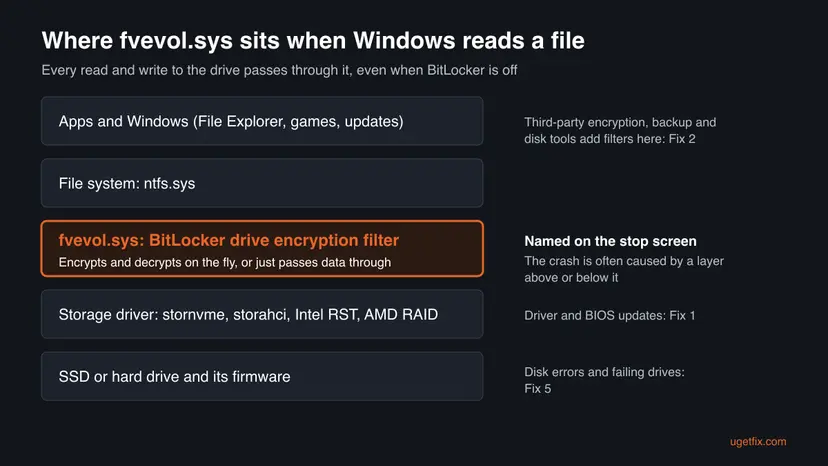
fvevol.sys is the BitLocker drive encryption driver. FVE stands for Full Volume Encryption, the inside name of BitLocker. Microsoft staff on Microsoft Q&A describe it as the driver associated with BitLocker drive encryption. It sits in C:\Windows\System32\drivers and is signed by Microsoft.
The driver is a filter in the storage path. When BitLocker is on, it encrypts and decrypts data on the fly. When BitLocker is off, it still loads and passes the data through. That is why people who never turned BitLocker on still see fvevol.sys on a stop screen, as one reader on Microsoft Q&A reported on Windows 10.
| What you see | What it means |
|---|---|
| What failed: fvevol.sys on the stop screen | The BitLocker filter driver was running when Windows stopped. It is often a victim of the layer next to it |
A critical system driver fvevol.sys is missing or corrupted, error code 0xc0000221 | The file on the disk failed its check at start. Windows cannot load without it, so the PC does not boot: Fix 4 |
| CRITICAL_PROCESS_DIED with fvevol.sys | A core Windows process ended because a disk read failed through the BitLocker path |
| DRIVER_POWER_STATE_FAILURE with fvevol.sys | A storage device did not wake or sleep in time, usually after sleep or at restart |
| The BitLocker recovery screen asking for a key | Not this crash, but it often follows a BIOS or hardware change. You need the 48 digit recovery key |
The genuine file is part of Windows and is repaired by Windows' own tools. Do not download fvevol.sys from DLL or driver sites, and do not rename or delete it: Windows needs it to start.
Why fvevol.sys crashes: the causes, most common first
Because the driver itself is a stable Windows file, look at what happens around it. Microsoft staff on Q&A point first to a third-party program that conflicts with the BitLocker driver. In other reports the file on the disk is damaged and System File Checker cannot keep it repaired.
| How often | Cause | Sign | Fix |
|---|---|---|---|
| Most often | Outdated or freshly updated storage controller driver, SSD firmware or BIOS | Crashes at start, restart or after sleep; Intel RST, AMD RAID or an NVMe drive | Fix 1 |
| Often | Third-party encryption, backup, imaging or disk tools that add their own filter | VeraCrypt, an imaging or backup tool, a disk cache or RAM disk tool was installed | Fix 2 |
| Often | A Windows update or a driver that arrived just before the crashes | The first crash in Event Viewer matches an update date | Fix 3 |
| Less often | fvevol.sys or other boot files damaged on the disk | Error 0xc0000221, Windows does not start | Fix 4 |
| Less often | Bad sectors, a failing SSD or failing RAM | Random stop codes, slow disk, SMART warnings | Fix 5 |
| Rarely | Damaged Windows component store | SFC reports files it could not repair | Fixes 6 and 7 |
Old guides tell you to decrypt the drive with manage-bde -off. That takes hours, leaves your files unprotected and does not stop fvevol.sys from loading, so it rarely changes the crash.
First: find your BitLocker recovery key and read the crash
Microsoft turns on Device encryption by itself when you first sign in with a Microsoft account, or a work or school account, and stores the recovery key in that account. Windows Home has it too. Repairs from the recovery screen and BIOS updates can ask for that key, so have it before you start.
- Right-click Start and select Terminal (Admin). Run
manage-bde -status C:and read Protection Status. Protection On means BitLocker is active. - Open Settings > Privacy & security > Device encryption to see the same on Windows Home. If the page is missing, check Device Encryption Support in System Information.
- Find the key in your Microsoft account, as Microsoft explains in Find your BitLocker recovery key. Write the 48 digits on paper or save them on another device.
- Press Win + R, type
eventvwr.mscand press Enter. Open Windows Logs > System and find the newest BugCheck event, ID 1001. It holds the stop code. - Open
C:\Windows\Minidumpand note the dates of the.dmpfiles. Compare them with your last updates.
If BitLocker is on and the PC asks for a key you do not have, Microsoft cannot unlock the drive for you. Get the key while Windows still starts.
How to fix the fvevol.sys blue screen
Fixes 1 to 3 treat what sits around fvevol.sys, which is where this crash usually starts. Fix 4 is for a PC that no longer starts. Fixes 5 to 7 are the checks and repairs for when the cause is still unknown.
| What you see or what your PC has | Start with | Then |
|---|---|---|
| Crashes at start, restart or after sleep, Windows still runs | Fix 1 | Fix 2 |
| You installed encryption, backup, imaging or disk tools | Fix 2 | Fix 1 |
| Crashes began right after a Windows or driver update | Fix 3 | Fix 1 |
| Error 0xc0000221 or a boot loop, Windows does not start | Fix 4 | Fix 7 |
| Random stop codes, slow disk, clicking or SMART warnings | Fix 5 | Fix 6 |
Fix 1. Update the storage controller driver, SSD firmware and BIOS
20 to 30 minutesRead the warningWindows still starts, and the crashes come at start, restart, after sleep or during heavy disk work.
fvevol.sys hands every disk request to the storage driver below it. A storage driver or SSD firmware that times out or fails a power change crashes Windows in that path, and the stop screen names the BitLocker filter.
A BIOS update can trigger the BitLocker recovery screen, and an interrupted one can leave the PC unable to start. Save your recovery key first, plug a laptop into power and suspend BitLocker for one restart as shown below. Your files are not touched.
- Press Win + R, type
msinfo32and press Enter. Note System Model (or BaseBoard Product) and BIOS Version/Date. - Open Device Manager, expand Storage controllers and Disk drives, and note the controller and the drive model. Update or roll back the controller driver: Update, roll back or reinstall a driver
- On the PC or motherboard maker's support page, download the newest chipset and storage driver (Intel RST or AMD RAID if your PC uses them) and install them.
- Open the SSD maker's tool or page for your drive model and install a newer firmware if one is listed.
- Before a BIOS update, run
manage-bde -protectors -disable C: -RebootCount 1in Terminal (Admin). Protection comes back on its own after one restart. - Install the newest BIOS with the maker's own instructions, then start Windows and use it normally for a day.

It worked if: No new file in C:\Windows\Minidump after a day that includes restarts and sleep, and manage-bde -status C: shows Protection On again.
If not: If you use any third-party disk or encryption tool, go to Fix 2. If the crashes started with an update, go to Fix 3.
Fix 2. Remove third-party encryption, backup and disk tools
15 minutesLow riskYou installed VeraCrypt, another encryption program, an imaging or backup tool, a disk cache, a RAM disk or an old antivirus with disk protection.
These programs add their own filter drivers to the same storage path as fvevol.sys. Microsoft staff on Q&A name a conflict between a third-party program and the BitLocker driver as a likely cause of this crash.
- Make a clean boot test first, so only Microsoft services start: How to perform a clean boot in Windows
- Restart the PC several times and let it sleep once. If the crash stops, one of the turned-off programs is the cause.
- Turn the services back on in halves until the crash returns, to find the one program.
- Uninstall that program with its own uninstaller or from Settings: Uninstall a program or app in Windows
- If it was encryption software, decrypt with that program before you remove it, or you can lose access to the drive.

It worked if: With the program gone, the PC restarts and wakes from sleep without the stop screen.
If not: Undo the clean boot settings and go to Fix 3.
Fix 3. Remove the update or driver that started the crashes
15 minutesLow riskThe first crash in Event Viewer falls on the day of a Windows update, a driver update or a BIOS update.
fvevol.sys and the storage drivers around it are updated through Windows Update. Removing the change that came just before the first crash shows whether it is the trigger.
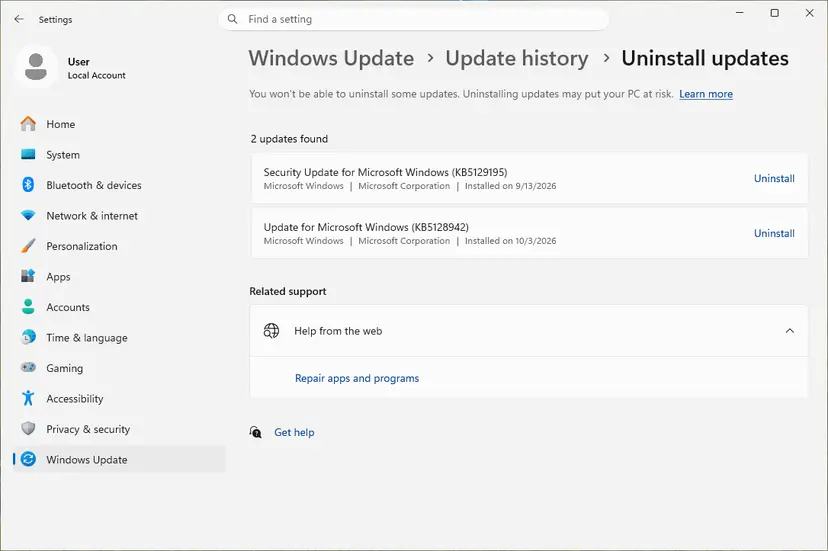
- Open Settings > Windows Update > Update history and note the KB numbers and dates of the newest updates.
- Compare them with the first BugCheck event in Event Viewer.
- If they match, uninstall that update: How to uninstall a Windows update
- If a driver came at that date, roll it back on its Driver tab in Device Manager.
- If neither works, return the PC to a restore point from before the first crash: Undo recent changes with System Restore
It worked if: The PC runs through the restarts that used to crash.
If not: Pause updates for a week and install the update again later, since it carries security fixes. Then try Fix 5.
Fix 4. Repair fvevol.sys when Windows does not start (error 0xc0000221)
30 to 60 minutesRead the warningWindows stops at start with the fvevol.sys missing or corrupted message, error code 0xc0000221, or loops into automatic repair.
Error 0xc0000221 means the file on the disk failed its check, so Windows refuses to load it. From the recovery environment you can unlock the drive and let Windows put back a clean copy.
If the system drive is encrypted, the recovery tools ask for the 48 digit key before they can repair anything. Have it ready from your Microsoft account on another device. Nothing here deletes files, but Reset this PC, the last step, can remove apps.
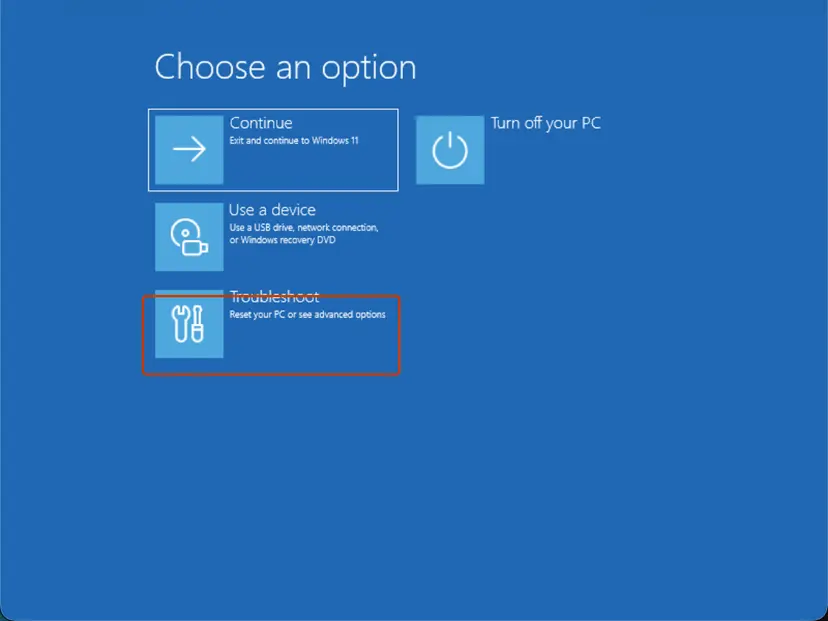
- Turn the PC on and, while the spinning dots show, hold the power button for 5 to 10 seconds. Do this twice; on the third start Windows opens the recovery environment.
- Select Troubleshoot > Advanced options > Startup Repair and let it run: Run Startup Repair
- If that fails, open Command Prompt in the same menu. If it asks, unlock the drive with
manage-bde -unlock C: -RecoveryPasswordfollowed by your key. - Type
dir C:\Windowsto check the letter of the Windows drive; in recovery it can differ. - Run
sfc /scannow /offbootdir=C:\ /offwindir=C:\Windowswith the right letter and wait for the result. - Restart. If Windows still does not start, use System Restore in the same menu, then Fix 7 from a USB drive.
It worked if: SFC reports that it repaired files, and Windows starts to the sign in screen.
If not: If SFC repairs the file but the error is back after the next restart, the disk is likely failing: copy your files off and go to Fix 5.
Fix 5. Check the drive and the memory for errors
30 to 60 minutesLow riskStop codes change from crash to crash, the disk is slow or noisy, or the fvevol.sys error returns after a repair.
BitLocker reads every sector through fvevol.sys, so a bad sector or a failing SSD shows up as a crash in that driver. Failing RAM corrupts data on its way to the disk in the same way.
- Back up your files first: Back up your files (Windows Backup, File History, Time Machine)
- In Terminal (Admin) run
Get-PhysicalDisk | Select FriendlyName, HealthStatus, OperationalStatus. Anything other than Healthy and OK means the drive needs replacing. - Check the file system for errors: Check a disk for errors (chkdsk)
- Test the memory with the tool built into Windows: How to test your RAM with Windows Memory Diagnostic
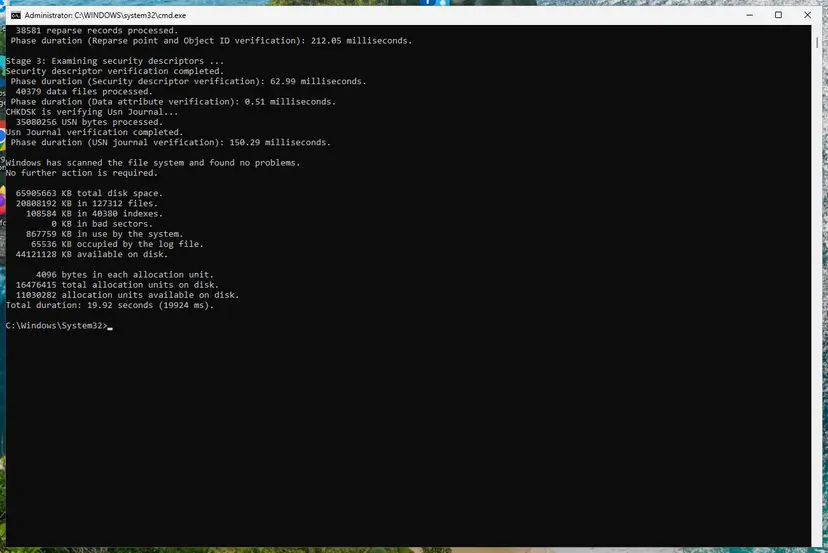
It worked if: The drive shows Healthy, chkdsk finds no problems and the memory test reports no errors.
If not: Replace a drive that reports errors, after copying your data off. If all tests pass, go to Fix 6.
Fix 6. Repair Windows system files
20 minutesNo riskWindows starts and SFC has not been run yet, or Event Viewer shows other system files failing.
fvevol.sys is a protected Windows file, so DISM and SFC can put back a clean copy from the component store.
- Right-click Start and select Terminal (Admin).
- Run
DISM.exe /Online /Cleanup-Image /RestoreHealth, thensfc /scannow. Step by step with screenshots: Run DISM and SFC to repair Windows system files - If DISM stops with error 0x800f081f, the source files are missing, and Fix 7 is the way to repair them.
- Restart the PC when SFC is done.
It worked if: SFC reports that it found no integrity violations or that it repaired them.
If not: If SFC says it could not repair some files, go to Fix 7.
Fix 7. Repair-install Windows and keep your files
60 to 90 minutesRead the warningSFC or DISM cannot repair the files, or the 0xc0000221 error keeps coming back on a healthy drive.
An in-place repair writes a fresh copy of every Windows file, fvevol.sys included, while it keeps your apps, settings and files.
A repair install keeps your files, but a power cut in the middle can still cost data. Copy your important files to another drive and keep the BitLocker recovery key at hand.
- Run the in-place repair with the Windows installation media and keep files and apps: Reinstall Windows without losing files
- After it finishes, install the latest updates and check that
manage-bde -status C:shows the protection you had before.
It worked if: Windows starts with your apps and files, and the fvevol.sys crash does not return.
If not: If it still crashes after a full repair on a drive that tests healthy, collect the dumps as described below and contact your PC maker.
Still crashing: what to send and to whom
fvevol.sys is a Microsoft file, but the fix for this crash usually comes from the storage driver, the drive or the PC maker. Collect the facts once and send them to the right place.
- The three newest
.dmpfiles fromC:\Windows\Minidump, zipped. - The PC model, BIOS version, storage controller and drive model from
msinfo32and Device Manager. - The output of
manage-bde -statusandGet-PhysicalDisk. - When it crashes: at start, at restart, after sleep, during copying.
- Which fixes above you tried and what happened.
| Where to report | When |
|---|---|
| Your PC or laptop maker | Prebuilt PCs and laptops, crashes after a BIOS or storage driver update |
| The SSD maker | The drive reports warnings or the crash follows the drive to another PC |
| Microsoft Q&A or Feedback Hub | Crashes that start with one Windows update and stop when it is removed |
How to keep the fvevol.sys blue screen from coming back
- Keep the BitLocker recovery key in your Microsoft account and on paper.
- Suspend BitLocker for one restart before a BIOS or firmware update.
- Install chipset and storage drivers from the PC maker's page.
- Check the drive's health twice a year.
- Rename, delete or replace fvevol.sys.
- Download driver files from DLL or driver sites.
- Run two encryption programs on the same drive.
- Decrypt the drive as a fix for a crash.
Windows 10 left support on 14 October 2025, so a storage or BitLocker fault found on it will not get new Microsoft fixes. Windows 11 with a current BIOS and storage driver is the setup that still gets them.
Frequently asked questions
What is fvevol.sys?
fvevol.sys is the BitLocker drive encryption driver of Windows, made by Microsoft and stored in C:\Windows\System32\drivers. FVE stands for Full Volume Encryption. It sits between the file system and the storage driver, encrypting and decrypting data when BitLocker or Device encryption is on and passing it through when it is off. Windows installs and updates it, so you never need to download it.
Is fvevol.sys a virus?
No. The genuine file is a signed Microsoft driver in C:\Windows\System32\drivers. Right-click it, select Properties and open the Digital Signatures tab to see Microsoft Windows as the signer. A file with that name anywhere else deserves a scan with Microsoft Defender. The blue screen itself is almost never caused by malware, so start with the storage fixes above.
What does fvevol.sys failed mean?
It means the What failed line of the stop screen named fvevol.sys, so the BitLocker filter was running when Windows stopped. It does not prove the driver is broken. Because every disk request passes through it, a fault in the storage driver, the drive or a third-party filter often ends there. That is why Fixes 1 and 2 help most readers.
Why do I get the fvevol.sys error when I do not use BitLocker?
Because the driver loads on every Windows PC, whether BitLocker is on or not, and it stays in the storage path. Also check: Microsoft turns on Device encryption by itself when you set up a PC with a Microsoft account, including Windows Home. Run manage-bde -status in Terminal (Admin) to see the real state of your drives.
Should I turn off BitLocker to fix the fvevol.sys BSOD?
No. Decrypting the drive takes hours, leaves your files readable to anyone who takes the disk, and does not unload fvevol.sys, so the crash usually stays. Suspending protection for one restart before a BIOS update is fine, since it turns back on by itself. Fix the storage driver, the drive or the conflicting tool instead.
How do I fix fvevol.sys error code 0xc0000221?
0xc0000221 means the copy of fvevol.sys on the disk failed its check at start, so Windows cannot load it. Open the recovery environment, run Startup Repair, then run SFC offline from Command Prompt, as Fix 4 shows. If SFC repairs the file but the error returns after a restart, the drive is probably failing and needs a check in Fix 5.
Why does my PC crash with fvevol.sys on restart but start fine after a shut down?
One reader on Microsoft Q&A reported exactly this pattern on Windows 10, and it later went away without a clear cause. Restart and shut down treat the drive and its driver differently, so a storage driver or firmware that fails one of these paths can produce it. Update the storage driver, SSD firmware and BIOS in Fix 1 first.
Will I lose my files fixing fvevol.sys?
Not with Fixes 1 to 6. A repair install in Fix 7 keeps your files and apps. The real risk is BitLocker: if the drive is encrypted and you lose the recovery key, nobody can unlock it. Save the key from your Microsoft account before you start, and back up your files when the disk shows any errors.
fvevol.sys เกิดจากอะไร, これって何が原因? What causes it in other languages?
Both questions ask what causes the fvevol.sys error, in Thai and in Japanese. The answer is the same in every language version of Windows: the BitLocker driver is named because a storage driver, the drive or a disk tool failed next to it. The menu names change with the language, but the file path, the commands and the fixes above are the same.
Sources
- Microsoft Support: Device Encryption in Windows (support.microsoft.com)
- Microsoft Q&A: BSOD if restart computer showing fvevol.sys is the problem (answer naming a third-party conflict with the BitLocker driver) (learn.microsoft.com)
- Microsoft Q&A: The operating system couldn't be loaded because a critical system driver is missing or corrupted, fvevol.sys, error code 0xc0000221 (learn.microsoft.com)
Did this fix work?
One click, no account. It tells the next reader which guides are worth their time.
Questions and experiences: fix the fvevol.sys blue screen (BSOD) error in Windows
Still broken, or found a fix we did not cover? Ask here: members and our editors answer. Reading is open; writing needs a free account.
…