
How to fix Media Creation Tool error 0x8007043C - 0x90018 in Windows?

Prefer to fix it yourself? The manual steps follow.
- 8methods
- 5 minutes to 1 hour
- Intermediate
Applies to The Media Creation Tool (MediaCreationTool.exe) for Windows 11 and Windows 10, run on Windows 11 or Windows 10
8 methods in this guide
I had some really bad problems with my PC (it kept crashing non-stop), so I decided to reinstall Windows. Now that I'm trying to do so, I keep receiving Media Creation Tool error 0x8007043C - 0x90018. Help is much appreciated.
Error 0x8007043C - 0x90018 means the Media Creation Tool asked Windows to start a service and Windows refused. The first code is Windows error 1084, "This service cannot be started in Safe Mode." Restart Windows normally and run the tool again; if the PC only works in Safe Mode, make the USB drive on another PC.
0x8007043C means a Windows service could not start because the PC is in Safe Mode, and the tool needs services that do not run there. Restart into normal Windows and run the tool again (Fix 1). If Windows crashes outside Safe Mode, make the USB drive on another PC (Fix 2). If normal mode works and you only want to reinstall this PC, use the ISO (Fix 3).
| Error | 0x8007043C - 0x90018 in the Media Creation Tool window: "There was a problem running this tool". |
|---|---|
| Where it appears | Right after you start the tool, or while it gets things ready, before it asks for a USB drive or an ISO. |
| Main cause | Windows error 1084, ERROR_NOT_SAFEBOOT_SERVICE: "This service cannot be started in Safe Mode." The tool runs in Safe Mode, or a service it needs is blocked. |
| Fastest fix | Leave Safe Mode, restart normally and run the tool again (Fix 1). No normal Windows: use another PC (Fix 2). |
| Also written as | 0x8007043c-0x90018, 0x8007043C 0x90018, error code: 0x8007043C - 0x90018, error 0x8007043c. |
| Affects | The Windows 11 and Windows 10 Media Creation Tool. Windows 10 left support on 14 October 2025. |
| Microsoft's status | Not a bug. Error 1084 is documented; 0x90018 is the tool's own second code and appears with many first codes. |
| USB drive | Microsoft asks for a blank USB flash drive with at least 8 GB. Everything on it is deleted. |
| Time to fix | 5 minutes for Fix 1, plus the download time of Windows. |
Facts checked on 16 October 2026. Steps written for Windows 11 25H2 and 26H2, and Windows 10 22H2, with the Windows 11 and Windows 10 Media Creation Tool.
What Media Creation Tool error 0x8007043C - 0x90018 means
The Media Creation Tool shows its error in a window titled Windows 11 Setup or Windows 10 Setup. The text reads: There was a problem running this tool. We're not sure what happened, but we're unable to run this tool on your PC. Below it you see Error code: 0x8007043C - 0x90018.
| Part | What Microsoft's documentation says | What it tells you |
|---|---|---|
| 0x8007043C | 0x8007 marks a Windows (Win32) error. 0x43C is error 1084, ERROR_NOT_SAFEBOOT_SERVICE: "This service cannot be started in Safe Mode." | The tool asked Windows to start a background service, and Windows said no. The most common reason is that Windows is running in Safe Mode. |
| 0x90018 | The second code of the tool. It appears after other first codes too, such as 0x80070006 and 0x80070003. | On its own it only says the tool stopped. The first code decides the fix. |
| The pair | Microsoft has no page for this exact pair. | Read it as: the tool could not start a service it needs. Your licence and hardware are not the problem. |
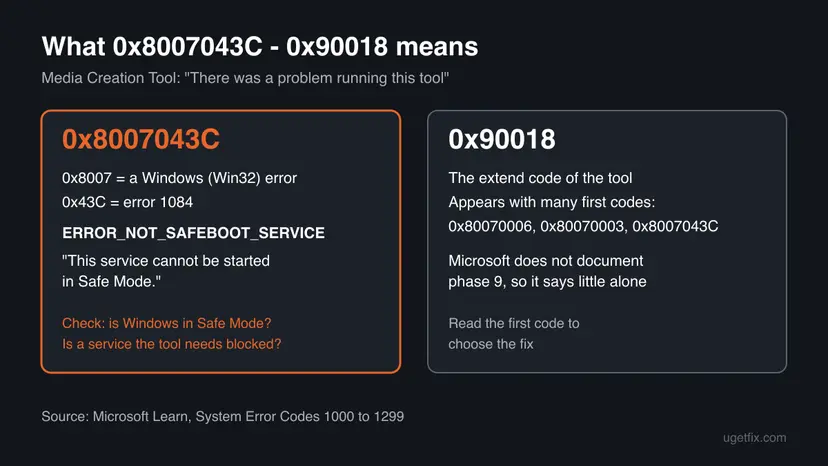
A PC that crashes all the time is often started in Safe Mode, because it is stable there. That is exactly where the tool cannot work: Safe Mode starts only a minimal set of drivers and services, and the services the tool uses to download and check Windows are not among them.
If your first code is 0x80070006 instead, read our guide to Media Creation Tool error 0x80070006 - 0x90018. That one is about an invalid handle, not about services.
Why the Media Creation Tool fails with 0x8007043C - 0x90018
Microsoft does not publish a cause for this pair. The ranking below follows the meaning of error 1084 and what the tool needs: normal Windows with its background services, an internet connection and, for a USB drive, a blank drive of 8 GB or more. Each cause points to a fix.
| Cause | How often | How to tell | Fix |
|---|---|---|---|
| Windows runs in Safe Mode, or msconfig is set to start in Safe Mode every time. | Most often | The words Safe Mode sit in the corners of the screen, and the wallpaper is black. | Fix 1 |
| Normal Windows crashes, so Safe Mode is the only way you can use the PC. | Often | As in the reader's question above: the PC crashes until you start it in Safe Mode. | Fix 2 |
| You do not need the tool: you only want to reinstall or upgrade this PC. | Often | Normal Windows works, and you want to fix the Windows you are on. | Fix 3 |
| A service the tool uses is set to Disabled, often by a tuning, privacy or debloat tool or a policy. | Sometimes | Windows Update also fails, or you ran a tool that turns off services. | Fix 4 and Fix 5 |
| An old copy of the tool, or it runs without full rights. | Less often | The tool is an old download, or you double-clicked it. | Fix 6 |
| A non-Microsoft security program blocks the tool or a service. | Less often | A third-party antivirus runs in the tray. | Fix 7 |
| Damaged Windows system files. | Rarely | Other Windows tools fail too, or SFC finds errors. | Fix 8 |
How to fix Media Creation Tool error 0x8007043C - 0x90018
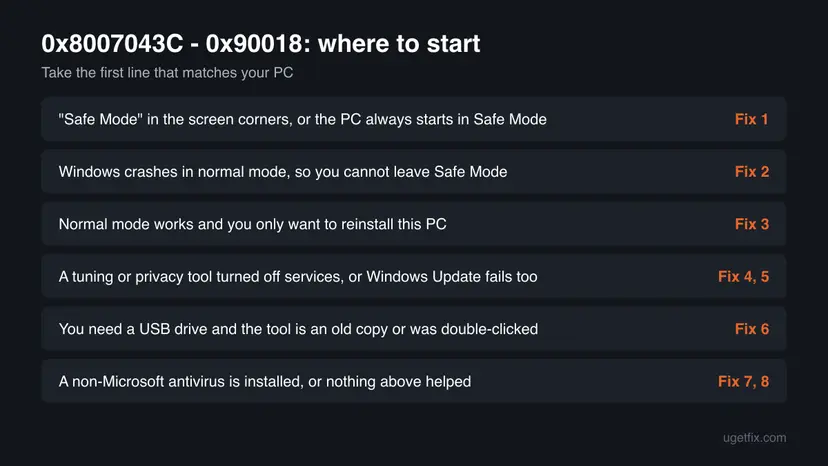
Fix 1 solves the error for most readers, because the tool cannot run in Safe Mode. Fix 2 and Fix 3 get Windows to you without running the tool on this PC. Fix 4 to Fix 8 are for a PC in normal mode where a service or another program still blocks the tool.
| What you see or want | Start with |
|---|---|
| The screen says Safe Mode in the corners, or the PC always starts in Safe Mode. | Fix 1 |
| Windows crashes in normal mode, so you cannot leave Safe Mode. | Fix 2 |
| Normal mode works and you only want to reinstall or repair this PC. | Fix 3 |
| You ran a tuning or privacy tool, or Windows Update fails too. | Fix 4, then Fix 5 |
| You need a USB drive and the tool is an old copy or was double-clicked. | Fix 6 |
| A non-Microsoft antivirus is installed, or nothing above helped. | Fix 7, then Fix 8 |
Fix 1. Leave Safe Mode and run the Media Creation Tool in normal Windows
5 minutesNo riskThe PC runs in Safe Mode now, or it starts in Safe Mode every time because Safe boot is ticked in System Configuration.
Error 1084 is Windows saying a service cannot start in Safe Mode. In normal Windows the services the tool needs can start, so the same tool passes the step where it failed.
- Leave Safe Mode. When you are done, restart the PC normally. Windows starts in normal mode again.
- If it keeps starting in Safe Mode. Press Windows key + R, type msconfig and press Enter. On the Boot tab, clear Safe boot, select OK and restart.
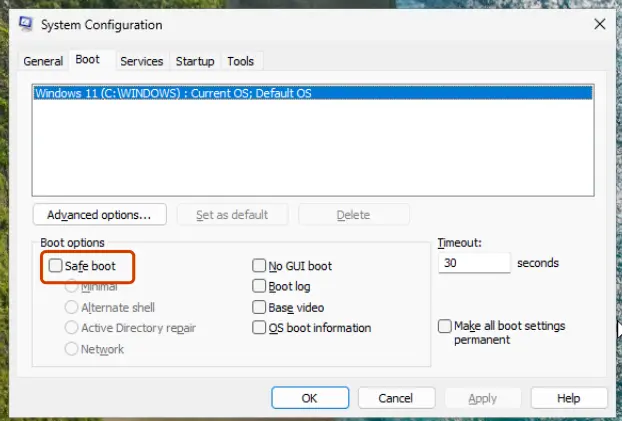
Clear Safe boot so the PC starts normally again. Screenshot: Windows 11 26H2.
These steps were written for Windows 11 24H2 and later; Windows 10 22H2. The full page with the other versions and what each result means: Start Windows or a Mac in Safe Mode
- After the restart, check that the words Safe Mode are gone from the corners of the screen.
- Right-click
MediaCreationTool.exeand select Run as administrator. Select Yes in User Account Control. - Accept the licence terms and choose Create installation media, or Upgrade this PC now in the Windows 10 tool.
It worked if: Windows starts with your normal wallpaper, and the tool gets past "Getting a few things ready" to the choice of USB flash drive or ISO file.
If not: If normal Windows crashes before you can run the tool, go to Fix 2. If the error stays in normal mode, go to Fix 4.
Fix 2. Make the USB drive on another PC when Windows only works in Safe Mode
30 minutes, plus the downloadRead the warningNormal Windows crashes or freezes, so you can only use the PC in Safe Mode, as in the reader's question.
The tool must run in normal Windows, but it does not have to run on the broken PC. A USB drive made on any working Windows PC installs Windows on yours.
The tool deletes everything on the USB drive. A clean install from it can delete drive C of your PC. While you are still in Safe Mode on your PC, copy your files to an external drive or OneDrive first: Back up your files (Windows Backup, File History, Time Machine).
- On a working Windows PC, download the Media Creation Tool from Microsoft's software download page for Windows 11.
- Plug in one blank USB flash drive with at least 8 GB, and unplug other USB drives.
- Right-click the tool and select Run as administrator, then choose USB flash drive and pick your drive.
- Wait for Your USB flash drive is ready, then plug the drive into your PC.
- Start your PC from the USB drive with the boot menu key of your PC, often F12, F11, F8 or Esc.
- In Windows Setup, choose your language and follow the steps to install Windows.
If you would rather repair than reinstall, the same USB drive has a Repair your computer link on the first Setup screen. It opens the recovery tools: Run Startup Repair.
It worked if: The other PC finishes the USB drive without an error, and your PC starts Windows Setup from it.
If not: If the other PC shows the same error, it is probably in Safe Mode too or has services turned off: use Fix 1 or Fix 4 there.
Fix 3. Skip the tool: mount the Windows 11 ISO and run setup.exe
10 minutes, plus the downloadRead the warningNormal Windows works on this PC, and you want to reinstall, repair or upgrade the Windows you are on.
The ISO is a ready image of the same Windows files. Your browser downloads it and Windows opens it as a drive, so the tool's own start-up, where the service error comes from, is never run.
If you choose Nothing in Setup, your files and apps on drive C are deleted. Even with Keep personal files and apps, copy important files to another drive first: Back up your files (Windows Backup, File History, Time Machine).
- Make sure Windows is in normal mode, not Safe Mode (Fix 1).
- Open Microsoft's Download Windows 11 page and go to Download Windows 11 Disk Image (ISO).
- Select Windows 11 in Select Download, select Download, pick your language and download the 64-bit ISO.
- Open Downloads in File Explorer, right-click the ISO file and select Mount.
- Open the new drive and double-click
setup.exe. Select Yes in User Account Control. - Follow Setup and choose what to keep: Keep personal files and apps, Keep personal files only or Nothing.
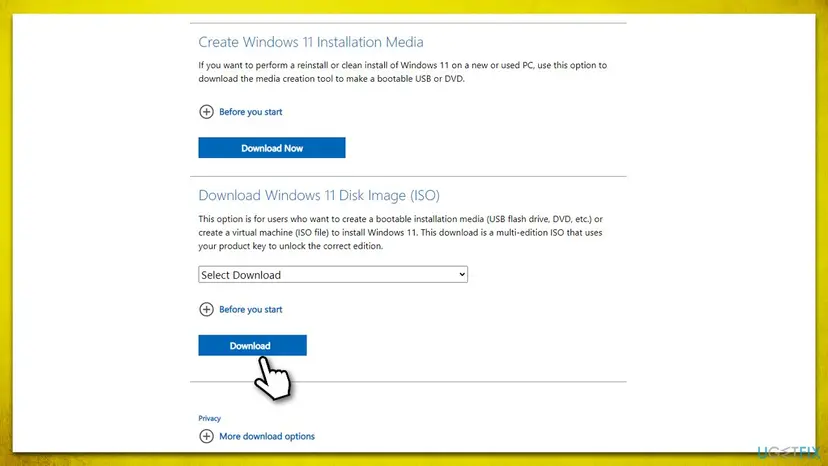
Step by step, with the keep options explained: Reinstall Windows without losing files
It worked if: Setup starts from the mounted ISO, checks the PC and runs without the Media Creation Tool message.
If not: If setup.exe fails with a service error too, a service is blocked: go to Fix 4.
Fix 4. Set the services the tool needs back from Disabled
5 minutesLow riskWindows runs normally, but the error stays, and you ran a tuning, privacy or debloat tool, or Windows Update fails too.
Error 1084 is a refusal to start a service. If a tool set Background Intelligent Transfer Service or Windows Update to Disabled, the Media Creation Tool cannot start them, even in normal mode.
- Open Services. Press Windows+R, type the command below and press Enter. You can also type Services in the search box on the taskbar and open the app.
services.msc - Find the service. The list is sorted by Name. Click any row and type the first letter of the service to jump to it. Check the Status column (Running or empty) and the Startup Type column.
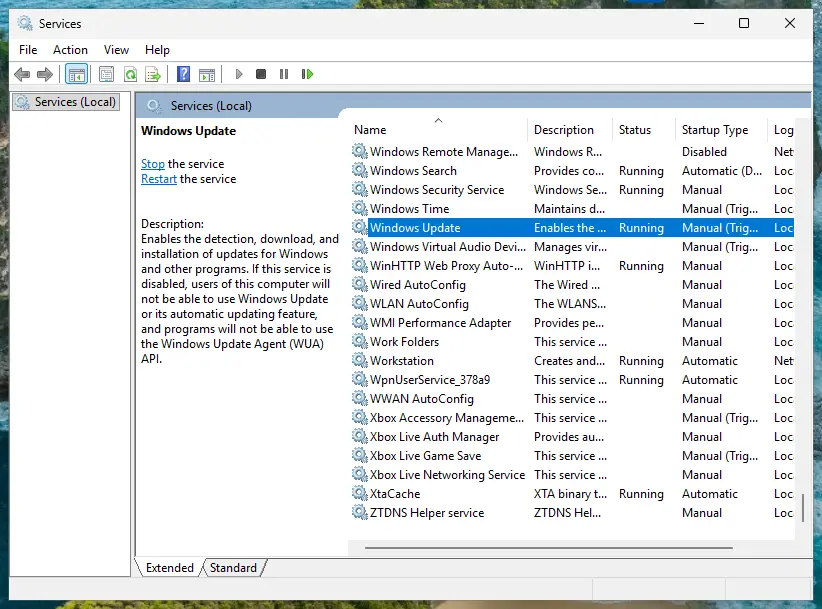
Status and Startup Type of each service are shown in the list. Screenshot: Windows 11 26H2. - Restart the service. Right-click the service and select Restart. If the service is not running, select Start instead. Wait until the progress window closes.
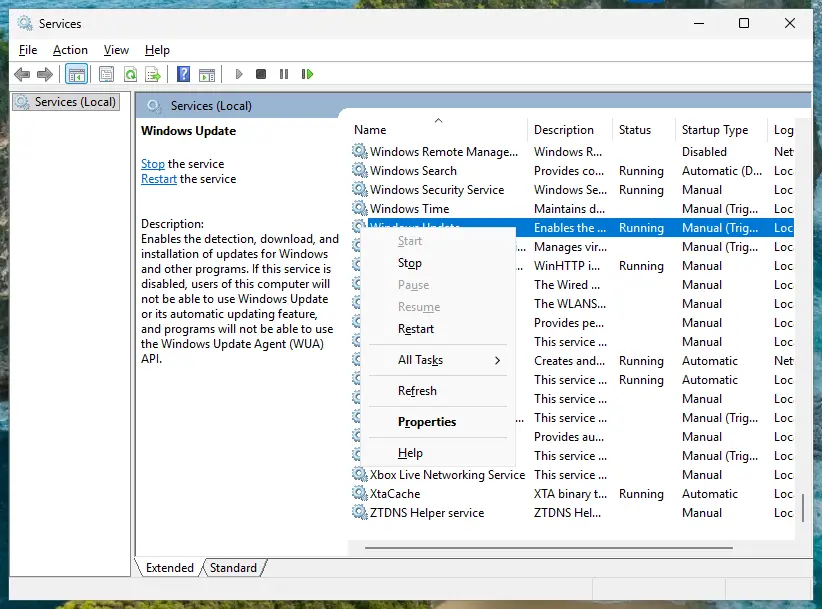
Right-click a service to start, stop or restart it. Screenshot: Windows 11 26H2. - Open its properties to change the startup type. Only if your guide says so: double-click the service. The General tab shows the Service name (used in commands), the Startup type and the Service status.
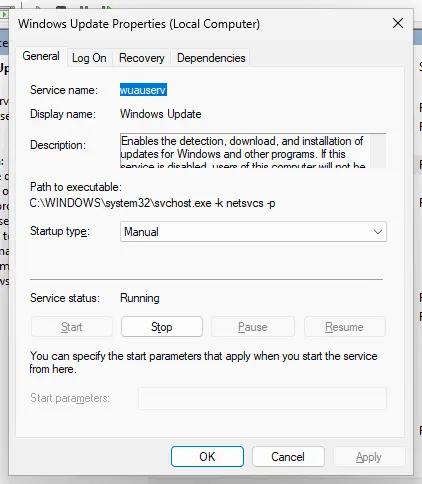
Properties show the service name, startup type and status. Screenshot: Windows 11 26H2. - Set the startup type and apply. Choose the type from the Startup type list (Automatic, Automatic (Delayed Start), Manual or Disabled), select Apply, then Start if the service should run now, and OK.
These steps were written for Windows 11 and Windows 10 (the steps are the same). The full page with the other versions and what each result means: Check and restart Windows services
- Check Background Intelligent Transfer Service and Windows Update first.
- If one shows Disabled, set it to Manual, select Apply, then Start.
- If a tuning or privacy tool changed them, undo its service changes there, or it may disable them again at the next start.
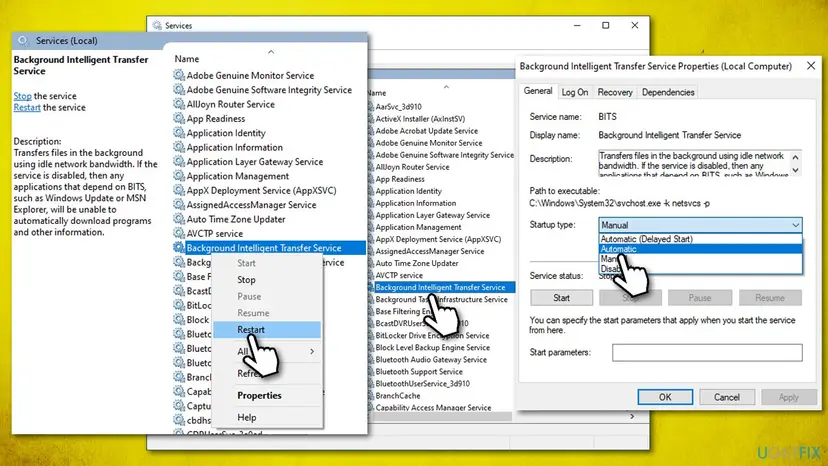
It worked if: Both services show a startup type other than Disabled and start without an error, and the tool runs.
If not: If a service will not start or the error stays, reset the Windows Update components in Fix 5.
Fix 5. Reset the Windows Update components
10 minutesLow riskThe services start but the tool still fails, or Windows Update shows errors as well.
The tool uses the same download services as Windows Update. A reset stops them, renames their caches and starts them again, which clears a damaged state that keeps them from starting.
- Open Command Prompt as administrator. Type cmd in the search box, right-click Command Prompt and select Run as administrator. Select Yes when Windows asks for permission.
- Stop the update services. Type the commands below and press Enter after each one. If Windows says that other services depend on Cryptographic Services, it stops them too. A message that a service is not started is fine.
net stop wuauserv
net stop bits
net stop cryptsvc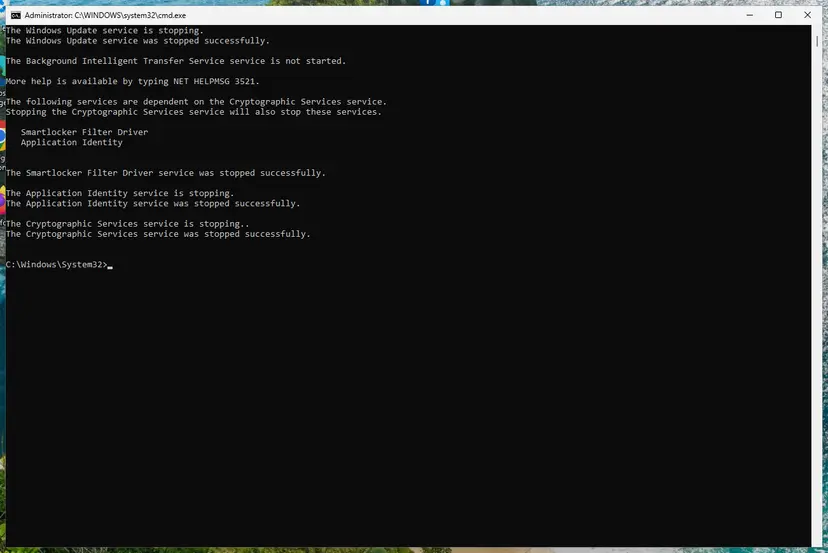
The update services are stopped. Screenshot: Windows 11 26H2. - Delete the download queue files. This clears the list of downloads that the Background Intelligent Transfer Service keeps. If Windows says it cannot find the files, continue.
del "%ALLUSERSPROFILE%\Application Data\Microsoft\Network\Downloader\qmgr*.dat" - Rename the update cache folders. Renaming keeps a copy in case you need it; Windows creates new, empty folders when the services start again. If you get Access is denied, a service is still running: repeat the previous step.
ren %systemroot%\SoftwareDistribution SoftwareDistribution.old
ren %systemroot%\System32\catroot2 catroot2.old
Both folders now end in .old. Screenshot: Windows 11 26H2. - Start the services again. Type the commands below and press Enter after each one. The requested service has already been started is fine: Windows started it on its own.
net start cryptsvc
net start bits
net start wuauserv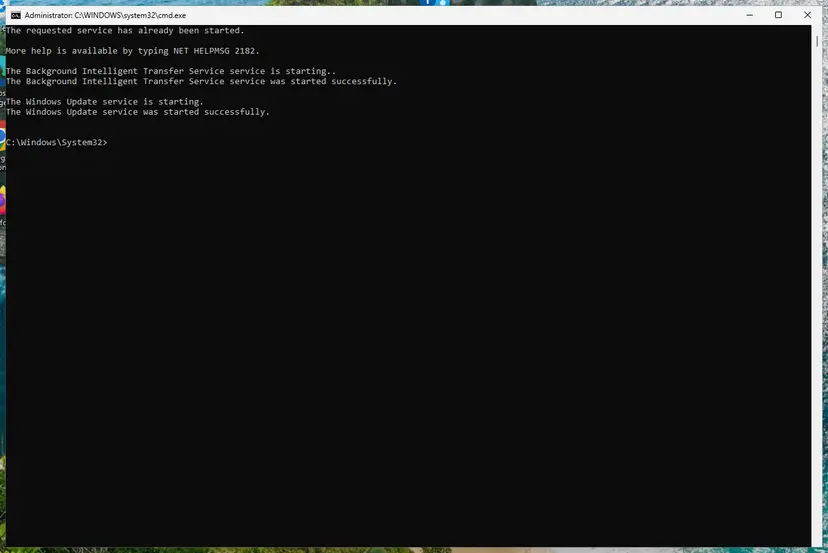
BITS and Windows Update are running again. Screenshot: Windows 11 26H2. - Restart and check for updates. Restart the PC. Then select Start > Settings > Windows Update > Check for updates. The first check can take longer than usual because everything is downloaded again.
These steps were written for Windows 11 and Windows 10 (the steps are the same). The full page with the other versions and what each result means: Reset Windows Update components
- Restart the PC after the reset.
- Run the Media Creation Tool again as administrator, as in Fix 6.
It worked if: Windows Update checks for updates without an error, and the tool downloads Windows.
If not: If the error stays, get a fresh copy of the tool in Fix 6.
Fix 6. Run a fresh copy of the Media Creation Tool as administrator
5 minutesNo riskYou need a USB drive or an ISO file, and the tool is an old download or was started by double-click.
Starting services needs administrator rights. A new copy also rules out an old version of the tool that no longer matches the current Windows download.
- Delete every old
MediaCreationTool.exeyou have. Microsoft notes the name may carry a version, such asMediaCreationTool_22H2.exe. - Download the tool again from Microsoft's software download page for Windows 11, or for Windows 10 if you still need it.
- Move the file to a local folder such as
C:\MCT, outside OneDrive. - Right-click the file and select Run as administrator. Select Yes in User Account Control.
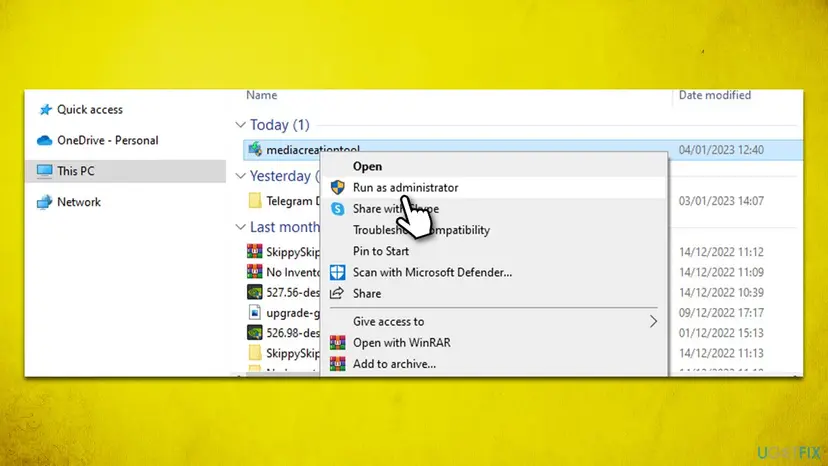
More on administrator rights: How to run a program as administrator or in compatibility mode
It worked if: The tool passes "Getting a few things ready" and asks what you want to do.
If not: If it fails again, test it without other programs in Fix 7.
Fix 7. Run the tool from a clean boot, with security software paused for one test
20 minutesLow riskFix 1 to Fix 6 are done, and the PC has a non-Microsoft antivirus, backup or tuning program.
Some security and tuning programs block or stop Windows services. A clean boot starts normal Windows without them, unlike Safe Mode, so the tool's services can still start.
- Open System Configuration. Select Search on the taskbar, type msconfig and select System Configuration from the results.
- Hide Microsoft services. On the Services tab, select the Hide all Microsoft services check box. Only services from other companies stay in the list.

With Hide all Microsoft services ticked, only third-party services stay in the list. Screenshot: Windows 11 26H2. - Disable the remaining services. Select Disable all, then select Apply.
- Open Task Manager. On the Startup tab of System Configuration, select Open Task Manager.
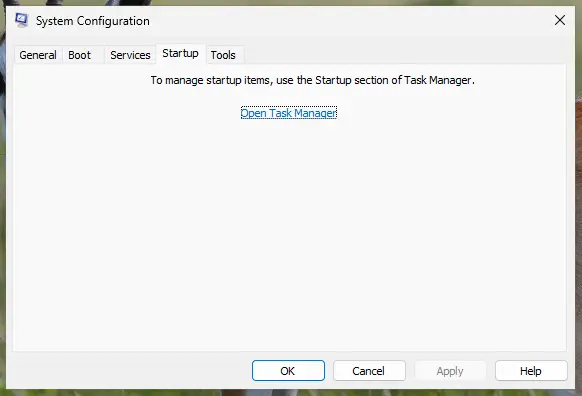
The Startup tab only links to Task Manager. Screenshot: Windows 11 26H2. - Disable the startup apps. On the Startup apps tab in Task Manager, select each item whose status is Enabled and select Disable. Write down or take a screenshot of the items you disable: you need the list to turn them back on.
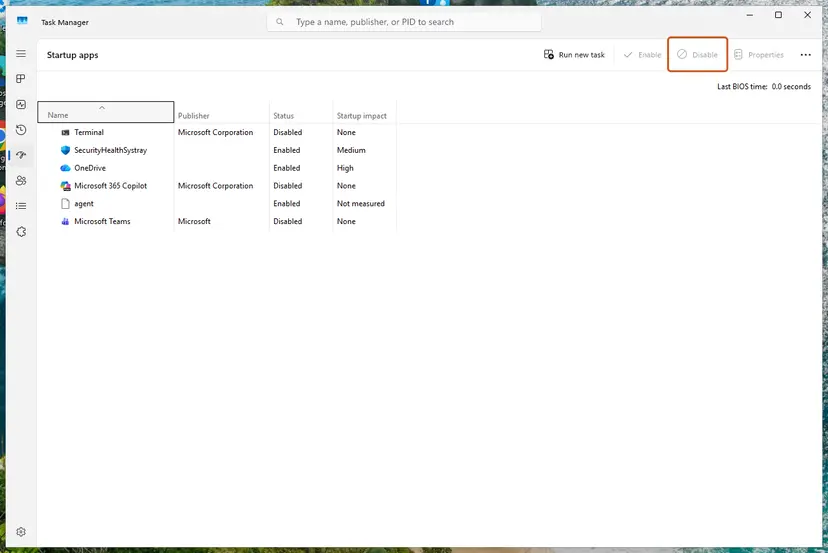
Select an app, then Disable. Screenshot: Windows 11 26H2. - Confirm the changes. Close Task Manager. On the Startup tab of System Configuration, select OK.
- Restart and test. Restart the PC. Windows now starts in a clean boot environment: try again the thing that failed (run the app, install the update, uninstall the program).
These steps were written for Windows 11 25H2 and 26H2. The full page with the other versions and what each result means: How to perform a clean boot in Windows
- In the clean boot, run the Media Creation Tool as administrator.
- If it fails again, pause your antivirus for this one attempt only: Turn off Microsoft Defender protection for a moment.
- When the tool has finished, turn the antivirus back on and undo the clean boot as the procedure describes.
Do not tick Safe boot in System Configuration for this test. A clean boot only turns off non-Microsoft services and startup apps; Safe boot brings back the error you are fixing.
It worked if: The tool runs to the end in the clean boot, and you know a third-party program was the cause.
If not: If it fails in a clean boot too, repair the system files in Fix 8.
Fix 8. Repair Windows system files with DISM and SFC
20 to 40 minutesLow riskEverything above failed, or other Windows tools also show errors.
If the files behind Windows services are damaged, the services cannot start for any program. DISM and SFC restore them from Microsoft's copies.
- Open an elevated command window. Right-click Start and select Terminal (Admin), or type cmd in the search box, right-click Command Prompt and select Run as administrator. Select Yes when Windows asks for permission.

Search for cmd and choose Run as administrator. Screenshot: Windows 11 26H2. - Run DISM first. Type the command below and press Enter. DISM downloads clean copies of damaged components from Windows Update, so it can take several minutes. Wait until it says The operation completed successfully.
DISM.exe /Online /Cleanup-Image /RestoreHealth
DISM /RestoreHealth running. Screenshot: Windows 11 26H2. - Run System File Checker. In the same window, type the command below and press Enter. Do not close the window until the verification reaches 100%.
sfc /scannow
sfc /scannow at 100%. Screenshot: Windows 11 26H2. - Read the result and restart. Compare the last message with the table below this guide, then restart the PC so that repaired files are loaded.

The result line tells you what SFC did. Screenshot: Windows 11 26H2.
These steps were written for Windows 11 24H2 and 25H2. The full page with the other versions and what each result means: Run DISM and SFC to repair Windows system files
- Restart the PC normally when both commands have finished.
- Run the Media Creation Tool again as administrator.
It worked if: DISM says the restore operation completed, SFC finds no integrity violations or repairs them, and the tool works.
If not: If the error stays, make the USB drive on another PC (Fix 2), or read the next section.
If Media Creation Tool error 0x8007043C - 0x90018 is still there
When the tool fails in normal Windows, in a clean boot and after the repairs, the problem is a service on this PC that will not start. You can still get Windows another way, and Windows logs which service failed.
| Situation | What to do |
|---|---|
| You want to know which service failed | Press Win + R, type eventvwr.msc and open Windows Logs > System. Look for errors from Service Control Manager at the time of the error; they name the service. |
| You only need to fix this PC | Use the ISO and setup.exe as in Fix 3, from normal Windows. |
| You need a USB drive | Make it on another PC as in Fix 2. It works on any PC that can start from USB. |
| Setup itself failed earlier | Open the hidden folder C:\$Windows.~BT\Sources\Panther if it exists and read the end of setuperr.log. |
| The PC crashes in normal mode | The crash is the real problem. Check the disk with Check a disk for errors (chkdsk) and the memory with How to test your RAM with Windows Memory Diagnostic before you reinstall. |
- What to send to Microsoft support: both codes, the Windows version you run, whether the PC was in Safe Mode, and the step where the tool stopped.
- Add the name of any service from Event Viewer that failed to start, and whether the ISO option works.
- Say which tuning, privacy or security programs are installed.
How to keep 0x8007043C - 0x90018 from coming back
- Run the tool only in normal Windows, never in Safe Mode.
- Download the tool fresh each time and run it as administrator.
- Use one blank USB drive of 8 GB or more.
- Use the ISO when you only want to fix the PC you are on.
- Do not leave Safe boot ticked in System Configuration.
- Do not use tools that disable Windows Update or BITS for good.
- Do not keep two security programs installed at the same time.
- Do not stay on Windows 10: it no longer gets security fixes.
Windows 10 left support on 14 October 2025. If you make media to reinstall a Windows 10 PC, check whether it can run Windows 11 first.
Frequently asked questions
What does error code 0x8007043C - 0x90018 mean?
It means the Media Creation Tool could not start a Windows service it needs. The first code, 0x8007043C, is Windows error 1084, ERROR_NOT_SAFEBOOT_SERVICE, "This service cannot be started in Safe Mode." The second code, 0x90018, is the tool's own code and appears after many first codes. Most often the PC runs in Safe Mode, where the tool cannot work. Less often a service such as Windows Update or BITS is disabled. Your PC, licence and files are not damaged by the error.
What is error 0x8007043C on its own?
0x8007043C is the general Windows error 1084: a program asked Windows to start a service that is not allowed to run in Safe Mode. The 0x8007 part says it is a Win32 error, and 43C is 1084 in hexadecimal. You can see it in the Media Creation Tool, in Windows Update and in some security programs, usually when the PC runs in Safe Mode. Restart Windows normally and try again before anything else. If you are not in Safe Mode, a disabled service is the next suspect.
Can I run the Media Creation Tool in Safe Mode?
No, not reliably, and 0x8007043C is the result. Safe Mode starts only a minimal set of drivers and services, and the tool needs services that Safe Mode does not start, so Windows refuses them. Do not count on Safe Mode with Networking either: the internet works there, but the other services stay off. Run the tool in normal Windows (Fix 1). If your PC only works in Safe Mode, run the tool on another PC and use its USB drive on yours (Fix 2).
My PC only works in Safe Mode. How do I reinstall Windows?
Make the installation USB drive on another working PC. First copy your files off this PC while it is in Safe Mode, because a clean install can delete drive C. On the other PC, run the Media Creation Tool as administrator with a blank USB drive of at least 8 GB. Then start your PC from that drive with its boot menu key and follow Windows Setup. Fix 2 has the steps. The drive can also open the repair tools if you would rather try those first.
What does 0x90018 mean in the Media Creation Tool?
0x90018 is the second half of the code, which Microsoft calls the extend code. It is the tool's own code and appears after several first codes, such as 0x80070006, 0x80070003 and 0x8007043C. Microsoft does not document its exact meaning, and we could not confirm one. That is why the first code decides the fix. With 0x8007043C it is Safe Mode or a blocked service; with 0x80070006 it is an invalid handle, covered in our separate guide.
What about error code 0x80070006 - 0x90018?
It is a different error with the same second code. 0x80070006 is Windows error 6, "The handle is invalid": the tool lost access to a file, folder or drive it had opened. Its causes are an old copy of the tool, the USB drive or leftover setup files, not Safe Mode. Our guide to Media Creation Tool error 0x80070006 - 0x90018 has the fixes in order. Using the ISO instead of the tool helps with both errors.
Can I reinstall Windows without the Media Creation Tool?
Yes. Microsoft offers the Windows 11 disk image (ISO) for direct download. In normal Windows, right-click the ISO, select Mount and run setup.exe from the new drive. Setup lets you keep your files and apps, keep only your files, or keep nothing. This repairs or reinstalls Windows on the same PC, which is what most readers who see this error want. Fix 3 has the steps. Back up your files first in every case.
Do I need a product key to use the tool or the ISO?
Not on most PCs. Microsoft says a 25-character product key might be needed, but not for digital licences. Many modern PCs have the key stored in their firmware, and Setup applies it by itself when it matches the version and edition you install. If you reinstall the same edition that was activated on this PC, Windows activates again. The error 0x8007043C - 0x90018 has nothing to do with the key or the licence.
I searched in another language. Does this page apply to me?
Yes, if your screen shows the codes 0x8007043C and 0x90018. The codes are the same in every language; only the text around them is translated. The fixes work the same on Windows in Russian, Chinese or any other language, so follow them in order, starting with leaving Safe Mode. If you searched for how to install Windows 11 in general, the ISO method in Fix 3 and the USB method in Fix 2 are the two ways Microsoft offers.
Sources
Did this fix work?
One click, no account. It tells the next reader which guides are worth their time.
Questions and experiences: fix Media Creation Tool error 0x8007043C - 0x90018 in Windows
Still broken, or found a fix we did not cover? Ask here: members and our editors answer. Reading is open; writing needs a free account.
…