
How to fix Microsoft Store error 0x80048839?

Prefer to fix it yourself? The manual steps follow.
- 7methods
- 5 to 40 minutes
- Intermediate
Applies to Personal Microsoft accounts in the Microsoft Store, Outlook, the Xbox app and Store games on Windows 11 and Windows 10
7 methods in this guide
Hello. Recently I have noticed that I can't update any apps in Microsoft Store because of the 0x80048839 error. Are there any tips you could provide to fix this?
0x80048839 is a Microsoft account sign-in error: the Microsoft Store, Outlook or the Xbox app could not finish signing you in, so downloads and updates stop. It is usually the sign-in service, the network or the Store's saved sign-in, rarely Windows itself. Test the account in a browser first, then sign out of the Store and back in.
0x80048839 means a Microsoft app could not complete the sign-in to your Microsoft account. Sign in at account.microsoft.com in a browser and check Microsoft's service status (Fix 1). If the browser works, sign out of the Store, restart and sign in again (Fix 2), then try a phone hotspot (Fix 3). Only after that reset the Store with wsreset.exe (Fix 5).
| Error | A sign-in window with Something went wrong and the code 0x80048839. A user of Portuguese Outlook reports algo deu errado. Tente novamente mais tarde., which means "Something went wrong. Try again later." |
|---|---|
| Where it appears | When the Microsoft Store, Outlook, the Xbox app or a Store game asks for your Microsoft account, often right before an app update or download. |
| Main cause | The sign-in to Microsoft's account service does not finish: a short outage on Microsoft's side or a network that changes the path. Next comes stale sign-in data in the Store, then a wrong clock. |
| Fastest fix | Test the account at account.microsoft.com, then sign out of the Store, restart and sign in again (Fix 1 and Fix 2). About 5 minutes. |
| Also written as | 0x80048839, 80048839, error code 0x80048839, decimal 2147780665 or -2147186631. Searches in other languages: erro 0x80048839, ошибка 0x80048839. |
| Affects | Personal Microsoft accounts on Windows 11 and Windows 10 22H2. The same account usually still works on the web and on a phone. |
| Microsoft's status | No public Microsoft document defines the code for Windows. A Microsoft community moderator on Microsoft Q&A says it can be an ongoing service problem and points to the service status page first. |
| Time to fix | 5 minutes for Fix 1 and Fix 2. Up to 40 minutes with the network checks and the Store repair. Nothing to download. |
Facts checked on 15 October 2026. Steps written for Microsoft Store, Outlook and Xbox app sign-in on Windows 11 (25H2 and 26H2) and Windows 10 22H2, read against Microsoft Q&A answers by Microsoft community staff.
What Microsoft Store error 0x80048839 means
You open the Microsoft Store to update an app, or Outlook asks for your password, and a small sign-in window answers with Something went wrong and 0x80048839. In the Store the update never starts, because every download from the Store needs a signed-in Microsoft account. On Microsoft Q&A users report the same code when they sign in to Outlook and to Windows 11 games.
The code belongs to the family of Microsoft account sign-in errors that start with 0x800488, like 0x80048820 and 0x80048823. It says the sign-in did not finish. It does not say why, and Microsoft has not published a definition for it. It is not a Windows Update error and not a sign that the app itself is broken.
| Where you see it | How it looks | Start with |
|---|---|---|
| Microsoft Store, when you update or get an app | Something went wrong and 0x80048839 in the sign-in window | Fix 1, Fix 2 |
| Outlook (classic or new) | The same message after you type the email and password, translated into the Outlook language | Fix 1, then Fix 3 |
| Xbox app or a Store game | The sign-in closes with 0x80048839 and the game will not start | Fix 2, Fix 5 |
| Every Microsoft app on one network only | The same code at home, none on mobile data | Fix 3 |
Some apps print error codes in decimal. 2147780665, or -2147186631 as a signed number, is 0x80048839 written another way. If an app shows either number at sign-in, the fixes on this page apply.
What causes the 0x80048839 error, ranked
Microsoft has not published a cause. The order below is our reading of the answers Microsoft community staff give for this code and its sister codes on Microsoft Q&A, and of what users report there. It is not a statistic.
| How often | Cause | Typical sign | Fix |
|---|---|---|---|
| Most often | A problem on Microsoft's side with the account sign-in service | Many people report the code on the same day, the status page shows an incident | Fix 1: wait |
| Often | Stale sign-in data in the Store after a password change or a long break | The account works at account.microsoft.com, only the app fails | Fix 2, Fix 5 |
| Often | The network: a VPN, a proxy, a filtering router or DNS | It works on a phone hotspot but not at home | Fix 3 |
| Less often | A wrong clock or time zone | The taskbar time is off, or the PC was off for weeks | Fix 4 |
| Rarely | The Store Install Service is disabled or the Store registration is damaged | Sign-in works but updates still fail, or the Store will not open | Fix 6, Fix 7 |
| Rarely | A problem with the account itself | The password is refused in the browser too, or it was changed without you | Account recovery |
How to fix Microsoft Store error 0x80048839
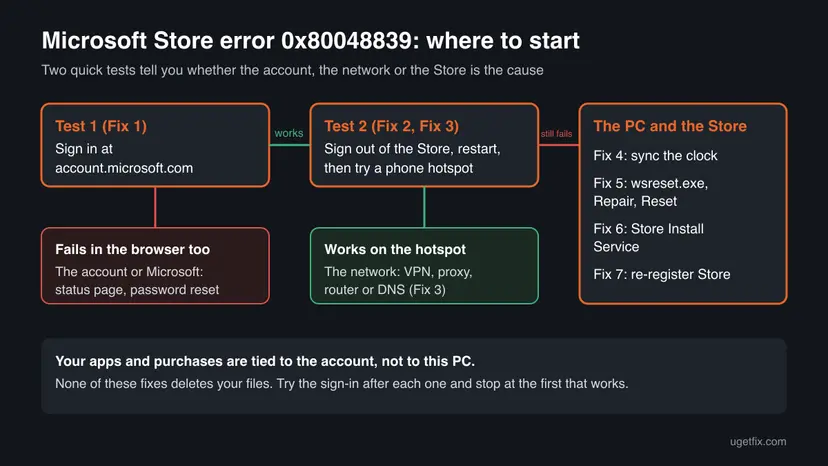
Fix 1 takes two minutes and tells you whether the problem is the account or this PC. Fix 2 and Fix 3 solve most cases where the browser works. Try the sign-in after each fix: when it works, the sign-in window closes, your account picture appears in the Store and the update starts.
| Your case | Start with | Then |
|---|---|---|
| The sign-in fails in a browser too | Fix 1 | Account recovery |
| The browser works, the Store or Outlook does not | Fix 2 | Fix 5 |
| A VPN or proxy is on, or it fails on one network only | Fix 3 | Fix 2 |
| The clock is wrong or the PC was off for weeks | Fix 4 | Fix 2 |
| You are signed in, but updates and downloads still fail | Fix 6 | Fix 7 |
| The Store will not open at all | Fix 5 | Fix 7 |
Fix 1. Sign in to your Microsoft account in a browser and check Microsoft's status
3 minutesNo riskEveryone first. It shows whether the account, Microsoft or this PC is the cause.
A Microsoft community moderator answering a 0x80048839 report says the code can be an ongoing problem on Microsoft's side, and asks the user to check the service status and sign in on the web first. A working web sign-in moves the cause to this PC.
- Open Edge or another browser and go to
https://account.microsoft.com. - Select Sign in and use the same account that shows 0x80048839.
- For Outlook, also try
https://outlook.comwith the same account. - If your account page opens, the account is fine. Go to Fix 2.
- If the password is refused, or you see sign-in activity that is not yours, reset the password and read the last section on account recovery.
- If the sign-in page itself shows an error, check Microsoft's service status page for the Microsoft account and Outlook.com, then try again later.
When Microsoft's sign-in service has a problem, no change on your PC helps. Note the time, wait an hour and try again. Resetting the Store during an outage only signs you out of more apps.
It worked if: Your account page opens in the browser, so the cause is on this PC and Fix 2 is next.
If not: If the account fails in the browser too, reset the password or recover the account, as the last section explains.
Fix 2. Sign out of the Microsoft Store, restart the PC and sign in again
3 minutesNo riskThe account works in a browser, but the Store or Outlook shows 0x80048839.
A sign-out drops the sign-in data the Store saved for your account, and the restart clears what is held in memory. The moderator's answer for this code lists a restart because a temporary fault often goes away with it.
- Open the Microsoft Store.
- Select your profile picture in the top right corner.
- Select Sign out under your name.
- Close the Store and restart the PC from Start > Power > Restart.
- Open the Store, select the profile icon and choose Sign in.
- Pick your Microsoft account or type your email and password, then open Library and select Get updates.
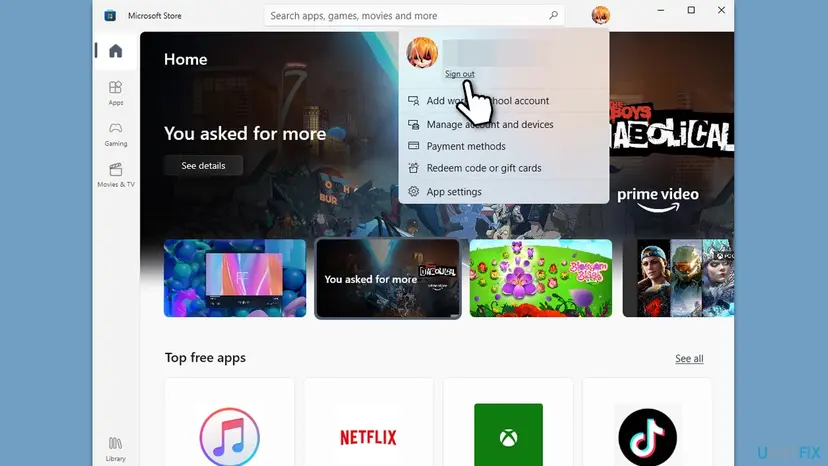
It worked if: The Store shows your account picture again and the updates in Library start downloading.
If not: If 0x80048839 comes back right after you sign in, test another network with Fix 3.
Fix 3. Try another network and turn off the VPN and proxy
10 minutesLow riskA VPN or proxy is on, the PC is on a work, school or hotel network, or Fix 2 did not help.
The moderator's answer for this code asks users to try a different network, such as mobile data, because the sign-in needs a clean path to Microsoft. A VPN, a proxy or a filtering router can break that path while ordinary web pages still load.
- Disconnect your VPN app and close it from the notification area.
- Press Win + I and open Network & internet > Proxy. Next to Use a proxy server, select Set up, turn it Off and select Save.
- Turn on the mobile hotspot on your phone and connect the PC to it.
- Open the Store or Outlook and sign in again.
- If it works on the hotspot, switch back to your normal network and restart your router.
- If it still fails only at home, reset the network stack on the PC with the commands in the procedure below.
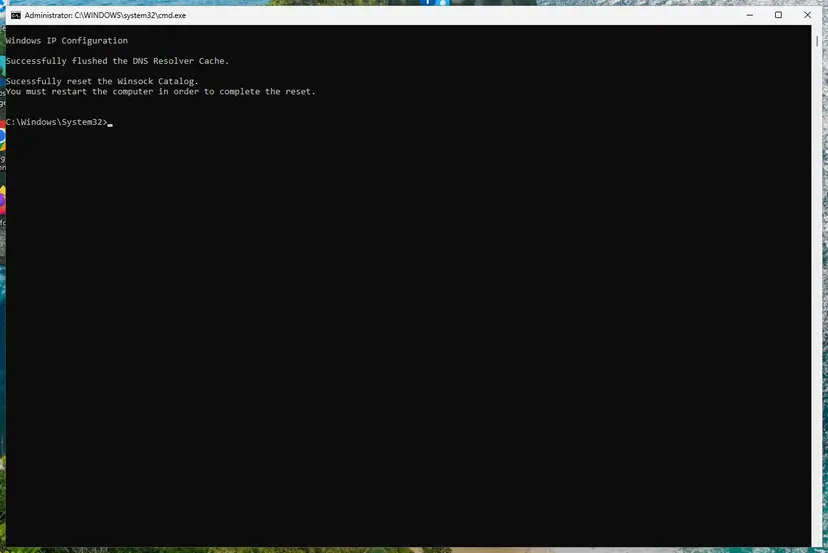
On a PC your employer manages, the proxy may be required: ask IT before you turn it off. The commands and what each one changes: Reset the network and flush DNS. To test the connection itself: How to check your internet connection in Windows.
It worked if: On the hotspot, or after the reset, the sign-in finishes and the Store downloads your updates.
If not: If it fails on every network, the cause is on the PC: check the clock with Fix 4.
Fix 4. Set the time automatically and sync the clock
3 minutesNo riskThe taskbar clock or time zone is wrong, the PC was off for weeks, or Fix 3 did not help.
A Microsoft account sign-in is a secure exchange with a time stamp. For the sister code 0x80048820 in the Store, a Microsoft Community Support Specialist names the date and time first, because a wrong clock makes the account check fail.
- Press Win + I and open Time & language > Date & time.
- Turn on Set time automatically and Set time zone automatically.
- Under Additional settings, select Sync now. On Windows 10 the button is on the same page under Synchronize your clock.
- Check that the taskbar clock is right, then sign in to the Store again.
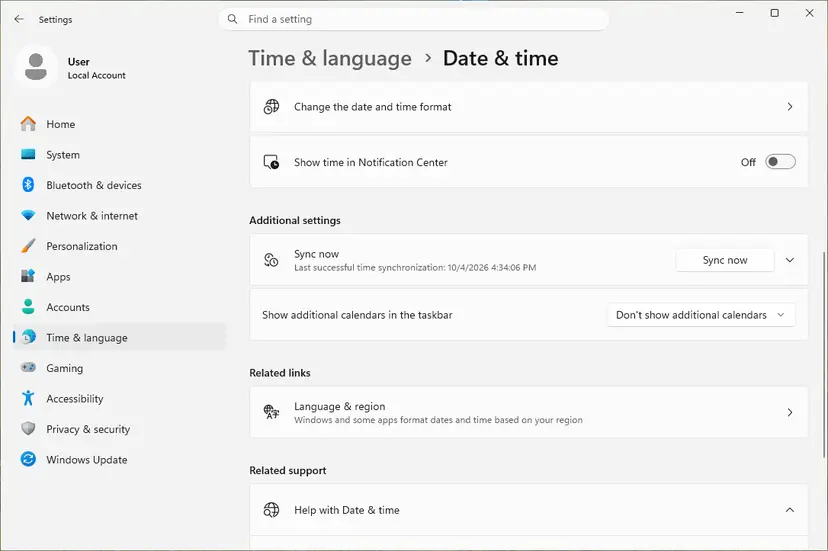
If Sync now fails, the Windows Time service may be stopped. Every screen and the fallback in Control Panel: How to fix the date and time in Windows.
It worked if: The clock and time zone are correct and the Store sign-in finishes.
If not: If the clock was already right, reset the Store cache with Fix 5.
Fix 5. Reset the Microsoft Store cache with wsreset.exe, then repair the Store
10 minutesLow riskOnly the Store or a Store game shows the code, or the Store opens blank.
The Store keeps its own cache, including the state of your sign-in. Microsoft support staff suggest wsreset.exe for Store sign-in errors of this family, and Repair or Reset of the Store app when the cache reset is not enough.
- Close the Microsoft Store.
- Press Win + R, type
wsreset.exeand select OK. - Wait. A blank window stays open for a few seconds, then the Store opens by itself. Do not close the blank window.
- Try the sign-in or the update again.
- If it still fails, open Settings > Apps > Installed apps, select the three dots next to Microsoft Store and select Advanced options. On Windows 10 open Apps & features, select Microsoft Store and then Advanced options.
- Select Terminate, then Repair. If that does not help, select Reset.

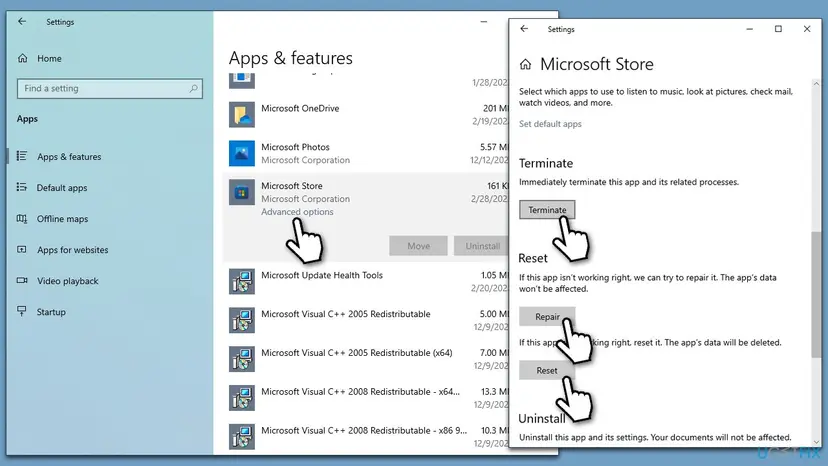
Repair keeps the Store's data. Reset deletes it and signs you out of the Store, which is what you want here. Every screen: Reset the Microsoft Store and How to repair or reset an app in Windows.
It worked if: The Store opens, asks you to sign in once, and the updates in Library download.
If not: If you are signed in but updates still fail, check the install service with Fix 6.
Fix 6. Check that the Microsoft Store Install Service can start
5 minutesLow riskYou are signed in, but app updates and downloads still stop, or a tweak tool turned off services.
Store downloads and updates run through the Microsoft Store Install Service. Its own description in Services says it starts on demand and that installations will not work properly if it is disabled.
- Press Win + R, type
services.mscand press Enter. - Find Microsoft Store Install Service and double-click it. Its service name is
InstallService. - If Startup type is Disabled, set it to Manual and select Apply. Manual is the normal setting.
- If Service status is Running, select Stop and then Start to restart it. If it is Stopped, select Start.
- Select OK, open the Store and select Get updates in Library.
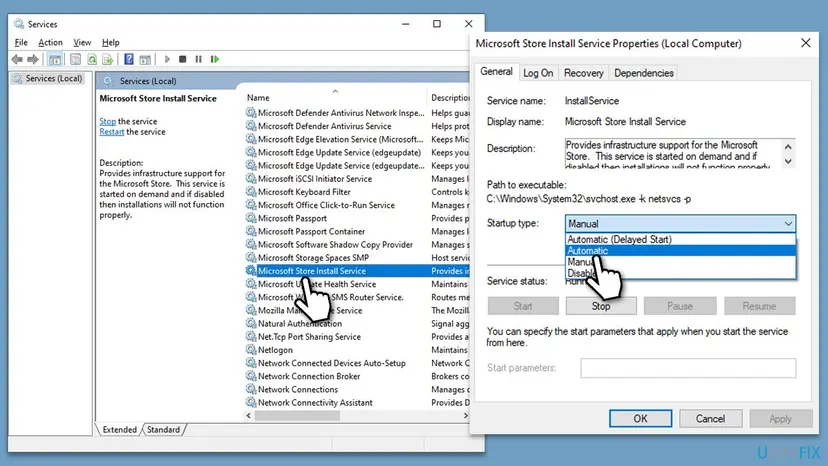
Change only this service. The full steps for Services: Check and restart Windows services.
It worked if: The service starts without an error and the Store updates download.
If not: If the service will not start, or the Store will not open at all, re-register the Store with Fix 7.
Fix 7. Re-register the Microsoft Store with PowerShell
5 minutesLow riskFix 1 to Fix 6 did not help, or the Store does not open after a reset.
Every Store app is registered to your Windows user. A Microsoft Community Support Specialist gives this command for a Store that refuses the account sign-in, because it registers the Store package again without deleting your apps.
- Close the Microsoft Store.
- Right-click Start and open Terminal (Admin). On Windows 10 open Windows PowerShell (Admin). Select Yes in the User Account Control prompt.
- Paste this command and press Enter:
Get-AppxPackage -AllUsers Microsoft.WindowsStore* | Foreach {Add-AppxPackage -DisableDevelopmentMode -Register "$($_.InstallLocation)\AppXManifest.xml"} - Wait until the prompt returns. A red line about a package in use can appear and is usually harmless.
- Restart the PC, open the Store and sign in.
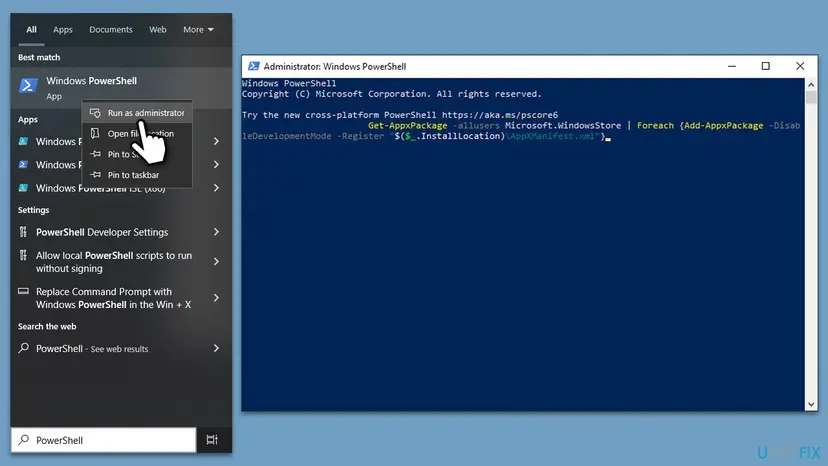
What the red errors mean and how to re-register all Store apps: How to re-register Microsoft Store apps with PowerShell.
It worked if: The Store opens, signs you in and updates your apps.
If not: If 0x80048839 still appears, read the next section.
If 0x80048839 is still there: account recovery, repairs and support
When the account works on the web but no fix helps on this PC, the cause is either the account's security state or Windows' own sign-in parts. Work through this list in order.
- Reset the password at
https://account.live.com/password/resetif you think someone else knows it. The moderator's answer for this code suggests it when a sign-in problem is suspected. - Recover a hacked account with the form at
https://account.live.com/acsr, from a device and network you used before. - Test a new Windows user profile: our guide to 0x80048820 shows how. If the Store works there, your old profile is damaged.
- Update Windows in Settings > Windows Update > Check for updates, then repair system files if every account fails: Run DISM and SFC to repair Windows system files.
- Contact Microsoft at
https://support.microsoft.com/contact, choose account issues and say which fixes you tried.
| What you see | Likely reason | Who can fix it |
|---|---|---|
| The account fails in the browser too | Locked, hacked or recovering account | Account recovery, then Microsoft support |
| Fails on one network only | Router, DNS or a filter on that network | You or the network owner |
| Works in a new Windows profile, not in yours | Damaged profile link to the account | You: move to the new profile |
| Every account fails in every profile | Windows sign-in components | System file repair, then Microsoft support |
Windows 10 left support on 14 October 2025. Without Extended Security Updates it no longer gets fixes for its sign-in and Store components, so an old Windows 10 PC can keep sign-in errors that Windows 11 does not show.
How to keep 0x80048839 from coming back
Once the sign-in works, the error does not return on its own. It comes back when something changes the path between the Store and Microsoft's sign-in service, or the account's security state.
- Keep automatic time and time zone on, so the sign-in time stamp is always right.
- Disconnect a VPN before you sign in to the Store, Outlook or the Xbox app, and connect it again afterwards.
- Do not turn off services with tweak tools: the Microsoft Store Install Service is needed for every Store update.
- After a password change, sign out of the Store and in again once, so it does not keep the old sign-in.
- Keep the account's security info current at account.microsoft.com, so a recovery is quick if it is ever needed.
Frequently asked questions
What is error 0x80048839?
It is a Microsoft account sign-in error. An app such as the Microsoft Store, Outlook or the Xbox app tried to sign you in to your Microsoft account, and the sign-in did not finish. Microsoft has not published a definition for Windows. A Microsoft community moderator says it can be an ongoing problem on Microsoft's side, so check the service status and sign in on the web first (Fix 1).
Why can't I update apps in the Microsoft Store because of 0x80048839?
Every download and update from the Store needs a signed-in Microsoft account. When the sign-in fails with 0x80048839, the Store has no account to check your licences with, so updates stop. Your apps are not damaged. Sign out of the Store, restart and sign in again (Fix 2), then select Get updates in Library. If you are signed in and updates still stop, check the Microsoft Store Install Service with Fix 6.
What does wsreset.exe do?
wsreset.exe is a Windows tool that clears the Microsoft Store cache. You run it from Win + R. A blank window opens for a few seconds, then the Store opens by itself. It does not remove your installed apps, your purchases or your files. It can sign you out of the Store, and that helps with 0x80048839 because the next sign-in starts clean. If it does not help, use Repair and then Reset for the Store app (Fix 5).
Will I lose my apps, games or purchases?
No. Apps, games and purchases from the Store are tied to your Microsoft account, not to this PC. None of the fixes on this page deletes your files. Reset of the Store app deletes only the Store's own settings and signs you out of it. When the sign-in works again, your Library shows everything you own. Do not buy an app or game a second time to get past this error.
Does 0x80048839 mean my account was hacked?
Not by itself. The code only says the sign-in did not finish. But if the password is refused in a browser too, if you see sign-in activity that is not yours, or if the recovery email is unknown to you, treat it as a security problem. Reset the password, or use the account recovery form at account.live.com/acsr. Cache resets and network fixes cannot repair a compromised account.
Why do I get 0x80048839 in Outlook?
Outlook signs in to Outlook.com through the same Microsoft account service as the Store. On Microsoft Q&A a user of Portuguese Outlook reports algo deu errado. Tente novamente mais tarde. (Something went wrong. Try again later.) with 0x80048839 after typing the email and password. The moderator's advice is to check the service status, test outlook.com in a browser, restart, try another network and reset the password if needed. Those are Fix 1, Fix 2 and Fix 3 here.
Is 0x80048839 the same as 0x80048820 or 0x80048823?
They are sister codes. All of them start with 0x800488 and come from a Microsoft account sign-in that did not finish, and Microsoft documents none of them for Windows. The fixes overlap: test the account online, clean the saved sign-in, check the network and the clock. For 0x80048820 the saved credentials are named most often, so our 0x80048820 guide adds Credential Manager and a new user profile.
Que quiere decir esto? What does the error mean in other languages?
In every language the code 0x80048839 means the same thing: the Microsoft account sign-in did not finish. A Spanish search like "que quiere decir esto" or a Russian one like "что за ошибка" points to the same message, only the text around the code is translated. In Portuguese Outlook it reads algo deu errado. Tente novamente mais tarde. The steps on this page are the same for any Windows language.
Should I run SFC or reinstall Windows for 0x80048839?
Not first. This code is about the account sign-in, and the system file check rarely touches it. Run SFC and DISM only when every account fails in every Windows user profile, as the last section says. Reinstalling Windows is almost never needed for this error. Try the browser test, the sign-out, another network, the clock and the Store reset first, because they are fast and do not change Windows.
Is there a Microsoft fix or update for 0x80048839?
We found no Microsoft article or update that names 0x80048839 for Windows. Microsoft staff answer it case by case on Microsoft Q&A with the steps in this guide. When the cause is a service problem on Microsoft's side, it ends without any change on your PC. Keep Windows and the Store updated anyway, because fixes for the sign-in components arrive through Windows Update and Store updates.
Sources
- Microsoft Q&A: Error 0x80048839 in classic Outlook, Something went wrong (moderator answer: service status, web sign-in, other network, password reset) (learn.microsoft.com)
- Microsoft Q&A: Error 0x80048839 when trying to log in to an account (Windows 11, Gaming) (learn.microsoft.com)
- Microsoft Q&A: Issues logging in to the Microsoft Store, sister code 0x80048820 (Microsoft Community Support Specialist: time, network, wsreset, re-register the Store) (learn.microsoft.com)
Did this fix work?
One click, no account. It tells the next reader which guides are worth their time.
Questions and experiences: fix Microsoft Store error 0x80048839
Still broken, or found a fix we did not cover? Ask here: members and our editors answer. Reading is open; writing needs a free account.
…