
How to fix Microsoft Store error 0x8D050003 in Windows

Prefer to fix it yourself? The manual steps follow.
- 8methods
- 5 to 30 minutes
- Intermediate
Applies to Windows 11 and Windows 10; Microsoft Store app installs and updates, most often desktop apps such as Microsoft Teams, Discord, PowerToys, LINE and WeChat
8 methods in this guide
Hello. I tried installing an app from the Microsoft Store, but I got the 0x8D050003 error. Any way to fix this?
Error 0x8D050003 means Microsoft Store could not finish downloading an app. Microsoft's support staff tie it to the network: a proxy, VPN or filter between your PC and the download server is the most common cause. Turn those off for the install first, then reset the Store.
0x8D050003 is a Microsoft Store download failure, not damage to Windows. Microsoft support staff say the code "indicates that there is an issue with your network causing the download task to fail", and one confirmed case was a web proxy. Turn off any VPN, proxy or DNS filter and install again (Fix 1). If only one app fails, try another network or install it another way (Fixes 2 and 3).
| Error | 0x8D050003, shown by Microsoft Store as Something unexpected happened with Code: 0x8D050003. |
|---|---|
| Where it appears | Microsoft Store, when you select Get, Install or Update on an app. The download stays at 0 % and stops. |
| Main cause | The download is blocked on the way: a proxy, VPN, DNS filter or work network. Less often a stuck Store cache or install service. |
| Fastest fix | Turn off the VPN, proxy and DNS filter for the install (Fix 1). Next, try a phone hotspot (Fix 2). |
| Also written as | 0x8d050003, Exception from HRESULT: 0x8D050003 in logs, and the common typos 0x8d50003 and 0x8d05003. In Russian Windows: Код: 0x8D050003. |
| Apps it hits most | Users report it most with desktop apps listed in the Store, such as Teams, Discord, PowerToys, LINE and WeChat. Their installer comes from the publisher's own server. |
| Affects | Windows 11 and Windows 10. Windows 10 left Microsoft support on 14 October 2025; the fixes below still work on it. |
| Microsoft's status | Not listed as a known issue of any Windows update. Microsoft has no public page that decodes 0x8D050003; its staff answers point to the network. |
| Time to fix | 5 minutes for Fixes 1 to 3. Up to 30 minutes when the Store, the network or Windows files need a reset. |
Facts checked on 15 October 2026. Steps written for Windows 11 (25H2 and 26H2) and Windows 10 22H2.
What error 0x8D050003 means in Microsoft Store
You select Get or Install in Microsoft Store, the progress stays at the start, and the app shows an error. Under See details the Store shows a message like this one:
Something unexpected happened. Reporting this problem will help us understand it better. You can wait a bit and try again or restart your device. That may help. Code: 0x8D050003
Microsoft has not published a name for this code. Its support staff, answering a case on Microsoft Q&A, wrote that 0x8D050003 "indicates that there is an issue with your network causing the download task to fail". In that case the install worked as soon as the web proxy was turned off. So start with the network, not with Windows repairs.
- In the Store
- Something unexpected happened and Code: 0x8D050003. On Windows 11 the line reads Code: 0x8D050003; some builds show Error code: 0x8D050003.
- In Event Viewer
- An entry "Information when installation status changed" with
InstallState: Error,completePercent: 0,downloadedBytes: 0andException from HRESULT: 0x8D050003. - In other languages
- The code stays the same: Код: 0x8D050003 in Russian, Código: 0x8D050003 in Spanish and Portuguese, 代碼: 0x8D050003 in Chinese.
- What it is not
- Not a licence, payment or account error, and not a virus. Nothing was installed:
downloadedBytes: 0shows the download never got going.
The reader above saw the code on one app. That is the typical pattern: many reports name a single desktop app, such as Teams or Discord, while other Store apps still install. The next section explains why.
Why Microsoft Store shows 0x8D050003: the causes, ranked
Microsoft Store delivers two kinds of apps. Packaged (MSIX) apps come from Microsoft's own servers. Classic desktop apps (EXE or MSI) are different: Microsoft's own guide for publishers says that for these, "publishers are responsible for hosting". The Store downloads their installer from the publisher's server, so a block on that server fails only that app.
| Cause | How often | How to tell | Fix |
|---|---|---|---|
| A proxy, VPN, firewall or DNS filter blocks or reroutes the download. | Most often | It fails with the VPN or proxy on and works without it, or only on a work or school network. | Fix 1 |
| Your network or provider cannot reach one publisher's download server. | Often | Only one desktop app fails; others install. | Fix 2 |
| The app's installer from the publisher fails inside the Store. | Often | The same app fails on every network. | Fix 3 |
| A damaged Store cache or a stuck sign-in. | Sometimes | Every app fails, but web pages open. | Fix 4 |
| The Store's install service or BITS is stuck. | Sometimes | Every install stays at 0 % after a long uptime. | Fix 5 |
| An outdated Store or Windows build. | Sometimes | Windows Update or Store Library has updates waiting. | Fix 6 |
| Damaged network settings: DNS cache, Winsock or adapter. | Rarely | Windows shows No internet while the browser works. | Fix 7 |
| Damaged Windows system files. | Rarely | All of the above did not help and other built-in apps misbehave. | Fix 8 |
- 0xc05d0003 is not the same code. People search it next to 0x8D050003, but we could not confirm what it means; this page does not cover it.
- A related download code: Microsoft Store error 0x80D03805 means Delivery Optimization lost the network during a download.
How to fix error 0x8D050003 in Microsoft Store
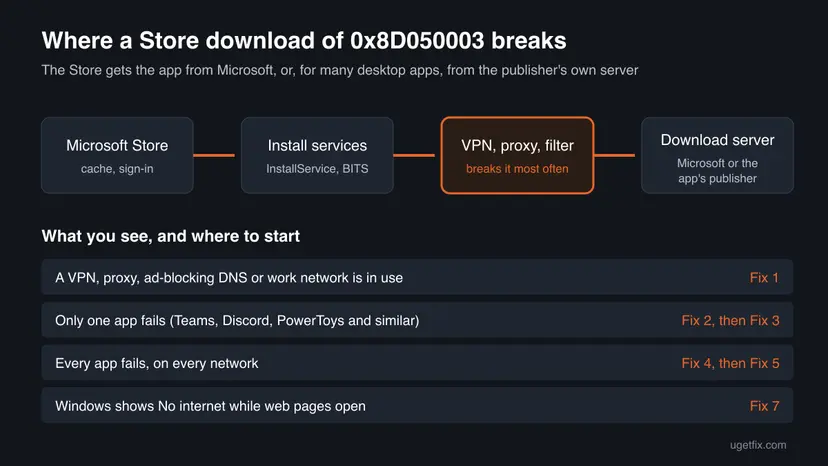
Fixes 1 to 3 deal with the download path, which is where this code comes from. Fixes 4 to 6 reset and update the Store. Fixes 7 and 8 repair the network and Windows, in that order.
| What you see or have | Start with |
|---|---|
| A VPN, proxy, ad-blocking DNS, firewall app or work network is in use. | Fix 1 |
| Only one app fails, such as Teams, Discord or PowerToys. | Fix 2, then Fix 3 |
| Every Store app fails with 0x8D050003. | Fix 4, then Fix 5 |
| Windows Update or the Store has updates waiting. | Fix 6 |
| Windows shows No internet while web pages open. | Fix 7 |
| Nothing above helped. | Fix 8, then the log in the section after the fixes |
Fix 1. Turn off the proxy, VPN and DNS filter for the install
5 minutesLow riskA VPN app, a proxy, a firewall app or a DNS filter such as an ad blocker is in use, or the PC is on a work or school network.
In the case Microsoft staff answered, Teams failed with 0x8D050003 only while a web proxy was on and installed at once without it. A proxy, VPN or filter changes the route to the download server, and the Store's download task fails.
- Disconnect the VPN app, and quit it from the taskbar's hidden icons.
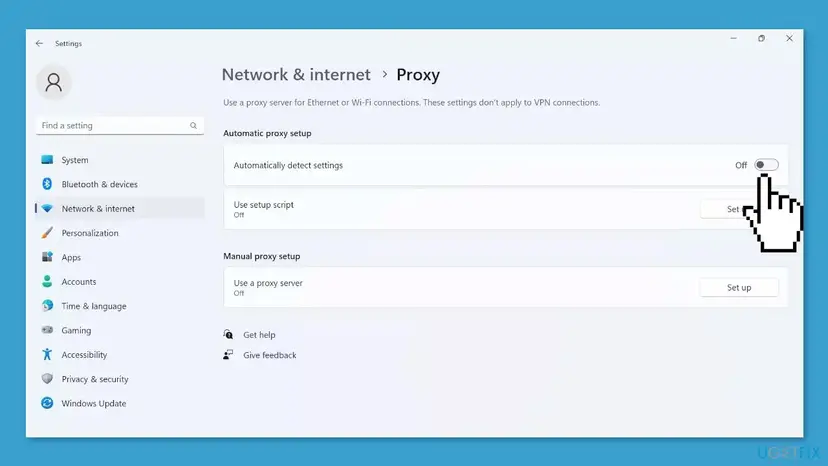
- Press Win + I and open Network & internet > Proxy (Windows 10: Network & Internet > Proxy).
- Under Manual proxy setup, check that Use a proxy server is Off, unless your workplace set it.
- Under Use setup script, check that it is Off too, unless your workplace set it.
- If you use a DNS filter, a router ad blocker or a firewall app, pause it for this install.
- Open Microsoft Store and select Get or Install on the app again.
- When the app has installed, turn the VPN, proxy or filter back on.
The proxy and firewall may come from your organisation's policy. Do not change them yourself. Give IT the code, the app's name and the time, and ask them to allow the app's download.
It worked if: With the proxy, VPN or filter off, the progress bar moves and the app shows Open.
If not: If it fails with nothing in between, test another network with Fix 2.
Fix 2. Try another network and restart the router
5 minutesNo riskOnly one app fails, or you have no VPN or proxy and the error stays.
Desktop apps in the Store download from the publisher's own server. If your router, provider or a parental filter cannot reach that server, only that app fails. Another network shows at once whether the block is on your side.
- Turn on the mobile hotspot on your phone and connect the PC to it.
- Open Microsoft Store and install the app again.
- If it works on the hotspot, go back to your own network and unplug the modem and the router for 30 seconds.
- Try the install once more on your own network.
- Check that the clock is right: a wrong date or time breaks secure downloads. Step by step: How to fix the date and time in Windows

Works on the hotspot but not at home? The block is the router, a filter in it or the provider. Look for parental control, safe browsing or ad blocking in the router's settings, or ask your provider. A full connection check: How to check your internet connection in Windows
It worked if: The app installs on one of the networks, and you know where the block is.
If not: If the same app fails on every network, install it another way with Fix 3.
Fix 3. Install the one failing app another way
5 minutesLow riskOne desktop app, such as Teams, Discord, PowerToys, LINE or WeChat, fails with 0x8D050003 on every network, while other apps install.
For these apps the Store only fetches and runs the publisher's installer. Running the same installer through winget or from the publisher's website skips the Store's install step and shows a clearer error if the download itself fails.
- Find the app's Store ID: open its page on apps.microsoft.com in a browser; the ID is the last part of the address, for example
XP8BT8DW290MPQfor Microsoft Teams. - Right-click Start and select Terminal (Windows 10: Windows PowerShell).
- Run the command below with the app's ID and accept the terms when asked.
- Watch the output: it shows the download and, if it fails, the reason in words.
- If winget is missing or fails too, install the app from its publisher's official website instead.
Terminal: install a Store app with winget (replace the ID)
winget install --id XP8BT8DW290MPQ --source msstoreDownload an app only from its publisher's own website or from the Store. Sites that offer "offline Store installers" or repacked apps are not safe and are not a fix.
It worked if: The app installs and appears in Start; the Store then lists it as installed and keeps it updated.
If not: If every Store app fails, not just one, reset the Store with Fix 4.
Fix 4. Clear the Store cache, then repair or reset Microsoft Store
5 to 10 minutesLow riskEvery app fails with 0x8D050003, and the network checks in Fixes 1 and 2 did not help.
The Store keeps a cache and a list of pending installs. A damaged cache or a stuck job can fail every new download at the start. wsreset clears the cache; Repair and Reset give the Store a fresh start. Purchases stay in your Microsoft account.
- Clear the Store cache. Press Windows + R, type wsreset.exe and select OK. A blank Command Prompt window opens; after a short while it closes and Microsoft Store opens by itself.

After wsreset, the Store opens and loads again. Screenshot: Windows 11 26H2. - Open System components. If the problem stays, select Start > Settings > System > System components. Next to Microsoft Store, select the three dots and Advanced options. If Microsoft Store is not listed there, look for it in Settings > Apps > Installed apps.
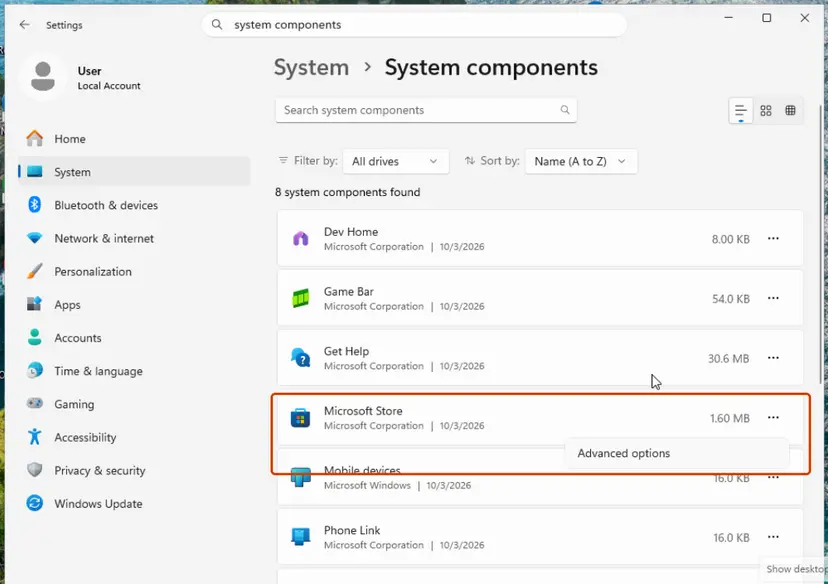
Microsoft Store is listed under System components. Screenshot: Windows 11 26H2. - Repair first. Scroll to Reset and select Repair. Repair keeps the app's data. Open the Store and check whether it works.
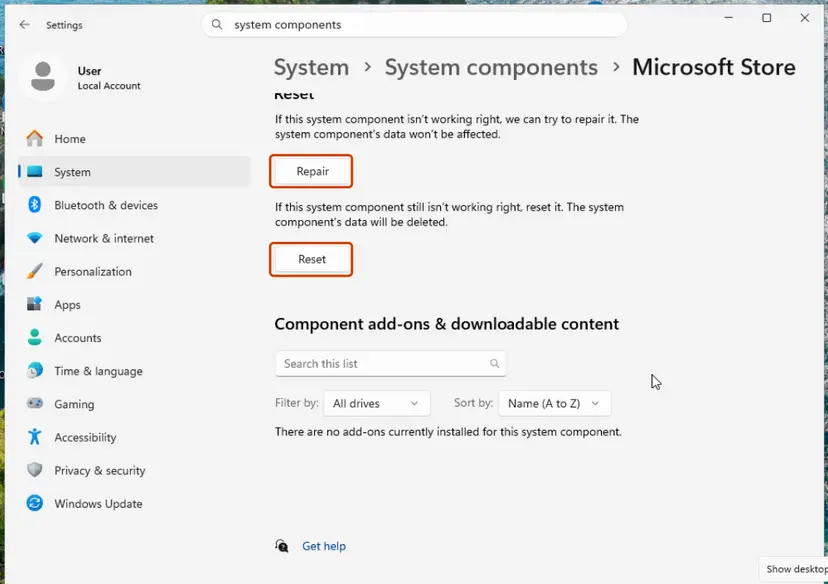
Repair keeps the app's data; Reset deletes it. Screenshot: Windows 11 26H2. - Reset if Repair did not help. Select Reset and confirm. This deletes the Store app's data on this PC; your purchases stay in your Microsoft account. Open the Store and sign in again.
These steps were written for Windows 11 26H2 (build 26300). The full page with the other versions and what each result means: Reset the Microsoft Store
After a reset, sign in to the Store again with the same account, open Library and install the app again.
It worked if: After wsreset the Store opens by itself, and the install runs to the end.
If not: If installs still stay at 0 %, restart the install services with Fix 5.
Fix 5. Restart Microsoft Store Install Service and BITS
5 minutesLow riskEvery install fails at 0 % and the PC has not been restarted for days, or Fix 4 helped only once.
The Store hands each install to Microsoft Store Install Service, which uses Windows' background download services. If one of them is stuck, every new install fails before a byte arrives, as the downloadedBytes: 0 line shows.
- Press Win + R, type
services.mscand press Enter. - Find Microsoft Store Install Service, right-click it and select Restart. If it is stopped, select Start.
- Do the same with Background Intelligent Transfer Service, Delivery Optimization and Windows Update.
- If a service cannot be restarted, restart the PC instead; the services start again with it.
- Open the Store and install the app again.

Step by step with screenshots: Check and restart Windows services
It worked if: The services show Running, and the install moves past 0 %.
If not: If it still fails, update the Store and Windows with Fix 6.
Fix 6. Update Microsoft Store and Windows, then run the Store Apps troubleshooter
10 to 30 minutesNo riskWindows Update or the Store Library shows updates waiting, or the earlier fixes did not help.
Microsoft's own steps for Store problems start with updating Windows and the Store, because the Store's installer code ships through those updates. The troubleshooter then checks the Store's settings and cache.
- Open Settings > Windows Update and select Check for updates (Windows 10: Settings > Update & Security > Windows Update). Install what is offered and restart.
- Open Microsoft Store, select Library and then Get updates (Windows 10: See more > Downloads and updates > Get updates).
- Windows 11: open Settings > System > Troubleshoot > Other troubleshooters and select Run next to Microsoft Store Apps.
- Windows 10: open Settings > Update & Security > Troubleshoot and run Windows Store Apps.
- Follow what the troubleshooter suggests, then try the install again.
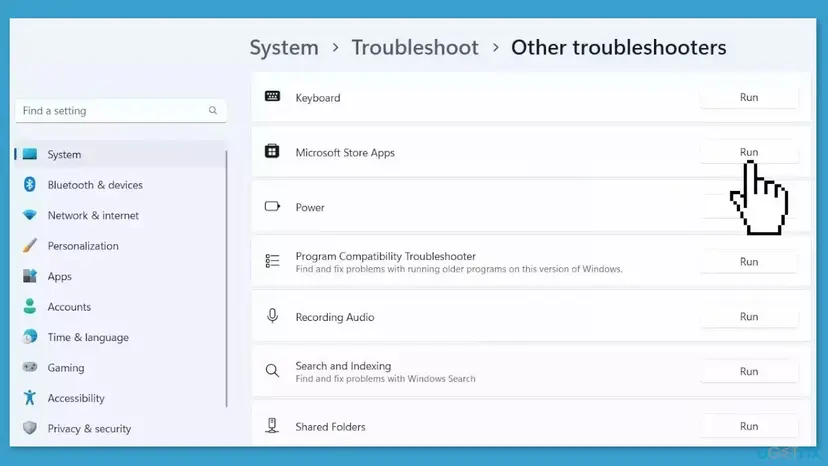
It worked if: Windows and the Store report no updates left, and the troubleshooter finds and fixes a problem or reports none.
If not: If Windows shows No internet or a yellow sign, reset the network with Fix 7.
Fix 7. Reset the network settings
10 minutesRead the warningWindows shows No internet or a yellow sign while web pages open, or proxy settings keep coming back.
Damaged DNS, Winsock or adapter settings, or a proxy left behind by an old VPN app, can break the Store's download while the browser still works. A network reset puts them back to Windows defaults.
Saved Wi-Fi networks and their passwords, VPN connections and manual IP settings are removed. Write down your Wi-Fi password and any manual settings first. The DNS flush and Winsock reset in the first part do not remove them.
- Open an elevated command window. Right-click Start and select Terminal (Admin), or type cmd in the search box, right-click Command Prompt and select Run as administrator. Select Yes when Windows asks for permission.
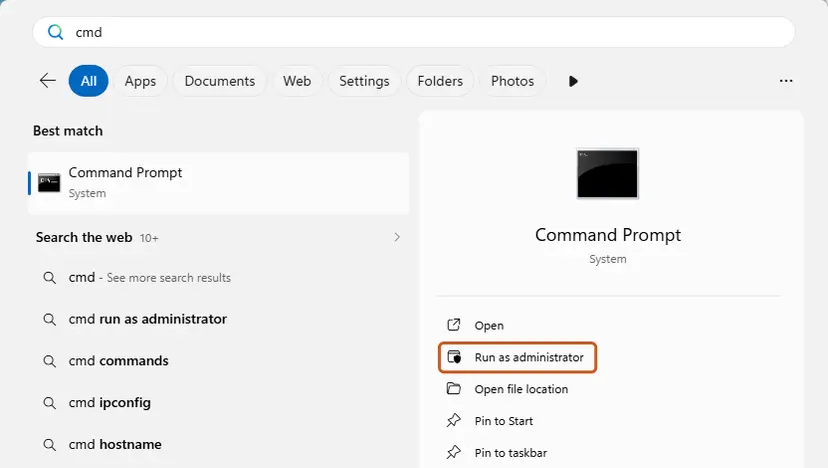
Search for cmd and choose Run as administrator. Screenshot: Windows 11 26H2. - Flush the DNS cache. Type the command below and press Enter. Windows forgets the website addresses it looked up earlier and asks for them again.
ipconfig /flushdns - Reset Winsock. Type the command below and press Enter. It returns the Windows sockets catalog to its default state.
netsh winsock reset
Both commands report success; the Winsock reset asks for a restart. Screenshot: Windows 11 26H2. - Reset TCP/IP. Type the command below and press Enter. If you entered an IP address or DNS server by hand, note it first: you may need to enter it again.
netsh int ip reset - Get a new IP address. Run these two commands one after the other. The connection drops for a moment between them.
ipconfig /release ipconfig /renew - Restart the PC. Restart Windows so the Winsock and TCP/IP resets take effect, then test the connection. If it still does not work, continue with the network reset below.
- Open Network reset. Open Settings > Network & internet > Advanced network settings and select Network reset.
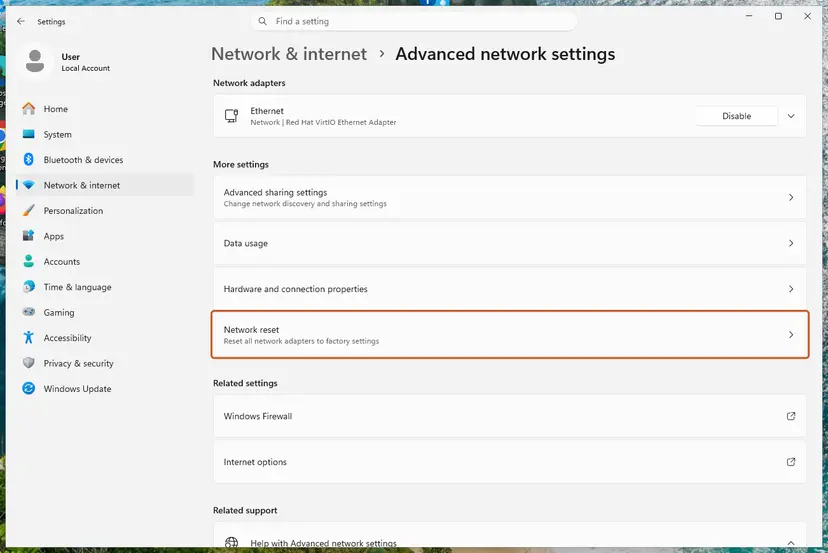
Network reset is under More settings in Advanced network settings. Screenshot: Windows 11 26H2. - Reset now. Select Reset now, then Yes to confirm. Windows removes and reinstalls all network adapters and restarts the PC.
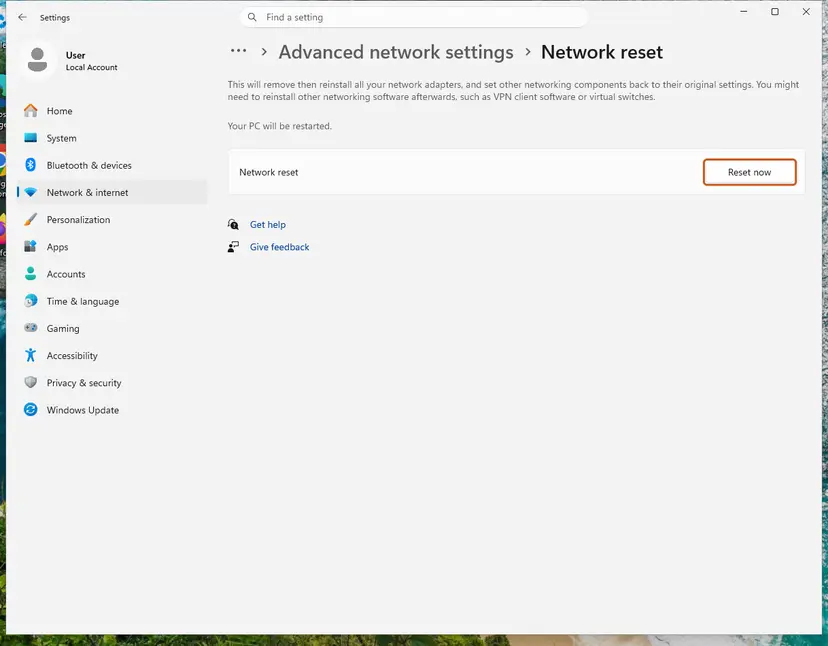
Network reset warns that VPN software or virtual switches may need to be reinstalled. Screenshot: Windows 11 26H2. - Reconnect. After the restart, connect to your Wi-Fi network again (you will need its password) and reinstall or reconfigure VPN software if it stopped working.
These steps were written for Windows 11 24H2 and later. The full page with the other versions and what each result means: Reset the network and flush DNS
It worked if: After the restart, Settings > Network & internet shows Connected without a warning, and the app installs.
If not: If every install still fails, repair Windows files with Fix 8.
Fix 8. Repair Windows system files, then repair Windows in place
30 to 90 minutesLow riskNothing above helped, and every Store install fails on every network.
The Store and its install service are parts of Windows. If their system files are damaged, installs can fail before they start. DISM and SFC repair those files; a repair install replaces them and keeps your apps and files.
- Open an elevated command window. Right-click Start and select Terminal (Admin), or type cmd in the search box, right-click Command Prompt and select Run as administrator. Select Yes when Windows asks for permission.
- Run DISM first. Type the command below and press Enter. DISM downloads clean copies of damaged components from Windows Update, so it can take several minutes. Wait until it says The operation completed successfully.
DISM.exe /Online /Cleanup-Image /RestoreHealth - Run System File Checker. In the same window, type the command below and press Enter. Do not close the window until the verification reaches 100%.
sfc /scannow - Read the result and restart. Compare the last message with the table below this guide, then restart the PC so that repaired files are loaded.
These steps were written for Windows 11 24H2 and 25H2. The full page with the other versions and what each result means: Run DISM and SFC to repair Windows system files
If that does not help, reinstall Windows over itself, keeping files and apps. Users with this code on Microsoft Q&A report that an in-place repair was what finally worked: Reinstall Windows without losing files
It worked if: SFC reports no integrity violations or that it repaired them, and Store installs work again.
If not: Read the Store's log as the next section shows, and send it to Microsoft support.
If 0x8D050003 is still there: read the Store's log and what to send to support
The Store shows only the code. Event Viewer keeps the Store's install record, with the app's ID and how far the download got. That tells you whether anything was downloaded at all.
- Press Win + R, type
eventvwr.mscand press Enter. - Select Applications and Services Logs in the left pane.
- In the right pane select Find, type
0x8D050003and select Find Next. - Read the entry:
idis the app's Store ID,downloadedBytesshows how much arrived, and the time tells you when it failed. - Copy the entry with Copy > Copy details as text for support.
downloadedBytes: 0: nothing arrived. The block is on the network path; go back to Fixes 1 and 2, and test on a phone hotspot.- Another Windows account: if the Store works in a new local account, your own account holds the problem: Create a new user account to test a problem
- Third-party firewall or antivirus: pause it for one test only and turn it back on at once: Turn off Microsoft Defender protection for a moment
- What to give Microsoft support or your IT team: the code, the app's name and ID, the time, the Event Viewer entry, your Windows version and build from Settings > System > About, and the fixes you tried.
- One app only, every network: the publisher's server may be down or block your region. Contact the app's publisher with the same details.
How to keep 0x8D050003 from coming back
The code means a Store download did not get through. Prevention is about a clear path to the download servers.
- Install and update Store apps with the VPN off, or with split tunnelling that leaves the Store out.
- Allow Microsoft's and the app publisher's download hosts in any DNS filter you use.
- Keep Windows and the Store up to date from Library > Get updates.
- Restart the PC now and then, so the install services start clean.
- Leave an old proxy or setup script on after you remove a VPN app.
- Disable Windows Update, BITS or Microsoft Store Install Service with tweak tools.
- Remove the Store with PowerShell to "reinstall" it; it can leave the PC with no Store at all.
- Use unofficial offline installers for Store apps.
Frequently asked questions
What does error code 0x8D050003 mean?
It means Microsoft Store could not download the app you asked for. Microsoft has not published a name for the code, but its support staff wrote that it "indicates that there is an issue with your network causing the download task to fail". The Store's log usually shows downloadedBytes: 0, so nothing arrived. Start with a proxy, VPN or filter, then try another network, and only then reset the Store.
Why does only one app, like Teams or Discord, fail with 0x8D050003?
Because classic desktop apps in the Store are downloaded from their publisher's own server, not from Microsoft. Microsoft's guide for publishers says that for these apps the publisher is responsible for hosting. A proxy, filter or provider that cannot reach that one server fails only that app, while Microsoft-hosted apps still install. Test a phone hotspot (Fix 2) or install the app with winget or from the publisher's site (Fix 3).
Is 0x8D050003 the same on Windows 11 and Windows 10?
Yes. The code, the message and the fixes are the same on Windows 11 and Windows 10. Only some paths differ: the Store's update button is under Library on Windows 11 and under See more > Downloads and updates on Windows 10. Windows 10 left Microsoft support on 14 October 2025. Its Store still installs apps, but an outdated build is one more reason to install updates first.
Does a proxy or VPN cause error 0x8D050003?
Yes, that is the best-documented cause. In the case Microsoft staff answered on Microsoft Q&A, Teams failed with 0x8D050003 behind a web proxy and installed at once with the proxy off. A VPN or DNS filter that reroutes or blocks the download host has the same effect. Turn it off for the install, then turn it back on. On a work PC, ask IT to allow the download.
What does "Something unexpected happened" with Code: 0x8D050003 mean?
It is the Store's general error screen, and the code tells you which problem it is. "Something unexpected happened" appears with many Store codes; with 0x8D050003 it means the download task failed. The advice in the message, to wait and try again or restart the device, helps only when the cause was brief. If it comes back, go through Fixes 1 to 4.
Will resetting Microsoft Store delete my apps or purchases?
No. Clearing the cache with wsreset and using Repair or Reset on the Store app keeps your installed apps and your purchases, which belong to your Microsoft account. A reset signs you out of the Store, so you sign in again. Apps you bought can be installed again from Library at any time. A network reset, Fix 7, removes saved Wi-Fi passwords, so note them first.
Should I reinstall Microsoft Store with PowerShell to fix 0x8D050003?
We do not recommend it. Older guides tell you to remove the Store with Remove-AppxPackage and add it again. Removing it can leave the PC with no Store, and it does not touch the network path this code is about. The Store's own Repair and Reset in Fix 4 do the safe part. If the Store app itself is broken, re-register it instead: How to re-register Microsoft Store apps with PowerShell
I see 0x8d50003 or Код: 0x8D050003. Is it the same error?
Yes. 0x8d50003 and 0x8d05003 are typos of 0x8D050003, and Код, Código or 代碼 is just the word "Code" in the language of your Windows. The meaning and the fixes on this page are the same. A different code, 0xc05d0003, is not the same error, and we could not confirm what it means.
Is 0x8D050003 a virus or a sign of hacking?
No. It is a Microsoft Store download error, and Microsoft links no malware to it. A security app that blocks download hosts can, however, cause it, which is why Fix 1 pauses filters for one install. If you are worried about the PC for other reasons, run a full scan with Microsoft Defender: How to scan for malware with Microsoft Defender
This page did not help. What else can I do?
Install the app on a phone hotspot first. If it works there, the block is your router, provider or a filter, not Windows. If it fails everywhere, read the Store's entry in Event Viewer as the section after the fixes shows, and send it with your Windows build to Microsoft support. If every Store app fails and nothing else works, a repair install of Windows keeps your files and apps (Fix 8).
Sources
- Microsoft Support: Fix problems with apps from Microsoft Store (support.microsoft.com)
- Microsoft Learn: How to distribute your Win32 application through Microsoft Store (publisher hosting) (learn.microsoft.com)
- Microsoft Q&A: Error 0x8D050003 while installing Teams from Microsoft Store (Microsoft support staff answer) (learn.microsoft.com)
Did this fix work?
One click, no account. It tells the next reader which guides are worth their time.
Questions and experiences: fix Microsoft Store error 0x8D050003 in Windows
Still broken, or found a fix we did not cover? Ask here: members and our editors answer. Reading is open; writing needs a free account.
…