
How to fix "The digital signature for this file couldn't be verified" (0xc0000428) in Windows

Prefer to fix it yourself? The manual steps follow.
- 7methods
- 10 to 60 minutes
- Intermediate
Applies to Windows 11 and Windows 10 PCs that stop at start-up with error 0xc0000428, and PCs where Device Manager shows the related Code 52
7 methods in this guide
Hello, I need serious help. I cannot boot up my PC because of an error that says: "The digital signature for this file couldn't be verified." I am not an IT specialist, but I would like to fix the issue without paying scads of money. Could you please tell me if this error is fatal or if it is possible to fix it at home? I would highly appreciate your help! Thanks a lot.
"The digital signature for this file couldn't be verified" with error code 0xc0000428 means Windows refused to load a start-up file whose signature check failed. It is usually fixable at home. Read the File: line first: a third-party .sys driver points to Fix 1, winload.exe points to the boot repairs in Fixes 3 and 4.
It is not fatal. Error 0xc0000428 means Windows blocked a start-up file whose signature it could not check. If the File: line names a driver in System32\drivers, start Windows once with Startup Settings > 7) Disable driver signature enforcement, then remove or update that driver (Fix 1). If it names winload.exe, run Startup Repair and rebuild the boot files with bcdboot (Fixes 3 and 4). Never leave signature checks or Secure Boot off.
| Error | The digital signature for this file couldn't be verified. Status or error code 0xc0000428, which Microsoft names Invalid Image Hash. |
|---|---|
| Where it appears | At start-up, before the sign-in screen: on the black Windows Boot Manager screen or the blue Recovery screen that says Your PC needs to be repaired. |
| Main cause | A driver added by a program, or a Windows boot file, has a signature that does not match the file, so Windows refuses to load it. |
| Fastest fix | Read the File: line. For a third-party driver, start once with option 7 in Startup Settings and remove that driver (Fix 1). |
| Also written as | digital signature could not be verified, windows cannot verify the digital signature for this file, the operating system couldn't be loaded because the digital signature of a file couldn't be verified, error 0xc0000428. |
| Affects | Windows 11, Windows 10, older Windows 8.1 and 7 PCs, and Windows virtual machines. Device Manager has a related message, Code 52. |
| Vendor status | Microsoft documents 0xc0000428 for virtual machines built from expired preview images, and Code 52 for unsigned or damaged device drivers. No Windows known issue for it was listed on 15 October 2026. |
| Where the cause is written | On the error screen itself, in the File: line. Startup Repair also writes a log named SrtTrail.txt and shows its path. |
| Time to fix | 10 to 20 minutes for a driver removal or Startup Repair. 30 to 60 minutes for System Restore, offline repairs or a reinstall. |
Facts checked on 15 October 2026. Steps written for Windows 11 (25H2 and 26H2) and Windows 10 22H2.
What "The digital signature for this file couldn't be verified" means
Every file Windows loads during start-up, the loader winload.exe and every boot driver, carries a digital signature. Windows compares the signature with the file. When they do not match, or the signature is missing or not trusted, Windows stops and shows status 0xc0000428. Microsoft's documentation names this status Invalid Image Hash: the file's fingerprint is not the one that was signed.
Microsoft documents two wordings on the black Windows Boot Manager screen. Newer Windows shows the first one, older Windows shows the second:
Windows Boot Manager, as Microsoft shows it
File: \Windows\system32\winload.exe
Status: 0xc0000428
Info: The digital signature for this file couldn't be verified.

File: \windows\system32\boot\winload.exe
Status: 0xc0000428
Info: Windows cannot verify the digital signature for this file.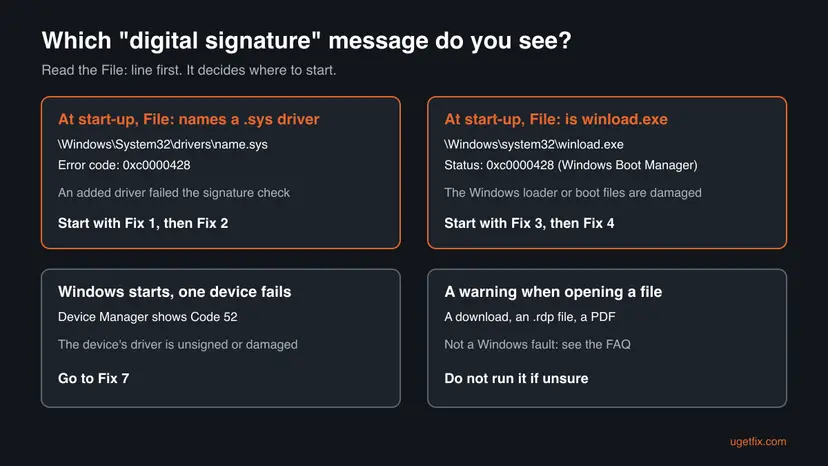
| What you see or type | What it means |
|---|---|
| The digital signature for this file couldn't be verified. with 0xc0000428 | The start-up error this page is about, on Windows 10 and Windows 11 |
| The operating system couldn't be loaded because the digital signature of a file couldn't be verified. | The same error on the blue Recovery screen, under Your PC needs to be repaired |
| Windows cannot verify the digital signature for this file. | The same start-up error on older Windows, such as Windows 7 |
| A recent hardware or software change might have installed a file that is signed incorrectly or damaged, or that might be malicious software from an unknown source. | The explanation printed on the boot screen, and also part of the Device Manager Code 52 message |
| Windows cannot verify the digital signature for the drivers required for this device. (Code 52) | Windows starts, but one device does not work: Fix 7 |
| This file does not have a valid digital signature, the digital signature of this RDP file cannot be verified | Warnings when opening a download or a Remote Desktop file, not a start-up error: see the FAQ |
The error stops Windows before it starts. It does not delete documents or photos. Every fix below keeps personal files, and the last resort section tells you how to copy them off first.
Why the signature check fails: the causes, most common first
The blue Recovery screen names the file that failed, for example \windows\System32\Drivers\WinFsf.sys. That one line tells you most of what you need. A third-party driver in the drivers folder means a program installed it. A Windows file such as winload.exe means the boot files themselves are damaged.
| How often | Cause | Sign | Fix |
|---|---|---|---|
| Most often | A program added a driver whose signature Windows does not accept: an old VPN, a game anti-cheat, a disk or backup tool, a cracked or modified tool | File: names a .sys file in System32\drivers that is not from Microsoft | Fix 1, Fix 2 |
| Often | A recent install, driver or update changed a start-up file | The error began right after an install or a Windows update | Fix 2, Fix 5 |
| Less often | The Windows loader or boot files are damaged | File: is winload.exe or the Boot Manager screen shows it | Fix 3, Fix 4 |
| Rarely | Damaged Windows system files or a failing disk | File: names a Microsoft file, and other errors appear too | Fix 6 |
| Rarely | Malware changed a start-up file | The file name is unknown and no program you know installed it | Fix 1, then a scan |
| Virtual machines only | The VM was built from a preview image whose trial ended | An Azure or Hyper-V VM from a preview image stops with this screen | Build a new VM; the image cannot be extended |
The last row comes straight from Microsoft: a preview image has a fixed life, and once it expires the VM cannot start again. On a home PC that cause does not apply.
How to fix error 0xc0000428 at start-up
Most fixes start from the Windows recovery screens. When Windows fails to start several times, it opens them by itself; otherwise turn the PC off while the logo shows, twice, and it opens them on the third start. If your drive is encrypted, have the BitLocker recovery key ready. Stop as soon as Windows starts normally.
| What you see or have | Start with | Then |
|---|---|---|
File: names a .sys driver that is not from Microsoft | Fix 1 | Fix 2 |
| It began right after you installed a program or driver | Fix 2 | Fix 1 |
File: is winload.exe on the Windows Boot Manager screen | Fix 3 | Fix 4 |
| It began right after a Windows update | Fix 5 | Fix 2 |
| File: names a Microsoft file and other errors appear | Fix 6 | Fix 4 |
| Windows starts, but Device Manager shows Code 52 | Fix 7 | Fix 2 |
Fix 1. Start Windows once without the signature check, then remove the driver named in the error
15 minutesRead the warningThe File: line names a .sys file in \Windows\System32\drivers that a program installed, not a Windows file.
The error is about one driver file. Starting Windows a single time with signature checks paused lets you reach the desktop and remove the program or driver that put the bad file there. After the next normal restart, the checks are on again and the error is gone because the file is gone.
Option 7 lets unsigned drivers load for this one start, and Windows is less protected while it runs. Do not browse or open unknown files in that session. Use it only to remove or replace the driver, then restart normally. Never turn off driver signature checks for good, and keep Secure Boot on.
- Write down the full File: line from the error screen, for example
\windows\System32\Drivers\WinFsf.sys. - If the blue screen shows Press F8 for Startup Settings, press F8. Otherwise, on the recovery screens select Troubleshoot > Advanced options > Startup Settings > Restart.
- On the numbered Startup Settings list, press 7 or F7 for Disable driver signature enforcement.
- When Windows starts, open File Explorer, go to
C:\Windows\System32\drivers, right-click the file from the error and select Properties > Details. Product name and Copyright show which company made it. - Press Win + I, open Apps > Installed apps and uninstall the program from that company. On Windows 10 the page is Apps > Apps & features.
- If no program matches, install the newest version of that program from its maker, which brings a correctly signed driver.
- Restart the PC normally, without pressing any key.
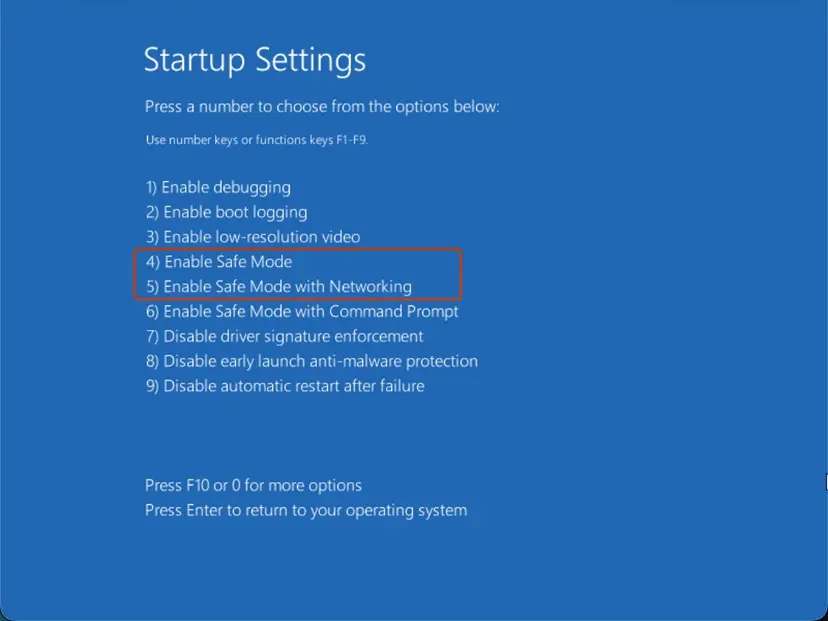
If option 7 does not get you to the desktop, try option 4 for Safe Mode, which loads fewer drivers, and uninstall the program from there. Step by step: Start Windows or a Mac in Safe Mode. If you do not recognize the file or the company, scan the PC after the removal: How to scan for malware with Microsoft Defender
It worked if: After the normal restart Windows reaches the sign-in screen with no error, and the .sys file from the error is no longer in the drivers folder or belongs to a newer, signed version.
If not: If Windows would not start even with option 7, or you cannot tell which program owns the file, go to Fix 2 and undo the change with System Restore.
Fix 2. Undo the last change with System Restore from the recovery screens
20 to 40 minutesLow riskThe error began right after you installed a program, a driver or an update, and Windows had restore points turned on.
A restore point holds the drivers and system files from before the change. Going back removes the driver or file that now fails the signature check, without touching your personal files.
- On the recovery screens select Troubleshoot > Advanced options > System Restore.
- Choose an administrator account and type its password if asked.
- Select Next and pick a restore point dated before the error began.
- Select Scan for affected programs to see which programs and drivers will be removed.
- Select Next and Finish, and wait while the PC restarts.
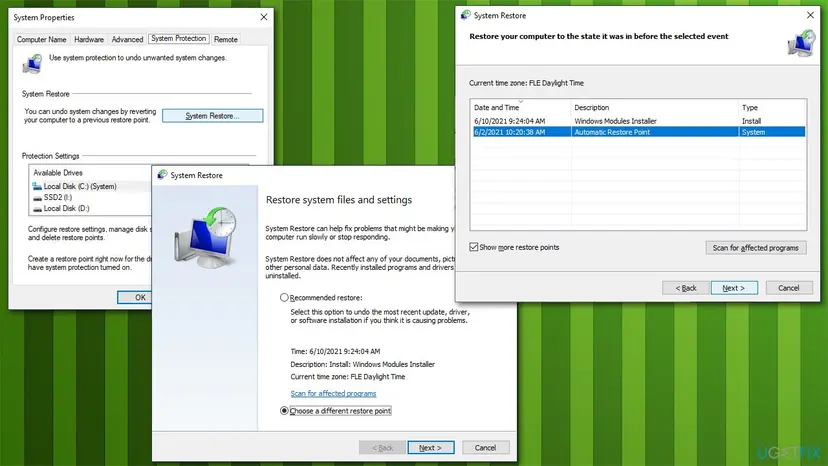
Programs and drivers installed after the restore point are removed, so reinstall the ones you still need afterwards, in their newest version. Step by step with screenshots: Undo recent changes with System Restore
It worked if: Windows starts normally and shows a message that System Restore completed successfully.
If not: If there is no restore point, or the error stays, go to Fix 3.
Fix 3. Run Startup Repair (Quick machine recovery in Windows 11 26H2)
10 to 30 minutesLow riskThe File: line names winload.exe or another Windows file, or Fixes 1 and 2 did not help.
Startup Repair checks the boot files, the boot configuration and the boot drivers, and repairs what it can. It is the safest first try when the failing file belongs to Windows itself.
- On the recovery screens select Troubleshoot > Advanced options.
- Select Quick machine recovery on Windows 11 26H2, or Startup Repair on Windows 10 and older Windows 11 versions.
- Choose an administrator account, type its password, and enter the BitLocker recovery key if Windows asks.
- Wait for the result and restart.
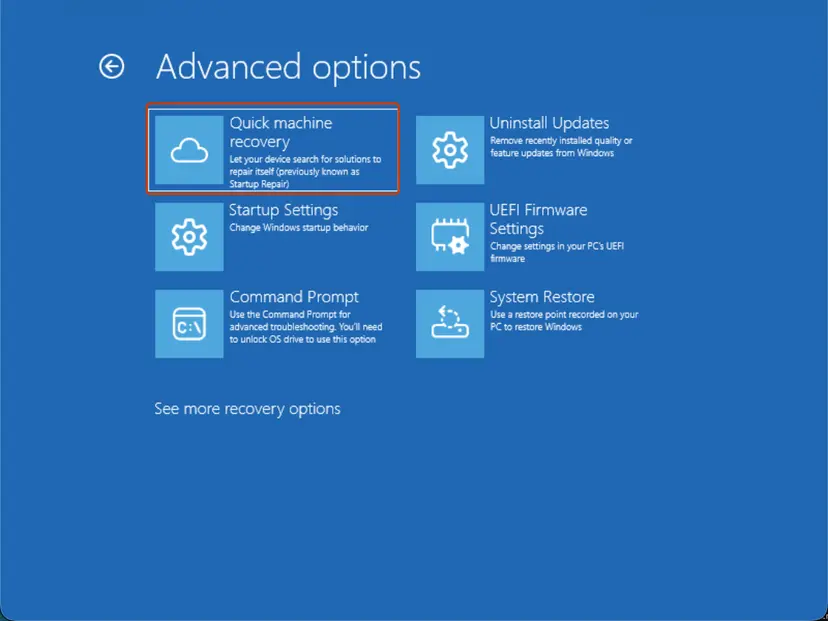
If it reports that it could not repair the PC, the screen shows the path of SrtTrail.txt, the log of what it found. Step by step: Run Startup Repair
It worked if: Windows starts normally after the restart.
If not: If it says the PC could not be repaired, go to Fix 4 and rebuild the boot files by hand.
Fix 4. Rebuild the boot files with bcdboot
15 minutesRead the warningThe black Windows Boot Manager screen names winload.exe, and Startup Repair did not help.
Microsoft's BCDBoot tool recreates the system partition files with new copies taken from the Windows folder, including the Windows Boot Manager. That replaces boot files whose signature no longer matches.
Microsoft says that if a boot entry for this Windows already exists, BCDBoot erases it and its values and creates a new one. On a PC with only Windows this is what you want. If you start two systems from one PC, write down your boot menu first; you may need to add the second entry again.
- On the recovery screens select Troubleshoot > Advanced options > Command Prompt.
- Find the letter of the Windows drive. In the recovery screens it is often not C:
diskpart list vol exit - In the list, the Windows drive is the large NTFS volume. Check it:
dir D:\Windowslists System32 when the letter is right. - Rebuild the boot files from that folder. Replace D: with your letter:
bcdboot D:\Windows - Close Command Prompt and select Continue.
On a UEFI PC, which is every PC that runs Windows 11, BCDBoot copies the files to the EFI system partition and adds a Windows Boot Manager entry to the firmware. You do not need the /s or /f options for this repair.
It worked if: Command Prompt reports that the boot files were created, and Windows starts after Continue.
If not: If the command fails or the error comes back, go to Fix 5 if an update came first, or Fix 6 to repair system files and the disk.
Fix 5. Uninstall the latest Windows update from the recovery screens
15 minutesLow riskThe error appeared right after Windows installed updates and restarted.
An update that installed only part of its files can leave a start-up file that does not match its signature. Removing the update puts the previous, matching files back.
- On the recovery screens select Troubleshoot > Advanced options > Uninstall Updates.
- Select Uninstall latest quality update and follow the instructions.
- If the error stays, go back and select Uninstall latest feature update if it is offered.
- When Windows starts, pause updates for a week so the same update does not install again at once.
Step by step, including how to pause updates: How to uninstall a Windows update
It worked if: Windows starts normally, and Settings > Windows Update > Update history no longer lists the update you removed.
If not: If there was no update to remove, or the error stays, go to Fix 6.
Fix 6. Repair Windows system files and check the disk offline
30 to 60 minutesLow riskThe File: line names a Microsoft file other than winload.exe, or other start-up errors appear too.
A damaged copy of a Windows driver or system file fails the signature check the same way a foreign driver does. SFC replaces damaged Windows files, and a disk check finds read errors that damage them again.
From Troubleshoot > Advanced options > Command Prompt, find the Windows drive letter as in Fix 4, then run the offline scan with that letter in both places:
Offline system file check (replace D: with your letter)
sfc /scannow /offbootdir=D:\ /offwindir=D:\WindowsStep by step with screenshots: Run DISM and SFC to repair Windows system files. If SFC finds files it cannot repair, check the disk for errors too: Check a disk for errors (chkdsk)
It worked if: SFC reports that it found no integrity violations or that it repaired them, and Windows starts after Continue.
If not: If SFC cannot repair the files, read the next section: copy your files off and repair or reinstall Windows.
Fix 7. Windows starts but a device shows Code 52: install a signed driver
15 minutesLow riskWindows starts, but one device does not work and its Device status in Device Manager says Windows cannot verify the digital signature for the drivers required for this device. (Code 52).
Code 52 is the same signature check applied to a single device driver. Microsoft says the driver may be unsigned or corrupted, and recommends the latest driver from the hardware maker's website.
- Right-click Start and select Device Manager.
- Right-click the device with the yellow sign, select Properties and read Device status and the Driver tab.
- Download the newest driver for your model and Windows version from the device or PC maker's site.
- Back in Device Manager, right-click the device, select Uninstall device, tick the box to remove its driver and select Uninstall.
- Run the maker's installer and restart.
All driver buttons with screenshots: Update, roll back or reinstall a driver. A driver that is only signed for an older Windows has no lasting fix with signature checks on: ask the maker for a current driver or replace the device. A closely related driver error has its own guide: Code 39: The driver may be corrupted or missing.
It worked if: Device status reads This device is working properly.
If not: If the maker has no driver for your Windows version, contact the maker; do not use driver updater programs or unsigned drivers from other sites.
Still 0xc0000428: save your files, then repair or reinstall Windows
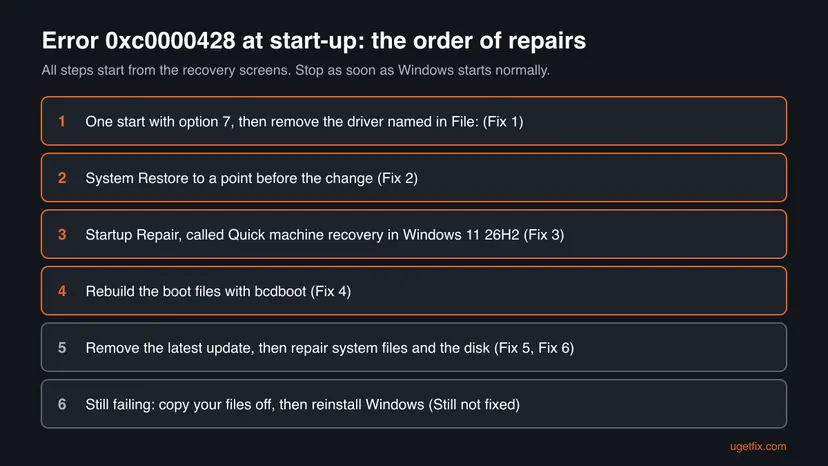
When Fixes 1 to 6 did not help, the start-up files are damaged in a way the repair tools cannot reach. Save your personal files before anything else.
- Start once with option 7 or in Safe Mode (Fix 1) and copy your files to a USB drive, if Windows gets that far.
- If it does not start at all, a repair shop or a second PC can read the disk directly. Your files are on it.
- Then reinstall Windows with installation media, choosing to keep personal files when setup offers it: Reinstall Windows without losing files
- Have the BitLocker recovery key ready. Without it, an encrypted disk cannot be read on another PC.
| What to give support | Where it is |
|---|---|
| The full File: line and the error code | On the error screen; take a phone photo of it |
| The Startup Repair log | SrtTrail.txt, path shown when Startup Repair fails |
| What changed before the error | The last program, driver or update you installed |
| Your Windows edition and version | On the PC's sticker or your purchase records if Windows will not start |
A signature error is about a file, not a part. Suspect the disk only when the disk check in Fix 6 reports bad sectors, or when new files keep getting damaged after a reinstall. Then back up and replace the drive.
How to keep the signature error from coming back
- Install drivers from Windows Update or the device and PC maker only.
- Keep programs that install drivers (VPNs, anti-cheat, disk and backup tools) on their newest version.
- Keep System Protection on, so restore points exist before installs and updates.
- Keep Secure Boot and driver signature checks on, and save your BitLocker recovery key.
- Install modified, cracked or unsigned drivers and tools.
- Use driver updater programs that fetch drivers from other sites.
- Turn the PC off while Windows is installing updates.
- Leave test signing or signature checks off after a test.
Windows 10 left support on 14 October 2025. Program makers are stopping new drivers for it, so on Windows 10 an old driver that fails the check is less likely to get a signed update.
Frequently asked questions
Is "The digital signature for this file couldn't be verified" fatal?
No. Error 0xc0000428 stops Windows at start-up, but it does not damage the hardware or delete your files. In most cases one file fails its signature check: a driver a program added, or a damaged boot file. Start Windows once with option 7 in Startup Settings and remove that driver (Fix 1), or run Startup Repair and rebuild the boot files (Fixes 3 and 4). A reinstall is needed only when all of those fail, and you can save your files first.
What does error code 0xc0000428 mean?
0xc0000428 is the Windows status code that Microsoft names Invalid Image Hash. It means the fingerprint of a file Windows tried to load does not match its digital signature, or the signature is missing or not trusted. Windows shows it with the message The digital signature for this file couldn't be verified, and the File: line names the file that failed. The fixes on this page are chosen by that file name.
How do I fix it on Windows 11?
The fixes are the same on Windows 11 and Windows 10. Open the recovery screens, which Windows shows by itself after failed starts. If the File: line names a driver, choose Troubleshoot > Advanced options > Startup Settings > Restart, press 7 for one start, and uninstall the program that installed the driver (Fix 1). If it names winload.exe, use Quick machine recovery, called Startup Repair before 26H2, then bcdboot (Fixes 3 and 4).
Is it safe to disable driver signature enforcement?
Only for one start, to remove the driver that causes the error. Option 7 in Startup Settings pauses the check for that start, and the next normal restart turns it on again. While it is paused, a malicious or broken driver can load, so do nothing else in that session. Never use commands or tools that turn the check off for good, and keep Secure Boot on: a lasting fix removes or replaces the file.
Should Secure Boot be off to fix error 0xc0000428?
No. Secure Boot protects the start-up chain against malware that loads before Windows. Turning it off hides the symptom and leaves the bad file in place. Fix the file instead: remove the driver named in the error (Fix 1), undo the change with System Restore (Fix 2), or rebuild the boot files with Startup Repair and bcdboot (Fixes 3 and 4). If someone tells you to turn it off for good, treat that advice with suspicion.
What is Code 52 in Device Manager?
Code 52 is the Device Manager version of this signature check. Its message is: Windows cannot verify the digital signature for the drivers required for this device. Microsoft says the driver may be unsigned or corrupted. Windows still starts, but that one device does not work. Microsoft's fix is the latest driver from the hardware maker's website. Remove the old driver in Device Manager, install the maker's driver and restart (Fix 7).
Windows says "This file does not have a valid digital signature that verifies its publisher". Is that the same error?
No. That is a warning when you open a downloaded program, not a start-up error. Windows cannot confirm who made the file, either because it is not signed or because the download was damaged. Download the program again from its maker's own site and check that the name of the publisher appears when it runs. If you do not know where the file came from, delete it and do not run it.
What does "The digital signature of this RDP file cannot be verified" mean?
It is a Remote Desktop warning, not a Windows start-up error. The .rdp connection file was signed, but your PC could not confirm the signature or does not trust the certificate used. If your company or IT team sent you the file, ask them for a current copy or to confirm the publisher. If you did not expect the file, do not connect: a fake .rdp file can send your sign-in to someone else's computer.
What is error code 2148086027?
2148086027 is a decimal number; in the hexadecimal form Windows normally uses it is 0x8009310B. Codes that start with 0x8009 come from the Windows cryptography system, which reads certificates and signatures. It usually appears when a certificate or signed file cannot be read, not as a start-up error. We could not confirm its exact message from a Microsoft page, so search for 0x8009310B together with the name of the program that showed it.
Does this error appear on Windows 7 too?
Yes. On Windows 7 the boot screen says Windows cannot verify the digital signature for this file, with the same status 0xc0000428, and the same idea applies: find the file named in the error and remove or repair it. Windows 7 lost support in January 2020 and gets no security updates, so old drivers fail more often and fixes are harder to find. Moving to a supported Windows is the lasting answer.
Sources
- Microsoft Learn: Windows boot manager error 0xC0000428 Status Invalid Image Hash (learn.microsoft.com)
- Microsoft Learn: BCDBoot Command-Line Options (learn.microsoft.com)
- Microsoft Support: Error codes in Device Manager in Windows (Code 52) (support.microsoft.com)
Did this fix work?
One click, no account. It tells the next reader which guides are worth their time.
Questions and experiences: fix "The digital signature for this file couldn't be verified" (0xc0000428) in Windows
Still broken, or found a fix we did not cover? Ask here: members and our editors answer. Reading is open; writing needs a free account.
…