
How to fix the vgk.sys blue screen error in Windows

Prefer to fix it yourself? The manual steps follow.
- 7methods
- 10 to 60 minutes
- Intermediate
Applies to Windows 11 and Windows 10 PCs with Riot Vanguard (VALORANT, League of Legends, 2XKO)
7 methods in this guide
Hello, I was playing VALORANT and got a Blue Screen crash with a vgk.sys error. I thought nothing of it, but the issue repeated later. What should I do to fix this, and is there something wrong with my PC?
vgk.sys is the kernel driver of Riot Vanguard, the anti-cheat that VALORANT, League of Legends and other Riot games need. When the stop screen says it failed, Vanguard crashed Windows, often because its files are damaged or the processor is unstable. Reinstall Vanguard first; on an Intel 13th or 14th generation CPU, update the BIOS.
The crash comes from Riot Vanguard's kernel driver, not from Windows. Uninstall Vanguard from its tray icon or Installed apps, restart, and let the Riot Client install a fresh copy (Fix 1). If your PC has an Intel Core 13th or 14th generation processor, Riot says to update the BIOS and load the Intel default profile before anything else (Fix 2). If Windows keeps crashing at start, remove Vanguard from Safe Mode (Fix 4).
| Error | A stop screen (blue, or black on Windows 11 24H2 and later) with What failed: vgk.sys under a stop code such as KMODE_EXCEPTION_NOT_HANDLED or PAGE_FAULT_IN_NONPAGED_AREA. |
|---|---|
| Where it appears | While VALORANT, League of Legends or another Riot game loads or runs, sometimes right after Windows starts. The PC freezes, shows the stop screen and restarts. |
| Main cause | Damaged Vanguard files, or a processor that is not stable at its current settings. Riot names 13th and 14th generation Intel CPUs in its own vgk.sys article. |
| Fastest fix | Uninstall Vanguard, restart, and let the Riot Client reinstall it (Fix 1). |
| Also written as | vgk sys, vgk.sys failed, vgk.sys error, vgk.sys bluescreen, vgk blue screen, vgk.sys BSOD. Common typos: vgs.sys, vgl.sys. |
| Who makes it | Riot Games. The file belongs to Riot Vanguard and sits in C:\Program Files\Riot Vanguard. It is not part of Windows. |
| Vendor status | Riot publishes a troubleshooting article for vgk.sys blue screens on 13th and 14th generation Intel CPUs (October 2025): BIOS update first, then default power and clock settings. |
| Where the cause is logged | C:\Windows\Minidump (one .dmp per crash) and Event Viewer, Windows Logs > System, source BugCheck. |
| Affects | Windows 11 and Windows 10. Windows 10 left support on 14 October 2025. |
| Time to fix | 10 minutes for Fix 1. 20 to 40 minutes for a BIOS update. Longer if Windows will not start. |
Facts checked on 15 October 2026. Steps written for Windows 11 (25H2 and 26H2) and Windows 10 22H2.
What vgk.sys is and what the blue screen means
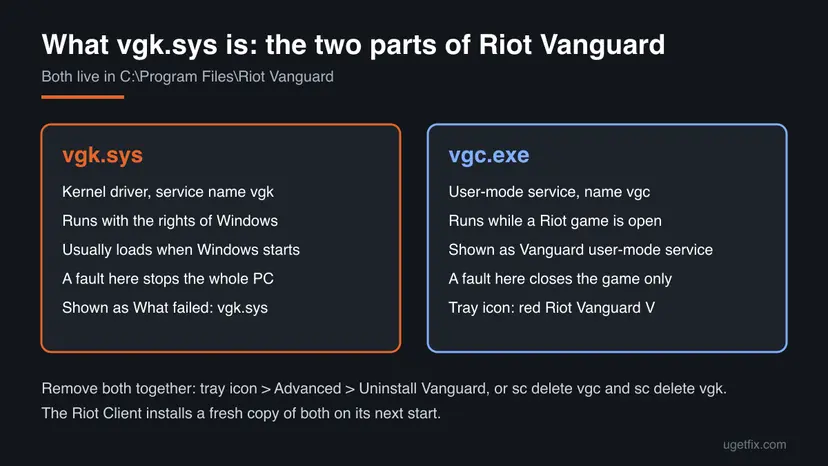
vgk.sys is the kernel driver of Riot Vanguard, Riot Games' anti-cheat. Its service name is vgk. Next to it runs vgc.exe, the user-mode service that Task Manager shows as Vanguard user-mode service. Riot's games ask for both: you cannot start most of them while Vanguard is off.
A kernel driver works with the same rights as Windows itself. When it makes a mistake, Windows cannot close just that program. It stops the whole PC with a stop code error, and Microsoft's stop screen shows the stop code and, when it knows it, the module that was running. That is the line What failed: vgk.sys.
| Stop code | What Windows says happened |
|---|---|
| KMODE_EXCEPTION_NOT_HANDLED (0x1E) | A kernel driver hit an error it did not handle |
| PAGE_FAULT_IN_NONPAGED_AREA (0x50) | A driver read memory that was not valid |
| SYSTEM_THREAD_EXCEPTION_NOT_HANDLED (0x7E) | A system thread crashed with no handler |
| SYSTEM_SERVICE_EXCEPTION (0x3B) | A fault while switching into the kernel |
| CRITICAL_PROCESS_DIED (0xEF) | A process Windows needs stopped |
Different crashes can show different stop codes above the same What failed: vgk.sys line. Go by the driver name, not by the code: all of them lead to the fixes on this page.
Why vgk.sys crashes: the causes, most common first
Riot says uninstalling Vanguard often helps with errors caused by corrupted Vanguard files, and it has a separate article for vgk.sys blue screens on 13th and 14th generation Intel processors. An anti-cheat driver is also often the first program to touch an unstable CPU or memory setting. That gives this order.
| How often | Cause | Sign | Fix |
|---|---|---|---|
| Most often | Damaged or half-updated Vanguard files | Crashes started after a game or Vanguard update, or after an interrupted install | Fix 1 |
| Often | Intel Core 13th or 14th generation CPU on old firmware or boosted settings | Crashes under load in Riot games, sometimes in other games too | Fix 2 |
| Often | Overclock, memory profile or automatic boost from the BIOS or a tuning tool | Crashes stop at default clocks | Fix 3 |
| Less often | A clash with another kernel driver: other anti-cheats, security suites, RGB or fan tools | Crashes stop in a clean boot | Fix 5 |
| Rarely | Outdated drivers or failing RAM | Random stop codes, crashes outside games | Fix 6 |
Deleting or renaming the file stops the crash only because Vanguard no longer runs, and then Riot games will not start. The service entry stays behind. Fix 1 removes Vanguard the way Riot describes and lets the Riot Client put back a working copy.
Check that vgk.sys really caused the crash
If the stop screen flashed past, Windows still kept the answer. Event Viewer records every crash and the small memory dump names the driver.
- Press Win + R, type
eventvwr.mscand press Enter. - Open Windows Logs > System and look for an Error with the source BugCheck. Its text starts with The computer has rebooted from a bugcheck and gives the stop code and the dump file.
- Open
C:\Windows\Minidumpin File Explorer. Windows writes one small.dmpfile per crash, named by date. - To read a dump, open Terminal and run
winget install Microsoft.WinDbg, then start WinDbg as administrator and open the newest file. - Type
!analyze -vand press Enter. If IMAGE_NAME or MODULE_NAME readsvgk.sysorvgk, Vanguard is confirmed.
If one crash names vgk.sys and others name ntoskrnl.exe, a graphics driver or random modules, the processor or memory is the more likely problem. Go to Fix 2, Fix 3 and Fix 6 before you blame Vanguard.
How to fix the vgk.sys blue screen
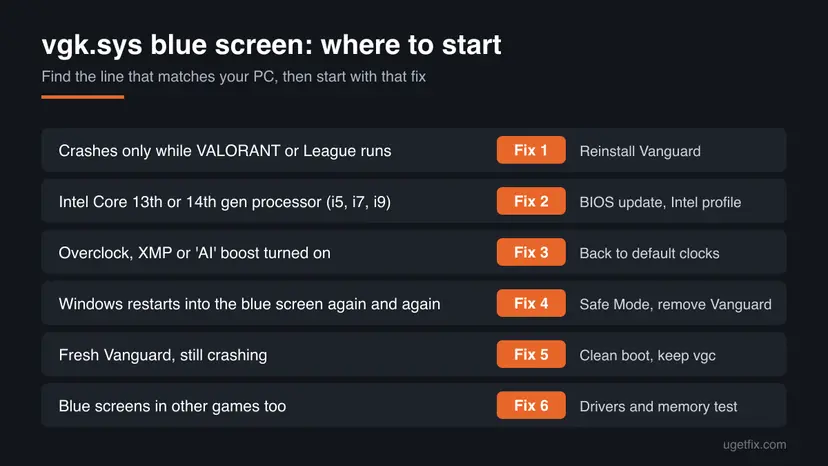
Fix 1 helps most readers and takes ten minutes. If your PC has an Intel Core 13th or 14th generation CPU, do Fix 2 even before it, as Riot asks. If Windows does not start at all, go straight to Fix 4.
| What you see | Start with | Then |
|---|---|---|
| The blue screen comes only while VALORANT or League runs | Fix 1 | Fix 3 |
| Your CPU is an Intel Core i5, i7 or i9 of the 13th or 14th generation | Fix 2 | Fix 3 |
| You overclocked, or the BIOS has XMP, EXPO or automatic boost on | Fix 3 | Fix 1 |
| Windows restarts into the vgk.sys blue screen again and again | Fix 4 | Fix 7 |
| Vanguard is freshly installed and the crash still returns | Fix 5 | Fix 6 |
| Blue screens also happen in games without Vanguard | Fix 6 | Fix 2 |
Fix 1. Uninstall Riot Vanguard and let the Riot Client install it again
10 minutesLow riskWindows starts normally and the crash happens while a Riot game loads or runs.
Riot says uninstalling Vanguard often helps with errors caused by corrupted Vanguard files. The reinstall puts a new vgk.sys and a new service entry in place.
- Close every game that starts from the Riot Client.
- Right-click the Riot Client icon in the system tray and select Exit. Check that it is gone from the tray.
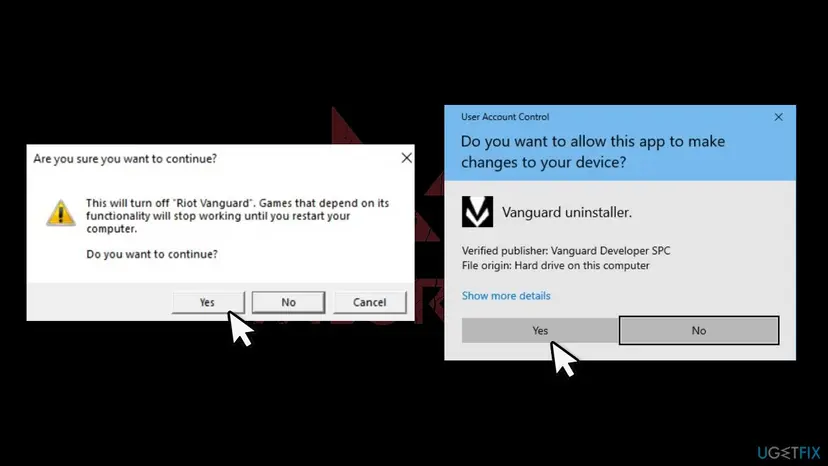
- Right-click the red Riot Vanguard icon in the tray and select Advanced > Uninstall Vanguard. Follow the prompts and select Yes when User Account Control asks.
- If the tray icon is missing, press the Windows key, type Add or remove programs, press Enter, find Riot Vanguard and uninstall it.
- Restart the PC. Riot's check: after the restart the Vanguard icon must not come back in the tray.
- Start the Riot Client or the game. It installs Vanguard again by itself.
- Restart once more so the new driver loads with Windows, then play.
If Vanguard refuses to uninstall, Riot gives two commands. Close all Riot programs, press the Windows key, type cmd, right-click Command Prompt and select Run as administrator.
Riot's manual removal, then restart
sc delete vgc
sc delete vgk- After the restart, open
C:\Program Files, right-click the Riot Vanguard folder and delete what is left in it. - Start the Riot Client to reinstall Vanguard, then restart once more.
- In PowerShell or Terminal, type
sc.exeinstead ofsc: therescis a short name for another command. - General uninstall steps with screenshots: Uninstall a program or app in Windows
It worked if: Vanguard's red icon is back in the tray after the second restart, and the game plays past the moment where it used to crash with no new file in C:\Windows\Minidump.
If not: If you have an Intel 13th or 14th generation CPU, go to Fix 2. Otherwise go to Fix 3.
Fix 2. On Intel 13th and 14th generation CPUs, update the BIOS and load the Intel default profile
20 to 40 minutesRead the warningYour processor is an Intel Core 13th or 14th generation model, for example a Core i7-13700K or i9-14900K.
Riot has an article only for vgk.sys blue screens on these CPUs. It says many board makers fixed the problem in firmware and tells you to update the BIOS before any other step.
Never turn off the PC while the BIOS updates. Riot warns that wrong BIOS settings can stop the computer from starting and advises asking the PC or board maker if you are not used to the BIOS. A firmware change can also ask for the BitLocker recovery key: find it in your Microsoft account and back up important files first.
- Press Win + R, type
msinfo32and press Enter. Read Processor: a model number that starts with 13 or 14, such as i5-13600K, means this fix applies. - In the same window, note BaseBoard Manufacturer and BaseBoard Product.
- Download the newest BIOS for that exact board from the maker's support page and read its notes.
- Install it with the maker's own method and let the PC restart by itself.
- Enter the BIOS and load the Intel profile Riot names for your board: Intel Default Settings on MSI, Intel Baseline Profile on ASUS, Intel BaseLine on Gigabyte.
- Save, restart, and play the Riot game long enough to reach the point where it used to crash.
| Setting | Riot's advice |
|---|---|
| BIOS | Update first, then pick the Intel default or baseline profile |
| Overclocking | Turn off every overclock, also AI or automatic overclocking |
| Long duration power limit | Reduce to 125W |
| Short duration power limit | Reduce to 253W, only on 13900 and 14900 CPUs |
| Enhanced modes | Disable enhanced turbo, ASUS MultiCore Enhancement and ASUS Performance Enhancement 3.0 |
| P-core multiplier | Lower from x55 to x54 or x53 |
It worked if: The board's BIOS page shows the new version, the Intel profile is active, and a full match passes without a stop screen.
If not: If it still crashes after the update and the default profile, use Riot's further steps in Fix 3.
Fix 3. Turn off overclocking and lower the Intel P-core multiplier
15 minutesLow riskYou overclocked the CPU or memory, the BIOS has automatic boost or XMP or EXPO on, or Fix 2 did not stop the crash.
A processor that is close to its limit may run a game for an hour and still return a wrong result now and then. Vanguard's kernel driver is often what trips over it, so the stop screen names vgk.sys.
- Restart and enter the BIOS. Turn off every overclocking option, including those called AI or automatic overclocking. Riot notes that some boards turn these on by default.
- For the test, also switch off the memory profile (XMP or EXPO) so the RAM runs at its standard speed.
- Reset overclocks in any tuning tool you use in Windows, such as GPU or CPU tuners, and close it.
- Only on Intel 13th and 14th generation: install Intel Extreme Tuning Utility (XTU) from Intel's site and lower the Performance Core multiplier from x55 to x54 or x53, as Riot describes.
- Save the XTU profile so the change stays after a restart. Riot notes you may still see one crash after the change.
- Play the Riot game again. If it is stable, turn the memory profile back on and test once more.
Riot's article also lists voltage and load-line settings for ASUS, Gigabyte and MSI boards and suggests running XTU's AVX2 test after each change. These are expert settings: take them from the board maker's support if you are unsure.
It worked if: Matches run without a stop screen at default clocks, and the crash does not return when you turn the memory profile back on.
If not: If the crash comes back only with the memory profile on, leave it off and ask the RAM or board maker. If it crashes at default settings too, go to Fix 5.
Fix 4. Remove Vanguard from Safe Mode when Windows keeps crashing
20 minutesLow riskWindows restarts into the vgk.sys blue screen before or right after you sign in, so you cannot run Fix 1.
vgk.sys usually loads when Windows starts, so a damaged copy can crash every start. Safe Mode starts Windows with a limited set of drivers, which gives you a window to remove Vanguard.
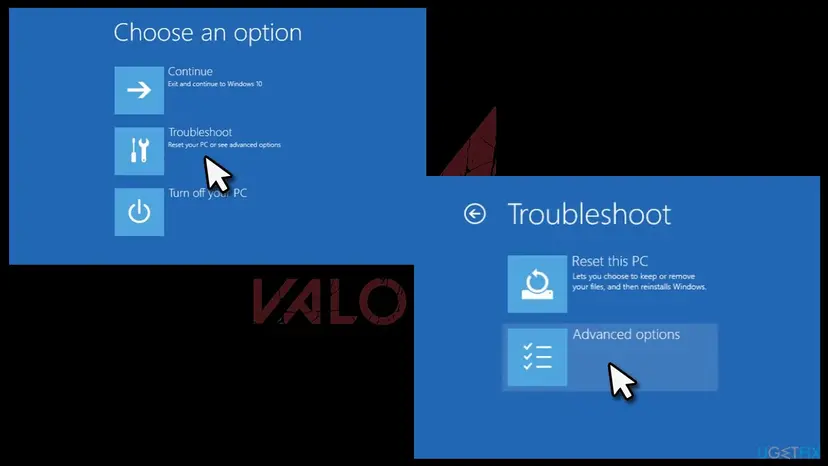
- Start the PC and, when the Windows logo appears, hold the power button until it turns off. Do this three times. Windows then opens Automatic Repair.
- Select Advanced options > Troubleshoot > Advanced options > Startup Settings > Restart.
- After the restart, press 4 or F4 for Safe Mode. If asked, enter your BitLocker recovery key.
- In Safe Mode, press the Windows key, type
cmd, right-click Command Prompt and select Run as administrator. - Run Riot's two removal commands:
sc delete vgc sc delete vgk - Restart normally. Windows should now start without the crash.
- Delete what is left in
C:\Program Files\Riot Vanguard, then start the Riot Client to reinstall Vanguard when you want to play.
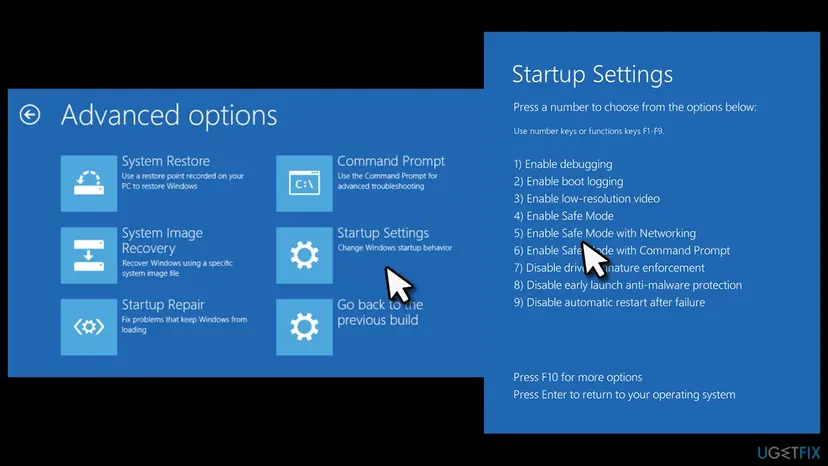
All the ways to reach Safe Mode, with Windows 11 screenshots: Start Windows or a Mac in Safe Mode
It worked if: Both commands answer [SC] DeleteService SUCCESS, and after the restart Windows reaches the desktop with no stop screen.
If not: If Safe Mode also crashes or does not open, use System Restore from the same recovery menu (Fix 7).
Fix 5. Run a clean boot that keeps Vanguard on, to find a clashing driver
30 minutesLow riskVanguard is freshly installed, the CPU runs at default settings, and the crash still returns.
Other anti-cheats, security suites, RGB, fan and hardware monitoring tools also load kernel drivers. A clean boot with only Vanguard's service left on shows whether one of them is in the way.
- Press Win + R, type
msconfigand press Enter. - Open the Services tab and tick Hide all Microsoft services.
- Select Disable all, then find vgc (manufacturer Riot Games, Inc.) and tick it again.
- Select Apply and OK. Turn off startup apps in Task Manager, Startup apps tab.
- Restart and play the Riot game until the point where it used to crash.
- If it no longer crashes, turn the other services back on in small groups, restarting each time, until the crash returns. The last group holds the culprit.
- Update or uninstall that program. When you are done, return to a normal start in System Configuration.
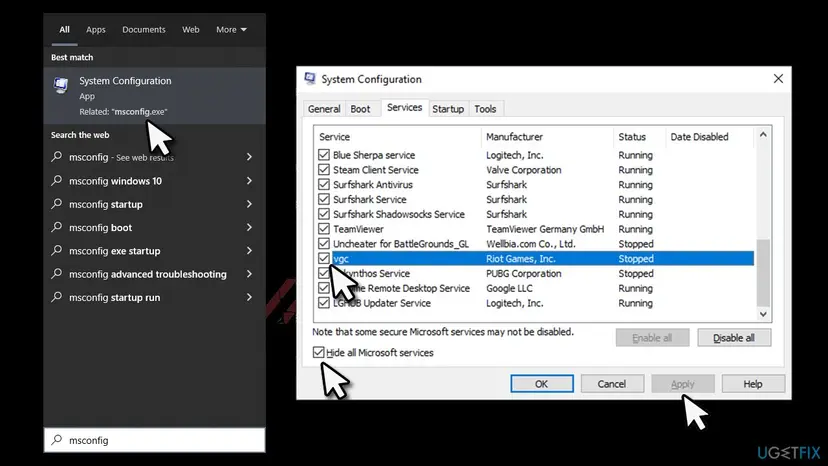
The full clean boot procedure and how to undo it: How to perform a clean boot in Windows. A third-party antivirus may be tested by pausing it for one session and turning it back on: Turn off Microsoft Defender protection for a moment
It worked if: The game runs a full session in the clean boot, and after you update or remove the one program it runs in a normal start too.
If not: If it crashes even in the clean boot, the problem is not another service. Go to Fix 6.
Fix 6. Update drivers and Windows, and test the memory
40 minutes or moreLow riskBlue screens also happen in games without Vanguard, or the dumps name several different drivers.
Microsoft names hardware, drivers and software as the causes of stop code errors. If vgk.sys is only one of several names in your dumps, a driver or the RAM is the likelier root.
- Install every Windows update: Settings > Windows Update > Check for updates (Windows 10: Settings > Update & Security > Windows Update). Restart.
- Right-click Start, open Device Manager and look for devices with a yellow exclamation mark. Update the graphics and chipset drivers: Update, roll back or reinstall a driver
- If you added new hardware before the crashes began, remove it for a test, as Microsoft suggests.
- Make sure the system drive has 10 to 15 percent free space, Microsoft's guideline for stop code errors.
- Test the RAM with the tool built into Windows: How to test your RAM with Windows Memory Diagnostic
- Play the Riot game again.

It worked if: The memory test reports no errors, Device Manager shows no warning marks, and the crashes stop.
If not: Errors in the memory test mean the RAM needs replacing. If not, go to Fix 7.
Fix 7. Restore Windows to an earlier point, or reset it as a last step
30 to 90 minutesRead the warningNothing above worked, or Windows will not start even in Safe Mode.
A restore point from before the crashes undoes driver and program changes in one go. A reset is the last choice, because it removes your apps.
System Restore removes programs and drivers installed after the restore point, but not your files. Reset this PC removes all apps even with Keep my files. Back up your files first if Windows starts: Back up your files (Windows Backup, File History, Time Machine)
- Open the recovery screens as in Fix 4, or from Windows: Settings > System > Recovery > Advanced startup > Restart now.
- Select Troubleshoot > Advanced options > System Restore and pick a point from before the first vgk.sys crash. Step by step: Undo recent changes with System Restore
- If there is no restore point, choose Troubleshoot > Reset this PC > Keep my files. Step by step: Reinstall Windows without losing files
- Before you reinstall Riot games, apply Fix 2 and Fix 3 if they fit your PC, so the crash does not come back.
It worked if: Windows starts normally and the Riot game runs after Vanguard installs itself again.
If not: If the crash returns on a clean Windows with a fresh Vanguard, contact Riot support with the dumps, as below.
Still crashing: what to send and to whom
Only Riot can fix a bug in vgk.sys, and only the board or PC maker can fix firmware. Send them what they need to reproduce the crash.
- The three newest
.dmpfiles fromC:\Windows\Minidump, zipped. - Your processor, board and BIOS version from
msinfo32. - Your Windows version from Settings > System > About.
- The game, and the exact moment of the crash: at Windows start, in the menu, or in a match.
| Where to report | When |
|---|---|
| Riot Games Support, Submit a Ticket | The dumps name vgk.sys after Fix 1 to Fix 3 |
| Your board or PC maker | Intel 13th or 14th generation CPU that still crashes with the newest BIOS |
| A repair shop or the seller | Memory test errors, or crashes outside games |
How to keep the vgk.sys blue screen from coming back
- Keep the BIOS current, especially on Intel 13th and 14th generation CPUs.
- Let the Riot Client finish its updates and restart when Vanguard asks.
- Remove old games with other kernel anti-cheats you no longer play.
- Read the dump before you change anything, so you fix the right part.
- Download vgk.sys from DLL or driver sites.
- Delete or rename vgk.sys while Vanguard is installed.
- Run automatic overclocking on a CPU that already crashes.
- Weaken Windows protections such as Secure Boot, TPM or memory integrity to stop the crash.
Windows 10 left support on 14 October 2025. Riot still runs on it for now, but a PC that can move to Windows 11 gets security and driver fixes that Windows 10 no longer receives.
Frequently asked questions
What is vgk.sys?
vgk.sys is the kernel driver of Riot Vanguard, the anti-cheat used by VALORANT, League of Legends and other Riot games. Riot installs it in C:\Program Files\Riot Vanguard together with vgc.exe, the user-mode service. The driver usually loads when Windows starts, so it can cause a blue screen even before you open a game. It is not part of Windows and does nothing for the PC itself; it exists so Riot games can detect cheats.
What does What failed: vgk.sys mean?
It means the Vanguard kernel driver was running when Windows had to stop. Microsoft's stop screen shows the stop code and, when known, the module that was executing, which is the What failed line. The stop code above it, such as KMODE_EXCEPTION_NOT_HANDLED or PAGE_FAULT_IN_NONPAGED_AREA, changes from crash to crash. Start with a clean Vanguard reinstall (Fix 1) and, on Intel 13th or 14th generation CPUs, a BIOS update (Fix 2).
Can I delete vgk.sys?
Yes, but do it through Riot's removal, not by deleting the file alone. Uninstall Riot Vanguard from its tray icon or Installed apps, or run sc delete vgc and sc delete vgk in an administrator Command Prompt, restart, and then delete the leftover Riot Vanguard folder in Program Files. That removes the service entries too. Without Vanguard you cannot play VALORANT or League; the Riot Client installs it again on its next start.
Where can I download vgk.sys?
Nowhere safe outside Riot. A loose vgk.sys from a DLL or driver website may be old, the wrong version or not Riot's file at all. The only right way to get a fresh copy is to uninstall Vanguard, restart, and open the Riot Client or a Riot game, which installs Vanguard by itself. That is Fix 1 on this page.
Is the vgk.sys blue screen a sign that my PC is broken?
Usually not. Most of the time the Vanguard files are damaged or the processor runs beyond what is stable, both of which you can fix in software or in the BIOS. It points to hardware when the memory test finds errors, when crashes also happen in programs without any anti-cheat, or when the dumps name many different drivers. On Intel 13th and 14th generation CPUs, Riot's first step is a BIOS update.
The event log says The computer has rebooted from a bugcheck. Is that vgk.sys?
That line in Event Viewer, source BugCheck, only says Windows stopped with a stop code and saved a dump. It names the stop code and the dump file, not always the driver. Open the newest file in C:\Windows\Minidump in WinDbg and run !analyze -v. If IMAGE_NAME or MODULE_NAME reads vgk.sys, Vanguard was the driver involved; if some tools write possibly related driver: vgk.sys, they mean the same thing.
Why does the vgk.sys crash happen even when I am not playing?
Because the driver loads with Windows, not with the game. A damaged vgk.sys can crash the PC at the sign-in screen or on the desktop. If this happens at every start, use Safe Mode and Riot's two commands in Fix 4. Riot also offers Vanguard On-Demand, where Vanguard starts only with the game, on Windows 11 25H2 or newer with Secure Boot, TPM 2.0, IOMMU and memory integrity on; our Vanguard high CPU guide shows how to turn it on.
What does vgk service status unknown mean?
We could not confirm a Riot message with exactly these words. To see the real state of the driver, open Terminal as administrator and run sc.exe query vgk. RUNNING means it is loaded; STOPPED means it is off, for example after Exit Vanguard, and a restart loads it again. If Windows answers that the service does not exist, Vanguard is not installed and the Riot Client will install it on its next start.
Is vgs.sys or vgl.sys the same as vgk.sys?
Those names are almost always typos of vgk.sys, and this page is about the Riot Vanguard driver. We found no Riot file named vgs.sys or vgl.sys. If your stop screen really shows one of those names, read the dump as in the section on confirming the culprit and search for the exact name it prints, because a different driver needs a different fix.
Do Secure Boot, TPM or memory integrity cause the vgk.sys crash?
No. These protections are not the cause of the vgk.sys blue screen, and Riot needs some of them for its own features such as Vanguard On-Demand. Turning them off leaves the PC less protected and does not repair Vanguard or an unstable CPU. Fixes 1 to 3 address the real causes without weakening Windows. A vgk.sys Fehler, the German search, is the same crash with the same fixes.
Sources
- Riot Games Support: vgk.sys Error Troubleshooting (13th and 14th Generation Intel CPUs) (support.riotgames.com)
- Riot Games Support: Uninstall and Disable Vanguard (support.riotgames.com)
- Microsoft Support: Troubleshooting Windows unexpected restarts and stop code errors (support.microsoft.com)
Did this fix work?
One click, no account. It tells the next reader which guides are worth their time.
Questions and experiences: fix the vgk.sys blue screen error in Windows
Still broken, or found a fix we did not cover? Ask here: members and our editors answer. Reading is open; writing needs a free account.
…