
How to fix "We couldn't connect to the update service" Windows update error?

Prefer to fix it yourself? The manual steps follow.
- 9methods
- 5 to 30 minutes
- Intermediate
Applies to Windows 11 and Windows 10 home PCs, former work PCs and PCs managed through WSUS
9 methods in this guide
- What the message means
- Why it appears
- The fixes
- 1. Restart, check without VPN
- 2. Check the update policy
- 3. Reset proxy and network
- 4. Change the DNS server
- 5. Fix the date and time
- 6. Run the troubleshooter
- 7. Reset update components
- 8. Repair system files
- 9. Install update by hand
- If it is still there
- Prevent it
- FAQ
Hello, I have a problem with Windows updates. I launched the OS update, and instead, I received an error "We couldn't connect to the update service." I find this odd because, obviously, the internet works fine. Any help would be appreciated.
"We couldn't connect to the update service" means the Windows Update client could not reach Microsoft's servers, even though web pages usually open fine. A VPN, a leftover update policy, a proxy or DNS problem is the usual block. Restart the PC, check once without the VPN, then look for an update policy.
We couldn't connect to the update service. That message means the update client, not your browser, failed to reach Microsoft. Restart the PC, turn off any VPN for one test and select Check for updates (Fix 1). If Settings says Some settings are managed by your organization, an update policy sends Windows to a company server: check it with one reg query command (Fix 2). Then reset the WinHTTP proxy and DNS (Fixes 3 and 4).
| Error | "We couldn't connect to the update service. We'll try again later, or you can check now. If it still doesn't work, make sure you're connected to the Internet." Windows 10 shows Error encountered above it. |
|---|---|
| Where it appears | Settings > Windows Update right after Check for updates, on Windows 11 and Windows 10, and on Windows Server with the same Settings page. |
| Main cause | The update client has no working route to Microsoft: a VPN or proxy, an update policy that points to a WSUS server the PC cannot reach, or a DNS problem. |
| Fastest fix | Restart, check without the VPN (Fix 1), then read the update policy key with reg query (Fix 2). |
| Also written as | we couldn t connect to the update service, we couldnt connect to the update service, we could not connect to the update service, windows update couldn't connect to the update service. |
| Error code in the log | No code on screen. WindowsUpdate.log often shows a WinHttp failure such as 0x80072efe (the connection was ended) next to the server address it tried. |
| Affects | Windows 11 and Windows 10, most often former work laptops, PCs with a VPN or filtering app and PCs where a tool changed the update settings. |
| Microsoft's status | Not a bug of one update. Microsoft's own checklist starts with the Windows Update troubleshooter, the internet connection, the update cache and the date and time. |
| Not the same as | Error 0x80240438, which names the same missing route as a code. See error 0x80240438. |
| Time to fix | 2 minutes for Fix 1, 5 to 15 minutes for a policy or network fix, up to 30 minutes for a manual install. |
Facts checked on 16 October 2026. Steps written for Windows 11 (25H2 and 26H2) and Windows 10 22H2.
What "We couldn't connect to the update service" means
When you select Check for updates, the Windows Update client contacts Microsoft's service, or the company server that a policy names, to ask which updates your PC needs. If that request fails, Settings stops the scan and shows this text:
Error encountered. We couldn't connect to the update service. We'll try again later, or you can check now. If it still doesn't work, make sure you're connected to the Internet.
People search every piece of it. Some type "we couldn't connect to the update service. we'll try again later or you can check now", others the full sentence with "make sure you're connected to the internet". Others paste the version with curly quotes: we couldn’t connect to the update service. we’ll try again later, or you can check now. if it still doesn’t work, make sure that you’re connected to the internet. They are all the same scan failure.
| What you see | What it tells you |
|---|---|
| The message, and web pages open fine | Your internet works. Only the update client's route to Microsoft is blocked, by a VPN, a proxy, DNS or a policy. |
| The message, and Some settings are managed by your organization above it | An update policy is set. Windows may be asking a company WSUS server that it cannot reach. |
| The message only on one network | That network, its DNS or its firewall blocks the update servers. |
| The message after a tool that "stops updates" | The tool changed policies, services or the hosts file. Fix 2 and Fix 7 undo the usual changes. |
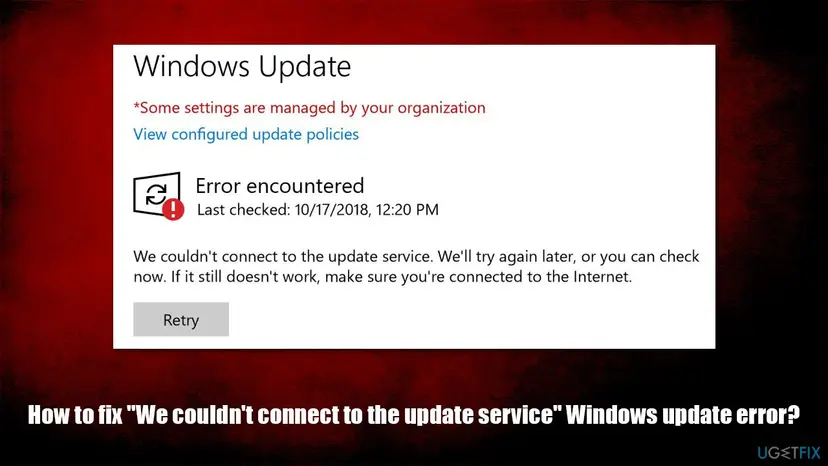
The message does not mean your updates are corrupt or that Windows is damaged. Nothing was downloaded yet. The scan failed before it started.
Why Windows Update cannot connect to the update service
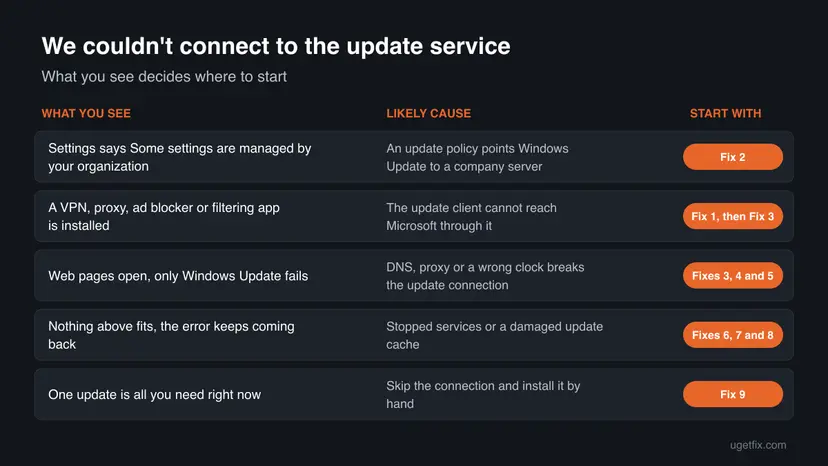
The causes are ranked by how often they fit the reports behind this page. Each one points to the fix that removes it.
| Cause | How often | How to tell | Fix |
|---|---|---|---|
| A VPN, proxy, filtering app or network that blocks Microsoft's update addresses. | Most often | The error goes away on another network or with the VPN off. | Fix 1, Fix 3 |
| An update policy sends the PC to a WSUS server it cannot reach, or blocks Windows Update. | Often on former work PCs | Settings shows Some settings are managed by your organization, and reg query finds WUServer or UseWUServer. | Fix 2 |
| DNS does not resolve the update servers. | Sometimes | Web pages work through a browser's own DNS, while the update client fails. | Fix 4 |
| The clock is wrong, so the secure connection to Microsoft fails. | Sometimes | The taskbar time or date differs from your phone. | Fix 5 |
| The update services are stopped, or the update cache is damaged. | Rarely | Windows Update or BITS is not running in Services, or nothing above helped. | Fixes 6 and 7 |
| Damaged system files or malware that blocks updates. | Rarely | DISM or SFC reports errors, or update settings keep changing back. | Fix 8 |
An outage on Microsoft's side has caused this message for many users at once in the past. If friends see it on the same day, wait an hour and select Check for updates again before you change anything.
How to fix "We couldn't connect to the update service"
Fix 1 takes two minutes and clears most cases. Fix 2 finds an update policy, the cause on many former work PCs. Fixes 3 to 5 repair the connection itself. Fixes 6 to 8 are the general Windows Update repairs. Fix 9 installs one update by hand.
| What you see or have | Start with |
|---|---|
| You have not tried anything yet. | Fix 1 |
| Settings says Some settings are managed by your organization. | Fix 2 |
| You use a VPN, a proxy, an ad blocker or a parental filter. | Fix 1, then Fix 3 |
| Web pages open, but only Windows Update and the Store fail. | Fix 3, then Fix 4 |
| The clock or date on the taskbar is wrong. | Fix 5 |
| The network is fine and the error keeps coming back. | Fix 6, then Fix 7 |
| You need one security update today. | Fix 9 |
Fix 1. Restart the PC and check for updates without the VPN
2 minutesNo riskEveryone, first. Especially when you use a VPN, a proxy app or a filtering app.
A restart finishes pending update actions and starts the update services fresh. A VPN or filtering app may drop the update client's traffic while the browser still works, so one test without it shows whether it is the block.
- Save your work and restart the PC with Start > Power > Restart, not Shut down.
- Disconnect any VPN and pause any proxy or filtering app for one test.
- If you can, switch to another network, for example a phone hotspot.
- Press Win + I and open Windows Update on Windows 11, or Update & Security > Windows Update on Windows 10.
- Select Check for updates and wait for the scan to finish.
- Connect the VPN again when the test is over.
Microsoft also suggests turning off a VPN when an update fails to download. Look at the line above the error too: Some settings are managed by your organization means you should go straight to Fix 2.
It worked if: The scan runs, shows You're up to date or lists updates, and the message is gone.
If not: If the error only goes away without the VPN, add an exception for Windows Update in the VPN app. If it stays everywhere, go to Fix 2.
Fix 2. Check for an update policy that points to a company server
5 to 10 minutesRead the warningSettings says Some settings are managed by your organization, the PC was a work laptop, or a tool changed update settings.
A policy can tell Windows Update to ask an intranet WSUS server instead of Microsoft. When that server is gone or unreachable, the scan fails with exactly this message, as a Microsoft support engineer's log shows.
- Press Win + S, type
cmd, right-click Command Prompt and select Run as administrator. - Type
reg query "HKLM\SOFTWARE\Policies\Microsoft\Windows\WindowsUpdate" /sand press Enter. - Look for WUServer with a server address, and under the
AUsubkey for UseWUServer with0x1. - If Windows says it was unable to find the key, no update policy is set. Go to Fix 3.
- Type
gpresult /rand press Enter. Domain policies under Computer Settings mean the PC is still managed. - On a PC you own that no company manages, back up the key, then run the
reg deletecommands below. - Restart the PC and select Check for updates again.
reg query "HKLM\SOFTWARE\Policies\Microsoft\Windows\WindowsUpdate" /s
gpresult /r

rem Only on your own PC, after the backup:
reg delete "HKLM\SOFTWARE\Policies\Microsoft\Windows\WindowsUpdate\AU" /v UseWUServer /f
reg delete "HKLM\SOFTWARE\Policies\Microsoft\Windows\WindowsUpdate" /v WUServer /f
reg delete "HKLM\SOFTWARE\Policies\Microsoft\Windows\WindowsUpdate" /v WUStatusServer /f
net stop wuauserv
net start wuauservRemoving these values changes where the PC gets its updates. Export HKLM\SOFTWARE\Policies\Microsoft\Windows\WindowsUpdate first, so a double-click on the saved .reg file puts it back. Step by step: Back up the registry before editing it. On a PC your organization manages, change nothing and send IT the output of both commands.
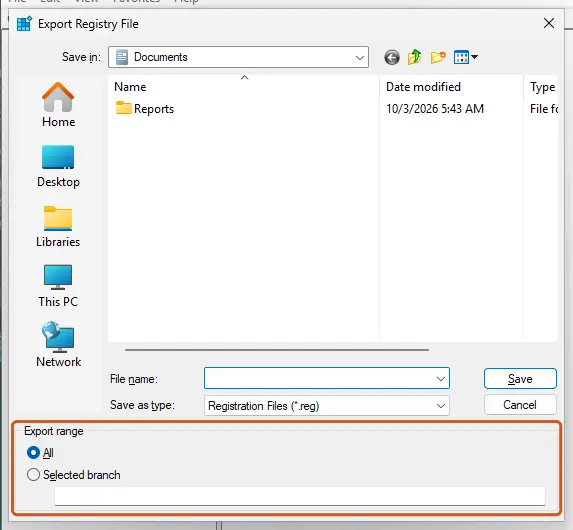
On Windows Pro you can set the same policies to Not Configured in Open the Local Group Policy Editor under Computer Configuration > Administrative Templates > Windows Components > Windows Update. The policy is Specify intranet Microsoft update service location.
It worked if: reg query no longer shows WUServer or UseWUServer, the managed line is gone from Settings, and the scan reaches Microsoft.
If not: If the values come back after a restart, a domain policy or an update blocking tool writes them again. Undo the tool's setting, or ask whoever manages the PC. If the key was empty, go to Fix 3.
Fix 3. Reset the WinHTTP proxy and the network cache
5 minutes plus a restartLow riskNo policy is set, and web pages open while Windows Update fails. Also after removing a VPN or proxy app.
The update client does not use the browser's connection settings but its own WinHTTP proxy and the Windows network stack. A leftover proxy entry or a broken Winsock catalog cuts off only the update client.
- Open Command Prompt as administrator.
- Type
netsh winhttp show proxyand press Enter. Direct access (no proxy server) is the normal answer on a home PC. - If a proxy server is listed and you do not use one, type
netsh winhttp reset proxyand press Enter. - Type
ipconfig /flushdnsand press Enter, thennetsh winsock resetand press Enter. - Restart the PC and select Check for updates.
netsh winhttp show proxy
netsh winhttp reset proxy
ipconfig /flushdns
netsh winsock reset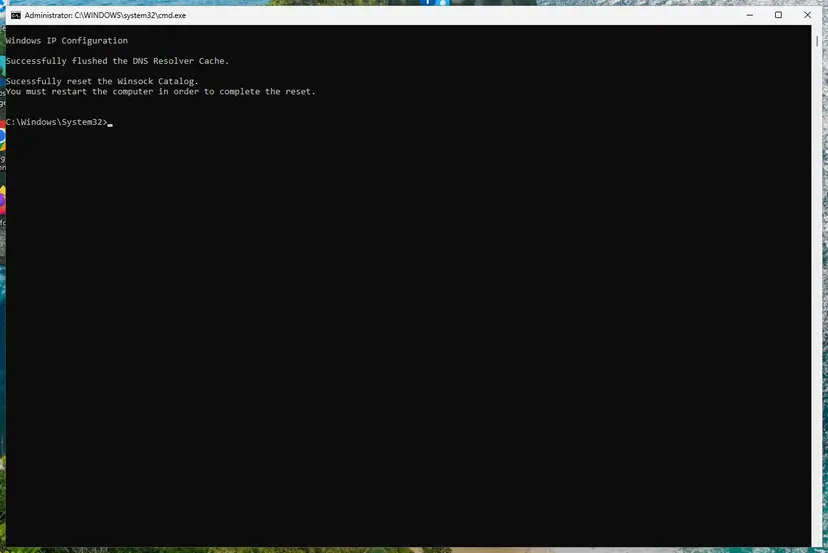
The full network reset, including Network reset in Settings, is here: Reset the network and flush DNS. Note your Wi-Fi password and VPN settings first, because the full reset removes them.
It worked if: netsh winhttp show proxy shows Direct access, and the update scan finishes after the restart.
If not: Change the DNS server in Fix 4.
Fix 4. Switch to another DNS server
5 minutesLow riskThe error appears on one network only, or your provider's DNS is slow or filtered.
The update client must turn Microsoft's server names into addresses. If the DNS server of your network fails or filters those names, the scan cannot connect while cached web pages still load.
- Press Win + R, type
ncpa.cpland select OK. The Network Connections window opens on Windows 11 and Windows 10. - Right-click your active connection, Ethernet or Wi-Fi, and select Properties.
- Select Internet Protocol Version 4 (TCP/IPv4) once, then select Properties.
- Select Use the following DNS server addresses.
- Type
8.8.8.8as Preferred DNS server and8.8.4.4as Alternate DNS server, the two addresses of Google Public DNS. - Select OK twice, then run
ipconfig /flushdnsin Command Prompt and check for updates.
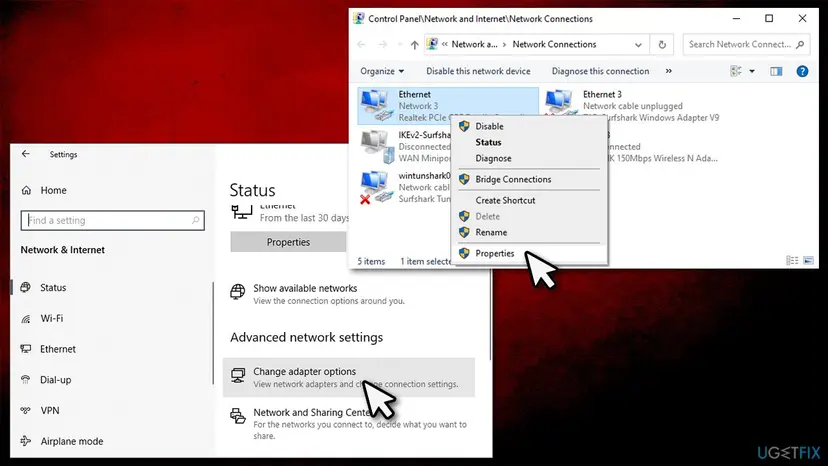
To undo it, open the same window and select Obtain DNS server address automatically. On a work network, use only the DNS servers your IT team gives you.
It worked if: The update scan finishes, and web pages still open.
If not: Put the DNS back to automatic and check the date and time in Fix 5.
Fix 5. Correct the date, time and time zone
3 minutesNo riskThe clock on the taskbar is wrong, the CMOS battery is old, or the PC was off for a long time.
Windows Update talks to Microsoft over a secure connection whose certificates are checked against the clock. Microsoft lists wrong date and time settings as a cause of update failures.
- Select Start > Settings > Time & language > Date & time.
- Turn on Set time automatically and Set time zone automatically.
- Under Additional settings, select Sync now.
- Select Check for updates again.
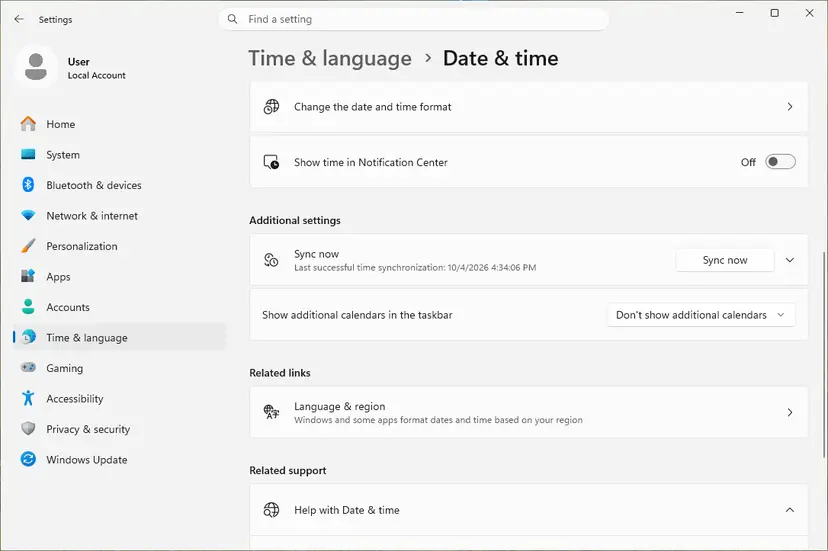
If the time will not sync: How to fix the date and time in Windows.
It worked if: The clock matches your phone, and the update scan connects.
If not: Run the Windows Update troubleshooter in Fix 6.
Fix 6. Run the Windows Update troubleshooter
5 minutesNo riskThe connection fixes above did not help.
Microsoft puts the troubleshooter first in its own checklist. It checks the update services and their settings, the parts that make the client fail before it can connect.
- Select Start > Settings > System > Troubleshoot on Windows 11.
- Select Other troubleshooters.
- Find Windows Update under Most frequent and select Run. The check runs in the Get Help app.
- Follow the prompts, restart the PC and select Check for updates.
On Windows 10 the troubleshooter is under Update & Security > Troubleshoot > Additional troubleshooters. Step by step for both systems: Run the Windows Update troubleshooter.
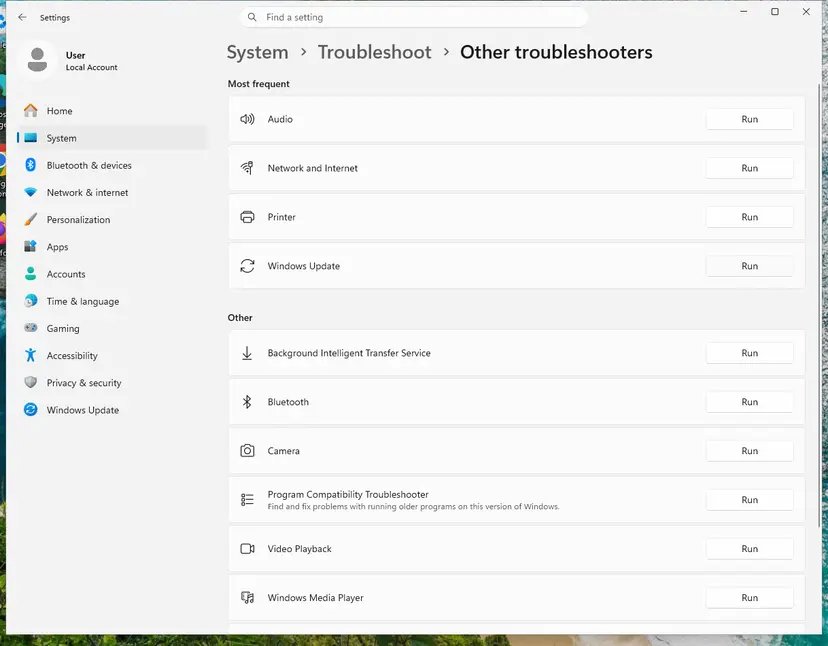
It worked if: The troubleshooter reports that it fixed something, and Check for updates works after a restart.
If not: Reset the update components in Fix 7.
Fix 7. Restart the update services and clear the update cache
10 minutesLow riskThe troubleshooter found nothing, or an update blocking tool turned the services off.
If Windows Update or Background Intelligent Transfer Service is stopped or disabled, the scan cannot start. Renaming SoftwareDistribution and catroot2 also drops a damaged update database.
- Press Win + R, type
services.mscand press Enter. - Check that Windows Update and Background Intelligent Transfer Service are not Disabled. Set a disabled one to Manual and select Start.
- Then reset the update components as described in Reset Windows Update components.
- Open Command Prompt as administrator. Type cmd in the search box, right-click Command Prompt and select Run as administrator. Select Yes when Windows asks for permission.
- Stop the update services. Type the commands below and press Enter after each one. If Windows says that other services depend on Cryptographic Services, it stops them too. A message that a service is not started is fine.
net stop wuauserv net stop bits net stop cryptsvc - Delete the download queue files. This clears the list of downloads that the Background Intelligent Transfer Service keeps. If Windows says it cannot find the files, continue.
del "%ALLUSERSPROFILE%\Application Data\Microsoft\Network\Downloader\qmgr*.dat" - Rename the update cache folders. Renaming keeps a copy in case you need it; Windows creates new, empty folders when the services start again. If you get Access is denied, a service is still running: repeat the previous step.
ren %systemroot%\SoftwareDistribution SoftwareDistribution.old ren %systemroot%\System32\catroot2 catroot2.old - Start the services again. Type the commands below and press Enter after each one. The requested service has already been started is fine: Windows started it on its own.
net start cryptsvc net start bits net start wuauserv - Restart and check for updates. Restart the PC. Then select Start > Settings > Windows Update > Check for updates. The first check can take longer than usual because everything is downloaded again.
These steps were written for Windows 11 and Windows 10 (the steps are the same). The full page with the other versions and what each result means: Reset Windows Update components

More on the Services window: Check and restart Windows services.
It worked if: Both services run, and the next scan connects and lists updates.
If not: If a service goes back to Disabled after a restart, a tool keeps turning it off. Remove the tool and repair Windows in Fix 8.
Fix 8. Repair system files and scan for malware
20 to 30 minutesLow riskEverything above failed, or update settings keep changing back by themselves.
Microsoft's own Windows Update checklist starts with DISM /online /cleanup-image /restorehealth. Damaged update components or malware that blocks updates stop the client before it connects.
Run DISM, then SFC, from Command Prompt as administrator. Step by step: Run DISM and SFC to repair Windows system files.
DISM /online /cleanup-image /restorehealth
sfc /scannow
Then run a Microsoft Defender Offline scan, which restarts the PC and scans before Windows loads: How to scan for malware with Microsoft Defender.
It worked if: SFC reports that it found no integrity violations or repaired them, and the scan finds no threats.
If not: Install the update you need by hand in Fix 9, then read the log as described below.
Fix 9. Install the update by hand from the Microsoft Update Catalog
10 to 30 minutesLow riskYou need one update now, for example the latest security update, while the scan still fails.
The Microsoft Update Catalog is a web page your browser can open even when the update client cannot. Installing the package by hand skips the scan that fails.
- Find the KB number of the update in Microsoft's update history for your Windows version.
- Open the Microsoft Update Catalog at
catalog.update.microsoft.comand search for the KB number. - Pick the row for your Windows version and processor, select Download and run the file.
- Restart the PC when the installer asks.
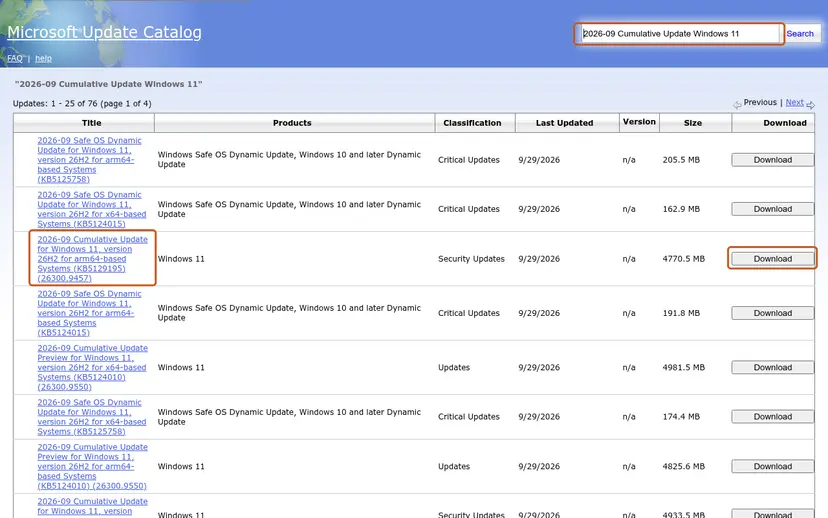
Full steps, including several files and DISM: Install an update from the Microsoft Update Catalog.
It worked if: The update shows in Settings > Windows Update > Update history.
If not: This is a stopgap. The scan still needs Fixes 1 to 8 to work again, or the reading of the log below.
If Windows Update still cannot connect to the update service
The update log shows which address the client tried to reach and the code it got back. That tells you whether a policy, a proxy or the network is the block.
- Open PowerShell as administrator, type
Get-WindowsUpdateLogand press Enter. It writes WindowsUpdate.log to your desktop. - Search the file for WSUS server. An intranet address there means a policy is still set: go back to Fix 2.
- Search for WinHttp and failed. A line like
SendRequestToServerForFileInformation failed with 0x80072efemeans the connection was cut on the way. - Note the server address in the lines before the failure, for example
sls.update.microsoft.com, and check that your firewall or router allows it.
The full message, the Windows version from winver, the output of reg query from Fix 2 and of netsh winhttp show proxy, and the failing lines of WindowsUpdate.log. This is not a hardware problem; no part of the PC needs replacing for this message.
Windows 10 left support on 14 October 2025. A Windows 10 PC without Extended Security Updates no longer gets regular security updates, so a working scan may simply find little to install.
How to keep Windows Update connected
- Remove update blocking tools instead of letting them change policies and services.
- When you leave a job and keep the laptop, ask IT to remove it from management, or reset Windows so no company policy stays behind.
- Allow Windows Update in your VPN, firewall or filtering app.
- Keep Set time automatically on.
- Do not put Microsoft update addresses into the hosts file or a DNS block list.
Frequently asked questions
Why does Windows say it couldn't connect to the update service when my internet works?
Because the browser and the update client use different routes. The Windows Update client uses its own WinHTTP proxy setting, the system DNS and, on many PCs, an update policy that names a server. A VPN, a leftover proxy entry or a policy pointing to a company WSUS server blocks only the update client. Web pages keep opening, so the PC looks online. Fix 1 tests the VPN, Fix 2 finds a policy and Fix 3 resets the proxy.
What does "We'll try again later" mean in the message?
The full text is "We couldn't connect to the update service. We'll try again later, or you can check now." It means Windows will run the scan again on its own schedule. Waiting helps only when the problem is on Microsoft's side, such as a short outage. If the message comes back after a restart and on another day, something on your PC or network blocks the update client, and waiting will not fix it. Start with Fix 1.
How do I fix Windows Update "We couldn't connect to the update service" on Windows 11?
The steps are the same as on Windows 10, only the Settings paths differ. Restart the PC and check for updates without a VPN. Then run the reg query from Fix 2 to look for an update policy, reset the WinHTTP proxy and DNS cache, and correct the clock. On Windows 11 the troubleshooter is at Settings > System > Troubleshoot > Other troubleshooters and runs in the Get Help app.
What does "Some settings are managed by your organization" have to do with it?
That line means at least one policy is set on the PC. When the policy is an intranet update server, Windows asks that server instead of Microsoft. If the server no longer exists, for example on a former work laptop, every scan fails with this message. Check the policy with reg query in Fix 2. On a PC you own, back up the key and remove the WSUS values. On a work PC, ask IT.
Is Microsoft's update service down?
Sometimes, but rarely for long. Microsoft has had outages that showed this message to many users at once, and it fixed them on its side. If the message appeared for you and for other people on the same day, wait an hour and select Check for updates again. If only your PC has it, or it has lasted for days, the cause is on your PC or network.
Can a VPN or antivirus cause this error?
A VPN can, and it is one of the most common causes. Some VPNs and filtering apps route or drop traffic to Microsoft's update addresses. Disconnect the VPN for one test, as in Fix 1, and add an exception if that helps. Do not turn off your antivirus for good. If you suspect it, pause protection for one test only and turn it back on: Turn off Microsoft Defender protection for a moment.
Does changing the DNS server fix it?
It fixes the cases where your network's DNS fails or filters Microsoft's update addresses. The old advice to use Google Public DNS still works, but the addresses are 8.8.8.8 and 8.8.4.4, not 8.8.8.9 as some pages say. Change DNS after the policy and proxy checks, because it does not help when a policy or VPN is the block. You can switch back to automatic at any time.
Will resetting Windows Update delete my files?
No. Resetting the update components stops the update services and renames the SoftwareDistribution and catroot2 folders. Your documents, apps and settings stay. Windows only forgets the update history it cached and downloads what it needs again. The update history list in Settings may look shorter afterwards. Fix 7 links the full steps.
Is there an error code for this message?
Not on screen. The Settings page shows only the text. The code is in the update log: run Get-WindowsUpdateLog in PowerShell as administrator and search WindowsUpdate.log for failed. A WinHttp error such as 0x80072efe means the connection was ended on the way. A related code, 0x80240438, means there is no route to the update endpoint at all and has its own guide.
Sources
- Microsoft Support: Troubleshoot problems updating Windows (support.microsoft.com)
- Microsoft Learn: Windows Update troubleshooting guidance (learn.microsoft.com)
- SCCM World (former Microsoft support engineer): Check for updates failed with We couldn't connect to the update service (sccmpeek.wordpress.com)
Did this fix work?
One click, no account. It tells the next reader which guides are worth their time.
Questions and experiences: fix "We couldn't connect to the update service" Windows update error
Still broken, or found a fix we did not cover? Ask here: members and our editors answer. Reading is open; writing needs a free account.
…