
How to fix Windows 11 24H2 update fails to install?

Prefer to fix it yourself? The manual steps follow.
- 8methods
- 15 minutes to 2 hours
- Beginner to intermediate
Applies to PCs on Windows 11 23H2 or older, or Windows 10 22H2, where the feature update to Windows 11 version 24H2 fails, and 24H2 PCs where the repair reinstall fails
8 methods in this guide
Hey. I need you to help me with a problem I have with my relatively new Windows 11 laptop. I can't install the 24H2 update, and I've been trying for a week now. Not only that, but I keep getting the same error code, 0x80070002. Any idea why this is happening and how to address this?
When Windows Update shows Windows 11, version 24H2 with an install error, the feature update could not finish and Windows rolled back. Since 13 October 2026, 24H2 Home and Pro no longer get updates, so do not fight for 24H2. Check your version with winver and install 25H2 or 26H2 instead.
Stop retrying 24H2. Microsoft ended updates for 24H2 Home and Pro on 13 October 2026 and recommends 25H2 or 26H2. If winver already shows 24H2, turn on Get the latest updates as soon as they're available in Windows Update (Fix 1). On 23H2 or older, run the Windows 11 Installation Assistant (Fix 2). If that rolls back too, the code points to the cause: 0x80070002 often means a second drive with an old system partition (Fix 3).
| Error | Windows 11, version 24H2 with Install error - 0x80070002 (or another code) and Retry in Settings > Windows Update, or a setup window that ends with Undoing changes after a restart. |
|---|---|
| Where it appears | In Windows Update while the feature update downloads or installs, or after one or more restarts, when Windows rolls back to the old version. |
| Main cause | A driver or a connected device that Setup cannot migrate (code 0xC1900101), a second drive with an old system partition (0x80070002 - 0x20009), or too little free space (0x80070070). |
| Fastest fix | Do not install 24H2 at all. Take 25H2 or 26H2 through Windows Update (Fix 1) or the Installation Assistant (Fix 2). |
| Also written as | Windows 11 version 24H2 failed to install, 24H2 not installing, Windows 11 version 24H2 repair version failed to install, updates failed, Install error - 0xc1900209. |
| Affects | Upgrades from Windows 11 23H2 and older and from Windows 10 22H2, and the repair reinstall on PCs already on 24H2 (build 26100). |
| Microsoft's status | No open install blocker on the 24H2 release health page on 15 October 2026. 24H2 Home and Pro reached end of updates on 13 October 2026; Enterprise and Education are supported until 12 October 2027. |
| Where the cause is written | C:\$Windows.~BT\Sources\Rollback (rollback logs, setupmem.dmp, setupapi\setupapi.dev.log) and setuperr.log and setupact.log in %windir%\Panther. |
| Time to fix | Minutes for Fix 1 on a 24H2 PC. An hour or more for a full upgrade with Fix 2, depending on the PC and the connection. |
Facts checked on 15 October 2026. Steps written for Windows 11 24H2, 25H2 and 26H2, and Windows 10 22H2 as the starting system.
What "Windows 11 version 24H2 failed to install" means
Windows 11 24H2 is a feature update: a new version of Windows that replaces the old one. Windows Update lists it as Windows 11, version 24H2, separate from the monthly updates. When it fails, the line shows Install error with a code and a Retry button, and Windows stays on the version you had.
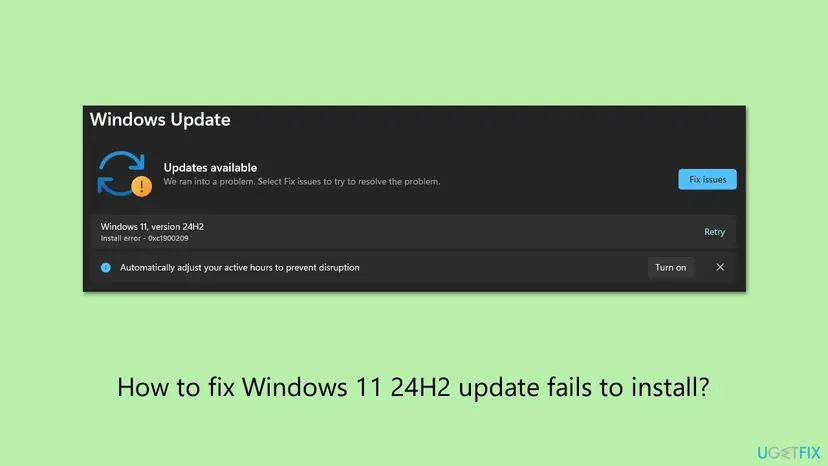
Microsoft's upgrade documentation splits a setup failure into two codes. The result code says what went wrong. The extend code says in which phase it happened: 1 is the download phase, 2 the safe OS phase, 3 the first boot and 4 the second boot. Windows Update often shows only the first code.
| Code you see | What Microsoft says it means | Start with |
|---|---|---|
| 0xC1900101 (with 0x2000C, 0x20017, 0x30018, 0x3000D, 0x4000D or 0x40017) | A generic rollback code that usually means an incompatible driver. 0x3000D points to the display driver, 0x40017 to antivirus or disk encryption filter drivers. | Fix 3, Fix 4, Fix 6 |
| 0x80070002 - 0x20009 | Setup found more than one system partition, for example an old system drive that is still connected. | Fix 3 |
| 0x80070070, 0xC190020E | Not enough free space for the upgrade. | Fix 5 |
| 0xC1900107 | A cleanup from an earlier attempt is still pending. A restart is needed. | Fix 5 |
| 0x8007001F - 0x3000D | Data migration failed, often because of a damaged or deleted user profile. | Fix 8, then the logs |
| 0xC1900200, 0xC1900202, 0xC1900208 | The PC does not meet the requirements, or it failed the compatibility scan. | Fix 2 shows the reason |
In a setup rollback, Microsoft ties 0x80070002 - 0x20009 to a second system partition. Shown alone in Windows Update, the same code is the Windows error "file not found", which a damaged download cache can cause. That case is Fix 7.
Why Windows 11 24H2 does not install
Most often a driver stops the upgrade: Microsoft calls 0xC1900101 a frequently observed code that usually means an incompatible driver. Less often a second drive, a USB device, too little space or another security program is in the way. Rarely the system files or the update cache are damaged.
| Cause | How often | How to tell | Fix |
|---|---|---|---|
| You are trying to install a version that is already out of service. | Every Home and Pro PC since 13 October 2026 | winver shows 23H2 or older, or 24H2 itself. | Fix 1, Fix 2 |
| An old or incompatible driver. | Most often | Code 0xC1900101, a black screen or restart during setup, then Undoing changes. | Fix 4, Fix 6 |
| A second drive or a USB device that Setup trips over. | Often | 0x80070002 - 0x20009, or 0xC1900101 - 0x2000C or 0x30018. Extra drives, docks or card readers are connected. | Fix 3 |
| Too little free space on drive C. | Sometimes | 0x80070070 or a nearly full drive C. | Fix 5 |
| A third-party antivirus or disk encryption program. | Sometimes | 0xC1900101 - 0x40017, a rollback after the second restart. | Fix 6 |
| A damaged update cache or system files. | Rarely | 0x80070002 shown alone, the download stops at the same percent, other updates fail too. | Fix 7, Fix 8 |
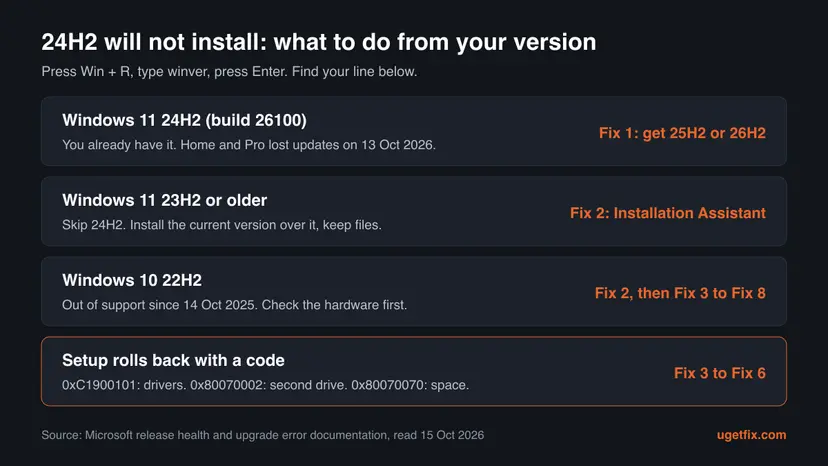
The reader above tried for a week. A feature update that rolls back for a driver or a drive will roll back again until that cause is gone. Change what Setup sees first, then retry once.
Where Windows writes why the 24H2 update failed
You do not need the logs for Fix 1 to Fix 3. Open them when the upgrade rolls back again, because they name the driver or file that stopped it. The folders are hidden: type the path into the File Explorer address bar.
| File | Where | What to look for |
|---|---|---|
setuperr.log, setupact.log | %windir%\Panther | Lines with Error near the end. Microsoft's mitigation for 0xC1900101 - 0x20017 is to find the problem driver here. |
Rollback logs and *.evtx | C:\$Windows.~BT\Sources\Rollback | Why Windows went back, and the stop code of a crash during setup. |
setupmem.dmp | C:\$Windows.~BT\Sources\Rollback | A memory dump of a crash during setup. The bug check message may name a driver file. |
setupapi.dev.log | C:\$Windows.~BT\Sources\Rollback\setupapi | The device that failed when the code ends in 0x30018. |
Search the log for the code you saw and read the lines just above it. A driver file name, such as one ending in .sys, tells you which device to update or remove in Fix 4.
How to fix Windows 11 version 24H2 failed to install
Fix 1 and Fix 2 replace the 24H2 goal with a supported version and solve the problem for most readers. Fix 3 to Fix 6 remove what makes Setup roll back. Fix 7 and Fix 8 repair the update cache and the system files, the generic last steps.
| What you see or have | Start with |
|---|---|
winver shows Windows 11 24H2 or 25H2. | Fix 1 |
winver shows Windows 11 23H2 or older, or Windows 10 22H2. | Fix 2 |
| Code 0x80070002, or the PC has two drives, a dock or USB devices plugged in. | Fix 3 |
| Code 0xC1900101, a black screen or restart loop during setup. | Fix 4 |
| Drive C is nearly full, or code 0x80070070 or 0xC1900107. | Fix 5 |
| A non-Microsoft antivirus or disk encryption is installed, or the code ends in 0x40017. | Fix 6 |
| The download stops at the same percent, or other updates fail too. | Fix 7 |
Fix 1. Check your version and take 25H2 or 26H2 from Windows Update
10 to 30 minutesNo riskYour PC already runs Windows 11 24H2 or 25H2, and Windows Update still shows a 24H2 item or a repair that fails.
Microsoft's 24H2 release health page says 24H2 Home and Pro reached end of updates on 13 October 2026 and recommends 26H2 or 25H2. It also says 26H2 reaches eligible 24H2 and 25H2 PCs that turn on the early updates setting, with a single restart.
- Press Win + R, type
winverand press Enter. Note the version and the OS build. Build 26100 is 24H2. - Press Win + I and open Windows Update.
- Turn on Get the latest updates as soon as they're available.
- Select Check for updates.
- When the feature update to 26H2 or 25H2 appears, select Download & install.
- Restart when asked, then run
winveragain.
Microsoft says the 26H2 rollout is phased and will expand over the next few months, so the offer may not appear on every PC yet. If it does not, Fix 2 installs the current version without waiting.
For the version dates and the 25H2 enablement package, see our guide to the Get the newer version of Windows to stay up to date message.
It worked if: winver shows version 25H2 or 26H2, and Windows Update no longer lists a failed 24H2 item.
If not: If no feature update is offered or it fails too, go to Fix 2.
Fix 2. Upgrade with the Windows 11 Installation Assistant and keep your files
1 to 2 hoursLow riskYour PC runs Windows 11 23H2 or older, or Windows 10 22H2, or Fix 1 offered nothing.
The Installation Assistant downloads the current Windows 11 version from Microsoft and installs it over the old one, so you skip 24H2 entirely. It checks the hardware first and says plainly when the PC does not qualify, which explains the 0xC1900200 family of codes.
- Back up the files you cannot lose: Back up your files (Windows Backup, File History, Time Machine).
- Open Microsoft's Download Windows 11 page in your browser.
- Under Windows 11 Installation Assistant, select Download Now.
- Run the downloaded file and select Yes in User Account Control.
- Select Accept and install and keep the PC on power and online.
- Let the PC restart as often as it needs. Do not turn it off while the screen shows a percentage.
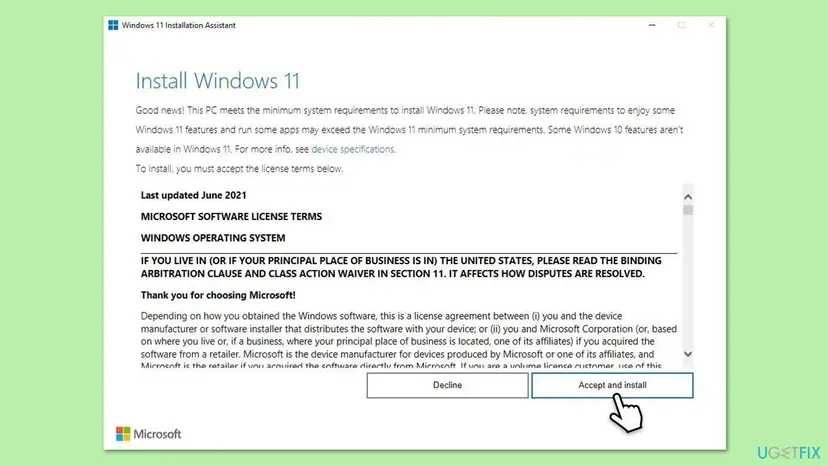
If the Assistant refuses to run, download the Windows 11 ISO from the same page, right-click it, select Mount, and run setup.exe from the new drive. Choose to keep personal files and apps when Setup asks.
It worked if: After several restarts the PC starts on the desktop, and winver shows the new version.
If not: If the upgrade rolls back with a code, find the code in the table at the top and go to the fix it names, usually Fix 3 or Fix 4.
Fix 3. Disconnect extra drives and USB devices before the upgrade
10 minutesNo riskCode 0x80070002, 0xC1900101 - 0x2000C or 0xC1900101 - 0x30018, or the PC has a second drive, a dock, a card reader or other USB devices.
Microsoft ties 0x80070002 - 0x20009 to more than one system partition, such as an old system drive left in the PC. For the 0x2000C and 0x30018 variants of 0xC1900101 it says to disconnect every device except the mouse, keyboard and display.
- Shut down the PC.
- Unplug every USB drive, memory card, printer, dock, hub, webcam and game controller. Keep only the mouse, keyboard and display.
- In a desktop with a second internal drive that once held Windows, disconnect its data cable. Leave drive C connected.
- Start the PC and run the upgrade again with Fix 1 or Fix 2.
- When the new version runs, shut down and reconnect everything.
Microsoft also suggests saying yes to Download and install updates (recommended) when Setup asks. It fetches newer drivers and setup files before the upgrade starts.
It worked if: The upgrade passes the restart where it used to roll back and ends on the desktop with the new version.
If not: If it still rolls back with 0xC1900101, a driver inside the PC is the cause: go to Fix 4.
Fix 4. Update or remove the driver that makes setup roll back
15 to 30 minutesLow riskCode 0xC1900101 with any extend code, or a black screen, freeze or restart loop during the upgrade.
Microsoft calls 0xC1900101 a generic rollback code that usually means an incompatible driver. It names display drivers for 0x3000D and asks for driver and BIOS updates from the hardware maker. The logs from the section above name the driver.
- Open
%windir%\Panther\setuperr.logand look for a driver or.sysfile near the last error. - Update the display, audio, storage and network drivers from the PC or chip maker. On a laptop, use the maker's support page for your model.
- Check the maker's page for a BIOS or UEFI update and install it if one exists.
- Remove programs that install their own drivers and that you no longer use, such as old VPN, virtual drive or RGB control tools: Uninstall a program or app in Windows.
- Restart and run the upgrade again.
- Open Device Manager. Right-click Start and select Device Manager.
- Open the device's Driver tab. Expand the category (for example Display adapters), right-click the device, select Properties and open the Driver tab. Driver Date and Driver Version show what is installed now.
- Update the driver. Select Update Driver and let Windows search automatically. To use a driver you downloaded from the device maker, select Browse my computer for drivers instead and point to the unpacked folder.
- Or roll back the driver. If the problem started after a driver update, select Roll Back Driver, choose a reason and select Yes. The button is greyed out when Windows has no earlier driver to return to.
These steps were written for Windows 11 24H2 and later. The full page with the other versions and what each result means: Update, roll back or reinstall a driver
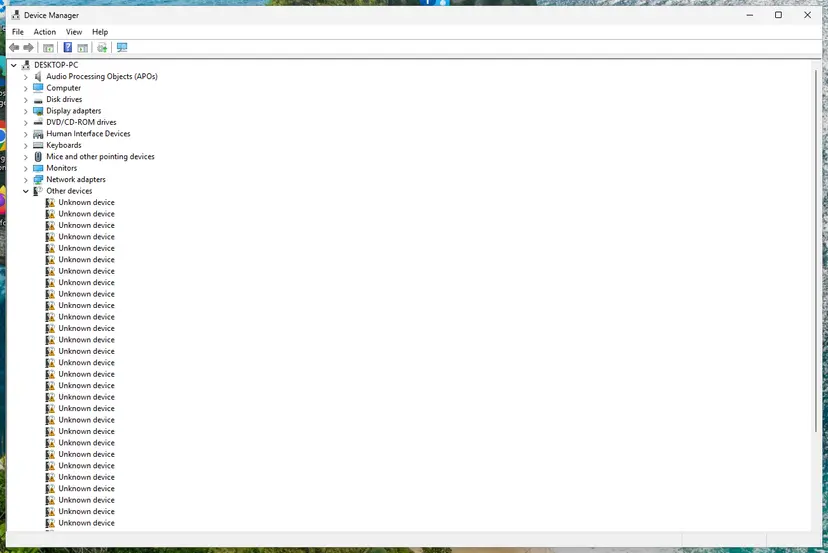
It worked if: The upgrade gets past the restart where it stopped, and no Undoing changes screen appears.
If not: If you cannot find the driver, remove the cause by elimination with a clean boot in Fix 6.
Fix 5. Free up space on drive C and finish a pending cleanup
10 to 20 minutesLow riskDrive C is nearly full, or the code is 0x80070070, 0xC190020E or 0xC1900107.
A feature update keeps the old Windows until the new one runs, so it needs room. Microsoft's upgrade documentation asks for 20 GB free on a 64-bit system. For 0xC1900107 it says to restart, then remove temporary and system files with Disk Cleanup.
- Restart the PC once. This clears the pending cleanup behind 0xC1900107.
- Open File Explorer and check that drive C has at least 20 GB free.
- If it has less, run Disk Cleanup with Clean up system files, or use Storage Sense, as in the procedure below.
- Move large videos or downloads to another drive or to the cloud if you still lack space.
- Run the upgrade again.
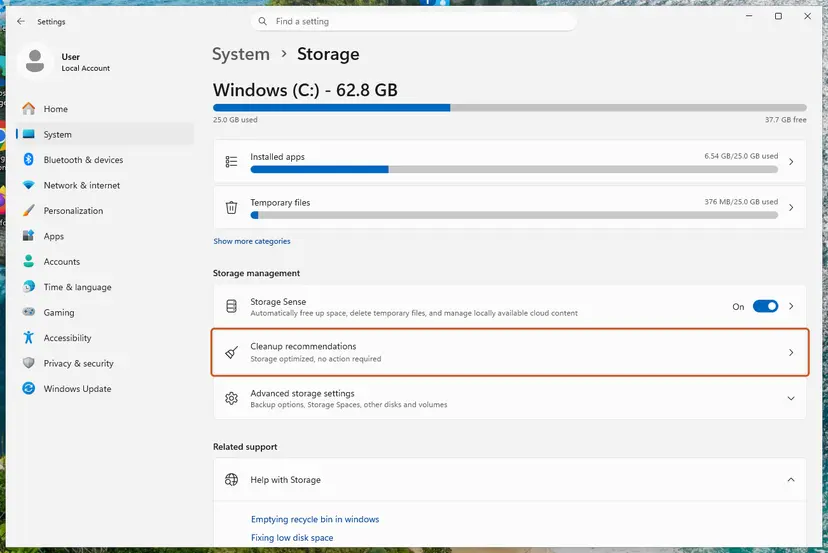
- Open Storage settings. Select Start > Settings > System > Storage. The top of the page shows how full the drive is and what uses the space.
- Open Cleanup recommendations. Under Storage management, select Cleanup recommendations.
- Clean up what Windows suggests. Open each group (Temporary files, Large or unused files, Files synced to the cloud, Unused apps), check the items you do not need and select Clean up in that group.
- Delete more temporary files. Go back to Storage and select Temporary files. Windows lists the types it can remove with their size. Check the ones you do not need and remove them. Leave Downloads unchecked unless you have checked that folder.
- Turn on Storage Sense. Back on Storage, turn the Storage Sense switch on. Windows then deletes temporary files on its own when the drive runs low.
- Choose what Storage Sense cleans. Select Storage Sense to open its page. Check the box for cleaning temporary files, then choose when it runs and how long files may stay in the Recycle Bin and Downloads before they are deleted.
- Run it now. Select Run Storage Sense now at the bottom of the page.
- Clean up system files with Disk Cleanup. Type disk cleanup in the search box on the taskbar and open Disk Cleanup. Choose drive C: and select OK, then select Clean up system files and choose C: again.
- Delete the files. Check the types of files you want to remove (select a name to see what it is), select OK, then Delete files.
These steps were written for Windows 11 (screenshots: 26H2). The full page with the other versions and what each result means: Free up disk space and delete temporary files
It worked if: Drive C shows 20 GB or more free, and the upgrade no longer stops with a space or cleanup code.
If not: If the code changes to 0xC1900101, go back to Fix 4. If it stays the same, try Fix 7.
Fix 6. Run the upgrade from a clean boot without third-party security software
20 minutes, plus the upgradeLow riskCode 0xC1900101 - 0x40017, a rollback after the second restart, or a non-Microsoft antivirus, firewall or disk encryption program is installed.
Microsoft's resolution for driver rollbacks is to run setup with a minimal set of drivers and startup programs after a clean boot. For 0x40017 it names antivirus and encryption filter drivers as the cause. A clean boot finds such a conflict without changing Windows for good.
- Open System Configuration. Select Search on the taskbar, type msconfig and select System Configuration from the results.
- Hide Microsoft services. On the Services tab, select the Hide all Microsoft services check box. Only services from other companies stay in the list.
- Disable the remaining services. Select Disable all, then select Apply.
- Open Task Manager. On the Startup tab of System Configuration, select Open Task Manager.
- Disable the startup apps. On the Startup apps tab in Task Manager, select each item whose status is Enabled and select Disable. Write down or take a screenshot of the items you disable: you need the list to turn them back on.
- Confirm the changes. Close Task Manager. On the Startup tab of System Configuration, select OK.
- Restart and test. Restart the PC. Windows now starts in a clean boot environment: try again the thing that failed (run the app, install the update, uninstall the program).
These steps were written for Windows 11 25H2 and 26H2. The full page with the other versions and what each result means: How to perform a clean boot in Windows
- After the clean boot restart, run the upgrade with Fix 1 or Fix 2.
- If a non-Microsoft antivirus or disk encryption tool is installed, Microsoft lists uninstalling it among the mitigations. Uninstall it for the upgrade only, with its maker's removal steps.
- Open Windows Security and check that Microsoft Defender Antivirus is on while the other product is gone.
- When the new version runs, reinstall your antivirus and undo the clean boot as the procedure explains.

It worked if: The upgrade finishes in the clean boot. That tells you a startup program or service caused the rollback.
If not: If it fails even in a clean boot, repair the update cache with Fix 7.
Fix 7. Reset the Windows Update components
10 minutesLow risk0x80070002 appears alone in Windows Update, the download stops at the same percent, or monthly updates fail too.
When Windows Update itself cannot find a downloaded file, the cache in SoftwareDistribution or catroot2 is the usual suspect. Resetting it makes Windows download the feature update again from scratch.
Try the Windows Update troubleshooter first, which restarts the update services for you: Run the Windows Update troubleshooter. If the error comes back, reset the components by hand.
- Open Command Prompt as administrator. Type cmd in the search box, right-click Command Prompt and select Run as administrator. Select Yes when Windows asks for permission.
- Stop the update services. Type the commands below and press Enter after each one. If Windows says that other services depend on Cryptographic Services, it stops them too. A message that a service is not started is fine.
net stop wuauserv net stop bits net stop cryptsvc - Delete the download queue files. This clears the list of downloads that the Background Intelligent Transfer Service keeps. If Windows says it cannot find the files, continue.
del "%ALLUSERSPROFILE%\Application Data\Microsoft\Network\Downloader\qmgr*.dat" - Rename the update cache folders. Renaming keeps a copy in case you need it; Windows creates new, empty folders when the services start again. If you get Access is denied, a service is still running: repeat the previous step.
ren %systemroot%\SoftwareDistribution SoftwareDistribution.old ren %systemroot%\System32\catroot2 catroot2.old - Start the services again. Type the commands below and press Enter after each one. The requested service has already been started is fine: Windows started it on its own.
net start cryptsvc net start bits net start wuauserv - Restart and check for updates. Restart the PC. Then select Start > Settings > Windows Update > Check for updates. The first check can take longer than usual because everything is downloaded again.
These steps were written for Windows 11 and Windows 10 (the steps are the same). The full page with the other versions and what each result means: Reset Windows Update components

It worked if: Windows Update downloads the feature update from 0 percent again and installs it without the old code.
If not: If it fails again with the same code, repair the system files with Fix 8.
Fix 8. Repair the system files with DISM and SFC
20 to 40 minutesLow riskOther fixes did not help, or the code is 0x8007001F, or other parts of Windows misbehave too.
Setup copies and migrates the current system. Damaged system files or component store entries can stop that copy. DISM repairs the store from Windows Update, then SFC replaces damaged files from it.
- Open an elevated command window. Right-click Start and select Terminal (Admin), or type cmd in the search box, right-click Command Prompt and select Run as administrator. Select Yes when Windows asks for permission.

Search for cmd and choose Run as administrator. Screenshot: Windows 11 26H2. - Run DISM first. Type the command below and press Enter. DISM downloads clean copies of damaged components from Windows Update, so it can take several minutes. Wait until it says The operation completed successfully.
DISM.exe /Online /Cleanup-Image /RestoreHealth
DISM /RestoreHealth running. Screenshot: Windows 11 26H2. - Run System File Checker. In the same window, type the command below and press Enter. Do not close the window until the verification reaches 100%.
sfc /scannow
sfc /scannow at 100%. Screenshot: Windows 11 26H2. - Read the result and restart. Compare the last message with the table below this guide, then restart the PC so that repaired files are loaded.

The result line tells you what SFC did. Screenshot: Windows 11 26H2.
These steps were written for Windows 11 24H2 and 25H2. The full page with the other versions and what each result means: Run DISM and SFC to repair Windows system files
For 0x8007001F - 0x3000D, Microsoft points to damaged user profiles and leftover accounts. Remove accounts you no longer use in Settings > Accounts > Other users, then check setuperr.log for the profile it names.
It worked if: SFC reports that it found no integrity violations or that it repaired them, and the upgrade with Fix 2 completes.
If not: Read the next section: the logs, the hardware signs and what to send to support.
If Windows 11 24H2 or the newer version still fails to install
When every fix ends in a rollback, the logs hold the answer. Copy the C:\$Windows.~BT\Sources\Rollback folder and %windir%\Panther to a USB stick before you try again, because the next attempt replaces them.
| What you find | What to do |
|---|---|
The log names a driver or .sys file | Update or uninstall that driver (Fix 4). Ask the device maker for a version for current Windows 11. |
setupmem.dmp exists or a stop code is in the rollback log | A driver crashed during setup. Microsoft also suggests a BIOS update and checking the hardware. |
| 0xC1900200 or 0xC1900202 | The PC does not meet the Windows 11 requirements. The upgrade will not install the normal way. |
| A work or school PC | Ask your IT department. Policies may hold the version back or install it their way. |
| Nothing clear | Reinstall Windows over itself and keep your files: Reinstall Windows without losing files. |
Microsoft notes that the 0x20017 rollback can also come from a hardware failure. Signs: crashes outside of setup too, a drive with errors in Check a disk for errors (chkdsk), memory errors in How to test your RAM with Windows Memory Diagnostic, or a rollback at a different point every time.
- What to send to support: the full code, your version from
winver, whether you used Windows Update or the Installation Assistant, and at which percent or restart it failed. - Attach
setuperr.log,setupact.logand the rollback folder's logs. - Name the PC model, extra drives and any security or encryption software.
How to keep feature updates from failing again
- Install a new Windows 11 version while yours is still supported, before its end of updates date on Microsoft's release health page.
- Keep drivers and the BIOS current from the PC maker, especially display and storage drivers.
- Keep at least 20 GB free on drive C.
- Unplug docks, extra drives and card readers before a feature update.
- Do not keep pressing Retry on a feature update that rolls back. Find the cause first.
- Do not turn the PC off while it shows Working on updates or a percentage.
- Do not install 24H2 on purpose now: on Home and Pro it no longer gets security fixes.
- Do not delete
C:\$Windows.~BTwhile an upgrade is running.
Windows 10 left support on 14 October 2025, and 22H2 is its last version. The only supported way forward on that PC is Windows 11, if the hardware qualifies.
Frequently asked questions
Why does Windows 11 version 24H2 fail to install?
Most often because a driver cannot be migrated, and Windows rolls back to the old version. Microsoft calls that code, 0xC1900101, a generic rollback code that usually means an incompatible driver. Other common causes are a second drive with an old system partition (0x80070002), too little free space (0x80070070) and third-party antivirus or encryption filter drivers. Look up your code in the table at the top of this page. Since 13 October 2026 the better plan is to install 25H2 or 26H2 instead of 24H2.
What does "Windows 11 version 24H2 repair version failed to install" mean?
It means the reinstall that repairs your current Windows did not finish. When you choose to fix problems using Windows Update on a 24H2 PC, Windows downloads 24H2 again and installs it over itself, so the item carries the 24H2 name. It fails for the same reasons as an upgrade: drivers, devices, space or a damaged cache. Work through Fix 3 to Fix 7. Or skip the repair and move to 25H2 or 26H2 with Fix 1, which also replaces the system files.
How do I fix error 0x80070002 when installing 24H2?
First disconnect every extra drive and USB device and try again (Fix 3). Microsoft's upgrade documentation ties 0x80070002 - 0x20009 to more than one system partition, such as an old system drive still in the PC. If the code appears alone in Windows Update, it is the Windows error for a file that cannot be found, often in the update cache. Then reset the Windows Update components (Fix 7). The Installation Assistant in Fix 2 avoids the cached download completely.
Is the Windows 11 24H2 update necessary?
Not any more on Home and Pro. Microsoft's release health page says Windows 11 24H2 Home and Pro editions reached end of updates on 13 October 2026, and it recommends 26H2 or 25H2. A newer version is necessary to keep getting security fixes, but it does not have to be 24H2. On Enterprise and Education editions, 24H2 is supported until 12 October 2027. Installing a newer version through Windows Update or the Installation Assistant needs no new product key.
What update is "Windows 11, version 24H2"?
It is the 2024 feature update of Windows 11, the version with OS build 26100. Windows Update offered it to PCs on 23H2 and older. It is not a monthly security update. Feature updates change the whole Windows version, take longer to install and restart the PC several times. If Windows Update still offers you 24H2 today, take the newer version instead with Fix 1 or Fix 2.
Will I lose my files if I install 25H2 or 26H2 instead?
No, not with Fix 1 or Fix 2. Both keep your personal files and apps. Microsoft says 26H2 installs on eligible 24H2 and 25H2 PCs with a single restart. A full upgrade from 23H2 or Windows 10 replaces Windows but keeps files and apps when you choose to keep them. A failed upgrade also rolls back to your old Windows with your files. A backup before any upgrade is still the safe habit.
How long does the 24H2 or newer upgrade take?
It depends on the route. On a 24H2 PC, the move to 26H2 through Windows Update needs one restart, according to Microsoft. A full upgrade from 23H2 or Windows 10 with the Installation Assistant downloads several gigabytes and restarts the PC several times. On a typical home connection plan an hour or more. Keep the PC on power, and do not turn it off while it shows a percentage.
What are "24h2-26517.8517" and "err-7482-38"?
We could not find either string in any Microsoft documentation, and they do not follow Microsoft's error formats. Windows 11 24H2 builds start with 26100, and Windows setup codes look like 0xC1900101 - 0x4000D. If a browser page, a pop-up or a downloaded tool showed you these strings and asked you to download something or call a number, close it. Check updates only in Settings > Windows Update.
Can I stop Windows from trying to install 24H2 again?
You can pause updates for a while in Settings > Windows Update with Pause updates, but that also stops security fixes, so do it only for a short time. The better way to end the retries is to install a newer version: once the PC runs 25H2 or 26H2, the 24H2 item no longer appears. Work and school PCs follow their IT department's policies, so ask them before you change anything.
This page does not answer my question. What now?
This page is about the Windows 11 version 24H2 feature update that fails to install or rolls back. If your problem is a monthly cumulative update with a KB number, search for that KB number on uGetFix, since each one has its own fixes. If Windows does not start at all after an update, use Startup Repair from the recovery screen. If you see a different code, look for that code first.
Sources
- Microsoft Learn: Windows 11, version 24H2 known issues and notifications (release health, end of updates for Home and Pro, 26H2 rollout) (learn.microsoft.com)
- Microsoft Learn: Windows upgrade resolution procedures (0xC1900101 variants, other result codes, free space, rollback logs) (learn.microsoft.com)
- Microsoft Learn: Windows upgrade error codes (result codes, extend codes and phases) (learn.microsoft.com)
Did this fix work?
One click, no account. It tells the next reader which guides are worth their time.
Questions and experiences: fix Windows 11 24H2 update fails to install
Still broken, or found a fix we did not cover? Ask here: members and our editors answer. Reading is open; writing needs a free account.
…