
How to fix Windows application error 0xe0434352?

Prefer to fix it yourself? The manual steps follow.
- 7methods
- 5 minutes to find the program, 10 to 30 minutes to fix
- Intermediate
Applies to Windows 11, Windows 10, Windows Server
7 methods in this guide
Hello. Almost every time I launch my Windows computer, I receive an "Unknown software exception (0xe0434352) in application location 0x00007FFD112E3B29" error. Whenever it shows up, it prevents me from logging in, and I have to restart again until I get a login without the error. This is very annoying, and I'd like it to be fixed ASAP.
0xe0434352 is the exception code Windows shows when a program built on .NET crashes on an error its code did not handle. It names no cause by itself, but the program name and the .NET error behind it do. Start by finding which program crashed, then update, repair or reinstall that program.
0xe0434352 means a .NET program crashed, not Windows. Read the program name in the title bar of the error window, or open Event Viewer and find the .NET Runtime event 1026 from the same second (Fix 1). Then update, repair or reinstall that program (Fix 2). If the window appears at every sign-in, stop that program from starting with Windows first (Fix 3).
| Error | "The exception unknown software exception (0xe0434352) occurred in the application at location" followed by a memory address, or Exception code: 0xe0434352 in Event Viewer. |
|---|---|
| Where it appears | A window titled [program].exe - Application Error, event 1000 in Windows Logs > Application, or the Last Run Result column of Task Scheduler. Often at sign-in or shutdown, when background programs start or stop. |
| Main cause | An unhandled error inside one .NET program: a missing or wrong file, damaged settings, missing rights, a database or network it cannot reach, or a plain bug. |
| Fastest fix | Find the program from the title bar or event 1026 (Fix 1), then update or reinstall it (Fix 2). |
| Also written as | 0xE0434352, e0434352, oxe0434352, exception code 0xe0434352, unknown software exception 0xe0434352, Last Run Result 0xE0434352. |
| What the code is | Microsoft's code for every CLR exception, the kind of exception .NET programs raise. The last three bytes spell CCR in ASCII. |
| Logged together with | Event 1026 from .NET Runtime with the real error type on its Exception Info line, and faulting module KERNELBASE.dll in event 1000. |
| Affects | Any .NET Framework program on Windows 11, Windows 10, Windows Server and older versions. Games, launchers, tray tools, company software and Intune's AgentExecutor.exe all show the same code. |
| Vendor status | Not a Windows bug and not a known Windows issue. The fix belongs to the program that crashed. |
| Time to fix | About 5 minutes to find the program. The repair takes from a minute (turning off a startup app) to half an hour (a reinstall). |
Facts checked on 16 October 2026. Steps written for Windows 11 (25H2 and 26H2) and Windows 10 22H2.
What exception code 0xe0434352 means
Microsoft explains that 0xE0434352 is the exception code of a CLR exception, the type of exception made by .NET applications. Windows does not know what went wrong inside the program. It only sees that the .NET runtime raised an exception that nobody caught, so it ends the program and reports the code. That is why the window calls it an unknown software exception.
The error window as one reader saw it (the program name in the title and the address change from PC to PC)
RustClient.exe - Application Error
The exception unknown software exception (0xe0434352) occurred in the application at location 0x00007FFBE01B674C.
Click on OK to terminate the program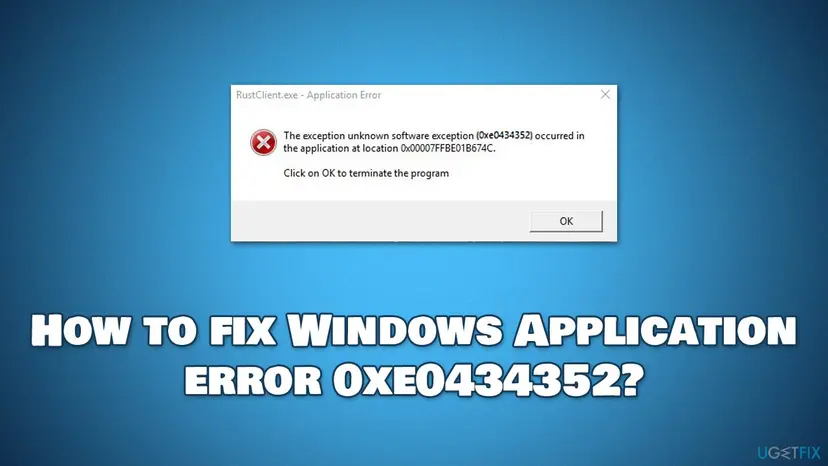
- The title bar names the program file that crashed. This is the most useful part of the window.
- The location (
0x00007FFfollowed by more digits) is a memory address inside Windows' own code, usually in KERNELBASE.dll. It changes after every restart and does not help you. - OK only closes the program. The crash has already happened.
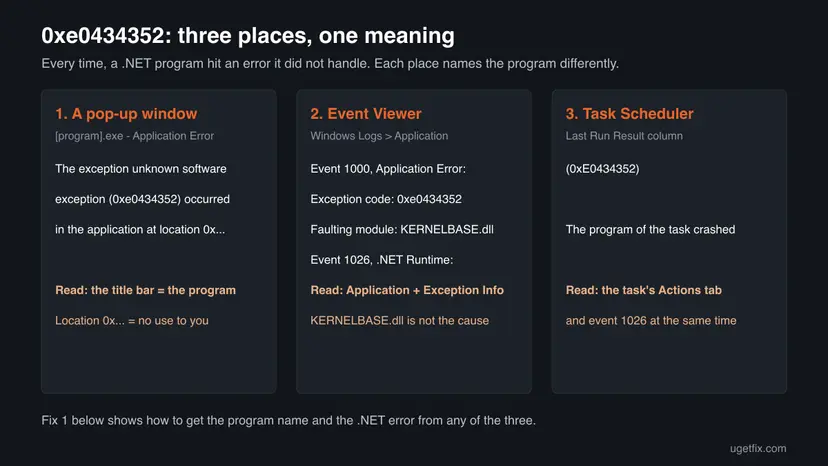
Event 1000 names KERNELBASE.dll as the faulting module for almost every 0xe0434352 crash. It is the Windows file that raises the exception for the program, not a damaged file. Downloading a copy of it from a DLL site can only make things worse.
Why error 0xe0434352 happens: causes ranked
The real cause is the .NET error type that the matching .NET Runtime event 1026 shows on its Exception Info line. We have no counts of how often each cause occurs. The order below follows the examples on Microsoft's forums and what the code itself means: problems inside one program first, damaged shared parts rarely.
| Cause | What event 1026 or the PC shows | Fix |
|---|---|---|
| A file of the program is missing, damaged or from another version. | FileNotFoundException, FileLoadException, TypeLoadException. Started after an update or a failed install. | Fix 2 |
| A bug in the program. | NullReferenceException, InvalidOperationException. The same crash at the same moment every time. | Fix 2 |
| A background program crashes at sign-in or shutdown. | The pop-up appears before or right after you sign in, with the name of a tray tool, launcher or updater. | Fix 3 |
| A scheduled program cannot reach what it needs. | Task Scheduler shows (0xE0434352). Event 1026 names SqlException, UnauthorizedAccessException or FileNotFoundException. | Fix 4 |
| .NET Framework or a Visual C++ runtime is damaged. | Several .NET programs crash, or DllNotFoundException, BadImageFormatException. | Fix 5 |
| Another program interferes. | The error type changes from crash to crash. The crash stops in a clean boot. | Fix 6 |
| Damaged Windows system files. | Windows' own tools fail as well. | Fix 7 |
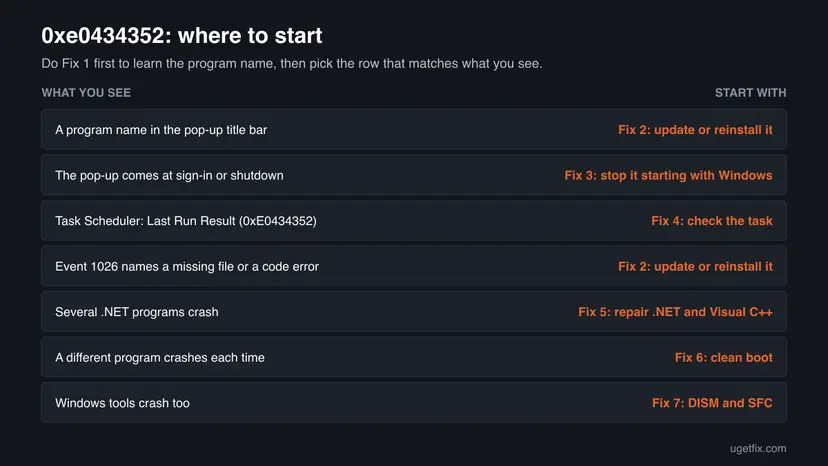
The reader's question above is a typical case of the third row: a program that starts with Windows crashes before the desktop is ready, and the next sign-in may work because the timing is different. Turning that program off at startup stops the window, and updating it fixes the cause.
How to fix error 0xe0434352
Fix 1 takes five minutes and tells you which program crashed and why. Fixes 2 to 4 cover one program, one startup item or one scheduled task. Fixes 5 to 7 are for crashes in several programs. You do not need to do all of them.
| What you see or have | Start with |
|---|---|
| You do not know which program crashed. | Fix 1 |
| The title bar or event 1026 names a program you use. | Fix 2 |
| The window appears at every sign-in or shutdown. | Fix 3 |
| Task Scheduler shows Last Run Result (0xE0434352). | Fix 4 |
| Several .NET programs crash, or event 1026 names DllNotFoundException. | Fix 5 |
| A different program or error type each time. | Fix 6 |
| Windows' own tools fail too. | Fix 7 |
Fix 1. Find the program that crashed and its .NET error
5 minutesNo riskEveryone, unless the title bar of the error window already named a program you know.
0xe0434352 is the same code for every .NET crash, so it cannot tell you what to fix. The program name and the error type in event 1026 can.
- If the error window is still open, write down the file name in its title bar, such as
RustClient.exe. - Press Win + R, type
eventvwrand select OK. - Expand Windows Logs and select Application.
- Look for an Error from the source Application Error (event 1000) at the time of the crash. Its text names the faulting application and shows Exception code: 0xe0434352.
- Find the .NET Runtime error (event 1026) logged in the same second and open it.
- Note the name after Application: and the first line that starts with Exception Info:. That line is the real error.
- Select Copy at the bottom of the event window and paste the text into Notepad for later.
Prefer one command? This lists the last five crashes with code 0xe0434352 and the matching .NET events. Run it in Terminal or Windows PowerShell; reading the Application log needs no administrator rights.
PowerShell: recent 0xe0434352 crashes and .NET Runtime events
Get-WinEvent -FilterHashtable @{ LogName='Application'; ProviderName='Application Error'; Id=1000 } -MaxEvents 50 |
  Where-Object Message -match 'e0434352' | Select-Object -First 5 | Format-List TimeCreated, Message
Get-WinEvent -FilterHashtable @{ LogName='Application'; ProviderName='.NET Runtime'; Id=1026 } -MaxEvents 5 |
Format-List TimeCreated, Message- A program you use is named: go to Fix 2.
- A tray tool, launcher or updater you never open yourself: go to Fix 3.
- A program run by a scheduled task or a company tool such as
AgentExecutor.exe: go to Fix 4. - A different program each time: go to Fix 5 and then Fix 6.
How to read every line of event 1026, with the full list of error types: .NET Runtime error 1026.
It worked if: You know the program file that crashed and, from event 1026, the error type behind 0xe0434352.
If not: If there is no event 1026 next to the 0xe0434352 crash, the program may use .NET without logging it. Go by the program name alone and use Fix 2.
Fix 2. Update, repair or reinstall the program that crashed
15 to 30 minutesLow riskThe title bar or event 1026 names a program, and the error is a missing file, a wrong version or a bug in its code.
The exception was raised inside that program, so only its own files or a newer version can remove it. A missing or mismatched file comes back with a repair or a clean install.
- Check the program for an update in its Help or About menu, its launcher, or on the maker's website.
- If no update exists, press Win + I and open Apps > Installed apps (Windows 10: Apps > Apps & features).
- Select the three dots next to the program. If Modify or Repair is offered, run it first.
- If that does not help, select Uninstall and restart the PC.
- Install the newest version from the maker's own website or store, and start it again.

All ways to remove a program, also from Control Panel: Uninstall a program or app in Windows A Store app has Repair and Reset buttons instead: How to repair or reset an app in Windows A game from Steam or another launcher can check its own files first: How to verify game files in Steam, Epic Games, Xbox app, EA app, Battle.net and GOG Galaxy
Accounting, design and business tools keep data in their own folders or databases. Use the program's own backup or export before you uninstall it.
It worked if: The program starts and stays open, and no new 0xe0434352 crash appears for it in the Application log.
If not: If the same Exception Info line comes back after a clean install, the bug is in the program. Send the copied event to its maker (see below). If the crash comes at sign-in, try Fix 3.
Fix 3. Stop the crashing program from starting with Windows
5 minutesNo riskThe 0xe0434352 window appears at every sign-in or shutdown, as in the reader's question, and names a program that starts on its own.
Tray tools, launchers, overlays and updaters start with Windows and can crash before the desktop is ready. Turning one off removes the window at once and tells you for sure which program it was.
- Right-click Start and select Task Manager.
- Open Startup apps (Windows 10: the Startup tab).
- Find the program named in the error window or in Fix 1. The Publisher column helps with unclear names.
- Select it and select Disable.
- Restart the PC and sign in. The 0xe0434352 window should not appear.
- If you need the program, update or reinstall it (Fix 2), then turn it back on here.

Turning off a startup app does not uninstall it. Settings has the same list under Apps > Startup: Stop apps from opening at startup
Some programs start as a Windows service or a scheduled task, not as a startup app. If the program is not in the list, look for it in Task Scheduler (Fix 4) or find it with a clean boot (Fix 6).
It worked if: You sign in without the error window. The program still works when you open it yourself, or it crashes then and you know it needs Fix 2.
If not: If the window still appears and the program is not in the startup list, go to Fix 4 and then Fix 6.
Fix 4. Check a scheduled task with Last Run Result 0xE0434352
15 minutesLow riskTask Scheduler shows (0xE0434352) in the Last Run Result column, or event 1000 names a program that a task runs.
Task Scheduler shows the exit code of the program the task started. 0xE0434352 there means that program crashed on a .NET error, often because the task runs it under another account, without your drives or network access.
- Press Win + R, type
taskschd.mscand select OK. - Select Task Scheduler Library and find the task with (0xE0434352) in the Last Run Result column.
- Open the task and look at the Actions tab. Note the program and its arguments.
- On the General tab, note the account under When running the task, use the following user account.
- In Event Viewer, open the .NET Runtime event 1026 from the time of the last run and read the Exception Info line, as in Fix 1.
- Run the same program with the same arguments yourself. If it works for you but fails as a task, the account, its rights or the start folder are the difference.
| Exception Info | What to check |
|---|---|
System.Data.SqlClient.SqlException | The database server is reachable from the task's account at that time, and the login works. |
UnauthorizedAccessException | The task's account may read and write the folders and network shares the program uses. |
FileNotFoundException | The path in Actions and the Start in field point to the program's own folder. |
| Any other type | Send the event text to whoever wrote the program. |
A reader on Microsoft's forum saw exactly this on Windows Server: a scheduled .NET program ended with 0xe0434352, and its event 1026 named a SqlException. The program could not open its database connection at the scheduled time.
AgentExecutor.exe belongs to the Microsoft Intune Management Extension, which runs scripts and app installs on company PCs. Its crashes are for your IT team, not for you. In one report on Microsoft's WinGet project, it crashed when a policy turned off the Microsoft Store source of WinGet.
It worked if: The task runs again with Last Run Result The operation completed successfully. (0x0).
If not: If the program also crashes when you run it yourself, treat it as a program problem: Fix 2. If it fails only as a task, ask its author which account and rights it needs.
Fix 5. Repair .NET Framework and the Visual C++ runtimes
20 minutesLow riskSeveral .NET programs crash with 0xe0434352, or event 1026 names DllNotFoundException or BadImageFormatException.
When many programs crash with the same code, the part they share is the likely cause. .NET programs also call native files from the Visual C++ runtimes, and a missing one raises a .NET exception.
- Repair each Visual C++ entry. Right-click an entry and select Change, then select Repair in the window that opens. Do the same for every Microsoft Visual C++ entry.
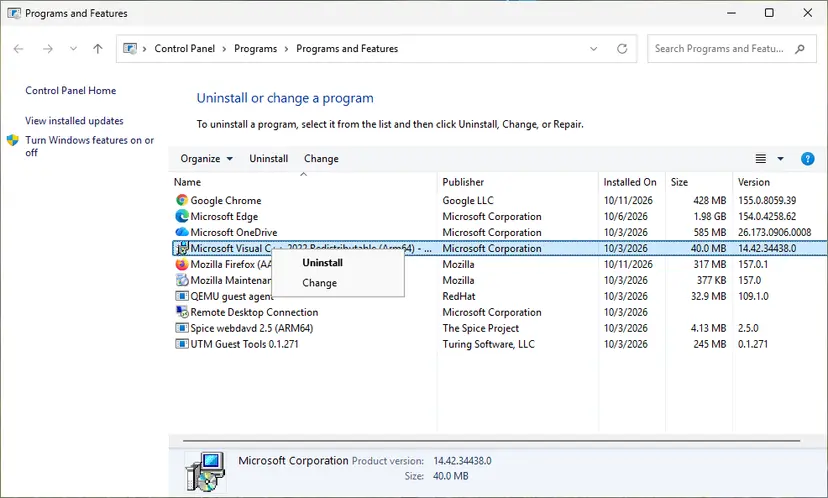
Right-click the entry and select Change to reach the repair option. Screenshot: Windows 11 26H2. - Install the latest supported version. Download the latest Visual C++ v14 Redistributable from Microsoft: Visual C++ Redistributable latest supported downloads and run it. On a 64-bit PC install both X64 and X86, because 32-bit programs need the x86 package. On an ARM64 PC install ARM64. This one version serves programs built with Visual Studio 2017 to 2026.
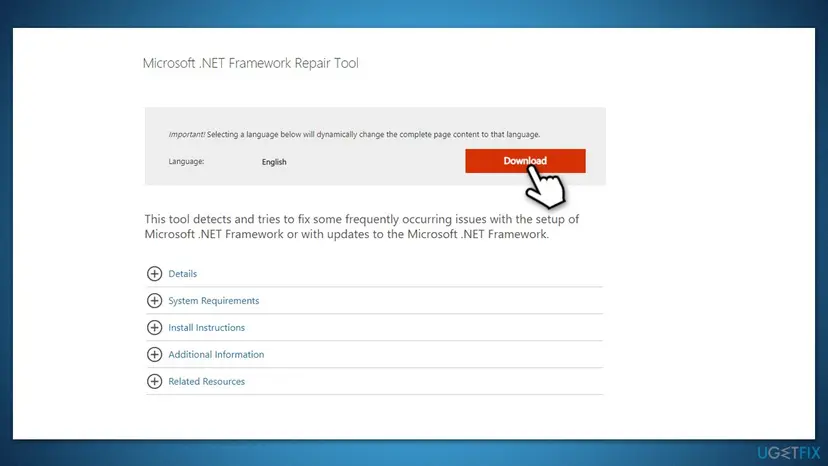
- Run the .NET Framework Repair Tool. Download the Microsoft .NET Framework Repair Tool and run NetFxRepairTool.exe. The wizard looks for setup problems, asks for your consent before it applies fixes, then repairs the installed .NET Framework versions. The tool is in English only.
- Turn on .NET Framework 3.5 if a program asks for it. Select Start, search for Windows Features and open it. In Turn Windows features on or off, select the .NET Framework 3.5 (includes .NET 2.0 and 3.0) check box and select OK. Windows downloads the files, so stay online.
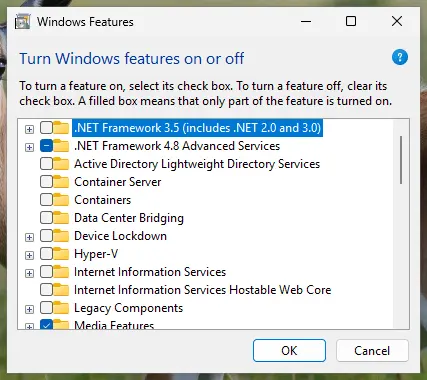
.NET Framework 3.5 is turned on in Windows Features. Screenshot: Windows 11 26H2.
These steps were written for Windows 11 25H2 and 26H2, Windows 10 22H2. The full page with the other versions and what each result means: How to repair Microsoft Visual C++ Redistributable and .NET Framework
- Do not uninstall .NET Framework 4.8 or 4.8.1. It is part of Windows 10 and Windows 11 and is repaired, not removed.
- Programs built on .NET 6, 8 or later use the separate .NET Desktop Runtime. If the maker names such a version, install it from dotnet.microsoft.com.
- Do not uninstall the Visual C++ packages. Repair them, then add the latest supported version.
It worked if: The Repair Tool finishes without new problems, and the programs that crashed start again after a restart.
If not: If only one program still crashes, go back to Fix 2 for it. If many still crash, try Fix 6 and Fix 7.
Fix 6. Find an interfering program with a clean boot
20 minutesLow riskThe crashing program or the error type changes from time to time, or the window appears at sign-in and no startup app explains it.
Overlays, monitoring tools and some security programs load into other processes and can cause exceptions there. A clean boot starts Windows without them, so the crash stopping points to one of them.

- Do a clean boot with the steps in How to perform a clean boot in Windows: third-party services and startup apps off.
- Restart and use the PC as before. If 0xe0434352 no longer appears, turn half of the services back on and restart.
- Repeat with smaller halves until the error returns. The last group you turned on holds the cause.
- Update or remove that program, then return to a normal start.
The old version of this guide told you to tick Safe boot on the Boot tab of msconfig. That starts Safe Mode, not a clean boot, and many programs do not run there. Leave the Boot tab as it is.
It worked if: The error stops in a clean boot, and you find the service or startup app that brings it back.
If not: If 0xe0434352 appears in a clean boot too, nothing else interferes. Go to Fix 7, then send the event to the program's maker.
Fix 7. Repair Windows system files with DISM and SFC
20 to 40 minutesNo riskWindows' own tools fail too, or Fixes 2 to 6 did not help and several programs are affected.
.NET Framework 4.8 is part of Windows 10 and 11, so damaged Windows files can break it for every program. DISM restores the Windows image and SFC then replaces bad system files from it.
- Open an elevated command window. Right-click Start and select Terminal (Admin), or type cmd in the search box, right-click Command Prompt and select Run as administrator. Select Yes when Windows asks for permission.

Search for cmd and choose Run as administrator. Screenshot: Windows 11 26H2. - Run DISM first. Type the command below and press Enter. DISM downloads clean copies of damaged components from Windows Update, so it can take several minutes. Wait until it says The operation completed successfully.
DISM.exe /Online /Cleanup-Image /RestoreHealth
DISM /RestoreHealth running. Screenshot: Windows 11 26H2. - Run System File Checker. In the same window, type the command below and press Enter. Do not close the window until the verification reaches 100%.
sfc /scannow
sfc /scannow at 100%. Screenshot: Windows 11 26H2. - Read the result and restart. Compare the last message with the table below this guide, then restart the PC so that repaired files are loaded.

The result line tells you what SFC did. Screenshot: Windows 11 26H2.
These steps were written for Windows 11 24H2 and 25H2. The full page with the other versions and what each result means: Run DISM and SFC to repair Windows system files
It worked if: SFC reports that it found no integrity violations or that it repaired them, and the crashes stop after a restart.
If not: If SFC cannot repair some files, run DISM again and restart. If crashes continue, see the next section.
If 0xe0434352 keeps coming back: what to send and to whom
When the same program crashes with the same Exception Info line after a clean install, the bug is in that program. Only its maker can fix it, and they need the event text, not the code 0xe0434352, which every .NET crash shares.
- The full text of event 1026, copied in Fix 1, with all the "at" lines.
- The matching event 1000, with the program version, fault offset and report ID.
- What you did when it crashed: signing in, starting the program, a scheduled run.
- Your Windows version. Press Win + R and type
winver. - What you already tried: reinstall, startup app off, clean boot.
| What you found | Who to ask |
|---|---|
| A game or app crashes with its own names in the "at" lines. | The program's maker or the game's support. |
| A scheduled company program or AgentExecutor.exe crashes. | Your IT team or the program's author. |
Only System. names, in many programs, after Fixes 5 and 7. | Microsoft Support. |
0xe0434352 is almost never a hardware fault. A rare exception is a PC where many programs crash at random places and blue screens also appear: test the memory with How to test your RAM with Windows Memory Diagnostic before you replace anything. Resetting Windows, as the old guide suggested, is not needed for a crash of one program.
How to keep error 0xe0434352 from coming back
- Keep the program updated. Most 0xe0434352 crashes are fixed by the program's maker, not by Microsoft.
- Keep Windows updated. .NET Framework fixes arrive through Windows Update. Windows 10 left support on 14 October 2025, so a Windows 10 PC without extended updates no longer gets them.
- Keep startup lean. Fewer tray tools and overlays at sign-in means fewer programs that can crash before the desktop is ready.
- Install from the maker only. Copied program folders and repacks often miss files, which leads to FileNotFoundException.
- Test scheduled tasks under their own account after a password, server or permission change.
A single 0xe0434352 event for a tool you never use, logged once weeks ago, needs no action. Start looking when the same program crashes again and again, or when a program you need does not start.
Frequently asked questions
What is error 0xe0434352?
It is the exception code Windows uses for an unhandled CLR exception, the kind of error raised by programs built on .NET. Microsoft documents 0xE0434352 as the code of every CLR exception, and its last three bytes spell CCR in ASCII. The code tells you that a .NET program crashed, not why. The why is in the matching .NET Runtime event 1026 in Event Viewer, on its Exception Info line, and the program is named in the title bar of the error window.
What does "the exception unknown software exception (0xe0434352) occurred in the application" mean?
It means the program named in the window's title bar raised a .NET exception that its code did not catch, so Windows ended it. Windows calls it unknown because it cannot read .NET errors itself. The address after "at location" points into Windows' own code and changes on every run, so it does not help. Note the program name, then find its event 1026 in Event Viewer (Fix 1) and update or reinstall that program (Fix 2).
Why does the 0xe0434352 error appear when I sign in or shut down?
Because a program that starts or stops with Windows crashes at that moment. Tray tools, launchers, overlays and updaters start at sign-in, often before everything they need is ready, and may crash only some of the time. Read the program name in the title bar, then turn it off in Task Manager under Startup apps (Fix 3). If the window disappears, update or reinstall that program before you turn it back on.
What does Last Run Result 0xE0434352 mean in Task Scheduler?
Task Scheduler shows the exit code of the program the task started. 0xE0434352 means that program crashed on an unhandled .NET exception. The task itself is fine. Open event 1026 from the time of the last run to see the error type. Scheduled programs often fail because the task's account lacks rights, cannot reach a network share or database, or starts in another folder. Fix 4 shows how to check each of these.
What is AgentExecutor.exe and why does it crash with 0xe0434352?
AgentExecutor.exe is part of the Microsoft Intune Management Extension, which companies use to run scripts and install apps on managed PCs. When it crashes, the exception code is 0xe0434352 like any .NET program. In a report on Microsoft's WinGet project, it crashed on Windows 11 when a policy turned off the Microsoft Store source of WinGet. On a work PC, report the crash to your IT team instead of changing policies yourself.
Is 0xe0434352 caused by KERNELBASE.dll?
No. Event 1000 names KERNELBASE.dll as the faulting module because that Windows file raises the exception on behalf of the program. The same pair, KERNELBASE.dll and 0xe0434352, shows up for nearly every .NET crash. KERNELBASE.dll is almost never damaged, and you should not download a copy of it. Read the Exception Info line of event 1026 instead, which names the real error inside the program.
Is 0xe0434352 a virus?
No. It is a crash code, not a sign of malware by itself. It only says that a .NET program ended on an error. If the title bar or event names a program you do not know, check where its file lives and whether it is in Installed apps. If you cannot place it, run a scan with Microsoft Defender as a separate check: How to scan for malware with Microsoft Defender The fix for the crash still depends on the program, not on the code.
Should I reinstall .NET Framework to fix 0xe0434352?
Only if several .NET programs crash, and even then repair it rather than remove it. .NET Framework 4.8 and 4.8.1 are part of Windows 10 and Windows 11 and cannot be uninstalled like a normal program. Use the .NET Framework Repair Tool and the Visual C++ repair in Fix 5. If only one program crashes, the cause is almost always in that program, so Fix 2 is the right start.
Does 0xe0434352 look different on Windows 10 and Windows 11?
No. The code, the error window and the events 1000 and 1026 are the same on Windows 10, Windows 11 and Windows Server, and the steps on this page work on all of them. Only a few menu names differ, such as Installed apps on Windows 11 and Apps & features on Windows 10. Windows 10 left support on 14 October 2025, so .NET fixes no longer reach it without extended updates.
This page is in English. Is there help in my language?
This page explains error 0xe0434352 in English only, but the code and the fix are the same on every language version of Windows. The window, Event Viewer and Task Scheduler show the same code 0xe0434352, and the program name in the title bar stays the same. Follow Fix 1 to find the program and Fix 2 to update or reinstall it. Your browser's translate function can translate this page if you need it.
Sources
Did this fix work?
One click, no account. It tells the next reader which guides are worth their time.
Questions and experiences: fix Windows application error 0xe0434352
Still broken, or found a fix we did not cover? Ask here: members and our editors answer. Reading is open; writing needs a free account.
…