
How to fix Windows Error Code 0x800706BE?

Prefer to fix it yourself? The manual steps follow.
- 9methods
- 5 minutes to 1 hour
- Intermediate
Applies to Windows 11 Setup from 24H2, 25H2 and 26H2 media, Windows Update on Windows 11 and Windows 10 22H2, and programs that report the same RPC failure
9 methods in this guide
- What the error means
- Why it appears
- Where the cause is written
- The fixes
- 1. Use the previous Setup
- 2. Boot in UEFI mode
- 3. Make a new USB stick
- 4. Run Setup inside Windows
- 5. Reset Windows Update
- 6. Install the update manually
- 7. Program or printer
- 8. Repair Windows files
- 9. Check the hardware
- If it is still there
- Keep it from coming back
- FAQ
Hello guys. I tried to install recent Windows updates, but as soon as the download finished and I was prompted to install them, I got the error code 0x800706BE. I restarted my PC and downloaded the updates again, but it did not work at all. I am concerned that my computer's security might be compromised. Can you help me resolve this problem? Much appreciated!
Error 0x800706BE means "The remote procedure call failed": one part of Windows asked another to do something and got no answer. You see it in Windows 11 Setup as 0x800706BE - 0x4002F, or in Windows Update as an install or download error. In Setup, select Previous version of Setup first; in Windows Update, restart and select Retry.
If Windows 11 Setup shows 0x800706BE - 0x4002F, select Previous version of Setup on the Select setup option screen (Fix 1), and boot the stick in UEFI mode (Fix 2). If Windows Update shows Install error - 0x800706be, restart the PC, select Retry, then reset the update components (Fix 5). The code is an internal call that failed, not a sign of an attack on its own.
| Error | 0x800706BE, the Win32 error 1726 RPC_S_CALL_FAILED: "The remote procedure call failed." |
|---|---|
| Where it appears | In Windows 11 Setup as Windows installation encountered an unexpected error. Error code: 0x800706BE - 0x4002F. In Settings > Windows Update as Install error - 0x800706be or Download error - 0x800706be. Less often in a program or printer installer. |
| Main cause | The component on the other end of the call stopped or crashed: the new Setup on an older PC, an update service that was stopped mid-install, or damaged system files. Unstable hardware can cause it too. |
| Fastest fix | Setup: Previous version of Setup (Fix 1). Windows Update: restart and Retry, then reset the update components (Fix 5). |
| Also written as | 0x800706be-0x4002f, 0x800706BE 0x4002F, code: 0x800706be, (0x800706be), error 0x000006BE, and the decimal error 1726. |
| Affects | Windows 11 Setup since the new Setup of 24H2, including 26H2 media. Windows Update on Windows 11 and Windows 10 22H2. Windows 10 left support on 14 October 2025. |
| Microsoft's status | Not a listed known issue. Microsoft documents only the meaning of the code, not a cause in Setup or Windows Update. |
| Where the cause is written | Setup: setuperr.log in X:\Windows\Panther (USB boot) or C:\$WINDOWS.~BT\Sources\Panther (setup.exe). Windows Update: Update history and Event Viewer. |
| Time to fix | 5 minutes for Fix 1 and Fix 5. 20 to 40 minutes for a new stick or a manual install. An hour or more for a full upgrade. |
Facts checked on 16 October 2026. Steps written for Windows 11 26H2 and 25H2 Setup media, Windows 11 25H2 and Windows 10 22H2 Windows Update.
What error code 0x800706BE means
0x800706BE is a Windows error number wrapped in a result code. Microsoft's table of upgrade errors says a result code that starts with 8 holds a Win32 error code. The last four digits, 06BE, are error 1726, which Microsoft's list of system error codes names RPC_S_CALL_FAILED, with the text "The remote procedure call failed."
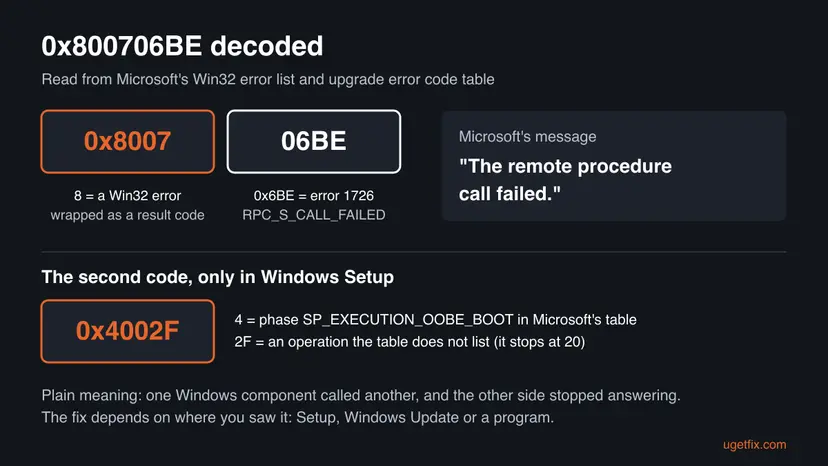
A remote procedure call (RPC) is how one Windows process asks another one, often a service, to do work. "Remote" does not mean the internet here: most of these calls stay on your own PC. The call failed because the process on the other side stopped, crashed or was cut off before it answered.
| Code or text | What Microsoft's documentation says | What it tells you |
|---|---|---|
| 0x800706BE | Win32 error 1726 (0x6BE), RPC_S_CALL_FAILED: "The remote procedure call failed." | A call between two Windows components started and broke off. It is not a missing file or a denied permission. |
| 0x800706BA (a neighbour) | Error 1722, "The RPC server is unavailable." | Different case: the other side never answered at all. If you see this one, the service did not start. |
| 0x4002F | The extend code of Windows Setup. The first digit is the phase, and phase 4 is SP_EXECUTION_OOBE_BOOT. Operation 2F is not in the table, which ends at 20. | Microsoft's table was written for Windows 10 upgrades and does not describe the new Windows 11 Setup. Treat 0x4002F as the new Setup's general failure marker. |
| Install error - 0x800706be | The text Windows Update shows next to the failed update in Settings. | The update downloaded, and the install step lost contact with the component doing the work. |
The code alone does not point to malware. It says that a call between two parts of Windows broke off. A malware scan is still a reasonable check when other strange things happen, and Fix 8 includes one.
Why Windows shows 0x800706BE
Microsoft does not publish a cause for this code in Setup or in Windows Update. The ranking below joins the meaning of the code with what users report on Microsoft Q&A and in videos. Each cause points to a fix.
| Cause | How often | How to tell | Fix |
|---|---|---|---|
| The new Windows 11 Setup fails on an older PC, often one that boots in Legacy BIOS mode. | Most reports of 0x800706BE - 0x4002F | The error appears before you choose a drive. Users report it mostly on older laptops and desktops. | Fix 1, Fix 2 |
| The installation stick was made by a third-party tool or from a modified ISO. | Sometimes | Rufus with options changed, Ventoy, or an ISO not from Microsoft. | Fix 3 |
| A Windows Update service or the update cache is stuck after a failed attempt. | Most reports of Install error - 0x800706be | The same update fails again after a restart, often at the same percent. | Fix 5, Fix 6 |
| A service behind a program or printer crashed during the call. | Sometimes | The error appears while you add a printer or start one program. | Fix 7 |
| Damaged system files or a third-party program that hooks into services. | Less often | Other Windows tools also fail, or the error stops in a clean boot. | Fix 8 |
| Unstable hardware: CPU, memory or overclock. | Rarely, but often missed | Many different errors, crashes and installers that vanish without a message. | Fix 9 |
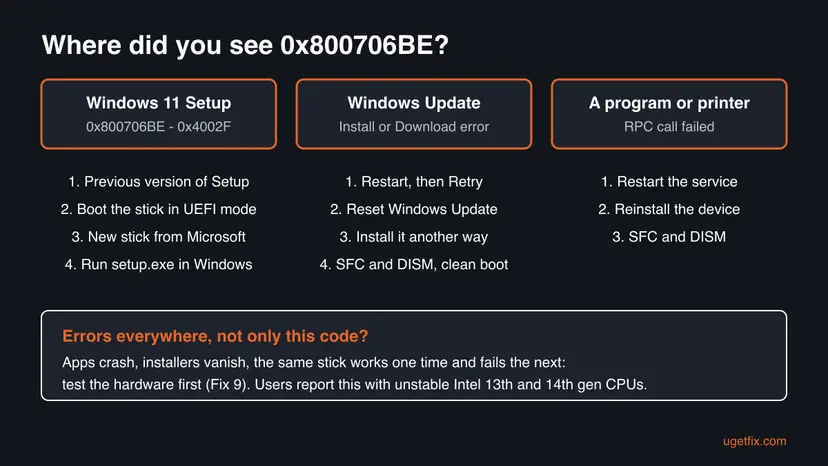
Where Windows writes the real cause of 0x800706BE
You do not need any log for Fix 1 or Fix 5. Read the logs when the first fixes do not help, because the lines before the code name the component that stopped answering.
| Where you saw it | Where to look | What to look for |
|---|---|---|
| Windows 11 Setup booted from USB | X:\Windows\Panther\setuperr.log. Press Shift + F10 in Setup and type notepad X:\Windows\Panther\setuperr.log. | The last lines with 800706BE and the component name before it. These logs are in memory and vanish at restart. |
| setup.exe run inside Windows | C:\$WINDOWS.~BT\Sources\Panther\setuperr.log (a hidden folder) | The same search. Microsoft's SetupDiag tool can read this folder for you. |
| Windows Update | Settings > Windows Update > Update history, then Event Viewer under Applications and Services Logs > Microsoft > Windows > WindowsUpdateClient > Operational | The KB number of the failed update and the time it failed. An error from another service at that time names the one that crashed. |
| A program or printer | Event Viewer, Windows Logs > Application and System | An application error or a service that "terminated unexpectedly" at the same minute. |
In Notepad, press Ctrl + End, then Ctrl + F, search Up for 800706BE and read the ten lines above the last hit. That is usually where the failing step is named.
How to fix error 0x800706BE in Windows 11 Setup and Windows Update
Fix 1 to Fix 4 are for Windows 11 Setup and the 0x4002F code. Fix 5 and Fix 6 are for Windows Update. Fix 7 is for a program or printer. Fix 8 repairs Windows itself, and Fix 9 checks the hardware when errors show up everywhere.
| What you see or have | Start with |
|---|---|
| Windows installation encountered an unexpected error. Error code: 0x800706BE - 0x4002F, after booting from USB. | Fix 1 |
| An older PC, or the boot menu shows the stick twice, with and without UEFI. | Fix 2 |
| The stick was made with a third-party tool or from an ISO not downloaded from Microsoft. | Fix 3 |
| A working Windows is on the PC and you want to upgrade to 25H2 or 26H2. | Fix 4 |
| Install error - 0x800706be or Download error - 0x800706be in Windows Update. | Fix 5 |
| The error appears when you add a printer or start one program. | Fix 7 |
| Apps crash, installers vanish and the errors keep changing. | Fix 9 |
Fix 1. Install with the previous version of Windows Setup
5 minutes, plus the installNo riskYou booted from a USB stick and the error appeared before or at the drive step.
The 0x4002F codes come from the redesigned Setup that Windows 11 media has used since 24H2. The same media still carries the older Setup, and users report that it gets past failures that the new one shows with 0x4002F.
- Boot from the USB stick and choose your language, time and keyboard settings.
- On the Select setup option screen, select Previous version of Setup in the lower left corner. Some older 24H2 media show Launch the legacy experience as an option instead.
- Select Next. The older Setup opens and asks for the language again.
- Select Install now, enter or skip the product key, choose the edition and accept the license terms.
- Choose Custom: Install Windows only (advanced), select the target partition and select Next.
The older Setup installs the same Windows version from the same media. The same route helps with other 0x4002F codes; for the disk code 0x80042444, see our guide to 0x80042444 - 0x4002F in Windows 11 Setup.
It worked if: The older Setup lists the drives and starts copying files without the error window.
If not: If the older Setup also fails, or the link is not there, check how the stick was booted in Fix 2.
Fix 2. Boot the installation stick in UEFI mode
10 minutesLow riskAn older PC, or a PC whose boot menu lists the stick twice.
Users report 0x800706BE - 0x4002F mostly on older laptops, and one report names a laptop without UEFI and Secure Boot. When the stick starts in Legacy BIOS mode, the new Setup runs in a mode Windows 11 is not built for, and a call inside it can fail.
- If Windows still runs on the PC, press Win + R, type
msinfo32and press Enter. Read BIOS Mode: UEFI or Legacy. - Restart and open the boot menu with the key your PC shows at start, often F12, F11, F8 or Esc.
- If the stick is listed twice, choose the entry that starts with UEFI:.
- If there is no UEFI entry, open the firmware settings (often F2 or Del) and look for Boot Mode or CSM. Set UEFI, or turn CSM off, if the PC offers it.
- Save, restart from the stick and run Setup again.
A Windows installed in Legacy mode on an MBR disk does not start in UEFI mode. If you only change the mode for the new install, you will erase that drive anyway. If you want to keep the old Windows, back up first (Back up your files (Windows Backup, File History, Time Machine)) and switch back to Legacy if it no longer starts.
Some older PCs have no UEFI at all. Windows 11 is not made for them, and we could not confirm a way to get the new Setup past this code on such a PC. Fix 1 is then the best chance, or stay on a supported system.
It worked if: Setup starts from the UEFI: entry and gets past the point where the error appeared.
If not: If the error comes back in UEFI mode, make a fresh stick with Microsoft's tool (Fix 3).
Fix 3. Make a new installation stick with Microsoft's Media Creation Tool
20 to 40 minutesLow riskThe stick was made with a third-party tool, a multi-boot loader or an ISO not from Microsoft.
A modified image or a loader changes how Setup starts and which components it can reach. If one of them is missing or changed, a call to it fails. A stick from Microsoft's own tool rules the media out.
- On a working PC, open Microsoft's Download Windows 11 page and select Download Now under Create Windows 11 Installation Media.
- Plug in a USB stick of at least 8 GB. Everything on it is erased.
- Run the tool, accept the license, keep or change the language and edition, and choose USB flash drive.
- Select the stick and wait until the tool says it is ready.
- Boot the PC from the new stick as in Fix 2 and run Setup again.
It worked if: Setup from the new stick reaches the drive list and installs without the error.
If not: If a clean Microsoft stick gives the same code, start the upgrade from inside Windows (Fix 4), or check the hardware (Fix 9).
Fix 4. Run setup.exe from inside Windows to upgrade to 25H2 or 26H2
1 to 2 hoursLow riskA working Windows 10 or Windows 11 is on the PC, or the 26H2 feature update fails in Windows Update.
Started from inside Windows, Setup runs on the installed system with its drivers and services, not from the stick's small boot system. It skips the boot step where the 0x4002F codes appear, and it replaces a feature update that fails in Windows Update.
- Back up the files you cannot lose: Back up your files (Windows Backup, File History, Time Machine).
- Download the Windows 11 ISO from Microsoft's Download Windows 11 page, or use the Installation Assistant on the same page.
- Right-click the ISO and select Mount. A new drive opens in File Explorer.
- Double-click
setup.exe, select Next, and choose to keep your files and apps when Setup asks. - Let the PC restart several times and do not turn it off.
If this route fails, the code and the logs move to C:\$WINDOWS.~BT\Sources\Panther. Read the section on logs above, and free space first with Free up disk space and delete temporary files when the log names disk space.
It worked if: Setup ends at the desktop, and winver shows the new version.
If not: If Setup rolls back with 0x800706BE again, repair Windows with Fix 8 first and try once more.
Fix 5. Restart, retry and reset the Windows Update components
10 minutesLow riskSettings shows Install error - 0x800706be or Download error - 0x800706be for an update.
In Windows Update the call fails when a service that installs the update stops in the middle. A restart starts every service again. If the update still fails, renaming the update cache makes Windows download it again from a clean start.
- Save your work and select Start > Power > Restart. Use Restart, not Shut down, so Windows starts all services fresh.
- Open Settings > Windows Update and select Retry next to the failed update.
- If it fails again, note the KB number from Update history.
- Reset the update components: stop the services, rename the cache folders and start them again.
- Open Command Prompt as administrator. Type cmd in the search box, right-click Command Prompt and select Run as administrator. Select Yes when Windows asks for permission.
- Stop the update services. Type the commands below and press Enter after each one. If Windows says that other services depend on Cryptographic Services, it stops them too. A message that a service is not started is fine.
net stop wuauserv
net stop bits
net stop cryptsvc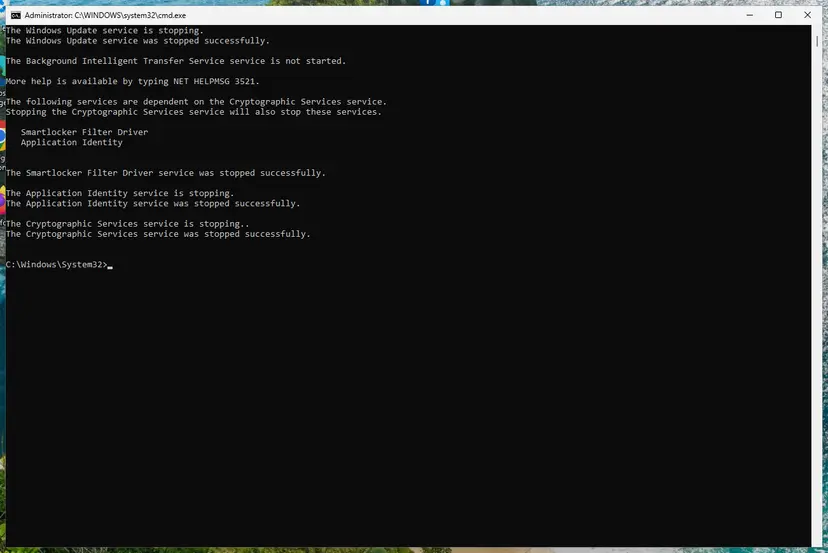
The update services are stopped. Screenshot: Windows 11 26H2. - Delete the download queue files. This clears the list of downloads that the Background Intelligent Transfer Service keeps. If Windows says it cannot find the files, continue.
del "%ALLUSERSPROFILE%\Application Data\Microsoft\Network\Downloader\qmgr*.dat" - Rename the update cache folders. Renaming keeps a copy in case you need it; Windows creates new, empty folders when the services start again. If you get Access is denied, a service is still running: repeat the previous step.
ren %systemroot%\SoftwareDistribution SoftwareDistribution.old
ren %systemroot%\System32\catroot2 catroot2.old
Both folders now end in .old. Screenshot: Windows 11 26H2. - Start the services again. Type the commands below and press Enter after each one. The requested service has already been started is fine: Windows started it on its own.
net start cryptsvc
net start bits
net start wuauserv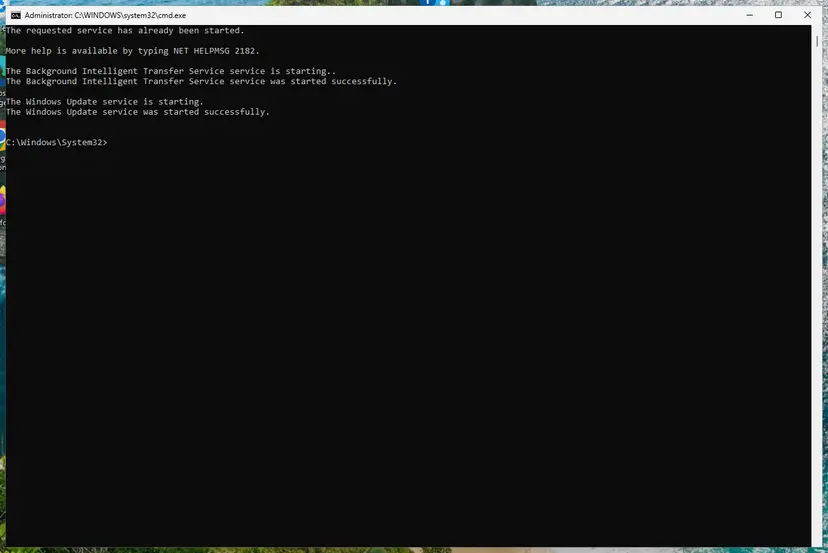
BITS and Windows Update are running again. Screenshot: Windows 11 26H2. - Restart and check for updates. Restart the PC. Then select Start > Settings > Windows Update > Check for updates. The first check can take longer than usual because everything is downloaded again.
These steps were written for Windows 11 and Windows 10 (the steps are the same). The full page with the other versions and what each result means: Reset Windows Update components
Microsoft's automatic check runs the same idea with fewer steps. Try it before the reset if you prefer: Run the Windows Update troubleshooter.
It worked if: Windows Update downloads the update again and it installs after a restart.
If not: If the same KB fails again with the same code, install it another way (Fix 6).
Fix 6. Install the failed update another way
15 to 30 minutesLow riskOne update keeps failing with 0x800706be after Fix 5.
The standalone installer from the Microsoft Update Catalog runs outside the Windows Update client. If the call that fails belongs to that client, the update can still install by itself.
- Check your Windows version. Press Windows key + R, type winver and press Enter. Note the version (for example 25H2) and the OS build.
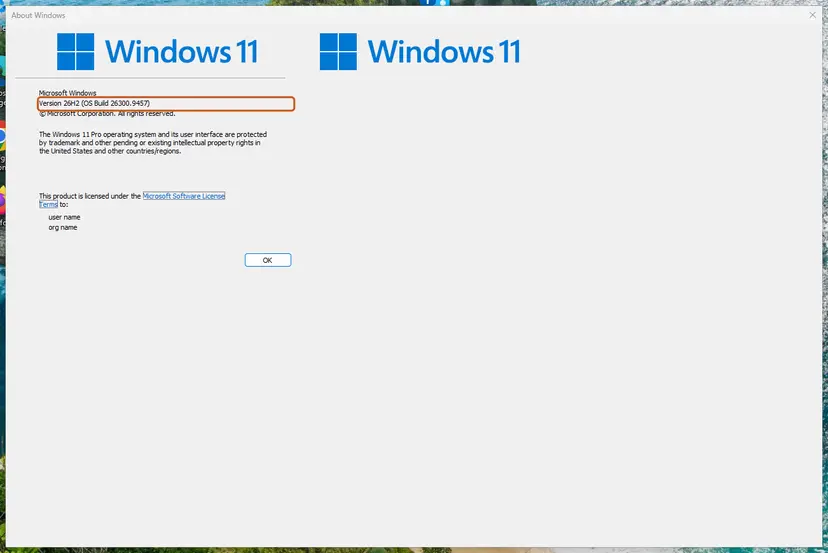
winver shows the version and OS build. Screenshot: Windows 11 26H2. - Find the KB number. Open Settings > Windows Update. A failed or pending update is listed with its KB number; earlier ones are under Update history.
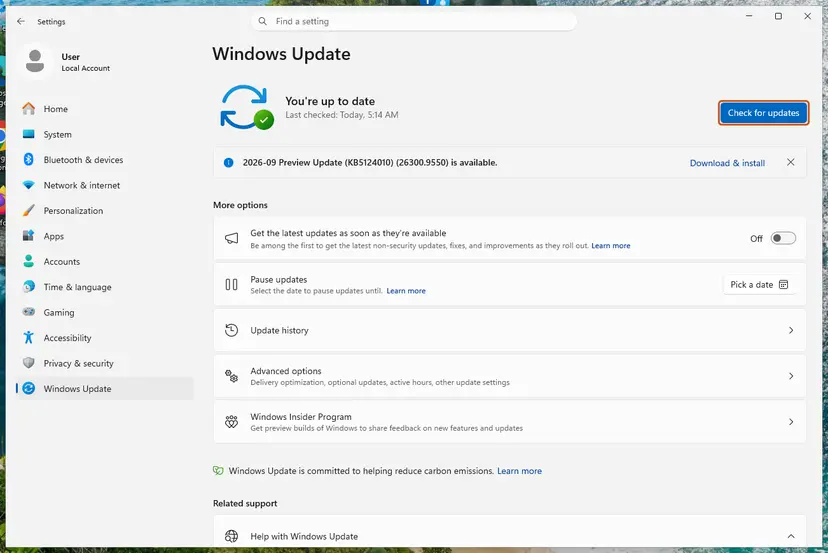
Windows Update names every update with its KB number. Screenshot: Windows 11 26H2. - Check the processor type. Open Settings > System > About and look at System type: an x64-based PC needs the x64 file, an ARM-based PC (for example Snapdragon) needs the arm64 file.
- Search the catalog. Open the Microsoft Update Catalog at catalog.update.microsoft.com in your browser, type the KB number (for example KB5124010) in the search box and press Enter.
- Pick the right row. Find the row whose title names your Windows version and your processor type (x64-based or arm64-based) and select Download on that row.
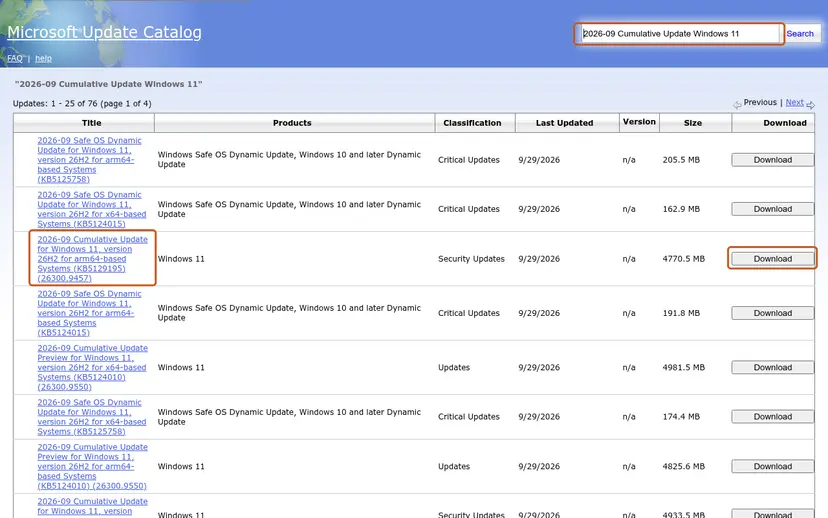
Each update is listed once per architecture: choose the row for your version (here 26H2) and processor type, then Download. Screenshot: Microsoft Update Catalog, 2026-10-03. - Download every file listed. A window lists one or more .msu links. Download all of them into one empty folder, for example C:\packages. On Windows 11 24H2 and later the list can include earlier checkpoint updates that the new one needs.
- Install a single file. If there is only one file, double-click it and confirm the installation in the Windows Update Standalone Installer.
- Install several files with DISM. If there are several files, open an elevated Terminal or Command Prompt and run DISM with the newest file. DISM finds the other files in the same folder and installs them in the right order.
DISM /Online /Add-Package /PackagePath:C:\packages\<newest-file>.msu - Restart. Restart the PC when the installation finishes, then run winver again: the OS build should have changed.
These steps were written for Windows 11 24H2 and later; Windows 10 22H2. The full page with the other versions and what each result means: Install an update from the Microsoft Update Catalog
- A monthly cumulative update: download it from the Update Catalog for your version and system type, as above.
- A feature update to 25H2 or 26H2: use the Installation Assistant or the ISO from Fix 4 instead.
- If Microsoft has a newer update for your version, install that one. It contains the older fixes.
It worked if: The standalone installer finishes, and after a restart Update history shows the update as installed.
If not: If the standalone installer also fails, the system files are likely damaged: go to Fix 8.
Fix 7. Restart the service behind the program or printer, and reinstall the device
10 minutesLow riskA program or a printer installer shows 0x800706BE or "The remote procedure call failed."
Here the other end of the call is a service, such as Print Spooler for printers. When it crashes mid-call, the program reports the RPC failure. Restarting the service and reinstalling the device clears a crash caused by a bad driver.
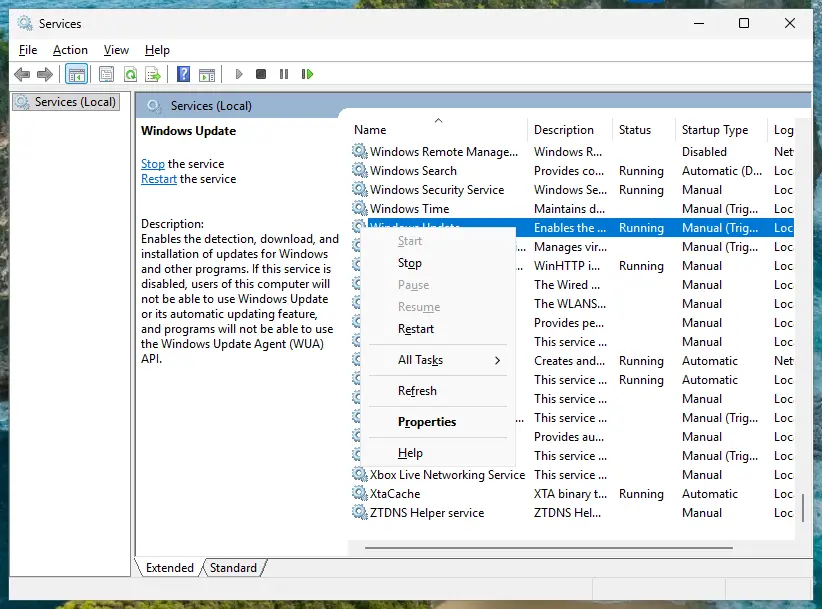
- Press Win + R, type
services.mscand press Enter. - Find the service the program depends on. For printers it is Print Spooler.
- Right-click it and select Restart. If it is stopped, select Start.
- For a printer or other device, press Win + X and open Device Manager.
- Right-click the device, select Uninstall device, confirm, and restart the PC.
- Install the newest driver from the maker's support page, then add the device again.
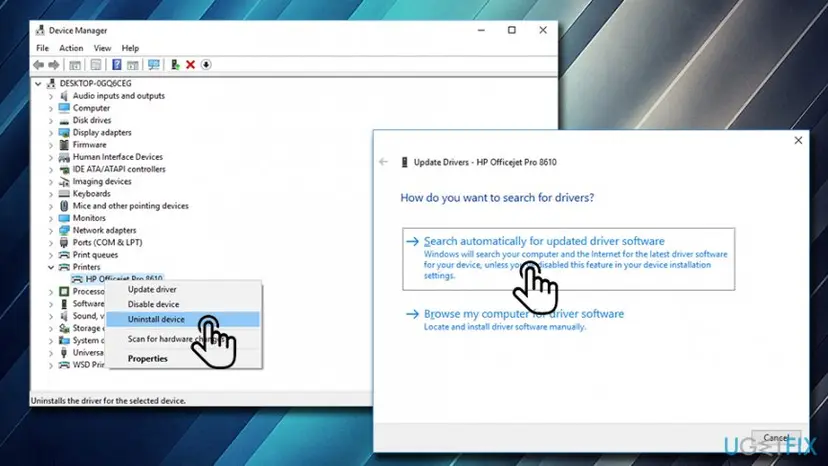
We could not confirm a Microsoft article that ties 0x800706BE to one printer or program. If the service stops again right after you restart it, its driver or the program itself is the problem. Ask the maker for an update. More on driver steps: Update, roll back or reinstall a driver.
It worked if: The service shows Running, and the program or printer works without the error.
If not: If the service keeps stopping, repair Windows with Fix 8.
Fix 8. Repair system files and test in a clean boot
20 to 40 minutesLow riskThe error comes back after the fixes above, or other Windows tools also fail.
A damaged system file can make a service crash every time it is called. DISM and SFC replace damaged files. A clean boot shows whether a third-party service, such as security or tuning software, breaks the call.
- Open an elevated command window. Right-click Start and select Terminal (Admin), or type cmd in the search box, right-click Command Prompt and select Run as administrator. Select Yes when Windows asks for permission.
- Run DISM first. Type the command below and press Enter. DISM downloads clean copies of damaged components from Windows Update, so it can take several minutes. Wait until it says The operation completed successfully.
DISM.exe /Online /Cleanup-Image /RestoreHealth - Run System File Checker. In the same window, type the command below and press Enter. Do not close the window until the verification reaches 100%.
sfc /scannow - Read the result and restart. Compare the last message with the table below this guide, then restart the PC so that repaired files are loaded.
These steps were written for Windows 11 24H2 and 25H2. The full page with the other versions and what each result means: Run DISM and SFC to repair Windows system files

Then start Windows with only Microsoft services and try the update or program again: How to perform a clean boot in Windows. If the error is gone in a clean boot, turn the services back on in groups until it returns. A scan with Microsoft Defender is a sensible check at the same time: How to scan for malware with Microsoft Defender.
It worked if: SFC reports that it found no integrity violations or repaired them, and the update or program works after a restart.
If not: If SFC or DISM themselves stop without a message, suspect the hardware (Fix 9).
Fix 9. Test the hardware when errors show up everywhere
30 minutes to several hoursLow riskMany errors at once: apps crash, installers close without a message, and the same stick works one time and fails the next.
A process that crashes because the CPU or memory makes a mistake ends the call without warning. On Microsoft Q&A, a user whose update failed with 0x800706be reported that it was an unstable Intel Core 13th generation CPU, and that updates worked after the CPU was replaced.
- Remove any overclock or memory profile (XMP or EXPO) in the firmware settings and test again.
- Update the firmware (BIOS) from the PC or motherboard maker's support page.
- Test the memory: How to test your RAM with Windows Memory Diagnostic.
- If you have an Intel Core i5, i7 or i9 of the 13th or 14th generation, check the maker's support page for your board's latest BIOS and contact Intel or the seller if the crashes go on.
The CPU report comes from one user on Microsoft Q&A, and a Microsoft support specialist agreed it may cause this. We could not confirm it in an Intel or Microsoft article, so treat it as a lead to check, not a diagnosis.
It worked if: The memory test finds no errors, and after the firmware update the crashes and the 0x800706BE error stop.
If not: If the memory test reports errors or the crashes go on, have the PC checked or the part replaced under warranty.
If error 0x800706BE is still there
When the fixes for your case have not helped, the answer is in the log of the place where you saw the code. Copy it before you restart, because the Setup logs from a USB boot vanish.
| What you find | What to do |
|---|---|
| Setup log names a driver or a storage controller before 800706BE | Load the maker's storage driver in the older Setup, or disconnect extra drives as in our 0x80042444 guide. |
| Windows Update fails only on one KB, and the Catalog installer also fails | Upgrade in place with Fix 4. It replaces the system files and keeps your apps. |
| A service crashes again and again in Event Viewer | Update or remove the program that owns it, then run Fix 8 again. |
| Errors change between attempts, memory test fails | Treat it as hardware (Fix 9). No software fix will hold. |
| A work or school PC | Ask the IT department. Updates and installs may be managed by them. |
- What to send to support: the full code, where it appeared (Setup, Windows Update or a program), the Windows version, and the KB number for an update.
- Attach
setuperr.logandsetupact.logfor Setup, or a screenshot of Update history for Windows Update. - Say whether the PC has an overclock, and name the CPU model.
How to keep 0x800706BE from coming back
- Make installation media with Microsoft's tool, and make a fresh stick for each new Windows version.
- Boot the stick in UEFI mode on any PC that supports it.
- Restart the PC before a large update, so every service starts fresh.
- Keep the firmware (BIOS) and drivers up to date from the PC maker.
- Do not turn the PC off while Windows Update shows Installing.
- Do not install from modified ISOs or with tweaked Setup options.
- Do not keep an unstable overclock: random RPC failures are one of its signs.
- Do not turn off your antivirus to get an update through.
Windows 11 24H2 Home and Pro reached the end of updates on 13 October 2026, and Windows 10 left support on 14 October 2025. If you are installing or upgrading now, use current media, which is 26H2.
Frequently asked questions
What does error code 0x800706BE mean?
It means "The remote procedure call failed." The code holds the Win32 error 1726, which Microsoft names RPC_S_CALL_FAILED. One part of Windows called another part, usually a service, and the call broke off before an answer came back. It does not say which component failed: that depends on where you saw the code. In Windows 11 Setup it comes with 0x4002F. In Windows Update it shows as Install error or Download error. The fixes on this page follow those places.
How do I fix 0x800706BE - 0x4002F when installing Windows 11?
Select Previous version of Setup on the Select setup option screen and install with the older Setup (Fix 1). If that link is missing or the older Setup also fails, boot the USB stick from its UEFI entry in the boot menu (Fix 2). Then make a fresh stick with Microsoft's Media Creation Tool (Fix 3). If a working Windows is on the PC, mount the ISO and run setup.exe inside Windows instead (Fix 4).
What is 0x4002F?
0x4002F is the extend code of Windows Setup, the second half of the error. Microsoft's table reads the first digit as the phase, and phase 4 is SP_EXECUTION_OOBE_BOOT. The operation 2F is not in the table, which ends at 20 and was written for Windows 10 upgrades. The new Windows 11 Setup shows 0x4002F after many different first codes, so it tells you little by itself. Read the first code: 0x800706BE means a call between components failed.
How do I fix Install error - 0x800706be in Windows Update?
Restart the PC with Restart, not Shut down, and select Retry in Settings > Windows Update. If it fails again, reset the Windows Update components and the update cache (Fix 5). If the same KB still fails, download it from the Microsoft Update Catalog and run it by itself (Fix 6). When the failing update is the upgrade to 25H2 or 26H2, use the Installation Assistant or the ISO instead (Fix 4).
What does Download error - 0x800706be mean?
It is the same code at an earlier step: the Windows Update client lost contact with a component while the update was downloading or being prepared. The cause is usually a stuck update service or a damaged update cache, not your internet connection. Restart, select Retry, and if it fails again, reset the update components with Fix 5. If the download still fails, get the update from the Update Catalog with Fix 6.
Does 0x800706BE appear on Windows 10?
Yes. The code is part of Windows itself, so Windows 10 shows it in Windows Update and in programs the same way as Windows 11. One Microsoft Q&A report is about a Windows 10 22H2 cumulative update that failed with 0x800706be. Windows 10 left support on 14 October 2025, so many PCs now see it when they move to Windows 11. In that case Fix 4, setup.exe inside Windows, is the usual route.
Why does 0x800706BE appear when upgrading to 26H2?
Microsoft has not listed 0x800706BE as a known issue for 26H2. The upgrade runs many services in turn, and the code appears when one of them stops in the middle. Start with a restart and Retry. If the feature update keeps failing in Windows Update, use the Installation Assistant or mount the 26H2 ISO and run setup.exe (Fix 4). If that fails too, read setuperr.log in C:\$WINDOWS.~BT\Sources\Panther for the component named before the code.
Is 0x800706BE caused by a virus?
Not as a rule. The code says a call between two parts of Windows failed, and that happens most often for ordinary reasons: a stuck service, damaged files or the new Setup on an older PC. Malware can damage system files and cause it indirectly, so a full scan with Microsoft Defender is a fair check when other strange things happen. Fix 8 links the scan. Do not turn off your antivirus to get past the error.
Can a faulty CPU or RAM cause error 0x800706BE?
It can. A process that crashes because of a hardware fault ends the call, and Windows reports the RPC failure. On Microsoft Q&A, a user traced repeated 0x800706be update failures to an unstable Intel Core 13th generation CPU, and updates worked after the CPU was replaced. We could not confirm this in a vendor article. If you also see crashes and installers that vanish, remove any overclock, update the BIOS and test the memory (Fix 9).
Is 0x800706BE the same as 0x800706BA?
No. Both are RPC errors, but they mean different things. 0x800706BE, error 1726, says the call started and then failed. 0x800706BA, error 1722, says "The RPC server is unavailable": the other side never answered, often because a service is not running. The first steps overlap, since restarting the services helps both. For 0x800706BA, check first that the needed service starts at all in services.msc.
Sources
- Microsoft Learn: System Error Codes (1700-3999), 1726 RPC_S_CALL_FAILED "The remote procedure call failed" (learn.microsoft.com)
- Microsoft Learn: Windows upgrade error codes (result codes, extend codes, phases and operations) (learn.microsoft.com)
- Microsoft Q&A: error 0x800706be when installing a Windows 10 22H2 cumulative update (user report and support answer) (learn.microsoft.com)
Did this fix work?
One click, no account. It tells the next reader which guides are worth their time.
Questions and experiences: fix Windows Error Code 0x800706BE
Still broken, or found a fix we did not cover? Ask here: members and our editors answer. Reading is open; writing needs a free account.
…