
How to fix Windows stuck on "Updates are underway" screen?

Prefer to fix it yourself? The manual steps follow.
- 8methods
- 5 minutes to check, 15 to 60 minutes to undo the update
- Intermediate
Applies to Windows 11 and Windows 10 PCs that hang on the update screen during a restart or shutdown, including laptops and branded desktops
8 methods in this guide
Hello. I started the updating process on my Windows PC, but the update has been stuck on the "Updates are underway. Please keep your computer on." screen for several hours. How should I deal with this?
The "Updates are underway, please keep your computer on" screen is how Windows 11 installs an update during a restart or shutdown. A long wait is often normal, but a screen that has not changed for hours, or that returns after every restart, means the update cannot finish. Then uninstall the latest update from the recovery environment.
If the percentage or the drive light still changes, wait. If nothing has changed for two hours, unplug USB drives and docks, hold the power button to turn the PC off once, and start it again (Fix 1). If the same screen comes back, force the recovery screens and choose Troubleshoot > Advanced options > Uninstall Updates > Uninstall latest quality update (Fix 2). Your files stay.
| Error | No error code. A black or blue screen with a spinning circle reads Updates are underway. Please keep your computer on., sometimes with a percentage, and does not move. |
|---|---|
| Where it appears | During Update and restart or Update and shut down, before the sign-in screen. Windows installs the parts of the update that cannot be replaced while it runs. |
| Main cause | A large update that is still working, or an update whose pending boot-time steps fail and start again on every restart. Less often a driver update, an external device or a full drive. |
| Fastest fix | Remove external devices and do one forced restart (Fix 1). If the screen returns, uninstall the latest update from Windows Recovery (Fix 2). |
| Also written as | "System updates are underway", "Updates are underway, please keep your PC on", "update underway" and "Updates are underway, 7%". |
| Affects | Windows 11 24H2, 25H2 and 26H2 show this wording. Windows 10 22H2 uses the same recovery tools; Windows 10 left support on 14 October 2025. |
| Vendor status | Not a known issue. On 14 October 2026 Microsoft's release health page for Windows 11 25H2 listed no issue about updates hanging at restart. |
| Time to fix | Fix 1 takes 5 minutes. Uninstalling the update or System Restore takes 10 to 30 minutes. Reset this PC takes an hour or more. |
Facts checked on 14 October 2026. Steps written for Windows 11 (25H2 and 26H2) and Windows 10 22H2.
What "Updates are underway. Please keep your computer on" means
Windows cannot replace every system file while you use it. When you select Update and restart or Update and shut down, it finishes the install in a special phase before the sign-in screen. On current Windows 11 builds that phase shows Updates are underway. Please keep your computer on., often with a percentage. The screen is a progress screen, not an error.
The update may restart the PC once or twice and come back to the same screen. That is part of the process. A problem starts only when the screen stops changing for a long time, or when Windows returns to it after every restart without ever reaching the sign-in screen.
| What you read | What it means |
|---|---|
| Updates are underway. Please keep your computer on. | The update is installing during a restart or shutdown. This is the Windows 11 wording. |
| System updates are underway or keep your PC on and connected | Users report this wording too, for example after optional driver updates. Treat it the same way. |
| Updates are underway with a percentage such as 7 %, 30 % or 100 % | Progress of this phase. The number can stay still for a long time while work goes on. |
| We couldn't complete the updates. Undoing changes. Don't turn off your computer. | The update failed and Windows is rolling it back. Wait for it to finish; it is fixing itself. |
| Automatic Repair or Choose an option after a restart | Windows gave up starting normally and opened the recovery environment. Go to Fix 2. |
Every spelling people type (update underway, updates are under way, system update are underway) points to this same screen. We could not find a Microsoft page that documents the exact wording or the build in which it replaced the older text.
Is Windows still updating or really stuck? Check before you turn it off
Microsoft publishes no time limit for this screen. A monthly security update usually passes quickly, while a version upgrade (for example to 26H2) or an old hard disk can take much longer. So the clock alone does not tell you much. Look for signs that the PC is still writing to the drive.
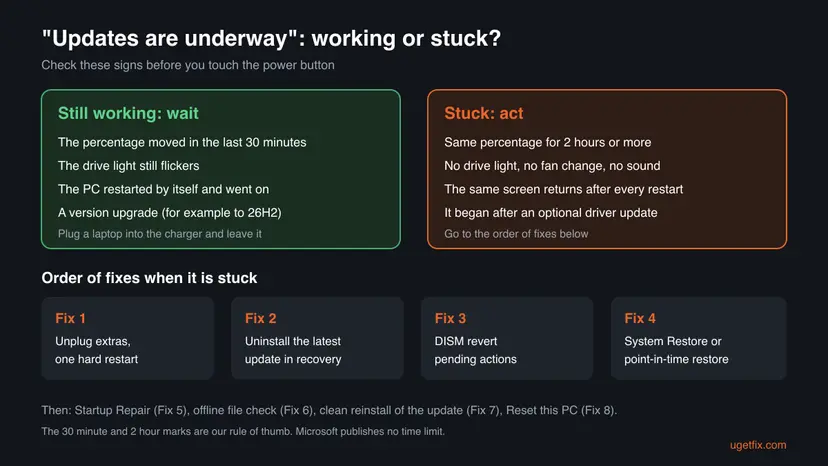
- Plug a laptop into its charger and leave it on a hard surface.
- Note the percentage and the time, then look again after 30 minutes.
- Watch the drive activity light, if your PC has one.
- Find your BitLocker recovery key on another device now, at aka.ms/myrecoverykey. The recovery tools may ask for it.
- Do not cut power in the first hour while the percentage still moves.
- Do not force shutdowns again and again. Two in a row are only for opening recovery on purpose.
- Do not open the case or reseat parts. This is a software problem in almost every case.
- Do not start a clean install of Windows before you have tried Fixes 2 to 4.
Our rule of thumb: if the percentage moved within the last 30 minutes, wait. If it has not moved for two hours and the drive light is dark, the update is stuck. Users on Microsoft Q&A report screens that stayed for 6 and for more than 10 hours, and those did not finish on their own.
Why the "Updates are underway" screen gets stuck: causes ranked
Most often nothing is broken: a large update needs more time than you expect. Less often the update leaves pending boot-time actions that fail, so Windows tries them again on every start. Rarely the drive, a device or damaged system files are the real cause.
| How often | Cause | Sign | Fix |
|---|---|---|---|
| Most often | A large update still working | Percentage or drive light still changes | Wait, then Fix 1 |
| Often | Pending update actions fail at boot | Same screen after every restart | Fix 2, then Fix 3 |
| Often | An optional driver update or an attached device | Began after a driver update, or a dock or USB drive is attached | Fix 1, then Fix 4 |
| Sometimes | The new update clashes with something on this PC | Uninstall Updates fails with "Windows ran into a problem" | Fix 4 |
| Sometimes | Damaged system files or boot files | Restore points missing, Startup Repair finds problems | Fix 5 and Fix 6 |
| Sometimes | Not enough free space for the update | Drive C was nearly full before you updated | Fix 7 once Windows starts |
| Rarely | A failing drive | Clicking, very slow starts, disk errors | See "Still stuck" below |
Microsoft's own checklist for stuck updates names two of these causes plainly: remove external storage, docks and other hardware you do not need, and keep at least 20 GB free on a 64-bit system for an upgrade.
How to fix Windows stuck on "Updates are underway"
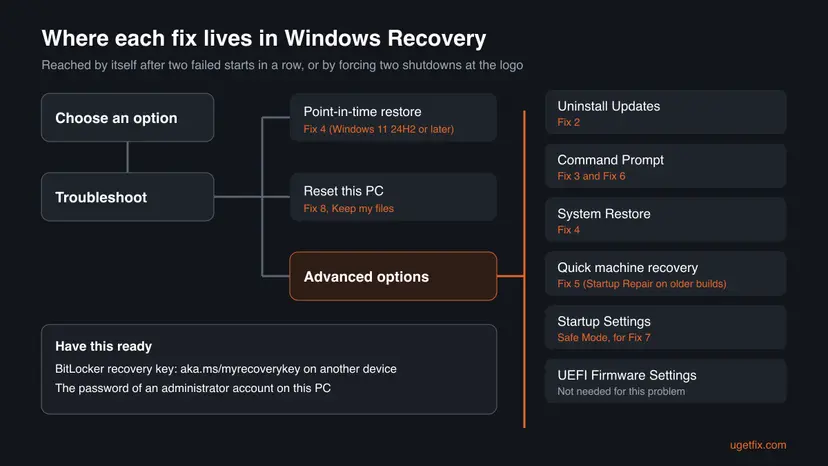
Start at Fix 1 and stop when Windows reaches the sign-in screen. Fixes 2 to 6 run from the Windows Recovery Environment, which opens by itself after two failed starts. Once Windows starts again, do Fix 7 so the update installs cleanly next time.
| What you see | Start with |
|---|---|
| The percentage or the drive light still changes | Wait, see "Working or stuck" |
| Nothing has changed for two hours, first time you try anything | Fix 1 |
| The same screen comes back after every restart | Fix 2 |
| Uninstall Updates fails with "Windows ran into a problem" | Fix 3, then Fix 4 |
| It started right after an optional driver update | Fix 1, then Fix 4 |
| Windows starts, but the update fails again or loops | Fix 7 |
| Nothing above helped and your files are backed up or on OneDrive | Fix 8 |
Fix 1. Remove external devices and restart the PC once
5 minutesLow riskThe screen has not changed for two hours and you have not tried anything yet.
A hang during the boot phase is often a one-off: a driver waits for a device, or one step times out. Microsoft's update checklist tells you to remove external drives, docks and other hardware you do not need. One clean restart lets Windows retry the step or roll it back.
- Plug a laptop into its charger.
- Unplug everything you do not need to start the PC: USB drives, external disks, card readers, docks, printers and phones. Keep the keyboard, mouse and one monitor.
- Press and hold the power button until the PC turns off. This usually takes 5 to 10 seconds.
- Wait about 30 seconds, then press the power button once to start the PC.
- Watch the screen. Windows may continue the update, show Undoing changes, or go straight to the sign-in screen. Leave it alone while it does any of these.
- If it comes back to Updates are underway and holds again for an hour, do not repeat this. Go to Fix 2.
Microsoft asks you to keep the PC on during this phase, and we could not find a Microsoft statement on what a forced shutdown does at this point. Windows is built to roll back an update that did not complete, and in the reports we read it either continued or rolled back. That is why this fix is done once, not repeatedly.
It worked if: Windows finishes the update or shows "Undoing changes", then reaches the sign-in screen and your desktop.
If not: If the same screen returns, or Windows now shows Automatic Repair, uninstall the latest update with Fix 2.
Fix 2. Uninstall the latest update from the Windows Recovery Environment
10 to 20 minutesLow riskThe update screen comes back after every restart and Windows never reaches the sign-in screen.
When the pending update cannot finish, removing it takes Windows back to the build that worked yesterday. Microsoft documents this tool for exactly this case, a PC that does not start after an update, and states that your files and apps are not affected.
- Interrupt the startup twice. Turn the PC on and, as soon as the Windows or manufacturer logo appears, hold the power button until the PC shuts down. Do this twice. If Windows already fails to start several times in a row, it opens the recovery environment on its own.
- Open the advanced options. Turn the PC on a third time. On the Automatic Repair screen, select Advanced options.
- Open Uninstall Updates. Select Troubleshoot > Advanced options > Uninstall Updates.
- Remove the latest update. Select Uninstall latest quality update and follow the instructions. Quality updates are the regular monthly updates.
- Start Windows and pause updates. Let the PC restart. Once Windows starts, pause updates as described in the tab for your version of Windows, so the same update is not installed again at once.
These steps were written for Windows 11 and Windows 10, from the Windows Recovery Environment. The full page with the other versions and what each result means: How to uninstall a Windows update
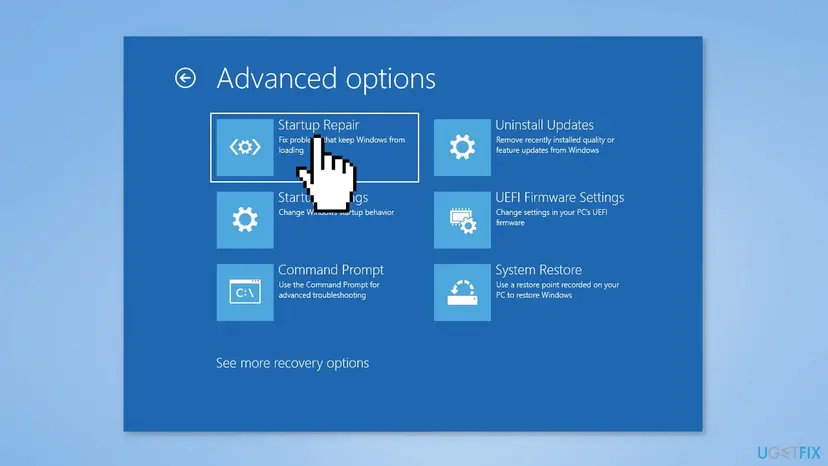
- Choose Uninstall latest quality update if the screen appeared after a normal monthly update. This is the usual case.
- Choose Uninstall latest feature update only if the PC was moving to a new version, for example from 25H2 to 26H2.
- If the drive is encrypted, Windows asks for the BitLocker recovery key. Read it from aka.ms/myrecoverykey on a phone or another PC.
It worked if: The recovery tool reports that the update was uninstalled, the PC restarts, and you reach the sign-in screen without the update screen.
If not: If you see "Windows ran into a problem and was unable to uninstall the update", the update may not be fully installed yet. Revert its pending actions with Fix 3.
Fix 3. Revert pending update actions with DISM from the recovery Command Prompt
10 minutesLow riskUninstall Updates failed or did not offer the update, and the screen still returns.
An update that is half installed leaves actions queued for the next boot, and Uninstall Updates cannot remove what is not installed yet. Microsoft documents /RevertPendingActions for a boot failure: it reverts all pending actions from previous servicing operations, because these actions might be the cause.
- In the recovery environment, select Troubleshoot > Advanced options > Command Prompt. Sign in with an administrator account or enter the BitLocker key if asked.
- Find the letter of your Windows drive. In recovery it is often not C. Type the command below, then try
D:andE:if C shows no Windows folder.dir C:\Windows - Run DISM against that drive. Replace
C:with the letter you found.dism /image:C:\ /cleanup-image /revertpendingactions - Wait until DISM reports that the operation completed. Do not close the window while it works.
- Type
exit, press Enter, then select Continue to start Windows. - Windows may show Undoing changes or restart once. Let it finish.
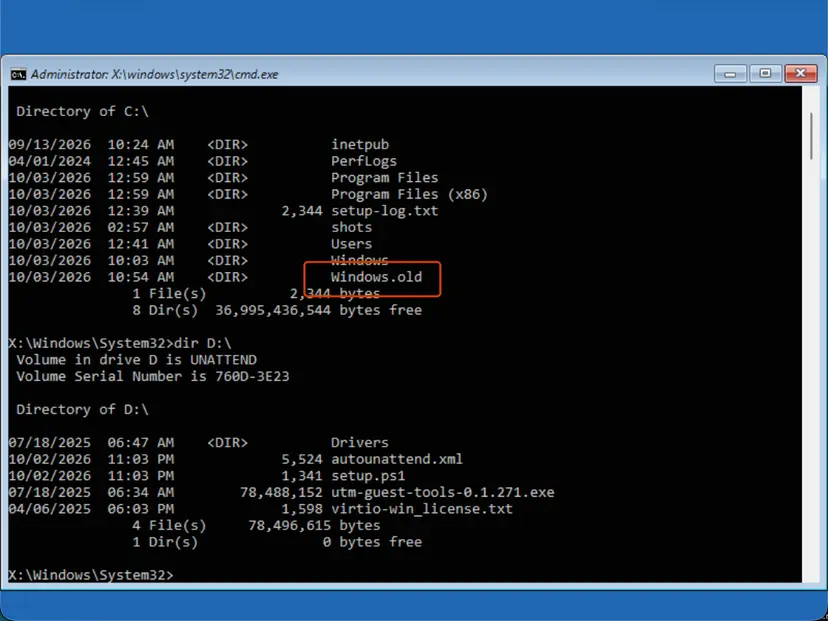
dir shows which drive letter holds the Windows folder. Use that letter in the DISM command.In recovery, the running system is the recovery environment itself, so /Online points at the wrong Windows. A user on Microsoft Q&A who ran DISM /Online /Cleanup-image /Restorehealth there got error 87. Microsoft also says to use /RevertPendingActions only on a Windows image that did not boot, never on a working PC.
It worked if: DISM ends with "The operation completed successfully" and Windows starts to the sign-in screen, without the update.
If not: If DISM reports an error or Windows still loops, roll the PC back to a restore point with Fix 4.
Fix 4. Go back to a restore point with System Restore or point-in-time restore
10 to 30 minutesRead the warningFixes 2 and 3 failed, or the problem began after an optional driver update.
A restore point puts back system files, drivers and settings from before the update, which also removes a driver that blocks the boot. In a Microsoft Q&A thread from April 2026, the user whose uninstall failed reports that System Restore fixed the loop in about 5 minutes.
System Restore keeps your personal files but removes apps, drivers and updates installed after the restore point. Point-in-time restore rolls back the whole Windows drive, personal files included, to its snapshot. Use System Restore first. Choose point-in-time restore only when your recent files are on OneDrive or another drive.
- In the recovery environment, select Troubleshoot > Advanced options > System Restore.
- Choose your account and type its password. If the drive is encrypted, enter the BitLocker recovery key.
- Select Next, pick a restore point dated before the stuck update, and select Scan for affected programs to see what will be removed.
- Select Next, then Finish, and confirm. Do not interrupt the restore.
- If there is no restore point and your PC runs Windows 11 24H2 or later, go back to Troubleshoot and select Point-in-time restore instead.
- Pick a restore point, read the warning, select Continue, then Restore. The PC restarts into Windows when it is done.
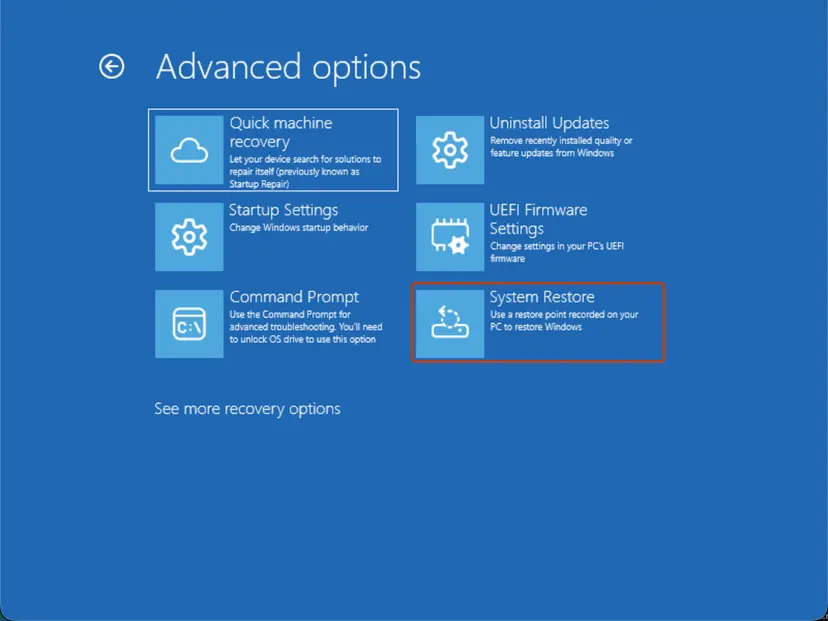
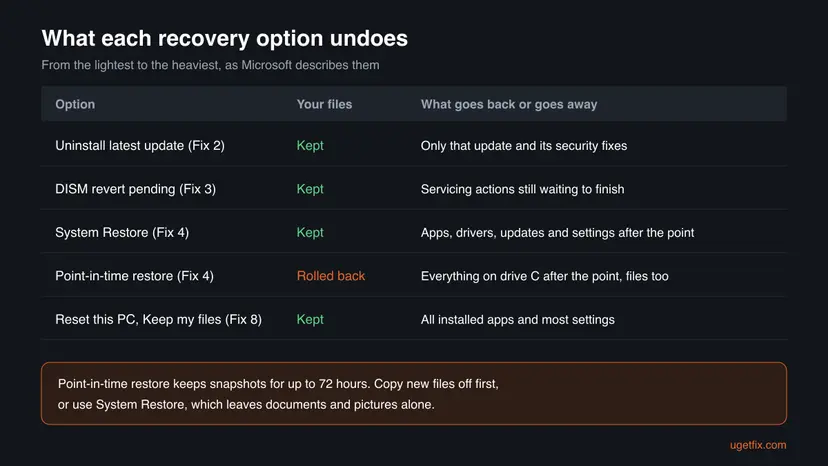
Point-in-time restore makes a snapshot about every 24 hours and keeps it for up to 72 hours. It is on by default on home PCs whose Windows drive is 200 GB or larger. Microsoft notes that a restore can also take back recent security updates, so run Windows Update afterwards.
It worked if: Windows reports that the restore completed, restarts, and reaches the sign-in screen with your desktop as it was at the restore point.
If not: If there is no restore point or the restore fails, let Windows repair its startup with Fix 5.
Fix 5. Run Startup Repair (Quick machine recovery on Windows 11 26H2)
10 to 30 minutesLow riskNo restore point exists, or Windows now stops at a black screen or Automatic Repair instead of the update screen.
After a failed update, boot files and the boot configuration can be left in a state that sends Windows back into the update phase. Startup Repair checks why Windows does not start and repairs the boot files and settings it finds damaged.
- Select Troubleshoot. On Choose an option, select Troubleshoot.
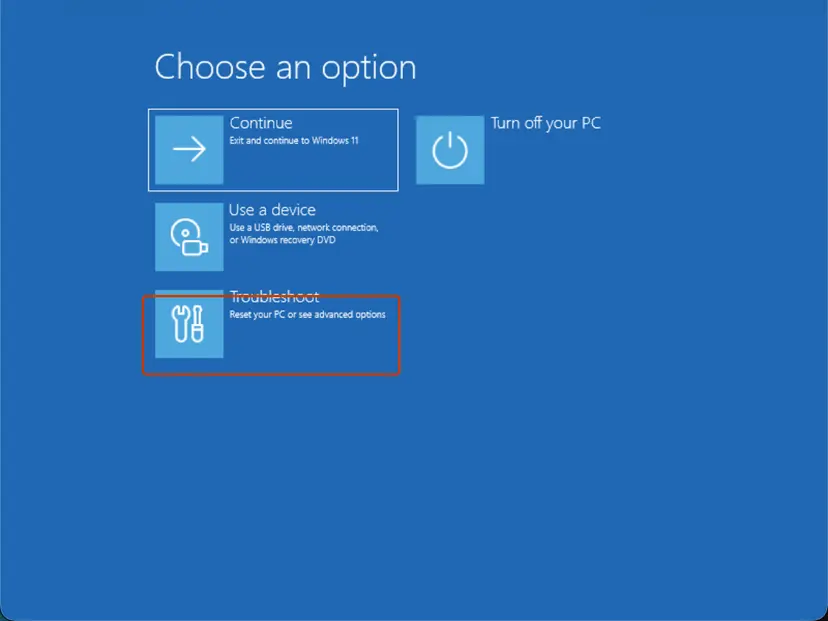
Choose an option: Troubleshoot. Screenshot: Windows 11 26H2. - Open Advanced options. Select Advanced options.
- Start the repair. Select Quick machine recovery (or Startup Repair on older versions).
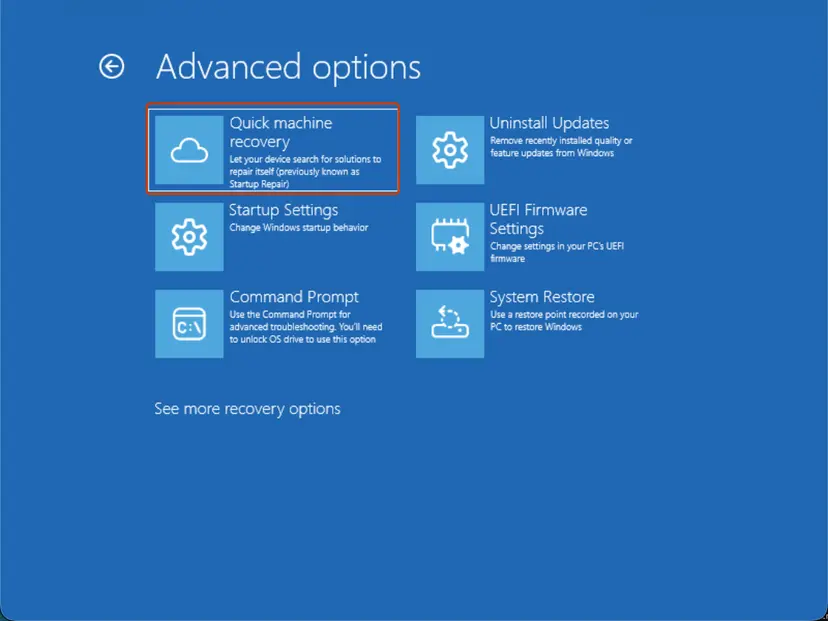
Quick machine recovery is the former Startup Repair tile. Screenshot: Windows 11 26H2. - Sign in if asked. Choose an administrator account and type its password. If Windows asks for the BitLocker recovery key, enter it.
- Wait for the result. The check can take a while. If it fixes the problem, the PC restarts into Windows. If it cannot, it says so and shows where its log file is; select Advanced options and continue below.
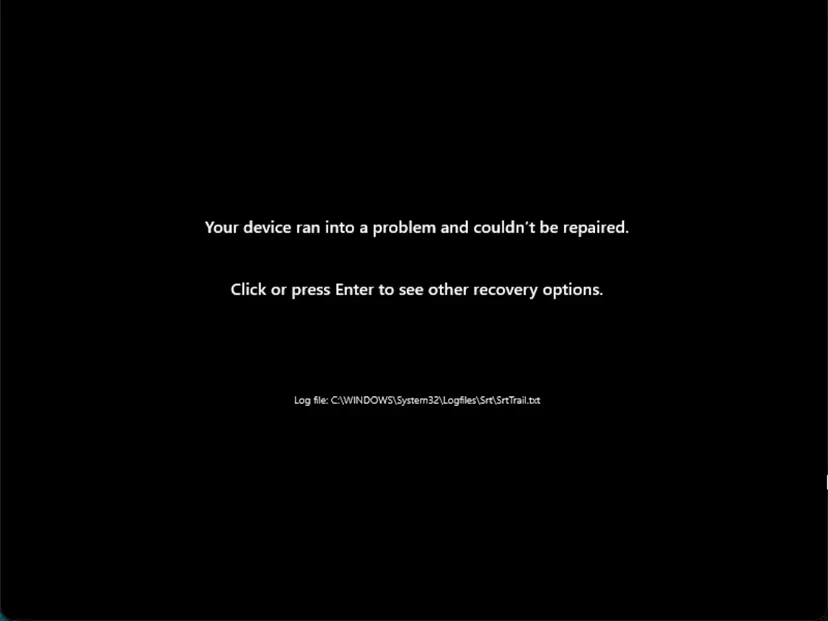
This message means the repair found nothing it could fix. Screenshot: Windows 11 26H2.
These steps were written for Windows 11 and Windows 10, from the Windows Recovery Environment. The full page with the other versions and what each result means: Run Startup Repair
Startup Repair does not remove the update by itself. If it reports that it could not repair your PC, the files it needed are not damaged in a way it can see, and the next step is the system file check in Fix 6.
It worked if: Startup Repair reports a repair, the PC restarts, and Windows reaches the sign-in screen.
If not: If it says it could not repair your PC, check the system files offline with Fix 6.
Fix 6. Check Windows system files offline from the recovery environment
15 to 30 minutesLow riskStartup Repair found nothing and the update screen or a failed start keeps coming back.
The boot-time install replaces system files. If some of them are damaged, the update fails at the same step each time. System File Checker can scan the Windows drive from recovery and replace damaged files while Windows is not running.
- Open the recovery environment. If Windows still reaches the sign-in screen, hold Shift and select Power > Restart. From a working desktop you can also use Settings > System > Recovery > Advanced startup > Restart now.
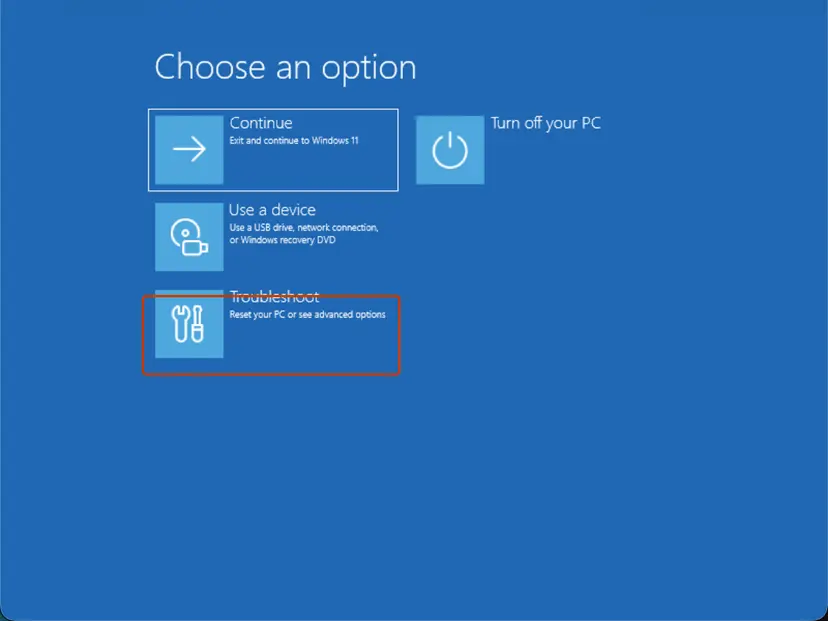
Choose an option: Troubleshoot. Screenshot: Windows 11 26H2. - Open Command Prompt. Select Troubleshoot > Advanced options > Command Prompt.
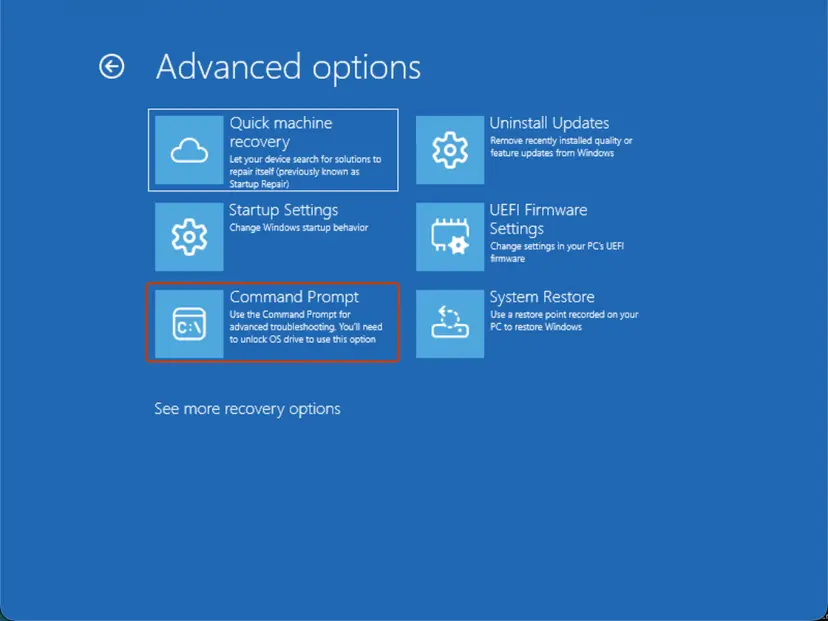
Advanced options: Command Prompt. Screenshot: Windows 11 26H2. - Find the drive letter of Windows. In the recovery environment the drive letters are often different from the ones you know. Try the commands below one by one: the right letter is the one that lists the Windows folder's contents (System32, WinSxS and so on).
dir C:\Windows
dir D:\Windows
dir E:\Windows
dir shows which letter holds the Windows folder. Screenshot: Windows 11 26H2. - Run the offline scan. Run SFC against that drive. Replace D: with the letter you found in both places.
sfc /scannow /offbootdir=D:\ /offwindir=D:\Windows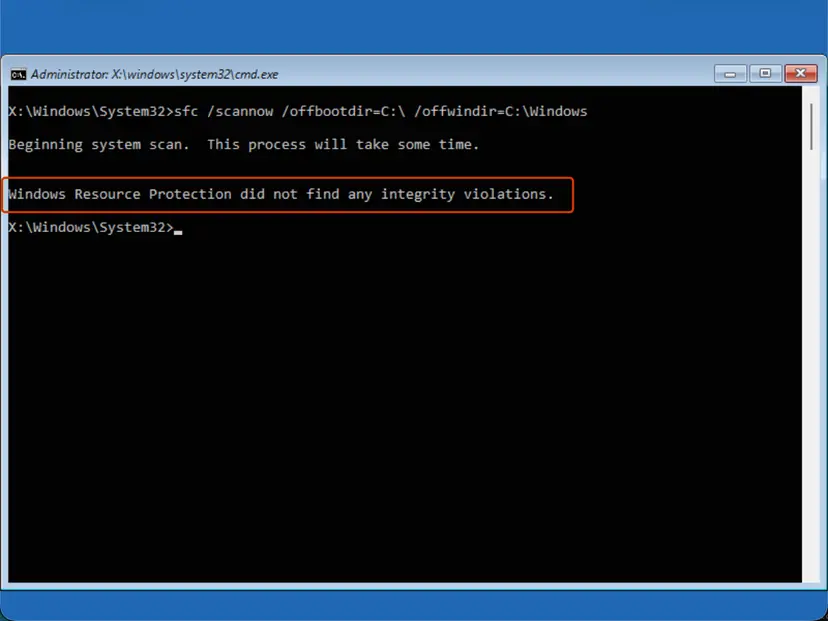
Offline SFC result. Screenshot: Windows 11 26H2. - Restart. Close Command Prompt and select Continue to start Windows.
These steps were written for Windows 11 and Windows 10, from the Windows Recovery Environment. The full page with the other versions and what each result means: Run DISM and SFC to repair Windows system files
It worked if: SFC reports that it found and repaired corrupt files, or that it found no integrity violations, and Windows starts after the restart.
If not: If SFC cannot repair files and Windows still does not start, reinstall Windows with Fix 8.
Fix 7. Once Windows starts, clean the update cache and install the update again
20 to 40 minutesLow riskWindows starts again after any fix above, and you want the update to install without hanging.
The update you removed or rolled back will come back on its own. If its downloaded files are damaged or the drive is short of space, it will hang again. Clearing the download cache and checking space first makes the next install start from clean files.
- Open Settings > Windows Update and select Pause for 1 week, so the same update does not install before you are ready.
- Open Settings > System > Storage and check that drive C has at least 20 GB free. Free space as shown in Free up disk space and delete temporary files.
- Reset the update cache: stop the update services and rename
C:\Windows\SoftwareDistributionandC:\Windows\System32\catroot2. Step by step: Reset Windows Update components. - Run the Windows Update troubleshooter in Get Help: Run the Windows Update troubleshooter.
- Unplug USB drives and docks again, then select Resume updates and Check for updates.
- When Windows asks to restart, keep the laptop on its charger and do not use the power button during the update screen.
- If the same update fails again, download it from the Microsoft Update Catalog and install it by hand: Install an update from the Microsoft Update Catalog.
If Windows only starts in Safe Mode, do steps 2 to 4 there and restart normally: Start Windows or a Mac in Safe Mode. If the install now fails with error 0x80070302 and rolls back during the restart, follow our guide to Windows update error 0x80070302.
It worked if: The update downloads again, the update screen passes in one go, and Settings shows the update under Update history as successfully installed.
If not: If it hangs again at the same point, uninstall it with Fix 2, keep updates paused, and read the logs in "Still stuck" below.
Fix 8. Reset this PC and keep your files
1 to 2 hoursRead the warningEvery fix above failed and Windows still will not get past the update screen.
Reset this PC reinstalls Windows itself, so a damaged update state, broken system files and a stuck pending queue are all replaced at once. Microsoft lists it as a recovery option for a PC that will not start, with the choice to keep personal files.
Keep my files keeps your personal files but removes the apps you installed and most settings. Write down the apps you need. If files on drive C are not on OneDrive or a backup, copy them to a USB drive before you start. We could not confirm a Microsoft guide for copying files from the recovery environment; if you are unsure, have the drive copied on another PC.
- In the recovery environment, select Troubleshoot > Reset this PC.
- Select Keep my files.
- Choose Cloud download if the PC has internet, or Local reinstall if it does not.
- Enter the BitLocker recovery key if asked, read the summary, and select Reset.
- Leave the PC on its charger until it reaches the Windows setup screens, then sign in.
- Reinstall your apps, then install updates with the care described in Fix 7.
From a working desktop the same reset, and the gentler Fix problems using Windows Update reinstall that keeps apps, are explained in Reinstall Windows without losing files.
It worked if: Windows reinstalls, you sign in to a fresh desktop, and your personal folders still hold your files.
If not: If the reset fails or the PC still hangs, check the drive for hardware faults as described in "Still stuck", then reinstall from a USB drive.
Still stuck on "Updates are underway"? Read the logs and check the hardware
The update screen shows no code, but the servicing logs do. You can read them from the recovery Command Prompt with notepad, then File > Open, which lets you browse the Windows drive. Search for the words error, failed or a code that starts with 0x8.
| Log | Where | What it tells you |
|---|---|---|
| CBS.log | C:\Windows\Logs\CBS\CBS.log | The install of monthly updates in the servicing stack. The last lines show the step that hung. |
| setupact.log (rollback) | C:\$Windows.~BT\Sources\Rollback | Why a version upgrade rolled back, for example 0xC1900101. |
| setupact.log (setup) | C:\$Windows.~BT\Sources\Panther | The first log to read for a failed version upgrade. |
| UpdateSessionOrchestration.etl | C:\ProgramData\USOShared\Logs | Whether the restart for an installed update was started. Needs a working Windows to read. |
- When to contact support: send Microsoft support or the PC maker the KB number of the update, your Windows version, which fixes you tried, and the last 50 lines of CBS.log.
- When it is hardware: the drive clicks, the PC takes minutes to reach the logo, or SFC and Reset this PC both fail. Check the drive with Check a disk for errors (chkdsk) from a working Windows or another PC, and replace it if it reports bad sectors.
- When it is a company PC: three of 21 domain PCs did the same in one April 2026 report. Ask IT before you reset, because they may hold the BitLocker key and a known fix.
How to stop Windows from getting stuck on updates again
Most stuck update screens come from conditions you can set before the restart. A few minutes of preparation before Update and restart removes the usual causes.
- Keep at least 20 GB free on drive C. Turn on Storage Sense so old update files are cleaned up.
- Restart for updates while you are at the PC, not with Update and shut down at night. You can see a problem at once and act before the next day.
- Unplug docks, USB drives and card readers before a big update.
- Skip optional driver updates in Windows Update > Advanced options > Optional updates unless one fixes a problem you have. Get drivers from the PC maker.
- Check that point-in-time restore is on: Settings > System > Recovery > Point-in-time restore on Windows 11 24H2 or later. Turn on System Protection for drive C as well.
- Save your BitLocker recovery key where you can read it from another device.
- Set active hours so Windows does not restart in the middle of your work.
Frequently asked questions
How long should "Updates are underway" take on Windows 11?
Microsoft gives no fixed time. It depends on the size of the update, the speed of the drive and the PC. A monthly security update usually passes in a few minutes to half an hour, while a version upgrade can take much longer on a hard disk. What matters more than the clock is change: as long as the percentage moves or the drive light flickers, Windows is working. If nothing has changed for two hours, treat it as stuck and start with Fix 1.
Is it safe to turn off my PC when it says "Please keep your computer on"?
Not while the update is still working, because Windows is replacing system files at that moment. When the screen has not changed for hours, a forced shutdown is the only way out, and Windows is designed to roll back an update it could not finish. Do it once, after unplugging external devices, as in Fix 1. If the screen returns, use the recovery tools in Fix 2 rather than switching the power off again and again.
Will I lose my files if I fix a stuck update?
Not with the first fixes. Uninstalling the latest update, reverting pending actions with DISM, System Restore, Startup Repair and the offline file check all leave your documents, pictures and other personal files alone. Point-in-time restore is different: it rolls back the whole Windows drive, files included, to its snapshot. Reset this PC with Keep my files keeps your files but removes installed apps. Back up recent files before either of those two.
What does "System updates are underway" mean?
It is the same update screen with slightly different wording. Users report it, for example after installing optional driver updates on branded laptops and desktops, together with a request to keep the PC on and connected. It means Windows is installing an update before the sign-in screen. Treat it exactly like "Updates are underway": wait while there is activity, then follow the fixes from Fix 1 if it does not change for hours.
Why does Windows return to "Updates are underway" after every restart?
Because the update left actions queued for the boot phase, and they fail at the same point each time. Windows tries them again on every start, so you see the same screen in a loop. Turning the PC off does not clear that queue. Uninstall the latest update from the recovery environment (Fix 2), or, if that fails, revert the pending actions with DISM from the recovery Command Prompt (Fix 3).
How do I open the recovery environment when Windows will not get past the update screen?
Turn the PC on and, as soon as the maker's logo or the spinning dots appear, hold the power button until it turns off. Do this twice. On the third start Windows should show Automatic Repair; select Advanced options. Microsoft documents that the recovery environment also starts by itself after two failed starts in a row. Have your BitLocker recovery key ready, because several tools ask for it.
Uninstall Updates says "Windows ran into a problem and was unable to uninstall the update". What now?
That message usually means the update is not fully installed, so there is nothing complete to remove. Open Command Prompt from the same Advanced options menu and revert the pending actions with dism /image:C:\ /cleanup-image /revertpendingactions, using your real Windows drive letter (Fix 3). If that also fails, System Restore from the recovery environment is the next step. In one April 2026 report on Microsoft Q&A, it fixed this exact case.
Does this happen on Windows 10 too?
Windows 10 can also hang while it installs updates during a restart, and the fixes are the same: the recovery environment, Uninstall Updates, DISM, System Restore and Reset this PC all exist on Windows 10 22H2. Point-in-time restore does not; it needs Windows 11 24H2 or later. Windows 10 left support on 14 October 2025, so it gets updates only through the paid Extended Security Updates programme.
Can a stuck update damage my PC's hardware?
No. A PC that sits on the update screen for hours does no harm to the processor, memory or drive; it is simply waiting. The risk is to the Windows installation, not to the parts. If you also hear clicking, see very slow starts or get disk errors, the drive may be failing on its own, and the stuck update is a symptom. Check the drive and back up your files before anything else.
Sources
- Microsoft Support: Troubleshoot problems updating Windows (support.microsoft.com)
- Microsoft Support: How to uninstall a Windows Update (support.microsoft.com)
- Microsoft Support: Recovery options in Windows (support.microsoft.com)
Did this fix work?
One click, no account. It tells the next reader which guides are worth their time.
Questions and experiences: fix Windows stuck on "Updates are underway" screen
Still broken, or found a fix we did not cover? Ask here: members and our editors answer. Reading is open; writing needs a free account.
…