
How to fix Windows update error 0xc190011f?

Prefer to fix it yourself? The manual steps follow.
- 7methods
- 15 minutes to 2 hours
- Intermediate
Applies to Windows 10 22H2 and Windows 11 (24H2, 25H2, 26H2) feature updates and in-place upgrades through Windows Update, the Windows 11 Installation Assistant or setup.exe from an ISO
7 methods in this guide
Hello. I have a problem with updating Windows 10 on my computer: an error pops up. I see the Windows Update error code 0xc190011f. It is annoying, and I want to solve the issue and keep using the machine properly, but I haven't found a fix for it yet. Can you help me?
Error 0xc190011f means the Windows Setup process crashed in the middle of a feature update or an upgrade to Windows 11, and Windows rolled back. Microsoft names it MOSETUP_E_PROCESS_CRASHED. Start by restarting, unplugging extra devices and freeing disk space, then run the update from a clean boot.
0xc190011f means Windows Setup crashed while it installed a feature update, so Windows undid the change. Your files are safe. Restart, unplug devices you do not need and free disk space (Fix 1), then try again from a clean boot (Fix 2). If it still crashes, run the upgrade with the Installation Assistant or setup.exe from an ISO instead of Windows Update (Fix 4).
| Error | 0xC190011F, Microsoft's MOSETUP_E_PROCESS_CRASHED: "The installation process crashed." |
|---|---|
| Where it appears | In Settings > Windows Update as Install error - 0xc190011f next to a feature update or the Windows 11 upgrade, or in the Installation Assistant or Windows Setup after a restart and a rollback. |
| Main cause | Something stops the Setup process while it runs: third-party software that hooks into it (antivirus, VPN, system tools), a driver or device, too little disk space, or a damaged update download. |
| Fastest fix | Restart, unplug extra devices, free disk space (Fix 1), then run the update from a clean boot (Fix 2). |
| Also written as | 0xc190011f, 0XC190011f, Install error - 0xc190011f, error 0xc190011f, or the code followed by a dash and a second extend code when a tool adds one. |
| Not the same as | 0xC1900101 (a generic rollback, often a driver), 0xC1900104 (Setup ran out of time) and 0xC1900204 (the upgrade does not match your edition). |
| Affects | Windows 10 22H2 upgrades to Windows 11 and Windows 11 feature updates such as 25H2 and 26H2. Windows 10 left support on 14 October 2025. |
| Microsoft's status | Listed as a Windows Setup result code, not a known bug of one update. The code says Setup crashed, not why: the log says why. |
| Time to fix | 15 minutes for Fix 1 and Fix 2, plus the length of the upgrade itself. |
Facts checked on 16 October 2026. Steps written for Feature updates on Windows 11 25H2 and 26H2 and upgrades from Windows 10 22H2 to Windows 11 through Windows Update, the Installation Assistant and setup.exe.
What Windows update error 0xc190011f means
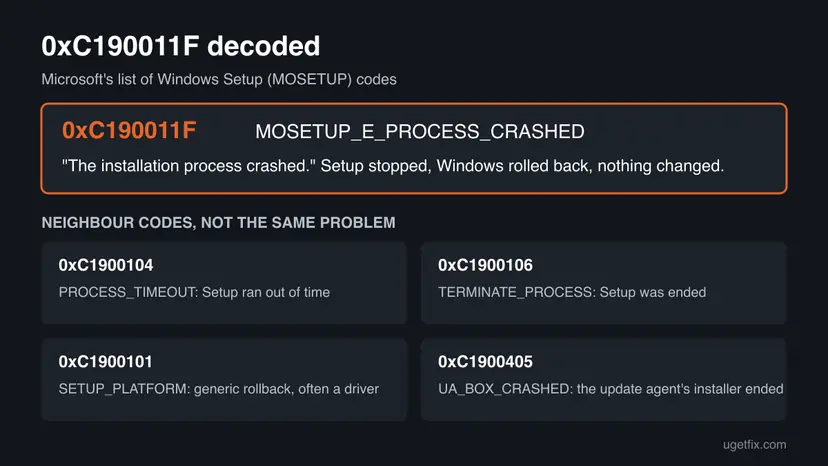
Feature updates and the upgrade to Windows 11 are not ordinary monthly patches. They run Windows Setup, which copies a new version of Windows next to the old one and then switches over. Microsoft's table of Setup result codes lists 0XC190011f as MOSETUP_E_PROCESS_CRASHED: "The installation process crashed."
In plain words, the Setup program itself stopped unexpectedly before it finished. Windows then rolls back to the version you had, so the PC starts as before, with your files and apps in place. The code tells you that Setup crashed. It does not tell you what crashed it, which is why the fixes below go from the most common outside causes to the rarer ones.
| Code | Microsoft's name | What it means for you |
|---|---|---|
| 0xC190011F | MOSETUP_E_PROCESS_CRASHED | Setup crashed while it ran. This guide. |
| 0xC1900104 | MOSETUP_E_PROCESS_TIMEOUT | Setup did not finish in the time allowed. Often the same outside causes. |
| 0xC1900106 | MOSETUP_E_TERMINATE_PROCESS | Setup was ended, for example by another program or a forced shutdown. |
| 0xC1900101 | MOSETUP_E_SETUP_PLATFORM | A generic rollback. Microsoft writes it with an extend code, such as 0xC1900101 - 0x4000D. |
| 0xC1900405 | MOSETUP_E_UA_BOX_CRASHED | The installer of the update agent ended unexpectedly. Same first fixes. |
A crash of Setup is followed by a rollback. Nothing of the new version stays installed, and you can try again as many times as you need. The only cost is time, so do the quick fixes first.
Why error 0xc190011f appears
Microsoft does not rank causes for this code. The ranking below is ours, built from Microsoft's general upgrade troubleshooting steps and from what answers on Microsoft Q&A suggest for this exact code. Each cause points to the fix that removes it.
| Cause | How often | How to tell | Fix |
|---|---|---|---|
| Third-party software that loads with Windows hooks into Setup: security suites, VPN clients, tuning or overlay tools. | Most often | The error repeats at the same point of the upgrade, whatever you try first. | Fix 2, Fix 3 |
| A pending restart, an attached device or too little free space on drive C:. | Often | You have not restarted in days, a dock or USB drive is plugged in, or Storage shows the drive nearly full. | Fix 1 |
| A damaged or half-finished feature update in the Windows Update cache. | Sometimes | The error appears only in Windows Update and never with an ISO. | Fix 4, Fix 6 |
| An old driver or firmware that Setup trips over. | Sometimes | The Setup log names a driver file (.sys) near the failure. | Fix 5 |
| Damaged Windows system files. | Rarely | DISM or SFC reports errors it repaired. | Fix 6, Fix 7 |
If you searched in Spanish (como solucionar este problema), the answer is the same: Windows Setup crashed, and the fixes below are the way to solve it.
How to fix Windows update error 0xc190011f
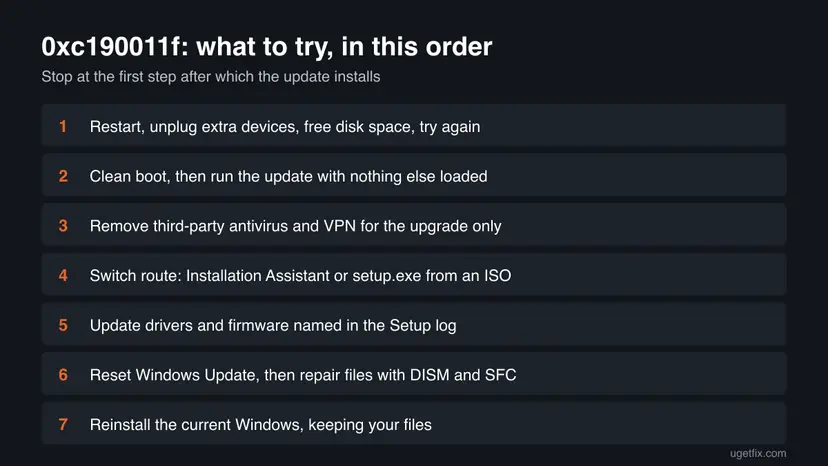
Fix 1 and Fix 2 remove the most common reasons Setup crashes and take a few minutes. Fix 3 and Fix 4 deal with security software and a broken download. Fix 5 to Fix 7 are for the rarer cases where a driver or Windows itself is at fault.
| What you see or have | Start with |
|---|---|
| You have not tried anything yet. | Fix 1, then Fix 2 |
| Install error - 0xc190011f comes back in Windows Update every time. | Fix 2, then Fix 4 |
| You have an antivirus, firewall or VPN from another company. | Fix 3 |
| The Windows 10 to Windows 11 upgrade fails in Windows Update. | Fix 4 |
| The Setup log names a driver or device. | Fix 5 |
| Nothing above helped and other updates fail too. | Fix 6, then Fix 7 |
Fix 1. Restart, unplug extra devices and free disk space, then try again
10 minutesNo riskEveryone, first. It takes ten minutes and removes the simplest reasons Setup stops.
Setup crashes more easily when an earlier update still waits for a restart, when it has to scan docks, card readers and USB drives it does not need, or when drive C: runs out of space halfway. Microsoft's upgrade troubleshooting starts with these same checks.
- Open Start, select Power and choose Restart (not Shut down).
- Unplug what you do not need: docks, USB drives, external disks, card readers, printers. Keep the mouse, keyboard and network.
- Open Settings > System > Storage and check the free space on drive C:.
- If the drive is nearly full, use Cleanup recommendations and Temporary files to free space.
- Make sure the laptop is plugged in and on a stable connection.
- Open Settings > Windows Update and select Check for updates or Retry.
Microsoft's upgrade guidance asks for at least 20 GB of free space on a 64-bit system. Step by step with screenshots: Free up disk space and delete temporary files.
It worked if: The feature update downloads, installs past the point where it failed and the PC restarts into the new version.
If not: If you see Install error - 0xc190011f again, go to Fix 2.
Fix 2. Run the update from a clean boot
15 minutes, plus the updateLow riskFix 1 did not help, or the error repeats at the same point every time.
A clean boot starts Windows with Microsoft's own services only. If a program from another company was crashing Setup, the update now installs, and you know the cause is one of the programs you turned off. This is also the first answer Microsoft Q&A gives for this code.
- Open System Configuration. Select Search on the taskbar, type msconfig and select System Configuration from the results.
- Hide Microsoft services. On the Services tab, select the Hide all Microsoft services check box. Only services from other companies stay in the list.

With Hide all Microsoft services ticked, only third-party services stay in the list. Screenshot: Windows 11 26H2. - Disable the remaining services. Select Disable all, then select Apply.
- Open Task Manager. On the Startup tab of System Configuration, select Open Task Manager.

The Startup tab only links to Task Manager. Screenshot: Windows 11 26H2. - Disable the startup apps. On the Startup apps tab in Task Manager, select each item whose status is Enabled and select Disable. Write down or take a screenshot of the items you disable: you need the list to turn them back on.

Select an app, then Disable. Screenshot: Windows 11 26H2. - Confirm the changes. Close Task Manager. On the Startup tab of System Configuration, select OK.
- Restart and test. Restart the PC. Windows now starts in a clean boot environment: try again the thing that failed (run the app, install the update, uninstall the program).
These steps were written for Windows 11 25H2 and 26H2. The full page with the other versions and what each result means: How to perform a clean boot in Windows
When the update has installed, open msconfig again, select Normal startup on the General tab and turn your startup apps back on in Task Manager. Otherwise some of your programs will not start with Windows.
It worked if: In the clean boot, Windows Update installs the feature update without the error.
If not: If the error comes back even in a clean boot, the cause is not a startup program: go to Fix 3, then Fix 4.
Fix 3. Remove third-party antivirus and VPN software for the upgrade
15 minutesLow riskYou use a security suite, firewall or VPN client from a company other than Microsoft.
Some security and VPN drivers load before any startup app, so a clean boot does not turn them off. Microsoft's upgrade troubleshooting advises removing non-Microsoft antivirus for the upgrade. Microsoft Defender switches on by itself when the other product is gone, so the PC stays protected.
- Note the name of the product and find its licence key or account login before you remove it.
- Press Win + R, type
appwiz.cpland press Enter. - Select the antivirus, firewall or VPN client and select Uninstall. Follow its own uninstaller.
- Restart the PC.
- Open Windows Security and check that Virus & threat protection is on.
- Run the update again. When it has installed, install the newest version of your security product.
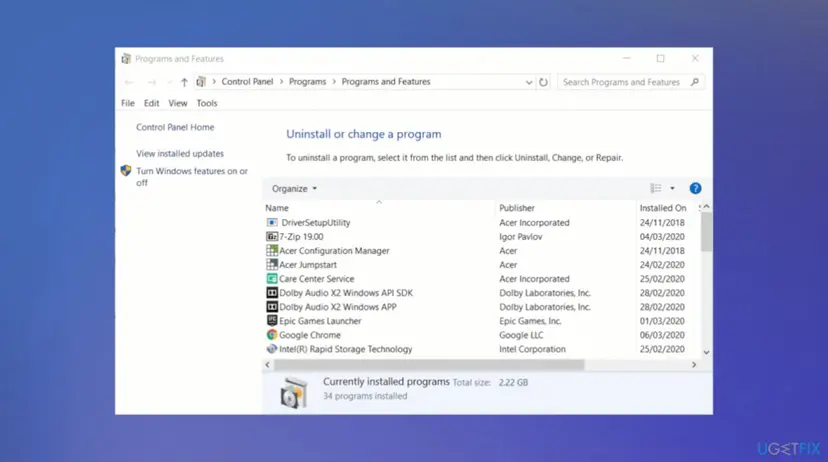
More on removing programs: Uninstall a program or app in Windows. If you only want to rule protection out for one try, pause it instead and turn it back on right after: Turn off Microsoft Defender protection for a moment.
It worked if: With only Microsoft Defender active, the update installs.
If not: If the error stays, put your security product back and go to Fix 4.
Fix 4. Run the upgrade with the Installation Assistant or setup.exe from an ISO
20 minutes, plus the upgradeLow riskWindows Update shows Install error - 0xc190011f again and again, especially on the Windows 10 to Windows 11 upgrade.
Windows Update reuses the copy of the update it already downloaded. The Installation Assistant and an ISO bring a fresh, complete copy of Setup and Windows, so a damaged download cannot crash it again. Microsoft Q&A answers for this code suggest both routes.
- Open Microsoft's Download Windows 11 page.
- For the easiest route, select Download Now under Windows 11 Installation Assistant, run it and follow it.
- Or, under the disk image (ISO) section, choose the multi-edition ISO, the same language as your Windows and the 64-bit download.
- Right-click the ISO, select Mount and double-click
setup.exeon the new drive. - When Setup asks, choose to download updates, then Keep personal files and apps.
- Leave the PC plugged in and do not use it until it has restarted several times.
Pick the ISO in the same language and edition as your installed Windows. If they differ, Setup cannot keep your apps and shows a different error, 0xC1900204. Our guide to Windows update error 0xc1900204 explains the check.
It worked if: Setup gets past the point where Windows Update failed and the PC starts in the new version with your files and apps.
If not: If Setup crashes here too, the cause is on the PC itself: go to Fix 5.
Fix 5. Update the driver or firmware that the Setup log names
20 minutesLow riskThe error survives a clean boot and a fresh ISO, or the Setup log names a driver file.
Setup moves every driver to the new version of Windows. An old storage, graphics, network or security driver can crash that step, and Microsoft's upgrade troubleshooting lists updating firmware and drivers as a standard step.
- Open File Explorer and go to
C:\$Windows.~BT\Sources\Panther. If you do not see the folder, turn on View > Show > Hidden items. - Open
setuperr.login Notepad and look at the last lines before the failure. Note any file that ends in.sysand any device name. - Install the newest driver for that device from the PC maker or the chip maker. Step by step: Update, roll back or reinstall a driver.
- On the PC maker's support page, check for a BIOS or UEFI firmware update and follow their instructions.
- Restart and run the update again.
It worked if: With the newer driver or firmware, Setup completes the driver step and finishes.
If not: If the log names nothing clear or nothing changes, go to Fix 6.
Fix 6. Reset Windows Update and repair system files with DISM and SFC
30 minutesLow riskOther updates also fail, or all fixes above did not help.
A reset clears the update cache, so Windows Update downloads the feature update again from scratch. DISM and SFC then repair Windows files that Setup reads and copies; a damaged one is a rare reason for a crash.
First clear the update cache: Reset Windows Update components.
- Open an elevated command window. Right-click Start and select Terminal (Admin), or type cmd in the search box, right-click Command Prompt and select Run as administrator. Select Yes when Windows asks for permission.

Search for cmd and choose Run as administrator. Screenshot: Windows 11 26H2. - Run DISM first. Type the command below and press Enter. DISM downloads clean copies of damaged components from Windows Update, so it can take several minutes. Wait until it says The operation completed successfully.
DISM.exe /Online /Cleanup-Image /RestoreHealth
DISM /RestoreHealth running. Screenshot: Windows 11 26H2. - Run System File Checker. In the same window, type the command below and press Enter. Do not close the window until the verification reaches 100%.
sfc /scannow
sfc /scannow at 100%. Screenshot: Windows 11 26H2. - Read the result and restart. Compare the last message with the table below this guide, then restart the PC so that repaired files are loaded.

The result line tells you what SFC did. Screenshot: Windows 11 26H2.
These steps were written for Windows 11 24H2 and 25H2. The full page with the other versions and what each result means: Run DISM and SFC to repair Windows system files
It worked if: SFC reports no integrity violations or that it repaired them, and the update installs after a restart.
If not: If the error comes back, go to Fix 7.
Fix 7. Reinstall your current Windows and keep your files
1 to 2 hoursRead the warningEvery fix above failed and you are on Windows 11.
When Setup keeps crashing on a PC that passes every check, the installed Windows itself may be worn. Fix problems using Windows Update reinstalls your current version, keeps apps and files, and gives the next feature update a clean base.
Fix problems using Windows Update keeps apps and files. If you go on to Reset this PC with Keep my files, your apps and most settings are removed. Back up your files first: Back up your files (Windows Backup, File History, Time Machine), and have your BitLocker recovery key ready.

- Open Settings > System > Recovery.
- Next to Fix problems using Windows Update, select Reinstall now, then OK.
- Keep the PC plugged in and online until it restarts.
- Open Settings > Windows Update and select Check for updates to try the feature update again.
Windows 10 22H2 does not have this option: use setup.exe from the Windows 10 ISO with Keep personal files and apps instead. All the ways, with screenshots: Reinstall Windows without losing files.
It worked if: Windows reinstalls the current version, and the feature update then installs without 0xc190011f.
If not: If it still fails, read the next section and collect the logs.
If error 0xc190011f is still there
Setup writes why it stopped. After a rollback, the logs stay in hidden folders on drive C:, and they are what support needs.
| Log | Where | What to look for |
|---|---|---|
setuperr.log | C:\$Windows.~BT\Sources\Panther | The last errors before the crash, often with a file or driver name. |
setupact.log | C:\$Windows.~BT\Sources\Panther | The full story; search for 0xC190011F and read the lines above it. |
| Rollback logs | C:\$Windows.~BT\Sources\Rollback | What Setup undid, when the crash came after the first restart. |
- What to send to support: the full code, the update name (for example Windows 11 version 26H2), how you started it and the Windows version from
winver. - Attach
setupact.logandsetuperr.logfrom the Panther folder. - Say which fixes you tried and whether the error came before or after the first restart.
If the PC also freezes, shows blue screens or fails SFC with errors it cannot fix, test the memory with How to test your RAM with Windows Memory Diagnostic and the disk with Check a disk for errors (chkdsk). A failing disk or memory can crash Setup the same way it crashes other programs.
How to keep 0xc190011f from coming back
- Restart before a feature update and keep drive C: with plenty of free space.
- Keep drivers and firmware current from the PC maker.
- Let the PC finish the upgrade without using it or closing the lid.
- Do not keep two security products installed at once.
- Do not run cleaning or tuning tools while an update installs.
- Do not force a shutdown during the restarts of a feature update.
On Windows 10, staying on 22H2 means no free security fixes since 14 October 2025, so finish the upgrade to Windows 11 when the PC qualifies.
Frequently asked questions
What does error 0xc190011f mean?
It means the Windows Setup process crashed while it installed a feature update or the upgrade to Windows 11. Microsoft lists it as MOSETUP_E_PROCESS_CRASHED: the installation process crashed. Windows then rolls back, so your PC, files and apps stay as they were. The code does not say what crashed Setup. Start with a restart, free disk space and a clean boot (Fix 1 and Fix 2).
What does Install error - 0xc190011f in Windows Update mean?
It is the same code shown under a feature update or the Windows 11 upgrade in Settings > Windows Update. Windows Update downloaded the update and started Setup, and Setup crashed. Selecting Retry runs the same copy again, so try Fix 1 and Fix 2 first. If it repeats, use the Installation Assistant or an ISO (Fix 4), which bring a fresh copy of Setup.
Are my files safe after error 0xc190011f?
Yes. When Setup crashes, Windows rolls back to the version that was installed, with your files, apps and settings as they were. Nothing of the new version stays. You can try the update again as often as you need. Only Fix 7 can remove apps, and only if you go on to Reset this PC, so back up first if you get that far.
Does 0xc190011f happen on Windows 11?
Yes. The code comes from Windows Setup, which runs for Windows 11 feature updates such as 25H2 and 26H2 as well as for upgrades from Windows 10. The causes and fixes are the same. Windows 11 also has Fix problems using Windows Update, which reinstalls your current version and keeps your files (Fix 7).
Will the Windows Update troubleshooter fix 0xc190011f?
Sometimes, if the update service is in a bad state, but usually not. The troubleshooter repairs Windows Update settings and services, while this error happens later, when Setup itself runs. The earlier version of this guide put the troubleshooter first; we moved it out because a restart, a clean boot and a fresh ISO solve far more of these cases. You can still run it: Run the Windows Update troubleshooter.
Do I need to change my region settings to fix 0xc190011f?
We could not confirm that region settings cause this code. Microsoft documents 0xC190011F only as a crash of the Setup process. Region and language matter when you upgrade with an ISO: pick the ISO in the same language as your installed Windows, or Setup cannot keep your apps. Changing the country in Settings is harmless, but do not expect it to fix the crash.
What is the difference between 0xc190011f and 0xc1900101?
0xC190011F says the Setup process crashed. 0xC1900101 is a generic rollback code that Microsoft shows with an extend code after a dash, such as 0xC1900101 - 0x4000D, and it is often caused by a driver. The first fixes overlap: clean boot, removing third-party security and updating drivers. For 0xC1900101, the extend code points to the phase that failed.
Should I reset my PC to fix 0xc190011f?
Only as the last step. Most PCs get past this error with a restart, a clean boot, removing a third-party antivirus or a fresh ISO. Fix problems using Windows Update on Windows 11 reinstalls Windows and keeps your apps, so try it before Reset this PC. A reset with Keep my files removes your apps and most settings, so back up and note your licence keys first.
Is it safe to stay on my current version if 0xc190011f will not go away?
On Windows 11, your current version keeps getting monthly security updates until its own support ends, so you have time. On Windows 10, support ended on 14 October 2025 and the PC no longer gets free security fixes, so staying is a growing risk. Keep Microsoft Defender on, back up your files and collect the Setup logs for support.
Sources
- Microsoft Learn: Windows 10 upgrade resolution procedures (0XC190011f MOSETUP_E_PROCESS_CRASHED and the neighbour Setup codes) (learn.microsoft.com)
- Microsoft Learn: Windows 10 upgrade error codes (result code and extend code format, 0xC1900101 as a generic rollback) (learn.microsoft.com)
- Microsoft Q&A: Error 0xc190011f, how to correct? (clean boot, Installation Assistant and ISO suggested in answers) (learn.microsoft.com)
Did this fix work?
One click, no account. It tells the next reader which guides are worth their time.
Questions and experiences: fix Windows update error 0xc190011f
Still broken, or found a fix we did not cover? Ask here: members and our editors answer. Reading is open; writing needs a free account.
…