
How to fix Xbox app is stuck at "Launching Xbox App" in Windows?

Prefer to fix it yourself? The manual steps follow.
- 8methods
- 5 to 40 minutes
- Intermediate
Applies to Windows 11 and Windows 10: the Xbox app for PC, Gaming Services and Microsoft Store
8 methods in this guide
I am using Windows 11 and have problems with the Xbox app. Whenever I try to launch it, it simply hangs with the notification "Launching Xbox app." I tried restarting it several times, but it always ends up the same. Please help.
When the Xbox app shows "Launching the Xbox App" forever, the app starts but cannot finish loading its own parts, mostly Gaming Services or its local data. It is rarely a broken PC. End the app, restart Windows, update Xbox and Gaming Services, then repair or reset the app.
The black screen with the Xbox logo and "Launching the Xbox App" means the app is waiting for something it needs to start, most often Gaming Services, an update or its own damaged data. Close it in Task Manager and restart the PC (Fix 1). Then update Xbox, Gaming Services and Microsoft Store (Fix 2), and repair or reset the Xbox app and Gaming Services (Fix 3). Xbox Support's own advice for a broken app is to reinstall it (Fix 4).
| Error | Launching the Xbox App. A black window with the white Xbox logo that never turns into the app. There is no error code. |
|---|---|
| Where it appears | When you open the Xbox app for PC from Start, from the taskbar or when it starts with Windows. Sometimes it closes by itself after a few minutes. |
| Main cause | The app cannot finish starting: Gaming Services is out of date, stopped or damaged, the Xbox app and its helpers are on different versions, or the app's local data is damaged. |
| Fastest fix | End the Xbox app in Task Manager, restart the PC with Restart (not Shut down) and open it again (Fix 1). |
| Also written as | "Launching Xbox", "Launching Xbox App", "xbox app launching forever", "xbox app infinite loading" and "xbox app stuck on loading screen". All describe this screen. |
| Affects | The Xbox app for PC on Windows 11 and Windows 10. Xbox Support says Windows 10 22H2 or newer is required for some of its features. |
| Microsoft's status | Xbox Support has no page for this exact screen. Its advice for problems with the app itself, not the games, is to reinstall the app from Microsoft Store. |
| Not the fix | Setting every Xbox service to Automatic, booting into Safe Mode, or re-registering all Windows apps with one PowerShell line. Our old guide suggested the first two. |
| Time to fix | 5 minutes when a restart or an update is enough. 20 to 40 minutes when Gaming Services must be repaired or reinstalled. |
Facts checked on 15 October 2026. Steps written for Windows 11 (25H2 and 26H2) and Windows 10 22H2.
What "Launching the Xbox App" means when it never goes away
The Xbox app for PC opens with a black splash screen: the white Xbox logo in the middle and the words Launching the Xbox App under it. Normally it gives way to your library within seconds. When it stays, the window itself runs, but the app behind it never finishes loading.
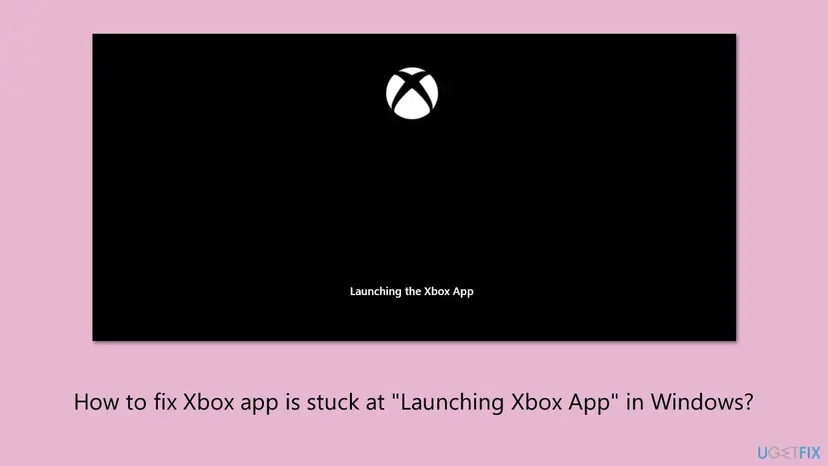
- It is not a game error. Your games may still run from the Start menu. Only the Xbox app does not open.
- Two patterns. Some users see the screen forever. Others, as in a Microsoft Q&A report from a Windows 11 user, see it for about two minutes before the app crashes and closes.
- Spellings people search: "launching xbox", "launching xbox app stuck", "xbox app launching forever", "xbox app infinite loading" and "xbox app stuck on loading screen". They all mean this screen.
Why the Xbox app is stuck on "Launching Xbox": the causes, most common first
Microsoft names no single cause for this screen. The ranking follows Xbox Support's advice for problems with the app, the steps a Microsoft community support specialist gave for the same screen on Microsoft Q&A, and what users report. Each cause has its own fix.
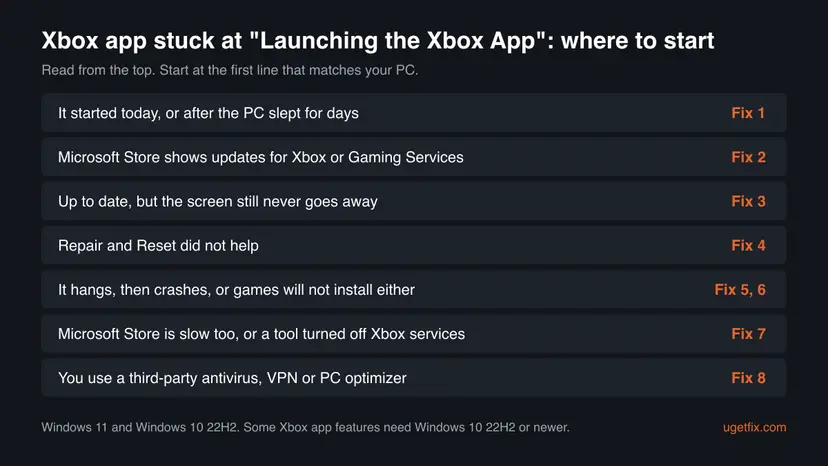
| How often | Cause | Sign | Fix |
|---|---|---|---|
| Most often | A stuck Xbox process or a pending update from the last session | It started suddenly, the PC was asleep or hibernated | Fix 1 |
| Often | The Xbox app, Gaming Services and Microsoft Store are on different versions | Library in Microsoft Store shows pending updates | Fix 2 |
| Often | Damaged local data of the Xbox app or Gaming Services | Up to date, but the screen still never goes away | Fix 3, Fix 4 |
| Less often | Broken Gaming Services | The app hangs, then crashes, or no game installs either | Fix 5, Fix 6 |
| Rarely | Damaged Microsoft Store cache or a disabled Xbox service | Store pages are slow too, or you used a tweaking tool | Fix 7 |
| Rarely | Third-party security software or a startup program that blocks Xbox | Clean boot opens the app normally | Fix 8 |
How to fix the Xbox app stuck on "Launching the Xbox App" on Windows 11 and Windows 10
Fix 1 is for everyone and takes a few minutes. Fixes 2 to 4 update, repair and reinstall the Xbox app. Fixes 5 and 6 repair Gaming Services, which the app needs to start. Fixes 7 and 8 remove what blocks it. Steps are written for Windows 11, with the Windows 10 path where it differs. Windows 10 left support on 14 October 2025.
| What you see or have | Start with |
|---|---|
| It started today, or after the PC slept or hibernated for days. | Fix 1 |
| Microsoft Store shows updates waiting for Xbox or Gaming Services. | Fix 2 |
| Everything is up to date, and the screen still never goes away. | Fix 3 |
| Repair and Reset of the Xbox app did not help. | Fix 4 |
| The app hangs, then crashes, or games will not install from it either. | Fix 5 |
| Microsoft Store is slow too, or a tweaking tool turned off services. | Fix 7 |
| You use a third-party antivirus, a VPN or a PC optimizer. | Fix 8 |
Fix 1. End the Xbox app in Task Manager and restart Windows
5 minutesNo riskEveryone, first, and above all when the screen appeared suddenly or after the PC woke from sleep.
Closing the splash window does not always end the app. A hung Xbox process from the last session can keep every new start waiting. Xbox Support's own first steps for the Xbox app are to check the Xbox status, check that you are signed in and restart the device.
- Press Ctrl + Shift + Esc to open Task Manager.
- On the Processes tab, select Xbox and then End task. Do the same for Microsoft Store if it is listed.
- Open the Xbox status page on your phone or in a browser. If a service shows an alert, wait until it clears.
- Restart the PC from Start > Power > Restart. A restart starts Windows fresh, while Shut down with Fast Startup on keeps part of the last session.
- Wait one minute after the desktop appears, then open the Xbox app.
The same steps with screenshots for any app that hangs: Close a frozen app (Task Manager, Force Quit)
It worked if: The splash screen turns into the Xbox app's home page within a few seconds.
If not: If it hangs again, go to Fix 2.
Fix 2. Update the Xbox app, Gaming Services, Microsoft Store and Windows
5 to 15 minutesNo riskMicrosoft Store shows pending updates, or the PC was offline or unused for weeks.
The Xbox app starts only when Gaming Services and Microsoft Store answer it. When one of them is older than the others, the app can wait for an answer that never comes. Xbox Support also says some Xbox app features need Windows 10 22H2 or newer.
- Open Microsoft Store and select Library at the bottom left.
- Select Get updates and wait until Xbox, Gaming Services and Microsoft Store are updated.
- Press Win + I, open Windows Update and select Check for updates. On Windows 10: Update & Security > Windows Update. Install what is offered.
- Check your Windows version in Settings > System > About > Windows specifications > Version. On Windows 10 it must be 22H2.
- Restart the PC and open the Xbox app.
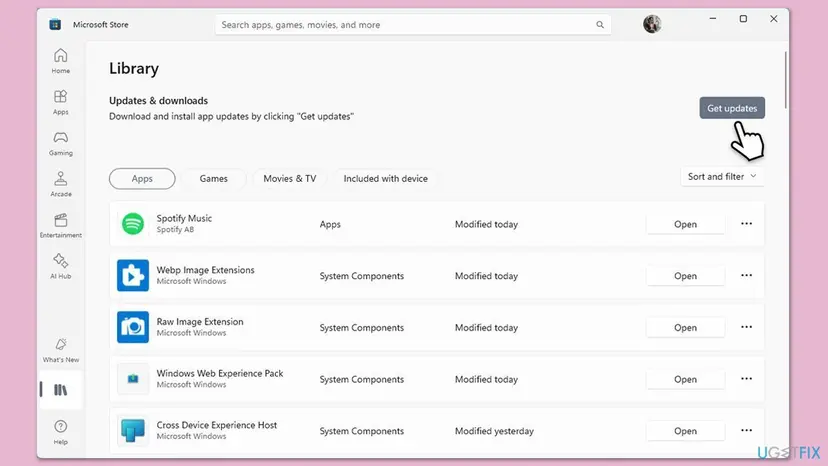
If Get updates fails with an error code, our guide to Microsoft Store error 0x80073CF8 covers a Store that will not update apps.
It worked if: Library shows no pending updates for Xbox or Gaming Services, and the Xbox app opens.
If not: If everything is up to date and the app still hangs, go to Fix 3.
Fix 3. Repair, then reset the Xbox app and Gaming Services
10 minutesLow riskEverything is up to date, and the app still never gets past the splash screen.
The Xbox app keeps local data such as settings and the sign-in, and a damaged copy can stop it at start. On Microsoft Q&A, a Microsoft community support specialist gave repair and reset of the Xbox app, then of Gaming Services, as the first steps for this exact screen.
- Press Win + I and open Apps > Installed apps. On Windows 10: Apps > Apps & features.
- Find Xbox, select the three dots next to it (Windows 10: select the app) and then Advanced options.
- Select Terminate, then Repair. Open the Xbox app to test.
- If it still hangs, come back and select Reset. It deletes the app's local data and signs you out. Installed games stay.
- Do the same for Gaming Services if it shows Advanced options. Restart the PC.
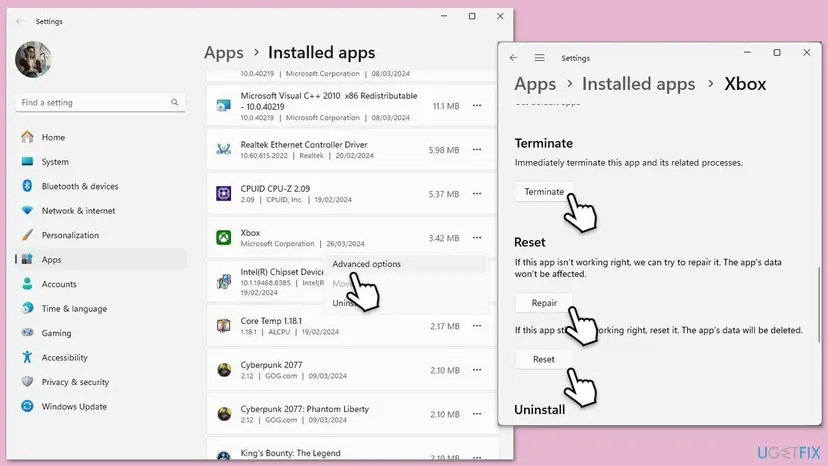
The same steps with screenshots for any app: How to repair or reset an app in Windows
It worked if: After Repair or Reset the app opens, asks you to sign in if you reset it, and shows your library.
If not: If neither Repair nor Reset helped, go to Fix 4.
Fix 4. Uninstall the Xbox app and install it again from Microsoft Store
10 minutesLow riskRepair and Reset did not help, and the app itself, not a game, is the problem.
This is Xbox Support's own advice: if the problem is with the Xbox app itself and not with the games, reinstall the app from Microsoft Store. A fresh install replaces every app file, which Reset does not.
- Press Win + I and open Apps > Installed apps (Windows 10: Apps > Apps & features).
- Find Xbox, select the three dots and Uninstall, then confirm.
- Restart the PC.
- Open Microsoft Store, search for Xbox and open the app by Microsoft Corporation.
- Select Install (or Get), wait for it to finish, then open the app and sign in.
Uninstalling the Xbox app does not remove the games it installed or your cloud saves. The games show up again in the app after you sign in. Full uninstall steps with screenshots: Uninstall a program or app in Windows
It worked if: The freshly installed app opens past the splash screen and asks you to sign in.
If not: If the new app hangs at the same screen, the cause is in Gaming Services. Go to Fix 5.
Fix 5. Run the downloadable Gaming Services Repair Tool
10 minutesLow riskThe app hangs, then crashes, opens with missing content, or games will not install from it either.
Gaming Services is the Windows component that installs and runs Xbox games on PC, and the Xbox app needs it to start. Xbox Support built a repair tool for it. The app has a version inside its Support menu, which you cannot reach while it hangs, so use the downloadable version.
- Open the Gaming Services Repair Tool page on Xbox Support.
- Expand Downloadable version and download the tool from there.
- Run the downloaded file and follow what it reports.
- Restart the PC and open the Xbox app.
Xbox Support says that on Windows 22H2 or older the tool may run only when you are signed in as the local administrator. If it will not run, update Windows first (Fix 2).
It worked if: The tool reports that Gaming Services is working, or repairs it, and the Xbox app opens.
If not: If the tool cannot repair it, go to Fix 6.
Fix 6. Remove Gaming Services in PowerShell and install it again
10 to 15 minutesLow riskThe repair tool did not help, or Gaming Services shows no Advanced options and will not update.
A fresh copy of Gaming Services replaces a damaged one that the Xbox app waits for. In the Microsoft Q&A thread about this screen, removing and reinstalling Gaming Services was the advanced step the support specialist gave.
- Close the Xbox app and Microsoft Store, and end them in Task Manager if they still run.
- Right-click Start and select Terminal (Admin). On Windows 10: Windows PowerShell (Admin). Select Yes in the User Account Control prompt.
- Run the command below to remove Gaming Services for all users.
- Restart the PC.
- Install Gaming Services again from its page in Microsoft Store, then open the Xbox app.
Remove Gaming Services (Terminal or PowerShell as administrator)
Get-AppxPackage *gamingservices* | Remove-AppxPackage -AllUsers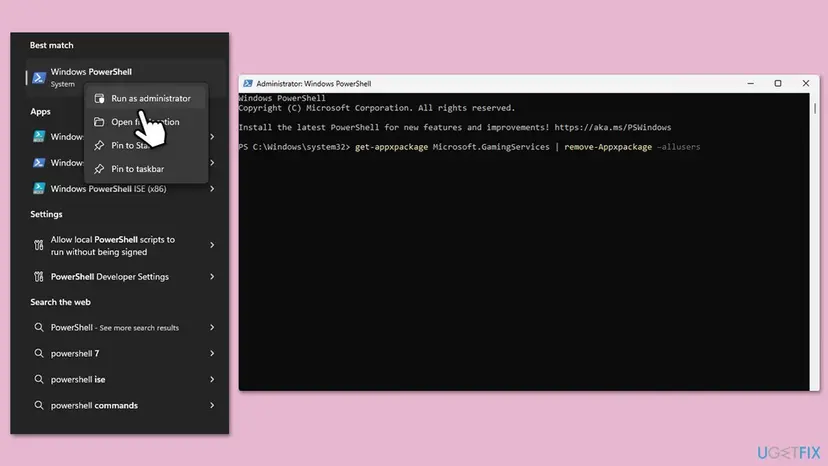
Some answers, our old guide included, also delete two Gaming Services keys from the registry. We leave that out: removing and reinstalling the package is enough in most cases. If Gaming Services will not install again, our guide to Xbox app error 0x80073CFB covers a package that refuses to install.
It worked if: Gaming Services installs again from Microsoft Store, and the Xbox app opens past the splash screen.
If not: If Microsoft Store itself loads badly, go to Fix 7.
Fix 7. Reset the Microsoft Store cache and turn the Xbox services back on
10 to 15 minutesLow riskMicrosoft Store is slow or shows errors too, or you used a tool that turns off Windows services.
The Xbox app talks to Microsoft Store and to a few Xbox services in Windows. A damaged Store cache, or an Xbox service set to Disabled by a tweaking tool, leaves the app waiting at the splash screen.
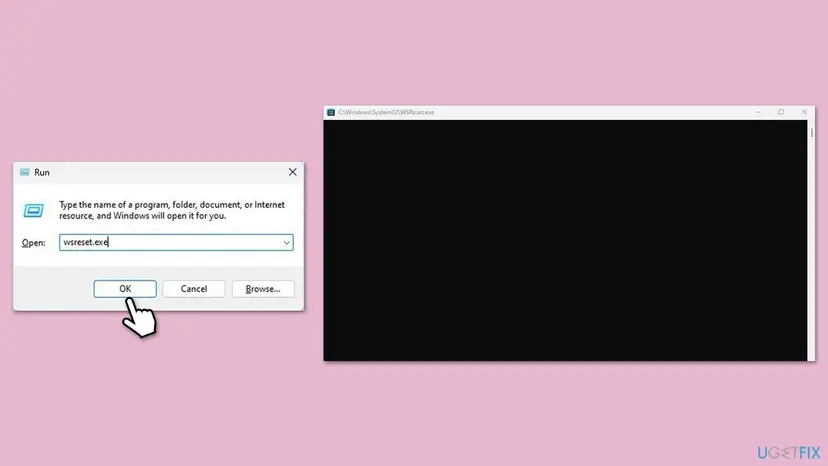
- Press Win + R, type
wsreset.exeand press Enter. A blank window opens, closes by itself, and Microsoft Store opens. - Press Win + R, type
services.mscand press Enter. - Open Gaming Services, Xbox Live Auth Manager and Microsoft Store Install Service one by one.
- If Startup type says Disabled, set it to Manual, select Apply, then Start and OK. Leave Manual and Automatic as they are.
- Restart the PC and open the Xbox app.
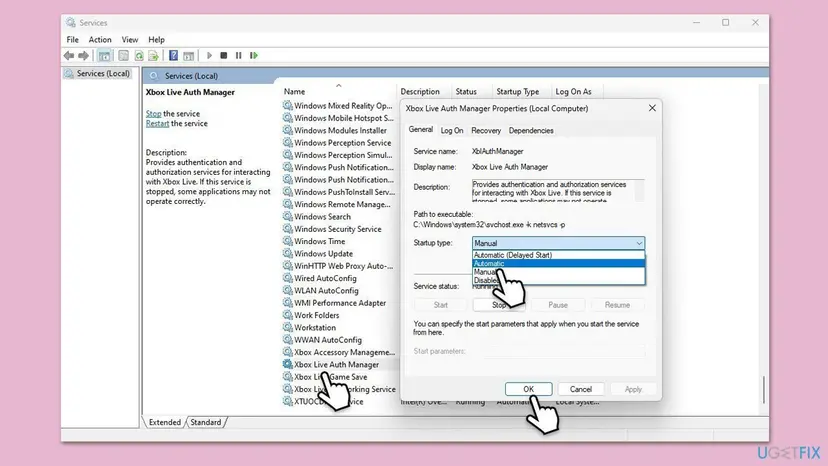
Services with screenshots: Check and restart Windows services. The full Store reset: Reset the Microsoft Store
It worked if: Microsoft Store opens normally, no Xbox service shows Disabled, and the Xbox app starts.
If not: If you use a third-party antivirus, a VPN or a PC optimizer, go to Fix 8.
Fix 8. Find a program that blocks the Xbox app with a clean boot
20 to 30 minutesLow riskFixes 1 to 7 did not help, or you use a third-party antivirus, a VPN, an overlay or a PC optimizer.
The support specialist on Microsoft Q&A named antivirus and firewall tools that block Xbox services as a cause of this screen. A clean boot starts Windows with only Microsoft services, so you see at once whether a third-party program is in the way.
- Open System Configuration. Select Search on the taskbar, type msconfig and select System Configuration from the results.
- Hide Microsoft services. On the Services tab, select the Hide all Microsoft services check box. Only services from other companies stay in the list.

With Hide all Microsoft services ticked, only third-party services stay in the list. Screenshot: Windows 11 26H2. - Disable the remaining services. Select Disable all, then select Apply.
- Open Task Manager. On the Startup tab of System Configuration, select Open Task Manager.

The Startup tab only links to Task Manager. Screenshot: Windows 11 26H2. - Disable the startup apps. On the Startup apps tab in Task Manager, select each item whose status is Enabled and select Disable. Write down or take a screenshot of the items you disable: you need the list to turn them back on.

Select an app, then Disable. Screenshot: Windows 11 26H2. - Confirm the changes. Close Task Manager. On the Startup tab of System Configuration, select OK.
- Restart and test. Restart the PC. Windows now starts in a clean boot environment: try again the thing that failed (run the app, install the update, uninstall the program).
These steps were written for Windows 11 25H2 and 26H2. The full page with the other versions and what each result means: How to perform a clean boot in Windows
- If the app opens in the clean boot, a third-party program is the cause. Turn its services back on in groups and restart until the screen returns: the last group holds it.
- Security software: pause a third-party antivirus or firewall suite for one test only and turn it back on right after: Turn off Microsoft Defender protection for a moment. If that was the cause, add an exception for the Xbox app and Gaming Services in its settings.
- A clean boot is not Safe Mode. Do not tick Safe boot in System Configuration for this test. The Xbox app does not run in Safe Mode.
It worked if: In the clean boot the Xbox app opens, and you find the program that stops it.
If not: If the app hangs even in a clean boot, read "If it is still stuck" below.
If the Xbox app is still stuck at launching: what to check and what to send Xbox Support
Microsoft documents no log file for this screen. What helps is a clear picture of where it fails, so collect these facts before you contact support.
- Event Viewer: press Win + X, select Event Viewer and open Windows Logs > Application. Look for errors at the time you opened the app that name XboxApp.exe, GamingServices.exe or the Xbox app. We could not confirm one event that always appears for this screen.
- Reliability Monitor: press Win + R, type
perfmon /reland press Enter. A red cross on the day shows whether the app crashed and under which name. - Another account: create or use a second Windows user account and open the Xbox app there. If it opens, the problem is in your user profile, not in Windows.
- The versions: your Windows version (press Win + R, type
winver) and the Xbox and Gaming Services versions shown in Microsoft Store.
Some guides, our old one included, re-register Microsoft Store or every Store app with one long PowerShell line. It touches far more than the Xbox app, and Microsoft gives targeted steps instead. Use Fixes 3 to 6 first. If you still want it, use the checked version: How to re-register Microsoft Store apps with PowerShell
If the app hangs on a second Windows account and after Fix 8, contact Xbox Support at support.xbox.com/contact-us with the facts above. A repair of Windows itself is the last step: Run DISM and SFC to repair Windows system files
How to keep the Xbox app from getting stuck at launching again
- Let Microsoft Store update Xbox, Gaming Services and itself. Check Library > Get updates after a big Windows update.
- Keep Windows on a supported version. On Windows 10 that means 22H2.
- Use Restart, not Shut down, when an app hangs after an update.
- Look at the Xbox status page first when the app stops working out of nowhere.
- Do not let optimizer tools disable Xbox or Store services if you play on PC.
- Do not set every Xbox service to Automatic. Manual is their normal state.
- Do not delete Gaming Services registry keys by hand.
- Do not turn off Windows Defender Firewall to make the Xbox app open.
Frequently asked questions
Why is my Xbox app stuck on launching?
Because the app starts but cannot finish loading what it needs, most often Gaming Services, an update or its own local data. The black screen with "Launching the Xbox App" stays until that part answers. Most readers fix it by ending the app in Task Manager and restarting (Fix 1), updating Xbox and Gaming Services (Fix 2), or repairing and resetting the app (Fix 3). If it hangs after a reinstall too, Gaming Services is the cause (Fix 5 and Fix 6).
Why is the Xbox app loading forever on Windows 11?
On Windows 11 the causes are the same as on Windows 10: a hung Xbox process, Xbox parts on different versions, damaged app data or broken Gaming Services. The app needs Gaming Services and Microsoft Store to answer before its home page opens. Start with a full restart (Fix 1) and Library > Get updates in Microsoft Store (Fix 2). If the screen still never goes away, reset the app and Gaming Services in Settings (Fix 3).
The Xbox app shows "Launching the Xbox App" and then closes. What does that mean?
It means the app gave up waiting and crashed. A Windows 11 user on Microsoft Q&A described this exact pattern: about two minutes on the splash screen, then the app closed. The fixes are the same, with more weight on Gaming Services: run the downloadable Gaming Services Repair Tool (Fix 5) and reinstall Gaming Services (Fix 6). Reliability Monitor, opened with perfmon /rel, shows the crash and its name.
Is something wrong with the Xbox app right now?
Sometimes. If many users see the same problem at once, it can be an Xbox service outage. Check the Xbox status page at support.xbox.com before you change anything on the PC. If a service shows an alert, wait for it to clear. If everything is green, the cause is on your PC, and the fixes on this page apply, starting with Fix 1.
Why does the Xbox app keep launching itself on my laptop, and how do I stop it?
The Xbox app can be set to start with Windows, and then you see "Launching the Xbox App" at every sign-in. On Windows 11, press Win + I, open Apps > Startup and turn off Xbox. On Windows 10, open Task Manager, select Startup, select Xbox and then Disable. Steps with screenshots: Stop apps from opening at startup. If it also hangs when you open it yourself, use the fixes on this page.
Will resetting or reinstalling the Xbox app delete my games or saves?
No. Reset deletes only the Xbox app's own data and signs you out of it. Uninstalling the Xbox app removes the app, not the games it installed. Cloud saves of games that support them stay on Xbox servers. Try Repair first, which keeps the app's data, then Reset (Fix 3), and reinstall the app only if both fail (Fix 4).
Can I play my games while the Xbox app will not open?
Often yes. Installed PC Game Pass and Microsoft Store games have their own entries in the Start menu and can start from there. Games that need the Xbox app for sign-in or updates may ask for it, though. We could not confirm which games run without the app, so try yours from Start while you fix the app.
Should I run the PowerShell command that re-registers Microsoft Store or all apps?
Not first. Our old guide gave a one-line command that re-registers Microsoft Store, and similar lines circulate for every Store app. They touch far more than the Xbox app. Microsoft's answers for this screen use targeted steps instead: repair or reset the Xbox app and Gaming Services (Fix 3) and reinstall Gaming Services (Fix 6). If you still want to re-register, use the checked version in our procedure.
Does the Xbox app still work on Windows 10?
Yes, but Windows 10 left support on 14 October 2025, and Xbox Support says Windows 10 22H2 or newer is required for some Xbox app features. Check your version in Settings > System > About. If it is older than 22H2, update Windows first (Fix 2). The Gaming Services Repair Tool may also run only from the local administrator account on Windows 22H2 or older.
Sources
- Xbox Support: Fix gaming issues with the Xbox app for PC and handhelds (support.xbox.com)
- Xbox Support: Gaming Services Repair Tool for PC (support.xbox.com)
- Microsoft Q&A: Xbox App Stuck on "Launching the Xbox App" then Crashes (user report and community support answer) (learn.microsoft.com)
Did this fix work?
One click, no account. It tells the next reader which guides are worth their time.
Questions and experiences: fix Xbox app is stuck at "Launching Xbox App" in Windows
Still broken, or found a fix we did not cover? Ask here: members and our editors answer. Reading is open; writing needs a free account.
…