
How to fix Camera app error 0xA00F4293 in Windows?

Prefer to fix it yourself? The manual steps follow.
- 8methods
- 5 to 30 minutes
- Easy
Applies to Windows 11, Windows 10; the Windows Camera app in video mode with built-in and USB webcams
8 methods in this guide
Hello. I wanted to record a video with my webcam using the Windows Camera app, but I received the 0xA00F4293 <VideoCaptureStartTimeout> error. How do I fix this?
Error 0xA00F4293 <VideoCaptureStartTimeout> appears in the Windows Camera app when you press record and the video does not start in time. Photos usually still work. Check first that a microphone is enabled and allowed, then update or roll back the graphics driver.
The Camera app could not start a video recording in time, although the camera itself works. A video also needs a microphone, so first make sure a microphone is enabled and the Camera app may use it (Fix 1). If that is fine, update or roll back the graphics driver (Fix 2), which users with AMD laptops report as the fix. Repair the Camera app if other apps record normally (Fix 5).
| Error | Something went wrong, "If you need it, here's the error code:" 0xA00F4293<VideoCaptureStartTimeout>, with an OK button. |
|---|---|
| Where it appears | In the Windows Camera app, after you press the record button in video mode. The app often freezes for several seconds first. Photo mode keeps working. |
| Main cause | One of the parts only a video needs does not answer in time: the microphone for the sound track, or the video encoder that comes with the graphics driver. |
| Fastest fix | Enable the microphone and allow the Camera app to use it, then restart Windows (Fix 1). |
| Also written as | 0xa00f4293, 0xA00F4293 VideoCaptureStartTimeout, videocapturestarttimeout, "video capture start timeout", "video capture timeout". |
| Affects | Windows 11 and Windows 10. Most reports we read come from HP and Lenovo laptops with AMD processors, but not only from them. |
| Microsoft's status | No public Microsoft article for 0xA00F4293. Microsoft lists a close code, 0xA00F4294 "Video start failed", and gives driver updates as the fix. |
| Where the cause is logged | We found no log entry that names this code. The test that tells most: does the same camera record video in Teams, PowerPoint or a browser? |
| Time to fix | 5 minutes for the microphone check, up to 30 minutes for a graphics driver change. |
Facts checked on 15 October 2026. Steps written for Windows 11 (25H2 and 26H2) and Windows 10 22H2.
What error 0xA00F4293 <VideoCaptureStartTimeout> means
The message comes from the Windows Camera app. A screenshot posted on Microsoft's Q&A forum shows it in full: the heading Something went wrong, then "If you need it, here's the error code:" and the line 0xA00F4293<VideoCaptureStartTimeout>, with one OK button. That user had Windows 11 23H2 on an HP laptop.
The name says what happened. VideoCaptureStartTimeout means the app asked Windows to start recording a video and gave up because the start took too long. People search the same error as 0xa00f4293, videocapturestarttimeout, video capture start timeout or simply video capture timeout. The code is the same in every spelling and in every language of Windows.
In nearly every report we read, photos still work and the live preview is fine. Only recording a video fails. So the camera is working, and the fault sits in something a video needs and a photo does not.
| What you notice | What it tells you |
|---|---|
| Photo mode works, video mode fails. | The camera and its driver deliver a picture. Look at the microphone, the graphics driver and the app. |
| The app freezes for about 10 seconds after you press record. | Windows waited for the recording to start and timed out. One HP user describes exactly this. |
| Video records in Teams, PowerPoint or Zoom, but not in Camera. | The fault is in the Camera app or in how it records. Start with Fix 2, then Fix 5. |
| No app can record video or sound. | A microphone or driver problem for the whole PC. Start with Fix 1. |
Microsoft has not published a page for 0xA00F4293. Its camera article lists 0xA00F4294 as "Video start failed" and 0xA00F4292 as "Camera access restricted by policy". Those are different codes with different first fixes.
Why the Camera app cannot start a video recording
Most often a microphone is missing, disabled or blocked for the Camera app, so the sound part of the recording never starts. Often the graphics driver is the trigger, because the video is compressed by the encoder that comes with it. Less often the camera driver, the Camera app itself or its save folder is at fault.
| Cause | How often | How to tell | Fix |
|---|---|---|---|
| Microphone disabled, missing or not allowed for the Camera app. | Most often | Sound settings show no input device, or the microphone level does not move. | Fix 1 |
| Graphics driver update broke the video encoder. | Often | AMD or other laptop graphics, error started after a driver or Windows update. | Fix 2 |
| Camera driver was updated or damaged. | Sometimes | The camera has a warning sign in Device Manager, or the preview is slow to appear. | Fix 3, Fix 4 |
| The Camera app is damaged or outdated. | Sometimes | Other apps record video with the same camera. | Fix 5, Fix 6 |
| The save folder for new videos is missing. | Rarely | Camera Roll was deleted or the save drive was removed. | Fix 7 |
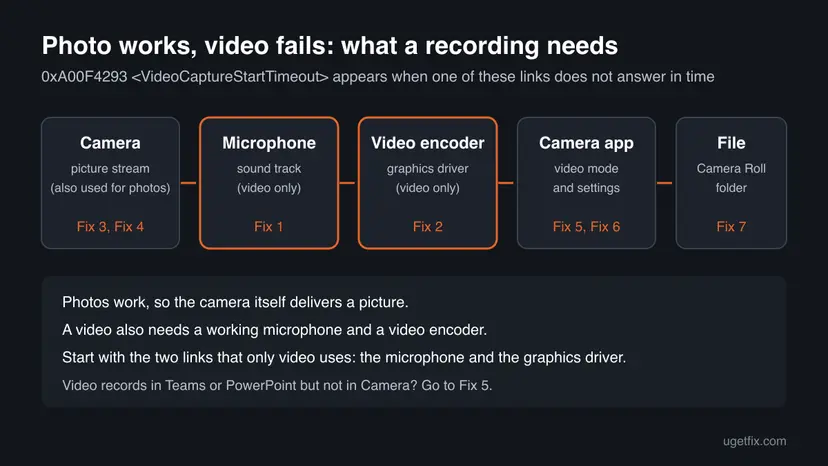
Why the graphics driver? A video must be compressed while you record. Microsoft's documentation for its H.264 encoder says that a certified hardware encoder, when present, is generally used instead of the built-in one. On a laptop that hardware encoder is part of the graphics chip and arrives with the graphics driver. When that driver misbehaves, the start of the recording can hang.
How to fix Camera app error 0xA00F4293 <VideoCaptureStartTimeout>
Fixes 1 and 2 cover the two parts only a video needs, and solve most cases in the reports we read. Fixes 3 to 6 repair the camera driver and the Camera app. Fix 7 checks the save folder, and Fix 8 is for what Windows Update and the troubleshooter can still do.
| What you see or have | Start with |
|---|---|
| Photos work, video fails, and you are not sure the microphone works. | Fix 1 |
| Laptop with AMD graphics, or the error started after a driver or Windows update. | Fix 2 |
| The camera shows a warning sign in Device Manager, or the preview is very slow. | Fix 3 |
| External USB webcam. | Fix 4 |
| Video records fine in Teams, PowerPoint or a browser, only Camera fails. | Fix 5, then Fix 6 |
| You deleted the Camera Roll folder or removed the drive where new videos are saved. | Fix 7 |
Fix 1. Enable the microphone and allow the Camera app to use it
5 minutesNo riskEveryone, first. Especially when Sound settings show no input device or the microphone never moves the level meter.
A video from the Camera app has a sound track, so the app opens the microphone together with the camera. A photo does not. The answer that most readers of Microsoft's Q&A thread on this code marked helpful was exactly this: enable the recording device.
- Open Settings > Privacy & security > Microphone. Turn on Microphone access and Let apps access your microphone, and make sure Camera is switched on in the app list.
- Open Settings > System > Sound. Under Input, pick your microphone in Choose a device for speaking or recording.
- Select the arrow next to the microphone, select Start test under Microphone test and speak. The level should move.
- If no microphone is listed, press Win + R, type
mmsys.cpland press Enter. Open the Recording tab. - Right-click an empty spot, tick Show Disabled Devices, then right-click the microphone and select Enable.
- Restart Windows with Start > Power > Restart, open Camera and record again.
On Windows 10 the switches are in Settings > Privacy > Microphone, and the device choice is in Settings > System > Sound under Input. If Microphone access is greyed out, an administrator or a work policy has turned it off.
If the microphone still records nothing, run the sound troubleshooter: in Settings > System > Sound, under Troubleshoot common sound problems, select Input devices. Close any app that may hold the microphone first. Help with that: Close a frozen app (Task Manager, Force Quit)
It worked if: The microphone test moves the level, and the Camera app starts recording when you press the button.
If not: If the microphone works and the error stays, the graphics driver is next. Go to Fix 2.
Fix 2. Update, clean-install or roll back the graphics driver
20 minutesRead the warningThe microphone works, the PC has AMD graphics, or the error started after a graphics driver or Windows update.
The graphics driver brings the hardware video encoder that compresses your recording. On Microsoft's Q&A forum, one user fixed this error with a clean install of a newer AMD driver. Another reports that AMD driver 31.0.21923.3003 caused it and rolling back to 31.0.21918.3001 ended it.
- Right-click Start, select Device Manager and expand Display adapters. Note the graphics chip, for example AMD Radeon.
- Right-click it, select Properties and open the Driver tab. Note the Driver Version and Driver Date.
- If the error started after a driver update and Roll Back Driver is available, select it, choose a reason and select Yes. Restart and test.
- Otherwise, download the newest graphics driver for your exact model from the laptop maker's support page, or from AMD, Intel or NVIDIA.
- Install it, restart the PC and record a short video in the Camera app.
A clean install removes the old graphics driver and its control software with their settings. The screen runs at a basic resolution until the new driver is in. Download the new driver first and create a restore point: Undo recent changes with System Restore
For AMD graphics, AMD offers the AMD Cleanup Utility for a full removal. AMD recommends running it in Windows safe mode, and says the display may flicker or go blank for a moment. After it finishes and the PC restarts, install the new driver. Full driver steps: Update, roll back or reinstall a driver
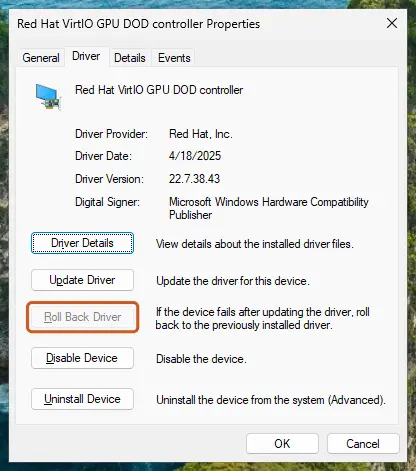
It worked if: The Camera app starts recording at once and the timer counts up.
If not: If the newest and the previous graphics driver both fail, the camera driver is next. Go to Fix 3.
Fix 3. Update, roll back or reinstall the camera driver
10 minutesLow riskThe camera has a warning sign in Device Manager, the preview takes long to appear, or the error began after an update.
Microsoft's support specialist on the Q&A thread for this code suggests updating the camera driver and then uninstalling the device so Windows installs it again. Microsoft's camera article gives roll back before reinstall when a camera stopped working after an update.
- Open Device Manager and find the camera under Cameras, Imaging devices or Sound, video and game controllers.
- Right-click it, select Update driver and then Search automatically for drivers. Restart and test.
- If the error started after an update, open Properties > Driver and select Roll Back Driver if it is available.
- If that did not help, select Uninstall Device, tick Attempt to remove the driver for this device and select OK.
- Select Action > Scan for hardware changes, wait for the camera to come back, restart and record again.
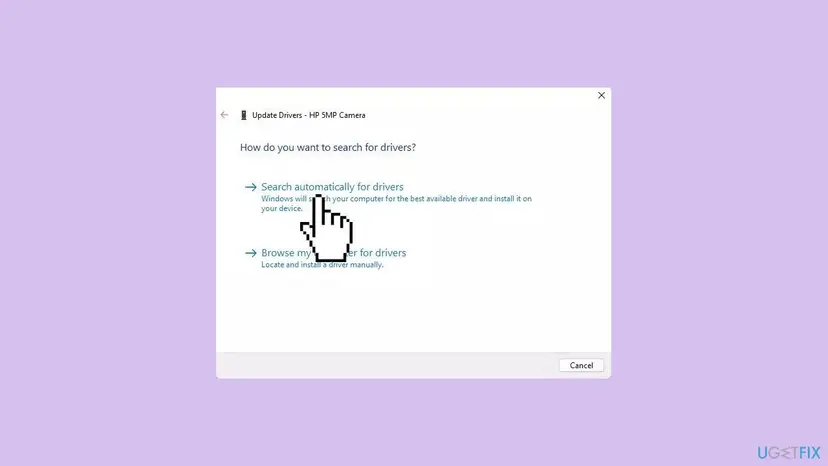
A laptop maker's support page often has a newer camera driver than Windows Update. Full steps: Update, roll back or reinstall a driver
It worked if: The camera is listed under Cameras without a warning sign, the preview appears quickly and video starts.
If not: For a USB webcam go to Fix 4. For a built-in camera, go to Fix 5.
Fix 4. Switch a USB webcam to the USB Video Device driver
5 minutesLow riskThe camera is an external USB webcam and the maker's driver did not help.
Most USB webcams follow the USB Video Class standard and work with the driver built into Windows. Microsoft suggests this swap when a webcam does not work correctly on its own driver.
- Open Device Manager and find the webcam under Cameras or Imaging devices.
- Right-click it and select Update driver.
- Select Browse my computer for drivers.
- Select Let me pick from a list of available drivers on my computer.
- Select USB Video Device, then Next, then Close. Record again.
The built-in driver may not support every feature of your webcam. Microsoft warns that Windows Hello face sign-in can stop working. To go back, use Roll Back Driver on the Driver tab.
It worked if: The webcam appears under Cameras as a USB Video Device and records video.
If not: If USB Video Device is not offered, the webcam does not follow the standard. Go on to Fix 5.
Fix 5. Repair, reset and update the Windows Camera app
5 minutesLow riskThe same camera records video in Teams, PowerPoint, Zoom or a browser, and only Windows Camera fails.
When other apps record with the same camera and microphone, the hardware and drivers work. The fault is then in the Camera app, and Microsoft's support specialist lists Reset as a step for this exact code.
- Close the Camera app.
- Open Settings > Apps > Installed apps, find Camera, select the three dots and select Advanced options.
- Select Repair and record a test video.
- If it still fails, select Reset. The app's own settings go back to default; your saved photos and videos stay.
- Open Microsoft Store > Library, select Get updates and let the Camera app update.
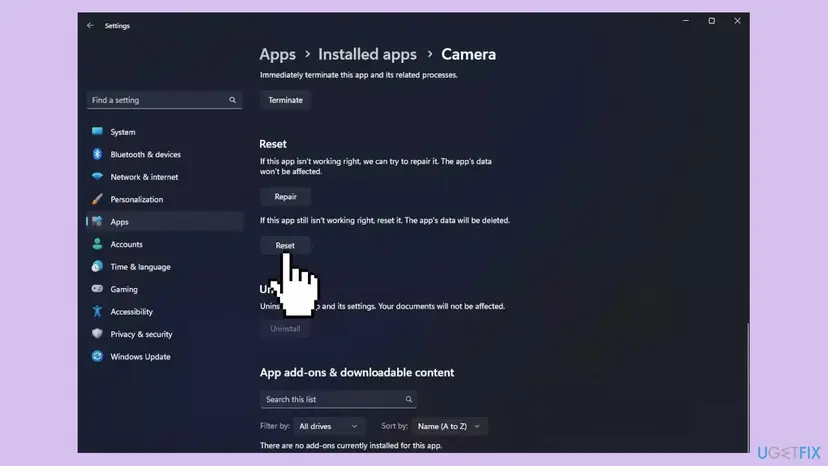
Full steps for Windows 11 and Windows 10: How to repair or reset an app in Windows
It worked if: The Camera app opens with default settings and records video.
If not: Users report that the error can survive a reset when the cause is the graphics driver. Make sure you tried Fix 2, then reinstall the app in Fix 6.
Fix 6. Reinstall the Camera app with PowerShell
10 minutesLow riskRepair and Reset did not help, and other apps record video normally.
Removing the app package and installing it fresh from the Microsoft Store replaces every app file. It helps when the app itself is damaged, but users on Microsoft's forum report it did not help when the cause was elsewhere.
- Right-click Start and select Terminal (Admin) or Windows PowerShell (Admin), then select Yes.
- Run the command below and wait until the prompt returns.
- Open Microsoft Store, search for Windows Camera and select Install.
- Open the Camera app, allow camera and microphone access if asked, and record a test video.
Remove the Camera app package
Get-AppxPackage *windowscamera* | Remove-AppxPackage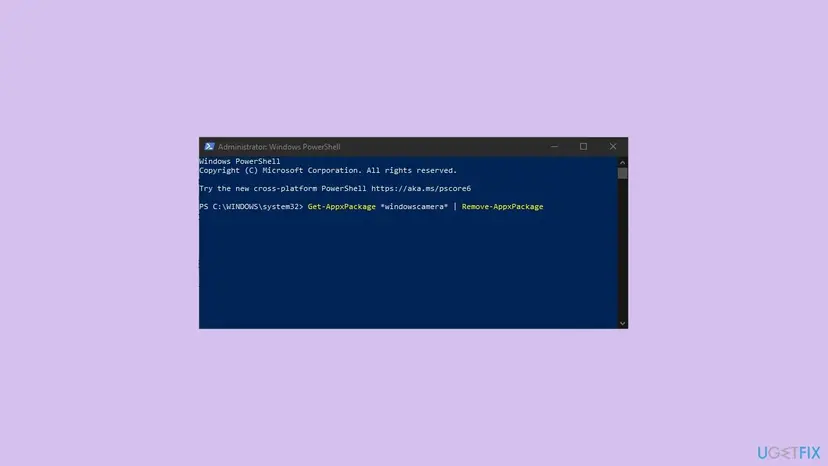
Your photos and videos are files in Pictures > Camera Roll, not app data, so removing the app does not delete them. To repair the app's registration without removing it, see How to re-register Microsoft Store apps with PowerShell
It worked if: Windows Camera is installed again from the Store and records video.
If not: If the fresh app shows the same code, the app is not the cause. Check the save folder in Fix 7.
Fix 7. Check the Camera Roll folder and where new videos are saved
5 minutesNo riskYou deleted or moved the Camera Roll folder, or removed a memory card or drive that new videos were set to save to.
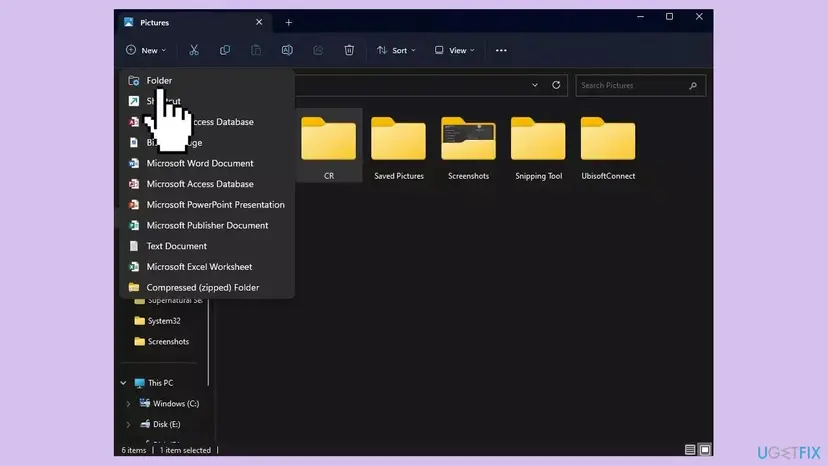
The Camera app writes each recording into a Camera Roll folder on the drive set for new photos and videos. If that folder or drive is gone, the recording has nowhere to go. If photos still save normally, this is not your cause.
- Press Win + E and open Pictures. If there is no folder named Camera Roll, select New > Folder and name it
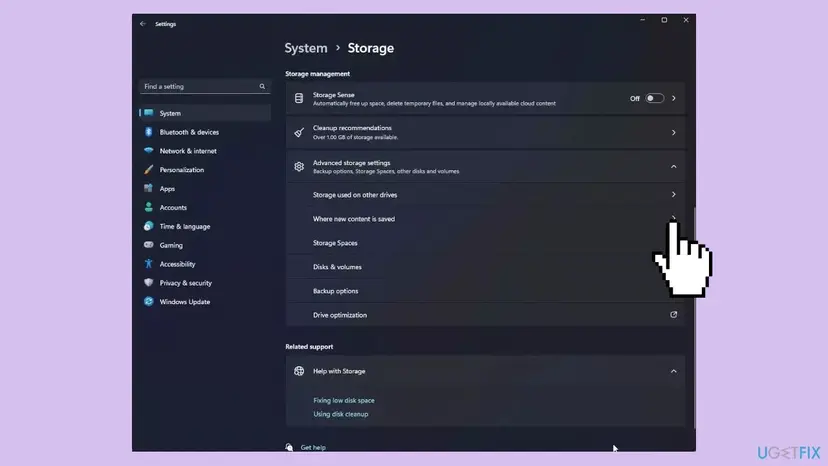
Camera Roll. - Open Settings > System > Storage and expand Advanced storage settings.
- Select Where new content is saved.
- Under New photos and videos will save to, choose the drive Windows is on, usually C:, and select Apply.
- Open the Camera app and record again.
It worked if: The recording starts and the new video appears in Pictures > Camera Roll.
If not: Go to Fix 8 for optional updates and the camera troubleshooter.
Fix 8. Install optional updates and run the Camera troubleshooter
15 minutesNo riskEvery fix above has failed, or Windows has updates waiting.
Microsoft's first steps for any camera error are its troubleshooter and the camera drivers offered as optional updates. They are general, so they come last here, after the checks that fit a video-only failure.
- Open Settings > Windows Update and select Check for updates.
- Select Advanced options > Optional updates and install any camera, audio or graphics driver offered.
- Restart the PC. Waking it from sleep is not the same thing.
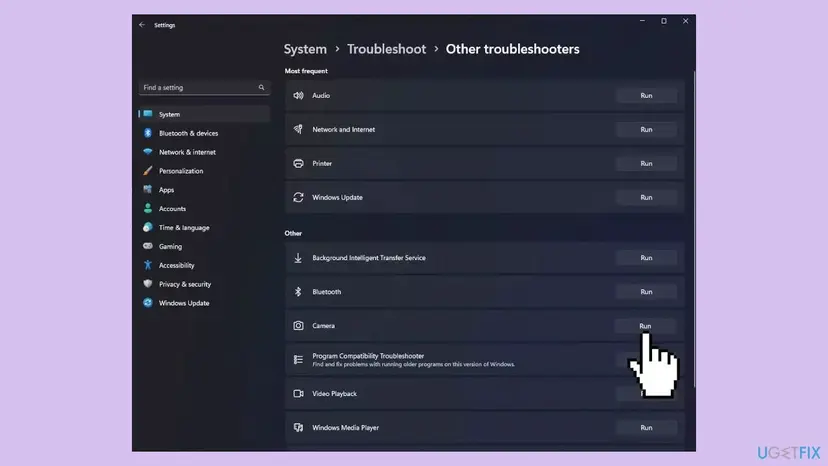
- Open Settings > System > Troubleshoot > Other troubleshooters and select Run next to Camera.
- Follow the troubleshooter, then record a test video.
To find out whether a background program blocks the recording, start Windows with only Microsoft services and test once: How to perform a clean boot in Windows If Windows Update itself fails: Run the Windows Update troubleshooter
It worked if: Windows is up to date, the troubleshooter reports what it checked, and video recording starts.
If not: Read "If error 0xA00F4293 is still there" below and gather the details for support.
If error 0xA00F4293 is still there
The Camera app shows only the code, and we found no Windows log that names it. Narrow the cause down with three short tests instead. Each one takes a minute and tells you which part to take to support.
- Record a short video in another app, such as PowerPoint, Teams or a browser webcam test. If that works, the problem is in the Camera app or the graphics driver.
- Record a sound clip with Sound Recorder (on Windows 10, Voice Recorder). If that fails, the microphone or audio driver is the cause, not the camera.
- Start Windows in safe mode and try the Camera app once. Microsoft's support specialist suggests this to rule out third-party programs and drivers: Start Windows or a Mac in Safe Mode
- What to send to support: the full message with the code, the camera name and driver version from Device Manager, the graphics chip and driver version from Display adapters, and the Windows version from Settings > System > About.
- Who to ask: for a built-in camera, the laptop maker. For a USB webcam, its maker. For a graphics driver that broke video, the graphics chip maker or the laptop maker.
- When it is hardware: no app can record video or sound, the camera is missing from Device Manager after Scan for hardware changes, or a USB webcam fails on a second PC as well.
If every app except Windows Camera records video, you can keep using those apps while you wait for a newer graphics driver or Camera app version. Several users on Microsoft's forum ended up there.
How to keep video recording from failing again
- Note the graphics driver version that works, so you can return to it if a new one breaks video.
- Take graphics and camera drivers from your laptop maker, the chip maker or Windows Update.
- Check the microphone in Settings > System > Sound after a large Windows update.
- Restart, not just wake from sleep, after any driver change.
- Do not install driver updater programs from unknown sites.
- Do not delete or move the Camera Roll folder in Pictures.
- Do not leave the microphone disabled in Sound settings and forget it. Video in the Camera app depends on it.
Windows 10 left support on 14 October 2025, so its Camera app and drivers no longer get regular fixes. One HP user reports the error started right after upgrading from Windows 10 to Windows 11, so check the drivers after any upgrade too.
Frequently asked questions
What does 0xA00F4293 <VideoCaptureStartTimeout> mean?
It means the Windows Camera app asked Windows to start recording a video and the start took too long, so the app stopped and showed "Something went wrong". Microsoft has not published a description of this code. In the reports we read, the camera itself works, because photos and the preview are fine. The parts that only a video uses are the usual suspects: the microphone for the sound track and the video encoder from the graphics driver. Start with Fix 1, then Fix 2.
Why can I take photos but not record video in the Camera app?
A photo needs only the camera. A video also needs a working microphone and a video encoder that compresses the picture while you record. If either one does not answer, the recording cannot start and the app reports 0xA00F4293. That is why the most common fixes are enabling the microphone (Fix 1) and updating or rolling back the graphics driver (Fix 2). If other apps record video with the same camera, the Camera app is the likely cause (Fix 5).
Is video capture start timeout fixed the same way on Windows 11 and Windows 10?
Yes. The code and the fixes are the same on both versions. Only some menu paths differ: on Windows 11 the microphone switches are in Settings > Privacy & security > Microphone, on Windows 10 in Settings > Privacy > Microphone. Windows 10 left support on 14 October 2025, so new Camera app and driver fixes reach it less often. One user on HP's forum reports the error appeared right after an upgrade to Windows 11, so check drivers after an upgrade.
What is PhotoCaptureStartTimeout or error 0xA00F4292?
PhotoCaptureStartTimeout is the photo counterpart of this error: taking a picture, not a video, does not start in time. Users report it with the code 0xA00F4292. Microsoft's camera article, however, lists 0xA00F4292 as "Camera access restricted by policy" and suggests checking camera privacy settings and work policies. If your photos fail too, check Settings > Privacy & security > Camera first, then the camera driver (Fix 3). This page is about video only.
Why does this happen on my HP or Lenovo laptop?
Most reports we read come from HP and Lenovo laptops with AMD processors and graphics, such as the HP Pro x360 435 G9, the HP EliteBook 845 G8 and the Lenovo IdeaPad Gaming 3. The common link there is the AMD graphics driver, which handles video encoding. Users fixed it with a newer driver or by rolling back to an older one (Fix 2). We could not confirm that every case is AMD. Get the newest drivers for your exact model from the maker's support page.
Will resetting or reinstalling the Camera app delete my photos and videos?
No. Your photos and videos are ordinary files in Pictures > Camera Roll. Reset clears the app's own settings, such as photo quality and grid lines. Uninstalling the app removes the app and its settings, and Windows states on that page that your documents will not be affected. If you want to be safe, copy the Camera Roll folder to another drive or to OneDrive before you start Fix 5 or Fix 6.
Should I turn off my antivirus to fix 0xA00F4293?
Not as a fix. No report we read ties this code to security software. Microsoft links security software to a different camera code, 0xA00F4246, where the camera is locked. Some security suites have their own webcam or microphone protection, so look there and allow the Camera app. If you want to test with protection paused, do it for one recording only and turn it back on: Turn off Microsoft Defender protection for a moment
Is my webcam broken if I see the video capture timeout error?
Usually not. If photos work and the preview shows a picture, the camera delivers images. Hardware is likely only when no app can record video or sound, the camera disappears from Device Manager after Scan for hardware changes, or a USB webcam fails on a second PC as well. If you see a media capture failed message in other apps too, the cause is shared by all apps, so look at the drivers rather than the Camera app.
I searched in another language or the error still appears. Does this page fit?
Yes, if your screen shows 0xA00F4293 or VideoCaptureStartTimeout. The code is the same in every language of Windows; only the text around it is translated. This page uses English menu names, which sit in the same places in other languages. If the problem persists after every fix, follow "If error 0xA00F4293 is still there" and contact your laptop or webcam maker with the details listed there. If your code is a different one, search for that exact code.
Sources
- Microsoft Support: Camera doesn't work in Windows (error code table with 0xA00F4294 and 0xA00F4292, drivers, UVC driver, troubleshooter) (support.microsoft.com)
- Microsoft Support: Fix microphone problems (privacy switches, input device, microphone test, input troubleshooter) (support.microsoft.com)
- Microsoft Learn: H.264 Video Encoder (certified hardware encoder used instead of the inbox encoder) (learn.microsoft.com)
Did this fix work?
One click, no account. It tells the next reader which guides are worth their time.
Questions and experiences: fix Camera app error 0xA00F4293 in Windows
Still broken, or found a fix we did not cover? Ask here: members and our editors answer. Reading is open; writing needs a free account.
…