
How to fix the FAST_ERESOURCE_PRECONDITION_VIOLATION blue screen (0x1C6) in Windows

Prefer to fix it yourself? The manual steps follow.
- 9methods
- 15 to 60 minutes
- Intermediate
Applies to Windows 11 and Windows 10 PCs that crash with the stop code FAST_ERESOURCE_PRECONDITION_VIOLATION or bug check 0x1C6
9 methods in this guide
Hello, yesterday I was playing a game and, suddenly, my PC started buzzing, which then resulted in a Blue Screen with an error FAST_ERESOURCE_PRECONDITION_VIOLATION. Sadly, this repeated again later. Is there anything I can do to fix this?
Stop code FAST_ERESOURCE_PRECONDITION_VIOLATION, bug check 0x000001C6, means a thread made an invalid call to a fast resource routine. That is a driver bug, not a hardware verdict. Start with the driver named on the stop screen, or with whatever you installed just before the first crash.
FAST_ERESOURCE_PRECONDITION_VIOLATION is bug check 0x1C6: a thread made an invalid call to a fast resource routine, which points to a faulty driver. Read the driver name on the stop screen or in the crash dump and update, roll back or remove that driver (Fix 1). If it began after an update or new device, undo that change (Fix 2, Fix 3).
| Error | A stop screen with Stop code: FAST_ERESOURCE_PRECONDITION_VIOLATION. Windows logs it as bug check 0x000001C6. |
|---|---|
| Where it appears | At random while you work or play, more often under heavy load such as games or HD video, according to users. The PC shows the message, collects data and restarts. |
| Main cause | Microsoft's definition: the current thread is performing an invalid call to a fast resource routine. Only kernel code, in practice a driver, makes such a call. |
| Fastest fix | Update, roll back or remove the driver named on the stop screen or in the dump (Fix 1). |
| Also written as | 0x1C6, 0x000001C6, bug check 0x1C6, fast eresource precondition violation, fast resource precondition violation (without the E). |
| Affects | Windows 11 and Windows 10. Windows 10 left support on 14 October 2025, so new driver fixes for it are no longer guaranteed. |
| Vendor status | Microsoft documents this bug check for programmers only and gives no customer fix. There is no general Windows patch to wait for. |
| Where the cause is logged | C:\Windows\Minidump (one .dmp file per crash) and Event Viewer, System log, event 1001, whose first parameter tells the violation type. |
| Time to fix | 10 to 20 minutes for a driver fix. 30 to 60 minutes when the PC restarts in a loop or Windows must be reset. |
Facts checked on 16 October 2026. Steps written for Windows 11 (25H2 and 26H2) and Windows 10 22H2.
What the FAST_ERESOURCE_PRECONDITION_VIOLATION blue screen means
Microsoft's bug check reference says the FAST_ERESOURCE_PRECONDITION_VIOLATION bug check has a value of 0x000001C6 and indicates that a current thread is performing an invalid call to a fast resource routine. Fast resources are locks that kernel code uses to protect shared data, so the crash means a piece of kernel code used such a lock in a way the rules forbid.
Microsoft marks the reference page as written for programmers. For customers it points to its general guide to stop code errors, which this page follows. Windows stops the PC instead of carrying on, because a wrongly used lock can corrupt data.
| What you see | Where |
|---|---|
| Stop code: FAST_ERESOURCE_PRECONDITION_VIOLATION | The stop screen on Windows 11 and Windows 10 |
The bugcheck was: 0x000001c6 (0x..., 0x..., 0x..., 0x...) | Event Viewer, System log, event 1001, after the restart |
| fast eresource precondition violation, fast eresource precondition | Searches that shorten or retype the stop code |
| fast resource precondition violation | The same name typed without the E of ERESOURCE |
| 0x1C6, 0x000001C6 | Short and long forms of the same number |
Microsoft says the screen colour and message of a stop code error vary by Windows 11 version. On Windows 11 24H2 and later the screen is black. The line Your device ran into a problem and needs to restart and the stop code stay the same.
What causes the 0x1C6 blue screen, most common first
Microsoft does not name a product or a driver for this bug check, so no list of guilty drivers is official. What the definition does tell you is where to look: at code that runs in the kernel. A kernel driver that is new, freshly updated or brought by a device you added is the first suspect. A program with its own driver is the next.
| How often | Cause | Sign | Fix |
|---|---|---|---|
| Most often | A buggy or outdated driver of a device or program | The stop screen shows a What failed line or the dump names a .sys file that is not part of Windows | Fix 1 |
| Often | A recent driver, app or Windows update that brought a new driver | The crashes began within days of the update | Fix 2 |
| Often | A newly added device, dock or USB gadget and its driver | The crashes began after you plugged something in | Fix 3 |
| Less often | A program with its own kernel driver, such as security, backup, disk or tuning software | The dump names only Windows files, or crashes stop in a clean boot | Fix 5 |
| Rarely | Missing Windows updates, a nearly full system disk or damaged system files | Several different stop codes, or a disk with under 10 % free | Fix 6, Fix 7 |
| Rarely | Faulty memory or a failing disk | Different stop codes each time, crashes under heavy load | Fix 8, Fix 7 |
Microsoft says that in most cases when Windows restarts unexpectedly, the restart solves it and no action is needed. Act when the same stop code returns, as in the reader's question above, where it came back the same evening.
How to find the driver behind the stop code
A driver name turns a vague crash into a concrete fix. Microsoft says the stop screen shows the module name of the code that was running, when it is available, so photograph the screen before the PC restarts. If you missed it, Windows keeps a record.
- Press Win + R, type
eventvwr.mscand press Enter. - Open Windows Logs > System and look for the newest event 1001 from BugCheck.
- Read the text
The bugcheck was: 0x000001c6and the four numbers after it. The first number is the violation type from the table below. - Open
C:\Windows\Minidumpin File Explorer. Every crash writes one.dmpfile with the date in its name; keep the newest three. - Open the files with WinDbg and run
!analyze -v, as Microsoft suggests, and read the IMAGE_NAME and MODULE_NAME lines. That is the file to look up.
The first parameter says what the caller did wrong. It helps the maker of the driver, not you, but it shows how specific this crash is. Microsoft lists 23 values; these are the ones that explain the rest.
| Value | What the caller did |
|---|---|
| 0x0 | Called from an interrupt level (IRQL) higher than the routine allows |
| 0x1, 0x2, 0x8, 0x9 | Used an owner entry that was empty, already in use, or not tied to this lock or thread |
| 0x3, 0xE, 0xF | Mixed a legacy resource with a fast resource routine, or the other way round |
| 0x5, 0x6, 0x7 | Called while inside a DPC or special kernel APC, or without disabling normal kernel APCs |
| 0x14, 0x15 | A thread exited while it still held lock acquisitions |
A name such as ntoskrnl.exe or volmgr.sys only shows where Windows caught the bad call. The old version of this guide named both files. The cause is then often a driver that is not named: go to Fix 2 and Fix 5.
How to fix the FAST_ERESOURCE_PRECONDITION_VIOLATION blue screen
Start with Fix 1 if the stop screen or the dump names a driver. Fix 2 is for crashes after an update or new program, Fix 3 for new hardware and Fix 4 for a PC that restarts in a loop. Fix 5 finds a guilty program. Fixes 6 to 9 are general checks and repairs.
| What you see | Start with | Then |
|---|---|---|
The stop screen or IMAGE_NAME names a third party .sys driver | Fix 1 | Fix 2 |
| Crashes began after a driver, app or Windows update | Fix 2 | Fix 1 |
| Crashes began after you added a device, dock or USB gadget | Fix 3 | Fix 1 |
| The PC restarts in a loop and never reaches the desktop | Fix 4 | Fix 9 |
| Only Windows files named, and backup, disk or security tools installed | Fix 5 | Fix 6 |
| Different stop codes each time, or nothing above helped | Fix 6 | Fix 7, Fix 8, Fix 9 |
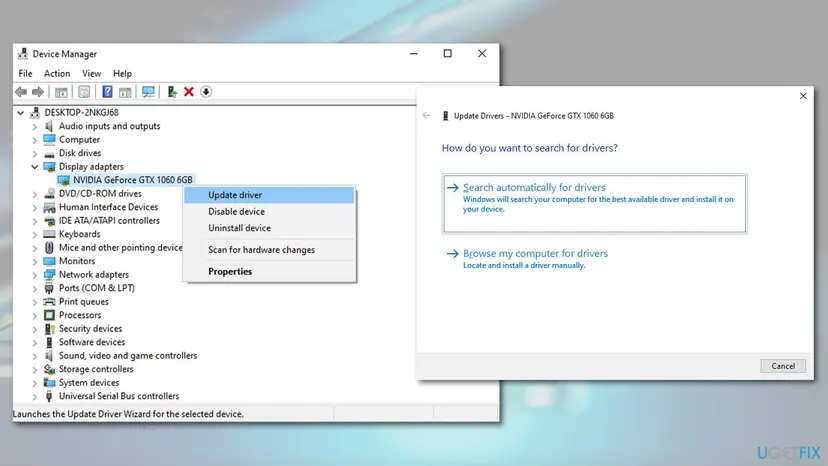
Fix 1. Update, roll back or remove the driver the crash names
15 minutesLow riskThe stop screen shows a What failed line, or the dump shows an IMAGE_NAME that is not a core Windows file.
Microsoft defines this crash as an invalid call by a thread, which in practice is driver code. Only a different version of that driver, or not loading it, removes the bad call.
- Search the driver file name, for example
rt640x64.sys, to learn which device or program it belongs to. - Right-click Start and select Device Manager, then find that device.
- If the crashes began after a driver update, open Properties > Driver and select Roll Back Driver.
- Otherwise, download the newest driver for that exact device from its maker or your PC maker and install it.
- If no newer driver exists, right-click the device and select Disable device as a test.
- Restart and use the PC the way it crashed before. Step by step with screenshots: Update, roll back or reinstall a driver
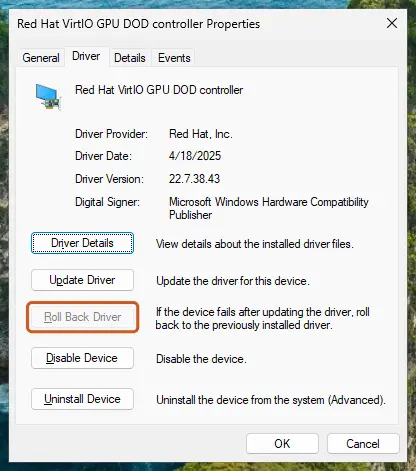
The old guide advised a tool that updates all drivers at once. Use Windows Update or the device maker's page instead, because a wrong driver is a common way to cause this crash.
It worked if: Device Manager shows the new, older or disabled driver, and the PC runs through the task that used to crash without a new file in C:\Windows\Minidump.
If not: If no driver is named, or the crash returns, go to Fix 2.
Fix 2. Undo the update or program that came before the crashes
15 to 30 minutesRead the warningThe crashes began within days of a Windows update, a driver update or a new program, and no driver is named.
Every update can bring a new driver, and a program can install its own. Going back to the state before the first crash removes that driver without having to know its name.
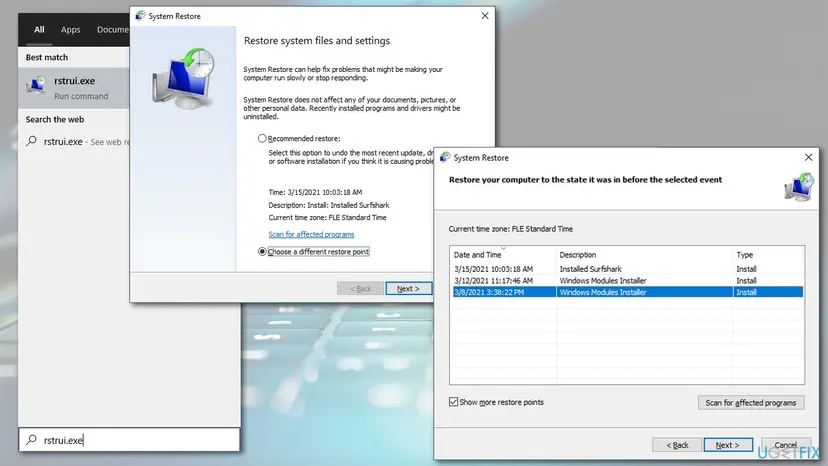
System Restore keeps your files but removes apps and drivers installed after the restore point. Uninstalling a Windows update removes its security fixes until it installs again. Note what you remove so you can add it back later.
- Note the date of the first crash: in Event Viewer find the oldest event 1001 with
0x000001c6. - Open Settings > Apps > Installed apps, sort by install date and uninstall a program installed just before that date: Uninstall a program or app in Windows
- If a Windows update came the same day, uninstall it: How to uninstall a Windows update
- If you cannot tell what changed, press Win + R, type
rstruiand choose a restore point from before the first crash: Undo recent changes with System Restore - Restart and use the PC as before.
It worked if: The PC runs through a full day of normal use without a new crash dump.
If not: If you added hardware in the same period, go to Fix 3. Otherwise go to Fix 5.
Fix 3. Unplug new hardware and test with the basics only
10 minutesLow riskYou added a device, dock, capture card, adapter or USB gadget shortly before the first crash.
Microsoft lists removing new hardware as the first basic step for any stop code error. A new device brings its own driver, so taking it away shows at once whether that driver is the caller.
- Shut the PC down completely and unplug the newly added hardware and every non essential USB device.
- Start Windows and use it the way it crashed before, for example the same game or video.
- If the crashes stop, plug the devices back one at a time with a day of use between them.
- For the device that brings the crash back, install the newest driver from its maker or leave it unplugged.
It worked if: The PC runs without a crash while the device is unplugged, and the crash returns only with one device.
If not: If it crashes with everything unplugged, go to Fix 2 or Fix 5.
Fix 4. Stop a restart loop from Safe Mode or the recovery environment
20 minutesRead the warningThe PC crashes before the desktop or restarts again and again, so you cannot open Device Manager.
Safe Mode loads only basic drivers, so the faulty one stays out of memory. Microsoft names Safe Mode as the way to continue troubleshooting when the PC will not start normally.
System Restore removes programs and drivers installed after the restore point. Keep a note of what you installed lately and copy important files first if the PC allows it.
- Turn the PC on and, when the logo appears, hold the power button until it shuts down. Do this twice; the third start opens Automatic Repair.
- Select Advanced options > Troubleshoot > Advanced options > Startup Settings > Restart, then press 4 for Safe Mode: Start Windows or a Mac in Safe Mode
- In Safe Mode, roll back or uninstall the driver or program you installed last, as in Fix 1 and Fix 2.
- If Safe Mode does not start, go back to Advanced options and run Startup Repair: Run Startup Repair
- If that fails, select System Restore and pick a point from before the first crash.
It worked if: Windows starts normally after the change and stays up.
If not: If even Safe Mode crashes, go to Fix 9 and look at the hardware signs under Still crashing.
Fix 5. Find a guilty program with a clean boot
20 minutesLow riskThe dump names only Windows files, or you have backup, disk, security, VPN or tuning software that loads its own drivers.
A clean boot starts Windows with only Microsoft services. If the crashes stop, the cause is a non Microsoft service or startup item, and you can switch them on again in groups to find it.
- Press Win + R, type
msconfigand open the Services tab. - Tick Hide all Microsoft services and select Disable all.
- Open the Startup tab, select Open Task Manager and disable every startup item that is not from Windows.
- Restart and use the PC the way it crashed before. Full steps with screenshots: How to perform a clean boot in Windows
- If the crashes stop, enable half of the services, restart and test again until you find the one that brings them back.
- Update or uninstall the program that owns that service, then return to normal startup in System Configuration.
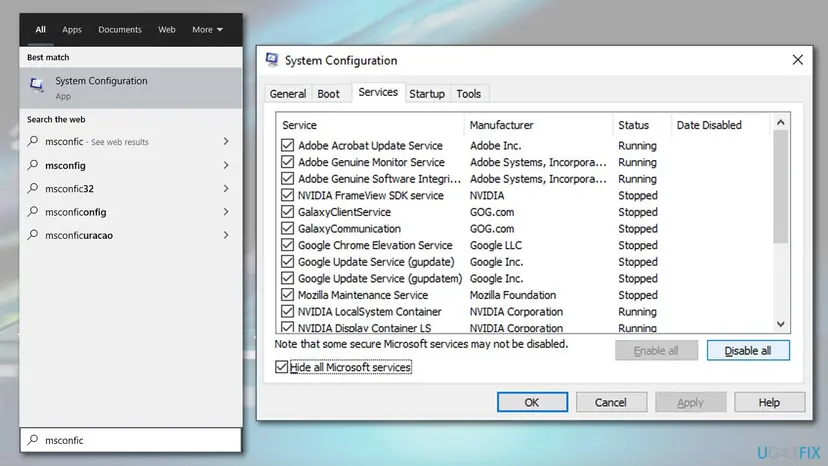
The old guide told you to tick Safe Boot in the Boot tab. That starts Safe Mode, which is a different test. A clean boot needs only the Services and Startup changes above.
It worked if: With the services disabled the PC runs through the test that used to crash it, and one switched on group brings the crash back.
If not: If it still crashes in a clean boot, the cause is a driver of Windows or hardware: go to Fix 6.
Fix 6. Install Windows updates and free space on the system drive
20 to 40 minutesLow riskNo driver is named, the PC is behind on Windows updates, or the system drive is nearly full.
Microsoft lists both steps among the basics for stop code errors: free space for swap files and other functions, and the latest updates for driver and system fixes.
- Open File Explorer > This PC and check the free space of drive C:. Microsoft advises 10 % to 15 % free.
- If it is lower, free space: Free up disk space and delete temporary files
- Open Settings > Windows Update (Windows 10: Update & Security > Windows Update) and select Check for updates.
- Install everything offered, including optional driver updates for your device if the list shows them, and restart.
- If an update fails, install it by hand: Install an update from the Microsoft Update Catalog
It worked if: Drive C: has 10 % or more free and Windows Update reports that the device is up to date.
If not: If the crash returns on an updated PC, go to Fix 7.
Fix 7. Repair system files and check the disk
30 minutesNo riskThe earlier fixes did not help, or Windows shows other odd errors besides the blue screen.
Damaged system files and disk errors can break the drivers that load on every start. The checks are safe and also rule out the disk, which Microsoft's definition does not point to.
Run DISM and the system file checker first, then the disk check. Open Command Prompt as administrator, type sfc /scannow and press Enter. If it reports files it cannot repair, run the three DISM commands in the order shown.
In Command Prompt (Admin), one after the other:
sfc /scannow
Dism /Online /Cleanup-Image /CheckHealth
Dism /Online /Cleanup-Image /ScanHealth
Dism /Online /Cleanup-Image /RestoreHealth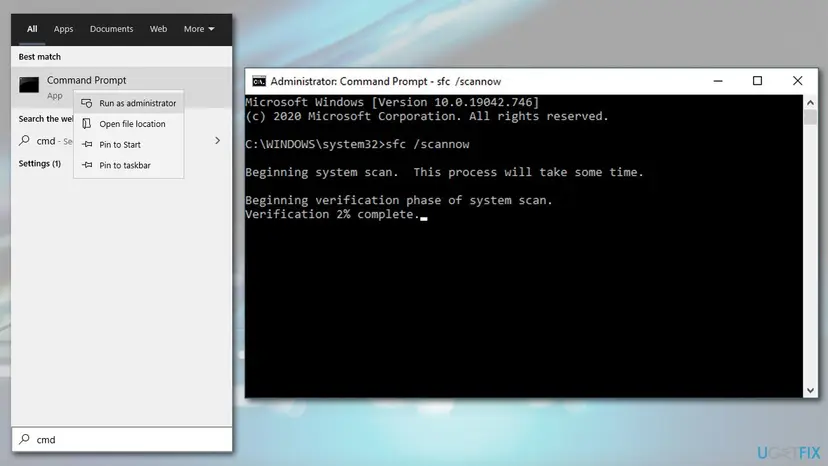
For the disk, run chkdsk C: /f /r /x as administrator, accept the check at the next start and let it finish, which can take hours on a large disk. Step by step: Run DISM and SFC to repair Windows system files and Check a disk for errors (chkdsk)
It worked if: SFC reports that it found no integrity violations or that it repaired them, and the disk check ends without bad sectors.
If not: If SFC cannot repair files or the disk check reports bad sectors, back up your files and go to Fix 9, and think about a new disk.
Fix 8. Test the memory with Windows Memory Diagnostic
30 minutesNo riskYou get different stop codes on different days, or the crashes come only under heavy load.
Microsoft's wording for 0x1C6 points to software, so memory is an unlikely cause. A test still rules it out, which matters when a repeating crash has no driver in the dump.
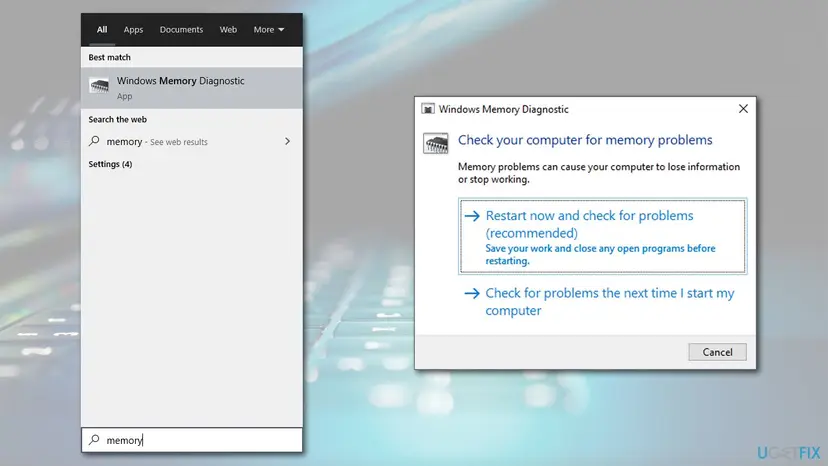
- Press Win, type
Memoryand press Enter to open Windows Memory Diagnostic. - Select Restart now and check for problems (recommended), after saving your work.
- Wait for the test to finish. Windows restarts by itself and shows the result after sign in: How to test your RAM with Windows Memory Diagnostic
It worked if: The result after restart says that no memory problems were detected.
If not: If the test reports errors, remove one memory module at a time and test again, or ask a repair shop to test them.
Fix 9. Reset Windows and keep your files
60 minutes or moreRead the warningEvery fix above failed and the dumps keep naming only Windows files.
A reset replaces every Windows file and the whole driver store at once. If the crash returns before you install any driver of your own, the cause is probably the hardware.
Reset this PC with Keep my files keeps documents, pictures and the desktop, but removes the apps you installed. Back up your files to an external drive or cloud storage before you start: Back up your files (Windows Backup, File History, Time Machine)
- Back up your files and note the apps you will need to install again.
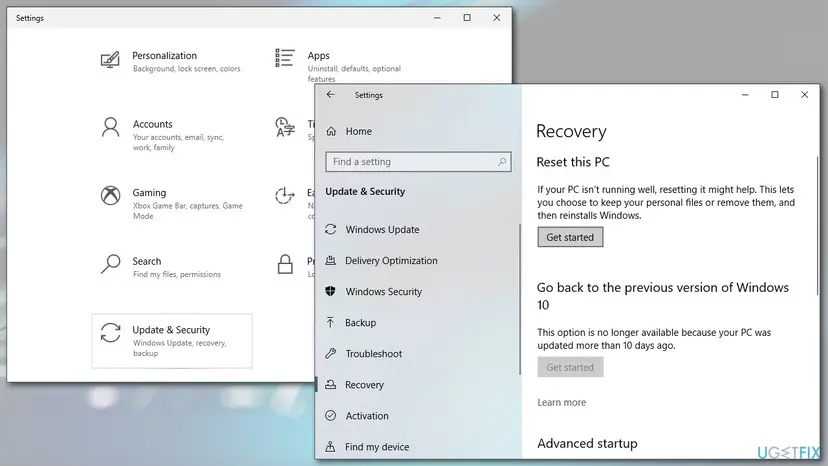
- Open Settings > System > Recovery (on Windows 10: Settings > Update & Security > Recovery).
- Select Reset PC (Windows 10: Get started under Reset this PC), then Keep my files and Cloud download.
- After the reset, install the chipset and device drivers from your PC maker first, then apps one at a time, testing between them. Full method: Reinstall Windows without losing files
It worked if: Windows starts fresh, and the crash does not return after you add drivers and apps one by one.
If not: If it returns on a clean Windows before any extra driver, contact your PC maker or a repair shop.
Still getting FAST_ERESOURCE_PRECONDITION_VIOLATION: what to collect and whom to ask
Microsoft treats this crash as a driver bug, so real help comes from the maker of the driver. Collect the facts once and send them to whoever the dump points at.
- The three newest
.dmpfiles fromC:\Windows\Minidump, zipped. - The IMAGE_NAME and MODULE_NAME lines from
!analyze -v. - The four numbers after
0x000001c6in Event Viewer event 1001, with the first one marked. - Your Windows edition and build from Settings > System > About.
- What you were doing at each crash: gaming, watching video, copying files or idle.
| Where to report | When |
|---|---|
| The maker of the driver in IMAGE_NAME | The dump names a third party driver |
| The maker of the backup, disk or security program | The clean boot in Fix 5 pointed to that program |
| Microsoft Q&A or Feedback Hub | Only Windows files are named, after a Windows update |
| Your PC maker or a repair shop | Crashes on a clean reset, memory errors or disk errors |
Suspect hardware when the crash returns on a clean Windows with no extra drivers, when the memory test reports errors, or when the stop codes differ each time. Microsoft's definition does not point to hardware, so check the software first.
How to keep the 0x1C6 blue screen from coming back
- Get drivers from Windows Update or the device maker's own page.
- Create a restore point before you change drivers or install system level tools.
- Keep 10 to 15 % of the system drive free, as Microsoft advises.
- Remove the software of devices you no longer use.
- Use driver updater programs that install drivers from unknown sources.
- Run two antivirus programs at once; both load kernel drivers.
- Ignore a stop code that repeats: it names the same driver or the same violation each time.
- Plug in a new device before an important job without testing it first.
Other blue screens follow the same logic: find the driver in the dump first. Our guide to the 0x000000BE blue screen shows it for a driver that writes to read only memory.
Frequently asked questions
What is the FAST_ERESOURCE_PRECONDITION_VIOLATION error?
It is the Windows stop code for bug check 0x000001C6. Microsoft says it indicates that a current thread is performing an invalid call to a fast resource routine. In plain words, a driver or other kernel code used one of Windows' internal locks the wrong way, so Windows stopped the PC to protect your data. The fix is to find that driver on the stop screen or in the crash dump, as in Fix 1.
Is fast resource precondition violation the same error?
Yes. People often leave out the E of ERESOURCE and search for fast resource precondition violation, or shorten it to fast eresource precondition. All three lead to the stop code FAST_ERESOURCE_PRECONDITION_VIOLATION and bug check 0x1C6, so the same fixes apply. Check the exact name on your own stop screen or in Event Viewer event 1001, because other stop codes need other fixes.
Does FAST_ERESOURCE_PRECONDITION_VIOLATION happen on Windows 11?
Yes. The bug check is part of the Windows kernel, and Microsoft's reference lists it without a version limit. Searches for the stop code together with Windows 11 are common. On Windows 11 24H2 and later the screen is black instead of blue, but the text and the stop code are the same. Every fix on this page was written for Windows 11 and Windows 10 22H2.
What does 0x000001C6 mean, and is it the same as ERROR_CAPAUTHZ_NO_POLICY?
For a blue screen, 0x000001C6 is the bug check FAST_ERESOURCE_PRECONDITION_VIOLATION. Windows' list of ordinary error codes also contains a code with the same number, 454, named ERROR_CAPAUTHZ_NO_POLICY, which means there is no capability authorization policy on the device. That is a different list and does not apply to a stop screen. Ignore it and use the fixes on this page.
I do not know what this problem is. How do I fix it?
Your PC showed a blue or black screen with the words FAST_ERESOURCE_PRECONDITION_VIOLATION and restarted. This page is written in English; a translation of the screen text will not change the fix. If it happened once, do nothing. If it repeats, update or roll back the driver you changed last (Fix 1), undo a recent update (Fix 2) or unplug new hardware (Fix 3).
Can bad RAM or a bad disk cause this blue screen?
Microsoft's definition describes an invalid call made by a thread, which is a software fault, so memory and disk are unlikely causes. They cannot be ruled out without a test, though, because failing hardware can corrupt anything. Run the memory test in Fix 8 and the disk check in Fix 7. If both pass and the dump names a driver, concentrate on the driver.
Why does the crash come while I play games or watch HD video?
Users report that the stop code shows up more often during heavy use such as gaming or HD video. We found no source that explains this. A likely reason is that such tasks load graphics, storage and audio drivers harder, so a driver's mistake shows up sooner. Read the driver name in the dump and update or roll back that driver before you blame the game.
Is FAST_ERESOURCE_PRECONDITION_VIOLATION a sign of a virus?
Nothing in Microsoft's reference points to malware. The definition covers any kernel code that makes an invalid call to a fast resource routine, and a normal driver bug does that. A scan is still cheap, so run a Microsoft Defender scan if the crashes started after you installed software from an unknown source: How to scan for malware with Microsoft Defender. Do not turn off your antivirus as a fix.
Can I ignore the blue screen if it happened only once?
Yes, in most cases. Microsoft says that when Windows restarts unexpectedly, the restart usually resolves the problem and no further action is needed. Act when the same stop code returns, as the second crash in the reader's story did. A repeat means the same driver loads each time, which makes it easier to find. Save your work often until you know the cause.
Sources
- Microsoft Learn: Bug Check 0x1C6 FAST_ERESOURCE_PRECONDITION_VIOLATION (learn.microsoft.com)
- Microsoft Support: Troubleshooting Windows unexpected restarts and stop code errors (support.microsoft.com)
Did this fix work?
One click, no account. It tells the next reader which guides are worth their time.
Questions and experiences: fix the FAST_ERESOURCE_PRECONDITION_VIOLATION blue screen (0x1C6) in Windows
Still broken, or found a fix we did not cover? Ask here: members and our editors answer. Reading is open; writing needs a free account.
…