
How to fix LiveKernelEvent 117 error in Windows?

Prefer to fix it yourself? The manual steps follow.
- 7methods
- 20 minutes for the driver and settings fixes; a few days of normal use to confirm
- Intermediate
Applies to Windows 11 and Windows 10 desktops and laptops with an NVIDIA, AMD or Intel graphics card or integrated graphics
7 methods in this guide
Hello. I have recently been having weird crashes on Windows 10. It freezes, and then I usually have to force a restart with the Reset button. I checked Event Viewer, and the crashes seem to be related to LiveKernelEvent 117. The description says it is a hardware error, but my PC is relatively new, barely six months old. Please help.
LiveKernelEvent 117 is the entry Windows writes when the graphics card stops answering for more than two seconds and Windows resets its driver to unfreeze the screen. The PC survived, but the cause is real. Read which driver the report names, then do a clean install of the graphics driver first.
Code 117 is Microsoft's VIDEO_TDR_TIMEOUT_DETECTED: the display driver did not respond in time and Windows reset the graphics card. It is a live dump, not a blue screen. Open perfmon /rel and note the report (Fix 1), then remove the graphics driver and install the current one clean (Fix 2). If it returns, put the card and memory back to stock speeds (Fix 3) and check cooling and power (Fix 5).
| Error | LiveKernelEvent, Code 117, listed in Reliability Monitor as Hardware error. The full lines read Problem Event Name: LiveKernelEvent and Code: 117. |
|---|---|
| Where it appears | In Reliability Monitor (perfmon /rel) and in Control Panel's problem reports, after a freeze, a flicker, a black screen for a few seconds or a game that closes. Usually no blue screen. |
| Main cause | The graphics card took longer than the 2 second timeout to finish a task, so Windows reset the driver. Most often a faulty or mismatched graphics driver, then overclocks, heat or a weak power supply. |
| Fastest fix | Remove the current graphics driver and install the newest one from NVIDIA, AMD or Intel with a clean installation (Fix 2). |
| Also written as | live kernel event 117, LiveKernelEvent code: 117, livekernelevent117, livekernalevent 117, live kernel 117, kernel 117, hardware error 117, 0x117, VIDEO_TDR_TIMEOUT_DETECTED. |
| Microsoft's description | "The display driver failed to respond in a timely fashion." Microsoft adds that this code "can never be used for a real bug check; it is used to identify live dumps." |
| Often seen with | The message "Display driver stopped responding and has recovered.", LiveKernelEvent 141 (an engine timeout), and the blue screen VIDEO_TDR_FAILURE (0x116) when recovery fails. |
| Affects | Windows 11 and Windows 10 alike, with any graphics card. The driver file in the report is often nvlddmkm.sys on NVIDIA cards. |
| Vendor status | Not a Windows bug and not a known issue with a patch. Microsoft points to display driver updates, hardware settings, cooling and power. |
| Time to fix | 20 minutes for Fixes 1 to 3. Each change needs a few sessions of the same game or task before you know it worked. |
Facts checked on 16 October 2026. Steps written for Windows 11 (25H2 and 26H2) and Windows 10 22H2.
What LiveKernelEvent 117 means
A LiveKernelEvent is a report Windows files when it took a memory snapshot of the kernel, a live dump, without crashing. The Code field is the code of that snapshot in hexadecimal, written without 0x. Code 117 is 0x00000117, which Microsoft names VIDEO_TDR_TIMEOUT_DETECTED and describes in one line: "The display driver failed to respond in a timely fashion."
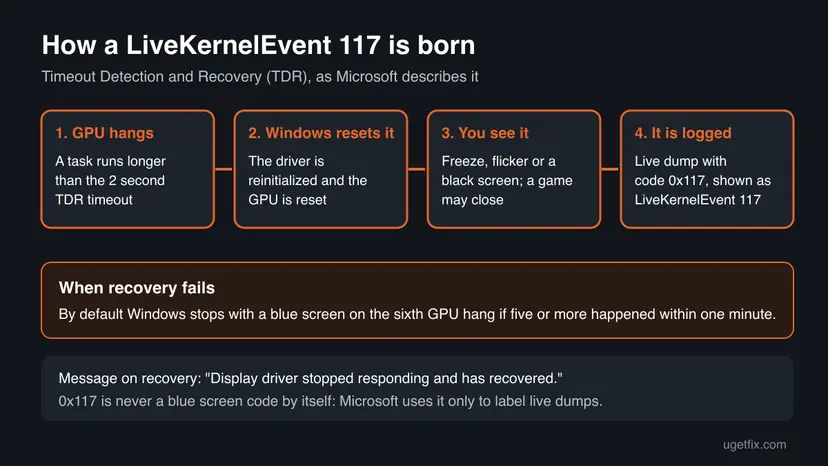
The process behind it is Timeout Detection and Recovery (TDR). The GPU scheduler in Windows waits for the graphics card to finish or pause its current task. If that takes longer than the timeout, two seconds by default, Windows decides the GPU is frozen, asks the driver to reinitialize itself and resets the card. When that works, the desktop comes back and you may see the message "Display driver stopped responding and has recovered."
- Problem Event Name
- LiveKernelEvent
- Code
- 117 (live dump code 0x00000117, VIDEO_TDR_TIMEOUT_DETECTED)
- Summary in Reliability Monitor
- Hardware error
- Parameter 2
- Points into the driver module that did not respond, which is how the report can name a file such as
nvlddmkm.sys - Bucket ID
- Starts with
LKD_0x117, the live kernel dump of code 0x117 - Timeout
- 2 seconds by default (Microsoft's TDR documentation)
People type this report in many ways: live kernel event 117, livekernelevent117, livekernalevent 117, live kernel 117, kernel 117 and LiveKernelEvent code: 117. All of them are the same Reliability Monitor entry. The word hardware in the summary is a category Windows uses for live kernel reports. It does not prove that a part is broken: in most cases the driver or a setting is the cause.
Microsoft explains that during a GPU hang "no screen updates occur, and users assume that their system is frozen", so many people press the power or Reset button before Windows finishes the recovery. If the screen freezes, wait 10 to 15 seconds first. If it comes back, you have just watched a TDR.
Why LiveKernelEvent 117 happens: causes ranked
Microsoft's resolution for 0x117 lists the display driver first, then hardware conditions: overclocked parts, wrong memory configuration and timings, too little cooling, too little power and defective parts. It also names heavy visual effects or too many background programs. The table orders those causes by how often they turn out to be the reason in reports we read, and ties each one to a fix.
| Cause | How often | How to tell | Fix |
|---|---|---|---|
| A faulty, old or half-replaced graphics driver, including one Windows Update installed over yours. | Most often | It started after a driver or Windows update, or the report names the driver file. | Fix 2 |
| A graphics card overclock or undervolt, a factory OC profile, or an XMP or EXPO memory profile. | Often | A tuning tool runs at startup, or memory runs faster than its standard speed. | Fix 3 |
| A game or app that overloads the GPU, an outdated game build, or overlays and recorders running at the same time. | Often | It happens in one game or app only, often at the same scene or menu. | Fix 4 |
| Heat, a weak or old power supply, a loose power cable or a card not fully seated. | Sometimes | Freezes come after 10 to 30 minutes of load, or the fans are loud just before. | Fix 5 |
| Faulty memory modules. | Less often | Freezes also happen at light load, and other apps crash too. | Fix 6 |
| Damaged Windows files. | Rarely | Other Windows errors appear too. | Fix 7 |
| A graphics card that is failing. | Rarely, but real | Freezes stay with a clean driver at stock settings, good temperatures and a known good power supply. | Still broken section |
A single entry after a heavy game session can be a one-off. Several entries a week, freezes you can repeat, or a 117 followed by a blue screen are the signs to work through the fixes below.
LiveKernelEvent 117 compared with 141, 116 and 1a8
Reports of 117 rarely come alone. These are the codes you may see next to it, all from the same graphics recovery system. Microsoft's TDR article explains how they relate.
| Code | Name | What it means for you |
|---|---|---|
| 117 | VIDEO_TDR_TIMEOUT_DETECTED | The whole graphics adapter hung and was reset. Live dump only, never a blue screen by itself. |
| 141 | VIDEO_ENGINE_TIMEOUT_DETECTED | One engine of the GPU timed out and was reset. Microsoft says engine timeouts do not count toward the GPU hang limit unless the engine reset fails. |
| 142 | VIDEO_TDR_APPLICATION_BLOCKED | Windows blocked the process that kept causing engine timeouts from using the GPU, so the PC does not have to stop. |
| 116 | VIDEO_TDR_FAILURE | A blue screen: the recovery itself failed. Microsoft's TDR keys page links 0x116 to a driver that did not let go in time. |
| 1a8 | Display related live dump | A different code about the display path. See our guide on LiveKernelEvent 1a8. |
By default Windows stops the PC with a blue screen on the sixth GPU hang when five or more hangs and recoveries happen within one minute. So a string of 117 entries followed by a restart is the same fault getting worse, and the fixes on this page apply to both. If the report says 124 instead, it is a hardware error from WHEA, covered in LiveKernelEvent 124.
How to fix LiveKernelEvent 117
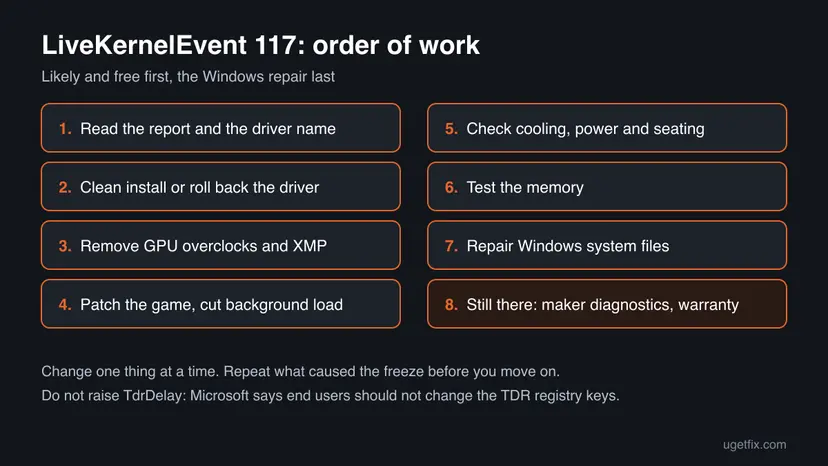
Fix 1 tells you which driver and which moment to look at. Fix 2 solves the most common cause. Fixes 3 and 4 take load and tuning off the card, Fixes 5 and 6 check the hardware, and Fix 7 rules out Windows. Change one thing at a time and repeat what caused the freeze before you go on.
| What you see or have | Start with |
|---|---|
| You do not know when it happens or which driver is named. | Fix 1 |
| It started after a graphics driver or Windows update. | Fix 2 |
| A GPU tuning tool, a factory OC mode, XMP or EXPO is on. | Fix 3 |
| It happens in one game or app only. | Fix 4, then Fix 2 |
| It happens after some minutes of heavy load, or the PC is dusty or has an older power supply. | Fix 5 |
| It happens at light load too and other apps crash. | Fix 6 |
| Everything is clean, stock and cool, and it still happens. | The still broken section |
Fix 1. Read the LiveKernelEvent 117 report and find the driver it names
5 minutesNo riskEveryone, before changing anything. It takes five minutes and tells you whether one card, one driver or one app is involved.
Microsoft's 0x117 parameters include a pointer into the responsible driver module, and its advice is to check the System log in Event Viewer for other errors that identify the device or driver. Knowing the driver and the moment saves you from guessing.
- Press Win + R, type
perfmon /reland press Enter. You can also search for reliability and open View reliability history. - Select a day with a red X. Under Critical events, find the line Hardware error.
- Select View technical details. Check that it shows
Problem Event Name: LiveKernelEventandCode: 117, and write down the date, the time and the Bucket ID. - Press Win + R, type
eventvwrand press Enter. Open Windows Logs > System. - Look at the warnings and errors from the same minute. A line that says the display driver stopped responding, or an entry whose source is the driver itself (for example nvlddmkm on NVIDIA cards), confirms which driver timed out.
- Note what you were doing at that time: the game, the browser with video, a sleep and wake, or a second monitor being connected.
| What you find | What it points to | Go to |
|---|---|---|
nvlddmkm.sys or source nvlddmkm | The NVIDIA driver timed out. See also nvlddmkm Event ID 0. | Fix 2, Fix 3 |
An AMD driver file such as atikmpag.sys or amdkmdag.sys | The AMD driver timed out. | Fix 2, Fix 3 |
| Every entry during one game or app | That app's load or a bug in it. | Fix 4 |
| Entries after 20 or more minutes of load | Heat or power. | Fix 5 |
| 117 and 141 together, or 116 blue screens | Repeated hangs; the same cause, worse. | Fix 2, then Fix 5 |
Keep a short log: date, time, what was running. A freeze that comes once a week makes every change look like a success unless you write it down.
It worked if: You know the driver, the app and the moment of each 117 and which fix to start with.
If not: If the report shows no driver name and the System log is empty, start with Fix 2 anyway: the graphics driver is the most common cause.
Fix 2. Remove the graphics driver and install the current one clean
15 minutesLow riskMost readers, and always when the 117 entries started after a driver update, a Windows update or a change of graphics card.
Microsoft's first point for 0x117 is to install the latest updates for your display driver, so that it properly supports the TDR process. A clean install also removes leftovers of an older driver or one Windows Update placed over the maker's package.
- Download the current driver for your exact card from NVIDIA, AMD or Intel first, so you have it offline. On a laptop, check the laptop maker's support page too.
- Right-click Start, select Device Manager, expand Display adapters, right-click the card and select Properties. Open the Driver tab and write down the Driver Version.
- If the 117 entries started right after a driver update, select Roll Back Driver, pick a reason and select Yes. Restart and test for a few days. If there is nothing to roll back, go on.
- Open Settings > Apps > Installed apps (Windows 10: Settings > Apps > Apps & features), find the graphics driver package, select Uninstall and confirm. Restart.
- Run the installer you downloaded. If it offers a clean installation or a reset of settings, choose it.
- Restart and repeat what caused the freeze before.
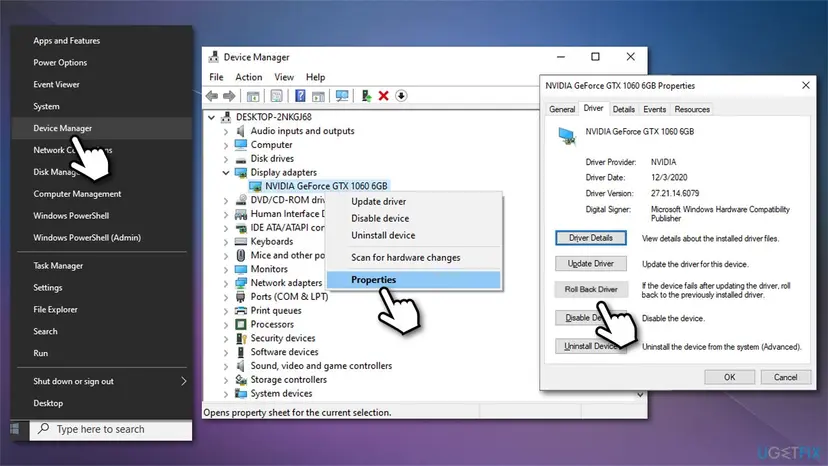
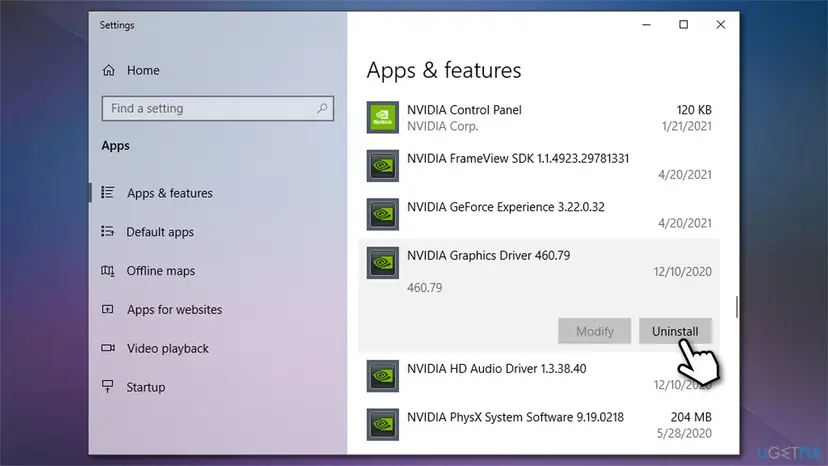
The full Device Manager steps with screenshots are in the procedure: Update, roll back or reinstall a driver. If the newest driver is the one that started the freezes, install the previous version from the card maker's driver archive instead and wait for the next release.
It worked if: The game or task that froze before runs through, and no new 117 entry appears in Reliability Monitor over several sessions.
If not: If 117 returns with a clean driver, take the tuning off the card and memory (Fix 3).
Fix 3. Put the graphics card and memory back to stock speeds
15 minutesLow riskA GPU tuning tool, a factory OC or boost mode in the card maker's app, an undervolt, or an XMP or EXPO memory profile is on.
Microsoft lists "over-clocked components" and "incorrect component compatibility and settings (especially memory configuration and timings)" among the hardware causes of 0x117. A card pushed past its stable clock can take too long on a task and trip the 2 second timeout.
- Open every GPU tuning tool that starts with Windows and reset its profile to default. Turn off any OC mode or undervolt curve in the card maker's app.
- In the NVIDIA app, AMD Software or Intel Graphics Software, also reset the per-game tuning profiles to default.
- Open the firmware setup: on Windows 11 go to Settings > System > Recovery and select Restart now next to Advanced startup. On Windows 10 the path is Settings > Update & Security > Recovery.
- Select Troubleshoot > Advanced options > UEFI Firmware Settings > Restart.
- In the BIOS, turn off the memory profile (XMP, EXPO or DOCP) and any processor overclock, or load the defaults. Save and exit.
- Repeat what caused the freeze.
Loading BIOS defaults can also reset the boot order, Secure Boot or the storage mode on some boards. Take a photo of each BIOS page before you change anything.
If the PC is stable for a week at stock speeds, turn the memory profile back on and watch for a new 117. If it returns, leave the profile off or lower the memory speed one step. A factory overclocked card can also be set to the reference clocks of its model in the maker's tuning tool.
It worked if: No new 117 entry after several sessions of the same game or task at stock settings.
If not: If 117 still appears at stock speeds, look at the game or app that triggers it (Fix 4).
Fix 4. Update the game or app and cut the background load on the GPU
15 minutesLow riskThe 117 entries come from one game or app, or you run overlays, recorders, a browser with video and a game at the same time.
Microsoft tells you to make sure graphics-intensive applications such as games are fully patched, and names visual effects and "too many programs running in the background" as a reason the card cannot respond in time.
- Install every update for the game or app, from its store or launcher.
- In Steam, Epic or another launcher, verify the game files: How to verify game files in Steam, Epic Games, Xbox app, EA app, Battle.net and GOG Galaxy.
- Close overlays and recorders you do not need while testing: the game launcher overlay, the GPU maker's overlay and recording, and any screen recorder.
- Lower the graphics preset of the game one step, and turn off ray tracing and frame generation for one test session.
- Close the browser and other apps that use the GPU, such as video players and wallpaper engines, and play again.
If the freezes stop, add the overlays and apps back one at a time to find the one that matters. If you cannot tell which background program is involved, a clean boot starts Windows with Microsoft services only: How to perform a clean boot in Windows.
It worked if: The game runs through the scene that froze before, at least at the lower preset.
If not: If only lower settings help, the card may be running hot or short of power under full load: go to Fix 5.
Fix 5. Check cooling, power and how the card is seated
30 minutesLow riskFreezes come after some minutes of heavy load, the fans spin loud before a freeze, the PC is dusty, or the power supply is older or small for the card.
Microsoft names "insufficient system cooling" and "insufficient system power" as causes of 0x117. A card that throttles from heat or drops voltage under load can stall long enough for Windows to reset it.
- Watch the GPU temperature while you repeat what causes the freeze. Use the overlay or performance page of the card maker's app.
- Shut down and unplug the PC. Clean dust from the card fans, the processor cooler and the case filters, and check that every fan spins.
- Press the graphics card firmly into its slot and check that the latch is closed.
- Reconnect each power cable to the card fully. Use separate cables from the power supply where the card has two or more sockets, if your power supply allows it.
- Compare your power supply with the size the card maker recommends on the product page.
- On a laptop, keep the vents clear, use the maker's own power adapter and run the maker's hardware diagnostics if it has them.
Do not open a laptop or a pre-built PC that is still under warranty: ask the maker instead. Always unplug a desktop and hold the power button for a few seconds before you touch anything inside.
It worked if: The GPU stays within the temperature its maker states, and the freeze does not return under the same load.
If not: If temperatures and power look fine, test the memory (Fix 6).
Fix 6. Test the memory with Windows Memory Diagnostic
30 minutes to a few hoursNo riskFreezes also happen at light load, other apps crash too, or Fix 3 helped only partly.
Microsoft lists defective memory modules among the parts behind 0x117 and tells you to run Windows Memory Diagnostic, then read the MemoryDiagnostics-Results entry in the System log.
- Open Windows Memory Diagnostic. Press Windows + R, type mdsched.exe and select OK. You can also search for Windows Memory Diagnostic and open it from the results.
- Choose when to test. Select Restart now and check for problems (recommended) to test right away. Select Check for problems the next time I start my computer if you want to finish your work first: the test then runs at the next start.
- Let the test run. The PC restarts into a blue screen that shows the progress of the test. You do not have to do anything. When the test ends, the PC restarts by itself and Windows loads.
- Look for the notification. Sign in. After a short while Windows shows a notification with the result, also when no errors were found. If you missed it, read the result in Event Viewer.
- Open the System log. Press Windows + R, type eventvwr and select OK. In Event Viewer, expand Windows Logs and select System.
- Find the result. Right-click System and select Find. Type MemoryDiagnostics-Results and press Enter. Select the event that is found: its text says whether the test detected errors.
These steps were written for Windows 11 25H2 and 26H2, Windows 10 22H2. The full page with the other versions and what each result means: How to test your RAM with Windows Memory Diagnostic
If the test finds errors, shut down, unplug the PC and test with one module at a time. Replace the module that fails. On a laptop with soldered memory, a failing test is a repair for the maker.
It worked if: The test reports no errors, or you have found the one module that fails.
If not: If the memory passes, rule out Windows itself with Fix 7.
Fix 7. Repair Windows system files
30 to 60 minutesLow riskOther Windows errors appear too, or you have done Fixes 2 to 6 and want to rule out Windows before a warranty claim.
This is last on purpose. A TDR is about the graphics driver and the card, and damaged Windows files are a rare cause. The repair still matters before you send a card back, so support cannot point to Windows.
- Open an elevated command window. Right-click Start and select Terminal (Admin), or type cmd in the search box, right-click Command Prompt and select Run as administrator. Select Yes when Windows asks for permission.

Search for cmd and choose Run as administrator. Screenshot: Windows 11 26H2. - Run DISM first. Type the command below and press Enter. DISM downloads clean copies of damaged components from Windows Update, so it can take several minutes. Wait until it says The operation completed successfully.
DISM.exe /Online /Cleanup-Image /RestoreHealth
DISM /RestoreHealth running. Screenshot: Windows 11 26H2. - Run System File Checker. In the same window, type the command below and press Enter. Do not close the window until the verification reaches 100%.
sfc /scannow
sfc /scannow at 100%. Screenshot: Windows 11 26H2. - Read the result and restart. Compare the last message with the table below this guide, then restart the PC so that repaired files are loaded.

The result line tells you what SFC did. Screenshot: Windows 11 26H2.
These steps were written for Windows 11 24H2 and 25H2. The full page with the other versions and what each result means: Run DISM and SFC to repair Windows system files
It worked if: SFC reports no integrity violations, or that it repaired them.
If not: If 117 still appears on a repaired Windows with a clean driver at stock settings, follow the still broken section.
If LiveKernelEvent 117 keeps coming back
At this point the card runs a clean driver at stock speeds, it is cool and well powered, the memory passed and Windows is repaired. A 117 that remains points to the card itself or to how it works with the rest of the PC. Microsoft's own list ends with defective parts and suggests the hardware diagnostics of the system maker.
- Run the maker's diagnostics. Dell, HP, Lenovo and other PC makers ship their own hardware tests. Run the full test, not the quick one.
- Swap test. Try the card in another PC, or another card or power supply in yours. The part whose swap stops the freezes is the faulty one.
- Try the other GPU. On a laptop or PC with integrated graphics, test the same task on the integrated GPU. If it runs clean there, the dedicated card or its driver is the problem.
- Warranty. Contact the seller or the card maker with your log of dates, the driver versions you tried and the steps above.
- Give support the files. Live dumps are stored in
C:\Windows\LiveKernelReportsand its subfolders; if a blue screen also happened, small dumps are inC:\Windows\Minidump.
A technician can open a dump in WinDbg and run !analyze -v. Microsoft's example output shows the line VIDEO_TDR_TIMEOUT_DETECTED (117) and a MODULE_NAME line with the driver that timed out. That is the evidence a support desk can act on.
How to keep LiveKernelEvent 117 from coming back
- Install graphics drivers from the card maker and keep one known good version saved offline.
- Turn on XMP, EXPO or a GPU overclock only after the PC has been stable at stock speeds.
- Clean dust from the card and the case filters every few months.
- Check Reliability Monitor once a month for new 117 or 141 entries.
- Keep games and their launchers updated.
- Do not stack tuning tools: one in the BIOS and another in Windows is hard to undo.
- Do not raise or remove the TDR timeout in the registry. Microsoft says end users should not change these keys.
- Do not press Reset at the first second of a freeze: give Windows 10 to 15 seconds to recover.
- Do not reinstall Windows to fix a 117 before you have tried Fixes 2 to 5.
Frequently asked questions
What does LiveKernelEvent 117 mean?
It means the graphics driver stopped responding and Windows reset it without crashing. Microsoft names code 0x117 VIDEO_TDR_TIMEOUT_DETECTED: in its words, the display driver failed to respond in time. Windows waits two seconds for the graphics card to finish or pause a task; if it does not, Windows reinitializes the driver and resets the card, then writes a live dump. In Reliability Monitor this shows as Hardware error with Problem Event Name LiveKernelEvent and Code 117. The most common causes are the graphics driver, overclocks, heat and power.
Is LiveKernelEvent 117 a hardware error?
Not necessarily. Reliability Monitor files every live kernel report under Hardware error, but Microsoft's first cause for 0x117 is the display driver. Hardware conditions come next: overclocked parts, memory settings, cooling, power and, last, defective parts. A new PC, like the six-month-old one in the question above, more often has a driver or a factory overclock problem than a broken card. If the error stays with a clean driver at stock speeds and good temperatures, then treat it as hardware and test the card.
Is LiveKernelEvent 117 a blue screen?
No. Microsoft says 0x117 can never be used for a real bug check and only identifies live dumps. You see a freeze, a flicker or a black screen for a few seconds, and Windows recovers. A blue screen can follow when the hangs repeat: by default Windows stops the PC on the sixth GPU hang if five or more happened within one minute. Users with that pattern often report VIDEO_TDR_FAILURE (0x116) blue screens next to their 117 entries. The fixes on this page apply to both.
Why do I get LiveKernelEvent 117 on Windows 11?
For the same reasons as on Windows 10: the TDR system is the same, and so is the code. We found no Microsoft known issue that ties a Windows 11 update to code 117. If the entries started right after a big update, the update may have installed a different graphics driver: roll it back or do a clean install from the card maker (Fix 2). Windows 10 left support on 14 October 2025, so on a Windows 10 PC new graphics drivers will over time stop being tested for it.
What is livekernelevent code: 117 in Problem Event Name?
It is the text of the report. In Reliability Monitor, View technical details shows Problem Event Name: LiveKernelEvent and Code: 117, followed by four parameters and extra information such as the Bucket ID. Problem Event Name tells you the type of report, a live kernel event, and Code tells you which one, here the graphics timeout 0x117. Searches for livekernelevent117, livekernalevent 117, live kernel 117 or kernel 117 all mean the same entry.
Is Event ID 117 the same as LiveKernelEvent 117?
No. An Event ID is a number in Event Viewer that belongs to one source, and many sources use the number 117 for unrelated events. LiveKernelEvent 117 is not an Event ID: it is a code in a Reliability Monitor report. To connect the two, look in Event Viewer's System log at the same minute as the 117 report, as Fix 1 shows. Searches for error code 117, code 117 or windows code 117 can also mean errors in other programs; this page is about the Windows graphics timeout only.
Should I increase TdrDelay in the registry to stop LiveKernelEvent 117?
No. TdrDelay under HKEY_LOCAL_MACHINE\System\CurrentControlSet\Control\GraphicsDrivers sets how long Windows waits before it resets the card, two seconds by default. Microsoft documents it for driver development only and says end users should not change these keys. A longer delay does not fix the hang; it only makes the freeze last longer before recovery, or hides it. Fix the cause instead: the driver, the tuning, the heat or the power.
Why does LiveKernelEvent 117 point to nvlddmkm.sys?
Because nvlddmkm.sys is the NVIDIA kernel graphics driver, and the 0x117 report records which driver module did not respond. It shows the driver that timed out, not always the root cause. A card that is overclocked, too hot or short of power will also make nvlddmkm.sys time out. Start with a clean driver install (Fix 2), then stock speeds (Fix 3) and cooling and power (Fix 5). The same applies to AMD driver files on AMD cards.
Can I ignore LiveKernelEvent 117?
A single entry after a long heavy session is often harmless, because Windows recovered as designed. Do not ignore it when it repeats, when you have to press Reset, when you lose work in a game or editor, or when 117 is followed by a blue screen. Those are signs the card cannot finish its work in time, and the cause usually gets worse rather than better. Keep a short log and start with Fix 1.
Sources
- Microsoft Learn: Bug Check 0x117 VIDEO_TDR_TIMEOUT_DETECTED (learn.microsoft.com)
- Microsoft Learn: WDDM support for timeout detection and recovery (TDR) (learn.microsoft.com)
- Microsoft Learn: Testing and debugging TDR during driver development (TDR registry keys) (learn.microsoft.com)
Did this fix work?
One click, no account. It tells the next reader which guides are worth their time.
Questions and experiences: fix LiveKernelEvent 117 error in Windows
Still broken, or found a fix we did not cover? Ask here: members and our editors answer. Reading is open; writing needs a free account.
…