
How to fix Riot Client not launching in Windows?

Prefer to fix it yourself? The manual steps follow.
- 9methods
- 2 to 45 minutes
- Easy
Applies to The Riot Client for League of Legends, VALORANT, Teamfight Tactics and Legends of Runeterra on Windows 11 and Windows 10
9 methods in this guide
- What the problem means
- Causes and their fixes
- Riot Client paths
- The fixes
- 1. End Riot processes
- 2. Restart and check status
- 3. Clear the Riot cache
- 4. Allow Riot through firewall
- 5. Clean boot
- 6. Repair the game
- 7. Compatibility settings
- 8. Update graphics driver
- 9. Clean reinstall
- Still broken: logs and ticket
- Prevent it
- FAQ
Hello, my Riot Client is not opening. When I attempt to launch it, I receive a prompt for the administrator's permission, which I provide. But after that, nothing really happens. I get no error messages or anything. I need help with this, please.
When the Riot Client will not open, a Riot process is usually still running in the background, or the client's cache or files are damaged. Close every Riot process in Task Manager and start the client again. If that fails, restart the PC, clear Riot's cache folders and only then reinstall.
Open Task Manager (Ctrl + Shift + Esc), end every process whose name starts with Riot, and start the client again (Fix 1). Riot's own first steps are the same: restart the client, update it, restart the PC. If it still does not open, delete Riot's cache folders in %localappdata% (Fix 3), allow the client through your firewall (Fix 4) and, last, do a clean reinstall (Fix 9).
| Error | No message in most cases. You click the Riot Client, accept the admin prompt, and nothing opens. Sometimes a window flashes and closes, or stays blank. |
|---|---|
| Where it appears | When you open the Riot Client from the desktop or Start, or a game shortcut. Since 2026 every Riot game on PC opens the Riot Client first. |
| Main cause | A Riot process that is already running but has no window, followed by damaged cache files and a blocked connection. |
| Fastest fix | End every Riot process in Task Manager and open the client again (Fix 1). |
| Also written as | Riot Client not opening, won't open, won't start, not loading, doesn't open, can't open Riot Client, Riot launcher not working. |
| Affects | Windows 11 and Windows 10. Windows 10 lost free security updates on 14 October 2025, but the client still runs there. |
| Vendor status | No known general bug. Riot says launch failures, blank screens and repeated launch attempts are not expected and asks players to report them. |
| Time to fix | 2 minutes for Fix 1, about 10 minutes for the cache and firewall fixes, 30 minutes or more for a clean reinstall. |
Facts checked on 15 October 2026. Steps written for Windows 11 (25H2 and 26H2) and Windows 10 22H2, Riot Client as documented by Riot Support in 2026.
What it means when the Riot Client does not open
The Riot Client is the launcher for League of Legends, VALORANT, Teamfight Tactics and Legends of Runeterra. Riot's 2026 FAQ says every Riot game on PC now goes through the Riot Client on each launch. A game shortcut opens the game's tab in the client first, so when the client is broken, no Riot game starts.
There is rarely an error code. The usual picture is the one in the reader's question above: Windows asks for permission, you click Yes, and nothing happens. That pattern almost always means a copy of the client is already running without a window, so Windows hands your click to the stuck copy.
| What you see | What it usually means | Start with |
|---|---|---|
| Admin prompt, then nothing | A Riot process is stuck in the background. | Fix 1 |
| A window flashes and closes | Damaged cache or client files. | Fix 3, then Fix 9 |
| A blank or endless loading window | The client cannot reach Riot, or Riot has an outage. | Fix 2, then Fix 4 |
| The client opens, the game does not | A game file problem, not the client. | Fix 6 |
| A code that starts with VAN or VAL | A Vanguard or game error with its own fix. | FAQ below |
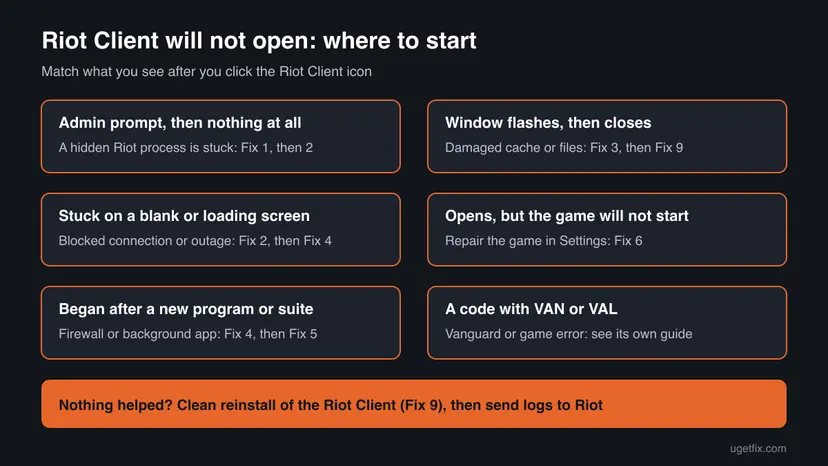
Why the Riot Client won't open, ranked and tied to a fix
Riot does not publish how often each cause appears. The order below follows Riot's own launch steps (restart the client, update, restart the PC) and its game launching article, with the cheapest checks first. Each cause points to the fix that rules it out.
| How likely | Cause | Sign you can check | Fix |
|---|---|---|---|
| Most often | A Riot process is already running with no window. | Task Manager lists Riot Client or RiotClientUx while nothing is on screen. | Fix 1 |
| Often | An update waits for a restart, or Riot has an outage. | Windows or the client asks for a restart; Riot Service Status shows an incident. | Fix 2 |
| Often | Damaged cache files in %localappdata%. | The window flashes and closes, or the problem began after a crash. | Fix 3 |
| Sometimes | A firewall or security suite blocks the client. | A third-party firewall is installed; the client hangs on a blank screen. | Fix 4 |
| Sometimes | A background program interferes. | Overlays, RGB, tuning or VPN tools start with Windows. | Fix 5 |
| Less often | Old compatibility settings on the shortcut. | The shortcut's Compatibility tab has boxes ticked. | Fix 7 |
| Less often | An old graphics driver. | The client opens as a black or broken window. | Fix 8 |
| Rarely | Damaged client files that nothing else repairs. | Every fix above failed. | Fix 9 |
The Riot Client files and folders you will use in these fixes
Most fixes come down to a few places on your PC. These are the default locations from Riot Support. If you installed games on another drive, the Riot Games folder sits there instead.
- Client program
C:\Riot Games\Riot Client\RiotClientServices.exe, the file the shortcut starts and the one to allow in a firewall.- Install folder
C:\Riot Games, with one folder for the Riot Client and one for each game.- Cache folder
%localappdata%\Riot Games, which holds the client's local data and its Logs folder.- Client logs
%localappdata%\Riot Games\Riot Client\Logs, the files Riot Support asks for.- Status page
- Riot Service Status at status.riotgames.com, for outages that no fix on your PC can solve.
How to fix the Riot Client not opening
Try the client again after each fix and stop as soon as it opens. Fixes 1 and 2 solve the common case of a stuck process. Fixes 3 to 5 remove damaged cache files and anything that blocks the client. Fixes 6 to 9 cover the game, old settings, the graphics driver and a clean reinstall.
| What you see or have | Start with |
|---|---|
| You accept the admin prompt and nothing happens. | Fix 1 |
| The PC has not been restarted for days, or an update is waiting. | Fix 2 |
| A window flashes for a second and closes. | Fix 3 |
| The client hangs on a blank or loading screen, or you use a third-party firewall. | Fix 4 |
| The problem began after you installed an overlay, RGB, tuning or VPN tool. | Fix 5 |
| The client opens, but League of Legends or VALORANT does not start. | Fix 6 |
| You once set the shortcut to compatibility mode. | Fix 7 |
| Nothing else worked. | Fix 9 |
Fix 1. End every Riot process in Task Manager and open the client again
2 minutesNo riskEveryone first, and above all when you accept the admin prompt and nothing opens.
Restarting the Riot Client is Riot's first launch step. A copy that hangs in the background with no window catches every new click, so the client only opens again once all Riot processes are gone.
- Close any Riot game window that is still open.
- Press Ctrl + Shift + Esc to open Task Manager. Select More details if it opens in the small view.
- On the Processes tab, look for every entry whose name starts with Riot, such as Riot Client and RiotClientUx.
- Select each one and click End task. Repeat until none is left.
- If a game process such as League of Legends or VALORANT is also listed, end it too.
- Open the Riot Client again from Start or the desktop and accept the admin prompt.
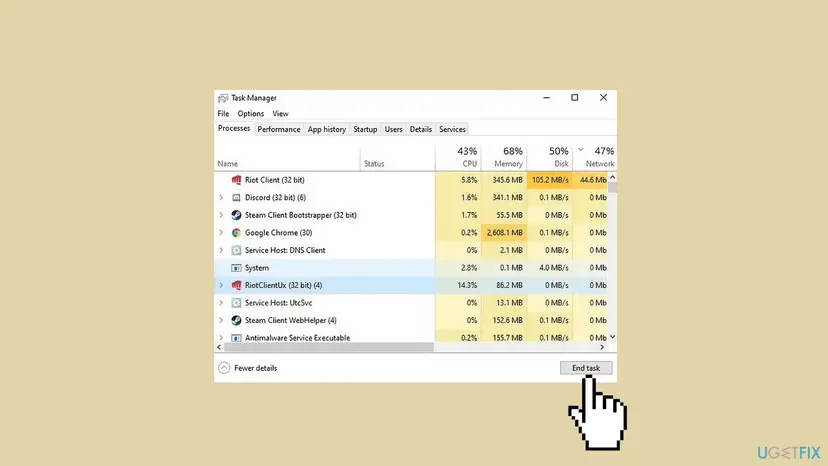
If a process refuses to end, or Task Manager itself freezes, see Close a frozen app (Task Manager, Force Quit). Do not end Riot Vanguard (vgc) here: VALORANT and League of Legends need it.
It worked if: The Riot Client window opens and shows the sign-in screen or your game's tab.
If not: If no Riot process was listed, or the client still does not open, restart the PC in Fix 2.
Fix 2. Restart the PC, update the client and check Riot's service status
5 to 20 minutesNo riskFix 1 did not help, the PC has run for days, or an update waits for a restart.
Riot's own launch steps are to restart the client, make sure it is fully updated and restart the PC. A restart also finishes Windows and Vanguard updates that can hold the client back, and the status page tells you if the problem is on Riot's side.
- Open Start, select the power button and choose Restart. Do not use Shut down, which can keep part of the old session with Fast Startup.
- On Windows 11 open Settings > Windows Update. On Windows 10 open Settings > Update & Security > Windows Update.
- Select Check for updates, install what it offers and restart again if asked.
- Open the Riot Client. If it starts an update, let it finish without closing the window.
- If the client still does not open, visit Riot Service Status at status.riotgames.com on your phone or another browser and look for an open incident.
If the status page shows a problem with sign-in or the client, wait until Riot marks it resolved. Reinstalling during an outage only adds a long download. Riot also asks you to search its support site for any error code you see.
It worked if: After the restart the Riot Client opens, finishes any update and shows the sign-in screen.
If not: If Riot reports no outage and the client still fails, clear its cache in Fix 3.
Fix 3. Clear the Riot cache folders in AppData\Local
5 minutesLow riskThe window flashes and closes, or the client broke after a crash or a forced shutdown.
Riot's game launching article lists clearing the AppData\Local cache first for system and critical errors. Damaged files in this folder are read on every start, so they can stop the client before any window appears.
- End every Riot process as in Fix 1.
- Press Win + R, type the path below and press Enter.
%localappdata% - Delete the folder of your game if there is one, for example VALORANT or League of Legends.
- Open the Riot Games folder and delete any game folder inside it.
- Restart the PC and open the Riot Client.
These folders hold local data such as logs and local settings files. Your account, purchases, rank and progress are stored on Riot's servers. Note your key bindings first, because local settings may go back to default.
It worked if: The Riot Client rebuilds its local files and opens normally.
If not: If the client still does not open, check whether something blocks it in Fix 4.
Fix 4. Allow the Riot Client through your firewall and test without your security suite
5 to 10 minutesLow riskThe client hangs on a blank screen, or you use a third-party firewall or security suite.
Riot lists firewall exceptions for the game and the Riot Client among its launch fixes. A firewall that treats the client as unknown can block it before the window loads, and an exception fixes that without lowering protection.
- Press Win + R, type the command below and press Enter to open Windows Defender Firewall.
control firewall.cpl - Select Allow an app or feature through Windows Defender Firewall, then Change settings.
- If Riot Client is in the list, tick both Private and Public.
- If it is not listed, select Allow another app, then Browse, and pick
C:\Riot Games\Riot Client\RiotClientServices.exe. Select Add and tick Private and Public. - Select OK and open the Riot Client.
- In a third-party firewall or suite, add the same file under Exceptions or Allowed apps.
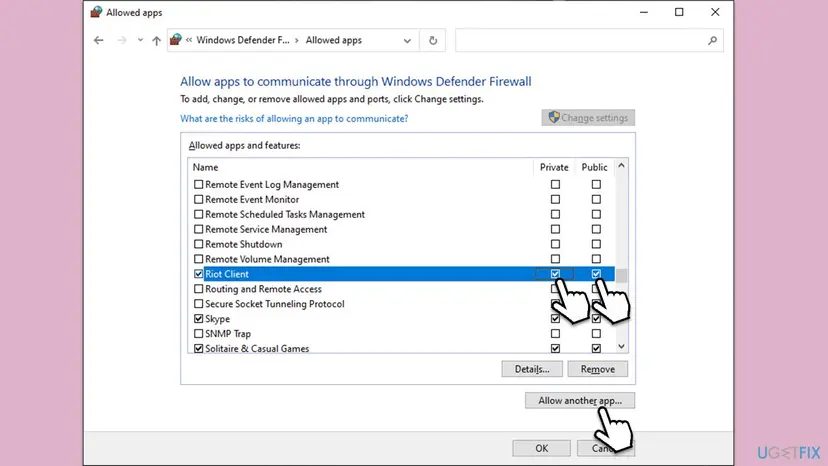
Riot suggests a short test without third-party antivirus. Pause it for one launch and turn it back on right away: Turn off Microsoft Defender protection for a moment. If the client then opens, keep protection on and add the exception above.
It worked if: The client gets past the blank screen and shows the sign-in page or your game's tab.
If not: If the client still hangs with the exception in place, look for other background software in Fix 5.
Fix 5. Do a clean boot to find a program that blocks the Riot Client
10 minutesLow riskYou run overlays, RGB, tuning, macro, VPN or network tools, or the problem began after installing one.
Riot recommends a clean boot so other programs do not compete with the client. If the client opens in a clean boot, one of the programs you switched off is the cause.
- Press Win + R, type the command below and press Enter.
msconfig - On the Services tab tick Hide all Microsoft services, then click Disable all.
- If you play VALORANT or League of Legends, find vgc in the list and tick it again so Vanguard keeps running.
- Click Apply and OK, then turn off the start-up apps in Task Manager > Startup apps.
- Restart the PC and open the Riot Client.
- If it opens, turn the services back on a few at a time until the problem returns. The last group holds the conflict.

Full steps, including how to undo the clean boot: How to perform a clean boot in Windows.
It worked if: The Riot Client opens in the clean boot, and turning services back on in groups shows which program blocks it.
If not: If the client fails even in a clean boot, undo it and go on with Fix 7.
Fix 6. Repair the game from the Riot Client settings
10 minutesLow riskThe Riot Client opens, but League of Legends, VALORANT or another Riot game does not start.
Riot's Full Repair Tool checks the game for missing or corrupted files and replaces them. It runs inside the client, so it helps when the client works and the game does not.
- Sign in to the Riot Client.
- Click the profile icon in the upper right corner.
- Select Settings.
- Choose the game you want to repair.
- Select Repair and follow the prompts. Launch the game when it finishes.
Riot keeps a separate article for when the repair fails. If the game shows "Failed to Launch: Something unusual happened", that message has its own Riot article as well.
It worked if: The repair ends without an error and the game starts from the client.
If not: If the repair fails or the game still does not start, do the clean reinstall in Fix 9.
Fix 7. Clear old compatibility settings and run the client as administrator once
3 minutesLow riskYou or a guide once set the Riot Client shortcut to compatibility mode, or other fixes failed.
Riot does not list compatibility mode as a fix. An old setting such as Windows 8 mode left on the shortcut can make a current client fail, so here you remove it and test administrator rights once.
- Right-click the Riot Client shortcut and select Properties.
- Open the Compatibility tab.
- If Run this program in compatibility mode for is ticked, untick it.
- Click Apply and OK.
- Right-click the shortcut again, select Run as administrator and click Yes.
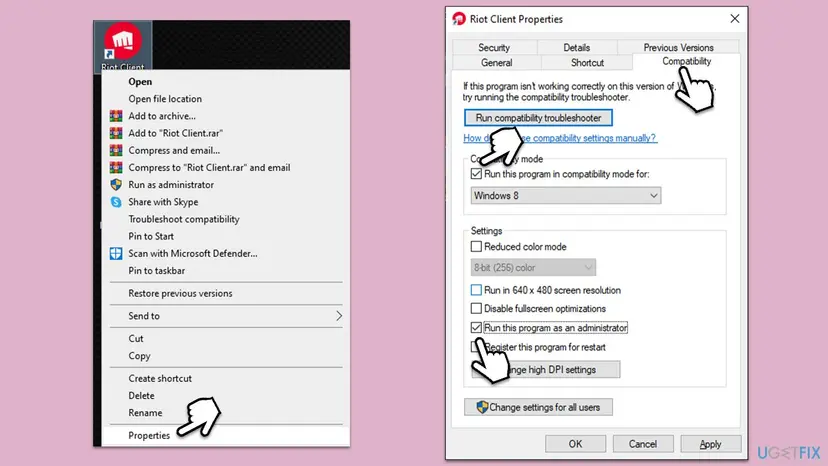
More on both settings and how to undo them: How to run a program as administrator or in compatibility mode.
It worked if: With compatibility mode off, the Riot Client opens normally.
If not: If nothing changes, put the settings back as they were and update the graphics driver in Fix 8.
Fix 8. Update the graphics driver
10 minutesLow riskThe client opens as a black, white or broken window, or your graphics driver is old.
Riot lists a graphics card driver update among its launch fixes. The client draws its window with the graphics card, so a damaged or old driver can leave it blank or make it close.
- Find your graphics card in Device Manager > Display adapters.
- Download the newest driver from the card maker's site (NVIDIA, AMD or Intel) and install it.
- Restart the PC and open the Riot Client.
Step by step, with roll back and reinstall: Update, roll back or reinstall a driver.
It worked if: The client window draws normally after the restart.
If not: If the window is still blank or closes, do the clean reinstall in Fix 9.
Fix 9. Uninstall the Riot Client cleanly and install it again
30 minutes or moreRead the warningEvery fix above failed, or the client does not update or open at all.
Riot's last launch step is to reinstall the game and Vanguard. The clean way also removes the Riot Client folder and the local cache, which a normal uninstall leaves behind.
This deletes the Riot Client, your Riot games and local settings files. Your account, purchases and progress are kept on Riot's servers. Note key bindings and settings first, and expect a full download of each game.
- End every Riot process as in Fix 1.
- Open Settings > Apps > Installed apps (Windows 10: Apps & features) and uninstall your Riot games. More detail: Uninstall a program or app in Windows.
- Open File Explorer, go to
C:\Riot Gamesand delete the Riot Client folder and any game folder left. - Press Win + R, type
%localappdata%, press Enter and delete the Riot Games folder. - Restart the PC.
- Download the installer from the game's official site, such as leagueoflegends.com or playvalorant.com, and run it.
- Restart again if Vanguard asks, then open the Riot Client.
It worked if: The fresh Riot Client installs, opens to the sign-in screen and downloads your game.
If not: If a fresh install still does not open, collect the logs and send them to Riot, as described in the next section.
Riot Client still not opening: logs and Riot Player Support
Riot says launch failures, blank screens and repeated launch attempts are not expected behaviour and asks you to contact Player Support when the standard steps fail. A ticket with logs gets a faster answer than one with a description only.
- Press Win + R, type
%localappdata%\Riot Games\Riot Client\Logsand press Enter. - Copy the newest log files to your desktop.
- Open a ticket at Riot Player Support, say that the Riot Client does not open, list the fixes you tried and attach the logs.
- If a Riot agent asks for more, they may send you the Riot Repair Tool, which collects logs into one .zip file.
If the client fails for many players at the same hour, Riot Service Status shows it. A sign-in error that names your account, a ban or a restriction is an account matter that only a ticket can answer, not a technical fault.
How to keep the Riot Client from breaking again
Most repeats come from a client that is closed badly, an update that waits for days, or a new program that blocks it. A few habits keep it starting.
- Exit the Riot Client from its tray icon instead of ending it in the middle of an update.
- Restart Windows after updates, and let the client finish its own updates.
- Add
RiotClientServices.exeto any new firewall or security suite you install. - Download the client only from Riot's official game sites.
- Leave compatibility mode set on the Riot Client shortcut.
- Let tuning or game booster tools disable services they do not know, such as vgc.
- Switch off your antivirus for good to make the client start.
- Use repacked or modified installers from other sites.
Frequently asked questions
Why is my Riot Client not opening after I click Yes on the admin prompt?
In most cases a copy of the Riot Client is already running in the background without a window. Windows passes your click to that copy, so nothing appears. Open Task Manager with Ctrl + Shift + Esc, end every process whose name starts with Riot, and open the client again (Fix 1). If it still does not open, restart the PC, which is also Riot's own advice, and then clear the Riot cache in Fix 3.
Is the Riot Client down right now?
Check Riot Service Status at status.riotgames.com. It lists open incidents for each Riot game and region, including sign-in and client problems. If an incident is open, wait until Riot marks it resolved, because nothing on your PC will fix an outage. If the page shows no problem and the client still does not open, the cause is on your PC: start with Fix 1 on this page.
How do I repair the Riot Client?
Riot's Full Repair Tool is built into the client: sign in, click the profile icon in the upper right corner, select Settings, choose the game and select Repair. It replaces missing or corrupted game files. It only works when the client opens, so it helps when the client starts but the game does not. When the client itself will not open, clear the cache folders in Fix 3 or do the clean reinstall in Fix 9 instead.
What is the Riot Repair Tool and do I need it?
Two tools carry similar names. The Full Repair Tool is the Repair button in the Riot Client settings, which fixes game files (Fix 6). The Riot Repair Tool is a separate program that Riot Support uses to collect logs and run checks when you open a ticket. You need the second one only if a Riot agent asks for it. Download either only from Riot's own support site.
Why can't I uninstall the Riot Client?
Windows refuses to remove a program that is still running, and the Riot Client often runs in the background. End every Riot process in Task Manager first, as in Fix 1, then uninstall your Riot games in Settings. If the Riot Client stays listed or its folder will not delete, restart the PC and delete the Riot Client folder in C:\Riot Games and the Riot Games folder in %localappdata%, as shown in Fix 9.
What does "The application was unable to start correctly" mean for the Riot Client?
That is a Windows message, not a Riot one: Windows could not load a part the program needs, and the process ended. We could not find a Riot article for it with the Riot Client. Restart the PC first, then repair the Visual C++ runtimes that games use: How to repair Microsoft Visual C++ Redistributable and .NET Framework. If it stays, do the clean reinstall in Fix 9, which replaces every client file at once.
Why does the Riot Client open when I launch League of Legends or VALORANT?
Riot changed this in 2026. Its FAQ says Riot games on PC now go through the Riot Client on every launch, even when you are signed in and the game is up to date. Desktop shortcuts still work, but they open the game's tab in the client first, and you click Play from there. So when the Riot Client does not open, no Riot game can start either.
League of Legends is not launching from the Riot Client. Is that the same problem?
Not quite. If the client opens and only the game fails, the client is fine and the game files or settings are the problem. Use the Repair button in the client settings (Fix 6) and clear the game's cache folder in Fix 3. If the game shows a code, search Riot's support site for it. Riot plans a new League client in 2027, so details may change.
I see a VAN or VAL code instead. What now?
Then the Riot Client opened and the error comes from Riot Vanguard (VAN) or from VALORANT (VAL). Those codes have their own fixes. VAN 0 is covered in how to fix error VAN 0 in VALORANT, and a blue screen that names vgk.sys in how to fix the vgk.sys blue screen. Riot keeps a list of Vanguard error codes on its support site.
Does the Riot Client work on Windows 10?
Yes. The Riot Client and its games still run on Windows 10, and every fix on this page applies there. The Settings paths differ slightly, and this page gives both. Windows 10 stopped getting free security updates on 14 October 2025, so Fix 2 may find nothing new to install. Vanguard Pre-Check, Riot's optional on-demand mode, is a Windows 11 feature.
Sources
- Riot Games Support: Riot Client FAQ (support.riotgames.com)
- Riot Games Support: Troubleshooting Game Launching Errors (support.riotgames.com)
- Riot Games Support: Riot Client Full Repair Tool (support.riotgames.com)
Did this fix work?
One click, no account. It tells the next reader which guides are worth their time.
Questions and experiences: fix Riot Client not launching in Windows
Still broken, or found a fix we did not cover? Ask here: members and our editors answer. Reading is open; writing needs a free account.
…