
How to fix Windows update stuck on "Working on updates"?

Prefer to fix it yourself? The manual steps follow.
- 9methods
- 10 minutes to 2 hours
- Intermediate
Applies to Windows 11 and Windows 10 PCs that show "Working on updates" with a percentage and "Don't turn off your PC" after an update restart, and PCs where Windows Update sits at 0% or 100% and never finishes
9 methods in this guide
I am struggling with installing the latest Windows updates. At some point, it asked me to restart the PC, which I did. After a restart, black screen with spinning circle and the message "Working on updates" showed up. It's been several hours by now and it is STILL at 0%. I tried to force-reboot the PC, but always gets stuck on "Working on updates." What can I do?
The black screen with a spinning circle and "Working on updates" is Windows finishing an update while it restarts. Most of the time it only needs time. If the percentage has not moved for hours, there are safe ways out, from one forced restart to Startup Repair and a reset of Windows Update.
Plug the PC into power and check that the drive is still busy. Fix 1 is to wait until the percentage has not moved for about two hours. If it is frozen, hold the power button for 10 seconds, start again (Fix 2), then run Startup Repair (Fix 3) or uninstall the latest update (Fix 4) from the recovery screens. Your files are not touched by these steps.
| Error | No error code. A black screen with a spinning circle says Working on updates, a percentage such as 0% or 20%, and Don't turn off your PC. |
|---|---|
| Where it appears | Right after the restart that finishes an update, before the sign-in screen. It also shows after an upgrade to a new Windows version, for example from Windows 10 to Windows 11. |
| Main cause | Windows is still installing, or the update cannot finish and starts again on every restart. Low free space, damaged update files or stalled update services keep it from finishing. |
| Fastest fix | Plug in the PC, wait until the screen has not changed for about two hours (Fix 1), then hold the power button for 10 seconds and start again (Fix 2). |
| Also written as | Windows update stuck, working on updates stuck, windows updates stuck, windows update frozen, windows update hangs, update stuck at 0%, windows update stalled. |
| Affects | Windows 11 and Windows 10 22H2. Windows 10 left support on 14 October 2025, so a stuck update there may be one the PC is no longer offered. |
| Microsoft's status | The Microsoft pages we read give no time limit and no error code for this screen. Microsoft's own advice for a stuck update is more free space, the troubleshooter and a disk check. |
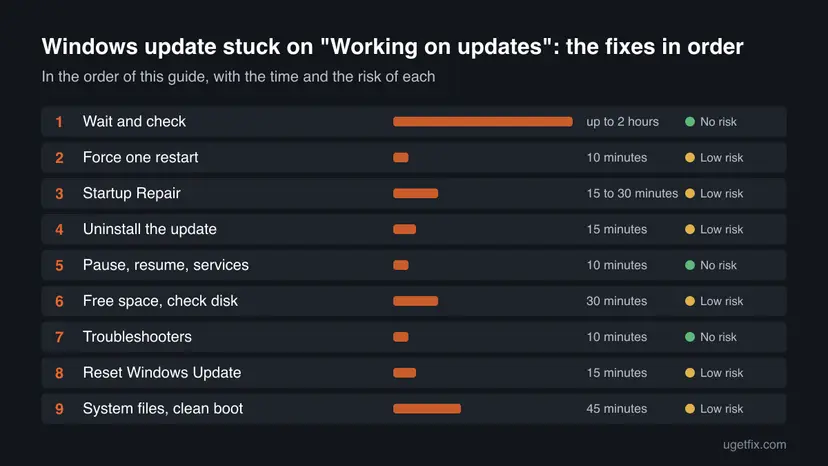
| Time to fix | Fix 1 takes up to two hours of waiting. Fixes 2 to 4 take 10 to 30 minutes each. The Windows Update reset takes 15 minutes. |
| Data at risk | None for Fixes 1 to 9. Startup Repair and uninstalling an update keep your files and apps. A backup is still wise before any repair install. |
Facts checked on 16 October 2026. Steps written for Windows 11 (25H2 and 26H2) and Windows 10 22H2.
What "Working on updates" on a black screen means
The message "Working on updates" with a percentage and "Don't turn off your PC" appears when Windows has to finish part of an update during a restart, before you reach the sign-in screen. Some files can only be replaced while Windows is not running, so Windows does that work at this point. A user on Microsoft Q&A describes it as a black screen with a spinning circle after the restart that finishes a Windows 10 to Windows 11 upgrade.
The screen is not an error. It carries no error code, so there is nothing to look up. That is also why the percentage can look frozen: it counts steps, not time, and a large step can sit on one number for a long while.
| What you see | Where | Start with |
|---|---|---|
| Black screen, spinning circle, Working on updates and a percentage | Before the sign-in screen, after the update restart | Fix 1, then Fixes 2 to 4 |
| The same screen returns after every forced restart | Every start of the PC | Fixes 3 and 4, from the recovery screens |
| Windows starts, but Settings > Windows Update stays on 0% or 100% | Inside Windows | Fixes 5 to 9 |
| The older "Updates are underway. Please keep your computer on" wording | During shutdown or restart | its own guide |
Windows also shows "Updates are underway" at shutdown and restart. The recovery steps overlap, but that screen has its own page with a deeper look at the recovery tools: Updates are underway.
Is the PC still working, or is it really stuck?
Microsoft's support pages for update problems give no time limit for this screen, so the clock alone proves little. A monthly update usually passes quickly. A new Windows version or an old hard disk can take much longer. Look for signs of activity first, and decide with the signs below.
- The percentage changes, even by a single point.
- The drive activity light flickers, or the PC makes disk noises.
- The fan speed changes, which means the processor is busy.
- The same percentage stays for about two hours with no drive light.
- A forced restart brings you back to the same screen.
- The screen was stuck at 0% from the start, as in the reader's case.
One volunteer answer on Microsoft Q&A says to treat the screen as stuck when it has not changed for 2 hours, and users on the same site describe waits of one and a half hours, three hours and more. These are user reports, not Microsoft rules, so use the two hours as a guide and not as a fixed limit. The reader who asked this question waited several hours at 0%, which is well past it.
Why the update gets stuck on "Working on updates", from most to least likely
Microsoft publishes no list of causes for this exact screen. The ranking below follows the pages we read: Microsoft's guide to update problems, its troubleshooting notes for Windows Update, and what users report on Microsoft Q&A. Each cause points to the fix that matches it.
| Cause | How often | How to tell | Fix |
|---|---|---|---|
| A large update that is still working. | Most often | The drive light flickers or the percentage moves slowly. | Fix 1 |
| The update cannot finish and starts again on every restart. | Often | The same screen returns after a forced restart. | Fixes 3 and 4 |
| Too little free space. Microsoft asks for at least 16 GB free for a 32-bit system and 20 GB for a 64-bit one. | Often | The drive is nearly full, or Settings warns about storage. | Fix 6 |
| Update services that stalled, so Windows Update cannot talk to its background services. | Sometimes | Settings is frozen at 0%, or at the scan. | Fix 5 |
| Damaged files in the update cache, or file system errors on the drive. | Sometimes | The same update fails again and again. | Fixes 6 to 8 |
| A proxy set only for your user account, or a blocked connection to the update servers. | Sometimes | The download sits at 0% and you use a proxy or a VPN. | Fixes 7 and 8 |
| Damaged system files, or a driver or third-party program that interferes. | Rarely | Other Windows tools also fail. | Fix 9 |
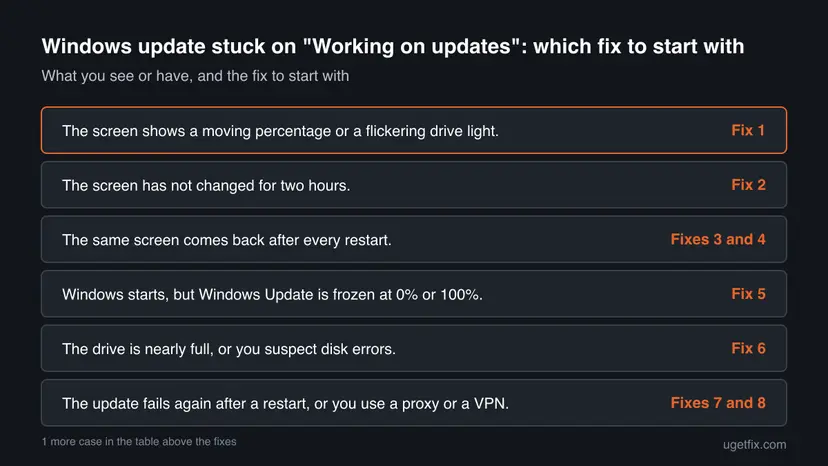
How to fix Windows update stuck on "Working on updates"
Fixes 1 and 2 need no tools. Fixes 3 and 4 use the recovery screens that open when Windows will not start. Fixes 5 to 9 work once Windows starts, or in Safe Mode, and go from the lightest nudge to a full repair of the update system.
| What you see or have | Start with |
|---|---|
| The screen shows a moving percentage or a flickering drive light. | Fix 1 |
| The screen has not changed for two hours. | Fix 2 |
| The same screen comes back after every restart. | Fixes 3 and 4 |
| Windows starts, but Windows Update is frozen at 0% or 100%. | Fix 5 |
| The drive is nearly full, or you suspect disk errors. | Fix 6 |
| The update fails again after a restart, or you use a proxy or a VPN. | Fixes 7 and 8 |
| Nothing has helped, or other Windows tools fail too. | Fix 9 |
Fix 1. Plug the PC in and check that it is still working
up to 2 hoursNo riskAlways first, when the screen appeared less than about two hours ago or the percentage has moved.
The update restart does work that cannot run while Windows is up, and a large update or a slow drive can sit on one percentage for a long time. Interrupting it too early is the most common way to turn a slow update into a failed one.
- Plug a laptop into its charger and leave it on a hard, flat surface. Do not close the lid.
- Write down the percentage and the time you looked.
- Look at the drive activity light if the PC has one, and listen for the fan or disk. Any flicker means Windows is still writing.
- Look again after the first hour and after the second hour. Do not press keys or move the mouse in between.
A volunteer on Microsoft Q&A tells readers to move on when the screen has crossed 2 hours with no change. Microsoft does not publish a limit for this screen, so treat that as a guide.
It worked if: The percentage climbs, the PC restarts by itself and you reach the sign-in screen.
If not: If nothing changes for two hours and the drive light stays dark, do one forced restart with Fix 2.
Fix 2. Force one restart and let Windows resume or roll back
10 minutesLow riskThe screen has not changed for about two hours and the drive light is dark.
A hung update cannot be closed from the keyboard. A user answer on Microsoft Q&A says that after the power button is held, Windows should either resume the update or roll back to the earlier version by itself. In one report the laptop returned to Windows 10 this way.
- Hold the power button for 10 seconds until the PC shuts down completely. If you use a laptop, keep the charger plugged in.
- Disconnect USB drives, printers and other devices you do not need.
- Wait a few seconds, then press the power button once.
- Leave the PC alone and watch what the screen says. Windows may resume the update, or roll the update back.
The Microsoft pages we read give no advice on cutting power during an update, so use a forced shutdown only after the waiting time in Fix 1. Repeating it on purpose is only for opening the recovery screens in Fix 3. Your files stay as they are, but a repeated power cut can leave the update half done.
It worked if: Windows either finishes the update and shows the sign-in screen, or returns to the earlier version with a message that changes were undone.
If not: If the PC returns to "Working on updates" at the same percentage, go to the recovery screens with Fix 3.
Fix 3. Run Startup Repair from the recovery screens
15 to 30 minutesLow riskThe same screen comes back after Fix 2 and Windows never reaches the sign-in screen.
Startup Repair checks why Windows does not start and repairs damaged boot files and settings. A user on Microsoft Q&A reports that after Startup Repair the screen stopped sitting at 0% and the update installed, and a volunteer answer lists Startup Repair as the first recovery step.
- Turn the PC on and force it off again with the power button as soon as the "Working on updates" screen appears. Do this three times in a row. On the third start Windows opens the recovery screens, as users report.
- If the screen says Preparing Automatic Repair, wait. Then select Advanced options.
- Select Troubleshoot > Advanced options and continue with the steps below.
- Open the recovery environment. After repeated failed starts Windows opens it by itself (Automatic Repair: select Advanced options). If Windows still starts, open Settings > System > Recovery and select Restart now next to Advanced startup. From the sign-in screen, hold Shift and select Power > Restart.
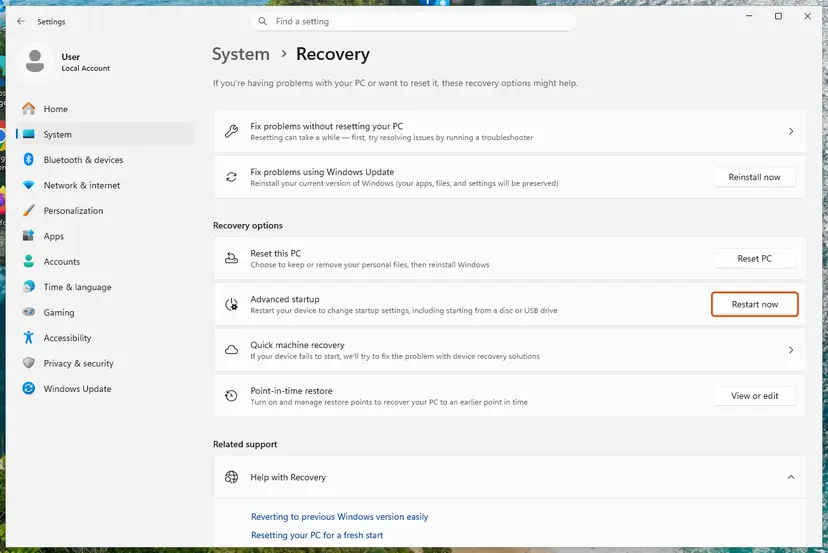
From a working desktop, Advanced startup opens the recovery environment. Screenshot: Windows 11 26H2. - Select Troubleshoot. On Choose an option, select Troubleshoot.
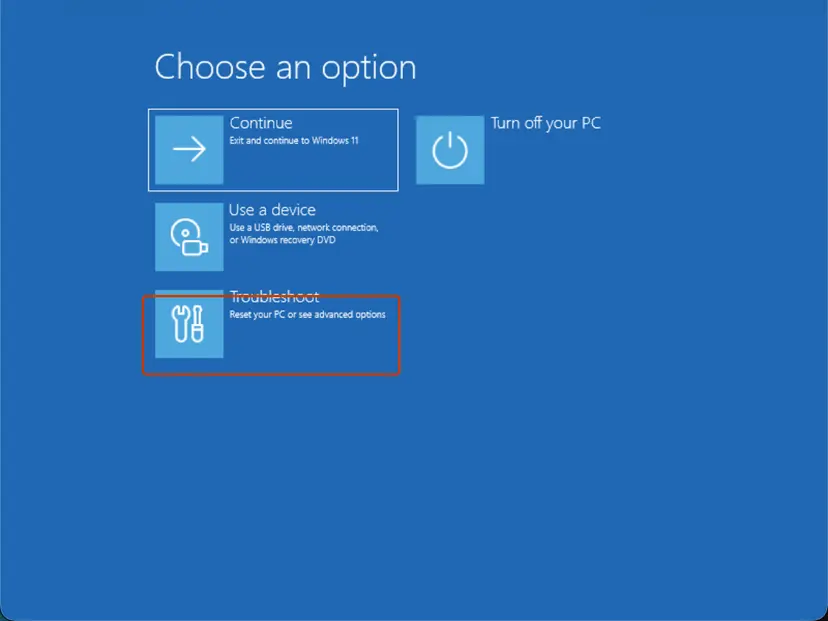
Choose an option: Troubleshoot. Screenshot: Windows 11 26H2. - Open Advanced options. Select Advanced options.
- Start the repair. Select Quick machine recovery (or Startup Repair on older versions).
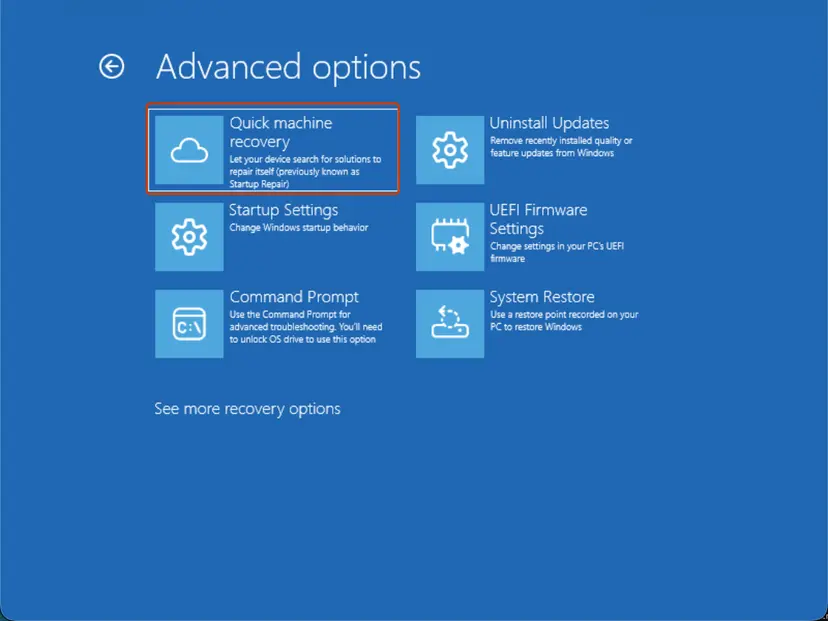
Quick machine recovery is the former Startup Repair tile. Screenshot: Windows 11 26H2. - Sign in if asked. Choose an administrator account and type its password. If Windows asks for the BitLocker recovery key, enter it.
- Wait for the result. The check can take a while. If it fixes the problem, the PC restarts into Windows. If it cannot, it says so and shows where its log file is; select Advanced options and continue below.
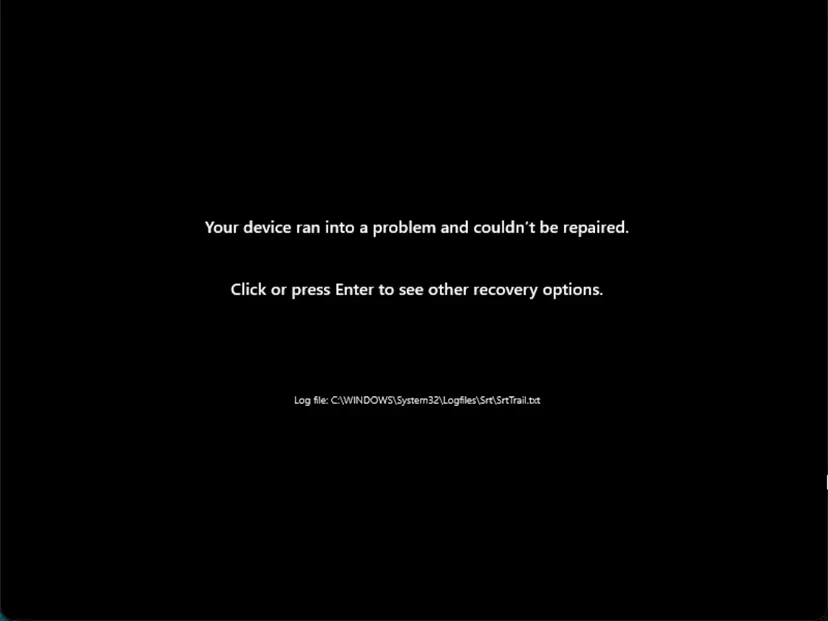
This message means the repair found nothing it could fix. Screenshot: Windows 11 26H2.
These steps were written for Windows 11 and Windows 10, from the Windows Recovery Environment. The full page with the other versions and what each result means: Run Startup Repair
On Windows 11 26H2 the tile that was Startup Repair is called Quick machine recovery. It does the same job, and the procedure above explains where it sits.
It worked if: Startup Repair reports that it fixed the PC, the PC restarts and Windows installs the rest of the update or reaches the sign-in screen.
If not: If Startup Repair says it could not repair your PC, remove the update itself with Fix 4.
Fix 4. Uninstall the latest update from the recovery screens
15 minutesLow riskStartup Repair did not help and the update screen still returns after every restart.
If the update cannot finish, removing it takes Windows back to the version that worked. Microsoft documents this tool for a PC that does not start after an update. Your files and apps are not affected, but you lose the fixes of that update until you install it again.
- Interrupt the startup twice. Turn the PC on and, as soon as the Windows or manufacturer logo appears, hold the power button until the PC shuts down. Do this twice. If Windows already fails to start several times in a row, it opens the recovery environment on its own.
- Open the advanced options. Turn the PC on a third time. On the Automatic Repair screen, select Advanced options.
- Open Uninstall Updates. Select Troubleshoot > Advanced options > Uninstall Updates.
- Remove the latest update. Select Uninstall latest quality update and follow the instructions. Quality updates are the regular monthly updates.
- Start Windows and pause updates. Let the PC restart. Once Windows starts, pause updates as described in the tab for your version of Windows, so the same update is not installed again at once.
These steps were written for Windows 11 and Windows 10, from the Windows Recovery Environment. The full page with the other versions and what each result means: How to uninstall a Windows update
- Choose Uninstall latest quality update first. That is the monthly cumulative update, and it is the usual cause.
- Choose Uninstall latest feature update only when the PC was moving to a new Windows version, such as Windows 10 to Windows 11. It sends the PC back to the old version.
- If the drive is encrypted, Windows asks for the BitLocker recovery key. Read it on another device from your Microsoft account.
More recovery tools for the same situation, such as System Restore and an offline file check, are in our guide to the Updates are underway screen.
It worked if: Windows reports that it uninstalled the update, restarts and shows the sign-in screen without the update screen.
If not: If Windows cannot uninstall the update, use Safe Mode from the same recovery screens: Start Windows or a Mac in Safe Mode. If you still cannot sign in, go to the repair install in the section on what to do when nothing works.
Fix 5. Pause and resume the update, and restart the update services
10 minutesNo riskWindows starts normally, but Windows Update is frozen at 0%, at the scan or at 100%.
Microsoft explains that the Settings page talks to the Update Orchestrator service, which in turn talks to the Windows Update service. When either one stops unexpectedly the page freezes. Pausing and resuming wakes the process, and restarting the services removes the stall.
- Open Settings > Windows Update. On Windows 11 select Pause for 1 week (you can pick another time). On Windows 10 select Pause updates for 7 days.
- Wait a minute, then select Resume updates, and check whether the update installs.
- Press Win + R, type
services.mscand press Enter. - Find Windows Update. If it is running, right-click it and select Restart. If it is stopped, double-click it, set Startup type to Manual or Automatic, select Start and then Apply.
- Do the same for Update Orchestrator Service, Background Intelligent Transfer Service, Cryptographic Services and Windows Installer.
- Close Services, restart the PC and select Check for updates.
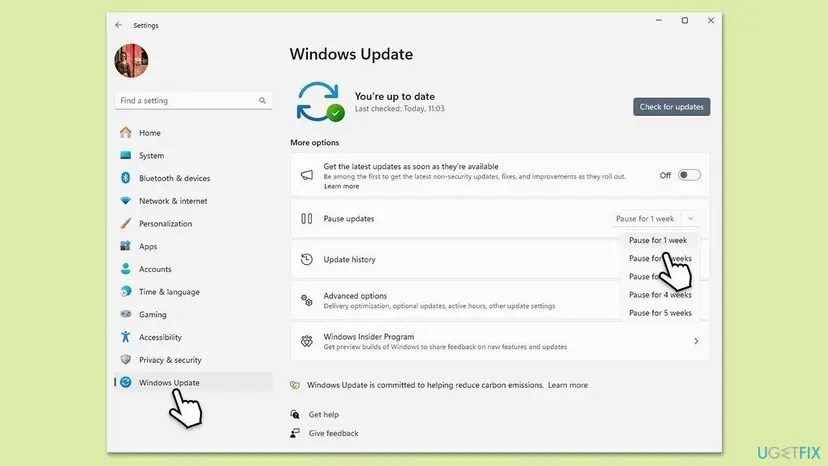
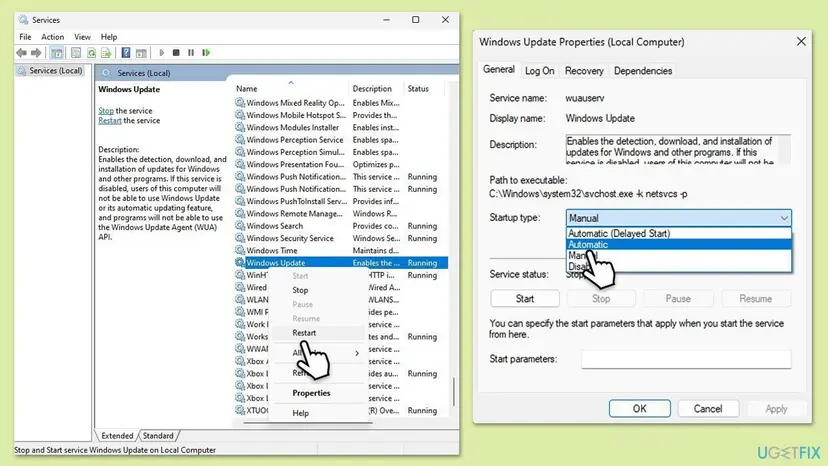
On a healthy PC Windows Update starts when it is needed. Change a service only when it is stopped or shows Disabled. Step by step for any service: Check and restart Windows services
It worked if: Settings leaves the frozen state, the download moves past 0% and the update installs.
If not: If it freezes again, check the free space and the drive with Fix 6.
Fix 6. Free up space and check the drive for errors
30 minutesLow riskThe drive is nearly full, or Microsoft's own checklist for an update stuck at 0% or 100% applies to you.
Microsoft's guide to update problems lists two checks for a stuck update: enough free space and a repaired disk. It asks for at least 16 GB free to upgrade a 32-bit system and 20 GB for a 64-bit one, and it tells you to repair hard drive errors with a disk check.
- Open Storage settings. Select Start > Settings > System > Storage. The top of the page shows how full the drive is and what uses the space.
- Open Cleanup recommendations. Under Storage management, select Cleanup recommendations.
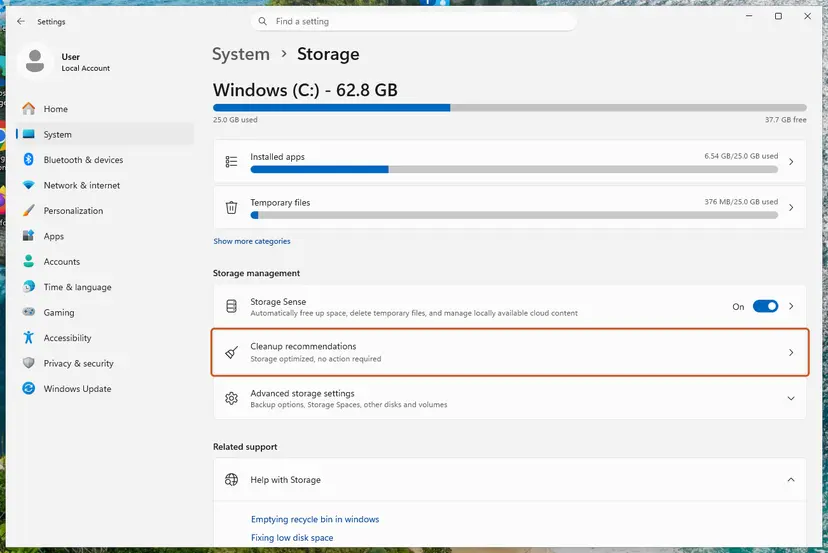
Settings, System, Storage: Cleanup recommendations is under Storage management. Screenshot: Windows 11 26H2. - Clean up what Windows suggests. Open each group (Temporary files, Large or unused files, Files synced to the cloud, Unused apps), check the items you do not need and select Clean up in that group.
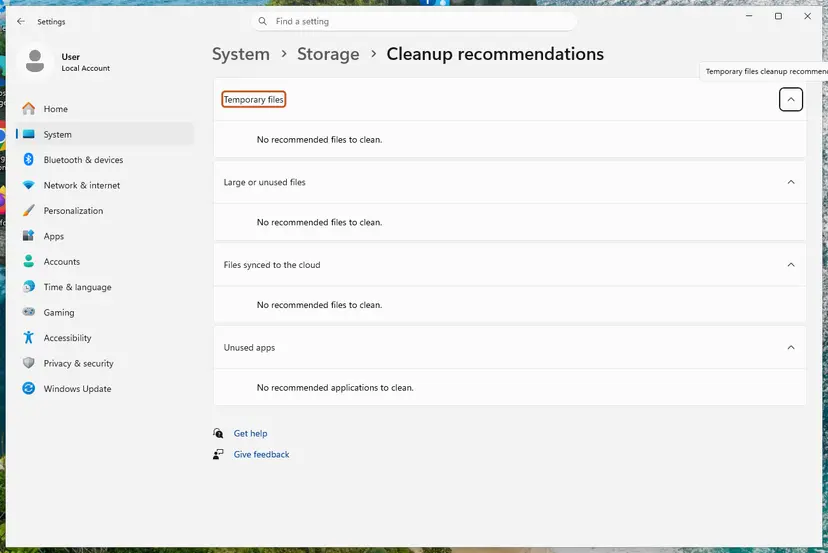
Cleanup recommendations groups the suggestions; on our test PC there was nothing to clean yet. Screenshot: Windows 11 26H2. - Delete more temporary files. Go back to Storage and select Temporary files. Windows lists the types it can remove with their size. Check the ones you do not need and remove them. Leave Downloads unchecked unless you have checked that folder.
- Turn on Storage Sense. Back on Storage, turn the Storage Sense switch on. Windows then deletes temporary files on its own when the drive runs low.
- Choose what Storage Sense cleans. Select Storage Sense to open its page. Check the box for cleaning temporary files, then choose when it runs and how long files may stay in the Recycle Bin and Downloads before they are deleted.
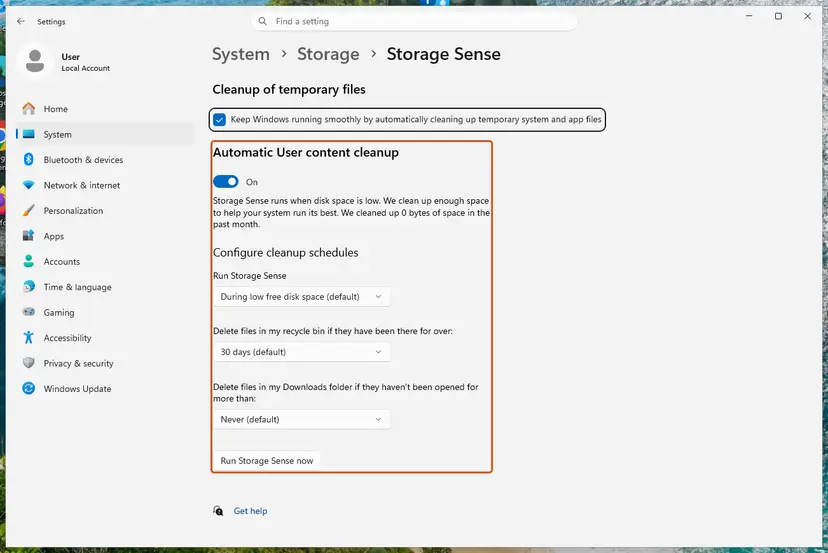
Storage Sense: schedules for the Recycle Bin and Downloads, and Run Storage Sense now. Screenshot: Windows 11 26H2. - Run it now. Select Run Storage Sense now at the bottom of the page.
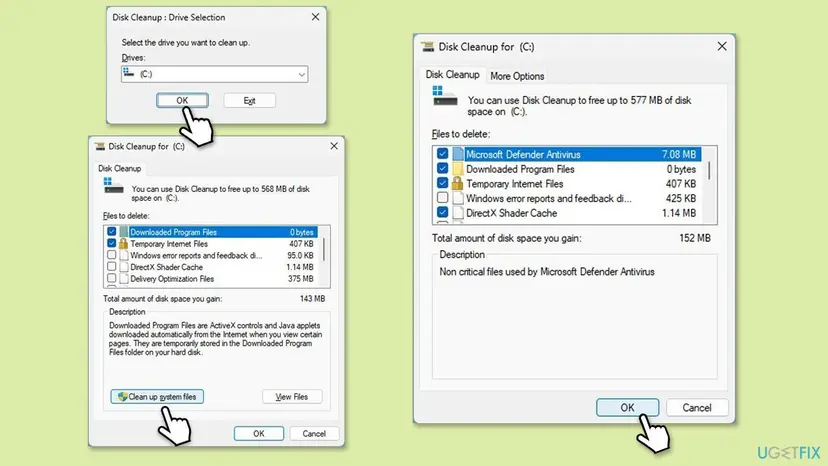
- Clean up system files with Disk Cleanup. Type disk cleanup in the search box on the taskbar and open Disk Cleanup. Choose drive C: and select OK, then select Clean up system files and choose C: again.
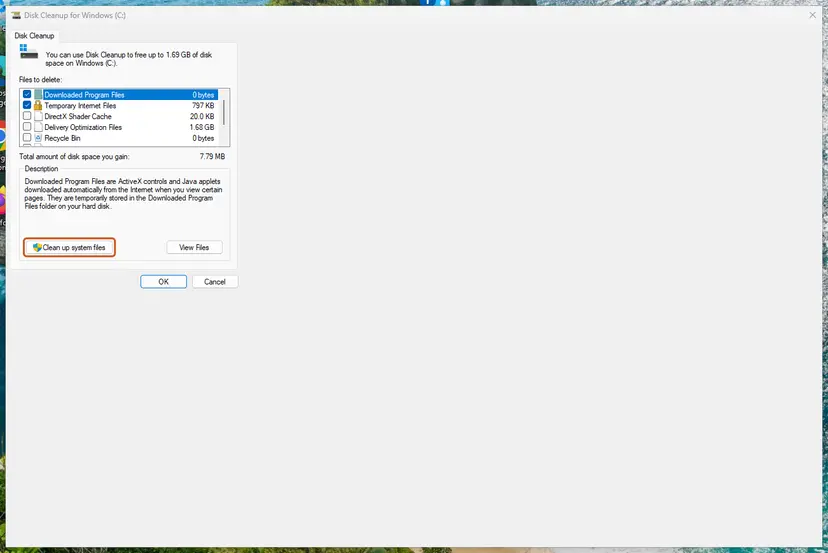
Disk Cleanup: Clean up system files adds Windows Update and other system files to the list. Screenshot: Windows 11 26H2. - Delete the files. Check the types of files you want to remove (select a name to see what it is), select OK, then Delete files.
These steps were written for Windows 11 (screenshots: 26H2). The full page with the other versions and what each result means: Free up disk space and delete temporary files
- Open Command Prompt as administrator. Type cmd in the search box on the taskbar, right-click Command Prompt and select Run as administrator. Select Yes when Windows asks for permission.
- Scan the drive without changing anything. Type the command below and press Enter. Replace C: with another drive letter to check that drive. This scan only reports; it does not fix anything.
chkdsk C: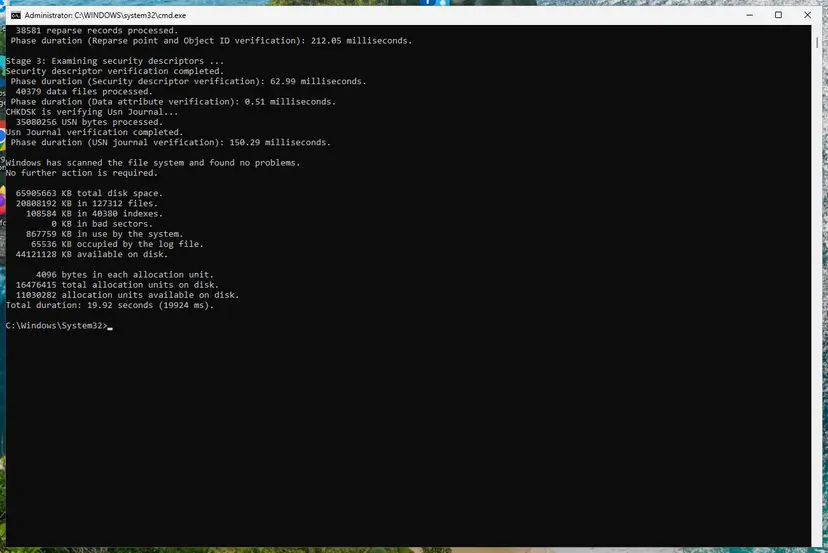
A clean result: no problems found and 0 KB in bad sectors. Screenshot: Windows 11 26H2. - If errors were found, run the repair. Run chkdsk with /f to fix file system errors. On the Windows drive (C:) chkdsk cannot lock the drive while Windows is running, so it offers to check it at the next restart.
chkdsk C: /f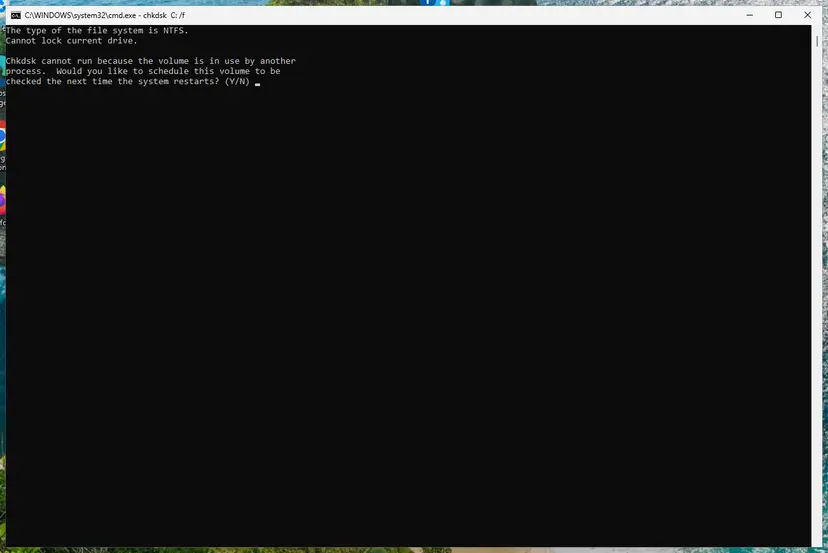
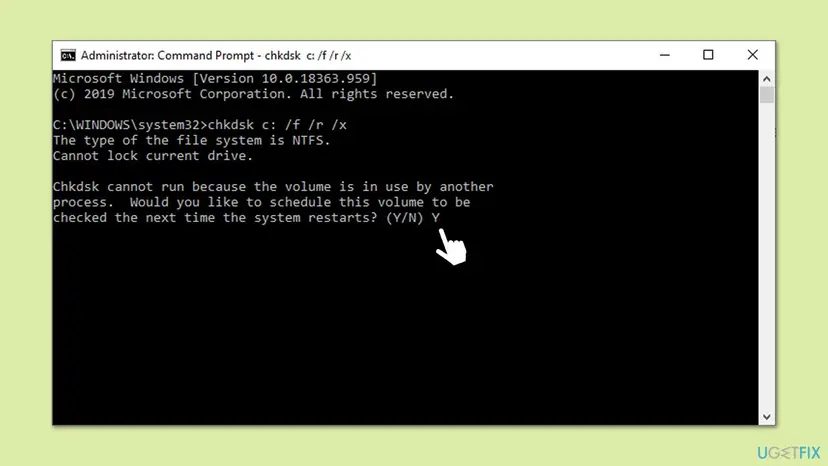
On the system drive chkdsk /f asks to run at the next restart. Screenshot: Windows 11 26H2. - Schedule the check and restart. Type Y and press Enter, then restart the PC. chkdsk runs before Windows starts. Do not turn the PC off while it runs.
- Read the result after the restart. The report of a check made at startup is not shown on the desktop. Open PowerShell and run the command below to see it, or open Event Viewer (eventvwr.msc) > Windows Logs > Application and filter by the sources Chkdsk and Wininit.
Get-WinEvent -FilterHashtable @{LogName='Application'} | Where-Object { $_.ProviderName -match 'wininit' } | Select-Object -First 1 | Format-List TimeCreated, Message
These steps were written for Windows 11 and Windows 10 (the steps are the same). The full page with the other versions and what each result means: Check a disk for errors (chkdsk)
It worked if: The drive shows at least 20 GB free, the disk check finds no errors, and the update installs after the next restart.
If not: If the disk check reports bad sectors that it cannot fix, back up your files first with Back up your files (Windows Backup, File History, Time Machine). Then continue with Fix 7.
Fix 7. Run the Windows Update and network troubleshooters
10 minutesNo riskSeveral updates stall, or the download will not start and you use Wi-Fi, a VPN or a proxy.
The Windows Update troubleshooter checks the update services, their settings and a pending restart in one pass. The network troubleshooter covers the other half: Windows Update downloads through its own system-level connection, so a broken connection stops the update at 0%.
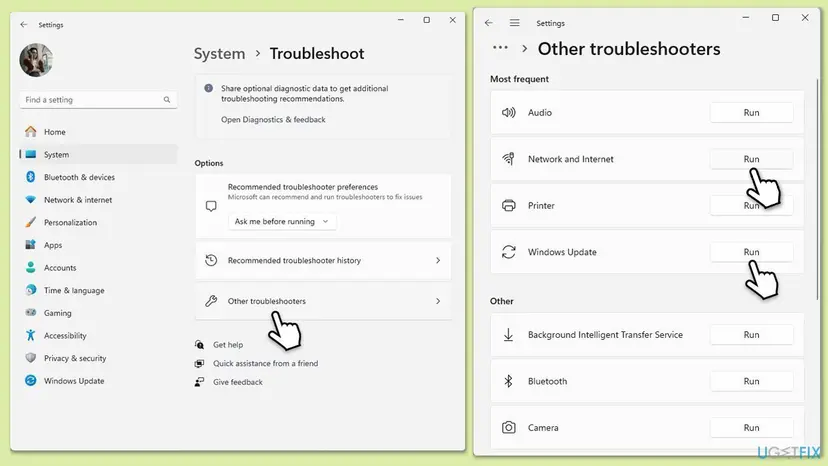
- Open Troubleshoot settings. Select Start > Settings > System > Troubleshoot.
- Open the list of troubleshooters. Select Other troubleshooters.
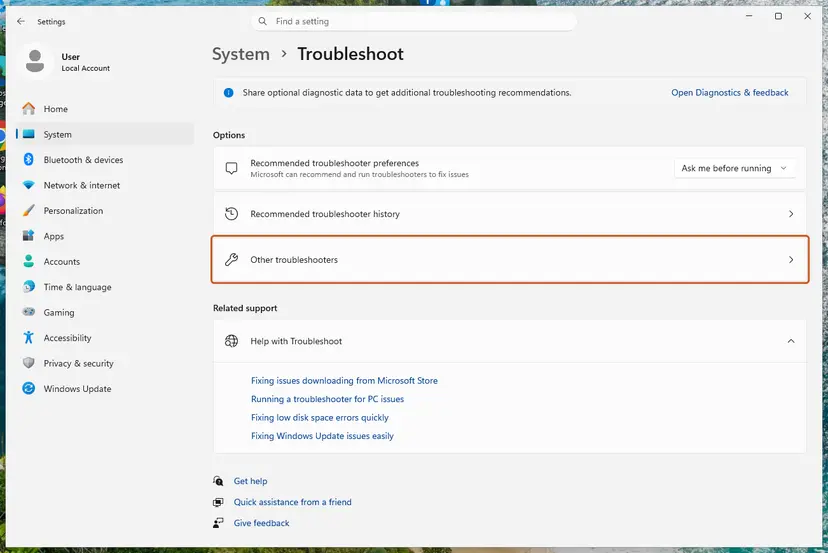
Settings, System, Troubleshoot: select Other troubleshooters. Screenshot: Windows 11 26H2. - Run the Windows Update troubleshooter. Under Most frequent, select Run next to Windows Update. The Get Help app opens and starts the checks.
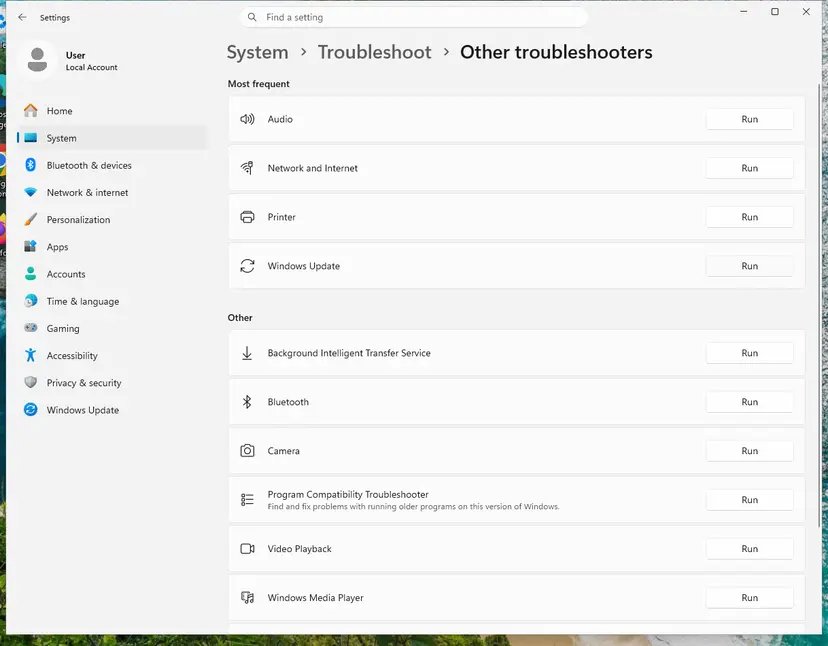
Windows Update is in the Most frequent group; select Run on its row. Screenshot: Windows 11 26H2. - Read the result. Wait until Get Help finishes. If it found and fixed a problem, it says so and asks whether this solved the problem. Answer the question so it can offer the next step.
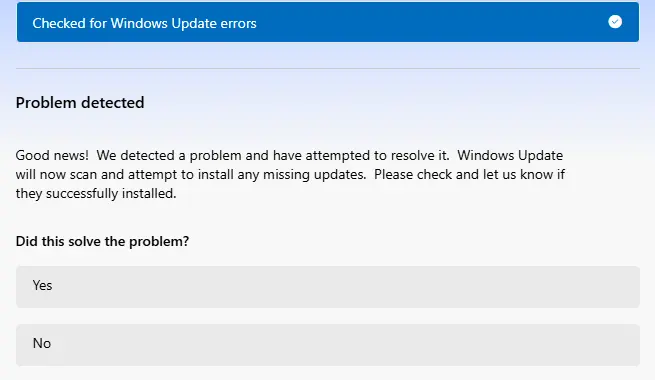
Get Help reports what it found and asks if the problem is solved. Screenshot: Windows 11 26H2. - Restart the PC. Restart when the troubleshooter finishes, even if it does not ask you to.
- Check for updates again. Select Start > Settings > Windows Update > Check for updates, and install the updates it finds.
These steps were written for Windows 11 (screenshots: 26H2). The full page with the other versions and what each result means: Run the Windows Update troubleshooter
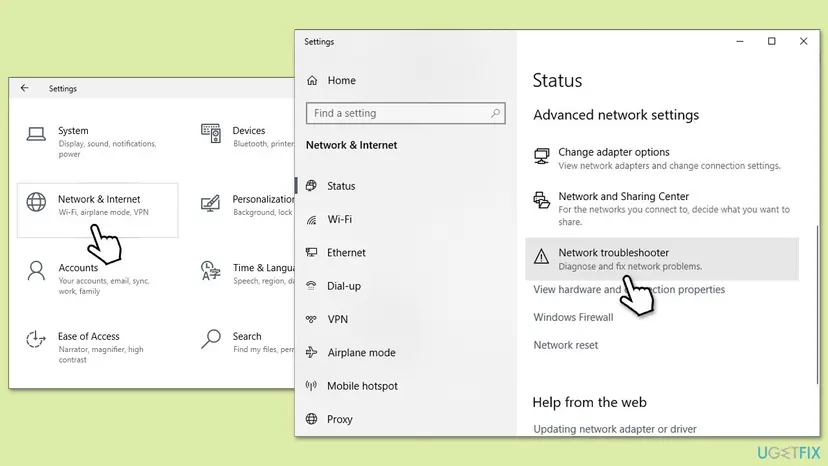
- On Windows 11, open Settings > Network & internet > Advanced network settings and select Network troubleshooter.
- On Windows 10, open Settings > Network & Internet > Status and select Network troubleshooter.
- Wait for the scan and apply the fixes it offers, then restart the PC.
It worked if: The troubleshooters list what they changed. After the restart the update downloads and installs.
If not: If they find nothing, reset the update components with Fix 8.
Fix 8. Reset the Windows Update components and the download cache
15 minutesLow riskThe update fails or freezes again after Fixes 5 to 7, or the same update fails after every restart.
Windows keeps downloaded updates and their database in two folders. When files there are damaged, the update stalls. Stopping the services and renaming the folders makes Windows download everything again from a clean start.
- Open Command Prompt as administrator. Type cmd in the search box, right-click Command Prompt and select Run as administrator. Select Yes when Windows asks for permission.
- Stop the update services. Type the commands below and press Enter after each one. If Windows says that other services depend on Cryptographic Services, it stops them too. A message that a service is not started is fine.
net stop wuauserv
net stop bits
net stop cryptsvc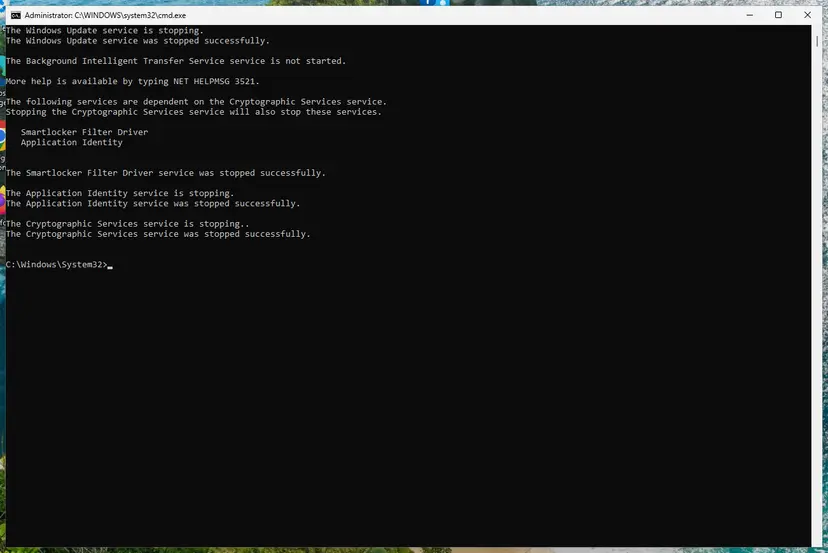
The update services are stopped. Screenshot: Windows 11 26H2. - Delete the download queue files. This clears the list of downloads that the Background Intelligent Transfer Service keeps. If Windows says it cannot find the files, continue.
del "%ALLUSERSPROFILE%\Application Data\Microsoft\Network\Downloader\qmgr*.dat" - Rename the update cache folders. Renaming keeps a copy in case you need it; Windows creates new, empty folders when the services start again. If you get Access is denied, a service is still running: repeat the previous step.
ren %systemroot%\SoftwareDistribution SoftwareDistribution.old
ren %systemroot%\System32\catroot2 catroot2.old
Both folders now end in .old. Screenshot: Windows 11 26H2. - Start the services again. Type the commands below and press Enter after each one. The requested service has already been started is fine: Windows started it on its own.
net start cryptsvc
net start bits
net start wuauserv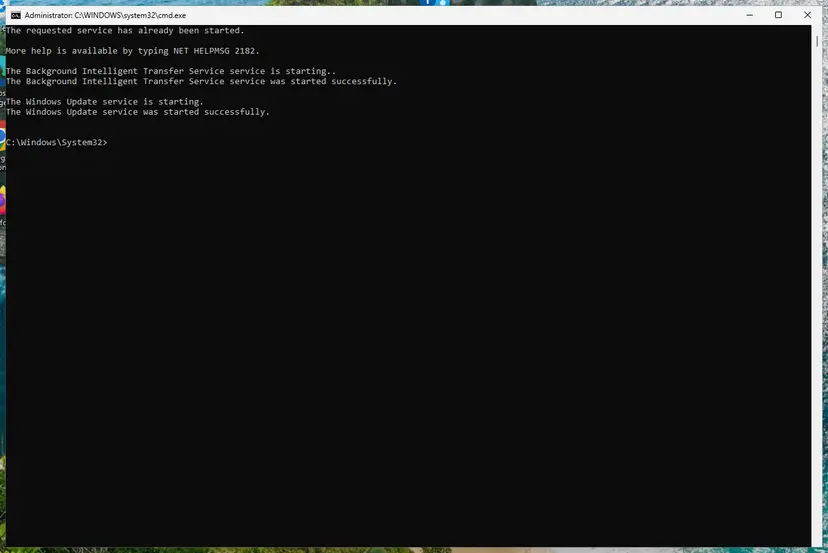
BITS and Windows Update are running again. Screenshot: Windows 11 26H2. - Restart and check for updates. Restart the PC. Then select Start > Settings > Windows Update > Check for updates. The first check can take longer than usual because everything is downloaded again.
These steps were written for Windows 11 and Windows 10 (the steps are the same). The full page with the other versions and what each result means: Reset Windows Update components
The procedure renames the folders instead of deleting them, so you can go back. After the next successful update you can delete the old folders to free space. Update history may look empty afterwards, which is normal.
It worked if: Windows Update searches again, downloads the update from scratch and installs it.
If not: If the same update stalls again, repair the system files with Fix 9.
Fix 9. Repair system files, then test in a clean boot
45 minutesLow riskFixes 5 to 8 did not help, or other Windows tools crash too.
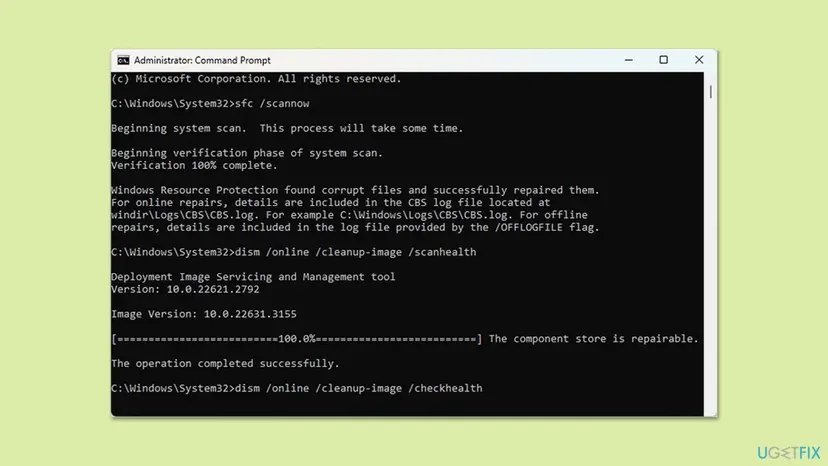
Deeper damage to system files can block updates, and a program or driver that loads at startup can interfere with the installer. DISM repairs the component store, SFC repairs the files from it, and a clean boot starts Windows with only Microsoft's services to show whether another program is the cause.
- Open an elevated command window. Right-click Start and select Terminal (Admin), or type cmd in the search box, right-click Command Prompt and select Run as administrator. Select Yes when Windows asks for permission.

Search for cmd and choose Run as administrator. Screenshot: Windows 11 26H2. - Run DISM first. Type the command below and press Enter. DISM downloads clean copies of damaged components from Windows Update, so it can take several minutes. Wait until it says The operation completed successfully.
DISM.exe /Online /Cleanup-Image /RestoreHealth
DISM /RestoreHealth running. Screenshot: Windows 11 26H2. - Run System File Checker. In the same window, type the command below and press Enter. Do not close the window until the verification reaches 100%.
sfc /scannow
sfc /scannow at 100%. Screenshot: Windows 11 26H2. - Read the result and restart. Compare the last message with the table below this guide, then restart the PC so that repaired files are loaded.

The result line tells you what SFC did. Screenshot: Windows 11 26H2.
These steps were written for Windows 11 24H2 and 25H2. The full page with the other versions and what each result means: Run DISM and SFC to repair Windows system files
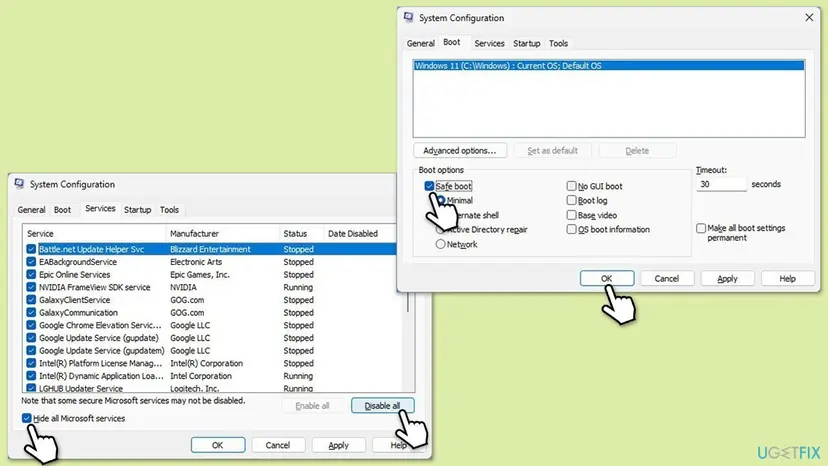
- Open System Configuration. Select Search on the taskbar, type msconfig and select System Configuration from the results.
- Hide Microsoft services. On the Services tab, select the Hide all Microsoft services check box. Only services from other companies stay in the list.

With Hide all Microsoft services ticked, only third-party services stay in the list. Screenshot: Windows 11 26H2. - Disable the remaining services. Select Disable all, then select Apply.
- Open Task Manager. On the Startup tab of System Configuration, select Open Task Manager.

The Startup tab only links to Task Manager. Screenshot: Windows 11 26H2. - Disable the startup apps. On the Startup apps tab in Task Manager, select each item whose status is Enabled and select Disable. Write down or take a screenshot of the items you disable: you need the list to turn them back on.

Select an app, then Disable. Screenshot: Windows 11 26H2. - Confirm the changes. Close Task Manager. On the Startup tab of System Configuration, select OK.
- Restart and test. Restart the PC. Windows now starts in a clean boot environment: try again the thing that failed (run the app, install the update, uninstall the program).
These steps were written for Windows 11 25H2 and 26H2. The full page with the other versions and what each result means: How to perform a clean boot in Windows
If you use a security suite other than Microsoft Defender and the update still fails in a clean boot, pause its protection for one more try and turn it back on right after: Turn off Microsoft Defender protection for a moment. Do not leave protection off.
It worked if: DISM and SFC report no damage or repair it, and the update installs in the clean boot or after you return to normal startup.
If not: If the update still fails, follow the steps in the section below on what to do when nothing works.
If the update is still stuck: what to check next and when to repair Windows
When every fix fails, the problem lies outside the usual update steps. Microsoft's troubleshooting notes point to a few cases that match a download stuck at 0%, and to a repair install as the last step. The checks below cover what we could confirm.
- A proxy set for your user only. Windows Update downloads through the system-level connection (WinHTTP). If a proxy is set only for your account, connections to Windows Update fail. On a PC you manage, copy the user proxy to the system level with the command below in an administrator terminal. On a work PC ask your administrator first.
- The firewall service. A download stuck at 0% with error 0x800706d9 in the update log can mean the Windows Defender Firewall service is disabled. Microsoft says stopping that service is not supported, so start it in
services.msc. - A work or school PC. Updates may come from your organization's own server. Send the update name and the time to your administrator before you change anything.
- Load on Microsoft's side. Errors that mean the server is shedding load are temporary and need no action. The device retries later.
Import your proxy for Windows Update, in an administrator terminal:
netsh winhttp import proxy source=ieThe last step is a repair install, which reinstalls Windows and keeps your files and apps. Back up your files first with Back up your files (Windows Backup, File History, Time Machine), then follow Reinstall Windows without losing files. Run it only when the fixes above have failed, and from a PC that can start.
Windows 10 left support on 14 October 2025. Without the Extended Security Updates program a Windows 10 PC no longer receives security updates, so a stuck update there may be one it is no longer offered. The fixes above still run on Windows 10 22H2.
How to keep Windows updates from getting stuck again
- Keep free space. Keep at least 20 GB free on the system drive before a feature update, as Microsoft asks for a 64-bit system.
- Plug in and wait. Do not start an update on a laptop that is not plugged in, and do not close the lid during the restart.
- Unplug what you do not need. Remove USB drives, printers and docks before you select Restart and update.
- Update in time. Install updates when they are offered, so each one stays small. Restart when Windows asks.
Check the drive once in a while with Check a disk for errors (chkdsk). A drive with errors is slow, and a slow drive makes every update restart longer.
Frequently asked questions
How long can Windows stay on "Working on updates"?
Microsoft's support pages we read give no time limit for this screen. A monthly update often passes within minutes, while a new Windows version or an old hard disk can take much longer. A volunteer answer on Microsoft Q&A advises acting when the screen has not changed for 2 hours, and other users describe waits of three hours or more. Use two hours as a guide. If the percentage moves or the drive light flickers, keep waiting.
Is it safe to turn off the PC when Windows update is stuck on "Working on updates"?
Only when it is really stuck. Plug in the charger and wait first, because the update restart does work Windows cannot do while it runs. If nothing has changed for about two hours and the drive light is dark, users report that holding the power button for 10 seconds is the usual way out, after which Windows resumes or rolls back. Do it once, then use Startup Repair if the screen returns.
Why is Windows update stuck at 0% on "Working on updates"?
The percentage counts steps, not time, so a large first step can sit on 0% for a long while. A stuck 0% can also mean the update cannot finish: Microsoft lists too little free space (20 GB for a 64-bit system), disk errors, stalled update services and a blocked connection as the usual causes. Check that the drive is busy first, then follow the fixes from Fix 2 on.
How do I fix working on updates Windows 10 stuck at 0%?
Use the same order as on Windows 11. Wait, then force one restart. If Windows will not start, open the recovery screens by cutting power during the update screen three times and run Startup Repair, or uninstall the latest update. Once Windows starts, free space, run the troubleshooters and reset Windows Update. Windows 10 left support on 14 October 2025, so it may no longer be offered some updates.
How do I open the recovery screens when Windows will not start?
Users report that forcing the PC off during the "Working on updates" screen three times in a row makes Windows open the recovery screens on the third start. There, select Troubleshoot, then Advanced options. You will find Startup Repair, Startup Settings for Safe Mode, and Uninstall Updates. If the drive is encrypted, have the BitLocker recovery key ready, because the recovery tools may ask for it.
Will I lose my files if I uninstall the update or run Startup Repair?
No. Uninstalling the latest quality update or feature update does not touch your files and apps, and Startup Repair only repairs boot files and settings. You lose the fixes of the removed update until you install it again. The one step that deserves a backup first is a repair install of Windows, so back up your files before you start it.
Why does Windows Update freeze or hang inside Settings?
Microsoft explains that the Settings page talks to the Update Orchestrator service, which talks to the Windows Update service. If either one stops unexpectedly, the page freezes. Close Settings and open it again, then open services.msc and check that Update Orchestrator Service and Windows Update are running. Restart them if they are not, as in Fix 5.
Does a lack of disk space cause the update to stall?
Yes. Microsoft's guide to update problems lists free space first for an update stuck at 0% or 100%. It asks for at least 16 GB of free space to upgrade a 32-bit system and 20 GB for a 64-bit one. Free the space with Cleanup recommendations or Disk Cleanup, tick Windows Update in Disk Cleanup, and run a disk check, as in Fix 6.
What is the difference between "Working on updates" and "Updates are underway"?
Both are update screens that appear while Windows finishes an update during a restart. They carry no error code and the same advice applies: wait while the drive is busy, then use recovery tools. The "Updates are underway" screen appears at shutdown and restart, and our other guide covers it in more depth, including System Restore and offline checks of system files.
Sources
- Microsoft Support: Troubleshoot problems updating Windows (Windows Update stuck at 0% or 100%: free space, repair hard drive errors) (support.microsoft.com)
- Microsoft Learn: Windows Update issues troubleshooting (frozen at scan, WinHTTP proxy, Windows Defender Firewall service, transient errors) (learn.microsoft.com)
- Microsoft Q&A: Windows 11 stuck on working on updates 0% (user reports and volunteer answers) (learn.microsoft.com)
Did this fix work?
One click, no account. It tells the next reader which guides are worth their time.
Questions and experiences: fix Windows update stuck on "Working on updates"
Still broken, or found a fix we did not cover? Ask here: members and our editors answer. Reading is open; writing needs a free account.
…