
How to fix Windows Error Reporting Event ID 1001?

Prefer to fix it yourself? The manual steps follow.
- 7methods
- 5 minutes to read the entry; 15 to 60 minutes for the fix it points to
- Intermediate
Applies to Windows 11 and Windows 10 desktops and laptops that show Event ID 1001 in Event Viewer
7 methods in this guide
Hello. I have this issue with Event ID 1001 on my computer. The system gets locked, and the error occurs. The problem was persistent, but recently it was not bothering me. However, Windows reports the issue, and the machine is not working as it is supposed to. Can you help me?
Event ID 1001 is not an error of its own: it is the line Windows writes when it files a problem report, or after it restarts from a blue screen. The real fault is named inside the entry. Open it in Event Viewer, read the source and the Event Name, and fix the app or driver it points to.
Event ID 1001 from Windows Error Reporting means Windows filed a report about a crash, a hang or a driver failure. From BugCheck it means the PC restarted after a blue screen. Open the entry in Event Viewer and read Event Name and P1 or the bugcheck code (Fix 1). Then repair or update the app it names (Fix 2), or the driver behind the stop code (Fix 3).
| Error | Event ID 1001, source Windows Error Reporting (Application log, level Information) or source BugCheck (System log, level Error). |
|---|---|
| Where it appears | In Event Viewer (eventvwr) under Windows Logs, and as a report in Reliability Monitor (perfmon /rel). There is no pop-up: you find it when you look for the cause of a crash or a freeze. |
| Main cause | An app that crashed or stopped responding (Event Name APPCRASH or AppHangB1). Next most often a blue screen caused by a driver. |
| Fastest fix | Read the Event Name and P1 in the entry (Fix 1), then update, repair or reinstall the app it names (Fix 2). |
| Also written as | event 1001, eventid 1001, windows event 1001, event viewer 1001, bugcheck 1001, WER-SystemErrorReporting event 1001, "The computer has rebooted from a bugcheck". |
| What Microsoft says WER is | The feature that lets users notify Microsoft of "application faults, kernel faults, unresponsive applications, and other application specific problems". |
| Affects | Every supported Windows version. Windows 10 left support on 14 October 2025, so it gets no more fixes for the faults these reports describe. |
| Vendor status | Not a Windows bug and no patch is planned. The entry is a record; the fix belongs to the app, driver or hardware it names. |
| Time to fix | 5 minutes to read the entry. 15 to 60 minutes for most fixes; a memory test takes longer. |
Facts checked on 15 October 2026. Steps written for Windows 11 (25H2 and 26H2) and Windows 10 22H2.
What Windows Error Reporting Event ID 1001 means
Windows Error Reporting (WER) is the part of Windows that collects data when something fails. Microsoft describes it as the feature that lets users notify Microsoft of "application faults, kernel faults, unresponsive applications, and other application specific problems". Each time WER files such a report, it writes Event ID 1001 to the Application log. So the event is a receipt, not the failure.
The number 1001 is also used by other sources. The one that worries people most is BugCheck in the System log, with the text "The computer has rebooted from a bugcheck." That one means a blue screen happened. The picture shows how to tell them apart.
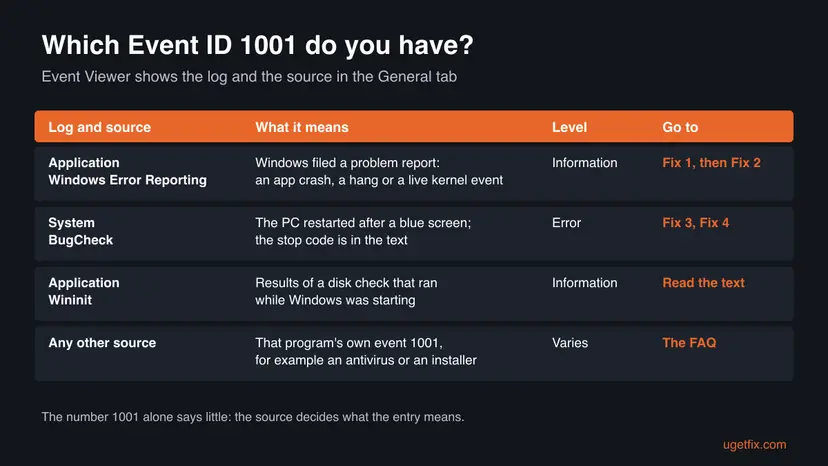
A typical Windows Error Reporting entry (shortened)
Log Name: Application
Source: Windows Error Reporting
Event ID: 1001
Level: Information
Fault bucket <number>, type <number>
Event Name: APPCRASH
Response: Not available
Problem signature:
P1: <the program, for example app.exe>
P4: <the module that faulted, for example a .dll>
Attached files:
These files may be available here:
C:\ProgramData\Microsoft\Windows\WER\ReportArchive\<report folder>- Event Name is the kind of report:
APPCRASH,AppHangB1,BEX64,LiveKernelEvent,BlueScreenand others. - P1 is the program the report is about. For an app crash, P4 is the module where it failed and P7 the exception code.
- Fault bucket is the group Microsoft sorts the report into. It is useful to support, not to you.
- These files may be available here gives the folder with the report files, under
C:\ProgramData\Microsoft\Windows\WER.
The WER entry is marked Information because writing a report worked. The crash it describes is real. Look for an Event ID 1000 (Application Error) or a hang event a few seconds before it: that is the failure itself.
Why Event ID 1001 appears: causes ranked
Because 1001 only records a report, its causes are the causes of the failure it reports. The table orders them by what the entries we read show most, and ties each one to a fix on this page.
| Cause | How often | How to tell | Fix |
|---|---|---|---|
| An app crashed or stopped responding: an old version, a broken update, a damaged install or an add-on. | Most often | Event Name APPCRASH, AppHangB1 or BEX64, with the same app in P1 every time. | Fix 2 |
| A driver failed and caused a blue screen. | Often | Source BugCheck in the System log, or Event Name BlueScreen. Microsoft estimates about three quarters of stop code errors come from faulty drivers. | Fix 3 |
| A graphics or other driver failed and Windows recovered. | Sometimes | Event Name LiveKernelEvent with a code such as 141, 117 or 124. | Fix 3, then our LiveKernelEvent guides |
| Another program interferes: an overlay, a tuning tool, a security suite. | Sometimes | Several different apps in P1, and the same .dll from a third party in P4. | Fix 5 |
| Faulty memory or an unstable overclock. | Less often | Crashes in many apps and blue screens with different stop codes. | Fix 6 |
| Damaged Windows files. | Rarely | Windows apps such as Explorer crash, and other system errors appear. | Fix 7 |
| A report about something minor, for example a failed background scan. | Common, but not a problem | Your apps work, nothing crashed, and P1 names a Windows component. | Nothing to fix |
Cleaning the disk or raising virtual memory does not fix a crash by itself. The entry already names the program, the module or the stop code. Starting there saves you from trying ten unrelated repairs.
How to fix Event ID 1001
Fix 1 tells you which kind of 1001 you have and what it names. Fix 2 solves most app crash reports. Fixes 3 and 4 are for blue screens and driver failures. Fixes 5 to 7 are for crashes that move between apps. Do them in order and check Reliability Monitor after each one.
| What you see or have | Start with |
|---|---|
| You have not opened the entry yet. | Fix 1 |
| Event Name APPCRASH, AppHangB1 or BEX64, and the same app in P1. | Fix 2 |
| Source BugCheck, "The computer has rebooted from a bugcheck", or Event Name BlueScreen. | Fix 3, then Fix 4 |
| Event Name LiveKernelEvent. | Fix 3 |
| A blue screen happened but the entry says no dump was saved. | Fix 4 |
| Different apps crash, often with the same third-party module in P4. | Fix 5 |
| Random crashes and blue screens with changing stop codes. | Fix 6, then Fix 7 |
Fix 1. Open the Event ID 1001 entry and read its source, Event Name and P1
5 minutesNo riskEveryone, before changing anything: the entry names what failed.
Event ID 1001 is a record written after a report. Microsoft notes that the event properties of a bug check list its four stop code parameters, and a WER entry lists the program and module in its problem signature. Reading them tells you which fix applies.
- Press Win + R, type
eventvwrand press Enter. - Expand Windows Logs and select Application. Select Filter Current Log on the right, type
1001in the <All Event IDs> box and select OK. - Open an entry with the source Windows Error Reporting. Write down the Event Name, P1 and, for APPCRASH, P4 and P7.
- Look at the entry just before it. An Event ID 1000 with source Application Error shows the same app and module in plain words.
- Now select System under Windows Logs and filter it for
1001the same way. An entry with the source BugCheck shows the stop code after "The bugcheck was:". - For a timeline, press Win + R, type
perfmon /reland press Enter. Red marks show the days with crashes; View technical details opens the same report.
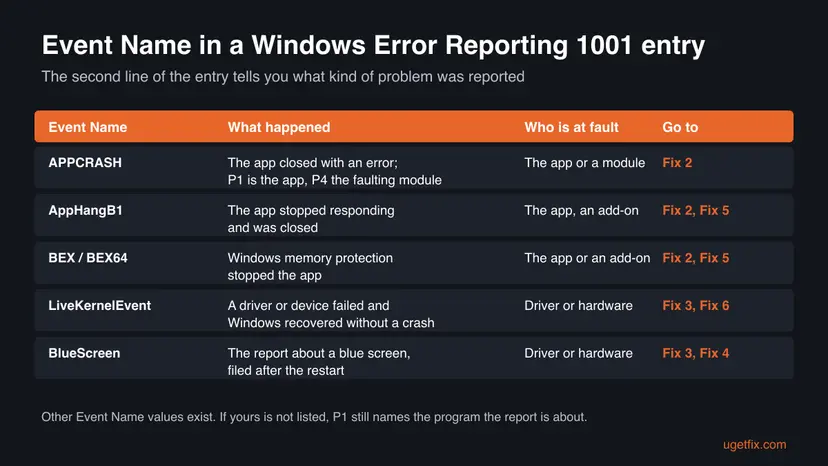
Many 1001 entries with the same app in P1 point to one problem. Many entries with different apps but the same module in P4 point to the program that owns that module, not to the apps.
It worked if: You know the source of your 1001, the Event Name, the program in P1 or the stop code, and which fix below to start with.
If not: If every 1001 names a Windows component and nothing on your PC crashes, the reports are background noise and need no fix. Otherwise go to the fix the chooser table names.
Fix 2. Update, repair or reinstall the app named in P1
15 minutesLow riskEvent Name APPCRASH, AppHangB1 or BEX64, with the same app in P1 each time.
An app crash report means the app itself failed, so the app is what needs fixing. A newer version often contains the fix, and a repair or reinstall replaces damaged program files and settings.
- Update the app from inside it, from the Microsoft Store library, or from its maker's site. Restart the PC and try again.
- If the crash began right after an app update, check the maker's site or forum for a known issue with that version.
- For a Store app or an app with a Repair option, open Settings > Apps > Installed apps, select the three dots next to the app and open Advanced options. Select Repair, then Reset if that did not help. On Windows 10 the list is under Settings > Apps > Apps & features.
- If P4 names a plug-in or add-on
.dllof the app, start the app without add-ons, or remove the newest one. - If nothing helped, uninstall the app, restart, and install the newest version from its maker.
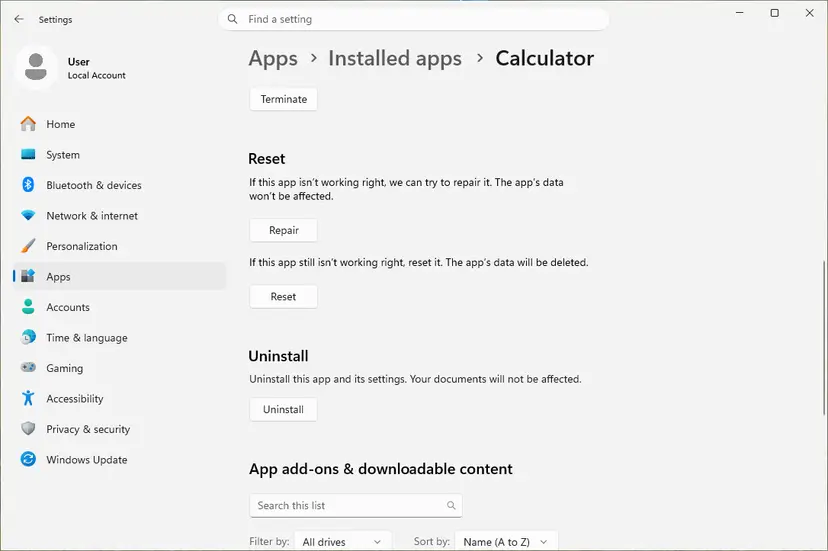
Full steps with screenshots: How to repair or reset an app in Windows and Uninstall a program or app in Windows. If P1 is a game, verify its files in the game launcher first: How to verify game files in Steam, Epic Games, Xbox app, EA app, Battle.net and GOG Galaxy. If P4 names a Microsoft runtime such as a msvcp or vcruntime file, repair the Visual C++ packages: How to repair Microsoft Visual C++ Redistributable and .NET Framework.
It worked if: The app opens and works, and no new 1001 entry with that app in P1 appears in Event Viewer.
If not: If the same app keeps crashing after a clean reinstall, check whether P4 names a third-party module and go to Fix 5. If many apps crash, go to Fix 6.
Fix 3. Update or roll back the driver behind a BugCheck or LiveKernelEvent 1001
20 minutesLow riskSource BugCheck, Event Name BlueScreen or LiveKernelEvent, or a blue screen you saw yourself.
Microsoft estimates that about three quarters of stop code errors are caused by faulty drivers. The bugcheck code in the 1001 entry tells you which kind of failure it was, and its date tells you which driver change to undo.
- Copy the code after "The bugcheck was:", for example
0x0000009f. Drop the leading zeros: that is stop code0x9F, which Microsoft lists in its bug check code reference with its name. - Think back: did the blue screens start after a new driver, a Windows update or a new device? That driver is the first suspect.
- Right-click Start and select Device Manager. Open the device you suspect, for example under Display adapters, and open the Driver tab.
- If the crashes began after a driver update, select Roll Back Driver. Otherwise download the newest driver from the device or PC maker and install it.
- Install the newest BIOS and chipset driver from the motherboard or PC maker's support page. Follow its instructions exactly.
- Use the PC normally for a few days and check the System log for a new BugCheck 1001.
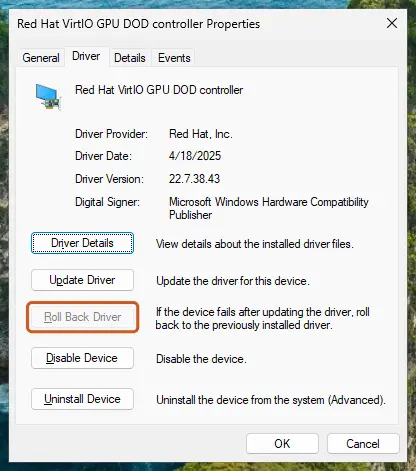
Device Manager steps for every case: Update, roll back or reinstall a driver. For a LiveKernelEvent, the code tells you more: see LiveKernelEvent 124 for a hardware error that Windows survived.
It worked if: No new BugCheck or LiveKernelEvent 1001 entries after several days of the same use that caused them.
If not: If blue screens continue and the entry says no dump was saved, go to Fix 4 so the next crash leaves evidence. If the stop codes change each time, go to Fix 6.
Fix 4. Make sure Windows can save the crash dump
10 minutesLow riskA BugCheck 1001 without a dump path, an empty C:\Windows\Minidump folder, or a paging file you turned off.
A BugCheck 1001 entry normally ends with "A dump was saved in:" and a path. That dump is what a technician opens with WinDbg and !analyze. Windows writes it through the paging file on the system drive, so a removed paging file or a full drive leaves you without evidence.
- Press Win + R, type
sysdm.cpland press Enter. Open the Advanced tab. - Under Performance, select Settings, open the Advanced tab and select Change under Virtual memory.
- Tick Automatically manage paging file size for all drives, or make sure drive C: has System managed size. Select OK.
- Back on the Advanced tab of System Properties, select Settings under Startup and Recovery.
- Under Write debugging information, choose Automatic memory dump or Small memory dump. Note the folder shown for the dump.
- Free some space on drive C: if it is almost full: Free up disk space and delete temporary files. Restart the PC.
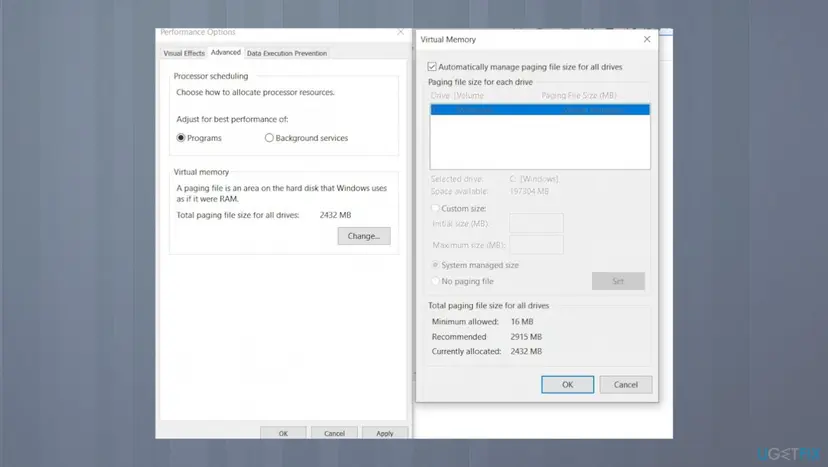
It worked if: After the next blue screen, the BugCheck 1001 entry ends with "A dump was saved in:" and a file exists in that folder.
If not: If a dump is still missing, check that the drive has several gigabytes free and that no cleanup tool deletes dumps. Then continue with Fix 6.
Fix 5. Start Windows with a clean boot to find a program that interferes
30 minutesLow riskDifferent apps crash, or P4 names the same third-party module in several reports.
Overlays, tuning tools and security suites load their modules into other programs. When one of them fails, WER files the report under the app that crashed, not under the program that caused it. A clean boot removes them for a test.
- Search the web for the module name in P4. If it belongs to a program you installed, update or remove that program first.
- Otherwise run a clean boot: press Win + R, type
msconfig, open Services, tick Hide all Microsoft services and select Disable all. - Open the Startup tab, select Open Task Manager and disable every startup app. Restart.
- Use the apps that crashed. If they work, turn the services back on in halves until the crash returns.
- When you find the program, update or uninstall it, then undo the clean boot in
msconfig.

Full steps and how to undo them: How to perform a clean boot in Windows. If your security suite is the suspect, pause it for one test only and turn it back on: Turn off Microsoft Defender protection for a moment.
It worked if: The crashes stop in the clean boot, and you find the one service or startup app that brings them back.
If not: If apps still crash in a clean boot, the cause is in Windows or the hardware: go to Fix 6.
Fix 6. Test the memory and remove overclocks
30 minutes to several hoursNo riskMany apps crash, blue screens show different stop codes, or the PC uses XMP, EXPO or an overclock.
Bad memory corrupts whatever program uses it, so the 1001 reports name a different app or stop code each time. That pattern is the sign to test the hardware rather than reinstall apps.
- Save your work. Press Win + R, type
mdsched.exeand press Enter. - Select Restart now and check for problems (recommended). For a deeper test, press F1 on the blue test screen, choose Extended and press F10.
- After Windows starts, open Event Viewer and look in the System log for MemoryDiagnostics-Results.
- If you use XMP, EXPO or an overclock, load the BIOS defaults and see whether the 1001 entries stop.
- If the test finds errors, test one memory module at a time to find the faulty one.
Steps with screenshots: How to test your RAM with Windows Memory Diagnostic.
It worked if: The memory test reports no errors, or you found the module that fails. With BIOS defaults, the crashes stop.
If not: If the memory passes and the crashes go on, repair Windows in Fix 7.
Fix 7. Repair Windows system files with DISM and SFC
30 to 60 minutesLow riskWindows parts such as Explorer crash, or you did Fixes 2 to 6 and want to exclude Windows.
When P1 or P4 names a Windows file, a damaged system file can be the cause. DISM repairs the Windows image and SFC then replaces damaged files from it. It is last because it rarely helps with a third-party app crash.
- Open an elevated command window. Right-click Start and select Terminal (Admin), or type cmd in the search box, right-click Command Prompt and select Run as administrator. Select Yes when Windows asks for permission.

Search for cmd and choose Run as administrator. Screenshot: Windows 11 26H2. - Run DISM first. Type the command below and press Enter. DISM downloads clean copies of damaged components from Windows Update, so it can take several minutes. Wait until it says The operation completed successfully.
DISM.exe /Online /Cleanup-Image /RestoreHealth
DISM /RestoreHealth running. Screenshot: Windows 11 26H2. - Run System File Checker. In the same window, type the command below and press Enter. Do not close the window until the verification reaches 100%.
sfc /scannow
sfc /scannow at 100%. Screenshot: Windows 11 26H2. - Read the result and restart. Compare the last message with the table below this guide, then restart the PC so that repaired files are loaded.

The result line tells you what SFC did. Screenshot: Windows 11 26H2.
These steps were written for Windows 11 24H2 and 25H2. The full page with the other versions and what each result means: Run DISM and SFC to repair Windows system files
- Run DISM and SFC as the procedure shows, then restart.
- On Windows 11, if errors remain, open Settings > System > Recovery and select Reinstall now next to Fix problems using Windows Update. It keeps your files and apps: Reinstall Windows without losing files.
It worked if: SFC says it found no integrity violations or repaired them, and no new 1001 entries name a Windows component that crashed.
If not: If 1001 entries still appear, follow the still broken section below to collect the files support needs.
If Event ID 1001 keeps coming back: collect the evidence
At this point the app is current, the drivers are updated or rolled back, the memory passed and Windows is repaired. What is left is to give the maker of the app, the PC or the part the files that prove what happens.
- The entries. In Event Viewer, filter for 1001 and select Save Filtered Log File As to export them.
- The report files. Copy the folder named under "These files may be available here", inside
C:\ProgramData\Microsoft\Windows\WER\ReportArchiveorReportQueue. - Blue screen dumps. Zip
C:\Windows\Minidumpand, if present,C:\Windows\MEMORY.DMP. A technician opens them in WinDbg with!analyze -v. - App crash dumps. Windows can keep a full dump of each app crash. This setting is off by default and is described below.
The next step adds a registry key. A wrong change in the registry can stop Windows from starting. Back up the registry before you start: Back up the registry before editing it. A dump can contain data that was in memory, so share it only with the support team that asked for it.
Microsoft documents the key HKEY_LOCAL_MACHINE\SOFTWARE\Microsoft\Windows\Windows Error Reporting\LocalDumps. Create it, and Windows saves crash dumps to %LOCALAPPDATA%\CrashDumps, keeping 10 by default. Add the value DumpType (DWORD) set to 2 for a full dump. Delete the key when support has the files.
Blue screens that remain after every software fix, at BIOS defaults, point to hardware. Contact the PC maker or the seller with the exported entries and dumps.
How to keep Event ID 1001 entries from coming back
- Keep apps, graphics drivers and the BIOS up to date from their makers.
- Check Reliability Monitor once a month: a new red mark is an early warning.
- Keep the paging file on drive C: system managed so a blue screen can leave a dump.
- Install one overlay or tuning tool at a time, so you know what changed.
- Keep a backup of your files on another drive or in the cloud.
- Do not turn off Windows Error Reporting to hide the entries: the crashes stay, only the record goes.
- Do not use a registry cleaner to remove WER entries or reports.
- Do not reinstall Windows before you have read P1, P4 or the stop code.
- Do not delete the dump folders while support still needs them.
Event ID 1001 entries from Windows Error Reporting will still appear now and then on a healthy PC, because every app crash and some background failures create one. A single entry is not a reason to act. A pattern is: the same app, the same module or the same stop code week after week.
Frequently asked questions
What is Event ID 1001?
It is the entry Windows writes when Windows Error Reporting files a problem report, or, from the source BugCheck, when the PC has restarted after a blue screen. The WER entry sits in the Application log at level Information and lists the kind of report (Event Name), the program (P1) and where the report files are. The BugCheck entry sits in the System log at level Error and gives the stop code and the dump path. In both cases the event is a record of a failure, and the fix belongs to the program, driver or part it names.
Is Windows Error Reporting Event ID 1001 harmful?
The entry itself is harmless: it is only a record that a report was made. What it describes can matter. An APPCRASH or AppHangB1 report means an app failed, and a BugCheck entry means Windows stopped with a blue screen. If the 1001 entries name a Windows component, nothing on your PC crashes and you do not notice any problem, you can leave them. If an app closes, the PC freezes or restarts, read the entry and follow the fix it points to.
What does "The computer has rebooted from a bugcheck" mean?
It means Windows hit a stop error, showed a blue screen and restarted. A bugcheck is Microsoft's name for that stop. The entry has the source BugCheck and Event ID 1001 in the System log, and gives the stop code with its four parameters after "The bugcheck was:". It usually ends with "A dump was saved in:" and a path, often C:\Windows\MEMORY.DMP or a file in C:\Windows\Minidump. Look up the stop code in Microsoft's bug check code reference, then follow Fix 3 on this page.
Why do I have so many Event ID 1001 entries?
Every report Windows files creates one entry, so a single app that crashes on every start fills the log quickly. Look at P1 in several entries. If it is the same app each time, fix that app (Fix 2). If it changes, look at P4 for a shared module (Fix 5) or test the memory (Fix 6). Some entries also come from background tasks that failed quietly and do not affect you. Turning off error reporting hides the entries but does not stop the failures behind them.
Can I turn off Windows Error Reporting to stop Event 1001?
You can limit what Windows sends to Microsoft in the privacy settings, and administrators can control WER with Group Policy, as Microsoft notes. It is not a fix. The app or driver that fails keeps failing, and you lose the record that tells you which one it is. Microsoft also states that local crash dumps work independently of the rest of WER. Fix the cause the entry names instead, and the entries stop on their own.
What is LiveKernelEvent in an Event ID 1001 entry?
It means a driver or a device failed but Windows recovered without a blue screen, and took a memory snapshot called a live dump. The code that follows tells you which kind: 141 and 117 are graphics driver timeouts, while 124 is a hardware error reported by the processor, memory or a PCI Express device. Start with the graphics driver (Fix 3). For code 124, read our guide on LiveKernelEvent 124, because the fix there is in the BIOS settings and the hardware.
What is Wininit Event ID 1001?
It is a different event with the same number. When Windows runs a disk check during startup, it writes the result to the Application log as Event ID 1001 with the source Wininit. The text shows what the check found and fixed on the drive. It is not a crash report. If the text says it found and fixed errors more than once, check the drive's health and back up your files. If it says no problems were found, nothing needs to be done. Steps for checking a disk: Check a disk for errors (chkdsk).
What is error ID 1001 in Quick Heal?
That is a code of the Quick Heal security program, not the Windows event this page covers. Programs may use 1001 for their own messages, and the meaning is decided by their maker. We could not confirm from Quick Heal what its error 1001 means. Open the message or the program's log to read the full text, update Quick Heal, and contact its support with that text. If Quick Heal's own module appears in P4 of Windows Error Reporting entries, Fix 5 on this page shows how to test it.
What is "Error 1001. Exception occurred while initializing the installation"?
That message comes from a program installer, not from Event Viewer. In setups built with Windows Installer, error 1001 is shown when a custom step of the setup fails, often one that needs the .NET Framework. Run the installer as administrator, make sure the .NET versions it needs are installed and repaired (How to repair Microsoft Visual C++ Redistributable and .NET Framework), and download a fresh copy from the maker. If it still fails, send the maker the full message, because only the maker knows which step of its setup fails.
Is Event ID 7001 the same as Event ID 1001?
No. Event ID 7001 comes from the Service Control Manager in the System log and says that one Windows service could not start because a service it depends on failed. The entry names both services. Start with the service that failed first: find it in an earlier 7000 or 7009 entry, then check whether it is turned off or broken. Our guide to Event ID 7000 covers that first failure. It has nothing to do with crash reports.
Sources
- Microsoft Learn: Windows Error Reporting (learn.microsoft.com)
- Microsoft Learn: Analyze bug check (stop code error) data (learn.microsoft.com)
- Microsoft Learn: Collecting User-Mode Dumps (LocalDumps) (learn.microsoft.com)
Did this fix work?
One click, no account. It tells the next reader which guides are worth their time.
Questions and experiences: fix Windows Error Reporting Event ID 1001
Still broken, or found a fix we did not cover? Ask here: members and our editors answer. Reading is open; writing needs a free account.
…