
How to fix File System error (-1073741818) in Windows?

Prefer to fix it yourself? The manual steps follow.
- 8methods
- 5 minutes to 2 hours
- Intermediate
Applies to Windows 11 and Windows 10; Task Manager, Command Prompt, Registry Editor, installers and any program that asks for administrator rights
8 methods in this guide
So recently I have noticed that I can't open some programs, and there are also some issues with my Start menu. The Task Manager also sometimes disappears. Whenever I attempt to open apps, I receive a File System error (-1073741818). Help!
File system error (-1073741818) appears when you open Task Manager, Command Prompt as administrator, an installer or any app that asks for permission. It is the Windows code 0xC0000006: Windows could not read a file from the disk into memory. Reset the sound scheme first, then repair the disk and system files from the recovery screen.
File system error (-1073741818) is the Windows status code 0xC0000006, STATUS_IN_PAGE_ERROR: a file Windows needed could not be read from the disk because of an I/O error. When only apps that ask for administrator rights fail, set the sound scheme to Windows Default or No Sounds (Fix 1). When many apps fail, run CHKDSK and an offline SFC from the recovery screen (Fix 2).
| Error | A box with the program's path in the title bar, for example E:\setup.exe or C:\Windows\System32\cmd.exe, the line File system error (-1073741818). and an OK button. |
|---|---|
| Where it appears | When you start anything that shows the User Account Control prompt: Command Prompt or PowerShell as administrator, Registry Editor, installers, setup.exe. Task Manager may open and close at once. |
| Main cause | Windows cannot read a file from the disk. Users report it most often around the User Account Control prompt and its sound file; less often the disk or system files are damaged. |
| Fastest fix | Open mmsys.cpl, select the Sounds tab and set Sound Scheme to Windows Default, or to No Sounds if that does not help (Fix 1). No administrator rights needed. |
| Also written as | -1073741818, 1073741818, "file system error (-10737", 0xC0000006, 0xc0000006. |
| Microsoft's name | STATUS_IN_PAGE_ERROR: "The required data was not placed into memory because of an I/O error status of 0x%08lx." |
| Affects | Windows 10 and Windows 11. The box and the fixes are the same on both; the Microsoft Q&A threads about it come from Windows 10. |
| Vendor status | Not a known issue tied to one update. Microsoft's code list only names the status; the Q&A threads were answered by independent advisors, not Microsoft staff. |
| Time to fix | 5 minutes for Fix 1, 20 to 40 minutes for Fix 2, up to 2 hours for a reset or reinstall (Fix 8). |
Facts checked on 16 October 2026. Steps written for Windows 11 (25H2 and 26H2) and Windows 10 22H2.
What File system error (-1073741818) means
You start an installer, Task Manager or Command Prompt as administrator, and instead of the program Windows shows a small box. Its title bar holds the path of the program, for example E:\setup.exe, and the text says File system error (-1073741818). Users in the Microsoft Q&A threads describe the same picture: anything that asks for permission fails, Task Manager disappears at once and the Start menu becomes slow.
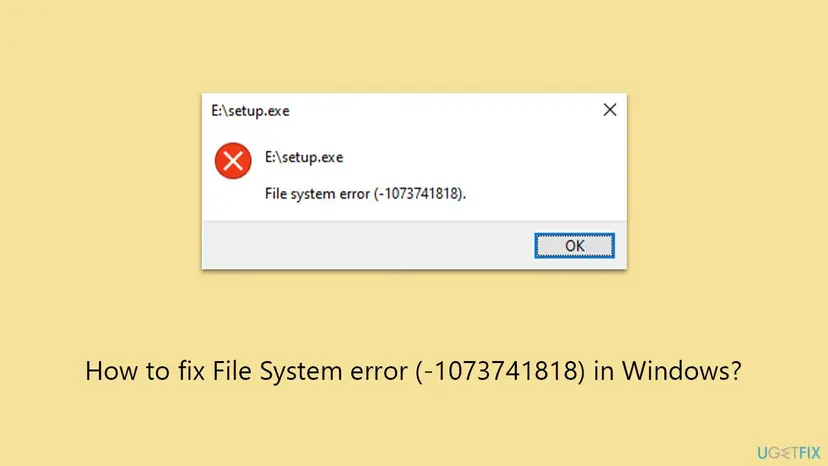
The number is a Windows status code written as a negative decimal. In hex, -1073741818 is 0xC0000006. Microsoft's list of NTSTATUS values names it STATUS_IN_PAGE_ERROR: "The required data was not placed into memory because of an I/O error status of 0x%08lx" (I/O means input and output, so a read or a write). In plain words, Windows tried to read part of a file from the disk and the read failed.
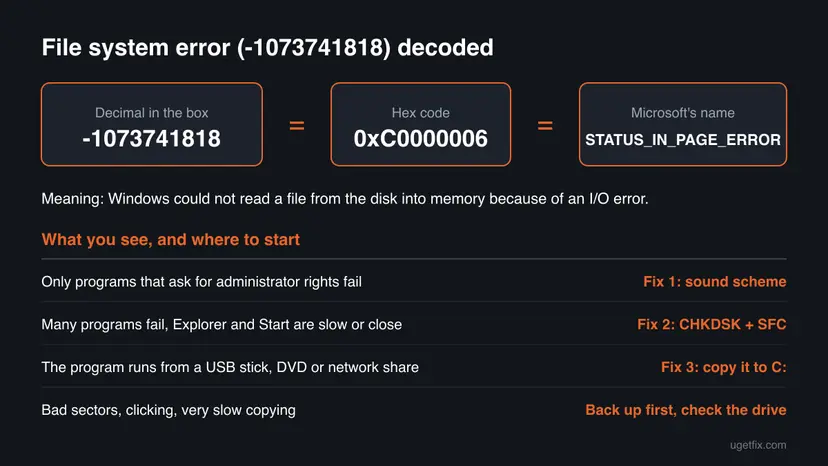
Every program that needs administrator rights goes through the User Account Control prompt. In a Microsoft Q&A thread, an independent advisor traced this error to that prompt failing when it cannot play its sound, the file C:\Windows\Media\Windows User Account Control.wav. If that one file cannot be read, every elevated program fails, while normal apps still open. That is why Fix 1 is about sounds.
Why the file system error -1073741818 appears
The code only says that a read from the disk failed. Which file and which disk decides the fix. Rank the reasons like this and start at the top.
| Cause | How often | How to tell | Fix |
|---|---|---|---|
| The User Account Control prompt cannot read or play its sound file. | Most often reported | Only programs that ask for permission fail; normal apps open. | Fix 1 |
| File system errors or damaged Windows files on the system drive. | Often | Many apps fail, File Explorer windows close, the taskbar reloads. | Fix 2 |
| The program sits on a USB stick, DVD, mounted ISO or network drive that cannot be read. | Sometimes | The path in the title bar starts with another letter, such as E:\setup.exe. | Fix 3 |
| Damage too wide for SFC alone. | Sometimes | SFC found damaged files but could not repair some of them. | Fix 4 |
| An update or a change from the last days. | Sometimes | The error began right after an update or a new program. | Fixes 5 and 6 |
| Malware that damaged system files. | Less often | Defender reports threats, or many unrelated files fail. | Fix 7 |
| A failing drive. | Rarely, but serious | Clicking noises, very slow copying, bad sectors in CHKDSK. | Back up, then Fix 8 |
Microsoft's list has separate codes for a disk that has bad sectors (0xC000009C, STATUS_DEVICE_DATA_ERROR) and a disk that cannot be reached (0xC000009D, STATUS_DEVICE_NOT_CONNECTED). An in-page error is often the visible end of such a problem. If the PC also freezes or copies files very slowly, back up your files before anything else: Back up your files (Windows Backup, File History, Time Machine)
A similar box with another number is a different code with its own fixes. File system error (-1073741521), for example, is 0xC000012F, a damaged program file: File system error (-1073741521).
How to fix File System error (-1073741818) in Windows
Fix 1 takes five minutes and needs no administrator rights, so try it first even if you think the disk is to blame. Fix 2 repairs the disk and system files from the recovery screen. Fix 3 is for programs started from another drive. Fixes 4 to 7 finish the repair and undo recent changes, and Fix 8 resets or reinstalls Windows.
| What you see or have | Start with |
|---|---|
| Only programs that ask for administrator rights fail; normal apps open. | Fix 1 |
| Many apps fail, File Explorer windows close, the taskbar keeps reloading. | Fix 2 |
| The path in the box points to a USB stick, DVD, ISO or network drive. | Fix 3 |
| SFC found damaged files but could not repair some of them. | Fix 4 |
| The error began right after a Windows update. | Fix 5 |
| You have a restore point from before the error. | Fix 6 |
| Fixes 1 to 7 did not help, or even the recovery tools fail. | Fix 8 |
Fix 1. Set the sound scheme to Windows Default or No Sounds
5 minutesLow riskEveryone first, and above all readers whose error appears only with programs that ask for administrator rights.
The User Account Control prompt plays a sound file before it asks for permission. When that file cannot be read, the prompt fails with this I/O error, and so does every program behind it. The Sound panel opens without administrator rights, so it still works.
- Press Win + R, type
mmsys.cpland press Enter. On Windows 11 you can also open Settings > System > Sound > More sound settings. - Select the Sounds tab.
- Under Sound Scheme, choose Windows Default and select Apply.
- Try to open Command Prompt as administrator. If the User Account Control prompt appears, the fix worked.
- If the box still appears, go back to Sounds, find Windows User Account Control under Program Events and select Test.
- If nothing plays or an error shows, set Sound Scheme to No Sounds, select Apply and OK, and try again.
In the first Microsoft Q&A thread, the advisor's test was whether the UAC sound plays. One user found it played fine, so the sound was not the cause for them. In the second thread, the user had tried the sound fix without result and in the end reinstalled Windows. If Fix 1 changes nothing, the file system itself is the problem: go to Fix 2.
No Sounds turns off all Windows event sounds, not just this one. Once Fix 2 has repaired the disk and system files, you can set the scheme back to Windows Default.
It worked if: Programs that ask for permission show the User Account Control prompt again, and Task Manager stays open.
If not: Go to Fix 2. A sound file that cannot be read is often a sign of wider damage on the disk.
Fix 2. Check the disk and repair system files from the recovery Command Prompt
20 to 40 minutesLow riskFix 1 did not help, or many apps fail, File Explorer windows close and the taskbar keeps reloading.
The code means a read from the disk failed. CHKDSK finds and fixes the file system errors behind failed reads, and SFC then replaces damaged Windows files. The recovery Command Prompt already has full rights, so the failing User Account Control prompt is not used at all.
- Select Start > Power, hold Shift and select Restart. This needs no administrator rights.
- Select Troubleshoot > Advanced options > Command Prompt. Pick your account and type its password. If Windows asks for the BitLocker recovery key, enter it.
- Type
dir C:\Windowsand press Enter. If it lists files, Windows is on C:. If not, tryD:and use that letter below. - Run
chkdsk C: /f /rand wait until it finishes. With/rit also looks for bad sectors, which can take an hour on a large hard drive. - Run the offline system file check (command below) and wait until it reaches 100 %.
- Type
exit, select Continue to start Windows, and open Command Prompt as administrator to test.
Offline system file check (recovery Command Prompt)
sfc /scannow /offbootdir=C:\ /offwindir=C:\Windows
What the SFC messages mean: Run DISM and SFC to repair Windows system files More about CHKDSK and how to read its result: Check a disk for errors (chkdsk)
It worked if: CHKDSK finishes without reporting bad sectors, SFC repairs the damaged files or finds none, and programs start with administrator rights again.
If not: If CHKDSK reports bad sectors, back up your files now and read "If the file system error is still there" below. If SFC could not fix some files, go to Fix 4.
Fix 3. Run the program from the local disk, not from the USB stick, DVD or network drive
10 minutesLow riskThe path in the box points to another drive letter or a network share, for example E:\setup.exe, and other programs work.
An in-page error means Windows could not read part of the program from where it sits. A scratched DVD, a loose or failing USB stick, a damaged ISO file or a network drive that drops out fails exactly this way, while the PC itself is fine.
- Look at the title bar of the box and note the drive letter of the program.
- Copy the whole folder of the program, or the whole ISO file, to a folder on
C:, such as Downloads. - If the copy stops or reports an error, the source is damaged. Download the installer or ISO again from its maker, or try another USB port or stick.
- Run the copied
setup.exeor program fromC:. - For a network drive, check the connection and run the program after copying it to the PC.
If you were running setup.exe from a Windows ISO to repair Windows, and setup itself fails with this box, skip to Fix 8. The repair install needs the User Account Control prompt, so it can fail for the same reason as everything else.
It worked if: The program or installer starts from C: and shows the normal User Account Control prompt.
If not: If the copy works but the program still fails, the problem is on the PC: go to Fix 1 and Fix 2.
Fix 4. Run DISM and SFC in Safe Mode with Networking
30 to 60 minutesLow riskSFC in Fix 2 found damaged files but could not repair some of them.
SFC copies good files from the Windows component store, and when the store has unreadable parts too, SFC cannot finish. DISM repairs the store from Windows Update, which needs an internet connection that Safe Mode with Networking gives.
- Select Start > Power, hold Shift and select Restart.
- Select Troubleshoot > Advanced options > Startup Settings > Restart.
- Press 5 or F5 for Enable Safe Mode with Networking and sign in. Check that the PC is online.
- Select Start, type
cmd, right-click Command Prompt and select Run as administrator. - Run
DISM /Online /Cleanup-Image /RestoreHealthand wait until it reaches 100 %. - Run
sfc /scannowand wait until it finishes. - Restart normally and test the program that showed the box.
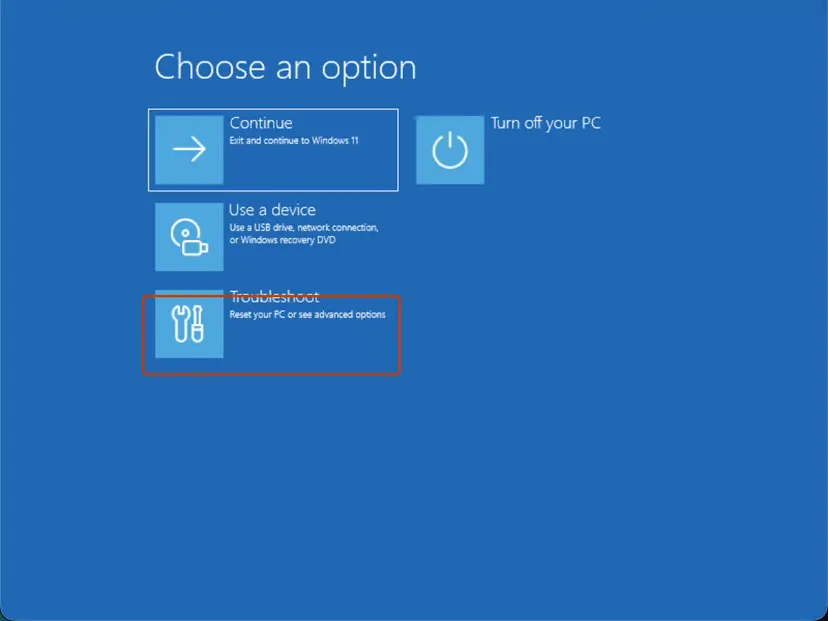
If Command Prompt also fails with the box in Safe Mode, go to Fix 5 or straight to Fix 8. Do not turn User Account Control off to get around it: it removes a key protection and repairs nothing. Safe Mode in full: Start Windows or a Mac in Safe Mode
It worked if: DISM says "The restore operation completed successfully", SFC then repairs the remaining files, and the box no longer appears.
If not: If DISM fails or SFC still reports files it cannot repair, go to Fix 8.
Fix 5. Remove the latest Windows update from the recovery screen
15 minutesLow riskThe error started right after Windows installed an update.
Users in the Q&A threads tied the error to the days around updates. An update that stopped halfway can leave files that cannot be read. Removing an update in Settings needs the failing permission prompt, but the recovery screen does it without one.
- Select Start > Power, hold Shift and select Restart.
- Select Troubleshoot > Advanced options > Uninstall Updates.
- Select Uninstall latest quality update first. Use Uninstall latest feature update only if a version upgrade came just before the error.
- Sign in with your account when asked and confirm.
- Let the PC restart and test the program that showed the box.
Windows installs the update again later. If the error comes back with it, pause updates in Settings > Windows Update for a week. Removing updates in Settings, once administrator rights work again: How to uninstall a Windows update
It worked if: The PC starts with the previous update level and programs open with the permission prompt again.
If not: Roll Windows back with System Restore in Fix 6.
Fix 6. Roll Windows back with System Restore from the recovery screen
20 minutesRead the warningSystem Restore was on before the error began and Fixes 1 to 5 did not help.
A restore point puts Windows system files, settings and drivers back to a day before the error. Opening System Restore inside Windows needs administrator rights, so start it from the recovery screen instead.
Programs and drivers installed after the restore point are removed. Your documents, pictures and other personal files are not changed. Note which programs you installed recently so you can install them again.
- Select Start > Power, hold Shift and select Restart.
- Select Troubleshoot > Advanced options > System Restore and sign in.
- Choose a restore point from before the error started and select Next.
- Select Finish and wait. Do not turn the PC off.
- After the restart, test the program that showed the box.
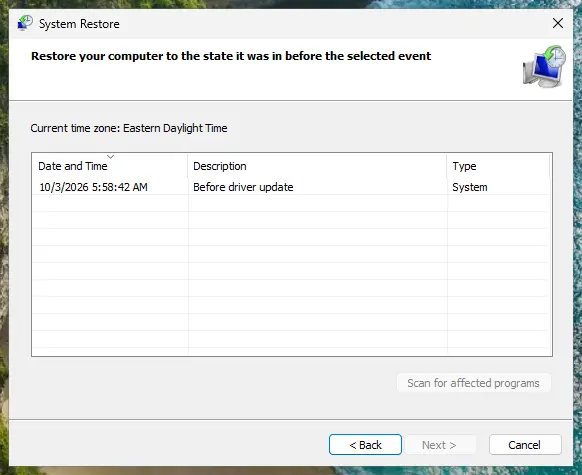
More on restore points: Undo recent changes with System Restore
It worked if: Windows reports that the restore finished, and programs open with administrator rights again.
If not: Rule out malware with Fix 7.
Fix 7. Scan for malware with the Microsoft Defender offline scan
15 minutes to 2 hoursLow riskDefender already showed a warning, you ran a file you did not trust before the error, or many unrelated files fail.
Malware can damage system files so that Windows can no longer read them. We could not confirm a malware family tied to this code, so treat this as a check, not the main fix. The offline scan runs before Windows loads, without the failing prompt.
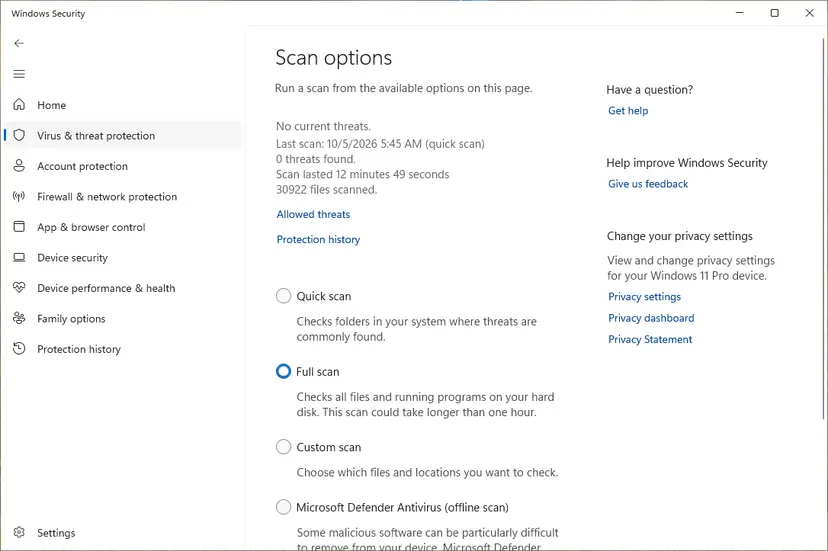
- Select Start, type Windows Security and open the app.
- Select Virus & threat protection > Scan options.
- Choose the Microsoft Defender Antivirus (offline scan) and select Scan now. The PC restarts and scans for about 15 minutes.
- After the restart, open Protection history to see what was found and removed.
- Run Fix 2 again afterwards, because removing malware does not repair the files it damaged.
Full steps and how to read the results: How to scan for malware with Microsoft Defender
It worked if: Defender reports no threats, or removes them and lists them in Protection history.
If not: If threats came back or the damage stays after Fix 2, reset or reinstall Windows with Fix 8.
Fix 8. Reset Windows from the recovery screen, or reinstall it from a USB stick
1 to 2 hoursRead the warningFixes 1 to 7 did not help, or even File Explorer and setup.exe fail with the box.
A reset puts a fresh copy of every Windows file on the disk, including the files that can no longer be read. Setup from inside Windows needs the failing permission prompt, so start from the recovery screen or from a USB stick. The user in the second Q&A thread fixed it with a clean install.
Reset this PC with Keep my files keeps your documents but removes installed apps. A clean install from USB erases the Windows drive. If File Explorer fails, copy files from the recovery Command Prompt with robocopy C:\Users\<name>\Documents E:\Backup\Documents /E, where E: is an external drive. Guide: Back up your files (Windows Backup, File History, Time Machine)
- Select Start > Power, hold Shift and select Restart.
- Select Troubleshoot > Reset this PC > Keep my files.
- Choose Cloud download if the PC is online, or Local reinstall if not, and follow the prompts.
- If the reset fails, make a Windows USB stick with the Media Creation Tool on another working PC.
- Start the broken PC from the USB stick and install Windows. Choose a clean install only when your files are saved.

All routes, including the repair install that keeps apps when the permission prompt works: Reinstall Windows without losing files
It worked if: Windows starts fresh, programs open with the normal User Account Control prompt, and the box is gone.
If not: If the error returns on a fresh Windows, the drive is failing. Read the next section.
If the file system error -1073741818 is still there
Because this code is a failed disk read, the logs tell you whether the disk or the files are to blame. Read them before you contact support.
- Press Win + R, type
eventvwr.mscand press Enter. - Open Windows Logs > System and look for errors from the sources disk or Ntfs on the days the box appeared.
- Open Windows Logs > Application and filter by the sources Chkdsk and Wininit to read the CHKDSK result.
- Open
C:\Windows\Logs\CBS\CBS.logand search for lines with[SR]to see which files SFC could not repair. - If the disk errors repeat or CHKDSK reports bad sectors, suspect the drive, not Windows.
- What to send to support: the full message with the path, the CHKDSK and SFC results, the disk errors from Event Viewer, the Windows version from Settings > System > About, and what Fixes 1 to 8 showed.
- Where to ask: Microsoft Support or Microsoft Q&A for Windows files, the PC or drive maker when the disk reports errors.
- When it is not software: clicking noises, very slow copying, bad sectors or the error coming back on a fresh Windows point to a failing drive or cable. Back up and replace the drive; no Windows repair fixes that.
- If the PC also freezes or shows blue screens: test the memory, since bad RAM can damage what Windows reads: How to test your RAM with Windows Memory Diagnostic
How to keep File system error (-1073741818) from coming back
- Shut Windows down from Start > Power, and let updates finish before you turn the PC off.
- Keep System Restore on for the Windows drive, so Fix 6 has a point to return to.
- Copy installers and ISO files to the PC before you run them.
- Back up your files regularly to an external drive or cloud storage.
- Do not hold the power button during an update or a CHKDSK run.
- Do not turn User Account Control off to get past the box; it removes a key protection and repairs nothing.
- Do not keep using a drive that reports bad sectors for your only copy of your files.
Windows 10 left support on 14 October 2025. The fixes above work the same on Windows 10 22H2, but it no longer gets most security and repair updates, so an upgrade to Windows 11 is the lasting route.
Frequently asked questions
What is File system error (-1073741818)?
It is the Windows status code 0xC0000006, written as a negative decimal number. Microsoft names it STATUS_IN_PAGE_ERROR: data Windows needed was not placed into memory because of an I/O error. In practice Windows could not read part of a file from the disk. The file can be a sound the permission prompt plays, a system file or the program itself on a USB stick. Start with Fix 1, then Fix 2.
Why can't I open Task Manager, Command Prompt or Registry Editor?
Because they start with administrator rights, and every such program goes through the User Account Control prompt. When the prompt fails, they all fail at once, while normal apps still open. In the Microsoft Q&A threads, users could not run anything that asked for permission, not even a repair from a Windows disc. Fix 1 changes the sound the prompt uses, and Fix 2 works from the recovery screen, which needs no prompt.
Why would a sound file stop programs from opening?
The User Account Control prompt plays its sound before it asks for permission. An independent advisor on Microsoft Q&A traced this error to the file C:\Windows\Media\Windows User Account Control.wav that cannot be played. If Windows cannot read it, the prompt fails with an I/O error, and so does the program behind it. Setting the scheme to No Sounds skips the file. It does not repair the disk, so run Fix 2 afterwards too.
Is my hard drive failing?
Not always, but this code makes it more likely than most. It means a read from the disk failed. Most cases end with a repaired file or file system. Signs of a failing drive are clicking noises, very slow copying, CHKDSK reporting bad sectors, disk errors in Event Viewer and the error coming back on a fresh Windows. If you see those, back up your files at once and replace the drive.
Should I set User Account Control to Never notify to get around the error?
No. It may let some programs open, but it removes a key protection and repairs nothing: the file Windows cannot read is still unreadable. A PC that cannot read its own files is exactly where you want that protection. Use the sound scheme (Fix 1) and the recovery Command Prompt (Fix 2), which do not need the prompt at all, and reset Windows (Fix 8) if they fail.
What is File system error (-1073741819)?
It is a different code. In hex, -1073741819 is 0xC0000005, which Microsoft names STATUS_ACCESS_VIOLATION: a program tried to use memory it may not use. It appears in many places, including games such as Minecraft, where the cause is usually the game, a mod or a driver. When it shows up for every program that asks for permission, the steps on this page still apply, starting with Fix 1.
What about unknown error -1073741816 and other numbers?
Each number is its own code. The code -1073741816 is 0xC0000008, STATUS_INVALID_HANDLE: a program used a handle that is no longer valid, which is a program bug, not a disk read. The code -1073741189 is 0xC000027B, and -1073479340 is 0xC0040154. The codes -2147219196 and -2147219195 are 0x80040904 and 0x80040905, app errors outside this family. We did not confirm the meaning of every one; this page is about -1073741818 only.
Are there guides for other file system error numbers?
Yes, several. File system error (-1073740791) is 0xC0000409, a program that stopped itself after a stack buffer overrun: File system error (-1073740791). For -2147416359 see File system error (-2147416359), and for -2015294522 see File system error (-2015294522). The numbers -805305975 and -805306367 (0xD0000189 and 0xD0000001) we could not confirm, so we have no guide for them yet. Each code has its own cause, so open the guide that matches the number in your box.
Does this error happen on Windows 11 and Windows 10?
Yes. The Microsoft Q&A threads about this message come from Windows 10, and the code means the same on Windows 11. The fixes are the same on both. Only the way to the Sound panel differs a little: Win + R and mmsys.cpl works on both, and Windows 11 also has Settings > System > Sound > More sound settings. A search for "software 418dsg7 error" is not about this Windows code.
Will Reset this PC delete my files?
Not when you choose Keep my files. Your documents, pictures and other personal files stay, but installed apps are removed and you install them again. A clean install from a USB stick erases the Windows drive, so save your files first, from the recovery Command Prompt with robocopy if File Explorer fails. In the second Q&A thread, the user lost little because the important files were on another drive.
Sources
- Microsoft Learn [MS-ERREF]: NTSTATUS Values, entries 0xC0000006 STATUS_IN_PAGE_ERROR, 0xC0000005, 0xC0000008, 0xC000009C, 0xC000009D and 0xC0000409 (learn.microsoft.com)
- Microsoft Q&A: File system error (-1073741818), cant open programs, taskmanager disappears (Windows 10 user report; advisor answer on the UAC sound file and CHKDSK) (learn.microsoft.com)
- Microsoft Q&A: File system error -1073741818. Stubborn and seemingly unfixable (Windows 10 user report; sound fix did not help, solved with a clean install) (learn.microsoft.com)
Did this fix work?
One click, no account. It tells the next reader which guides are worth their time.
Questions and experiences: fix File System error (-1073741818) in Windows
Still broken, or found a fix we did not cover? Ask here: members and our editors answer. Reading is open; writing needs a free account.
…