
How to fix File System error (-2144926975) in Windows?

Prefer to fix it yourself? The manual steps follow.
- 7methods
- 10 to 90 minutes
- Intermediate
Applies to Windows 11 and Windows 10; Settings and Control Panel pages, Start, Network Connections, Recovery and built-in apps
7 methods in this guide
Hi. Whenever I attempt to open some apps or features in Windows, I receive a File System error (-2144926975). This seriously hinders my daily tasks, and I am not sure where to even start. Any advice would be welcome.
File system error (-2144926975) appears when Windows' shell refuses to open a Settings or Control Panel page, the Start menu or a built-in app, usually after a failed System Restore, repair or crash. Your disk is fine. Roll back to a good restore point first.
File system error (-2144926975) is the Windows code 0x80270301, E_SHELL_EXTENSION_BLOCKED: the Windows shell refused to open a page or app it was asked for. It is not a disk fault. If it started after System Restore, automatic repair or a crash, restore to an earlier good point from the recovery screen (Fix 1). Then test a new administrator account (Fix 2) and repair system files (Fix 3).
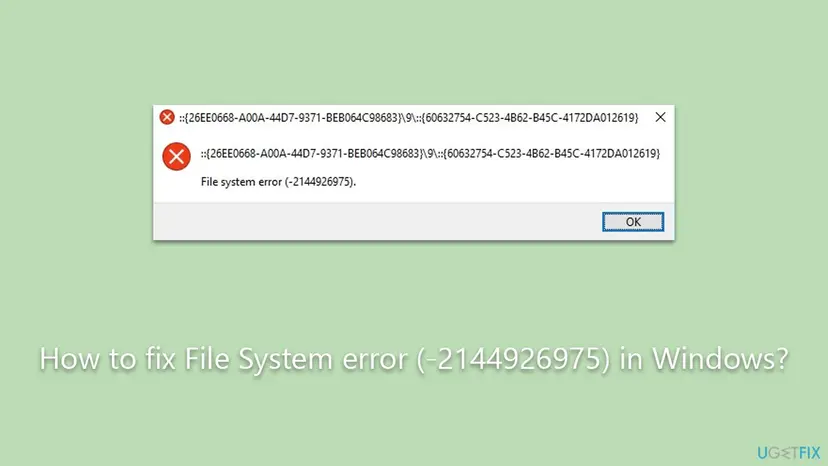
| Error | A box with a red cross, a path such as ::{26EE0668-…}\9\::{60632754-…} in the title bar and on the first line, then File system error (-2144926975). and an OK button. |
|---|---|
| Where it appears | When you open a Control Panel or Settings page (often Recovery or User Accounts), View network connections, the Start menu, Notification Center or a built-in app. |
| Main cause | Windows was left half changed by an interrupted System Restore, a failed automatic repair or a crash loop, so shell components no longer start. |
| Fastest fix | Run System Restore again from the recovery screen and pick a point from before the trouble (Fix 1). |
| Also written as | -2144926975, "file system error 2144926975", 0x80270301, E_SHELL_EXTENSION_BLOCKED, and in Russian "ошибка файловой системы (-2144926975)". |
| Affects | Windows 10 and Windows 11. Reports on Microsoft Q&A come from both; Windows 11 reports often mention broken sound and network as well. |
| Microsoft's status | No Microsoft support page for this message. The code is listed in Windows' error headers as E_SHELL_EXTENSION_BLOCKED under the shell facility (39), with no description text. |
| Not the cause | A failing hard drive or NTFS damage, as long as your files open and copy normally. |
| Time to fix | 15 to 30 minutes for a restore or a new account, up to 90 minutes for a repair install. |
Facts checked on 15 October 2026. Steps written for Windows 11 (25H2 and 26H2) and Windows 10 22H2.
What File system error (-2144926975) means
The box comes from the Windows shell, the part of Windows that draws the Start menu, File Explorer, Control Panel and the links into Settings. The title bar and the first line show the address of the page Windows tried to open, for example ::{26EE0668-A00A-44D7-9371-BEB064C98683}\9\::{60632754-C523-4B62-B45C-4172DA012619}. Below it stands File system error (-2144926975). with one OK button. The page never opens.
Despite the words "file system", the number is a Windows error code printed as a negative decimal number. In hex, -2144926975 is 0x80270301. The 0x8027 part is facility 39, the Windows shell, and Windows' error headers name the code E_SHELL_EXTENSION_BLOCKED. Microsoft gives no description text for it, so we read only what the name says: the shell refused to start a component.
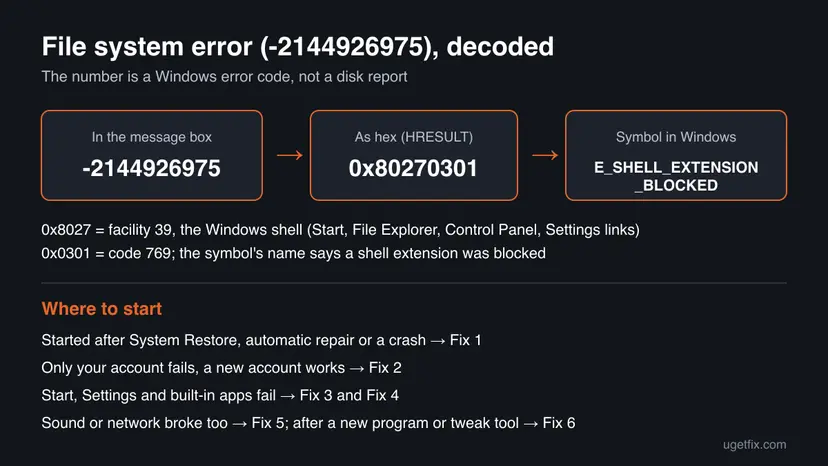
Your files and your disk are almost certainly fine. Windows itself is in a damaged or half finished state, so the shell cannot start some of its own pages and apps. The fix is to undo or repair that state, not to scan the disk.
This is a different error from the file system errors that hit one app. File system error (-2147416359), for example, stops Photos or Media Player from opening a file and is fixed by repairing that app: File system error (-2147416359). With -2144926975, many parts of Windows fail at once.
Why File system error -2144926975 appears
On Microsoft Q&A, people with this code describe the same story: a crash or a blue screen loop, then automatic repair or System Restore, and afterwards Recovery, Network Connections, Chrome, Photos, sound or the webcam stop working. Rank the causes like this.
| Cause | How often | How to tell | Fix |
|---|---|---|---|
| System Restore or automatic repair stopped halfway or restored an incomplete point. | Most often | The error started right after a restore, a repair or a forced shutdown. | Fix 1 |
| Your user profile was damaged. | Often | A new account opens the same pages without the error. | Fix 2 |
| Windows system files are damaged. | Often | Errors appear in every account, and SFC finds problems. | Fix 3 |
| Built-in apps and the Store lost their registration. | Sometimes | Start, Settings pages, Photos and Microsoft Store fail or close at once. | Fix 4 |
| Drivers or services were rolled back or left off. | Sometimes | No sound, no Wi-Fi or Bluetooth, or Windows Audio is not running. | Fix 5 |
| A third-party program hooks into the shell. | Less often | It started after installing a tweak, cleanup or menu tool. | Fix 6 |
| Windows is too damaged for repairs in place. | Rarely | Fixes 1 to 6 changed nothing. | Fix 7 |
How to fix File system error (-2144926975) in Windows
Fix 1 undoes a broken restore or repair and helps most readers. Fix 2 tells you whether only your account is damaged. Fixes 3 to 6 repair system files, built-in apps, drivers and add-ons. Fix 7 repairs Windows while keeping your files and apps.
| What you see or have | Start with |
|---|---|
| The error started after System Restore, automatic repair, a blue screen or a forced shutdown. | Fix 1 |
| No restore point from before the trouble, or the restore failed. | Fix 2 |
| The error appears in every user account. | Fix 3 |
| Start, Settings pages, Photos or Microsoft Store fail or close at once. | Fix 4 |
| Sound, Wi-Fi, Bluetooth or the webcam stopped working at the same time. | Fix 5 |
| It began after installing a tweak, cleanup or context menu tool. | Fix 6 |
| Nothing above helped. | Fix 7 |
Fix 1. Run System Restore again from the recovery screen
20 to 40 minutesRead the warningThe error started after System Restore, automatic repair, a blue screen loop or a forced shutdown, and Windows has an older restore point.
A restore that stops halfway leaves system files and settings from two different dates, and shell pages then fail to start. Restoring a complete, older point puts them back together. On Microsoft Q&A, the reader with this code after a failed self repair fixed it this way, then updated the drivers again.
- Save your work. Hold Shift and select Start > Power > Restart. This also works when the Recovery page in Settings shows the error.
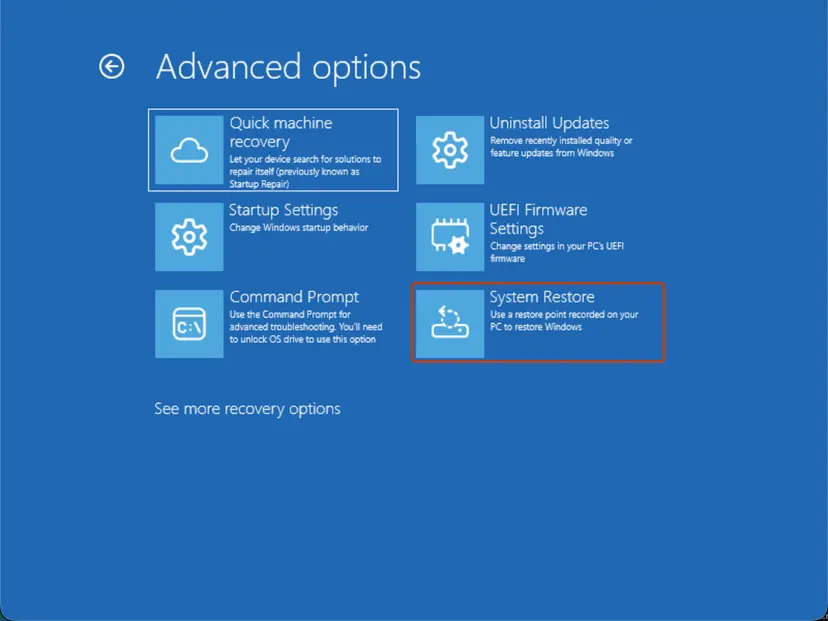
- On the blue screen, select Troubleshoot > Advanced options > System Restore.
- Choose your account and enter its password. A PIN is not accepted here.
- Select Next, turn on Show more restore points and pick a point dated before the first crash or repair, not the most recent one.
- Select Scan for affected programs to see what will be removed, then Next and Finish. Do not turn the PC off while it runs.
Programs, drivers and updates installed after the restore point are removed. Your documents, pictures and other personal files are not touched. Note what you installed recently so you can put it back. If Windows asks for a BitLocker recovery key, find it in your Microsoft account before you go on.
Full steps with screenshots: Undo recent changes with System Restore
It worked if: Windows starts with a message that the restore completed, and the pages that showed the error open normally.
If not: If the restore fails or no older point exists, go to Fix 2. If it worked but sound or Wi-Fi is still off, go to Fix 5.
Fix 2. Sign in with a new local administrator account
10 minutesLow riskThere is no good restore point, the restore did not help, or only some pages fail.
Shell settings and app registrations are stored per user. A new account gets fresh ones, so it shows at once whether the damage is in your profile or in Windows itself. This is the first advice an independent advisor gives for this code on Microsoft Q&A.
- Right-click Start and select Terminal (Admin) (Windows 11) or Windows PowerShell (Admin) (Windows 10), then select Yes.
- Run the first command below with a name and password of your choice. It creates a local account.
- Run the second command. It makes the new account an administrator.
- Sign out and sign in to the new account.
- Open the page that showed the error, for example Settings > System > Recovery or Control Panel > User Accounts.
Create a local administrator account (Terminal as administrator)
net user FixTest YourPassword1 /add
net localgroup administrators FixTest /add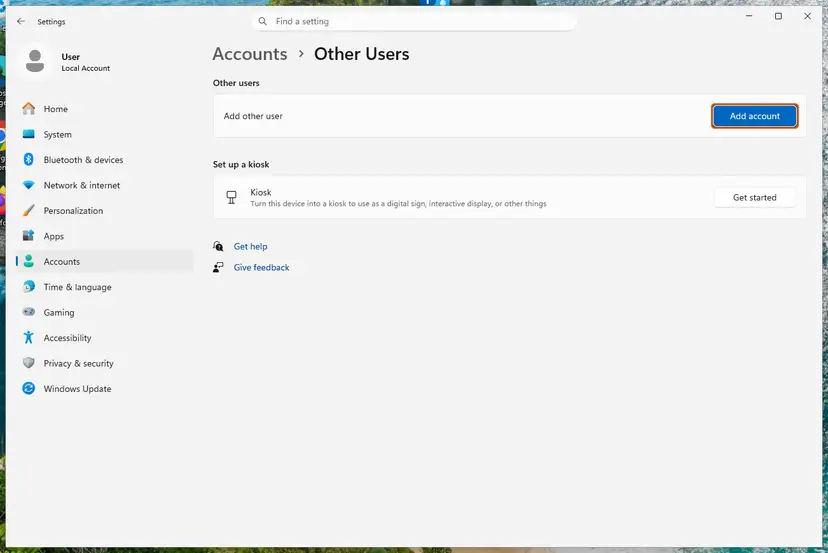
If Settings works, you can add the account there instead: Create a new user account to test a problem
It worked if: In the new account, the pages and apps open without File system error (-2144926975).
If not: If the new account works, move your files to it, or keep it for now and go on to Fix 4 in your old account. If the error appears there too, go to Fix 3.
Fix 3. Repair Windows system files with DISM and SFC
30 minutesNo riskThe error appears in every account, or Fix 1 was not possible.
Shell components are Windows system files. When a restore or repair leaves some of them damaged or from an older version, DISM fetches clean copies and SFC puts them back. If Windows will not stay up long enough, run the same check from Safe Mode or the recovery screen.
- Open an elevated command window. Right-click Start and select Terminal (Admin), or type cmd in the search box, right-click Command Prompt and select Run as administrator. Select Yes when Windows asks for permission.
- Run DISM first. Type the command below and press Enter. DISM downloads clean copies of damaged components from Windows Update, so it can take several minutes. Wait until it says The operation completed successfully.
DISM.exe /Online /Cleanup-Image /RestoreHealth - Run System File Checker. In the same window, type the command below and press Enter. Do not close the window until the verification reaches 100%.
sfc /scannow - Read the result and restart. Compare the last message with the table below this guide, then restart the PC so that repaired files are loaded.
These steps were written for Windows 11 24H2 and 25H2. The full page with the other versions and what each result means: Run DISM and SFC to repair Windows system files

If the error stops you from opening a Command Prompt, start Safe Mode first: Start Windows or a Mac in Safe Mode
It worked if: SFC says it found no problems or repaired them, and after a restart the pages open.
If not: If built-in apps or the Start menu still fail, go to Fix 4.
Fix 4. Register the built-in Windows apps again and reset Microsoft Store
15 minutesLow riskStart, Notification Center, Settings pages, Photos or Microsoft Store fail or close at once.
Start, Settings and other built-in apps are app packages that Windows must know about. A rollback can leave their registration pointing at missing versions, so the shell is refused when it tries to start them. Registering them again repairs that without removing your files.
- Right-click Start and select Terminal (Admin), then select Yes. If the right-click menu fails, press Ctrl + Shift + Esc, select Run new task, type
powershell, tick Create this task with administrative privileges and select OK. - Run the command from the procedure below. Red lines for apps that are in use are normal.
- Press Win + R, type
wsreset.exeand press Enter. A blank window closes by itself and Microsoft Store opens. - Restart Windows and try Start and the failing page again.
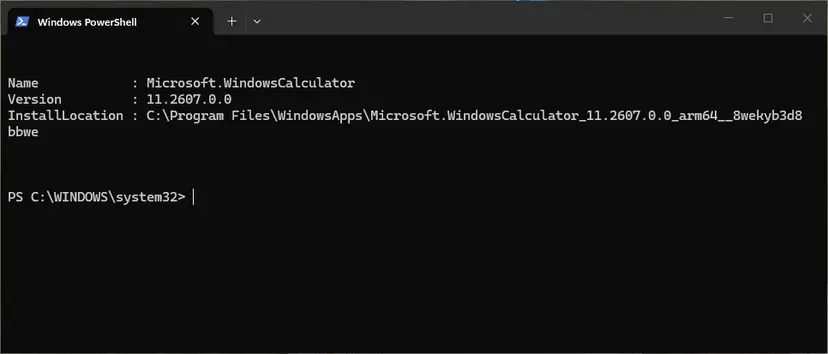
The command and what its output means: How to re-register Microsoft Store apps with PowerShell More on the Store cache: Reset the Microsoft Store
It worked if: Start, Notification Center, Settings and built-in apps open normally.
If not: If sound or network are still broken, go to Fix 5; otherwise go to Fix 6.
Fix 5. Reinstall the drivers and restart the services that broke
20 minutesLow riskSound, Wi-Fi, Bluetooth or the webcam stopped working along with the error, or the taskbar shows no internet while pages load.
A restore point can bring back older drivers, and a failed repair can leave services stopped. On Microsoft Q&A, the reader with this code had the message that the Windows Audio service was not running and broken network adapters; reinstalling the drivers and restarting the service fixed those parts.
- Press Win + R, type
services.mscand press Enter. Find Windows Audio, set Startup type to Automatic and select Start if it is stopped. - Right-click Start and open Device Manager. Look for devices with a yellow mark under Sound, video and game controllers, Network adapters, Bluetooth and Cameras.
- Right-click each such device, select Uninstall device, then restart. Windows installs the driver again.
- If it still fails, install the newest driver for your exact model from the PC or motherboard maker's support page.
- Open Settings > Windows Update, select Check for updates and install everything, including optional driver updates.
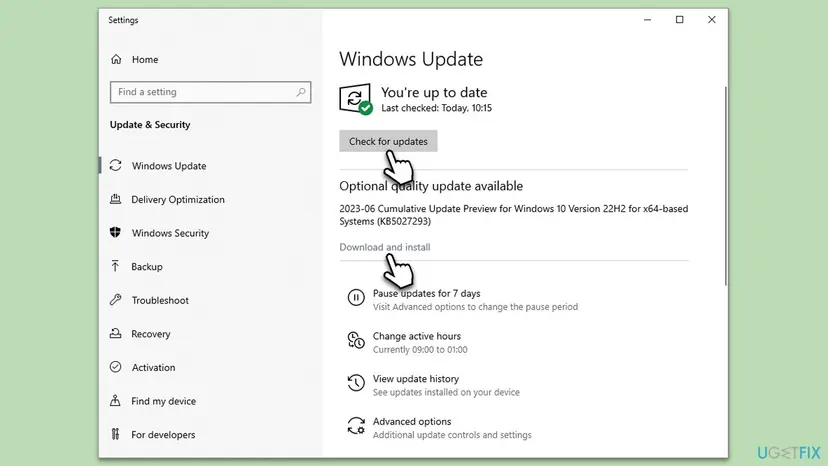
Device Manager steps with screenshots: Update, roll back or reinstall a driver Services: Check and restart Windows services
It worked if: Sound, Wi-Fi and Bluetooth work, the network icon shows the connection, and Windows Update shows no pending updates.
If not: If the shell error stays, go to Fix 6.
Fix 6. Use a clean boot to find a program that hooks into the shell
20 minutesLow riskThe error began after installing a tweak, cleanup, theme or context menu tool, or Fixes 1 to 5 did not help.
The code's name says a shell extension was blocked. Programs that add menus, icons or panels to File Explorer and Control Panel load into the shell. A clean boot starts Windows without them, which shows whether one of them is involved.
- Press Win + R, type
msconfigand press Enter. - On Services, tick Hide all Microsoft services, then select Disable all.
- On Startup, select Open Task Manager and disable every startup app.
- Restart and open the page that showed the error.
- If it opens, turn the services back on in halves and restart each time until the error returns. Uninstall or update that program.

Full clean boot steps and how to undo them: How to perform a clean boot in Windows
It worked if: The page opens in a clean boot, and you find the program that brings the error back.
If not: If the error also appears in a clean boot, go to Fix 7.
Fix 7. Repair Windows and keep your files and apps
60 to 90 minutesLow riskFixes 1 to 6 did not help, or many parts of Windows still fail.
A repair install puts a complete, current copy of Windows over the damaged one while it keeps your files, settings and installed apps. It is the in-place upgrade an advisor suggests for this code on Microsoft Q&A when a restore has left the system broken.
- Back up your important files first: Back up your files (Windows Backup, File History, Time Machine)
- On Windows 11, open Settings > System > Recovery and select Reinstall now next to Fix problems using Windows Update.
- If that page shows the error, download the Windows installation media from Microsoft, open it and run
setup.exe. - Choose Keep personal files and apps and let setup finish.

Both ways, step by step: Reinstall Windows without losing files
It worked if: Windows starts after the repair with your files and apps, and no page shows the error.
If not: Read "If File system error -2144926975 is still there" below.
If File system error -2144926975 is still there
The box itself writes nothing to a log you can read. Event Viewer can still show what went wrong around it, and two checks tell you where the damage sits.
- Press Win + R, type
eventvwr.mscand open Windows Logs > Application and System. Look for red Error entries at the time the box appeared, and note their source and Event ID. - Sign in to the test account from Fix 2 and repeat the action. If it works there, only your profile is damaged; move your files to the new account.
- Run
chkdsk C: /scanin an administrator Terminal only if files also fail to open or copy: Check a disk for errors (chkdsk)
- What to send to support: the full message with the code and the address in the title bar, the page or app that fails, the Windows version from winver, what happened before the error, and what Fixes 1 to 7 showed.
- Where to ask: Microsoft Support or Microsoft Q&A, since the error comes from Windows itself.
- When it is not software: repeated blue screens, disk read errors or a drive that disappears point to hardware. Back up first and have the drive and memory tested: How to test your RAM with Windows Memory Diagnostic
If even a repair install fails, Reset this PC with Keep my files reinstalls Windows and removes installed apps. Back up first. If BitLocker asks for a recovery key, get it from your Microsoft account before any reset.
How to keep the shell error from coming back
- Let System Restore and automatic repair finish, even when they take long.
- Create a restore point before you change drivers or install system tools: Undo recent changes with System Restore
- Keep drivers from the PC maker and Windows Update, and install updates with a restart afterwards.
- Keep your BitLocker recovery key saved in your Microsoft account.
- Do not hold the power button during a restore, an update or a repair.
- Do not use tweak tools that remove built-in apps or disable "unneeded" services.
- Do not install old shell or context menu add-ons that were made for earlier Windows versions.
Windows 10 left support on 14 October 2025, so it gets no more fixes for shell problems. If you still run Windows 10 22H2, the steps above work the same, but an upgrade to Windows 11 is the lasting route.
Frequently asked questions
What is File system error (-2144926975)?
It is the Windows code 0x80270301 written as a negative number. Windows' error headers call it E_SHELL_EXTENSION_BLOCKED, a code from the shell, the part of Windows behind Start, File Explorer, Control Panel and Settings links. You see it when the shell refuses to open a page or app. It usually follows a failed System Restore, automatic repair or crash. Start with Fix 1: restore to an earlier good point.
Is my hard drive or file system damaged?
Almost certainly not. The words "file system" are misleading: the code comes from the Windows shell, not from the disk. If your documents and pictures open and copy normally, the drive and its NTFS file system are fine. Check the disk only when files also fail to open, File Explorer shows read errors, or blue screens keep coming back. In those cases, back up first and then run CHKDSK.
Why does the Recovery page show this error, and how do I restore then?
Readers on Microsoft Q&A report exactly this: after a restore went wrong, Settings > System > Recovery itself shows File system error (-2144926975). You do not need that page. Hold Shift while you select Restart, then open Troubleshoot, Advanced options and System Restore on the blue recovery screen (Fix 1). The same screen also offers Startup Repair and a Command Prompt for SFC.
How do I fix this error message if step 1 did not work?
If System Restore failed or had no older point, go on to Fix 2 and test a new administrator account. That shows in ten minutes whether only your profile is damaged. If the new account also fails, repair system files (Fix 3) and register the built-in apps again (Fix 4). A repair install that keeps your files and apps (Fix 7) is the last step before a reset.
Why did sound, Wi-Fi or the webcam stop working with this error?
Because the same rollback or failed repair that broke the shell also changed drivers and services. A restore point brings back the drivers from its date, and a failed repair can leave the Windows Audio service stopped. Restart the service and reinstall the drivers for your exact model (Fix 5). One reader on Microsoft Q&A fixed both parts that way after restoring an earlier point.
What is file system error (-805305975)?
It is a different code in the same kind of box, so it has a different cause. In hex it is 0xD0000189. We did not research that code for this page, so we give no fixes for it here. If it appears together with -2144926975 after a failed restore or repair, Fix 1 and Fix 3 are still a safe first step, because they repair Windows itself.
Will a new user account or System Restore delete my files?
No. System Restore changes system files, programs, drivers and settings, but not your documents, pictures or other personal files. A new account is created next to yours; your old account and its files stay where they are, and you can copy them from C:\Users\your name. Programs installed after the restore point are removed, so note them first.
Does this error happen on Windows 10 and Windows 11?
Yes. Older reports on Microsoft Q&A and Reddit come from Windows 10, often about the Start menu. Newer ones come from Windows 11, after a blue screen loop or a restore that went wrong. The fixes are the same; only some paths differ, which the steps say. Windows 10 left support on 14 October 2025, so an upgrade is the lasting route on that version.
I searched in another language. Is this the same error?
Yes. People search for this box in Russian ("вот такая ошибка", "что делать"), Vietnamese ("lỗi gì") and Chinese. The code -2144926975 is the same in every language of Windows, and so are the fixes. Only the menu names are translated. This page is in English only, but the order of the fixes is the same for everyone: restore an earlier point first, then test a new account.
Sources
- Microsoft Q&A: File system error (-2144926975) when I click on recovery (after System Restore, Windows 11; new local administrator account and in-place upgrade suggested) (learn.microsoft.com)
- Microsoft Q&A: Windows 11 File system error -2144926975 after failed self repair after BSOD (fixed by an earlier restore point and new drivers) (learn.microsoft.com)
- HRESULT.info: 0x80270301, E_SHELL_EXTENSION_BLOCKED, FACILITY_SHELL (value -2144926975) (hresult.info)
Did this fix work?
One click, no account. It tells the next reader which guides are worth their time.
Questions and experiences: fix File System error (-2144926975) in Windows
Still broken, or found a fix we did not cover? Ask here: members and our editors answer. Reading is open; writing needs a free account.
…