
How to fix Steam error code 50 in Windows?

Prefer to fix it yourself? The manual steps follow.
- 6methods
- 5 minutes for the first fix, up to an hour if you have to wait for Steam
- Easy
Applies to Steam client on Windows 11 and Windows 10; Steam sign-in in a desktop browser
6 methods in this guide
I keep getting error code 50 when trying to log in to Steam. Any idea what is happening? It has been like that for a few hours already. Is there something wrong on my end? This is on PC.
Steam error code 50 is a sign-in error. In Valve's list of result numbers, 50 means "The user is logged in elsewhere." Your account already has a session on another device, or an old Steam process on this PC still holds one. Close Steam everywhere, end the leftover processes and sign in once.
Code 50 at sign-in is Valve's result AlreadyLoggedInElsewhere: Steam thinks your account is already signed in somewhere. Start with Fix 1: stop pressing Retry, exit Steam on every other PC, laptop or Steam Deck, end every Steam process in Task Manager here, wait a few minutes and sign in once. If you see a session you do not recognise, go straight to Fix 3 and change your password.
| Error | Sign-in window titled Error with "Something went wrong while attempting to sign you in. Please try again later." and the code 50, usually printed as Error Code: e50. |
|---|---|
| Where it appears | In the Steam client's sign-in window on Windows, and on the sign-in page of the Steam website, right after the password or the Steam Guard step. |
| Main cause | Steam's servers see another live session for the account: another device, a Steam process on this PC that did not close, or someone else who knows the password. |
| Fastest fix | Exit Steam on all other devices, end steam.exe and Steam Client WebHelper in Task Manager, wait a few minutes and sign in once (Fix 1). |
| What the number is | Valve's result k_EResultAlreadyLoggedInElsewhere, value 50: "The user is logged in elsewhere." Valve marks it as replaced by k_EResultLoggedInElsewhere. |
| Also written as | Steam error 50, error 50 Steam, Steam login error code 50, e50, erro 50 Steam, código de error 50 Steam, Steam hata kodu 50, код ошибки 50 Steam. |
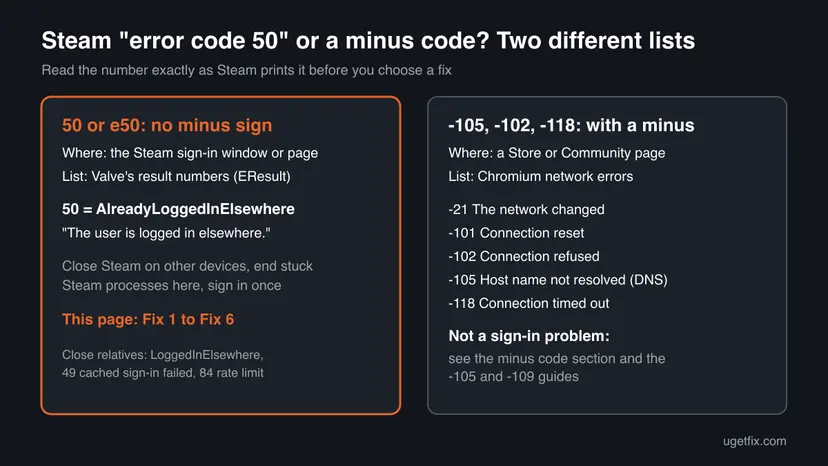
| Not the same as | -105, -102, -118, -101, -21 with a minus sign. Those are Chromium network errors on Store and Community pages, explained in their own section below. |
| Valve's status | Not a bug with a patch. Valve does not say when its servers send 50, and it has no support page for this code. |
| Affects | The Steam client on Windows 11 and Windows 10 (Windows 10 support ended on 14 October 2025, which does not change this error) and the Steam website in any browser. |
| Time to fix | 2 to 10 minutes when another session is the cause. Longer only when Steam itself has trouble and you have to wait. |
Facts checked on 15 October 2026. Steps written for the Steam client on Windows 11 (25H2 and 26H2) and Windows 10 22H2, read against Valve's Steamworks documentation, Chromium's source and Steam's sign-in form.
What Steam error code 50 means
Steam's servers answer every sign-in with a result number. Valve publishes the list of these numbers for game developers in the Steamworks documentation, under the name EResult. We read it on 15 October 2026. Number 50 is k_EResultAlreadyLoggedInElsewhere, described as "The user is logged in elsewhere."
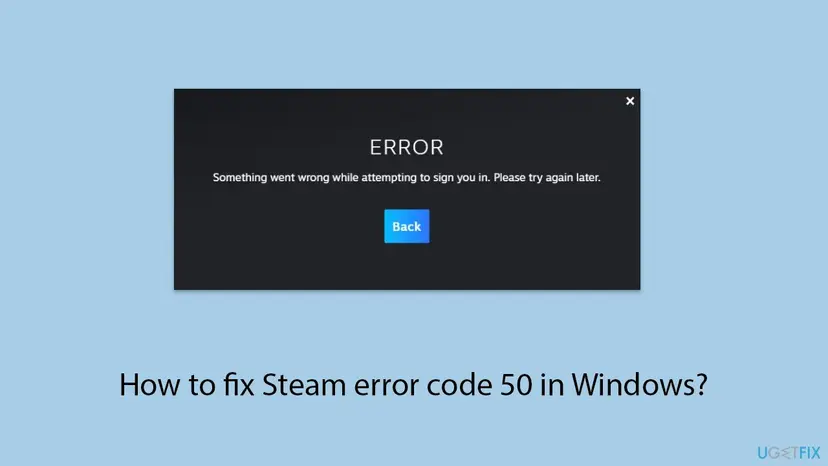
The sign-in form has its own screens only for a few results, such as too many retries or a lost connection. Every other result, 50 included, falls through to the general text that begins with "Something went wrong". The number is printed under it as Error Code: followed by the letter e and the result, so 50 appears as e50.
- Valve's name
k_EResultAlreadyLoggedInElsewhere, value 50.- Valve's description
- "The user is logged in elsewhere."
- Valve's note
- "Use k_EResultLoggedInElsewhere instead!" The value is an older duplicate of the general "logged in elsewhere" result.
- Its neighbour
- Result 49,
k_EResultPasswordRequiredToKickSession: "You are already logged in elsewhere, this cached credential login has failed." It is the same clash, met by a remembered sign-in. - In plain words
- Steam would not open a new session because it still counts an old one for your account.
Valve does not say in which situations its sign-in servers send 50 today, and its documentation marks the value as replaced. We read the meaning from Valve's list, not from a Valve statement about this screen. The fixes below follow that meaning and the sign-in form's general advice to try again later.
Steam error code -105, -102, -118, -101 and -21: not the same as error 50
Many people who search for Steam error 50 actually have a code with a minus sign. Those codes come from a different place. The Store, Community and profile pages in the Steam client are web pages, drawn by a built-in copy of Chromium. When a page fails, Steam shows Chromium's network error number on an Error page with "Unable to connect to server".
| Code | Chromium's name and comment | Where to go |
|---|---|---|
-21 | NETWORK_CHANGED: "The network changed." Wi-Fi switched, a VPN connected or the address changed while the page loaded. | Reload the page. If it repeats, check the VPN and Wi-Fi as in Fix 5. |
-101 | CONNECTION_RESET: "A connection was reset (corresponding to a TCP RST)." | A firewall, proxy or security product cut the connection. See our guide to Steam error code 2 and the minus codes. |
-102 | CONNECTION_REFUSED: "A connection attempt was refused." | A proxy setting or a filter. Same guide as -101. |
-105 | NAME_NOT_RESOLVED: "The host name could not be resolved." | A DNS problem: Steam error code -105. |
-109 | ADDRESS_UNREACHABLE: no route to the host or network. | Steam error code -109. |
-118 | CONNECTION_TIMED_OUT: "A connection attempt timed out." | Steam is slow or down, or something drops the traffic. Fix 4, then Fix 5. |
- The sign tells you the list. A minus number is a network failure of a page. A number without a minus, or with the letter
e, is a result from Steam's servers. - Error 50 is never a Chromium code. Chromium has no network error -50 in the list we read, so a plain 50 belongs to the sign-in.
- The full family of minus codes, with the fixes for each, is decoded in Steam error code 2 and the minus codes.
What causes Steam error code 50, from most to least likely
Valve publishes no statistics for this code, so the order is ours. It follows the meaning of result 50, what the reader of the old question describes, and how cheap each check is.
| Cause | How to tell | Fix |
|---|---|---|
| Steam is still open on another device. A second PC, a laptop, a Steam Deck or a Big Picture session on a TV. | You used Steam on another device today, or left it running there. | Fix 1 |
A Steam process on this PC did not close. The window is gone but steam.exe or Steam Client WebHelper still runs and keeps the old session. | Task Manager lists Steam entries while no Steam window is open. | Fix 1 |
| The client on this PC is the problem, not the account. | The Steam website signs you in, the client keeps failing. | Fix 2, then Fix 6 |
| Someone else uses the account. A family member, a friend you gave the password to, or a stranger. | Steam Guard e-mails about sign-ins you did not make, or the store page shows a session you do not know. | Fix 3 |
| Steam's sign-in servers have trouble. An outage or maintenance can leave old sessions counted for a while. | Many people report sign-in errors at the same time. The status page is slow. | Fix 4 |
| Network or clock on this PC. A VPN that switches addresses, or a wrong clock that breaks Steam Guard codes. | A VPN is on, or the Windows clock is off by minutes or hours. | Fix 5 |
Clearing Steam's download cache or web browser data is the usual first tip for this code. Those buttons sit inside the client's settings, behind the sign-in you cannot pass, and they hold no session. Turning the firewall off is no fix either: a firewall block shows a connection error, not result 50.
How to fix Steam error code 50 in Windows
Fix 1 ends the session clash that result 50 describes and solves most cases. Fix 2 tells you in one minute whether the account or the client on this PC is at fault. Fix 3 is for a session you cannot find or do not recognise. Fixes 4 to 6 cover Steam outages, the network and a damaged client.
| What you see | Start with |
|---|---|
| You used Steam on another PC, laptop or Steam Deck, or Steam was open before the error. | Fix 1 |
| The error stays after Fix 1 and you want to know where it comes from. | Fix 2 |
| E-mails about sign-ins you did not make, or someone else knows your password. | Fix 3 |
| Friends get sign-in errors at the same time, or Steam's pages time out. | Fix 4 |
| A VPN is on, or Steam Guard codes are rejected. | Fix 5 |
| The website signs you in, the client never does. | Fix 6 |
Fix 1. Close Steam on every other device and end the Steam processes on this PC
5 minutesNo riskEveryone with error code 50 starts here, especially if Steam ran on another device or was open before the error.
Result 50 says the account is logged in elsewhere. Ending every session you control removes the clash, and a short wait gives Steam's servers time to drop the old session before you ask for a new one.
- Stop pressing Retry. Each failed attempt counts, and too many from your network get the Too Many Retries screen and a wait.
- On every other device where you use Steam, open the Steam menu and select Exit. On a Steam Deck, sign out or switch it off.
- On this PC, press Ctrl + Shift + Esc to open Task Manager.
- Select Steam and Steam Client WebHelper one at a time and choose End task. Repeat until no Steam entry is left.
- Wait 5 minutes. Valve names no time for an old session to drop, so this wait is our suggestion.
- Start Steam and sign in once with the account name and password, or with the QR code.
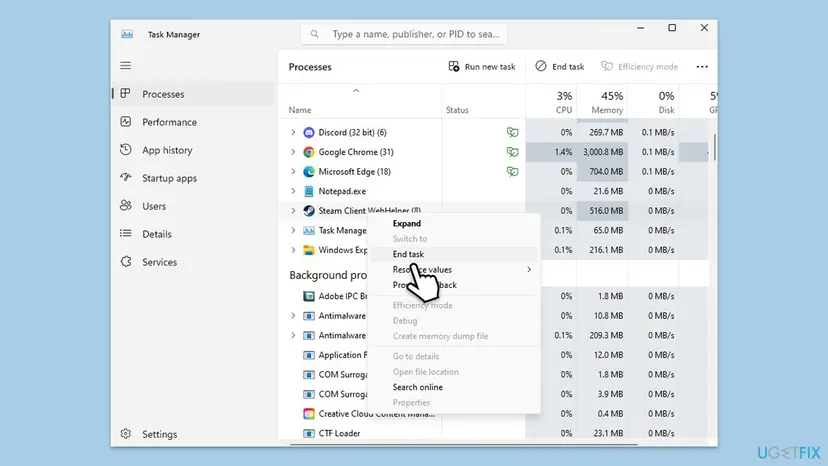
- An entry will not close. The full procedure, with a command for stubborn processes: Close a frozen app (Task Manager, Force Quit)
- Restart instead. If you are unsure what still runs, restart Windows. A restart ends every Steam process on this PC at once.
- Shared accounts. If a family member uses the same account on another PC, ask them to exit Steam too. Two people cannot hold the same session.
It worked if: The sign-in window takes the password or the QR code, Steam opens your library, and the Error screen with code 50 does not return.
If not: If code 50 comes back at once, test the account on the website with Fix 2.
Fix 2. Sign in on the Steam website to see whether the account or the client is at fault
2 minutesNo riskCode 50 survived Fix 1, or you cannot reach the other device to exit Steam there.
The website and the client use the same sign-in form but separate sessions. If the website lets you in, the account is fine and the clash sits in the client on this PC. If the website shows code 50 too, the account itself has the stuck session.
- Open a browser and go to
https://store.steampowered.com/login/. Type the address yourself; do not follow a link from a message. - Sign in with the same account and confirm with Steam Guard as usual.
- Note the result: your store page with your account name, or the same Error screen with its code.
- If it worked, open your account name in the top right corner and select Account details. Keep this page open for Fix 3.
| Result in the browser | What it means | Next |
|---|---|---|
| Signed in | The account and Steam's servers are fine. The client on this PC holds the problem. | Fix 5, then Fix 6 |
Error with e50 | Steam still counts another session for the account. | Fix 3 |
| Too Many Retries or Connection Problem | A wait or a network fault, not the session clash. | Fix 4, then Fix 5 |
Every screen and code of the Steam sign-in form, with QR code and Steam Guard steps, is in our guide to Something went wrong while attempting to sign you in.
It worked if: You know whether the problem follows the account everywhere or stays in the client on this PC.
If not: If the browser shows code 50 as well, sign the other sessions out with Fix 3.
Fix 3. Sign out every other device and change the password if a session is not yours
10 minutesLow riskThe website shows code 50 too, you cannot reach the other device, or you got Steam Guard e-mails about sign-ins you did not make.
A session you cannot close by hand has to be ended from the account. Signing out all other devices clears every remembered session at once, and a new password stops a person who knows the old one from signing in again.
- Sign in on the website (Fix 2) or in the Steam Mobile App, whichever works.
- Open Account details, then Manage Steam Guard.
- Use the option on that page to deauthorize all other devices, and confirm.
- If anything looks unfamiliar, change the password on the Account details page as well.
- Exit Steam on this PC as in Fix 1, wait 5 minutes and sign in once.
Steam Guard e-mails about sign-ins you did not make, friends who receive messages you did not send, or items and games that moved. Change the password from a device you trust, keep Steam Guard on, and contact Steam Support at help.steampowered.com if you cannot get in. Never type your password into a page that is not run by Valve.
- What deauthorizing does. Every other PC, phone and browser has to sign in again with the password and Steam Guard. Your games and files are not touched.
- What we could not confirm. We did not read Valve's help page for this button on 15 October 2026, so its exact label may differ in your language or client version.
- Malware on this PC. If a stranger signed in and you do not know how, scan the PC before you type the new password here: How to scan for malware with Microsoft Defender
It worked if: Steam asks every other device to sign in again, and this PC signs in without the Error screen.
If not: If code 50 remains after the sign-out, check whether Steam itself has trouble with Fix 4.
Fix 4. Check Steam's status and wait out an outage
2 minutes to check, then waitingNo riskCode 50 or other sign-in errors started suddenly, friends report the same, or Steam's pages load slowly or not at all.
During an outage or maintenance the sign-in servers can keep counting sessions that already ended. Nothing on your PC changes that, and each retry only adds to the limit on failed attempts from your network.
- Open
https://store.steampowered.com/stats/in a browser. Steam Support calls it the Steam Server Status page. - If the page times out or loads very slowly, Steam itself is likely in trouble.
- Stop all sign-in attempts on every device while you wait.
- Try once again after 30 to 60 minutes. Valve names no time, so this is our suggestion.
- If the client opened before and only the sign-in fails, Steam may offer Enter Offline Mode on the Connection Problem screen. Games that need a live connection will not start there.
The reader's question mentions "a few hours already". If code 50 lasts that long while no other device runs Steam, waiting alone is unlikely to help. Go back to Fix 3 and sign the other sessions out from the website or the app.
It worked if: Steam's pages load quickly again and one sign-in attempt goes through.
If not: If Steam is up for everyone else and only you fail, check the VPN, the clock and the DNS cache with Fix 5.
Fix 5. Turn off the VPN, correct the clock and flush the DNS cache
5 to 10 minutesLow riskA VPN or proxy is on, Steam Guard codes are rejected, or the Windows clock is wrong.
A VPN that changes your address during the sign-in can make one attempt look like two sessions from two places. A wrong clock breaks Steam Guard codes, which are built from the time, and a stale DNS entry can send the client to an old server.
- Exit Steam as in Fix 1.
- Disconnect the VPN and quit its app from the tray icon so it cannot reconnect. Turn off any proxy you set up for games.
- Open the date and time settings and select Sync now, so that Windows sets the clock from the internet.
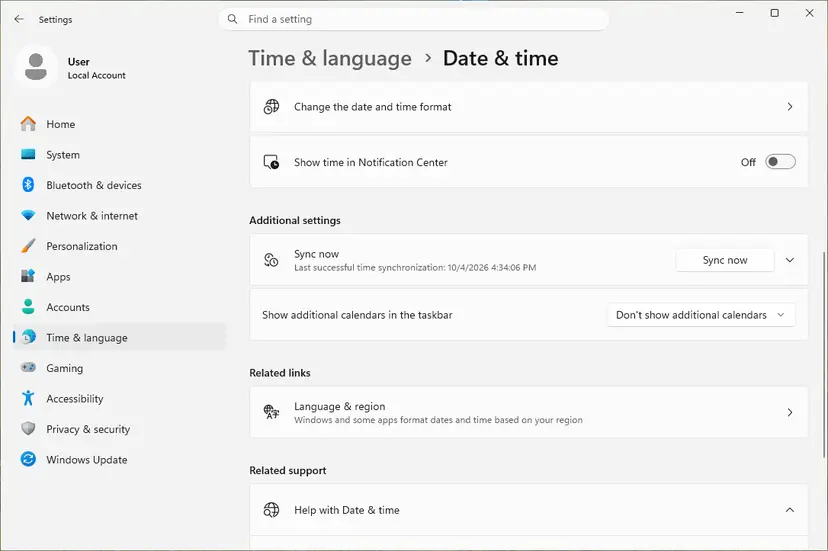
Step by step, with the Windows 10 path and a command for a clock that will not sync: How to fix the date and time in Windows. Then flush the DNS cache in an administrator Command Prompt:
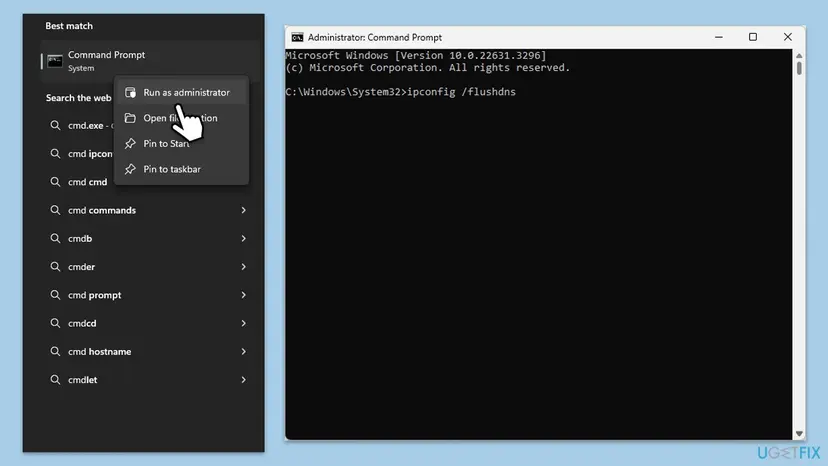
- Open an elevated command window. Right-click Start and select Terminal (Admin), or type cmd in the search box, right-click Command Prompt and select Run as administrator. Select Yes when Windows asks for permission.
- Flush the DNS cache. Type the command below and press Enter. Windows forgets the website addresses it looked up earlier and asks for them again.
ipconfig /flushdns
These steps were written for Windows 11 24H2 and later. The full page with the other versions and what each result means: Reset the network and flush DNS
- Works without the VPN. Leave the VPN off while you sign in. Once Steam remembers you, you can test it again.
- Fails on every network. The network is not the cause; the session sits on Steam's side. Go back to Fix 3.
- Many sites fail, not only Steam. Reset the network stack: Reset the network and flush DNS
It worked if: The clock matches your phone, Steam Guard accepts the code, and the sign-in goes through with the VPN off.
If not: If the website signs you in but the client still shows code 50, repair the client with Fix 6.
Fix 6. Repair the Steam client by installing it over itself
10 minutesLow riskThe website signs you in, while the client on this PC keeps showing code 50 after Fixes 1 and 5.
The client keeps its own remembered sign-in on this PC. If those files are damaged, it can keep offering an old session that Steam refuses. Installing the client over itself replaces its program files without removing your installed games.
- Exit Steam and end every Steam entry in Task Manager as in Fix 1.
- In a browser, open
https://store.steampowered.com/about/and download the Steam installer from Valve's own page. - Run the installer and keep the same installation folder, by default
C:\Program Files (x86)\Steam. - When it finishes, start Steam, sign in once and tick Remember me on your own PC.
Uninstalling Steam through Installed apps or Control Panel also removes the games inside its folder. Code 50 is about the account's session, so a full uninstall costs hours of downloads and rarely changes the result. Install over the old copy instead.
Deeper client repairs, such as resetting the client's data folder, are explained step by step in our Steam sign-in error guide. Use them only after the website test in Fix 2 has shown that the account itself works.
It worked if: The client starts, accepts the sign-in and stays signed in after a restart of Windows.
If not: If code 50 is still there, collect the details in the next section and contact Steam Support.
If Steam error code 50 is still there: what to check and what to send
By now you know whether the website signs you in (Fix 2), whether other devices were signed out (Fix 3), and whether Steam was up (Fix 4). That is what Steam Support needs. Valve documents no log file for the sign-in screen, so the screen itself is your record.
- Take a screenshot of the Error screen with the
Error Codeline visible. - Write down when it started, which devices use the account and whether a VPN was on.
- Note the result of the browser test and of the sign-out of other devices.
- Open
https://help.steampowered.comin a browser, choose the sign-in problem and send these details.
- The Steam logs folder. The client writes text logs to the
logsfolder inside its installation folder. Valve does not document which one holds sign-in results, and we could not confirm one, so attach them only if Steam Support asks. - When it is the account: code 50 on every device and network, even after signing out all devices and changing the password. Only Steam Support can clear that.
- When it is not hardware: a session clash is never a hardware fault. A failing network adapter shows connection errors in every program, not a sign-in result.
- When it is another program: a VPN, proxy or traffic filter can still be involved. Start Windows once without third-party services to test: How to perform a clean boot in Windows
How to keep Steam error code 50 from coming back
- Exit Steam from its Steam menu on one device before you sign in on another.
- Tick Remember me on your own PCs, so that Steam asks for a full sign-in less often.
- Keep Steam Guard on, with the Steam Mobile App, so you hear about every new sign-in.
- Keep the Windows clock on automatic time.
- Sign out other devices from Manage Steam Guard after you used Steam on a PC that is not yours.
- Do not share your Steam password. Two people on one account will meet code 50 and worse.
- Do not press Retry over and over; wait a few minutes between attempts.
- Do not switch a VPN on or off while Steam signs in.
- Do not uninstall Steam for a sign-in error; it removes your games and keeps the account's session as it was.
- Do not type your Steam password into a site that promises to fix the error for you.
Most repeat cases come from one habit: leaving Steam open on one device and starting it on another. Exiting Steam properly, from its own menu, ends the session cleanly and leaves nothing for the next sign-in to clash with.
Frequently asked questions
What is error code 50 in Steam?
It is a sign-in result from Steam's servers. In Valve's Steamworks list of result numbers, 50 is k_EResultAlreadyLoggedInElsewhere, with the description "The user is logged in elsewhere." Steam refused to open a new session because it still counts an existing one for your account. The sign-in form has no special screen for it, so you see the general text "Something went wrong while attempting to sign you in" with the code under it, usually written e50. Close Steam on your other devices, end the Steam processes on this PC and sign in once.
Is the problem on my end or on Steam's side?
Usually on your end, in the sense that another session of your account exists. That can be Steam left running on another PC or a Steam Deck, a Steam process on this PC that did not close, or someone else who knows the password. Steam's side is the cause only when many people fail at the same time. Check the status page at store.steampowered.com/stats, and test the sign-in on the website. If the website works and the client does not, the client on your PC is the part to fix.
Is Steam error code -105 the same as error code 50?
No. Codes with a minus sign come from Chromium, the browser engine inside the Steam client, and appear on Store and Community pages with "Unable to connect to server". In Chromium's list, -105 is NAME_NOT_RESOLVED: "The host name could not be resolved." That is a DNS failure on your PC or network, not a sign-in clash. The fixes are flushing the DNS cache, testing the DNS server and checking filters. Our separate guide to Steam error code -105 covers them step by step.
What do Steam error codes -102, -101 and -118 mean?
They come from the same Chromium list as -105 and describe a connection that failed after the address was found. Code -102 is CONNECTION_REFUSED, "A connection attempt was refused." Code -101 is CONNECTION_RESET, a connection that was opened and then cut. Code -118 is CONNECTION_TIMED_OUT, "A connection attempt timed out." Proxies, firewalls, security software and Steam outages are the usual causes. None of them is a sign-in result like 50, so the session fixes on this page do not apply to them.
What does Steam error code -21 mean?
Code -21 is Chromium's NETWORK_CHANGED, with the comment "The network changed." The page in Steam started loading on one connection and the connection changed before it finished. Typical triggers are a laptop moving between Wi-Fi networks, a VPN connecting or disconnecting, or a new address from the router. Reload the page once. If it keeps happening, leave the VPN in one state while Steam runs and check that the Wi-Fi connection is stable. It is unrelated to sign-in error 50.
Can someone else using my account cause error code 50?
Yes. Result 50 means the account is logged in elsewhere, and that elsewhere can be another person. If you shared the password, ask them to exit Steam. If you did not, treat it as a warning sign: sign out all other devices from Manage Steam Guard, change the password from a device you trust and keep Steam Guard on. Steam Guard e-mails about sign-ins you did not make confirm it. Contact Steam Support at help.steampowered.com if you cannot get back in.
Does clearing Steam's download cache fix error code 50?
It is unlikely to help. The Clear Download Cache button and the web browser data button sit in the client's settings, which you can only open after a successful sign-in. They hold download files and browsing data, not the account's session on Steam's servers. Older guides, including an earlier version of this page, listed them first. What does help is ending every Steam process, closing Steam on other devices and signing in once after a short wait.
Is "Steam hata kodu 50", "код ошибки 50" or "código de error 50" the same error?
Yes. Hata kodu is Turkish for error code, код ошибки is Russian, and código de error, código do erro and erro are Spanish and Portuguese. The Steam client prints the same number in every language, under a translated version of the general sign-in text. The meaning is the same result 50, logged in elsewhere, and every fix on this page applies. The menu names in Windows and Steam are translated too, but Task Manager opens with the same keys, Ctrl + Shift + Esc, everywhere.
Does error code 50 mean my account is banned?
No. A ban or a disabled account has its own results in Valve's list, and result 50 only says that another session exists. Your games, items and purchases are not affected by this error. If the account were disabled or locked after a suspected hijack, the code under the sign-in text would be different, and only Steam Support could help. Code 50 usually clears after you end the other sessions and wait a few minutes.
Sources
- Steamworks Documentation: steam_api, EResult (results 49, 50, 84 and the others) (partner.steamgames.com)
- Chromium source: net/base/net_error_list.h (NETWORK_CHANGED -21, CONNECTION_RESET -101, CONNECTION_REFUSED -102, NAME_NOT_RESOLVED -105, ADDRESS_UNREACHABLE -109, CONNECTION_TIMED_OUT -118) (github.com)
Did this fix work?
One click, no account. It tells the next reader which guides are worth their time.
Questions and experiences: fix Steam error code 50 in Windows
Still broken, or found a fix we did not cover? Ask here: members and our editors answer. Reading is open; writing needs a free account.
…