
How to fix "UE4 Game has crashed and will close" error in Windows?

Prefer to fix it yourself? The manual steps follow.
- 7methods
- 5 to 30 minutes
- Easy
Applies to PC games built on Unreal Engine 4 and later (UE4 and UE5) on Windows 11 and Windows 10, from Steam, the Epic Games Store, Xbox app and other launchers
7 methods in this guide
After a recent Windows update, all games created on Unreal Engine are crashing. The error always reads: "UE4 game has crashed and will be closed! Fatal error!" Is there anything I can do to address this?
"The UE4 Game has crashed and will close" is the crash box of Unreal Engine 4, so it shows up in many different games. Epic's own advice is short: install the latest Visual C++ Redistributable, then start the game's .exe as administrator. If that fails, verify the game files and read the crash log the engine saved.
The UE4 game has crashed because the Unreal Engine inside it hit an error it could not recover from, and the box is only the engine saying so. Epic's support page gives two first steps: install the latest Microsoft Visual C++ Redistributable (Fix 1), then right-click the game's .exe and select Run as administrator (Fix 2). After that, verify the game files and update the graphics driver.
| Error | A small window titled "The UE4-[project name] Game has crashed and will close" with the text Fatal error! and an OK button. Some versions add detail lines under it. |
|---|---|
| Where it appears | When you start an Unreal Engine game, or in the middle of play. It is shown by the game's engine, not by Windows, Steam or the Epic Games Launcher. |
| Main cause | A missing or damaged Visual C++ runtime, a game that cannot write to its own folders, damaged game files or a graphics driver crash. |
| Fastest fix | Install the latest Visual C++ Redistributable (Fix 1), then run the game's .exe as administrator (Fix 2). Both are Epic's own steps. |
| Also written as | UE4 has crashed and will close, The UE Game has crashed, UE4 Fatal error, The UE4-Client Game has crashed, The UE-Game Game has crashed and will close. |
| Affects | Any game made with Unreal Engine 4 or 5 on Windows 11 and Windows 10. Players report it in Conan Exiles, ARK, Medieval Dynasty, Wuthering Waves and many more. |
| Vendor status | Epic Games Store Support has a page for this exact error. Microsoft lists no known issue with Unreal Engine games in recent Windows releases that we could find. |
| Where the cause is logged | C:\Users\[you]\AppData\Local\[Project Name]\Saved\Crashes and the Saved\Logs folder next to it. |
| Time to fix | 5 minutes for Fixes 1 and 2, 10 to 30 minutes for file checks and a driver reinstall. |
Facts checked on 15 October 2026. Steps written for Windows 11 (25H2 and 26H2) and Windows 10 22H2, with Steam and the Epic Games Launcher.
What "The UE4 Game has crashed and will close" means
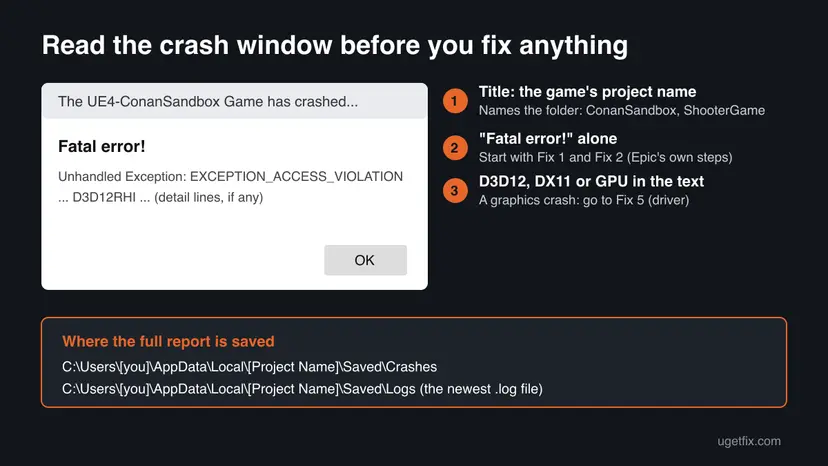
Unreal Engine 4 is the game engine made by Epic Games. When a game built on it hits an error the engine cannot handle, the engine shows its own crash window and quits. The window title reads "The UE4-[project name] Game has crashed and will close", and the body usually says only Fatal error!
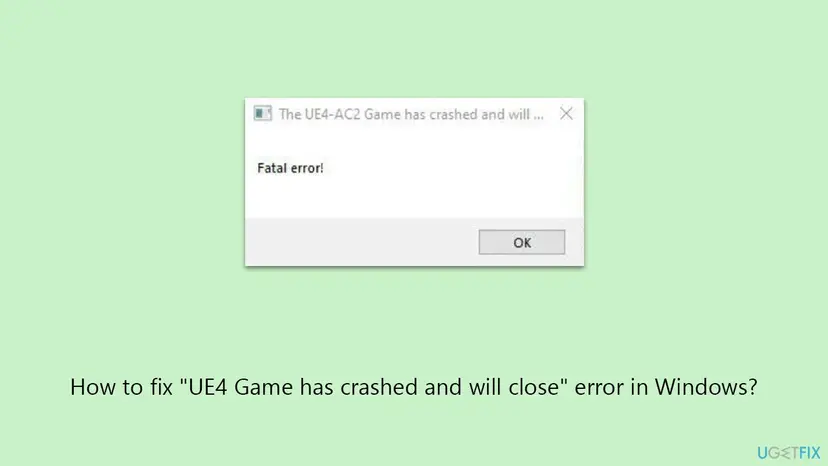
So the message is not one error but a label for many. It tells you that the game crashed and that it was built on Unreal Engine. It does not say why. The why is in the detail lines, if your box has any, and in the crash report the engine saves on your disk.
| What you see | What it means |
|---|---|
| "The UE4 Game has crashed and will close" with Fatal error! | The standard UE4 crash box. The cause is not shown; start with Fix 1. |
| "The UE4-ConanSandbox Game", "The UE4-ShooterGame", "The UE4-Client Game", "UE4-TFT", "UE4-NRC" | The word after UE4- is the game's internal project name and its folder name. ConanSandbox is Conan Exiles and ShooterGame is ARK. We could not confirm which games use Client, TFT or NRC. |
| "The UE-Game Game has crashed and will close" or "The UE Game has crashed" | The same box from a game on Unreal Engine 5, or a game that kept the default project name. Epic's support page uses this spelling. |
| "The UE Project Game has crashed and will close" | Same box, a game whose project name was left as Project. Same fixes. |
Detail lines with D3D12, D3D11, DXGI or GPU | A graphics crash. Epic's documentation shows GPU crashes with D3D12RHI in the fatal error text. Go to Fix 5. |
EXCEPTION_ACCESS_VIOLATION or LowLevelFatalError | The game read memory it should not have, or the engine stopped itself. Often damaged files or a bad setting: Fix 3 and Fix 4. |
Why UE4 games crash with "Fatal error", most common cause first
The table ranks the causes by how often they come up in Epic's advice and in the reports we read, and ties each one to a fix. If every Unreal Engine game on your PC crashes, the cause is on the PC (runtime, driver, Windows). If only one game crashes, the cause is usually inside that game's files or settings.
| How often | Cause | How to spot it | Fix |
|---|---|---|---|
| Most often | The Visual C++ runtime the game needs is missing or damaged | Crashes at launch, often in several games; Epic lists this first | Fix 1 |
| Often | The game cannot write to its install or Saved folder | Crashes at launch or when saving; the game sits under Program Files or a protected drive | Fix 2 |
| Often | Damaged or missing game files after a patch | One game only, and it started after an update or a full disk | Fix 3 |
| Sometimes | A broken settings file, a mod or a resolution the screen cannot show | It crashes after you changed settings, added a mod or a monitor | Fix 4 |
| Sometimes | The graphics driver crashed or is too old for the game | D3D, DXGI or GPU in the message; crash mid-game; screen flickers black first | Fix 5 |
| Rarely | A Windows update broke something for this PC | All UE games crashed from the day an update installed | Fix 6 |
| Rarely | Another program hooks into the game: overlay, recorder, RGB or tuning tool | It crashes only when that program runs | Fix 7 |
Many guides tell you to add Epic's datarouter servers to the hosts file. Those servers collect crash and usage data; blocking them does not repair a crash, and no Epic source we read recommends it. A BIOS update is also not a fix for this error unless your PC maker says so for your model.
How to fix "The UE4 Game has crashed and will close"
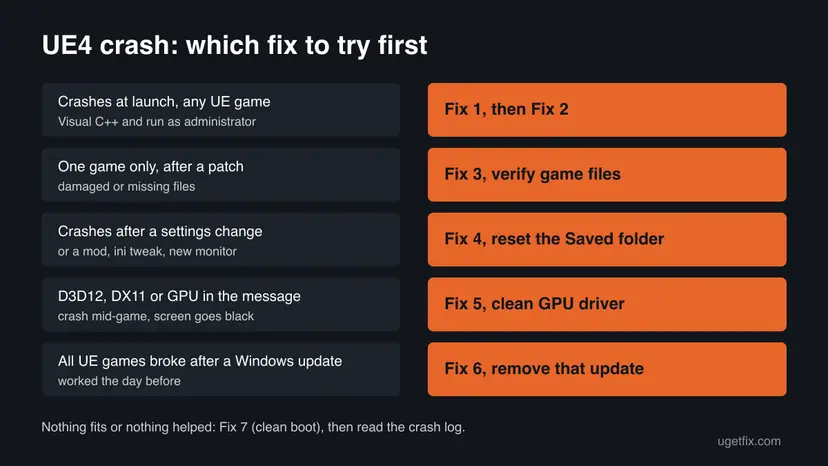
Fixes 1 and 2 are the steps Epic's support page gives for this error and take five minutes together. Fixes 3 to 5 cover the game's own files, its settings and the graphics driver. Fixes 6 and 7 are for crashes that started after a Windows update or that only happen with other programs running.
| What you see or what your PC has | Start with |
|---|---|
| The box appears at launch, or several Unreal Engine games crash | Fix 1, then Fix 2 |
| Only one game crashes, and it began after a patch | Fix 3 |
| It began after you changed settings, added a mod or a new monitor | Fix 4 |
The message names D3D12, D3D11, DXGI or GPU, or the screen goes black first | Fix 5 |
| Every UE game broke on the day a Windows update installed | Fix 6 |
| It crashes only with an overlay, recorder or tuning tool running | Fix 7 |
Fix 1. Install the latest Microsoft Visual C++ Redistributable
5 minutesNo riskEveryone. It is the first step on Epic's own support page for this error, and it costs two minutes.
Unreal Engine games are written in C++ and load Microsoft's Visual C++ runtime files when they start. If those files are missing, old or damaged, the engine fails before the game window opens and shows the crash box.
Epic links to Microsoft's page of the latest supported Visual C++ Redistributable downloads. On a 64-bit Windows, install the x64 package; installing the x86 package as well does no harm, as some launchers still use it. If the runtime is already there, the installer offers Repair: run it.
- Open Programs and Features. Type control panel in the search box on the taskbar and select Control Panel. Select Programs > Programs and Features.
- Find the installed versions. Look for the entries that start with Microsoft Visual C++. Each one shows a year and an architecture, x64 or x86. Several entries side by side are normal: older versions stay installed next to newer ones.
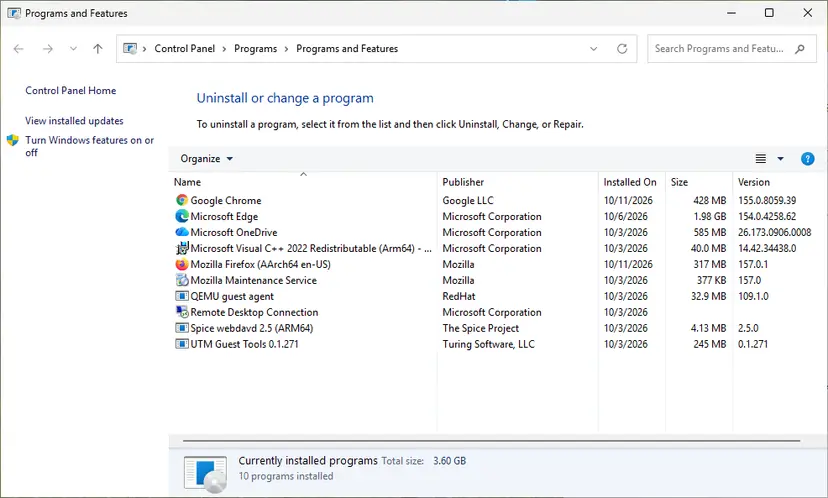
Each Visual C++ version is its own entry in Programs and Features. Screenshot: Windows 11 26H2. - Repair each Visual C++ entry. Right-click an entry and select Change, then select Repair in the window that opens. Do the same for every Microsoft Visual C++ entry.
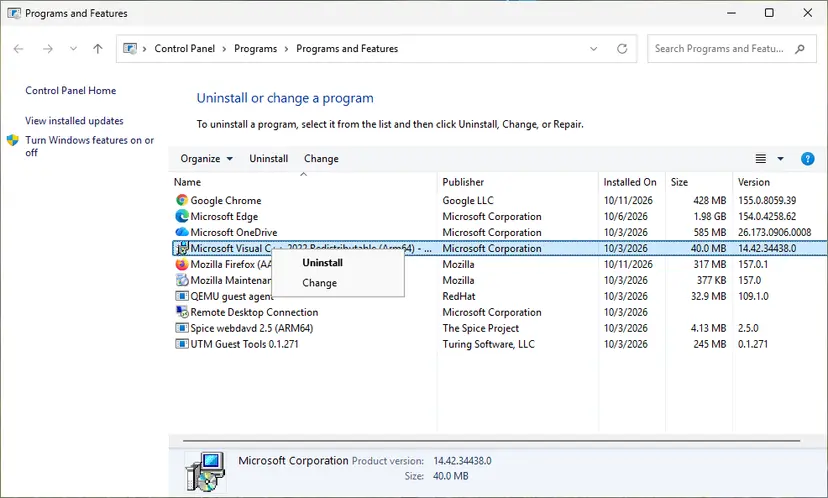
Right-click the entry and select Change to reach the repair option. Screenshot: Windows 11 26H2. - Install the latest supported version. Download the latest Visual C++ v14 Redistributable from Microsoft: Visual C++ Redistributable latest supported downloads and run it. On a 64-bit PC install both X64 and X86, because 32-bit programs need the x86 package. On an ARM64 PC install ARM64. This one version serves programs built with Visual Studio 2017 to 2026.
- Run the .NET Framework Repair Tool. Download the Microsoft .NET Framework Repair Tool and run NetFxRepairTool.exe. The wizard looks for setup problems, asks for your consent before it applies fixes, then repairs the installed .NET Framework versions. The tool is in English only.
- Turn on .NET Framework 3.5 if a program asks for it. Select Start, search for Windows Features and open it. In Turn Windows features on or off, select the .NET Framework 3.5 (includes .NET 2.0 and 3.0) check box and select OK. Windows downloads the files, so stay online.
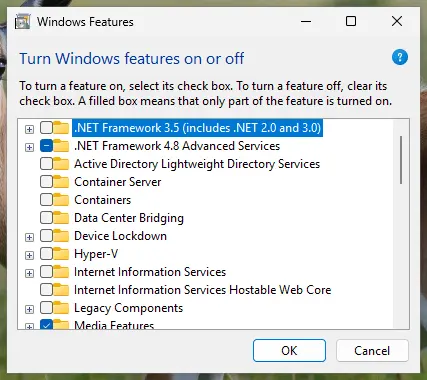
.NET Framework 3.5 is turned on in Windows Features. Screenshot: Windows 11 26H2. - Restart and test. Restart the PC and start the program that showed the error.
These steps were written for Windows 11 25H2 and 26H2, Windows 10 22H2. The full page with the other versions and what each result means: How to repair Microsoft Visual C++ Redistributable and .NET Framework
Many games keep the runtime they were built with in a _CommonRedist or Redist folder inside the install folder. Running the vc_redist.x64.exe from there installs the exact version the game expects.
It worked if: The installer says Setup Successful or finishes the repair. Restart the PC and start the game.
If not: If the same box appears, start the game as administrator in Fix 2.
Fix 2. Run the game's .exe file as administrator
3 minutesLow riskThe game crashes at launch, or when it saves, and Fix 1 did not help.
This is Epic's second step for this error. A game that cannot write its settings, shader cache or save files where it expects can crash at once. Running it with administrator rights once tells you whether permissions are the problem.
- Close the game and its launcher fully, including the icon in the system tray.
- Open the game's install folder. In Steam, right-click the game, select Manage > Browse local files. In the Epic Games Launcher, select the three dots under the game, then Manage and the folder icon next to the install path.
- Find the real game program. Unreal Engine games usually keep it in
[Project Name]\Binaries\Win64, for exampleConanSandbox\Binaries\Win64, next to a small launcher .exe at the top of the folder. - Right-click that .exe and select Run as administrator. Select Yes in the User Account Control prompt.
- If the game now starts, close it and start it the normal way from the launcher once more to see if the fix holds.
To make the setting stick, use the Compatibility tab of the .exe's Properties. Step by step, with Windows 11 and Windows 10 screens: How to run a program as administrator or in compatibility mode.
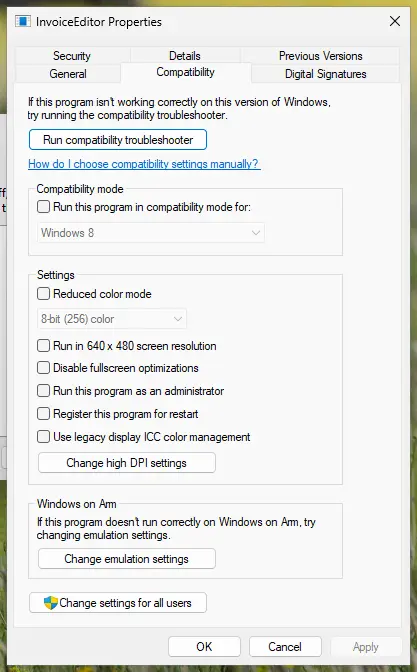
It worked if: The game reaches its main menu instead of the crash box.
If not: If it crashes as administrator too, permissions are not the cause. Verify the game files in Fix 3.
Fix 3. Verify or repair the game files in the launcher
5 to 20 minutesNo riskOnly one Unreal Engine game crashes, especially after a patch, a stopped download or a full disk.
Unreal Engine games pack their content into large .pak files. One damaged .pak or a missing file from an interrupted update is enough to make the engine stop with a fatal error, often an access violation.
Every launcher compares your files with the server copy and downloads only what is broken. In Steam it is Properties > Installed Files > Verify integrity of game files; in the Epic Games Launcher it is Manage > Verify. Steps for Steam, Epic Games, Xbox app, EA app, Battle.net and GOG Galaxy: How to verify game files in Steam, Epic Games, Xbox app, EA app, Battle.net and GOG Galaxy.
- Restart and open Steam. Restart your computer and launch Steam.
- Open the game's menu. Right-click the game in your Library, or open the game's Library page and select the gear icon on the far right.
- Open Properties. Select Properties in the menu.
- Verify the files. Select the Installed Files tab and select Verify integrity of game files.
- Wait for the result. Steam checks the game's files. This can take several minutes.
These steps were written for Steam on Windows. The full page with the other versions and what each result means: How to verify game files in Steam, Epic Games, Xbox app, EA app, Battle.net and GOG Galaxy
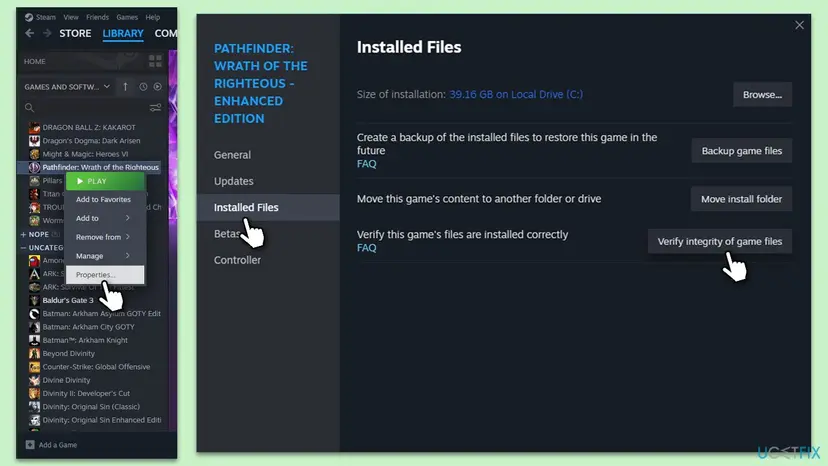
It worked if: The launcher reports that files were checked and, if any failed, downloads them again. The game starts.
If not: If no files were broken and it still crashes, reset the game's settings in Fix 4.
Fix 4. Reset the game's settings in its Saved folder
5 minutesLow riskThe crash started after you changed graphics settings, added a mod, edited an .ini file or connected a new monitor.
Unreal Engine keeps each game's settings and crash data in a Saved folder under your user profile. A setting the PC cannot run, such as a resolution or mode the screen does not support, makes the game crash at every start. Moving the settings away lets the game build fresh ones.
- Close the game and its launcher.
- Press Win + R, type
%LOCALAPPDATA%and press Enter. - Open the folder with the game's project name, the same word as in the crash box (for example
ConanSandbox), then openSaved. - Right-click the
Configfolder, select Rename and call itConfig.old. Do not touchSaveGamesor other folders. - Remove any mods the game loads, then start the game. It creates a new
Configfolder with default settings.
Some games keep their save files in the same Saved folder, under SaveGames. Rename only Config, never delete the whole Saved folder. Renaming also lets you undo: delete the new Config and rename Config.old back.
A few games, such as ARK, keep the Saved folder inside the install folder instead, under ShooterGame\Saved. If you do not find the game under %LOCALAPPDATA%, look there.
It worked if: The game starts with default graphics settings and the crash box does not return.
If not: If it still crashes, or the message names D3D or the GPU, reinstall the graphics driver in Fix 5.
Fix 5. Reinstall the graphics driver cleanly
15 minutesLow riskThe message names D3D12, D3D11, DXGI or GPU, the game crashes mid-play, or the screen goes black before the box appears.
Epic's documentation describes GPU crashes in Unreal Engine as fatal errors that point to the engine's D3D12 graphics layer. A damaged or old driver is the usual cause, so a clean reinstall of the current driver often stops them.
Download the current driver from your card maker (NVIDIA, AMD or Intel) first, so you have it ready. Then remove the old driver in Device Manager with Attempt to remove the driver for this device ticked, restart, and install the new one. Step by step: Update, roll back or reinstall a driver.
- Open Device Manager. Right-click Start and select Device Manager.

Device Manager lists devices by category; a yellow warning sign marks a device with a problem. Screenshot: Windows 11 26H2. - Open the device's Driver tab. Expand the category (for example Display adapters), right-click the device, select Properties and open the Driver tab. Driver Date and Driver Version show what is installed now.
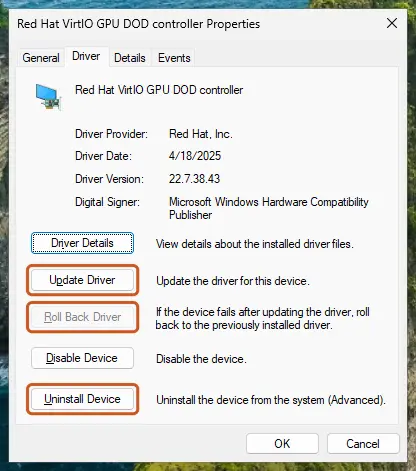
The Driver tab holds all three actions: update, roll back, uninstall. Screenshot: Windows 11 26H2. - Update the driver. Select Update Driver and let Windows search automatically. To use a driver you downloaded from the device maker, select Browse my computer for drivers instead and point to the unpacked folder.
- Or roll back the driver. If the problem started after a driver update, select Roll Back Driver, choose a reason and select Yes. The button is greyed out when Windows has no earlier driver to return to.
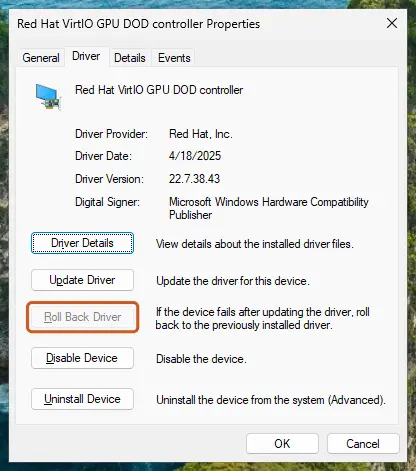
Roll Back Driver is greyed out here because there is no earlier driver. Screenshot: Windows 11 26H2.
These steps were written for Windows 11 24H2 and later. The full page with the other versions and what each result means: Update, roll back or reinstall a driver
When the crash began right after a driver update, roll it back in Device Manager with Roll Back Driver on the Driver tab, or install the previous version from the maker's site. For DirectX 12 checks that fail before the game starts, see our guide to "DirectX 12 is not supported on your system".
It worked if: Device Manager shows your card's name with the new driver version, and the game runs without the crash box.
If not: If every Unreal Engine game began to crash on the day a Windows update installed, go to Fix 6.
Fix 6. Uninstall the Windows update after which the crashes began
10 minutesRead the warningAll your Unreal Engine games worked one day and crashed after a Windows update, as in the reader's question above.
In a Microsoft Q&A thread, users report that Unreal Engine games crashed with this exact message after a Windows 11 update and worked again once they went back. Removing the latest update tests that link on your PC.
- Open Settings > Windows Update > Update history and note the date of the newest quality update.
- Compare it with the day the crashes began. If they do not match, skip this fix.
- Uninstall that update. Step by step: How to uninstall a Windows update.
- Restart, start the game, and if it works, select Pause updates on the Windows Update page so the update does not return at once.
- Open the list of removable updates. Scroll down to Related settings and select Uninstall updates.
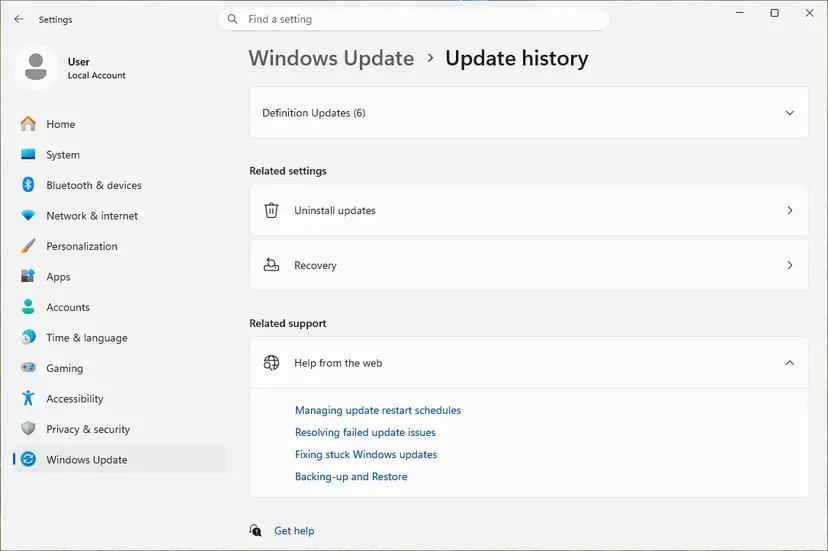
Uninstall updates is under Related settings. Screenshot: Windows 11 26H2. - Uninstall the update. Find the update in the list and select Uninstall next to it. If the update is not in the list, Windows does not allow it to be removed this way.
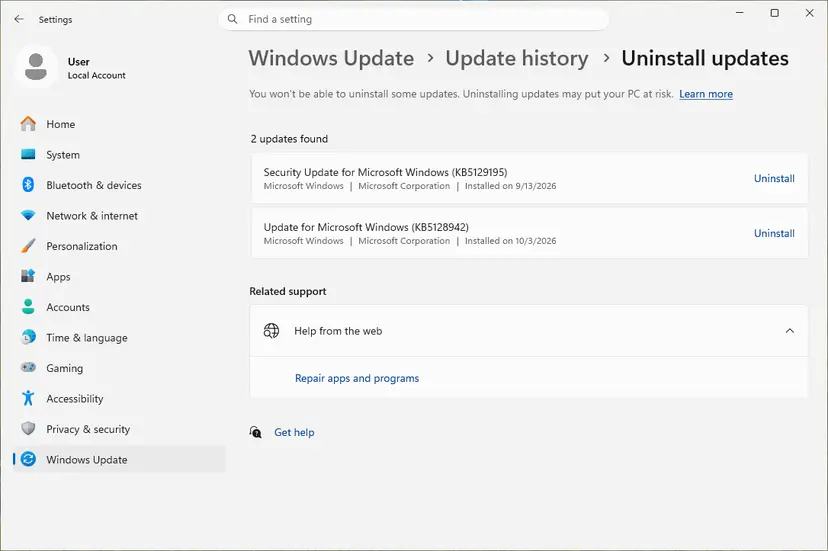
Each removable update has its own Uninstall link. Screenshot: Windows 11 26H2.
These steps were written for Windows 11 25H2 and 26H2. The full page with the other versions and what each result means: How to uninstall a Windows update
A quality update carries security patches, so removing it leaves the PC less protected. Keep updates paused only until the game's maker or Microsoft ships a fix, then install updates again. Do not go back to an old Windows version from an ISO you found online, as some users in that thread did.
It worked if: The games start again on the older build. If they still crash, the update was not the cause: reinstall it.
If not: If removing the update changed nothing, install it again with Check for updates and go to Fix 7.
Fix 7. Find a conflicting program with a clean boot
20 minutesLow riskThe crash happens only on some days, only with an overlay or recorder running, or nothing above helped.
Overlays, screen recorders, RGB lighting tools and GPU tuning programs inject code into running games. If one of them clashes with the engine, the game crashes with the same box. A clean boot starts Windows without them so you can test.
Start Windows with only Microsoft services, run the game, and turn the other programs back on in groups until the crash returns. Step by step: How to perform a clean boot in Windows.
- Open System Configuration. Select Search on the taskbar, type msconfig and select System Configuration from the results.
- Hide Microsoft services. On the Services tab, select the Hide all Microsoft services check box. Only services from other companies stay in the list.
- Disable the remaining services. Select Disable all, then select Apply.
- Open Task Manager. On the Startup tab of System Configuration, select Open Task Manager.
- Disable the startup apps. On the Startup apps tab in Task Manager, select each item whose status is Enabled and select Disable. Write down or take a screenshot of the items you disable: you need the list to turn them back on.
- Confirm the changes. Close Task Manager. On the Startup tab of System Configuration, select OK.
- Restart and test. Restart the PC. Windows now starts in a clean boot environment: try again the thing that failed (run the app, install the update, uninstall the program).
These steps were written for Windows 11 25H2 and 26H2. The full page with the other versions and what each result means: How to perform a clean boot in Windows
If you set a manual overclock on the graphics card or memory, return it to default for the test as well. An overclock that passes other games can still fail in one Unreal Engine title.
It worked if: The game runs in a clean boot. Turning programs back on one group at a time shows which one makes it crash.
If not: If the game crashes even in a clean boot, read the crash report as described below.
Still crashing: read the UE4 crash report and the log
Unreal Engine saves a report every time it shows the crash box. Epic's documentation gives the place: C:\Users\[Your Windows Username]\AppData\Local\[Project Name]\Saved\Crashes. Each crash gets its own folder with a log and a dump file.
- Press Win + R, type
%LOCALAPPDATA%\[Project Name]\Savedwith the name from the crash box, and press Enter. - Open
Crashes, then the newest folder by date. - Open the
.logfile with Notepad and scroll to the end. Look for the lines afterFatal error,Unhandled ExceptionorAssertion failed. - If those lines name a
.dllthat is not part of the game, for example from an overlay or an antivirus, that program is the conflict. - Zip the whole crash folder and the newest file from
Saved\Logsfor the game's support team.
- Names
D3D12,D3D11,DXGIorGPU: a graphics crash. Fix 5, then return any GPU overclock to default. - Names a
.pakfile orFailed to open: damaged game files. Fix 3, then reinstall the game. - Names
OutOfMemoryorRan out of memory: close other programs and let Windows manage the page file size. - Your PC restarts or shows a blue screen instead: that is a system crash, not a game crash. Windows keeps those reports in
C:\Windows\Minidump.
When the crash comes back in several games with different causes in the logs, or the PC also freezes outside games, suspect hardware: memory, an overheating card or a weak power supply. A memory test is a fair next step: How to test your RAM with Windows Memory Diagnostic. Send the zipped crash folder, your Windows build from winver and your driver version with any support request.
How to keep Unreal Engine games from crashing again
- Keep the Visual C++ Redistributable current. New games may need a newer runtime than the one already on your PC.
- Install graphics drivers from the card maker, and wait a few days before a brand new driver if a game you play daily works well.
- Let game patches finish. Do not close the launcher or shut down the PC while it updates a game.
- Change one graphics setting at a time, and keep a copy of the
Configfolder before editing .ini files or installing mods. - Keep Windows updated. Windows 10 left support on 14 October 2025, so a Windows 10 PC no longer gets regular fixes; move to Windows 11 if the PC allows it.
- Keep overlays to one. Running several recording and overlay tools at once is a common source of game crashes.
Frequently asked questions
What does "The UE4 Game has crashed and will close" mean?
It means a game built on Unreal Engine 4 hit an error it could not recover from, and the engine closed it. The message is the engine's standard crash window, so it looks the same in every UE4 game and does not tell you the cause. The word after UE4- in the title is the game's project name. The cause is written in the crash report the engine saves under AppData\Local\[Project Name]\Saved\Crashes. Most often it is a missing Visual C++ runtime, damaged game files or a graphics driver crash.
How do I fix "The UE4 Game has crashed and will close Fatal error"?
Start with Epic's own two steps. Install the latest Microsoft Visual C++ Redistributable, x64 version, and restart the PC. Then open the game folder, right-click the game's .exe in Binaries\Win64 and select Run as administrator. If the crash stays, verify the game files in your launcher, move the Config folder in the game's Saved folder aside, and reinstall the graphics driver. The order and steps are in Fixes 1 to 5 above.
The UE4 game has crashed and will close: como resolver?
This page answers that question in English. In short: install the latest Microsoft Visual C++ Redistributable (x64), then run the game's .exe as administrator, as Epic Games recommends. If the error remains, check the game files in Steam or the Epic Games Launcher, reset the game's settings by renaming its Config folder, and reinstall the graphics card driver. These steps are the same on Windows in any language, because the crash window comes from the game engine, not from Windows.
The UE4 game has crashed and will close: artinya apa?
That query asks what the message means. It means the game, which runs on Unreal Engine 4, crashed and the engine is closing it. It is not a Windows error and not a virus warning. The same window appears in many different games because they share the same engine. The cause is in the crash log on your PC. The fixes on this page work the same on any language version of Windows: start with the Visual C++ Redistributable and running the game as administrator.
Why does every Unreal Engine game crash on my PC?
When all UE games crash, the cause is shared by all of them, so it is on the PC rather than in one game. The usual suspects are a missing or damaged Visual C++ runtime, a broken graphics driver, a program that hooks into every game such as an overlay or tuning tool, or a recent Windows update. Work through Fixes 1, 5, 7 and 6 in that order. If the crashes also come with freezes or restarts outside games, test the memory and check temperatures.
What is "The UE4-Client Game has crashed" or "UE4-ShooterGame"?
The text after UE4- is the internal name the developer gave the game project, and it is also the name of the folder that holds the game's files and crash reports. ShooterGame is the project name of ARK, ConanSandbox is Conan Exiles, and other games use names such as Client, TFT or NRC. We could not confirm which games use those last three. The fixes are the same for all of them; the name only tells you which Saved folder to look in.
Is "The UE Game has crashed" the same error as the UE4 one?
Yes. Games built on Unreal Engine 5, and some games that kept the default project name, show "The UE-Game Game has crashed and will close" or a similar title. Epic Games Store Support uses exactly that wording on its help page for the error, and its advice is the same: install the latest Visual C++ Redistributable, then run the game's .exe as administrator. The crash report sits in the same kind of Saved\Crashes folder under the game's project name.
Where are UE4 crash logs saved?
Epic's documentation says crash reports on a player's PC are stored in C:\Users\[Your Windows Username]\AppData\Local\[Project Name]\Saved\Crashes. Each crash gets a folder with a log file and a dump file. The normal game logs are in the Saved\Logs folder next to it, newest file first. A few games keep Saved inside their install folder instead. Open the log with Notepad and read the lines after Fatal error or Unhandled Exception near the end.
Can a Windows update cause the UE4 crash?
It can coincide with one. In a Microsoft Q&A thread, users report Unreal Engine games crashing with this message after a Windows 11 feature update and working again after going back. Microsoft's known issues did not list it, by their account, and we found no confirmation either. If your crashes began on the day of an update, uninstalling that update is a fair test (Fix 6). Pause updates only briefly, because the update also carries security fixes.
Does editing the hosts file fix the UE4 crash?
We found no evidence that it does. The hosts trick blocks datarouter servers that Epic uses to receive crash and usage data. Blocking them can stop a crash report from being sent, but it does not change why the game crashed. No Epic source we read recommends it. If you added such lines earlier and want to undo them, open the hosts file in Notepad as administrator and delete them. Spend the time on Fixes 1 to 5 instead.
Sources
- Epic Games Store Support: Error "The UE-Game Game Has Crashed And Will Close" (epicgames.com)
- Epic Developer Community: Crash Reporting in Unreal Engine (dev.epicgames.com)
- Microsoft Q&A: 23H2 crashes Unreal Engine games with "UE4 game has crashed and will be closed! Fatal error!" (learn.microsoft.com)
Did this fix work?
One click, no account. It tells the next reader which guides are worth their time.
Questions and experiences: fix "UE4 Game has crashed and will close" error in Windows
Still broken, or found a fix we did not cover? Ask here: members and our editors answer. Reading is open; writing needs a free account.
…