
How to fix Windows Event Log high CPU usage in Windows?

Prefer to fix it yourself? The manual steps follow.
- 9methods
- 5 minutes to find the repeating event, 10 to 40 minutes for the fix that matches it
- Intermediate
Applies to The Windows Event Log service (EventLog) and its Service Host process on Windows 11 and Windows 10
9 methods in this guide
Service Host: Windows Event Log is the Windows service (EventLog) that writes and reads the event logs. High CPU almost always means something else is flooding it with events, or one log has grown huge. Find the repeating event first, then stop its source.
Do not disable Windows Event Log: Microsoft warns that stopping it may compromise system security and reliability. Open Event Viewer and look for one event ID that repeats many times a minute (Fix 1). Fix the service or app that writes it (Fix 2). Then save and clear the overloaded log and give it a normal size (Fix 3 and Fix 4).
| Error | No error message. Task Manager shows Service Host: Windows Event Log high in the CPU or Disk column, and the PC feels slow. |
|---|---|
| Where it appears | Task Manager on Windows 11 and Windows 10, Processes tab. The Services tab and services.msc name the service EventLog. |
| Main cause | Another service or app writes events in a loop, for example a service that crashes and restarts every minute. A very large log file is the second common cause. |
| Fastest fix | Find the repeating event in Event Viewer (Fix 1) and repair what writes it (Fix 2). |
| Also written as | Service Host: Windows Event Log, Windows Event Log service, EventLog, event log high CPU, event log high disk usage, svchost.exe Windows Event Log. |
| Microsoft's status | Microsoft Learn lists EventLog as Always installed, startup type Automatic. We found no Microsoft known issue note for high CPU on Windows 11 or Windows 10. |
| Safe to disable? | No. Event Viewer, security auditing, Windows Error Reporting and many programs depend on it. |
| Time to fix | 5 minutes to find the source, 10 to 40 minutes for the matching fix. |
Facts checked on 15 October 2026. Steps written for Windows 11 (25H2 and 26H2) and Windows 10 22H2, with the service details and wevtutil commands read from Microsoft Learn.
What Service Host: Windows Event Log is
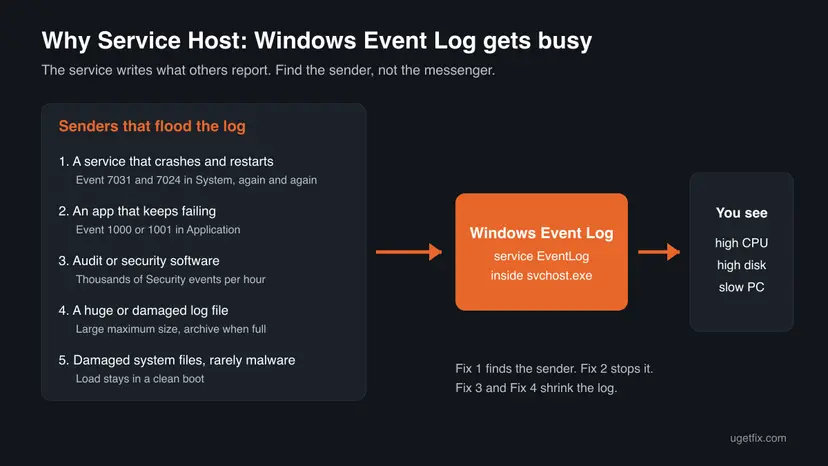
Windows Event Log is a built-in Windows service. Its service name is EventLog, it is always installed and it starts automatically. Microsoft describes it like this: it manages events and event logs, and supports logging events, querying events, subscribing to events, archiving event logs and managing event metadata.
It runs inside a shared Service Host (svchost.exe) process, so Task Manager shows Service Host: Windows Event Log. Every time Windows, a driver or a program reports something, this service writes it to a log file. Every time Event Viewer or a tool reads the logs, this service answers too.
| What you see | Where | What it is |
|---|---|---|
| Service Host: Windows Event Log | Task Manager, Processes tab | The svchost.exe process that holds the EventLog service. |
EventLog | Task Manager Services tab, sc and wevtutil commands | The short service name. |
| Windows Event Log | services.msc | The display name, startup type Automatic. |
Event Viewer (eventvwr.msc) | Start menu, Win + X menu | The app that shows the logs. It is not the service itself. |
Windows Error Reporting Service (WerSvc) | Task Manager, often next to it | A different service that collects crash reports. It is covered in the FAQ. |
At startup, during updates or while Event Viewer loads a big log, the line can jump for a few seconds. Constant load for minutes with nothing happening, or 100 % disk, is not normal.
Why Service Host: Windows Event Log uses high CPU, from most to least common
Microsoft publishes no statistics for this, so the order comes from what the service does and the reports we read. Most often another component writes events in a loop. Less often a log has grown very large or is set to archive itself. Rarely the cause is damaged system files or malware.
| Cause | How often | How to tell | Fix |
|---|---|---|---|
| A service that crashes and restarts in a loop. In a Microsoft Q&A thread, a user's System log filled with events 7031 and 7024 for the WMIS service, and a Microsoft Windows expert answered that the log was only reporting a deeper fault. | Most often | One event ID from one source repeats every few seconds in System. | Fix 1, then Fix 2 |
| An app or a Store package that keeps failing. The same thread showed the Application log almost full of event 1001. | Often | Event 1000 or 1001 repeats in Application. | Fix 2 |
| Security software, audit policies or monitoring tools that write or read thousands of events. | Often, on work PCs | The Security log grows by thousands of events per hour. | Fix 2, then Fix 6 |
| A very large log, or a log set to archive itself when full. | Sometimes | One log is far bigger than the others, or its properties say Archive the log when full. | Fix 3 and Fix 4 |
| The service got stuck after a crash or an update. | Sometimes | Nothing repeats, and the load started after an update or a crash. | Fix 5 and Fix 7 |
| Damaged system files. | Less often | High load even in a clean boot. | Fix 8 |
| Malware using the svchost.exe name. | Rarely | The file is not in C:\Windows\System32. | Fix 9 |
How to fix Windows Event Log high CPU and disk usage
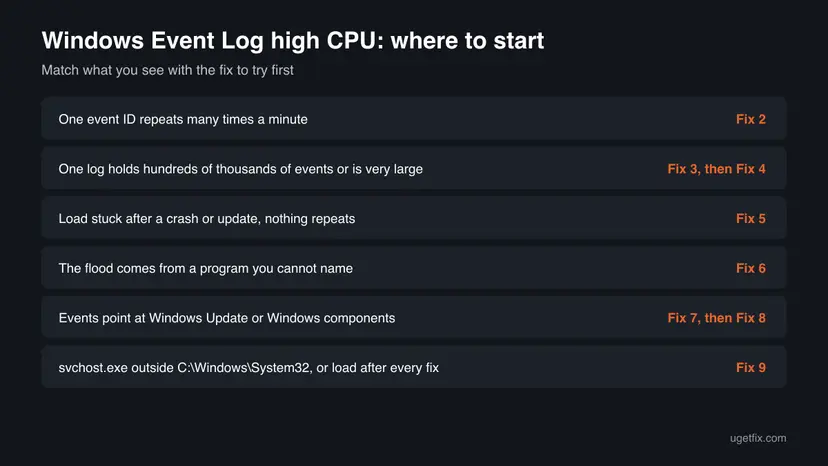
Fix 1 takes five minutes and tells you where to go. Fix 2 stops the source of the flood, which solves most cases. Fix 3 and Fix 4 shrink an overloaded log. Fix 5 to Fix 9 deal with a stuck service, third-party programs, updates, system files and malware.
| What you see or have | Start with |
|---|---|
| One event ID repeats many times a minute. | Fix 2 |
| One log holds hundreds of thousands of events or is very large. | Fix 3, then Fix 4 |
| The load got stuck after a crash or an update, and nothing repeats. | Fix 5 |
| The events come from a program you cannot name, or from security software. | Fix 6 |
| The events point at Windows Update or Windows components. | Fix 7, then Fix 8 |
svchost.exe opens outside C:\Windows\System32, or the load stays after every fix. | Fix 9 |
Fix 1. Find the event that floods the log
5 minutesNo riskEveryone, before changing anything. It shows who keeps the service busy.
The Event Log service does not make work for itself. It writes what other components send it. A log that grows by hundreds of events a minute names its sender in the Source and Event ID columns, and that sender is what you fix.
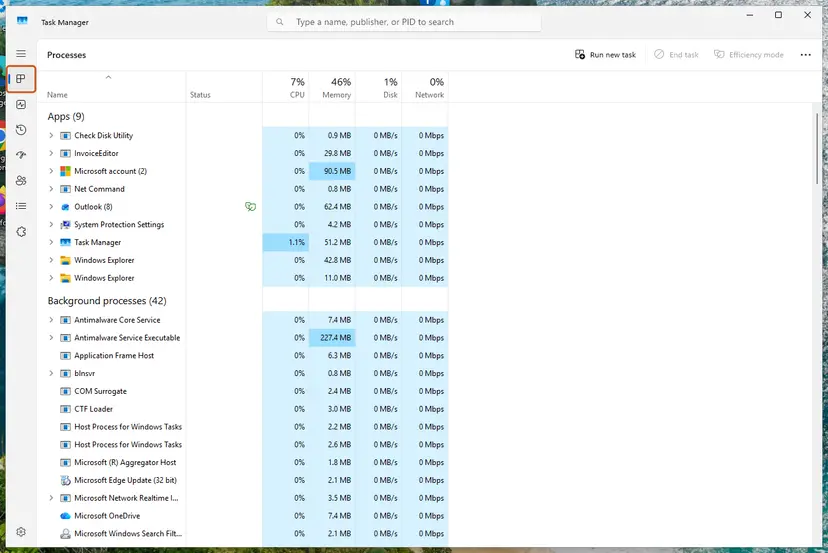
- Press Ctrl + Shift + Esc, select the CPU or Disk column and check that Service Host: Windows Event Log is on top.
- Press Win + R, type
eventvwr.mscand press Enter. - Expand Windows Logs and select Application, then System, then Security. The Number of events above the list shows how big each log is.
- In each log, look at the Date and Time column. If the same Source and Event ID appear many times within the same minute, write them down.
- Select one of those events and read the General tab. It usually names the service, program or file behind it.
- Expand Applications and Services Logs too. A log there with a very high event count can be the source as well.
You can also read the newest events in a terminal. Open Terminal (Admin) from the Win + X menu. The first command shows the 20 newest System events, the second shows the size and record count of the log.
wevtutil qe System /c:20 /rd:true /f:text
wevtutil gli System
It worked if: You have one or two event IDs with their source that repeat far more than anything else, or you know which log is huge.
If not: If nothing repeats and no log is large, go to Fix 5. If the busy line is another Service Host, search for that service name instead.
Fix 2. Repair the service or app that writes the repeating event
10 to 30 minutesLow riskFix 1 found an event ID that repeats many times a minute.
Clearing a log while its source still writes hundreds of events a minute only buys a few hours. In the Microsoft Q&A thread, the expert's answer was to fix WMI, because the event log was only doing what it knows how to do: reporting the issue.
| What repeats | What it means | What to do |
|---|---|---|
| 7031 and 7024, Service Control Manager, System log | A service crashes and Windows restarts it again and again. | The event names the service. Repair or update the program it belongs to. For the WMIS service, see WMIS could not be established. |
| 7000, 7023, Service Control Manager | A service fails to start or stops with an error. | See Event ID 7000 and Event ID 7023. |
| 1001, Windows Error Reporting, Application log | A program or package keeps failing and a report is written each time. | Read Event Name and the P1 to P4 lines. See Windows Error Reporting Event ID 1001. |
| 1000, Application Error | One program crashes again and again. | Update, repair or reinstall the program named in Faulting application name. |
| 10010 or 10016, DistributedCOM | A component does not register in time or lacks a permission. | See Event ID 10010. |
| Thousands of Security events such as 4624, 4672 or 5379 | Sign-ins, privilege use or credential reads by a program or a policy. | Find the program in Fix 6. On a work PC, ask your admin before changing audit policy. |
- Open the repeating event and note the program, service or file it names.
- Update that program, or repair it in Settings > Apps > Installed apps (Windows 10: Apps > Apps & features) with Advanced options > Repair where offered.
- If the program is one you no longer use, uninstall it as in Uninstall a program or app in Windows.
- Restart the PC and open the same log again after ten minutes.
It worked if: The repeating event stops appearing or appears only now and then, and the Service Host drops to near 0 % CPU when the PC is idle.
If not: If you cannot tell which program writes the events, go to Fix 6. If the events point at Windows itself, go to Fix 7 and Fix 8.
Fix 3. Save and clear the overloaded log
5 minutesRead the warningOne log holds hundreds of thousands of events, or Event Viewer takes a long time to open it.
The service has to index and search every event when a tool reads the log. A huge log makes every read heavy. Clearing it after a backup removes the weight without losing the history.
Clearing deletes every event in that log. Always choose Save and Clear so you keep a copy. On a work PC, ask your admin first: the Security log may be needed for audits.
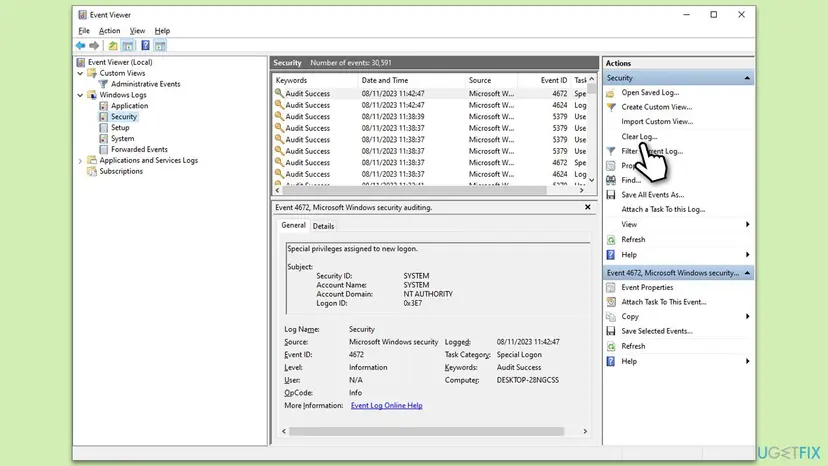
- In Event Viewer, under Windows Logs, right-click the large log, for example Application, System or Security.
- Select Clear Log....
- Select Save and Clear, choose a folder such as Documents and give the file a name ending in
.evtx. - Repeat for any other large log, then restart the PC.
The same in Terminal (Admin): the command below saves the Application log to a backup file and then clears it. Change the log name and the folder to yours.
wevtutil cl Application /bu:C:\Users\Public\Application-backup.evtxIt worked if: The log shows only a few new events, Event Viewer opens it fast and the Service Host stays low.
If not: If the log fills up again within hours, its source is still active. Go back to Fix 2 or use Fix 6 to find it.
Fix 4. Give the log a normal size and let it overwrite old events
5 minutesLow riskA log has a very large maximum size, or it is set to archive itself when full.
Microsoft's wevtutil reference explains the two modes: with retention off, new events overwrite the oldest ones; with auto backup on, the log is saved to a new file each time it is full. A log that archives itself again and again keeps the disk and the service busy.
- In Event Viewer, right-click the log and select Properties.
- Read Log size and Maximum log size (KB).
- Under When maximum event log size is reached, select Overwrite events as needed (oldest events first).
- Set Maximum log size (KB) to a moderate value, for example
20480for 20 MB, and select OK.
To check the settings in Terminal (Admin), run the first line. The output shows retention, autoBackup and maxSize. The second line sets 20 MB and overwrite mode for the Application log.
wevtutil gl Application
wevtutil sl Application /ms:20971520 /rt:false /ab:falseGroup Policy may set log sizes and retention. If the fields are greyed out, your organization manages them and your admin has to change them.
It worked if: The log stays at a fixed size and Windows overwrites the oldest events instead of writing new archive files.
If not: If the size was already normal, the cause is the number of events, not the file. Go to Fix 2 or Fix 6.
Fix 5. Restart the Windows Event Log service
2 minutesLow riskThe load got stuck after a crash, an update or a big log export, and nothing repeats in the logs.
A service that got stuck on a large query or a damaged log can stay busy until it starts again. A restart releases it without changing any setting.
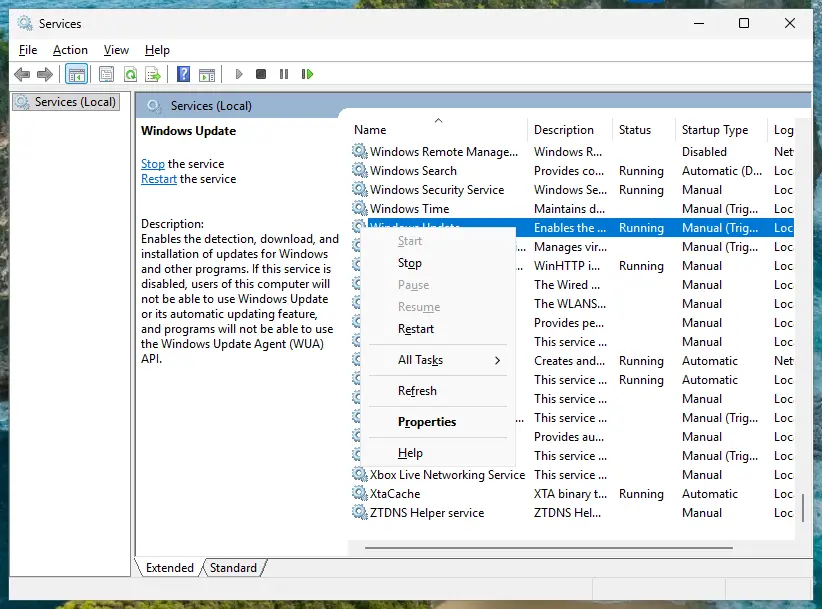
- Open Services. Press Windows+R, type the command below and press Enter. You can also type Services in the search box on the taskbar and open the app.
services.msc - Find the service. The list is sorted by Name. Click any row and type the first letter of the service to jump to it. Check the Status column (Running or empty) and the Startup Type column.
- Restart the service. Right-click the service and select Restart. If the service is not running, select Start instead. Wait until the progress window closes.
- Open its properties to change the startup type. Only if your guide says so: double-click the service. The General tab shows the Service name (used in commands), the Startup type and the Service status.
- Set the startup type and apply. Choose the type from the Startup type list (Automatic, Automatic (Delayed Start), Manual or Disabled), select Apply, then Start if the service should run now, and OK.
These steps were written for Windows 11 and Windows 10 (the steps are the same). The full page with the other versions and what each result means: Check and restart Windows services
In the list, the service is called Windows Event Log. Other services depend on it, so Windows may ask to restart them too: select Yes. If Restart is greyed out, restart the whole PC instead; it has the same effect.
It worked if: After the restart, Service Host: Windows Event Log drops to near 0 % CPU and stays there.
If not: If the load comes back within minutes, something is feeding it. Go to Fix 6.
Fix 6. Find the program behind the flood with a clean boot
20 minutesLow riskFix 1 shows many events but you cannot tell which program writes them, or security or monitoring software is installed.
Third-party security suites, monitoring agents, tune-up tools and hardware utilities can write or read thousands of events. A clean boot starts Windows with Microsoft services only. If the load is gone there, a third-party item causes it.
- Open System Configuration. Select Search on the taskbar, type msconfig and select System Configuration from the results.
- Hide Microsoft services. On the Services tab, select the Hide all Microsoft services check box. Only services from other companies stay in the list.
- Disable the remaining services. Select Disable all, then select Apply.
- Open Task Manager. On the Startup tab of System Configuration, select Open Task Manager.
- Disable the startup apps. On the Startup apps tab in Task Manager, select each item whose status is Enabled and select Disable. Write down or take a screenshot of the items you disable: you need the list to turn them back on.
- Confirm the changes. Close Task Manager. On the Startup tab of System Configuration, select OK.
- Restart and test. Restart the PC. Windows now starts in a clean boot environment: try again the thing that failed (run the app, install the update, uninstall the program).
These steps were written for Windows 11 25H2 and 26H2. The full page with the other versions and what each result means: How to perform a clean boot in Windows

The earlier version of this page also ticked Safe boot on the Boot tab. That is Safe Mode, not a clean boot, and the test tells you less. Leave Safe boot off.
It worked if: In the clean boot the Service Host stays calm. Turning items back on in halves shows the one that brings the load back. Update it or remove it.
If not: If the load is still high in a clean boot, the cause is in Windows itself. Go to Fix 7 and Fix 8.
Fix 7. Install the latest Windows updates
15 to 40 minutesLow riskThe repeating events come from Windows components, or Windows Update shows failed or pending updates.
A Windows component that keeps failing writes an event each time. The fix for such a fault, if Microsoft has one, arrives through Windows Update.
- Press Win + I and select Windows Update (Windows 10: Update & Security > Windows Update).
- Select Check for updates and install everything offered.
- Restart the PC when asked.
- If an update fails again and again, reset the update components as in Reset Windows Update components.
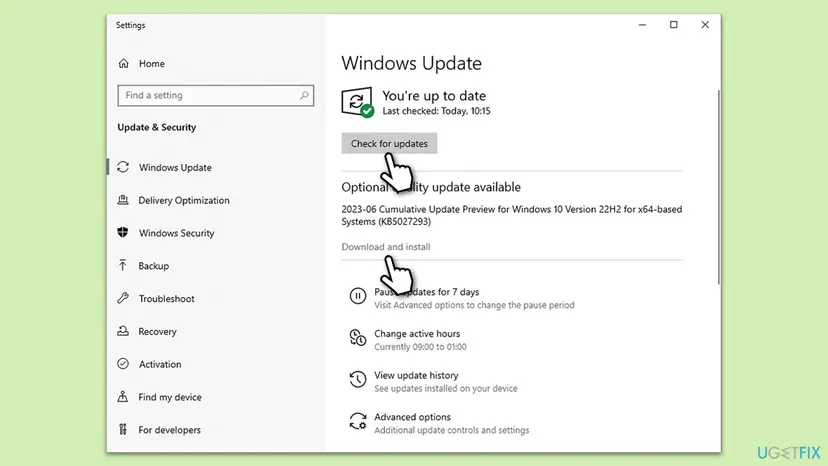
Windows 10 22H2 left support on 14 October 2025. Only PCs in Extended Security Updates still get monthly fixes, so a fault in a Windows 10 component may never be fixed there.
It worked if: Windows Update shows that you are up to date, and the repeating events stop after a restart.
If not: If updates install but the events continue, go to Fix 8.
Fix 8. Repair Windows system files with DISM and SFC
20 minutesNo riskThe load is high even in a clean boot, or the events point at missing or damaged Windows files.
The Event Log service and many of the services that write to it are Windows files. If those files or the component store are damaged, services fail and retry in a loop, and each try writes an event. DISM repairs the store and SFC replaces damaged files.
- Open an elevated command window. Right-click Start and select Terminal (Admin), or type cmd in the search box, right-click Command Prompt and select Run as administrator. Select Yes when Windows asks for permission.
- Run DISM first. Type the command below and press Enter. DISM downloads clean copies of damaged components from Windows Update, so it can take several minutes. Wait until it says The operation completed successfully.
DISM.exe /Online /Cleanup-Image /RestoreHealth - Run System File Checker. In the same window, type the command below and press Enter. Do not close the window until the verification reaches 100%.
sfc /scannow - Read the result and restart. Compare the last message with the table below this guide, then restart the PC so that repaired files are loaded.
These steps were written for Windows 11 24H2 and 25H2. The full page with the other versions and what each result means: Run DISM and SFC to repair Windows system files
It worked if: SFC reports that it repaired corrupt files or found no integrity violations, and the load drops after a restart.
If not: If SFC cannot repair some files even after DISM, go to Fix 9, then read the still broken section.
Fix 9. Scan for malware with Microsoft Defender
15 to 60 minutesNo riskThe svchost.exe file is outside C:\Windows\System32, or the CPU stays high after every other fix.
Malware likes the svchost.exe name because many copies of it run on every PC, and some malware writes or wipes logs. A full Microsoft Defender scan rules it out.
- In Task Manager, open the Services tab, right-click
EventLogand select Go to details. - Right-click the highlighted svchost.exe and select Open file location. It should open
C:\Windows\System32. - Run a full scan as described below.
- Open Windows Security. Select Start, type Windows Security and open the app.
- Open Virus & threat protection. Select Virus & threat protection. Under Current threats you see when the last scan ran, how long it took and how many files it checked.
- Run a quick scan. Select Quick scan. If Windows Security thinks a deeper scan is needed, it tells you when the quick scan is done.
- Open Scan options. If the quick scan finds nothing and you still suspect an infection, select Scan options under Current threats.
- Run a full scan. Select Full scan and start it. It checks every file and program on the device, so it takes much longer than a quick scan. Leave the PC on until it ends.
- Or scan one folder. To check only a download or a USB drive, select Custom scan in Scan options and choose the folder. You can also right-click a file or folder in File Explorer and select Scan with Microsoft Defender. On Windows 11 you may have to select Show more options first.
- Read Protection history. Go back to the first page of Windows Security and select Protection history. Select a card to expand it and see the details.
These steps were written for Windows 11 25H2 and 26H2, Windows 10 22H2. The full page with the other versions and what each result means: How to scan for malware with Microsoft Defender
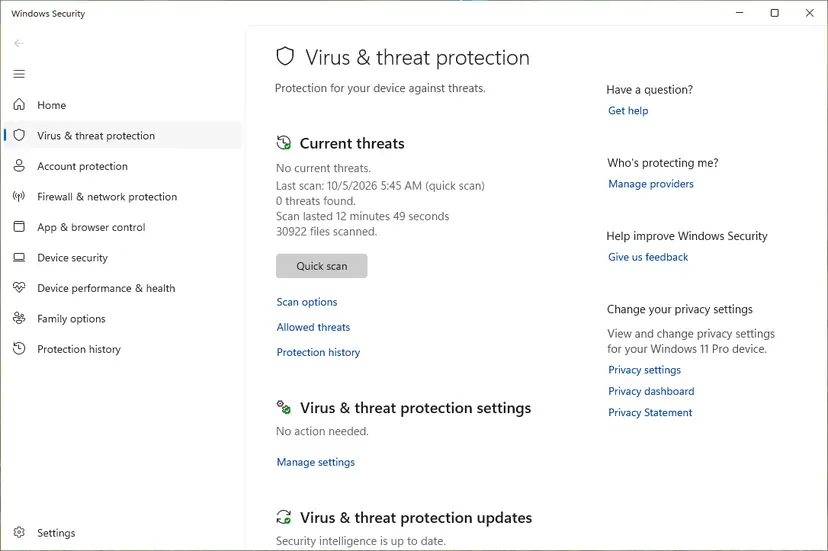
It worked if: Defender finds no threats and svchost.exe is in System32, so the load is not malware.
If not: If Defender finds a threat, remove it and run the offline scan before any other fix. If it finds nothing, read the still broken section.
Windows Event Log still uses high CPU: what to check next
If the logs are small, nothing repeats and system files are fine, find out who is reading the logs rather than writing them. A tool that queries the logs all the time keeps the service busy too.
- Resource Monitor: type resmon in Start, open the Disk tab and look for processes that read files ending in
.evtx. The process name shows who reads the logs. - Reliability Monitor: type reliability in Start and open View reliability history. A red cross on the day the load began often names the update, driver or app behind it.
- Event forwarding and subscriptions: on a work PC, event forwarding and monitoring agents read logs all the time. Microsoft Q&A threads report high Event Log CPU after event forwarding was turned on. Ask your admin.
- Repair install: as a last step, reinstall Windows over itself and keep your files and apps: Reinstall Windows without losing files.
The service is software only. But a failing disk makes every log write slow, so the line shows high disk time. If disk errors appear in the System log, check the drive as in Check a disk for errors (chkdsk) and back up your files first.
How to keep Windows Event Log from flaring up again
- Look at Event Viewer once a month. A single event ID that repeats thousands of times is a fault to fix early.
- Keep the logs on Overwrite events as needed with a moderate maximum size, unless your organization needs another setting.
- Do not install optimizers, registry cleaners or log cleaners. Windows does not need them, and some of them read or clear logs all the time.
- Keep Windows Update on and let updates finish before you shut down.
- Never disable the Windows Event Log service to save resources. Microsoft says stopping it may compromise system security and reliability.
Frequently asked questions
What is Service Host: Windows Event Log?
It is the svchost.exe process that runs the Windows Event Log service, service name EventLog. Microsoft describes the service as the one that manages events and event logs: it logs events, answers queries, handles subscriptions and archives logs. It is always installed and starts automatically. Every message you see in Event Viewer was written by this service, so it is busy whenever Windows or a program reports a lot.
Can I disable the Windows Event Log service?
No. Microsoft warns that stopping this service may compromise system security and reliability. Event Viewer stops working, security auditing stops and other services that depend on it fail to start. The load you see is a symptom: something writes or reads too many events. Find that source as in Fix 1 and Fix 2. If you only want to reset it, restart the service or the PC as in Fix 5.
Why does Service Host: Windows Event Log use high disk?
Every event is a write to a log file, so a flood of events shows up as disk activity before it shows up as CPU. In a Microsoft Q&A thread, a user saw 100 % disk from this process while the Application log was almost full of event 1001 and the System log of events 7031 and 7024. The fix is the same as for CPU: find the repeating event (Fix 1), stop its source (Fix 2) and give the log a normal size (Fix 4). On a slow hard drive the effect is much stronger.
Is there an event ID for high CPU utilization?
We found no standard Windows event that is written whenever the CPU is high, so searching Event Viewer for one will not help. Windows records crashes, failed services and errors, not CPU load. To see what uses the CPU over time, use Task Manager, Resource Monitor or Performance Monitor (perfmon). The events that matter on this page are the ones that repeat many times a minute, because each of them costs the Event Log service work.
Why does Windows Error Reporting Service or Windows Problem Reporting use high CPU?
Windows Error Reporting Service (WerSvc) is a different service. Microsoft says it lets the system report errors when programs stop working or responding. Its startup type is Manual, so it runs only when there is something to report. Constant load means a program crashes or hangs again and again. Find it in Reliability Monitor or in event 1001 in the Application log, then repair it; our guide on Event ID 1001 explains the report. Microsoft recommends not disabling WerSvc.
What if Host Process for Windows Services uses high CPU?
Host Process for Windows Services is the description of svchost.exe, the process that runs most Windows services, including Windows Event Log. Expand the line in Task Manager to see which service is inside. If it is Windows Event Log, use this page. If it is another service, search for that name. For example, our guide on Service Host DCOM high CPU covers DCOM Server Process Launcher.
Is it safe to clear the event logs?
Yes, for a home PC, as long as you save them first. Clearing removes the history of past events, not any setting or file Windows needs. Use Save and Clear in Event Viewer or wevtutil cl with the /bu option, as in Fix 3. Windows starts a new log at once. On a work or school PC, ask your admin before you clear the Security log, because it can be needed for audits.
Is Service Host: Windows Event Log a virus?
The real service is part of Windows and runs from C:\Windows\System32\svchost.exe. Malware can use the same file name in another folder. Check it as in the first steps of Fix 9: if Open file location opens System32, it is the Windows file. If it opens anywhere else, or the load stays after every fix, run a full Microsoft Defender scan.
What about WinGet COM Server hogging CPU?
This page is about the Windows Event Log service, not WinGet COM Server. That process belongs to the Windows Package Manager (winget). The same method finds the cause. Check what runs with it in Task Manager and look for repeating events in the Application log. Then install Windows and Microsoft Store updates, and use a clean boot as in Fix 6 if a third-party tool keeps calling it.
Does this guide apply to other languages of Windows?
Yes. Task Manager and Event Viewer are translated, so the names differ. For example, Event Viewer logs are called журнал событий Windows in Russian. The service name EventLog and the wevtutil commands stay the same in every language. The fixes on this page work in any language of Windows 11 and Windows 10.
Sources
- Microsoft Learn: Security guidelines for system services (Windows Event Log, Windows Error Reporting Service) (learn.microsoft.com)
- Microsoft Learn: wevtutil command reference (learn.microsoft.com)
- Microsoft Q&A: Disk usage 100% constantly, Service Host: Windows Event Log (user report and expert answer) (learn.microsoft.com)
Did this fix work?
One click, no account. It tells the next reader which guides are worth their time.
Questions and experiences: fix Windows Event Log high CPU usage in Windows
Still broken, or found a fix we did not cover? Ask here: members and our editors answer. Reading is open; writing needs a free account.
…