
Error 1053: The service did not respond to the start or control request in a timely fashion

Prefer to fix it yourself? The manual steps follow.
- 7methods
- 5 minutes to find the service, 10 to 30 minutes to fix it
- Intermediate
Applies to Windows 11, Windows 10, Windows Server
7 methods in this guide
Hello, I installed the service, and it was working fine for a while. Now it has stopped working, and error 1053 appears. It says that the service did not respond. I have no idea what the issue is or how to solve it. Please help me!
Error 1053 means Windows asked a service to start, and the service's program did not report back before Windows stopped waiting. The service is slow, stuck or not a real service. Find which service it is first: the fix for Windows Update is different from the fix for an app's own service.
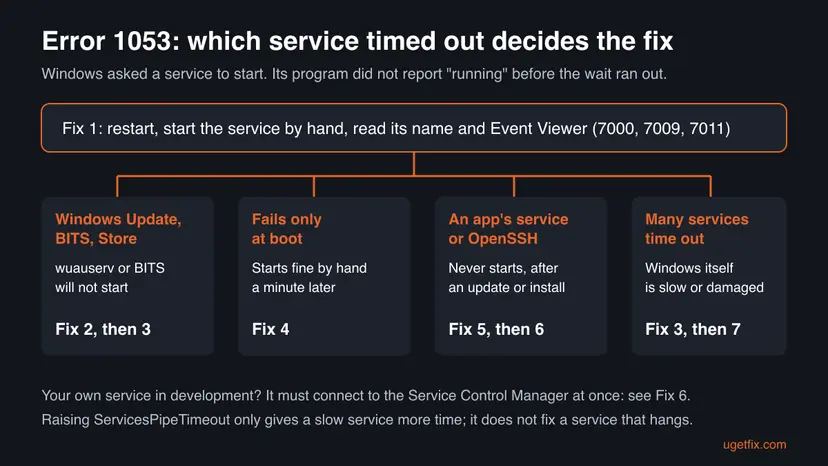
Error 1053 is a timeout: the service's program did not tell Windows it was running in time. Restart the PC, start the service by hand in Services and read its name and the Service Control Manager events in Event Viewer (Fix 1). If it is Windows Update or BITS, reset the update components (Fix 2). If it fails only at boot, delay its start (Fix 4). An app's own service usually needs folder access or a reinstall.
| Error | Windows system error 1053 (0x41D, ERROR_SERVICE_REQUEST_TIMEOUT): "The service did not respond to the start or control request in a timely fashion." |
|---|---|
| Where it appears | A Services dialog that starts with "Windows could not start the <name> service on Local Computer", the line StartService FAILED 1053 after sc start, "System error 1053 has occurred" after net start, and Service Control Manager events 7000, 7009 and 7011. |
| Main cause | The program behind one service is slow, waits for something that never comes, or cannot write to its folders, so it never reports that it is running. |
| Fastest fix | Restart, start the service by hand and read which service fails and why in Event Viewer (Fix 1), then follow the chooser below. |
| Also written as | Error 1053, error code 1053, service error 1053, StartService FAILED 1053, 0x8007041D in Windows Update, "the service did not respond in a timely fashion", ошибка 1053, Fehler 1053. |
| Services it hits | Any service. Searches most often name Windows Update (wuauserv), BITS, Microsoft Store services, OpenSSH Server, Google Update and services of business apps. |
| Related codes | 1067: the program started and quit. 1068: a service it needs did not start. 1069: the account on the Log On tab cannot sign in. |
| Microsoft's status | A standard Windows error, the same on Windows 10 and 11. Microsoft documents a longer start timeout as a workaround and one known case: OpenSSH Server after updates from 8 October 2024 to 11 March 2025. |
| Time to fix | 5 minutes to find the service. 15 to 30 minutes for an update reset or a clean boot. About 10 minutes for a registry timeout change. |
Facts checked on 16 October 2026. Steps written for Windows 11 (25H2 and 26H2) and Windows 10 22H2.
What "Error 1053: The service did not respond to the start or control request in a timely fashion" means
A Windows service is a program that the Service Control Manager starts in the background. When you press Start, Windows runs the program and waits for it to report that it is running. If that report does not come before the wait runs out, Windows stops waiting and shows error 1053 while starting the service. The same happens when a running service does not answer a stop or pause request in time.
So 1053 is not a crash. The program may still be busy, stuck waiting for a disk, a network share or another service, or it may never have been written to talk to the Service Control Manager at all. That is why the same message appears for Windows Update, for OpenSSH and for a service you built yourself.
The places you see it (the service name changes)
Windows could not start the Virtual Disk service on Local Computer.
Error 1053: The service did not respond to the start or control request in a timely fashion.

C:\> sc start sshd
[SC] StartService FAILED 1053:
The service did not respond to the start or control request in a timely fashion.

C:\> net start wuauserv
System error 1053 has occurred.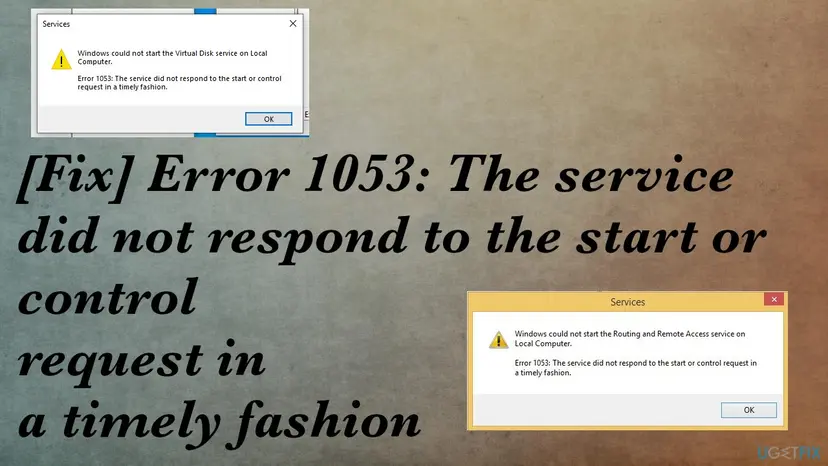
| Code | What it tells you | Where to go |
|---|---|---|
| 1053 | The program did not report that it started in time. It is slow or stuck. | This page |
| 1067 | The program started and quit. Its own log says why. | Error 1067 guide |
| 1068 | A service it depends on did not start. | Error 1068 guide |
| 0x8007041D | Windows Update's form of 1053: an update service timed out. | 0x8007041D guide |
Why error 1053 appears, most common cause first
Every case has the same shape: one service's program does not report back in time. The reasons below go from the most common to the rarest, each tied to the fix that matches it.
| Why the service does not answer in time | How it looks | Fix |
|---|---|---|
| The service was stuck in a starting or stopping state from an earlier attempt. | It worked before, and nothing changed on the PC. | Fix 1 |
| Windows Update or BITS is busy with a damaged or oversized download store. | Updates and Microsoft Store downloads fail, and wuauserv or BITS gives 1053. | Fix 2 |
| Another program, often security software or an old tool, slows or blocks the start. | The error began after you installed something. | Fix 3 |
| The PC is slow at boot, and many services start at once. | The service fails at boot but starts fine by hand a minute later. | Fix 4 |
| The service account cannot write to its folders. Microsoft documents this for OpenSSH Server. | An app's service or OpenSSH fails after an update or a permission change. | Fix 5 |
| The program is damaged, half updated, missing a runtime or not built as a service. | It never worked on this PC, or it is your own program. | Fix 6 |
| Windows files are damaged. | Several Microsoft services time out. | Fix 7 |
How to fix error 1053, the service did not respond in a timely fashion
Fix 1 tells you which service times out and takes about five minutes. Then use the table to jump to the fix for that service; the last fixes are general repairs.
| What you see | Start with |
|---|---|
| You do not know which service fails, or it worked until today. | Fix 1 |
| Windows Update, BITS or the Microsoft Store fails with 1053. | Fix 2 |
| The error began after you installed security software or another tool. | Fix 3 |
| The service fails at boot but starts by hand later. | Fix 4 |
| OpenSSH Server or an app's service fails after an update. | Fix 5 |
| The service never worked on this PC, or it is a service you wrote. | Fix 6 |
| Several Microsoft services time out. | Fix 7 |
Fix 1. Restart, start the service by hand and find which one times out
5 minutesNo riskEveryone with error 1053, before changing anything.
Error 1053 always belongs to one service. A full restart clears a service left stuck in a starting or stopping state, and Event Viewer names the service and how long Windows waited.
- Select Start > Power > Restart. Use Restart, not Shut down, so Windows starts every service fresh.
- Press Win + R, type
services.mscand press Enter. - Find the service from the error, right-click it and select Start. Wait for the progress window to close.
- If it fails again, double-click it and note the Service name, the Startup type and the Path to executable on the General tab.
- Press Win + R, type
eventvwr.mscand press Enter. - Open Windows Logs > System, select Filter Current Log and choose the source Service Control Manager.
- Read the entries at the time of the error: 7000 says the service failed to start, 7009 and 7011 say Windows waited and the time ran out.
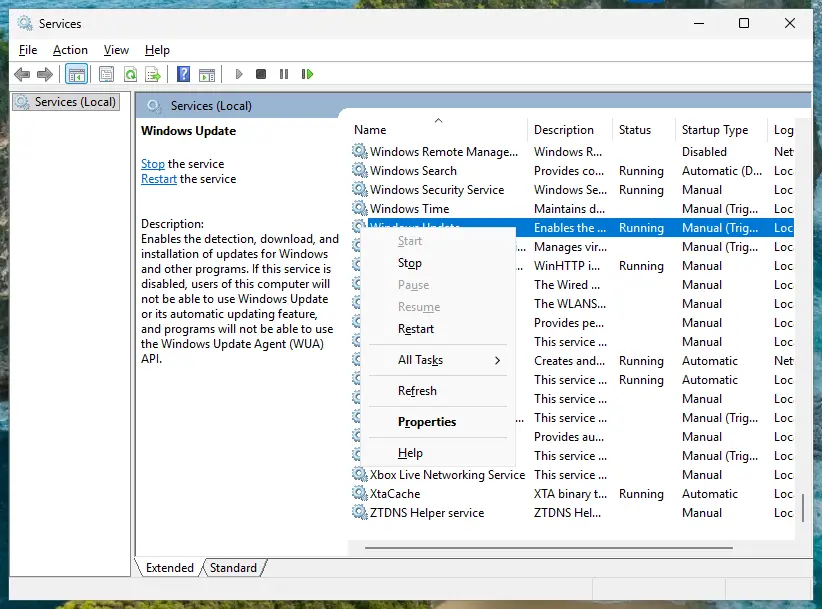
The same test in an administrator Command Prompt (use your service name)
sc query wuauserv
sc start wuauserv
It worked if: The service starts after the restart, or you know its name and whether it times out at boot only or every time.
If not: Use the chooser above: Windows Update and BITS go to Fix 2, a boot-only failure to Fix 4, an app's service to Fix 5.
Fix 2. Reset the Windows Update components when Windows Update or BITS gives 1053
15 minutesLow riskThe Windows Update service (wuauserv), BITS or the Microsoft Store fails with 1053, and updates or app downloads stop.
Windows Update and BITS read their download queue and data store when they start. A damaged or very large store keeps them busy past the timeout. The reset stops the services, gives them a clean store and starts them again.
- Open Command Prompt as administrator. Type cmd in the search box, right-click Command Prompt and select Run as administrator. Select Yes when Windows asks for permission.
- Stop the update services. Type the commands below and press Enter after each one. If Windows says that other services depend on Cryptographic Services, it stops them too. A message that a service is not started is fine.
net stop wuauserv
net stop bits
net stop cryptsvc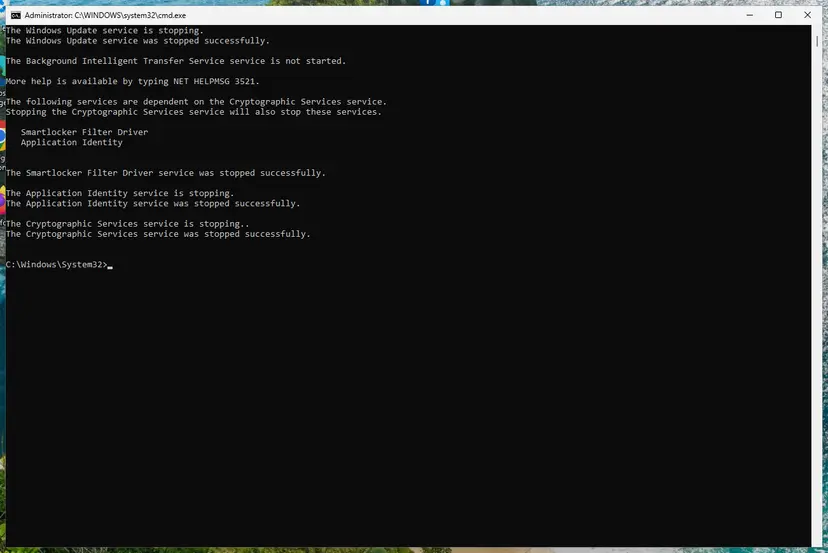
The update services are stopped. Screenshot: Windows 11 26H2. - Delete the download queue files. This clears the list of downloads that the Background Intelligent Transfer Service keeps. If Windows says it cannot find the files, continue.
del "%ALLUSERSPROFILE%\Application Data\Microsoft\Network\Downloader\qmgr*.dat" - Rename the update cache folders. Renaming keeps a copy in case you need it; Windows creates new, empty folders when the services start again. If you get Access is denied, a service is still running: repeat the previous step.
ren %systemroot%\SoftwareDistribution SoftwareDistribution.old
ren %systemroot%\System32\catroot2 catroot2.old
Both folders now end in .old. Screenshot: Windows 11 26H2. - Start the services again. Type the commands below and press Enter after each one. The requested service has already been started is fine: Windows started it on its own.
net start cryptsvc
net start bits
net start wuauserv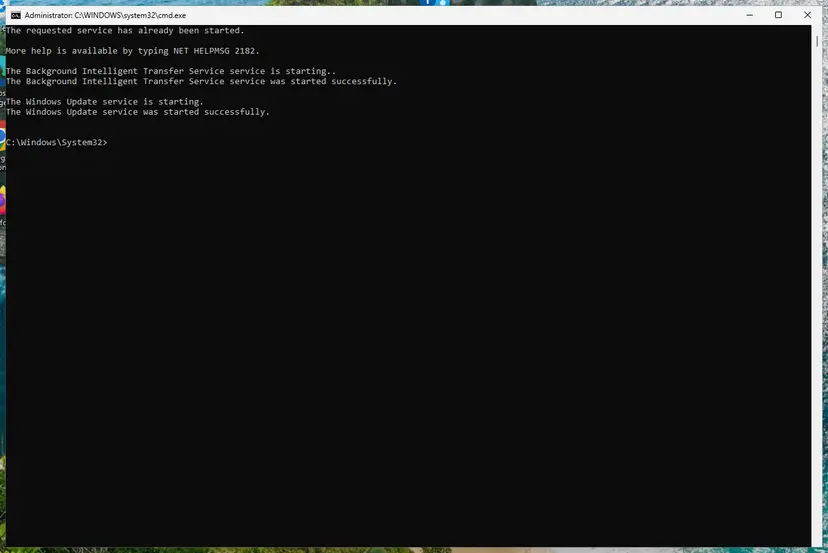
BITS and Windows Update are running again. Screenshot: Windows 11 26H2. - Restart and check for updates. Restart the PC. Then select Start > Settings > Windows Update > Check for updates. The first check can take longer than usual because everything is downloaded again.
These steps were written for Windows 11 and Windows 10 (the steps are the same). The full page with the other versions and what each result means: Reset Windows Update components
The net start lines at the end of the reset are a test in themselves. If net start wuauserv or net start bits still answers "System error 1053 has occurred" with an empty store, the service is slow for another reason: go to Fix 3. If the update itself shows 0x8007041D, follow the 0x8007041D guide.
Some forum answers suggest disabling wuauserv to stop the error. That only hides it and leaves the PC without security updates. Leave the startup type at its default, Manual (Trigger Start).
It worked if: Windows Update shows Check for updates without an error, and the Microsoft Store downloads apps again.
If not: If the services still time out, find a program that slows them with Fix 3.
Fix 3. Use a clean boot to find a program that slows or blocks the service
15 minutesLow riskThe error began after you installed security software, a tuning tool or a driver, or several services time out.
Security software and some tools hook into every program that starts, and a service that waits for them runs out of time. A clean boot starts Windows with only Microsoft services, so if the service then starts, one of the others is the cause.
- Open System Configuration. Select Search on the taskbar, type msconfig and select System Configuration from the results.
- Hide Microsoft services. On the Services tab, select the Hide all Microsoft services check box. Only services from other companies stay in the list.
- Disable the remaining services. Select Disable all, then select Apply.
- Open Task Manager. On the Startup tab of System Configuration, select Open Task Manager.
- Disable the startup apps. On the Startup apps tab in Task Manager, select each item whose status is Enabled and select Disable. Write down or take a screenshot of the items you disable: you need the list to turn them back on.
- Confirm the changes. Close Task Manager. On the Startup tab of System Configuration, select OK.
- Restart and test. Restart the PC. Windows now starts in a clean boot environment: try again the thing that failed (run the app, install the update, uninstall the program).
These steps were written for Windows 11 25H2 and 26H2. The full page with the other versions and what each result means: How to perform a clean boot in Windows

If you think your antivirus is the cause, pause it for one test only: Turn off Microsoft Defender protection for a moment Turn it back on at once. If the service then starts, update the antivirus or add the service's program folder as an exclusion, rather than leaving protection off.
It worked if: In a clean boot the service starts. Turn the other services back on in small groups to find the one that slows it, then update or remove that program.
If not: If it still times out in a clean boot, undo the clean boot and go to Fix 4.
Fix 4. Delay the service's start, then give services more time with ServicesPipeTimeout
10 minutesRead the warningThe service fails at boot but starts fine by hand later, or events 7009 and 7011 show that the wait ran out.
At boot many services start at once, and a slow one runs out of time. Automatic (Delayed Start) moves it out of that crowd. If that is not enough, Microsoft's own workaround is a longer wait: the ServicesPipeTimeout value sets how long the Service Control Manager waits before it logs a timeout.
- In Services, double-click the service and set Startup type to Automatic (Delayed Start), then select Apply.
- Restart the PC. If the service now starts, stop here.
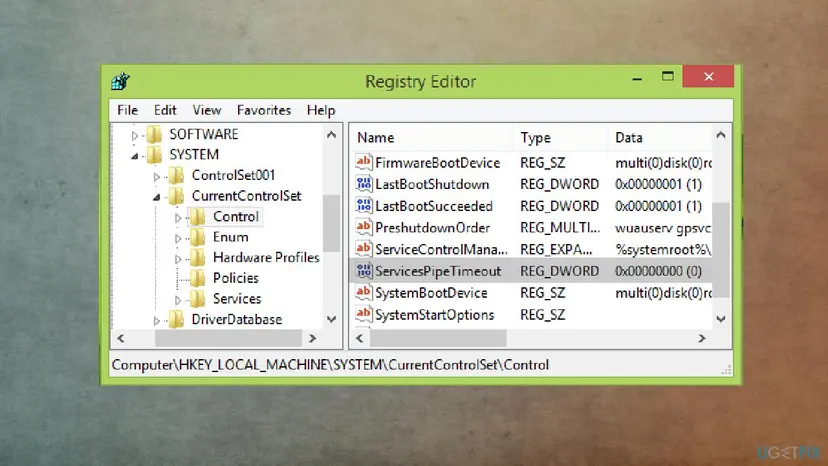
This value affects how every service starts. Export HKEY_LOCAL_MACHINE\SYSTEM\CurrentControlSet\Control first and change only the one value below. Step by step: Back up the registry before editing it
- Press Win + R, type
regeditand press Enter. Select Yes in the User Account Control prompt. - Go to
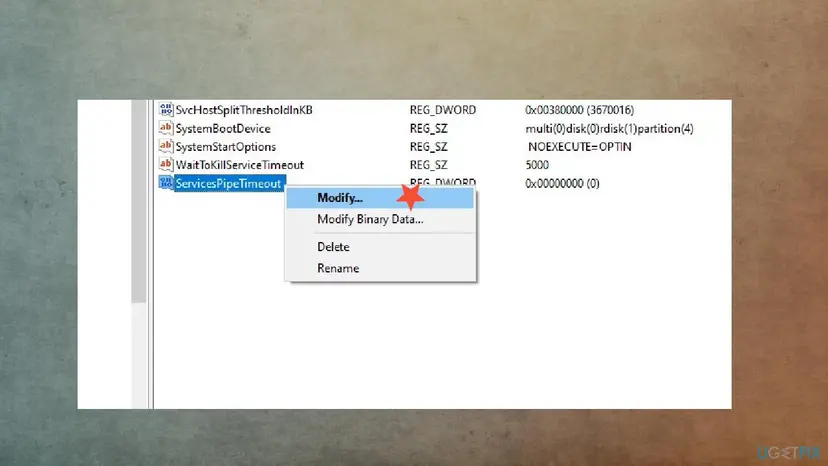
HKEY_LOCAL_MACHINE\SYSTEM\CurrentControlSet\Control. - Look for ServicesPipeTimeout in the right pane. If it is not there, select Edit > New > DWORD (32-bit) Value and name it
ServicesPipeTimeout. - Right-click ServicesPipeTimeout and select Modify.
- Select Decimal, type
60000and select OK. The value is in milliseconds, so 60000 is 60 seconds. - Restart the PC and start the service again.
The same in an administrator Command Prompt, and how to undo it
reg add "HKLM\SYSTEM\CurrentControlSet\Control" /v ServicesPipeTimeout /t REG_DWORD /d 60000 /f
reg delete "HKLM\SYSTEM\CurrentControlSet\Control" /v ServicesPipeTimeout /f- Raise it in small steps. Microsoft recommends increasing the number a little at a time until the service can start. Older guides, including the earlier version of this page, gave 180000; start at 60000.
- It is a workaround. Microsoft notes that a slow start may be a symptom of another problem, so keep looking for the cause.
It worked if: After the restart the service starts within the longer wait and shows Running.
If not: If it still times out with 60 seconds, the service hangs rather than starts slowly. Delete the value again and go to Fix 5 or Fix 6.
Fix 5. Fix the service's folder permissions, and update Windows for OpenSSH Server
10 minutesLow riskOpenSSH Server or an app's service gives 1053 after a Windows update, an app update or a change of folder permissions.
Microsoft documents this case: after updates released from 8 October 2024 to 11 March 2025, OpenSSH Server 9.5.2.1 failed with StartService FAILED 1053 when C:\ProgramData\ssh or C:\ProgramData\ssh\logs had wrong permissions, too limited or too open. Other services that refuse to start without the right folder access behave the same way.
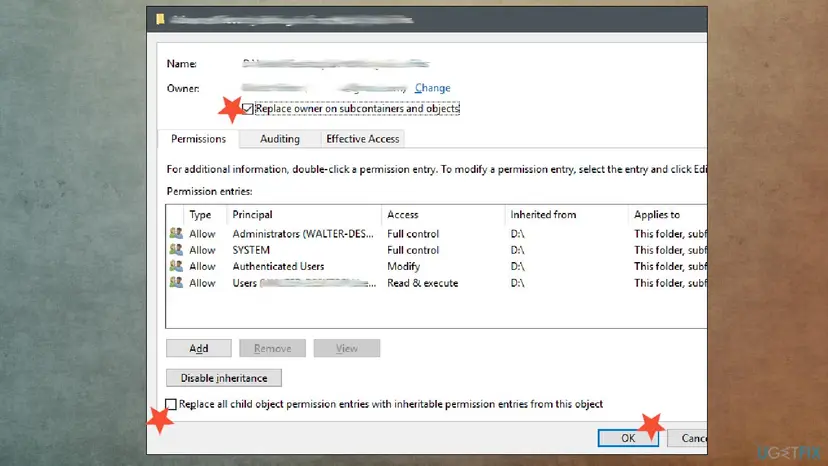
- In Services, open the service's Properties and select the Log On tab. Note the account it runs as.
- In File Explorer, right-click the service's data folder (for OpenSSH,
C:\ProgramData\ssh, thenC:\ProgramData\ssh\logs) and select Properties > Security. - Check that SYSTEM and Administrators have Full control.
- Check that other groups, such as Authenticated Users, have only Read & execute, List folder contents and Read.
- Select Edit to correct what is wrong, then Apply, and start the service again.
- Press Win + I, open Windows Update and install every update offered. Updates from 11 March 2025 on let OpenSSH start even with wrong permissions and log Event ID 4 instead.
PowerShell: Microsoft's commands to see who has access (OpenSSH)
Get-Acl C:\ProgramData\ssh | Select-Object -Property AccessToString | fl *
Get-Acl C:\ProgramData\ssh\logs | Select-Object -Property AccessToString | fl *
Get-Acl "C:\ProgramData\ssh\sshd_config" | Select-Object -Property AccessToString | fl *The earlier version of this page told you to make your own account the owner of the app's folder with full control. The service does not run as you, so that rarely helps, and OpenSSH refuses folders that ordinary users can write to. Give the service's own account only what it needs.
It worked if: The service starts and shows Running in Services.
If not: If the Log On tab shows a named user whose password changed, type the new password there. Otherwise go to Fix 6.
Fix 6. Repair or reinstall the program that owns the service (and check your own service code)
10 to 20 minutesLow riskThe service belongs to an app and never worked on this PC, an app update failed, or it is a service you wrote.
A service program with missing files, a missing runtime such as .NET, or a broken update can hang while it loads and never report back. A repair or a clean reinstall from the maker puts its files and its service registration back.
- Press Win + I and open Apps > Installed apps (Windows 10: Apps > Apps & features).
- Find the program, select … or its name, then Modify if it offers a repair, and run it.
- If there is no repair, uninstall it, restart, and install the newest version from the maker's own site.
- Install any runtime the maker lists, such as Microsoft Visual C++ Redistributable or .NET.
- Start the service again in Services.
Removing a program fully: Uninstall a program or app in Windows Repairing Visual C++ and .NET: How to repair Microsoft Visual C++ Redistributable and .NET Framework
A service program must connect to the Service Control Manager as soon as it starts, by calling StartServiceCtrlDispatcher (in .NET, ServiceBase.Run), and report that it is running. An ordinary console program registered with sc create never does, so Windows waits and shows 1053. Long work such as opening a database belongs on a background thread after that report, not before it.
It worked if: After the repair or reinstall, the service starts.
If not: If Microsoft's own services also time out, go to Fix 7.
Fix 7. Repair Windows system files with DISM and SFC
15 to 30 minutesNo riskSeveral Microsoft services time out, or nothing above helped.
Microsoft's services load Windows files when they start. A damaged file can make one hang while it loads. DISM repairs the store of Windows components, and SFC then puts damaged system files back from it.
- Open an elevated command window. Right-click Start and select Terminal (Admin), or type cmd in the search box, right-click Command Prompt and select Run as administrator. Select Yes when Windows asks for permission.
- Run DISM first. Type the command below and press Enter. DISM downloads clean copies of damaged components from Windows Update, so it can take several minutes. Wait until it says The operation completed successfully.
DISM.exe /Online /Cleanup-Image /RestoreHealth - Run System File Checker. In the same window, type the command below and press Enter. Do not close the window until the verification reaches 100%.
sfc /scannow - Read the result and restart. Compare the last message with the table below this guide, then restart the PC so that repaired files are loaded.
These steps were written for Windows 11 24H2 and 25H2. The full page with the other versions and what each result means: Run DISM and SFC to repair Windows system files

If SFC repairs files and the service still times out, return to a restore point from before the error: Undo recent changes with System Restore
It worked if: SFC reports no integrity violations or says it repaired them, and the service starts after a restart.
If not: Collect the details in the next section before you contact the program's maker or Microsoft.
If error 1053 is still there: what to read and what to send
Collect these before you open a ticket with the program's maker or post in a forum. Without the service name and the events, nobody can tell which of the causes above it is.
- The service name and the Path to executable from the General tab.
- The Service Control Manager events 7000, 7009 or 7011 from Windows Logs > System, with their full text.
- Any Application log errors from Event Viewer at the same time, and the program's own log if it has one.
- What changed. Run
perfmon /relto open Reliability Monitor, which lists installs, updates and failures by day. - Your Windows version and build. Press Win + R, type
winverand note both.
| Sign | What it means |
|---|---|
| The service now ends with 1067 instead of 1053. | It no longer hangs, it quits. Read its log with the error 1067 guide. |
| Many services time out and the PC is slow to open files. | The drive may be failing. Back up first, then check it: Check a disk for errors (chkdsk) |
| Services time out at random and the PC also freezes or restarts. | Test the memory: How to test your RAM with Windows Memory Diagnostic |
| Only one app's service fails, on every PC you try. | A bug in that program. Send the details above to its maker. |
Windows 10 left support on 14 October 2025. Program makers drop older Windows versions over time, so check the program's requirements if you are still on Windows 10.
How to avoid error 1053 in the future
- Restart rather than shut down when a service misbehaves, so every service starts fresh.
- Set app services that are not needed at once to Automatic (Delayed Start).
- Keep at least a few gigabytes free on drive C: so updates and services have room to work.
- Keep System Protection on for drive C:, so a restore point exists before big changes.
- Do not disable Windows Update or BITS to make the error go away.
- Do not set ServicesPipeTimeout to a very large value; a hung service then delays the whole boot.
- Do not change owners or permissions on program folders unless a log or the maker tells you to.
- Do not install two security programs that both scan every program that starts.
Frequently asked questions
What is error 1053?
Error 1053 is a Windows system error with the value 0x41D. Its text is "The service did not respond to the start or control request in a timely fashion." You see it when Windows asks a service to start or stop and the service's program does not report back before Windows stops waiting. The program may be slow, stuck or not built as a service. Fix 1 shows how to find which service it is and what Event Viewer says about it.
How do I fix error 1053 when starting a service?
Restart the PC and try to start the service again in Services, because a service left in a starting state often works after a restart. If it still fails, read its name and the Service Control Manager events in Event Viewer. For Windows Update or BITS, reset the update components. For a service that fails only at boot, set it to Automatic (Delayed Start) and, if needed, raise ServicesPipeTimeout. For an app's service, fix its folder access or reinstall the app.
Windows Update service shows error 1053. What should I do?
Reset the Windows Update components as Fix 2 shows: stop the services, rename the download store and start them again. Then check Windows Update. If the services still time out, a clean boot (Fix 3) shows whether another program slows them. Do not set the Windows Update service to Disabled to hide the error. If the update itself fails with 0x8007041D, our guide on that code covers the update side in more detail.
What does "StartService FAILED 1053" mean?
It is the same error shown by the sc start command instead of the Services window. Microsoft's OpenSSH article lists exactly this line for the OpenSSH Server service after some 2024 and 2025 updates, when its folders had wrong permissions. For any other service the meaning is the same: the program did not report that it was running in time. Use the service name from the command and follow Fix 1.
What does "DCOM got error 1053 attempting to start the service" mean?
It is an Event Viewer entry, event 10005 from DistributedCOM. A program or Windows asked DCOM to start a service, and that service answered with error 1053. The entry names the service, so the fix is the same as on this page: start that service by hand and follow Fix 1. If the service is disabled on purpose, the entry is harmless. Our DistributedCOM error 10005 guide covers the event itself.
Is it safe to raise ServicesPipeTimeout?
Yes, when you back up the registry key first and raise the value in small steps, as Microsoft recommends. 60000 milliseconds, or 60 seconds, is Microsoft's own example. A very large value is not a good idea, because a service that really hangs will then hold up the whole start of Windows. Treat it as a workaround: Microsoft says a slow start may be a symptom of another problem.
I see ошибка 1053 or Fehler 1053. Is it the same error?
Yes. Russian, German and other language versions of Windows translate the text, but the code 1053 and the fixes are the same. The commands sc, net start, sfc and reg, the registry key and the value name ServicesPipeTimeout are not translated, so every step on this page works as written. Only the menu names in Services and Settings appear in your language.
Why does my own Windows service give error 1053?
Most often the program does not connect to the Service Control Manager in time. A service must call StartServiceCtrlDispatcher, or ServiceBase.Run in .NET, as soon as it starts. A console program registered with sc create never does. Other common reasons are slow work done before reporting running, a missing .NET runtime on the target PC, and a service account that cannot read the program's folder or config file.
I searched for error 1503. Is that this error?
If the text says "The service did not respond to the start or control request in a timely fashion", it is error 1053 with two digits swapped, and this page applies. The text, not the number you remember, decides which error it is. If your message has a different text, check the code again, because a different number usually means a different problem.
Is error 1053 the same on Windows 11 and Windows 10?
Yes. The code, the text, Services, Event Viewer and the registry value are the same on Windows 11, Windows 10 and Windows Server. Only the Settings path to installed apps differs a little, and Fix 6 gives both. Windows 10 left support on 14 October 2025, so on Windows 10 some app makers no longer fix service problems.
Sources
- Microsoft Learn: A slow service does not start due to time-out error in Windows (KB 922918, ServicesPipeTimeout) (learn.microsoft.com)
- Microsoft Learn: "Error 1053," "Error 1067," or Event ID 7034 and OpenSSH Server service doesn't start after you install a Windows update (learn.microsoft.com)
- Microsoft Q&A: How to fix "error 1053" from starting services (Windows Update and Microsoft Store affected) (learn.microsoft.com)
Did this fix work?
One click, no account. It tells the next reader which guides are worth their time.
Questions and experiences: Error 1053: The service did not respond to the start or control request in a timely fashion
Still broken, or found a fix we did not cover? Ask here: members and our editors answer. Reading is open; writing needs a free account.
…