
How to fix "Unknown Hard Error" on Windows 10?

Prefer to fix it yourself? The manual steps follow.
- 9methods
- 5 minutes to 2 hours
- Easy
Applies to Windows 11, Windows 10; any PC where a program, Chrome, Edge or File Explorer shows a System Error window with Unknown Hard Error
9 methods in this guide
DDE Server Window: explorer.exe - System Warning: Unknown Hard Error. This error turns the screen black and won't let me do anything except open Task Manager and try disabling the currently running apps. A reboot doesn't help, as the problem soon reoccurs. Could someone please help?
Unknown Hard Error is a Windows pop-up that says a program hit a serious failure that Windows could not put into words. The program is named in the window title, such as chrome.exe or explorer.exe. Start with that program: update, repair or reinstall it, and check the disk only if many names appear.
The Unknown Hard Error window means the program named in its title, for example chrome.exe - System Error, failed badly and Windows had no readable message for the failure. Note that name, or find it in Event Viewer (Event ID 26, source Application Popup), and update, repair or reinstall that program (Fix 1). For Chrome or Edge see Fix 2; for explorer.exe and a black screen, restart Windows Explorer (Fix 3). Many different names point to the disk or memory (Fix 4, Fix 8).
| Error | A small window titled [program].exe - System Error or System Warning with the single line Unknown Hard Error and an OK button. |
|---|---|
| Where it appears | Any time: while a browser, game or editor runs, at sign-in, or on a black screen with no taskbar when explorer.exe is named. |
| Main cause | The program named in the title failed. Less often, damaged Windows files, a faulty update, a failing drive or bad memory. |
| Fastest fix | Read the program name in the title and update, repair or reinstall that program (Fix 1). |
| Also written as | unknow hard error, unkown hard error, hard error, System Error : Unknown Hard Error, DDE Server Window: explorer.exe - System Warning: Unknown Hard Error. |
| Programs often named | explorer.exe, chrome.exe, msedge.exe, sihost.exe, ctfmon.exe, ShellExperienceHost.exe, SearchUI.exe, and third-party programs such as games and render tools. |
| Where it is logged | Event Viewer: Windows Logs > System, source Application Popup, Event ID 26. |
| Affects | Unknown Hard Error on Windows 10 22H2 and Unknown Hard Error on Windows 11 (25H2 and 26H2) look and work the same way. Older Windows versions show it too. |
| Vendor status | Microsoft has no article that decodes this window. On Microsoft Q&A, volunteer moderators point to Windows repairs and disk checks; in one case the cause was a failing hard drive. |
| Time to fix | 5 to 15 minutes for Fixes 1 to 3; 30 minutes to 2 hours for disk checks and Windows repairs. |
Facts checked on 15 October 2026. Steps written for Windows 11 (25H2 and 26H2) and Windows 10 22H2.
What Unknown Hard Error means in Windows
A hard error in Windows is a failure serious enough that the system itself shows a pop-up about it, not the program. "Hard" means severe. It does not mean the hard drive, although a failing drive is one possible cause. Unknown means Windows could not match the failure to a readable message, so it shows only the words Unknown Hard Error.
The useful part of the window is its title. It names the program that raised the error, for example explorer.exe - System Error, chrome.exe - System Error or, in older builds, DDE Server Window: explorer.exe - System Warning. The name tells you where to start; the message itself tells you almost nothing.
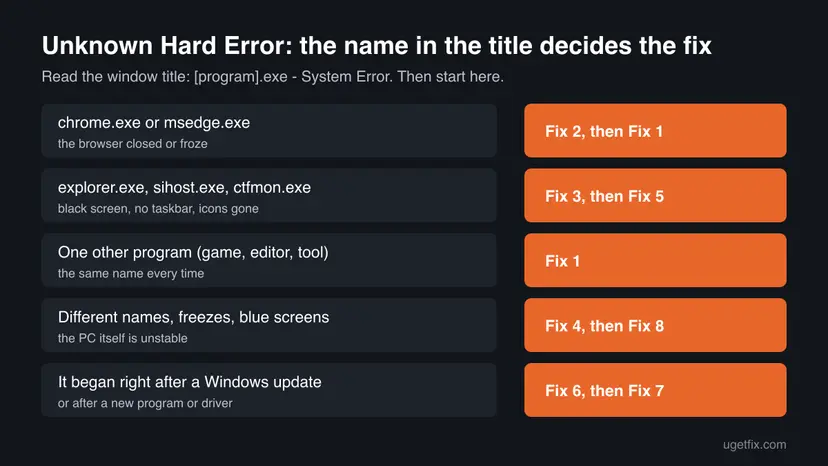
People search for the same window in many ways:
- windows unknown hard error, pc unknown hard error and hard error windows 10 all mean this window.
- unknow hard error and unkown hard error are typing variants of the same text.
- explorer.exe unknown hard error and sihost.exe unknown hard error are the forms that come with a black screen or a missing taskbar.
- chrome.exe unknown hard error and msedge.exe unknown hard error come from the browser itself.
- unknown hardware error is a different wording that people type by mistake; Windows shows "Hard Error", not "Hardware Error".
One window that never comes back is not a reason to worry: the program failed once. Windows writes every such window to Event Viewer, so you can see how often it really happens (see the section at the end). Repeated windows from many different programs, freezes or blue screens are the signs worth acting on fast, because they can point to the drive or memory.
What causes Unknown Hard Error, most common first
Microsoft has not published one cause for this window. The order below follows from what the window names, from Microsoft Q&A answers and from what users report in Event Viewer logs.
| Cause | How often | Start with |
|---|---|---|
| The program named in the title failed: an outdated, damaged or buggy version, or a plug-in inside it. One user's log showed the same render program named again and again. | Most often | Fix 1 |
| Chrome or Edge failed, often after being left open for a long time or during sleep. | Often | Fix 2 |
| File Explorer or a shell process (explorer.exe, sihost.exe, ShellExperienceHost.exe) crashed and left a black screen. | Often | Fix 3 |
| A failing drive or a damaged file system. A Microsoft Q&A case ended with a failing hard drive. | Sometimes | Fix 4 |
| Damaged Windows files after a power loss or a bad update. | Sometimes | Fix 5, then Fix 6 |
| A background service or startup program loaded into many processes, such as an audio or overlay tool. | Sometimes | Fix 7 |
| Bad memory or overheating: many different programs are named, with freezes or blue screens. | Rarely | Fix 8 |
Older guides suggest disabling the antivirus or cleaning the registry with a tool. Neither fixes a hard error, and both can make the PC less safe. This guide does neither.
How to fix Unknown Hard Error on Windows 10 and 11
Fix 1 to Fix 3 deal with the program that the window names and take minutes. Fix 4 to Fix 6 check the drive and repair Windows. Fix 7 to Fix 9 are for errors that keep coming from many programs.
| What you see or have | Start with |
|---|---|
| The title names one program, the same one each time. | Fix 1 |
| The title says chrome.exe or msedge.exe. | Fix 2 |
| The title says explorer.exe or sihost.exe, and the screen is black or the taskbar is gone. | Fix 3 |
| Many different programs are named, or the PC freezes and is slow to open files. | Fix 4, then Fix 8 |
| It began on the day a Windows update installed. | Fix 6 |
| Windows does not start at all, or shows the error at boot. | Fix 5 (from recovery), then Fix 9 |
Fix 1. Find the program behind Unknown Hard Error and update, repair or reinstall it
10 minutesLow riskThe window names one program, or you closed it without reading the name.
The window is raised for the process in its title, so that program, or something loaded into it, failed. A newer version or a clean reinstall replaces the damaged files, and the error stops without any change to Windows.
- If you missed the name, press Win + R, type
eventvwr.mscand press Enter. - Open Windows Logs > System and select Filter Current Log in the right pane.
- In Event sources, tick Application Popup, type
26in the event ID box and select OK. - Open the newest entry. It reads like Application popup: chrome.exe - System Error : Unknown Hard Error; the name before "- System Error" is the program.
- Update that program from its maker or from Microsoft Store, then restart the PC.
- If it still fails, repair or reset it in Settings > Apps > Installed apps (Windows 10: Apps > Apps & features), or uninstall it and install the latest version.
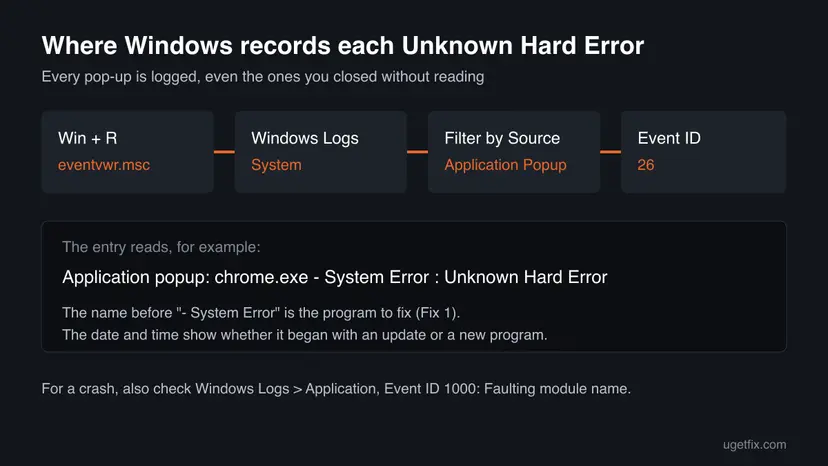
Repair and reset for apps: How to repair or reset an app in Windows. Removing a program cleanly: Uninstall a program or app in Windows.
Look at the dates of the Event ID 26 entries. One user found dozens of them over two years from one render program, which showed the cause at once. If the program is a game or a tool with plug-ins, update or remove the plug-ins as well.
It worked if: The program runs without the window, and no new Event ID 26 entry appears for it.
If not: If the name is chrome.exe or msedge.exe, go to Fix 2. If it is explorer.exe or another Windows process, go to Fix 3.
Fix 2. Fix chrome.exe or msedge.exe Unknown Hard Error in the browser
10 minutesLow riskThe title says chrome.exe or msedge.exe, often after the browser was left open overnight or the PC woke from sleep.
In a chrome unknown hard error, the browser process itself failed, so the fix is a current, undamaged browser. Users on the Google Chrome Help Community report the window after leaving Chrome open while the laptop stayed on; the thread has no answer from Google.
- Close every browser window, then open Task Manager with Ctrl + Shift + Esc and end any Google Chrome or Microsoft Edge entry still listed.
- Chrome: open Menu > Help > About Google Chrome, let it update and select Relaunch.
- Edge: open Settings > About Microsoft Edge and let it update.
- If the error returns in Chrome, open
chrome://extensionsand turn off all extensions, then turn them on one at a time. - Still failing in Chrome: uninstall it and install the latest version from Google. Your synced data comes back when you sign in.
- Still failing in Edge: open Settings > Apps > Installed apps, select the three dots next to Microsoft Edge, choose Modify and then Repair.
Closing a frozen browser step by step: Close a frozen app (Task Manager, Force Quit). If pages also load wrongly, clear its data with Clear the browser cache and cookies.
It worked if: The browser stays open through sleep and long sessions without the window.
If not: If the window now names other programs too, the browser was only the first victim: go to Fix 4.
Fix 3. Restart Windows Explorer when explorer.exe shows Unknown Hard Error and the screen goes black
3 minutesNo riskThe title says explorer.exe, sihost.exe or ShellExperienceHost.exe, and the desktop, taskbar or icons are gone.
explorer.exe draws the desktop, the taskbar and the Start button. When it fails with a hard error, the screen stays black until it starts again. Restarting it brings the desktop back without a reboot and shows whether the failure repeats.
- Select OK in the error window. Press Ctrl + Shift + Esc to open Task Manager.
- If Windows Explorer is listed under Processes, right-click it and select Restart.
- If it is not listed, select Run new task, type
explorer.exeand select OK. - Use the PC for a few minutes. If the window comes back, note the time and continue with Fix 5.
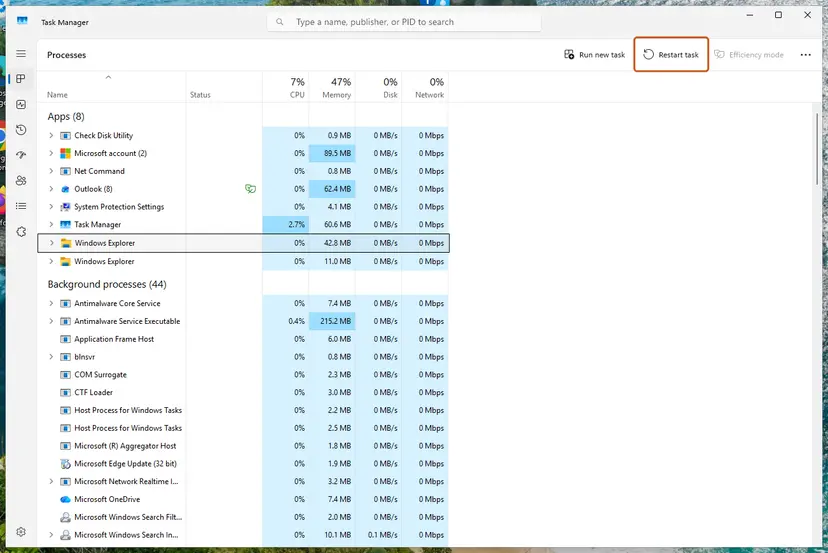
Full steps: Restart File Explorer. If the window names ctfmon.exe, our ctfmon.exe System Error guide covers the keyboard and input causes.
It worked if: The taskbar and icons return and stay. No new explorer.exe window appears.
If not: If explorer.exe fails again within minutes or at every sign-in, go to Fix 5 to repair Windows files, then Fix 7.
Fix 4. Check the drive for errors and wear
10 minutes to 2 hoursLow riskMany different programs are named, files open slowly, or the PC froze or showed a blue screen.
A program that cannot read its own files from disk fails with a hard error, whatever program it is. Microsoft Q&A moderators suggest checking the drive's SMART status and running CHKDSK, and in one Q&A case the cause turned out to be a failing hard drive.
- Right-click Start and open Terminal (Admin) (Windows 10: Windows PowerShell (Admin)).
- Run
Get-PhysicalDisk | Format-Table FriendlyName, MediaType, HealthStatusand read HealthStatus for each drive. - If a drive shows Warning or Unhealthy, back up your files now, before anything else.
- Run
chkdsk C: /scanto check the system drive while Windows runs. - If it reports errors, run
chkdsk C: /f, press Y to schedule it and restart.
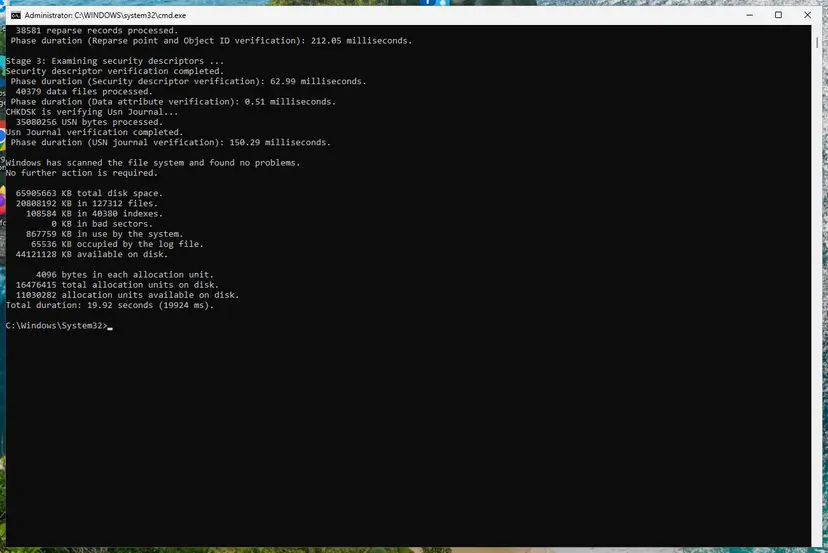
Step by step, including the Properties way: Check a disk for errors (chkdsk). Back up first if the drive is unhealthy: Back up your files (Windows Backup, File History, Time Machine).
Do not run chkdsk /r again and again on a drive that reports Warning or Unhealthy. Every long scan stresses a failing drive. Copy your files off it first, then check it with the drive maker's own test tool.
It worked if: HealthStatus says Healthy and CHKDSK finds no problems, or it repairs them and the window stops.
If not: If the drive is healthy, go to Fix 5. If it is unhealthy, replace it and reinstall Windows (Fix 9).
Fix 5. Repair Windows files with DISM and SFC
20 minutesNo riskWindows processes such as explorer.exe or sihost.exe are named, or the error started after a power cut or a crash.
Windows processes fail with a hard error when one of their system files is damaged. DISM repairs the Windows image, and SFC then replaces damaged protected files from it. If Windows does not start, the same check runs from the recovery screen.
- Open Terminal or Command Prompt as administrator.
- Run
DISM /Online /Cleanup-Image /RestoreHealthand wait for 100 %. - Run
sfc /scannow. - Restart the PC.
Step by step, also from the recovery screen when Windows does not start: Run DISM and SFC to repair Windows system files

It worked if: SFC says it found no integrity violations, or that it repaired them, and the window does not return.
If not: If SFC cannot repair some files, or the error began after an update, go to Fix 6.
Fix 6. Remove the update that started it, or go back with System Restore
20 minutesRead the warningThe error began on the day a Windows update, a driver or a program was installed.
Users have reported this window right after automatic updates. Removing the update puts the old files back. System Restore goes further and undoes driver and program changes since the restore point.
System Restore keeps your documents and photos, but removes programs and drivers installed after the restore point. Note what you installed recently so you can install it again. An uninstalled update can install itself again: pause updates for a week after you remove it.
- Press Win + I and open Windows Update > Update history (Windows 10: Update & Security > Windows Update > View update history).
- Compare the dates with your first Event ID 26 entry from Fix 1.
- Select Uninstall updates and remove the quality update from that day, then restart.
- If no update matches, press Win + R, type
rstruiand press Enter. - Choose a restore point from before the error began and select Next and Finish.
- Open Windows Update. Select Start > Settings > Windows Update.
- Open the update history. Under More options, select Update history. Note the KB number and the date of the update you suspect.
- Open the list of removable updates. Scroll down to Related settings and select Uninstall updates.
- Uninstall the update. Find the update in the list and select Uninstall next to it. If the update is not in the list, Windows does not allow it to be removed this way.
- Pause updates. Go back to Settings > Windows Update and select Pick a date on the Pause updates control. If your PC shows a list there instead, select the pause length you prefer. Without a pause Windows downloads the same update again.
These steps were written for Windows 11 25H2 and 26H2. The full page with the other versions and what each result means: How to uninstall a Windows update
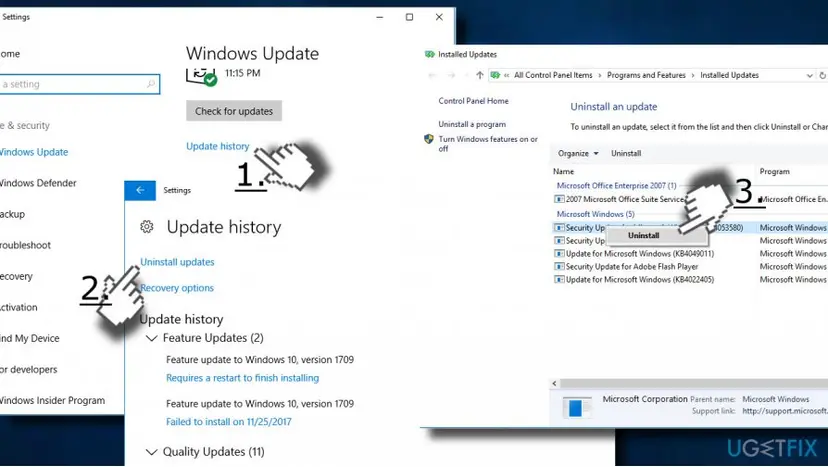
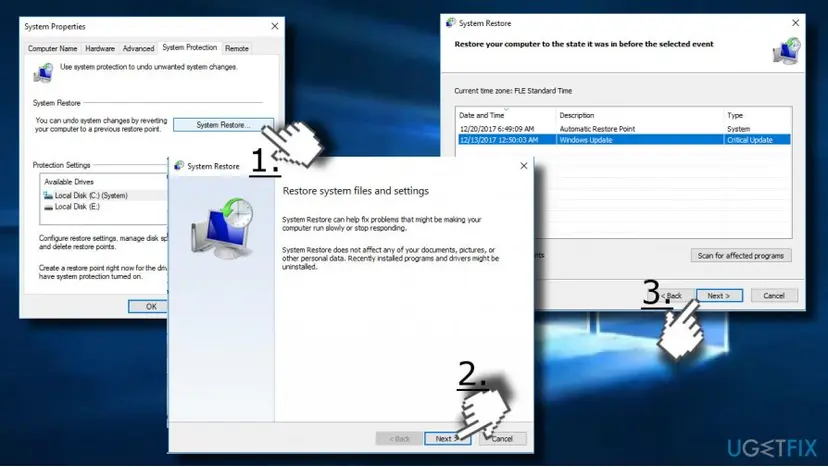
Full steps: Undo recent changes with System Restore
It worked if: After the restart, the programs that failed run without the window.
If not: If no update or restore point helps, go to Fix 7.
Fix 7. Find a background program with a clean boot
30 minutesLow riskThe error names different programs, and you have many programs and services that start with Windows.
Some services load code into many programs at once, such as audio enhancers, overlays and screen tools. A clean boot starts Windows with Microsoft services only. Users have reported an audio service from Realtek behind this error.
- Open System Configuration. Select Search on the taskbar, type msconfig and select System Configuration from the results.
- Hide Microsoft services. On the Services tab, select the Hide all Microsoft services check box. Only services from other companies stay in the list.

With Hide all Microsoft services ticked, only third-party services stay in the list. Screenshot: Windows 11 26H2. - Disable the remaining services. Select Disable all, then select Apply.
- Open Task Manager. On the Startup tab of System Configuration, select Open Task Manager.
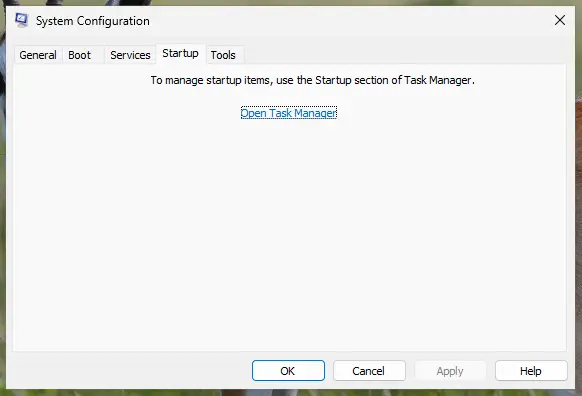
The Startup tab only links to Task Manager. Screenshot: Windows 11 26H2. - Disable the startup apps. On the Startup apps tab in Task Manager, select each item whose status is Enabled and select Disable. Write down or take a screenshot of the items you disable: you need the list to turn them back on.
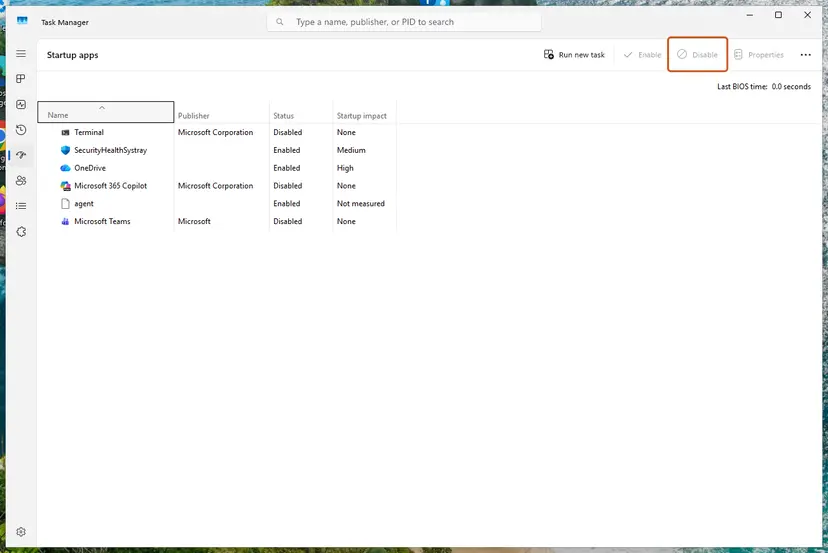
Select an app, then Disable. Screenshot: Windows 11 26H2.
These steps were written for Windows 11 25H2 and 26H2. The full page with the other versions and what each result means: How to perform a clean boot in Windows
If the error is gone in the clean boot, turn services and startup apps back on in small groups until it returns. The last group holds the cause. Update or remove that program. Full steps: How to perform a clean boot in Windows
It worked if: No window during the clean boot, and the group test points to one service or startup app.
If not: If the error appears even in a clean boot, go to Fix 8.
Fix 8. Test memory and check for overheating
30 minutesNo riskMany different programs are named, the PC freezes under load, or blue screens appear.
Bad memory damages whatever data passes through it, so random programs fail with errors Windows cannot describe. Heat can do the same under load, which is why a hard error often appears during games or renders.
- Save your work, press Win + R, type
mdsched.exeand select Restart now and check for problems. - Wait for the test to finish. Windows shows the result after sign-in.
- If memory errors are reported, test one memory module at a time, or ask a repair shop.
- Clean the dust from the fans and vents, and make sure a laptop is not standing on a soft surface.
Step by step: How to test your RAM with Windows Memory Diagnostic
It worked if: The memory test reports no errors, and the window stops after cleaning.
If not: If memory is fine and the error stays in every program, go to Fix 9.
Fix 9. Reinstall Windows and keep your files
1 to 2 hoursRead the warningEvery fix above failed, the drive and memory test fine, and the error keeps coming from Windows processes.
A repair install replaces every Windows file and keeps your files and most apps. It removes damage that SFC cannot reach. A Microsoft Q&A moderator suggests a reset or reinstall as the last step for this error.
Your files and most apps are kept, but back up your documents first in case setup stops halfway. Some settings and drivers can return to their defaults.
- Open Recovery in Settings. Open Settings > System > Recovery. Next to Fix problems using Windows Update, select Reinstall now. This keeps your apps, files and settings.
- Start the reinstall. Choose whether the PC may restart on its own 15 minutes after the installation, then select OK.
- Wait and restart. Windows Update downloads and installs a repair copy of your current Windows version. Keep the PC plugged in and online, and restart it when asked.
- If that did not help: Reset PC. Back in Settings > System > Recovery, next to Reset this PC, select Reset PC. This keeps your personal files but removes installed apps and settings.
- Choose Keep my files. Select Keep my files. Do not select Remove everything.
- Choose where Windows comes from. Select Cloud download to download a fresh copy of Windows, or Local reinstall to use the files already on the PC (faster, but may not include the latest updates).
- Reset. Review the summary and select Reset. The PC restarts several times.
These steps were written for Windows 11 22H2 and later. The full page with the other versions and what each result means: Reinstall Windows without losing files
Windows 10 left support on 14 October 2025. A Windows 10 22H2 PC without Extended Security Updates gets no new fixes, so moving to Windows 11 is worth considering if the hardware supports it.
It worked if: Windows starts with fresh system files, and no Unknown Hard Error windows appear.
If not: If the error returns after you install your programs again, the last program you added is the cause; see Fix 1.
If Unknown Hard Error is still there: where to look and what to send
The window tells you little, but Windows keeps a record of every one. Check these before you ask for help:
| What to check | Where | What it tells you |
|---|---|---|
| Every Unknown Hard Error window | Event Viewer: Windows Logs > System, source Application Popup, Event ID 26 | The program named each time and the date. One name: Fix 1. Many names: Fix 4 and Fix 8. |
| The crash behind it | Event Viewer: Windows Logs > Application, source Application Error, Event ID 1000 | Faulting module name: a file from another publisher points to that program; a Windows file points to Fix 5. |
| Drive health | Get-PhysicalDisk in Terminal (Admin), and CHKDSK | Warning or Unhealthy means back up and replace the drive. |
| Recent changes | Windows Update > Update history, and Installed apps sorted by date | What changed on the day the error began. |
| The Windows build | Press Win + R, type winver | Which update you have, for support. |
When you ask Microsoft support or the program's maker, send the full window title, a few Event ID 26 lines with their dates, the Faulting module name from Event ID 1000, your Windows build and what you already tried.
Different programs named each time, blue screens, clicking noises from a hard drive, or a drive that shows Warning are signs of hardware. Back up your files first, then replace the drive or the faulty memory. No Windows repair fixes a failing part.
How to keep Unknown Hard Error from coming back
- Keep Windows, your browser and your main programs updated.
- Restart the PC every few days instead of leaving programs open for weeks.
- Check drive health with
Get-PhysicalDisknow and then, and keep a current backup. - Keep vents and fans clean, especially on a laptop used for games or renders.
- Do not use registry cleaners or tuning tools to fix this window.
- Do not turn off the antivirus to make the error go away.
- Do not download system files such as explorer.exe from file download sites.
- Do not ignore many different program names: that pattern points to hardware.
Frequently asked questions
What does Unknown Hard Error mean?
It means a program or a Windows process failed in a serious way and Windows could not find a readable message for that failure. "Hard" means severe, not the hard drive. The program is named in the window title, for example explorer.exe or chrome.exe. Start with that program (Fix 1); look at the drive and memory only when many different programs are named.
How do I fix Unknown Hard Error on Windows 11?
The same way as on Windows 10. Read the program name in the window title or in Event Viewer (Event ID 26 in the System log) and update, repair or reinstall that program (Fix 1). For Chrome or Edge, use Fix 2. For explorer.exe with a black screen, restart Windows Explorer from Task Manager (Fix 3), then repair Windows files with DISM and SFC (Fix 5).
Why does Chrome show Unknown Hard Error?
chrome.exe failed and Windows showed its own error window. Users on the Google Chrome Help Community report it after leaving Chrome open while the PC stayed on or went to sleep; Google has not answered that thread. Update Chrome, turn off extensions, and reinstall it if the window returns (Fix 2). If other programs are named too, the cause is the PC, not Chrome.
What is DDE Server Window: explorer.exe - System Warning?
It is the title of the same window in older Windows 10 builds. DDE Server Window is a hidden window that File Explorer uses to talk to other programs, so the title tells you explorer.exe raised the error. Restart Windows Explorer (Fix 3), then repair Windows files (Fix 5). If it began after an update, see Fix 6.
Is Unknown Hard Error a hard drive problem?
Not by itself. The word "hard" means a serious error, not the disk. A failing drive is one possible cause, and a Microsoft Q&A case ended with exactly that, so check the drive (Fix 4) when many programs are named, files open slowly or the PC freezes. If only one program is ever named, the drive is unlikely to be the cause.
What does STOP: c0000221 unknown hard error \SystemRoot\System32\ntdll.dll mean?
That is a different, older boot error. The code c0000221 is STATUS_IMAGE_CHECKSUM_MISMATCH: a system file, here ntdll.dll, failed its integrity check when Windows started. Run Startup Repair and SFC from the recovery screen (Run Startup Repair, Fix 5), then check the drive (Fix 4), because damaged system files at boot often come from disk errors.
Why does the Microsoft Security app or another Windows app show Unknown Hard Error?
The app named in the title failed. For a Store app such as Windows Security, repair or reset it in Settings > Apps > Installed apps > Advanced options (How to repair or reset an app in Windows). If that does not help, repair Windows files with DISM and SFC (Fix 5), because built-in apps depend on system files.
Can I just click OK and ignore it?
Yes, once. Selecting OK closes the window, and the program may keep running. If the window returns, check Event Viewer for how often it appears (Fix 1). Regular windows from one program mean that program needs updating or reinstalling; windows from many programs are a warning about the drive or memory, so back up your files.
I searched unknown hard error como resolver. Is this the right page?
Yes. This page is in English, but the window and the fixes are the same in every language of Windows. The window title keeps the program name, such as explorer.exe or chrome.exe, and the commands eventvwr.msc, sfc /scannow and chkdsk are the same everywhere. Start with Fix 1 and the chooser table above.
Sources
Did this fix work?
One click, no account. It tells the next reader which guides are worth their time.
Questions and experiences: fix "Unknown Hard Error" on Windows 10
Still broken, or found a fix we did not cover? Ask here: members and our editors answer. Reading is open; writing needs a free account.
…