
How to fix ".exe has stopped working" error on Windows 10 and Windows 11?

Prefer to fix it yourself? The manual steps follow.
- 9methods
- 5 minutes to 1 hour
- Intermediate
Applies to Windows 11 and Windows 10: any desktop program that closes with "<name>.exe has stopped working", "<name>.exe - Application Error" or an APPCRASH entry in the logs
9 methods in this guide
Hello. I need help with a suspicious error. I encountered an "Application.exe has stopped working" error pop-up while working on my Windows 10 computer. Do I need to do something about the program I was using?
"Application.exe has stopped working" is the box Windows Error Reporting shows when one program crashes and Windows has to close it. Windows itself is usually fine; the program, its graphics driver, its runtimes or an add-on failed. Read the crash report in Reliability Monitor first, because it names the file that failed.
The message means one program crashed and Windows closed it. If it happened once, reopen the program and carry on. If it repeats, open Reliability Monitor (perfmon /rel) and read the faulting module of the crash (Fix 1). Then update or reinstall that program (Fix 2). When several programs crash, update the graphics driver (Fix 3) and repair Visual C++ and .NET (Fix 4).
| Error | "<Program> has stopped working. A problem caused the program to stop working correctly. Windows will close the program and notify you if a solution is available." with a Close program button. |
|---|---|
| Where it appears | In a small Windows box right after a program freezes or vanishes, while you work in it or as it starts. The log entry is an APPCRASH report, shown as "Stopped working" in Reliability Monitor. |
| Main cause | The program itself: a bug in its version or damaged install files. Next come the graphics driver, a missing Visual C++ or .NET runtime and add-ons such as security modules or overlays. |
| Fastest fix | Read the faulting module in Reliability Monitor (Fix 1), then update or reinstall the program it names (Fix 2). |
| Also written as | exe has stopped working, .exe stopped working, exe stopped working, application has stopped working, program has stopped working, application error exe, exe application error, <name>.exe - Application Error |
| Who shows it | Windows Error Reporting (WER). With the setting DontShowUI at 0, the default, the box appears. At 1 the program just closes and the crash is still logged. |
| Affects | Windows 11 and Windows 10, and every version back to Windows Vista. Windows 10 left support on 14 October 2025. |
| Vendor status | Not a Windows bug. Microsoft's answers treat it as a crash of the program or of a driver loaded into it, fixed by updating that program or driver. |
| Time to fix | 5 minutes to read the report. 10 to 30 minutes for an update or reinstall. Up to an hour for a clean boot or memory test. |
Facts checked on 16 October 2026. Steps written for Windows 11 (25H2 and 26H2) and Windows 10 22H2.
What ".exe has stopped working" means
Every program on Windows runs as an .exe file. When that program hits an error it cannot handle, such as reading memory it does not own, Windows stops it. Windows Error Reporting then shows a box with the program's name and writes a crash report. Your files and other programs are not affected.
The box on Windows 10 and Windows 11
Application.exe has stopped working

A problem caused the program to stop working correctly. Windows will close the program and notify you if a solution is available.

[ Close program ]
"Application.exe" stands for the real name. Windows uses the program's file name or description, for example "Internet Explorer has stopped working" or "Elements 13 Organizer has stopped working", as quoted in Microsoft Q&A. Some versions of the box say "Windows can check online for a solution to the problem" and offer Check online for a solution and close the program or Close the program.
| What you see | What happened | Where to go |
|---|---|---|
| <name>.exe has stopped working | The program crashed and Windows closed it | This guide, Fix 1 |
| <name>.exe - Application Error: The instruction at 0x00007FFD2740EFA2 referenced memory at 0x0000000000000000. The memory could not be read. | The same kind of crash, shown in an older style of box | This guide, Fix 1 |
| (Not Responding) in the title bar, or "<name>.exe is not responding" | The program hangs but has not crashed yet | Wait, or close it: Close a frozen app (Task Manager, Force Quit) |
| The application was unable to start correctly | The program could not even load | Error 0xc0000141 |
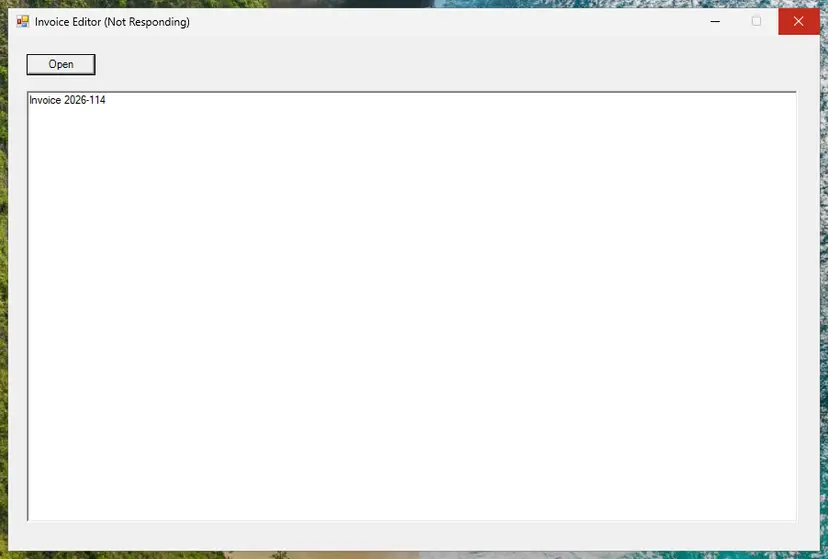
Why programs stop working, ranked
Most often the program itself is at fault: a bug in the version you run or a damaged install. Less often something loaded into it fails, such as the graphics driver, a runtime or a security module. Rarely Windows files, malware or the memory are the cause, and then many different programs crash.
| Cause | How often | How to tell | Fix |
|---|---|---|---|
| A bug in the program's version or damaged install files | Most often | One program crashes, at start or on one action; the faulting module is its own .exe or DLL | Fix 2 |
| An old or damaged graphics driver | Often | Several programs crash; the faulting module is a driver file such as AMD's atidxx32.dll | Fix 3 |
| A missing or damaged Visual C++ or .NET runtime | Often | VCRUNTIME140.dll, ucrtbase.dll or clr.dll in the report, or exception code e0434352 | Fix 4 |
| An add-on in the program: security software, an overlay, a shell extension | Sometimes | The crash stops in a clean boot; a third-party DLL is listed | Fix 5 |
| An older program that does not cope with your Windows version | Sometimes | The program is several years old or was made for Windows 7 or earlier | Fix 6 |
| Malware, or a file hiding behind a program's name | Rarely | An unknown .exe name, or a known name in a strange folder | Fix 7 |
| Damaged Windows files, memory or overclocking | Rarely | Many unrelated programs crash at random, sometimes with blue screens | Fix 8, Fix 9 |
Registry cleaners, deleting temporary files and turning off Data Execution Prevention (DEP) are common advice for this message. None of them targets a cause in the table above, and a DEP exception lowers the protection of that program, so this guide leaves them out.
How to fix ".exe has stopped working" on Windows
If the box appeared once, reopen the program and keep working: one crash is not a fault to repair. If it comes back, Fix 1 takes five minutes and tells you where to start. Fix 2 to Fix 4 solve most repeated crashes. Fix 5 to Fix 9 are for crashes that survive them.
| What you see or what your PC has | Start with |
|---|---|
| It happened once | Reopen the program; restart the PC if it is slow |
| It keeps happening and you do not know why | Fix 1 |
| Only one program crashes | Fix 2 |
| Several programs crash, especially games, browsers or photo and video editors | Fix 3, then Fix 4 |
| The report names VCRUNTIME140.dll, ucrtbase.dll, clr.dll or code e0434352 | Fix 4 |
| The report names a DLL of security software or another tool | Fix 5 |
| An old program crashes after moving to Windows 10 or Windows 11 | Fix 6 |
| The .exe name is one you do not recognise | Fix 7 |
Fix 1. Read the crash report in Reliability Monitor or Event Viewer
5 minutesNo riskThe box comes back, or you do not know which program or file failed.
The box only names the program. The report behind it also names the faulting module and the exception code, which tell you whether to fix the program, a driver or a runtime.
- Press Win + R, type
perfmon /reland press Enter. Reliability Monitor opens. - Select the day of the crash and find the red cross for the program under Critical events.
- Double-click the line that says Stopped working.
- Read Application Name, Fault Module Name and Exception Code.
- For the full path of the program, open Event Viewer: press Win + R, type
eventvwr.mscand press Enter. - Open Windows Logs > Application and select the Error entry with the source Application Error at the time of the crash.
- Note Faulting application path and Faulting module path, and keep the text for support.
Part of a real crash report (Microsoft Q&A, Internet Explorer on Windows 7)
EventType=APPCRASH
Sig[0].Value=IEXPLORE.EXE
Sig[3].Name=Fault Module Name
Sig[3].Value=StackHash_c442
Sig[6].Name=Exception Code
Sig[6].Value=c0000374
FriendlyEventName=Stopped working| Fault module or code | What it tells you | Start with |
|---|---|---|
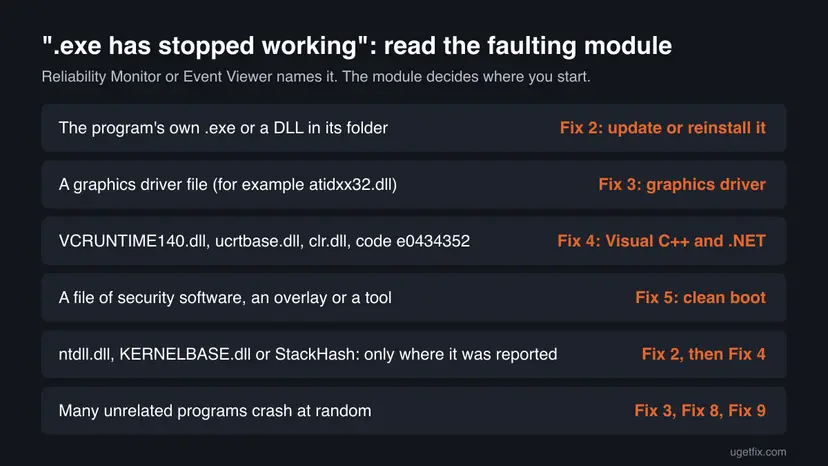
| The program's own .exe or a DLL in its folder | The program's code failed | Fix 2 |
| A graphics driver file | The display driver failed inside the program | Fix 3 |
| VCRUNTIME140.dll, MSVCP140.dll, ucrtbase.dll, clr.dll, or code e0434352 | A runtime the program needs failed | Fix 4 |
| ntdll.dll, KERNELBASE.dll or StackHash_xxxx | Only where Windows saw the crash; the cause is elsewhere | Fix 2, then Fix 4 and Fix 5 |
| Code c0000005 | Access violation: the program used memory it may not use | Fix 2, Fix 3, Fix 9 |
| Code c0000374 | The program's memory (heap) was damaged | Fix 2, Fix 5 |
It worked if: You know the program's path, the faulting module and the exception code.
If not: If no Stopped working entry appears, the program closed without crashing: check its own log folder or ask its maker. Otherwise go to Fix 2. For KERNELBASE.dll see our KernelBase.dll crash guide.
Fix 2. Update the program, or repair and reinstall it
10 to 30 minutesLow riskOne program crashes and the others work, whatever the faulting module.
A bug in one version or a damaged install file is the most common reason one program keeps crashing. Makers fix crashes in updates, and a reinstall replaces every file of the program.
- Open the program's own update option, or download the newest version from its maker's website.
- If it still crashes, open Settings > Apps > Installed apps (Windows 11) or Settings > Apps > Apps & features (Windows 10).
- Find the program. If Modify or Repair is offered, run it first.
- If that does not help, select Uninstall and follow the program's uninstaller: Uninstall a program or app in Windows
- Restart the PC, so no file of the old install stays in use.
- Install the newest version from the maker's site and open it again.
For a Microsoft Store app, use Repair and then Reset in its advanced options: How to repair or reset an app in Windows. For a game, let the launcher check the files instead of reinstalling: How to verify game files in Steam, Epic Games, Xbox app, EA app, Battle.net and GOG Galaxy.
Some programs keep projects or settings in their own folder. Save or export them before you uninstall, and check the maker's site for a clean-uninstall guide if a normal reinstall does not help.
It worked if: The program starts and the action that crashed it works, with no new Stopped working entry in Reliability Monitor.
If not: If the faulting module is a driver file or several programs crash, go to Fix 3. If it names a runtime, go to Fix 4.
Fix 3. Update or cleanly reinstall the graphics driver
15 to 30 minutesLow riskSeveral programs crash, such as a browser, Office and a photo editor, or the report names a driver file.
Almost every program draws its window through the graphics driver, so the driver's code runs inside it. In the Microsoft Q&A case, Internet Explorer, Office and Adobe programs all crashed, and an updated AMD driver ended it.
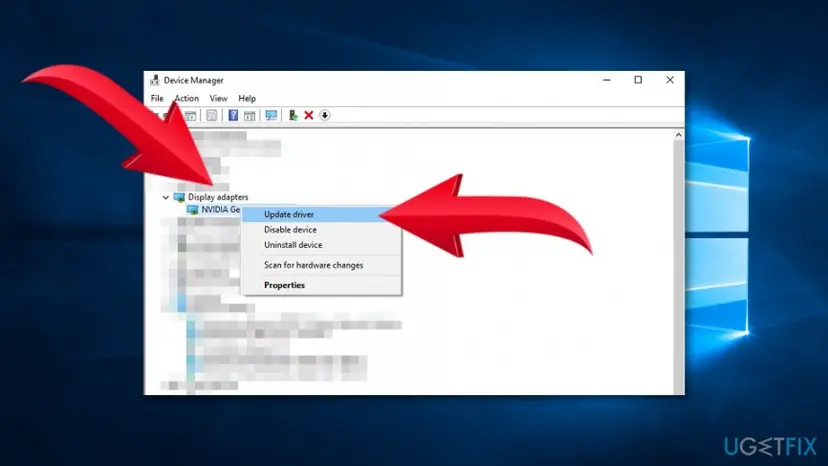
- Open Device Manager. Right-click Start and select Device Manager.
- Open the device's Driver tab. Expand the category (for example Display adapters), right-click the device, select Properties and open the Driver tab. Driver Date and Driver Version show what is installed now.
- Update the driver. Select Update Driver and let Windows search automatically. To use a driver you downloaded from the device maker, select Browse my computer for drivers instead and point to the unpacked folder.
These steps were written for Windows 11 24H2 and later. The full page with the other versions and what each result means: Update, roll back or reinstall a driver
- Best source: the driver from AMD, NVIDIA or Intel, or from the maker of your laptop. Windows Update may not offer the newest one.
- Clean reinstall: the helper in Microsoft's answer said it may be best to uninstall the old driver before installing the new one. Check the driver installer for a clean or factory reset option.
- Crashes started after a driver update: roll the driver back instead, in the same procedure.
It worked if: The programs that crashed run for a normal working session without the box.
If not: If the crashes go on, repair the runtimes in Fix 4.
Fix 4. Repair Microsoft Visual C++ and .NET
15 to 30 minutesLow riskThe report names VCRUNTIME140.dll, MSVCP140.dll, ucrtbase.dll or clr.dll, the code is e0434352, or programs from different makers crash.
Most desktop programs are built on Visual C++ or .NET runtimes that Windows shares between them. A damaged runtime makes every program that uses it crash, while the programs themselves are fine.
- Open Programs and Features. Type control panel in the search box on the taskbar and select Control Panel. Select Programs > Programs and Features.
- Find the installed versions. Look for the entries that start with Microsoft Visual C++. Each one shows a year and an architecture, x64 or x86. Several entries side by side are normal: older versions stay installed next to newer ones.
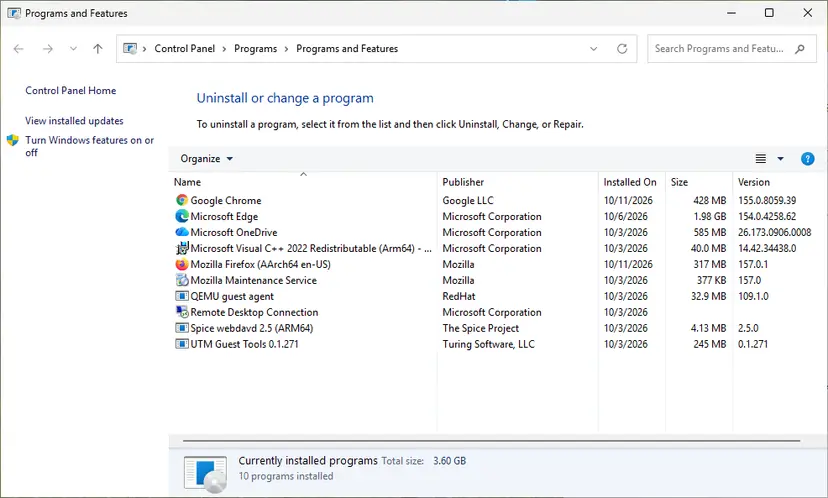
Each Visual C++ version is its own entry in Programs and Features. Screenshot: Windows 11 26H2. - Repair each Visual C++ entry. Right-click an entry and select Change, then select Repair in the window that opens. Do the same for every Microsoft Visual C++ entry.
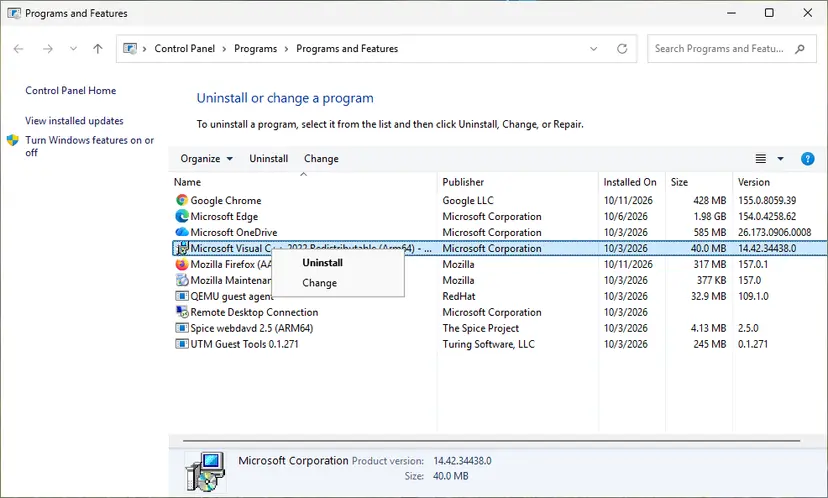
Right-click the entry and select Change to reach the repair option. Screenshot: Windows 11 26H2. - Install the latest supported version. Download the latest Visual C++ v14 Redistributable from Microsoft: Visual C++ Redistributable latest supported downloads and run it. On a 64-bit PC install both X64 and X86, because 32-bit programs need the x86 package. On an ARM64 PC install ARM64. This one version serves programs built with Visual Studio 2017 to 2026.
- Run the .NET Framework Repair Tool. Download the Microsoft .NET Framework Repair Tool and run NetFxRepairTool.exe. The wizard looks for setup problems, asks for your consent before it applies fixes, then repairs the installed .NET Framework versions. The tool is in English only.
- Turn on .NET Framework 3.5 if a program asks for it. Select Start, search for Windows Features and open it. In Turn Windows features on or off, select the .NET Framework 3.5 (includes .NET 2.0 and 3.0) check box and select OK. Windows downloads the files, so stay online.
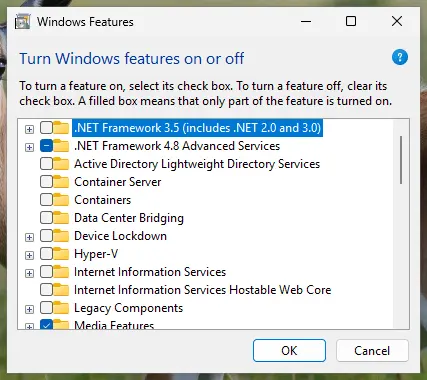
.NET Framework 3.5 is turned on in Windows Features. Screenshot: Windows 11 26H2. - Restart and test. Restart the PC and start the program that showed the error.
These steps were written for Windows 11 25H2 and 26H2, Windows 10 22H2. The full page with the other versions and what each result means: How to repair Microsoft Visual C++ Redistributable and .NET Framework
Do not uninstall the older Visual C++ versions in the list. Programs depend on the exact version they were built with, and removing one can make another program stop working.
It worked if: The repairs finish without errors, and after a restart the program starts and stays open.
If not: If it still crashes, look for an add-on that loads into it with Fix 5.
Fix 5. Find a conflicting program with a clean boot
20 to 40 minutesLow riskThe report names a DLL from security software, an overlay, a mouse or RGB tool, or the crash has no clear cause.
Security software, overlays and shell extensions load their own code into other programs. In the Microsoft Q&A report, Norton modules were loaded in Internet Explorer when it crashed. If such code fails, the box names the program you were using.
- Open System Configuration. Select Search on the taskbar, type msconfig and select System Configuration from the results.
- Hide Microsoft services. On the Services tab, select the Hide all Microsoft services check box. Only services from other companies stay in the list.

With Hide all Microsoft services ticked, only third-party services stay in the list. Screenshot: Windows 11 26H2. - Disable the remaining services. Select Disable all, then select Apply.
- Open Task Manager. On the Startup tab of System Configuration, select Open Task Manager.

The Startup tab only links to Task Manager. Screenshot: Windows 11 26H2. - Disable the startup apps. On the Startup apps tab in Task Manager, select each item whose status is Enabled and select Disable. Write down or take a screenshot of the items you disable: you need the list to turn them back on.

Select an app, then Disable. Screenshot: Windows 11 26H2. - Confirm the changes. Close Task Manager. On the Startup tab of System Configuration, select OK.
- Restart and test. Restart the PC. Windows now starts in a clean boot environment: try again the thing that failed (run the app, install the update, uninstall the program).
These steps were written for Windows 11 25H2 and 26H2. The full page with the other versions and what each result means: How to perform a clean boot in Windows
- Open the program that crashed and use it as before. If it works, a service or startup app you turned off is the cause.
- Turn half of them back on, restart and test again.
- Keep halving the group that brings the crash back until one item is left.
- Update or uninstall that program, then undo the clean boot.
If the item is security software, update it or add the crashing program's folder as an exclusion in it. To test with Microsoft Defender paused for a few minutes, use Turn off Microsoft Defender protection for a moment and turn protection back on right after.
It worked if: The program works in the clean boot, and you find the one service or startup app that breaks it.
If not: If it crashes even in the clean boot, the cause is the program itself, Windows or the hardware: go to Fix 6 for an old program, otherwise Fix 8.
Fix 6. Run an older program in compatibility mode or as administrator
5 to 10 minutesLow riskThe program is several years old, was made for an earlier Windows, or crashed after you moved to Windows 10 or Windows 11.
Compatibility mode makes Windows report an older version to the program and applies fixes for old behaviour. Some older programs crash when they cannot write to their own folder under Program Files, which administrator rights allow.
- Run the program as administrator once. Right-click the program in the Start search results, or right-click its shortcut, and select Run as administrator. Select Yes when Windows asks for permission. If the program now works, it only needed administrator rights.
- Open the program's properties. If the program still fails, right-click its shortcut or its .exe file and select Properties.
- Open the Compatibility tab. Select the Compatibility tab. Every setting on this tab applies to this one program only.
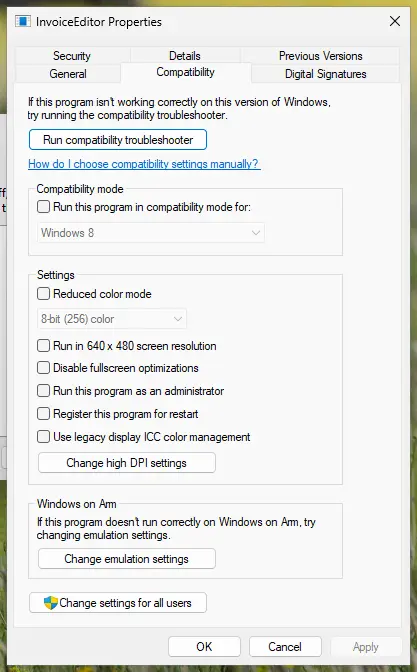
The Compatibility tab. Our test PC runs Windows on Arm, so it has one extra section at the bottom. Screenshot: Windows 11 26H2. - Turn on compatibility mode. Select the Run this program in compatibility mode for check box. In the list below it, select the version of Windows the program was made for.
- Make it always run as administrator. Only if step 1 helped: select the Run this program as an administrator check box. Windows will then ask for permission every time the program starts.
- Save and test. Select OK and start the program again. If it does not help, come back to this tab and try another version of Windows in the list.
- Run the compatibility troubleshooter. If no setting helps, open Start > Settings > System > Troubleshoot > Other troubleshooters. Find Program Compatibility Troubleshooter, select Run and follow the instructions on the screen.
These steps were written for Windows 11 25H2 and 26H2. The full page with the other versions and what each result means: How to run a program as administrator or in compatibility mode
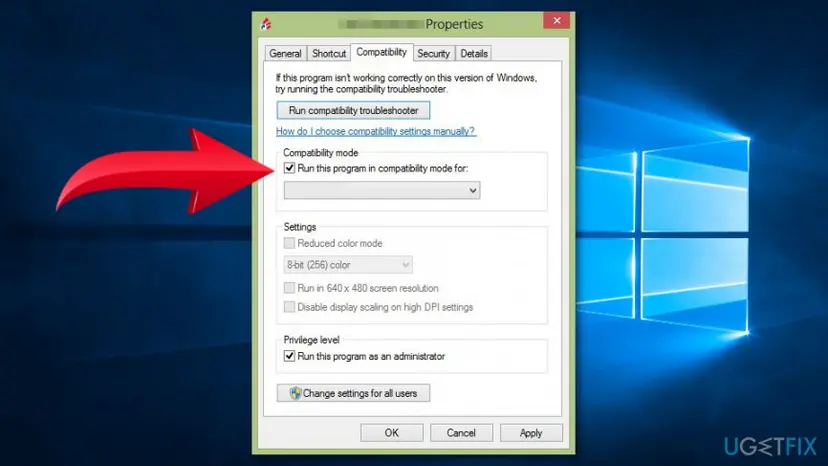
Try compatibility mode alone first and test. Turn on Run this program as an administrator only if that does not help, and turn both off again if they change nothing.
It worked if: The program opens with the new setting and no longer stops working.
If not: Put the settings back and continue with Fix 7 or Fix 8.
Fix 7. Scan for malware with Microsoft Defender
10 minutes to 1 hourNo riskThe crashing .exe has a name you do not know, a Windows name in the wrong folder, or crashes started with other strange behaviour.
Malware often uses random or Windows-like file names and crashes when it is badly made or blocked. A crash box can be the first sign you see of it.
- Find the file first: Fix 1 shows the full path. A program in
C:\Program Fileswith a known maker is rarely malware. - Suspicious: a random name, or a name like svchost.exe or services.exe that sits outside
C:\Windows\System32, for example in a Temp or AppData folder.
- Open Windows Security. Select Start, type Windows Security and open the app.
- Open Virus & threat protection. Select Virus & threat protection. Under Current threats you see when the last scan ran, how long it took and how many files it checked.
- Run a quick scan. Select Quick scan. If Windows Security thinks a deeper scan is needed, it tells you when the quick scan is done.
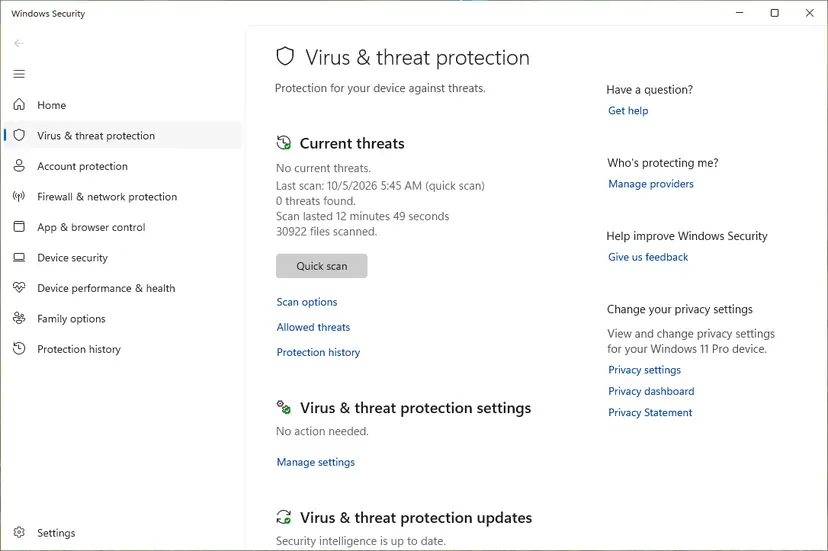
Quick scan and Scan options sit under Current threats. Screenshot: Windows 11 26H2. - Open Scan options. If the quick scan finds nothing and you still suspect an infection, select Scan options under Current threats.
- Run a full scan. Select Full scan and start it. It checks every file and program on the device, so it takes much longer than a quick scan. Leave the PC on until it ends.
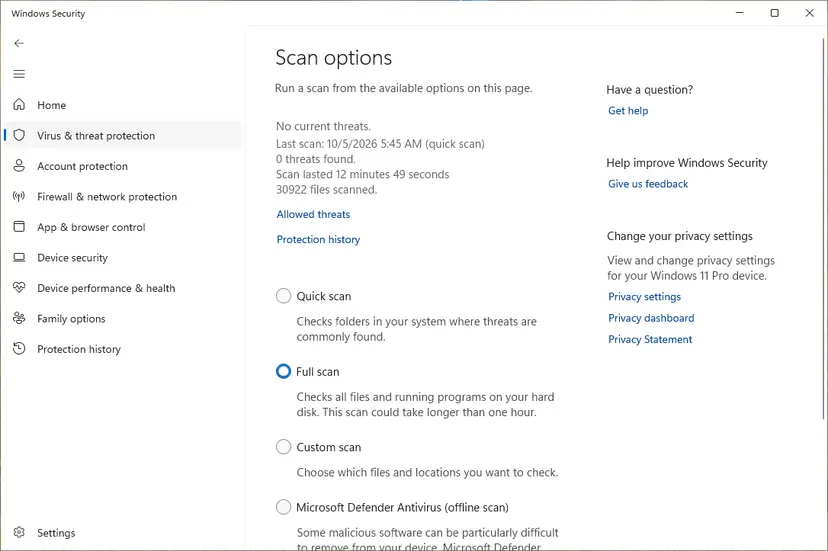
Scan options: Quick scan, Full scan, Custom scan and the offline scan. Screenshot: Windows 11 26H2. - Or scan one folder. To check only a download or a USB drive, select Custom scan in Scan options and choose the folder. You can also right-click a file or folder in File Explorer and select Scan with Microsoft Defender. On Windows 11 you may have to select Show more options first.
- Read Protection history. Go back to the first page of Windows Security and select Protection history. Select a card to expand it and see the details.
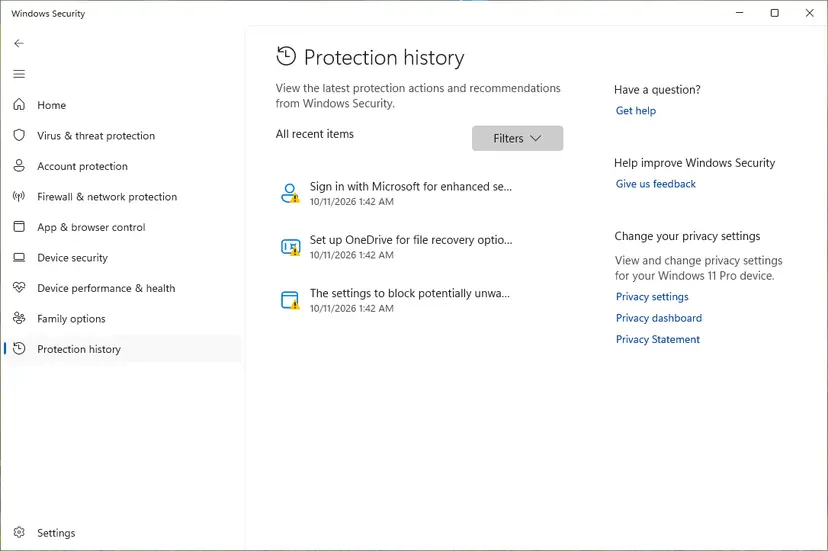
Protection history lists what Defender found and did. Screenshot: Windows 11 26H2.
These steps were written for Windows 11 25H2 and 26H2, Windows 10 22H2. The full page with the other versions and what each result means: How to scan for malware with Microsoft Defender
It worked if: Defender finds nothing, or removes the file and the box stops appearing.
If not: If the scan is clean, the crash is not malware: continue with Fix 8.
Fix 8. Repair Windows files with DISM and SFC
20 to 30 minutesNo riskMany programs crash, Windows programs such as File Explorer or services.exe crash, or it started after a Windows update.
When the faulting module is a Windows file and many programs fail, the shared files may be damaged. DISM repairs the store Windows keeps its files in, and SFC then replaces damaged files from it.
- Open an elevated command window. Right-click Start and select Terminal (Admin), or type cmd in the search box, right-click Command Prompt and select Run as administrator. Select Yes when Windows asks for permission.

Search for cmd and choose Run as administrator. Screenshot: Windows 11 26H2. - Run DISM first. Type the command below and press Enter. DISM downloads clean copies of damaged components from Windows Update, so it can take several minutes. Wait until it says The operation completed successfully.
DISM.exe /Online /Cleanup-Image /RestoreHealth
DISM /RestoreHealth running. Screenshot: Windows 11 26H2. - Run System File Checker. In the same window, type the command below and press Enter. Do not close the window until the verification reaches 100%.
sfc /scannow
sfc /scannow at 100%. Screenshot: Windows 11 26H2. - Read the result and restart. Compare the last message with the table below this guide, then restart the PC so that repaired files are loaded.

The result line tells you what SFC did. Screenshot: Windows 11 26H2.
These steps were written for Windows 11 24H2 and 25H2. The full page with the other versions and what each result means: Run DISM and SFC to repair Windows system files
It worked if: SFC reports no integrity violations or that it repaired files, and the programs work after a restart.
If not: If SFC finds nothing and many programs still crash at random, test the memory in Fix 9.
Fix 9. Test the memory and undo overclocking
20 minutes to 1 hourLow riskMany unrelated programs crash at random, often with code c0000005, sometimes with blue screens.
Faulty or unstable memory corrupts data in whatever program uses it, so the crashes look random. Windows Memory Diagnostic checks the RAM outside Windows.
- Open Windows Memory Diagnostic. Press Windows + R, type mdsched.exe and select OK. You can also search for Windows Memory Diagnostic and open it from the results.
- Choose when to test. Select Restart now and check for problems (recommended) to test right away. Select Check for problems the next time I start my computer if you want to finish your work first: the test then runs at the next start.
- Let the test run. The PC restarts into a blue screen that shows the progress of the test. You do not have to do anything. When the test ends, the PC restarts by itself and Windows loads.
- Look for the notification. Sign in. After a short while Windows shows a notification with the result, also when no errors were found. If you missed it, read the result in Event Viewer.
- Open the System log. Press Windows + R, type eventvwr and select OK. In Event Viewer, expand Windows Logs and select System.
- Find the result. Right-click System and select Find. Type MemoryDiagnostics-Results and press Enter. Select the event that is found: its text says whether the test detected errors.
These steps were written for Windows 11 25H2 and 26H2, Windows 10 22H2. The full page with the other versions and what each result means: How to test your RAM with Windows Memory Diagnostic
If you overclocked the processor, the graphics card or the memory, set them back to default in the BIOS or in the tuning tool and test again. Users report that turning off the memory profile (XMP or EXPO) stopped random crashes; treat that as a test, not a fix.
It worked if: The memory test reports no errors, or the crashes stop with default clocks.
If not: If the test finds errors, the memory needs replacing: see the next section.
If the program still stops working
Stop changing settings and collect what the program's maker needs. Their support can match the faulting module, exception code and offset with their own crash data, which no general guide can do.
- Copy the report from Reliability Monitor with Copy to clipboard in the problem details, or the Event Viewer entry from Fix 1.
- Press Win + R, type
winver, press Enter and note the Windows version and build. - Note the program version and what you did right before it crashed.
- Send all of it to the program's maker, or ask on Microsoft Q&A if many programs crash.
A crash dump needs the registry key HKEY_LOCAL_MACHINE\SOFTWARE\Microsoft\Windows\Windows Error Reporting\LocalDumps. A wrong registry edit can stop Windows from starting, so back up first: Back up the registry before editing it. Microsoft documents that dumps then go to %LOCALAPPDATA%\CrashDumps, 10 at most. Delete the key when support has the file.
- When it is hardware: memory errors in Fix 9, blue screens, or crashes that return after every repair. Check the disk with Check a disk for errors (chkdsk) too.
- When it is the program: it crashes on another PC with the same steps. Only the maker can fix that.
- When it is Windows: many programs crash even after Fix 8. A repair install keeps your files and apps: Reinstall Windows without losing files
How to stop programs from crashing again
- Update the programs you use every day. Most crashes are bugs their makers fix.
- Take drivers from the graphics card maker and update them when a program you rely on starts to crash.
- Leave Visual C++ and .NET installed. Removing old versions to tidy the list breaks the programs that need them.
- Install one add-on, overlay or plugin at a time, so you know what to remove when crashes start.
- Do not use registry cleaners. They do not fix crashes and can remove entries programs need.
- Keep System Restore on, so a bad driver or program can be undone: Undo recent changes with System Restore
If you still run Windows 10, plan the move to Windows 11 or to Extended Security Updates. Windows 10 left support on 14 October 2025, and many makers now test new versions on Windows 11 first.
Frequently asked questions
What does ".exe has stopped working" mean?
It means a program hit an error it could not handle, so Windows closed it. The .exe is the program's file, and the name before it tells you which program crashed. Windows Error Reporting shows the box and saves a report, which Reliability Monitor lists as "Stopped working". Your PC and other programs are not damaged. If it happens once, reopen the program. If it repeats, read the report (Fix 1).
Do I need to do something about the program I was using?
Only if the box comes back. One crash can come from a rare bug or a moment of low memory, and reopening the program is enough. If the same program stops working again, update it or reinstall it (Fix 2). Save your work often until it is fixed, because unsaved changes are lost when Windows closes the program. If several programs crash, the cause is shared, so start with Fix 3.
What is an "Application Error" box?
A box titled "<name>.exe - Application Error" is another way Windows reports a program crash. A common text is "The instruction at 0x00007FFD2740EFA2 referenced memory at 0x0000000000000000. The memory could not be read." It means the program tried to read memory it may not use, an access violation. Microsoft Q&A shows it for OneDrive.exe on Windows 11. Treat it like "has stopped working": read the report (Fix 1), then update or reinstall the program (Fix 2).
Is "windows.exe has stopped working" a Windows error?
Not usually. Windows has no core program called windows.exe, so the name belongs to a program whose maker named its file that way, or to something hiding behind a Windows-like name. Open Reliability Monitor (Fix 1) and read the full path. If the file sits in a game or program folder, update or reinstall that program. If it sits in a Temp or AppData folder and you did not install it, scan with Microsoft Defender (Fix 7).
What does "services.exe application error" mean?
services.exe is the Windows process that starts and stops services, and the real file is in C:\Windows\System32. An error there is a Windows problem, not one of a program you installed. Run DISM and SFC (Fix 8), install pending Windows updates and test the memory (Fix 9). A file named services.exe in any other folder is suspicious: scan with Microsoft Defender (Fix 7).
The message names a program I do not know, like idle_report.exe, cli.exe or aico out painting.exe. What now?
Find where the file lives before you change anything. Fix 1 shows the faulting application path, and the folder name usually tells you which program or game it belongs to. Update or reinstall that program (Fix 2), or uninstall it if you do not use it. We could not confirm the makers of every such name, so we do not guess. A file in a Temp folder that you did not install deserves a Defender scan (Fix 7).
What is the difference between "stopped working" and "not responding"?
"Not responding" means the program is busy or stuck but still running: Windows adds (Not Responding) to its title bar and may offer to close it or wait. It can recover on its own, so wait a minute first. "Has stopped working" means the program already crashed and Windows is closing it. A program that never recovers from not responding can be closed safely: Close a frozen app (Task Manager, Force Quit).
Should I turn off Data Execution Prevention (DEP) for the program?
No. Older guides, including the earlier version of this one, suggest a DEP exception, but DEP stops code from running in memory meant for data and protects against attacks. An exception lowers that protection for the program for good. Update the program (Fix 2) or use compatibility mode (Fix 6) instead, and ask the maker if they still crash.
Will a registry cleaner or deleting temporary files fix it?
Very unlikely. A program crash comes from its code, a driver, a runtime or an add-on, and none of those lives in leftover registry values or temporary files. Registry cleaners can also remove entries that programs need. Free disk space only matters when the drive is almost full: Free up disk space and delete temporary files. A clean reinstall of the program (Fix 2) removes its old files in a safer way.
How do I stop the "has stopped working" box from appearing?
Fix the crash instead; hiding the box does not stop the program from closing. Windows Error Reporting has a setting called DontShowUI: 0, the default, shows the box, and 1 hides it, so the program just disappears and you lose the hint. Companies sometimes set it by policy. Leave it at the default, read the report (Fix 1) and fix the cause.
Sources
- Microsoft Learn: WER Settings (Windows Error Reporting, DontShowUI and LocalDumps) (learn.microsoft.com)
- Microsoft Q&A: A problem caused the program to stop working correctly (crash report and graphics driver answer) (learn.microsoft.com)
- Microsoft Q&A: OneDrive.exe - Application Error (the memory could not be read, Windows 11) (learn.microsoft.com)
Did this fix work?
One click, no account. It tells the next reader which guides are worth their time.
Questions and experiences: fix ".exe has stopped working" error on Windows 10 and Windows 11
Still broken, or found a fix we did not cover? Ask here: members and our editors answer. Reading is open; writing needs a free account.
…