
How to fix "DLL is either not designed to run on Windows or it contains an error"?

Prefer to fix it yourself? The manual steps follow.
- 7methods
- 5 minutes to 2 hours
- Easy to medium
Applies to Windows 11 and Windows 10: any "<program>.exe - Bad Image" window that names a .dll file and ends with an Error status code
7 methods in this guide
Hi, I recently started to receive "C:\Windows\SYSTEM32\MSVCP140.dll is either not designed to run on Windows or it contains an error" whenever I attempt to open any files on OneDrive. It also says Bad Image at the top. Is there any way to fix this?
The Bad Image window that says a DLL "is either not designed to run on Windows or it contains an error" means Windows found the file but refused to load it. The fix depends on the path in the window: repair the program named in the title, repair the Visual C++ Redistributable for MSVCP140.dll and its relatives, or repair Windows files for a System32 file.
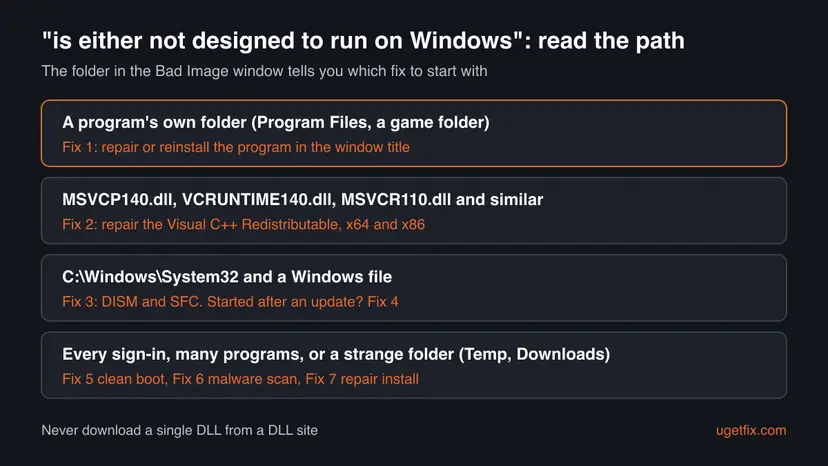
Read the path in the window. A DLL in a program's own folder: repair or reinstall the program in the window title (Fix 1). MSVCP140.dll, VCRUNTIME140.dll or another MSVC file: repair Microsoft's Visual C++ Redistributable, both x64 and x86 (Fix 2). Another Windows file in C:\Windows\System32: run DISM and SFC (Fix 3). Never download a single DLL from a DLL website.
| Error | "<path>\<name>.dll is either not designed to run on Windows or it contains an error. Try installing the program again using the original installation media or contact your system administrator or the software vendor for support." |
|---|---|
| Where it appears | In a window titled <program>.exe - Bad Image, when that program starts or when Windows signs you in. It ends with Error status and a code such as 0xc000012f. |
| Main cause | The DLL is damaged, cut short, of the wrong type (32-bit against 64-bit) or replaced by a wrong copy. Less often a Windows update or malware left a broken system file. |
| Fastest fix | Repair or reinstall the program in the window title (Fix 1). For MSVCP140.dll, VCRUNTIME140.dll and MSVCR files, repair the Visual C++ Redistributable (Fix 2). |
| Also written as | DLL not designed to run on Windows, dll is not designed to run on windows, .dll is either not designed to run, not designed to run on Windows or it contains an error, Bad Image error. |
| Status codes | 0xc000012f (the file is not a valid program file), 0xc000007b (invalid image format), 0xc0000020 (Windows cannot read the file's mapping), 0xc0e90002 (blocked by a code integrity policy). |
| Affects | Windows 11 and Windows 10, any program. Windows 10 left support on 14 October 2025. |
| Vendor status | Not a bug with one fix. Microsoft documents the text as the standard message for status 0xC000007B, STATUS_INVALID_IMAGE_FORMAT. The program in the title decides who can fix it. |
| Time to fix | 5 to 15 minutes for a program or Visual C++ repair. 20 to 30 minutes for DISM and SFC. 1 to 2 hours for a repair install. |
Facts checked on 15 October 2026. Steps written for Windows 11 (25H2 and 26H2) and Windows 10 22H2.
What "DLL is either not designed to run on Windows or it contains an error" means
A program asked Windows to load a DLL (a library file with shared code), and Windows looked at the file and refused it. The file exists, so this is not the "was not found" error. Its content is wrong: damaged, empty, built for another type of Windows, or blocked by a policy.
The sentence is fixed text, listed by Microsoft for status 0xC000007B, STATUS_INVALID_IMAGE_FORMAT. It reads "{Bad Image} %hs is either not designed to run on Windows or it contains an error". Windows puts the file path where %hs stands and changes only the code at the end.
The window as our reader quoted it (title: Bad Image)
C:\Windows\SYSTEM32\MSVCP140.dll
is either not designed to run on Windows or it contains an error.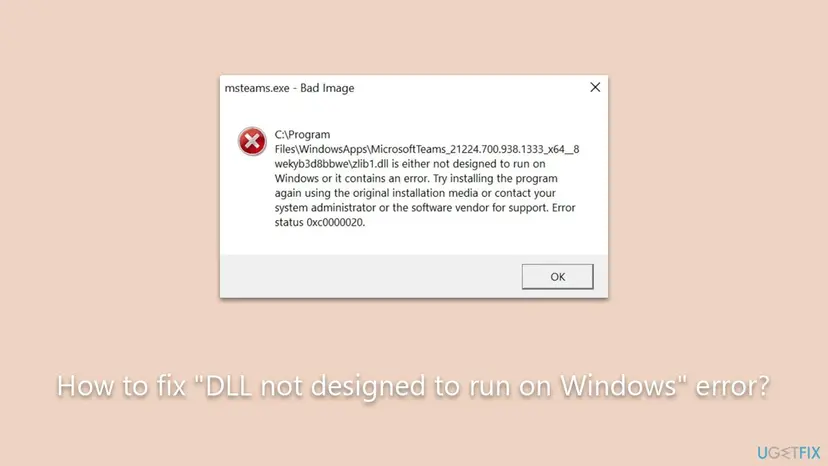
| Part of the window | Example | What it tells you |
|---|---|---|
| Title | msteams.exe - Bad Image | The program that tried to load the DLL. This is the program to repair first. |
| Path | C:\Program Files\WindowsApps\MicrosoftTeams_<version>\zlib1.dll | Who owns the file: a program folder, the Visual C++ runtime, or Windows in System32. |
Error status 0xc000012f | STATUS_INVALID_IMAGE_NOT_MZ | "The specified image file did not have the correct format: it did not have an initial MZ." The file is damaged or empty. |
Error status 0xc000007b | STATUS_INVALID_IMAGE_FORMAT | A wrong or damaged program file, often a 32-bit DLL loaded by a 64-bit program or the reverse. |
Error status 0xc0000020 | STATUS_INVALID_FILE_FOR_SECTION | "The attributes of the specified mapping file for a section of memory cannot be read." Treat it like a damaged file. |
Error status 0xc0e90002 | Code integrity | A policy such as S mode refused the file. See our guide to Bad Image error 0xc0e90002. |
- Every spelling is the same error. "dll is either not designed to run on windows", "dll not designed to run on windows", ".dll is either not designed to run" and "not designed to run on windows or it contains an error" all describe this window.
- Windows 11 shows the same window as Windows 10. The steps below give both paths where the menus differ.
What causes the DLL not designed to run on Windows error, from most to least common
Most often one program's own files are damaged or mixed up after an update. Less often the shared Visual C++ runtime files are broken, which hits several programs at once. Rarely Windows itself, a bad update or malware is behind it.
| Cause | How often | How to tell | Fix |
|---|---|---|---|
| A program's DLL is damaged, cut short or the wrong 32-bit or 64-bit copy, often after an interrupted update. | Most often | The path points into that program's folder, and only that program shows the window. | Fix 1 |
| The Microsoft Visual C++ runtime files are damaged or replaced by an older copy. | Often | The file is MSVCP140.dll, VCRUNTIME140.dll, MSVCP110.dll, MSVCR100.dll or similar. Several programs fail. | Fix 2 |
| A Windows system file is damaged. | Sometimes | Path in C:\Windows\System32, a Windows file name, Settings or the Store may break too. | Fix 3 |
| A recent Windows update left a broken file. | Sometimes | The window started on the day of an update. | Fix 4 |
| A startup program loads a bad DLL at every sign-in. | Sometimes | The window appears at sign-in before you open anything. | Fix 5 |
| Malware replaced or planted the DLL. | Rarely | The path is in Temp, Downloads or AppData, or the name looks like a Windows file in the wrong folder. | Fix 6 |
| Windows is damaged beyond what SFC can repair. | Rarely | SFC reports files it could not repair; many apps fail. | Fix 7 |
The older version of this page started with regsvr32. Registering only adds registry entries for COM libraries; it does not change a damaged file. MSVCP140.dll and most other DLLs in this window are not COM libraries, so regsvr32 answers with an entry point DllRegisterServer was not found error.
How to fix the DLL is either not designed to run on Windows error
Start with the fix that matches the path in your window: the chooser below and the chart above tell you which. Fix 1 to Fix 3 solve most cases. Fix 4 to Fix 7 are for a window that survives them or appears at every sign-in.
| What the window says or what your PC does | Start with |
|---|---|
The DLL is in a program's own folder, such as C:\Program Files\<program> or a game folder | Fix 1 |
The path is in C:\Program Files\WindowsApps (a Microsoft Store app, such as Teams) | Fix 1, the Repair and Reset part |
| The file is MSVCP140.dll, VCRUNTIME140.dll, MSVCP110.dll, MSVCR100.dll or another MSVC file, even in System32 | Fix 2 |
Another Windows file in C:\Windows\System32 or SysWOW64 | Fix 3 |
| The window started right after a Windows update | Fix 4 |
| The window appears at every sign-in, before you open anything | Fix 5 |
| The DLL sits in Temp, Downloads or a folder you do not recognise | Fix 6 |
Fix 1. Repair or reinstall the program named in the window title
10 to 20 minutesLow riskThe DLL path points into the folder of the program named in the title, or into WindowsApps.
When the DLL belongs to the program itself, only that program's installer has the right copy. A repair or reinstall writes every file of the program again, the DLL included, in the matching 32-bit or 64-bit version.
- Write down the name before - Bad Image in the title and the full path, then select OK.
- Open Settings > Apps > Installed apps (Windows 11) or Settings > Apps > Apps & features (Windows 10).
- Find the program. If Advanced options or Modify is offered, choose Repair first.
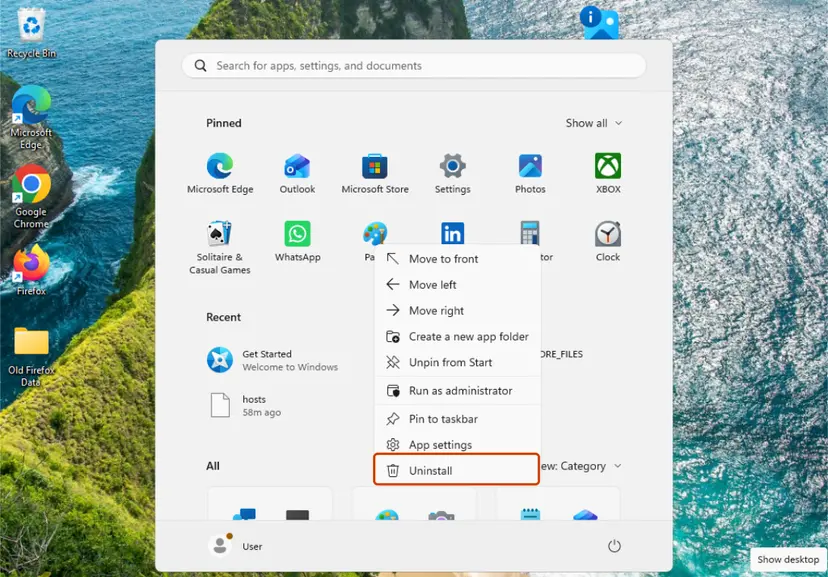
- If there is no repair, or it does not help, select Uninstall, then restart the PC.
- Download the current version from the maker's own website and install it.
- Start the program and check that the Bad Image window is gone.
Store apps such as the new Teams, whose files sit in C:\Program Files\WindowsApps, have Repair and Reset buttons: How to repair or reset an app in Windows. For a normal program, the full uninstall steps are here: Uninstall a program or app in Windows
A RunDLL window that names a file of ASUS TUF or Armoury Crate software is handled the same way: that software owns the file, so repair or reinstall it from the ASUS site.
For a game on Steam, Epic or another launcher, use its Verify or Repair option first. It checks every game file, a crash reporter DLL such as the one named in BugSplat windows included, and downloads only the broken ones.
It worked if: The program starts and no Bad Image window appears.
If not: If the window names an MSVC file, go to Fix 2. If it names a Windows file in System32, go to Fix 3.
Fix 2. Repair the Microsoft Visual C++ Redistributable (MSVCP140.dll, VCRUNTIME140.dll)
5 to 15 minutesLow riskThe window names MSVCP140.dll, VCRUNTIME140.dll, VCRUNTIME140_1.dll, MSVCP110.dll, MSVCR100.dll or another MSVC file.
These files are not part of Windows itself: Microsoft's Visual C++ Redistributable puts them in System32, and many programs share them. One damaged or older copy breaks every program that needs it, which is why our reader saw it in OneDrive.
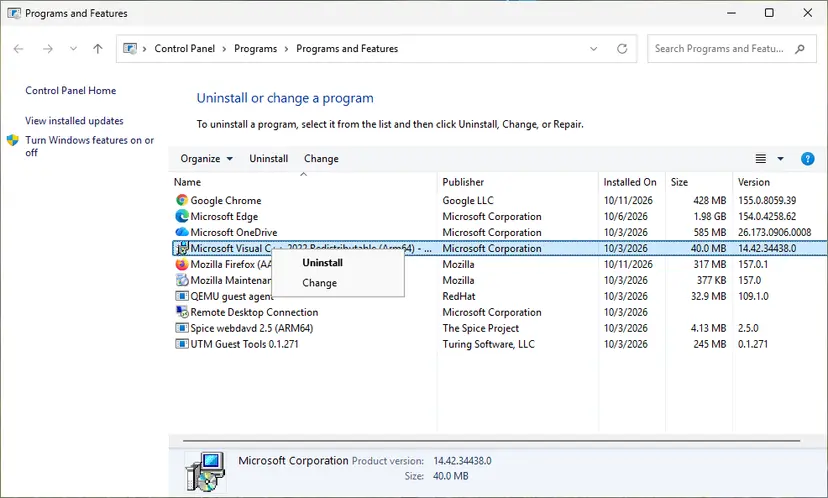
- Open Settings > Apps > Installed apps and type
Visual C++in the search box. - On each Microsoft Visual C++ 2015-2022 Redistributable entry (or a newer name), choose Modify, then Repair.
- If repair fails, download Microsoft's current v14 packages:
https://aka.ms/vc14/vc_redist.x64.exeandhttps://aka.ms/vc14/vc_redist.x86.exe. - Install both, even on 64-bit Windows: 32-bit programs use the x86 one. On an Arm PC, also install
vc_redist.arm64.exe. - Restart the PC and open the program again.
The full steps with screenshots: How to repair Microsoft Visual C++ Redistributable and .NET Framework. Microsoft's v14 package covers programs built with Visual Studio 2015, 2017, 2019, 2022 and 2026. Files with 100, 110 or 120 in their names come from the older 2010, 2012 and 2013 packages, which Microsoft keeps on the same page.
It worked if: The repair ends with Setup Successful and the program opens without the window after the restart.
If not: If the same MSVC file still fails, run DISM and SFC with Fix 3, then reinstall the program with Fix 1. More on these files: our VCRUNTIME140_1.dll guide.
Fix 3. Repair Windows system files with DISM and SFC
20 to 30 minutesNo riskThe path is C:\Windows\System32 or SysWOW64 and the file belongs to Windows, or several Windows parts fail.
Windows keeps a store of clean copies of its own files. DISM repairs that store, and SFC then compares every protected system file with it and replaces a damaged one with the right version for your build.
- Open an elevated command window. Right-click Start and select Terminal (Admin), or type cmd in the search box, right-click Command Prompt and select Run as administrator. Select Yes when Windows asks for permission.

Search for cmd and choose Run as administrator. Screenshot: Windows 11 26H2. - Run DISM first. Type the command below and press Enter. DISM downloads clean copies of damaged components from Windows Update, so it can take several minutes. Wait until it says The operation completed successfully.
DISM.exe /Online /Cleanup-Image /RestoreHealth
DISM /RestoreHealth running. Screenshot: Windows 11 26H2. - Run System File Checker. In the same window, type the command below and press Enter. Do not close the window until the verification reaches 100%.
sfc /scannow
sfc /scannow at 100%. Screenshot: Windows 11 26H2. - Read the result and restart. Compare the last message with the table below this guide, then restart the PC so that repaired files are loaded.

The result line tells you what SFC did. Screenshot: Windows 11 26H2.
These steps were written for Windows 11 24H2 and 25H2. The full page with the other versions and what each result means: Run DISM and SFC to repair Windows system files
- Run
DISM /Online /Cleanup-Image /RestoreHealthfirst in an administrator Terminal. - Then run
sfc /scannowand wait for 100 percent. - Restart the PC, even if SFC found nothing.
It worked if: SFC reports no integrity violations or that it repaired files, and the window is gone after the restart.
If not: If SFC says it could not repair some files, go to Fix 7. If the window started after an update, try Fix 4 first.
Fix 4. Uninstall the Windows update that came before the error
10 to 20 minutesLow riskThe window started on the day a Windows update installed, and it names a Windows file.
If an update was cut off or replaced a system file badly, removing it puts back the previous files. Windows offers the same update again later, usually fixed or installed cleanly.
- Open Settings > Windows Update > Update history (Windows 11) or Settings > Update & Security > View update history (Windows 10).
- Note the date of the newest update and compare it with the day the window started.
- Select Uninstall updates and remove that update.
- Restart the PC and check for the window.
Step by step with screenshots: How to uninstall a Windows update
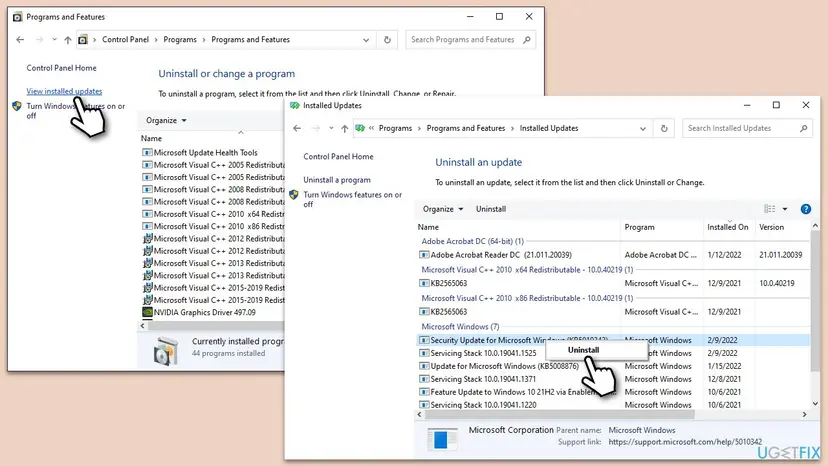
It worked if: After the restart the program opens normally and no Bad Image window appears.
If not: If no update matches the date, or the window returns, go to Fix 5.
Fix 5. Find the startup program that loads the bad DLL with a clean boot
15 to 40 minutesLow riskThe Bad Image window appears at every sign-in, before you open any program.
A window at sign-in means something that starts with Windows loads the DLL. A clean boot starts Windows with Microsoft services only, so if the window disappears, one of the disabled items is the cause.
- Open System Configuration. Select Search on the taskbar, type msconfig and select System Configuration from the results.
- Hide Microsoft services. On the Services tab, select the Hide all Microsoft services check box. Only services from other companies stay in the list.

With Hide all Microsoft services ticked, only third-party services stay in the list. Screenshot: Windows 11 26H2. - Disable the remaining services. Select Disable all, then select Apply.
- Open Task Manager. On the Startup tab of System Configuration, select Open Task Manager.
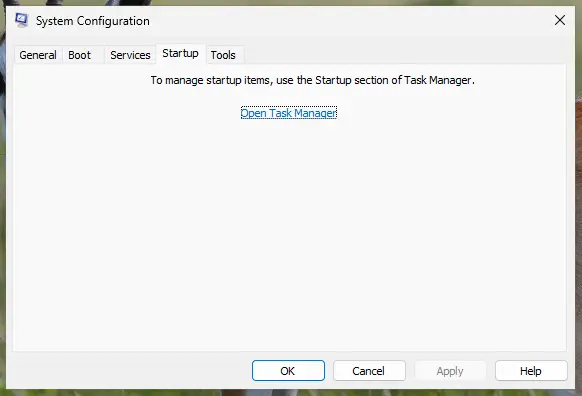
The Startup tab only links to Task Manager. Screenshot: Windows 11 26H2. - Disable the startup apps. On the Startup apps tab in Task Manager, select each item whose status is Enabled and select Disable. Write down or take a screenshot of the items you disable: you need the list to turn them back on.
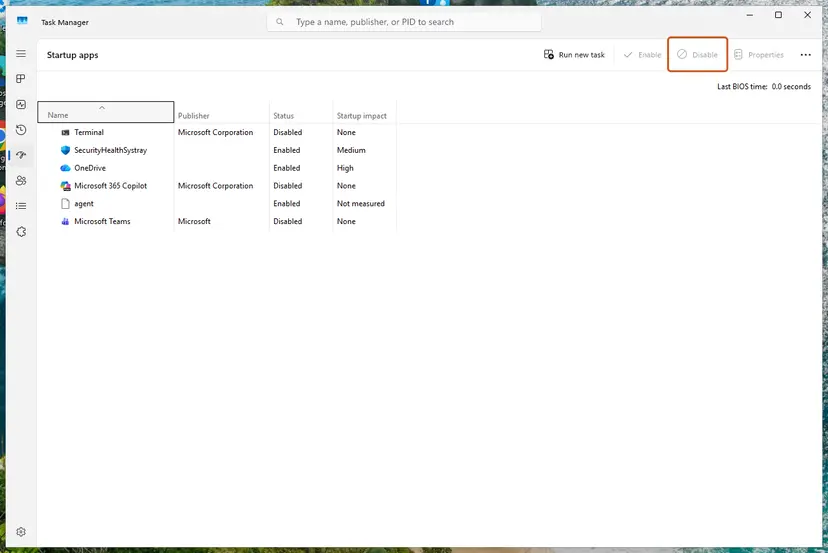
Select an app, then Disable. Screenshot: Windows 11 26H2. - Confirm the changes. Close Task Manager. On the Startup tab of System Configuration, select OK.
- Restart and test. Restart the PC. Windows now starts in a clean boot environment: try again the thing that failed (run the app, install the update, uninstall the program).
These steps were written for Windows 11 25H2 and 26H2. The full page with the other versions and what each result means: How to perform a clean boot in Windows
- If the window is gone in the clean boot, turn on half of the disabled items and restart.
- Keep halving the group that brings the window back until one program remains.
- Repair or uninstall that program with Fix 1, then turn the rest back on.
It worked if: The clean boot shows no window, and you find the one program that brings it back.
If not: If the window appears even in a clean boot, Windows loads the damaged file itself: go to Fix 6 and Fix 7.
Fix 6. Scan the PC for malware with Microsoft Defender
15 to 60 minutesNo riskThe DLL sits in Temp, Downloads or AppData, or its name copies a Windows file in the wrong folder.
Malware sometimes drops a DLL with a familiar name next to a real program, or damages system files. A full or offline scan with Microsoft Defender finds such files and removes them.
- Open Windows Security > Virus & threat protection > Scan options.
- Choose Full scan and select Scan now.
- If it finds something, or the PC still acts oddly, run Microsoft Defender Offline scan from the same page.
- After the scan, repair the program from the title with Fix 1.
Full steps: How to scan for malware with Microsoft Defender
It worked if: Defender reports no threats, or removes them, and the window no longer appears after a restart.
If not: If the scan is clean and the window stays, repair Windows with Fix 7.
Fix 7. Repair Windows in place and keep your files and apps
1 to 2 hoursRead the warningSFC cannot repair files, Settings or the Store are broken too, or the window survives every fix above.
A repair install replaces every Windows file with a fresh copy of your version and keeps your files and apps. In a Microsoft Q&A thread where Settings, search and the Store failed with this error, the advisor's last step was the same reinstall.
A repair install keeps files and apps when you choose to keep them, but a power cut or a wrong choice can cost data. Copy your documents to an external drive or the cloud first: Back up your files (Windows Backup, File History, Time Machine)
- Open Recovery in Settings. Open Settings > System > Recovery. Next to Fix problems using Windows Update, select Reinstall now. This keeps your apps, files and settings.

Fix problems using Windows Update reinstalls the current version and keeps apps, files and settings. Screenshot: Windows 11 26H2. - Start the reinstall. Choose whether the PC may restart on its own 15 minutes after the installation, then select OK.
- Wait and restart. Windows Update downloads and installs a repair copy of your current Windows version. Keep the PC plugged in and online, and restart it when asked.
- If that did not help: Reset PC. Back in Settings > System > Recovery, next to Reset this PC, select Reset PC. This keeps your personal files but removes installed apps and settings.
- Choose Keep my files. Select Keep my files. Do not select Remove everything.
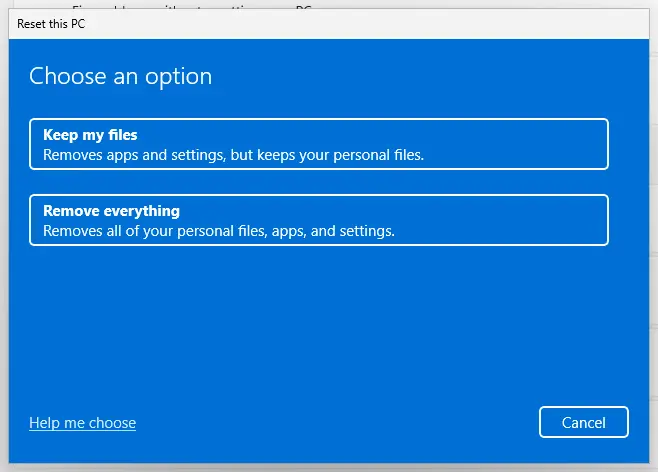
Keep my files removes apps and settings but keeps personal files. Screenshot: Windows 11 26H2. - Choose where Windows comes from. Select Cloud download to download a fresh copy of Windows, or Local reinstall to use the files already on the PC (faster, but may not include the latest updates).
- Reset. Review the summary and select Reset. The PC restarts several times.
These steps were written for Windows 11 22H2 and later. The full page with the other versions and what each result means: Reinstall Windows without losing files
- Choose Keep personal files and apps when Setup asks what to keep.
- After Windows starts, install Windows updates and open the program from the title.
It worked if: Windows starts after several restarts, your files and apps are still there, and no Bad Image window shows.
If not: If the window comes back even now, collect the details in the section below and check the hardware.
If the DLL is either not designed to run on Windows error is still there
Stop changing things and collect what support needs. Three facts decide the next step: the full path, the program in the title and the status code at the end.
- Photograph the window with the title, the path and the Error status code visible.
- Press Win + R, type
winverand note the version and OS build. - After SFC, open
C:\Windows\Logs\CBS\CBS.logand search for the DLL name: it says whether SFC replaced the file or could not. - Open Event Viewer > Windows Logs > Application and look for an Application Error at the time of the window, with the faulting module name.
- Send the photo and these lines to the maker of the program in the title, or ask on Microsoft Q&A for a Windows file.
- Black screen or no desktop. Start in Start Windows or a Mac in Safe Mode and run Fix 3 from there.
- When it is hardware. If new DLLs break again days after a repair, or other files get damaged too, check the disk with Check a disk for errors (chkdsk) and the memory with How to test your RAM with Windows Memory Diagnostic.
How to keep the Bad Image DLL error from coming back
- Never copy DLLs from download sites. A single file can be the wrong version, the wrong 32-bit or 64-bit type, or carry malware. That is the shortest road to the next Bad Image window.
- Keep the Visual C++ Redistributable current. Install Microsoft's x64 and x86 v14 packages, not copies bundled by unknown installers.
- Let updates finish. Do not switch off the PC during a Windows or program update; a half-written DLL is a common cause.
- Be careful with cleaners. Registry and DLL cleaners can remove or replace files that programs still need.
- Keep restore points on so a bad change can be undone with Undo recent changes with System Restore.
If you still run Windows 10, plan the move to Windows 11 or an extended security option: Windows 10 left support on 14 October 2025 and no longer gets regular fixes for damaged system files.
Frequently asked questions
What does this error mean and how do I fix it?
It means a program tried to load a DLL file and Windows refused the file because its content is damaged, of the wrong type or blocked. The path in the window tells you the fix. A file in a program's folder: repair or reinstall that program (Fix 1). MSVCP140.dll or VCRUNTIME140.dll: repair the Visual C++ Redistributable (Fix 2). A Windows file in System32: run DISM and SFC (Fix 3). Most readers are done after one of these three.
How do I fix MSVCP140.dll is either not designed to run on Windows?
MSVCP140.dll comes from Microsoft's Visual C++ Redistributable, not from Windows itself, even though it sits in System32. Repair both the x64 and the x86 "Microsoft Visual C++ 2015-2022 Redistributable" entries in Installed apps, or install the current packages from Microsoft, then restart (Fix 2). If OneDrive, as in our reader's case, or another program still fails, reinstall that program (Fix 1).
Is it safe to download the DLL from a DLL website?
No. A single DLL from a download site may be the wrong version or the wrong 32-bit or 64-bit type, which is exactly what causes this window. It may also be unsigned or infected. The right copy comes from the program's installer, the Visual C++ Redistributable or Windows' own repair tools. Use Fix 1, Fix 2 or Fix 3 instead, depending on the path in the window.
Does regsvr32 fix a DLL that is not designed to run on Windows?
Almost never. regsvr32 registers COM libraries so other programs can find them; it does not repair a damaged file. Most DLLs named in this window, such as MSVCP140.dll or zlib1.dll, are not COM libraries at all. regsvr32 then shows an error that the entry point DllRegisterServer was not found. Repair or replace the file with Fix 1, Fix 2 or Fix 3.
What do the codes 0xc000012f and 0xc000007b mean?
Both are Windows status codes at the end of the window. Microsoft names 0xc000012f STATUS_INVALID_IMAGE_NOT_MZ: the file does not start with the letters MZ that every Windows program file starts with, so it is damaged or empty. 0xc000007b is STATUS_INVALID_IMAGE_FORMAT, often a 32-bit DLL loaded by a 64-bit program or the reverse. Both point to a bad copy of the file, not to a setting.
Why does the window name winmm.dll, hostfxr.dll or C2R64.dll?
Each file has an owner. winmm.dll is a Windows file in System32. A copy inside a game folder belongs to that game or a mod, so remove the mod or verify the game. hostfxr.dll belongs to the .NET runtime, so repair it with How to repair Microsoft Visual C++ Redistributable and .NET Framework. C2R64.dll belongs to Microsoft 365 Click-to-Run: repair Office from Installed apps, as in our mso20win32client.dll Bad Image guide.
Why does a BugSplat DLL say it is not designed to run on Windows?
A BugSplat DLL is a crash reporter that some games and programs ship inside their own folder. It is not a Windows file, so Windows tools cannot repair it. Verify the game files in its launcher, or reinstall the program (Fix 1). If the window names online-fix.dll, that file comes from a tool for unlicensed copies of games; this page does not cover it, and a licensed copy from the store avoids it.
Why does OneDrive show a Bad Image window?
OneDrive loads many DLLs at sign-in, so it is often the program in the title. If the path is MSVCP140.dll or another MSVC file, repair Visual C++ (Fix 2). If it is a codec DLL in the OneDrive folder with status 0xc0e90002, see our OneDrive Bad Image guide, which resets OneDrive without touching your files.
Is the DLL not designed to run on Windows error a virus?
Usually not. The message only says a file could not be loaded, and damaged updates or programs cause it far more often. Be careful when the DLL sits in Temp, Downloads or AppData, or a Windows file name appears in a strange folder. Then scan with Microsoft Defender (Fix 6) before you repair anything, and do not run programs from that folder.
I tried everything and it did not help. Is there another way to fix this?
Yes: a repair install of Windows (Fix 7) replaces every Windows file and keeps your files and apps. Before that, check that you repaired the right owner: the program in the title, the Visual C++ packages in both x64 and x86, then Windows. If files keep breaking after repairs, test the disk with chkdsk and the memory with Windows Memory Diagnostic, because failing hardware damages files again.
Sources
- Microsoft Learn: [MS-ERREF] NTSTATUS Values (0xC000007B Bad Image text, 0xC000012F, 0xC0000020) (learn.microsoft.com)
- Microsoft Learn: Latest supported Visual C++ Redistributable downloads (v14 x64, x86, ARM64 links, covered Visual Studio versions) (learn.microsoft.com)
- Microsoft Q&A (user report): DLL error is not either designed or cannot run on Windows 10, with Settings, search and Store broken (learn.microsoft.com)
Did this fix work?
One click, no account. It tells the next reader which guides are worth their time.
Questions and experiences: fix "DLL is either not designed to run on Windows or it contains an error"
Still broken, or found a fix we did not cover? Ask here: members and our editors answer. Reading is open; writing needs a free account.
…